> For the complete documentation index, see [llms.txt](https://docs.sonarsource.com/llms.txt). Markdown versions of documentation pages are available by appending `.md` to page URLs; this page is available as [Markdown](https://docs.sonarsource.com/agent-centric-development-cycle/developer-tools/agent-plugins/agent-apps-for-github.md).
# Agent apps for GitHub
Install the SonarQube agent GitHub app to bring SonarQube into your AI coding workflow through GitHub agent apps.
> **Available only with SonarQube Cloud.**
The SonarQube agent is a GitHub agent app that connects your repositories to SonarQube Cloud through the [SonarQube MCP Server](https://docs.sonarsource.com/sonarqube-mcp-server/). From a pull request comment or your repository's **Agents** view, ask it about quality gates, issues, coverage, and dependency risks.
## Features
* Check whether the SonarQube quality gate passes for a pull request, branch, or project.
* List and filter bugs, vulnerabilities, and code smells flagged by SonarQube.
* Apply fixes for specific SonarQube findings by rule key and file location.
* Inspect test coverage and find duplicated code blocks.
* Surface dependency risks (SCA) on pull requests, when SonarQube Advanced Security is available.
## Prerequisites
* A working SonarQube Cloud account ([sonarcloud.io](https://sonarcloud.io) or [sonarqube.us](https://sonarqube.us)) using GitHub as the selected DevOps platform. For setup instructions, see the [Getting started with GitHub](/sonarqube-cloud/getting-started/github.md) page in the SonarQube Cloud documentation.
* Access to [GitHub agent apps](https://docs.github.com/en/copilot/how-tos/use-copilot-agents/cloud-agent/use-agent-apps).
* Ability to install apps in your GitHub organization or repository (including personal repositories).
## Getting started
1. Install the [SonarQube agent](https://github.com/apps/sonarqube-agent) GitHub app in your GitHub organization or repository. Use the [SonarQube agent US](https://github.com/apps/sonarqube-agent-us) app instead if your SonarQube Cloud organization is in the US region ([sonarqube.us](https://sonarqube.us)).
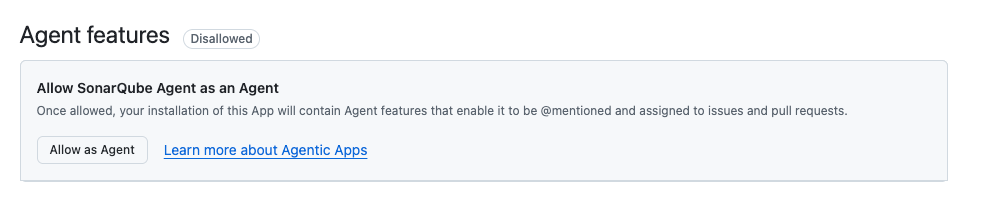
* Select **Allow as Agent** before selecting **Install & Authorize**.
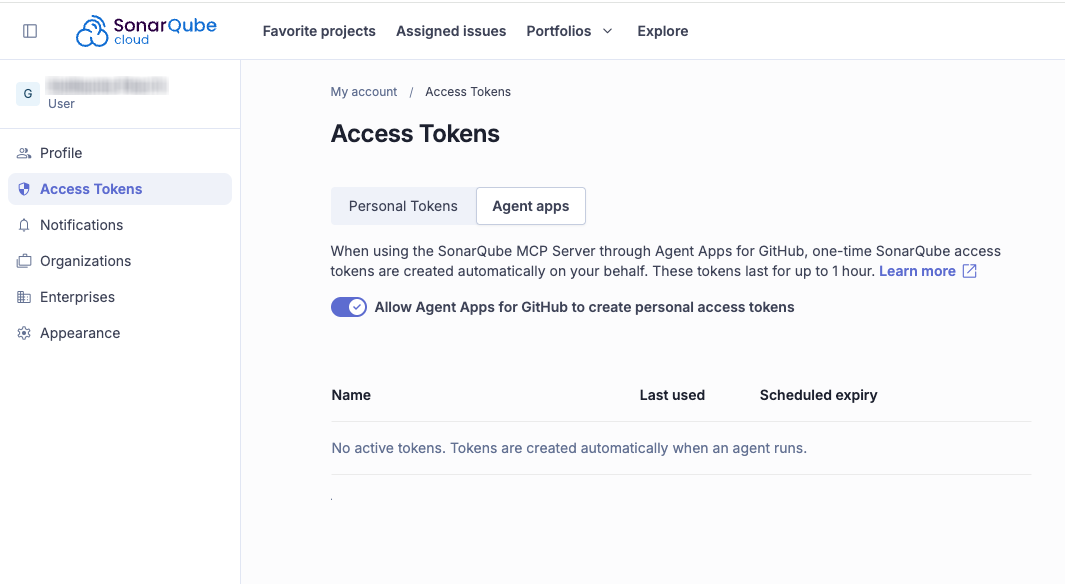
2. Every user who wants to use the SonarQube agent app must authorize the access tokens in SonarQube Cloud.
* If you are installing the GitHub app, you are automatically redirected to the consent page during installation.
* Otherwise, navigate to **My account** > **Access Tokens**, select the [**Agent Apps** tab](https://sonarcloud.io/account/access-tokens?tab=github_agent_hq), and toggle the **Allow Agent Apps for GitHub to create personal access tokens** option. See [Managing your access tokens](/sonarqube-cloud/managing-your-account/managing-tokens.md#agent-apps) in the SonarQube Cloud documentation.
3. If you already had the SonarQube agent installed, you will need to configure the GitHub app to allow it as an Agent. Go to the organization or repository where the app was installed, open the app page from step 1, and select **Configure**. In the **Agent features** section, select **Allow as Agent**.
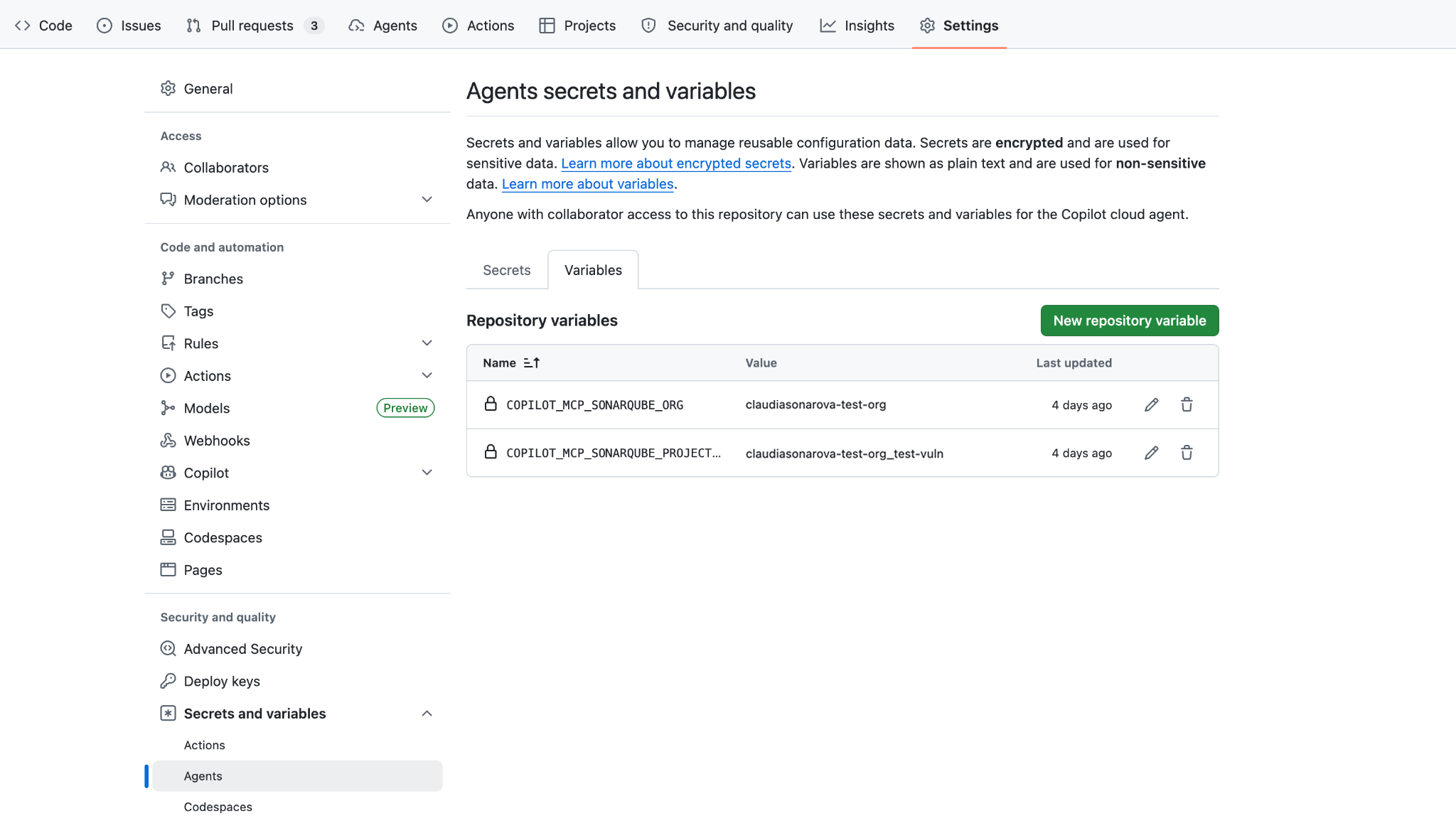
4. In GitHub, go to your repository or organization **Settings** > **Secrets and variables** > **Agents**.
5. On the **Agent secrets and variables** page, switch to the **Variables** tab. Create the following variables, copying the names exactly. Your option depends on the level: select **New organization variable** at the organization level, or **New repository variable** at the repository level:
> **Important:** Use these exact variable names.
| Name | Value | Description |
| ----------------------------------- | -------------------------------------------------------------------------------------------------------------------------------------------------------------------------------------------------- | ------------------------------------------------------------------------------------------------------------------------------------------------------------------------------- |
| `COPILOT_MCP_SONARQUBE_ORG` | Your SonarQube Cloud [organization key](/sonarqube-cloud/managing-your-projects/retrieving-projects.md#viewing-project-information). | Required. If your GitHub organization corresponds to a single SonarQube Cloud organization, set this once in organization agent variables and reuse it across all repositories. |
| `COPILOT_MCP_SONARQUBE_PROJECT_KEY` | The [project key](/sonarqube-cloud/managing-your-projects/retrieving-projects.md#viewing-project-information) inside your SonarQube Cloud organization that is linked with your GitHub repository. | Optional but recommended. Set this under repository agent variables. |
> **Note:** When `COPILOT_MCP_SONARQUBE_ORG` is set at both the GitHub organization and repository levels, the repository-level value overrides the organization-level value.
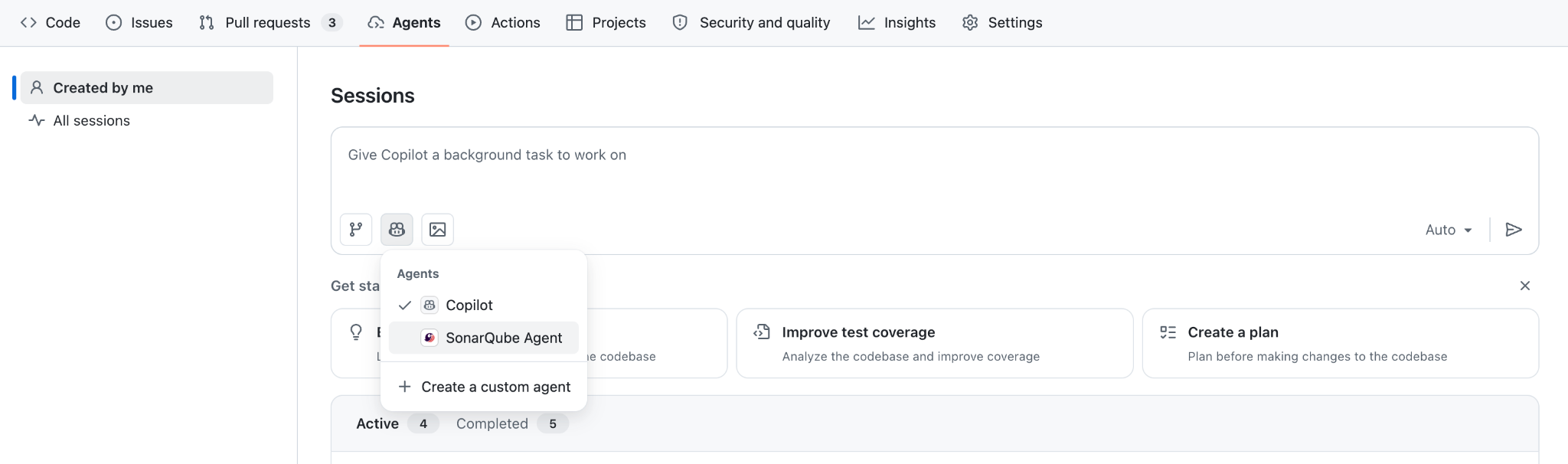
6. You are ready to use the SonarQube agent through agent apps. Go to your GitHub repository > **Agents**, select **SonarQube Agent** in the dropdown, and submit a prompt.
You can also mention the agent in your pull request comments.
## Verify that it works
From your repository's **Agents** view, ask the agent: "Which projects can I see?" It should respond with the SonarQube projects accessible from your organization. If it doesn't, check that the `COPILOT_MCP_SONARQUBE_ORG` variable is set correctly and that the SonarQube agent app is allowed as an Agent on your repository or organization.
## Usage
Interact with the SonarQube agent in natural language from your repository's **Agents** view, or by mentioning the SonarQube agent app in a pull request comment.
The agent picks up the project and pull request context automatically, so you don't usually need to specify a project, branch, or pull request.
### Quality gate
* "Is the quality gate passing?"
* "Did this PR pass SonarQube analysis?"
* "What conditions are failing?"
### List issues
* "List the issues."
* "Show me bugs and vulnerabilities."
* "What's flagged on this PR?"
* "Issues in `src/auth/login.py`."
### Fix an issue
* "Fix `python:S2077` at `src/auth/login.py:34`."
* "Resolve this SonarQube finding."
* "Apply the suggested fix."
> **Note:** After a fix is applied, the SonarQube analysis doesn't refresh immediately. The new state appears after the next CI analysis of the branch or pull request.
### Analyze a code snippet
* "Analyze this file."
* "Run Sonar on `src/auth/login.py`."
* "Scan this snippet."
### Coverage
* "What's the test coverage?"
* "Which files have low coverage?"
* "Which lines aren't covered in `src/auth/login.py`?"
### Duplication
* "Show duplicated code."
* "Where is this block duplicated?"
### Dependency risks
Dependency risks require SonarQube Advanced Security on the connected organization (SonarQube Cloud Enterprise plan).
* "Any vulnerable dependencies?"
* "Check for CVEs in dependencies."
### List projects
* "Which projects can I see?"
* "Find the key for project `my-project`."
### What else the agent can do
Beyond the skills listed above, the SonarQube agent calls the SonarQube MCP Server directly to handle related requests. Ask it in natural language to:
* Explain a rule and how to fix violations.
* Look up project metrics, or list the quality gates configured in your organization.
* Search, review, and update security hotspots.
* Change the status of an issue: accept it, mark it as a false positive, or reopen it.
---
# Agent Instructions
This documentation is published with GitBook. GitBook is the documentation platform designed so that both humans and AI agents can read, navigate, and reason over technical content effectively. Learn more at gitbook.com.
## Querying This Documentation
If you need additional information that is not directly available in this page, you can query the documentation dynamically by asking a question.
Perform an HTTP GET request on the current page URL with the `ask` query parameter, and the optional `goal` query parameter:
```
GET https://docs.sonarsource.com/agent-centric-development-cycle/developer-tools/agent-plugins/agent-apps-for-github.md?ask=&goal=
```
`ask` is the immediate question: it should be specific, self-contained, and written in natural language.
`goal` is optional and describes the broader end goal you are ultimately trying to accomplish on behalf of the user. GitBook uses it to tailor the answer towards what is most useful for that goal.
The response will contain a direct answer to the question and relevant excerpts and sources from the documentation.
Use this mechanism when the answer is not explicitly present in the current page, you need clarification or additional context, or you want to retrieve related documentation sections.