> For the complete documentation index, see [llms.txt](https://docs.sonarsource.com/llms.txt). Markdown versions of documentation pages are available by appending `.md` to page URLs; this page is available as [Markdown](https://docs.sonarsource.com/sonarqube-cloud/administering-sonarcloud/enterprise-security/code-encryption.md).
# Code encryption
Use your own Customer Managed Key (CMK), also known as Bring Your Own Key (BYOK), to provide extra security for encrypting your projects’ source code at rest.
This feature is available in the[ Enterprise plan](https://www.sonarsource.com/plans-and-pricing/#sonarqube-cloud-features).
## Overview
SonarQube Cloud stores the source code of analyzed projects to properly display analysis results. Code encryption with Customer Managed Key (CMK) also known as Bring your own key (BYOK) provides an additional level of security to help organizations comply with their regulatory and internal policies that require encryption keys to remain under the company’s control.
### AWS standard encryption
Independently of the plan and configuration, your source code is always protected using built-in AWS standard encryption. See [Protecting data with encryption](https://docs.aws.amazon.com/AmazonS3/latest/userguide/UsingEncryption.html) on AWS documentation website for more details.
### Code encryption with Customer Managed Key (CMK)
The code encryption configuration provides an additional method for user controlled encryption at rest using CMK ensuring that you retain full ownership and control of your most sensitive data, your code.
Benefits:
* **Encrypt code at rest**: Use your own CMK created in AWS Key Management Service (KMS) to encrypt your source code for maximum security and compliance.
* **Meet compliance requirements**: Satisfy regulatory or internal mandates to own and manage the encryption keys of your proprietary data.
* **Control key lifecycle (rotation/revocation)**: As an Enterprise Admin, rotate your CMK for proactive security, or immediately disable it in case of an incident to instantly block access to all encrypted data.
* **Isolate key ownership by department**: Configure a separate CMK per organization within your enterprise so each team independently controls access to its own source code.
### How it works
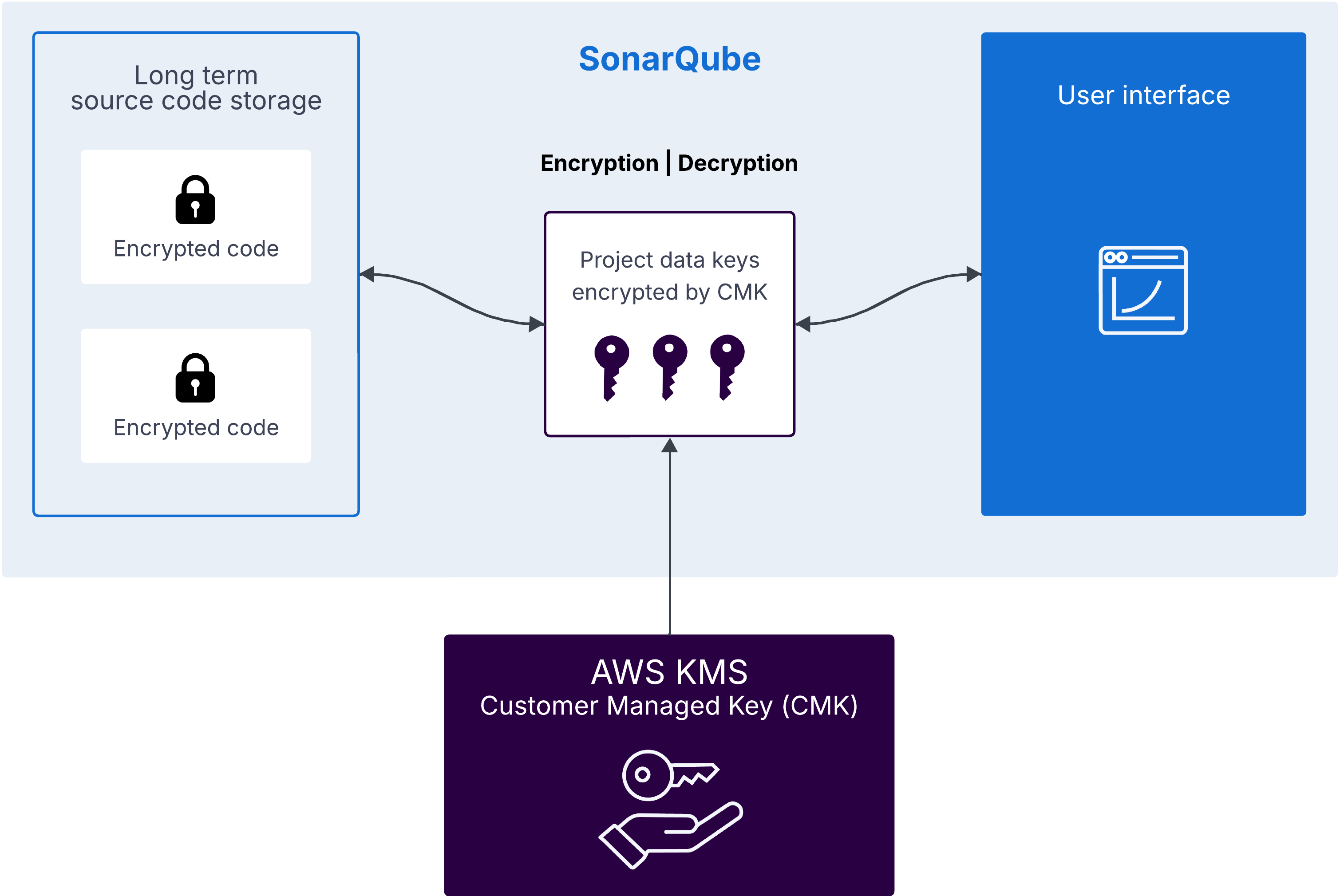
With CMK, SonarQube uses a least privilege key model, providing you with full control over the lifecycle of your keys and limiting SonarQube’s access to the key usage. You generate and manage your AWS KMS keys and SonarQube only performs encryption and decryption functions using the CMK. You do not have to grant SonarQube any administrative roles within the AWS KMS account.
The system utilizes envelope encryption (using AES-256) to ensure maximum security. Once an Enterprise Admin configures your AWS KMS Key ARN (Amazon Resource Name) in the Enterprise settings, SonarQube generates a unique Data Encryption Key (DEK) for each project. Your source code is encrypted with these project-specific DEKs, which are in turn protected by your CMK. This architecture ensures that you retain full control over the data lifecycle. If you revoke or disable your key in AWS, access to the encrypted source code within SonarQube Cloud is immediately blocked.
### Caching of data keys
To enhance the performance of code encryption and decryption, and to reduce the reliance on AWS KMS requests, SonarQube's code encryption feature utilizes caching for project data keys. Unencrypted data keys are stored in this cache for a maximum duration of 5 minutes.
In case of key revocation, some projects might still be available for up to 5 minutes due to cached project data keys.
### Irreversibility of CMK code encryption
> **Warning:** This feature is irreversible and once enabled, it cannot be disabled or reversed.
Before you enable code encryption with CMK on your enterprise, keep the following in mind:
* Once code encryption with your CMK is enabled for your enterprise, it cannot be undone or disabled.
* Organizations that are part of the enterprise with the code encryption enabled cannot be downgraded. The only way to detach an organization from the enterprise is to remove it and re-create it elsewhere, which will result in the permanent loss of all historical data.
* Once an organization is added to an enterprise with code encryption enabled, its projects automatically become encrypted.
* Once organization encryption keys are enabled for your enterprise, they cannot be disabled or reversed.
* Once an Organization Admin activates a CMK, the organization can no longer use the enterprise-level CMK.
### Other considerations
Before enabling CMK encryption on your enterprise, consider the following:
* When using Sonar Vortex's analysis features, the project context is collected and stored by SonarQube Cloud. This context, usually containing project dependencies, build artifacts, type information, and others, is not encrypted with CMK. See [Sonar Vortex analysis](https://docs.sonarsource.com/agent-centric-development-cycle/verify/sonar-vortex-agentic-analysis) for more information.
* When the Sonar analysis scanner uploads the analysis report to SonarQube Cloud, it's saved before the SonarQube processes it. Those reports are not encrypted with a CMK and are removed after 5 days.
## Permissions
The **Administer Enterprise** permission is required to set and manage code encryption for an enterprise. To change permissions, from the **Account** menu select *Your Enterprise* > **Administration** > **Enterprise Permissions** and switch the Administer Enterprise toggle on for specific users.
The **Administer organization** permission is required to set and manage code encryption for an organization when organization encryption keys are enabled for the enterprise.
## Setting up CMK for code encryption
{% stepper %}
{% step %}
#### Creating CMK in AWS KMS
To set up code encryption, you must create a Symmetric CMK in AWS KMS under your AWS account. Ensure you are in the correct region for your SonarQube Cloud instance.
Request the SonarQube AWS Account ID and region from the [Sonar Help Center](https://help.sonarsource.com/hc/en-us).
1. In **AWS KMS**, create a **Symmetric** key.
2. In the **Key Policy** step, switch to **JSON view** and add the following code to the `Statement` array replacing the `[ACCOUNT_ID]` with the SonarQube AWS Account ID under `Principal`.
```json
{
"Sid": "Allow SonarQube Cloud use of the key",
"Effect": "Allow",
"Principal": {
"AWS": "arn:aws:iam::[ACCOUNT_ID]:root"
},
"Action": [
"kms:Decrypt",
"kms:ReEncrypt*",
"kms:GenerateDataKey",
"kms:DescribeKey",
"kms:CreateGrant"
],
"Resource": "*"
}
```
{% endstep %}
{% step %}
#### Configuration in SonarQube Cloud enterprise
Configure and rotate code encryption for a SonarQube Cloud enterprise.
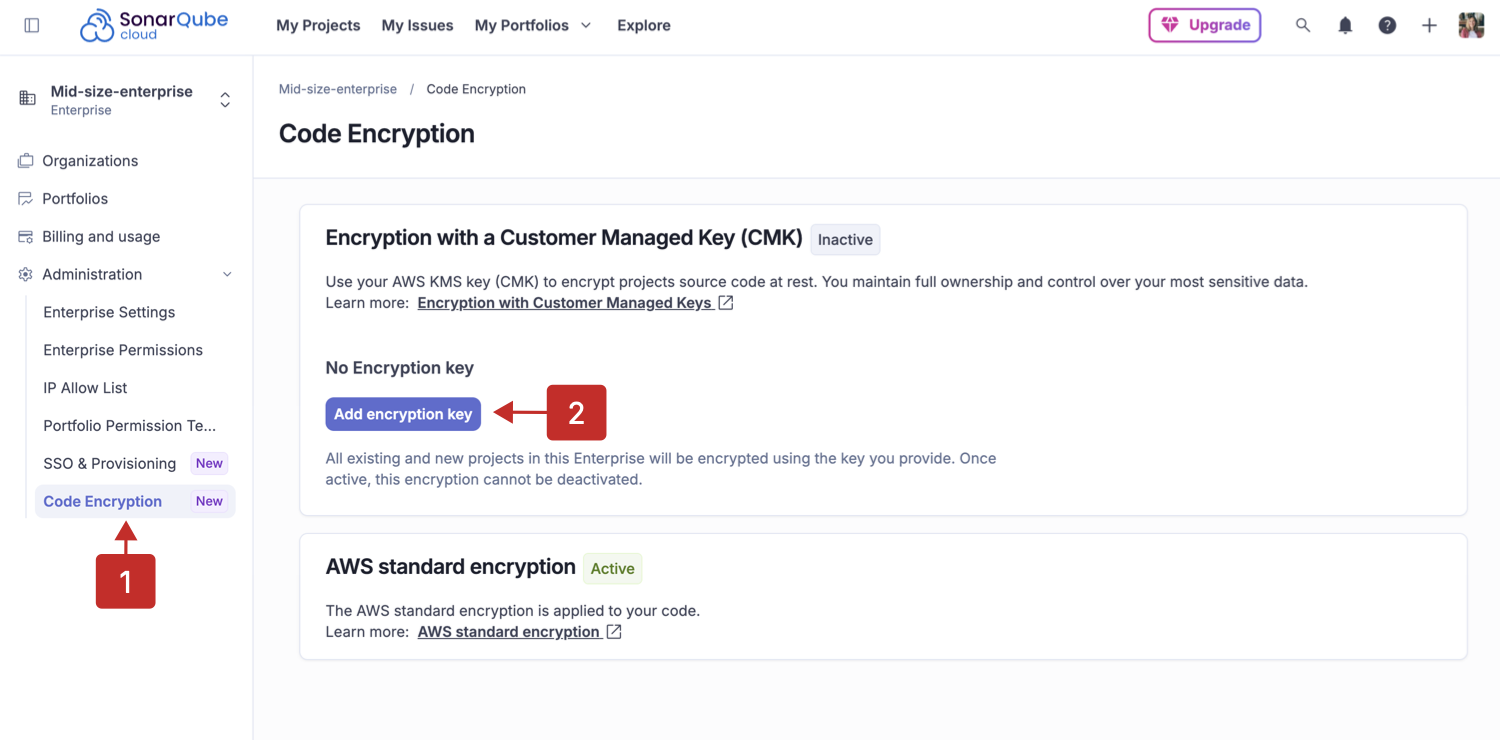
1. Go to **Account** menu > *your enterprise* > **Administration** > **Code Encryption**
2. Select **Add encryption key** and enter the key ARN (Amazon Resource Name) from AWS KMS.
3. Select the checkboxes to acknowledge that you accept the responsibilities for key management:
* *I understand my responsibilities for key management and the risks of irreversible loss of access to data if keys are lost.*
* *I understand that code encryption cannot be reverted.*
Once the encryption is configured at the enterprise level, the encryption process of all existing projects starts, and all projects created afterward will be encrypted with their first analysis.
{% endstep %}
{% endstepper %}
## Rotating CMK
You have two options for generating new cryptographic material for your CMK.
#### Using SonarQube Cloud CMK rotation
Create a new AWS KMS key with a new ARN and then update the SQC configuration to utilize this new key. See the [#creating-cmk-in-aws-kms](#creating-cmk-in-aws-kms "mention") section for more information on how to create a key.
To rotate CMK:
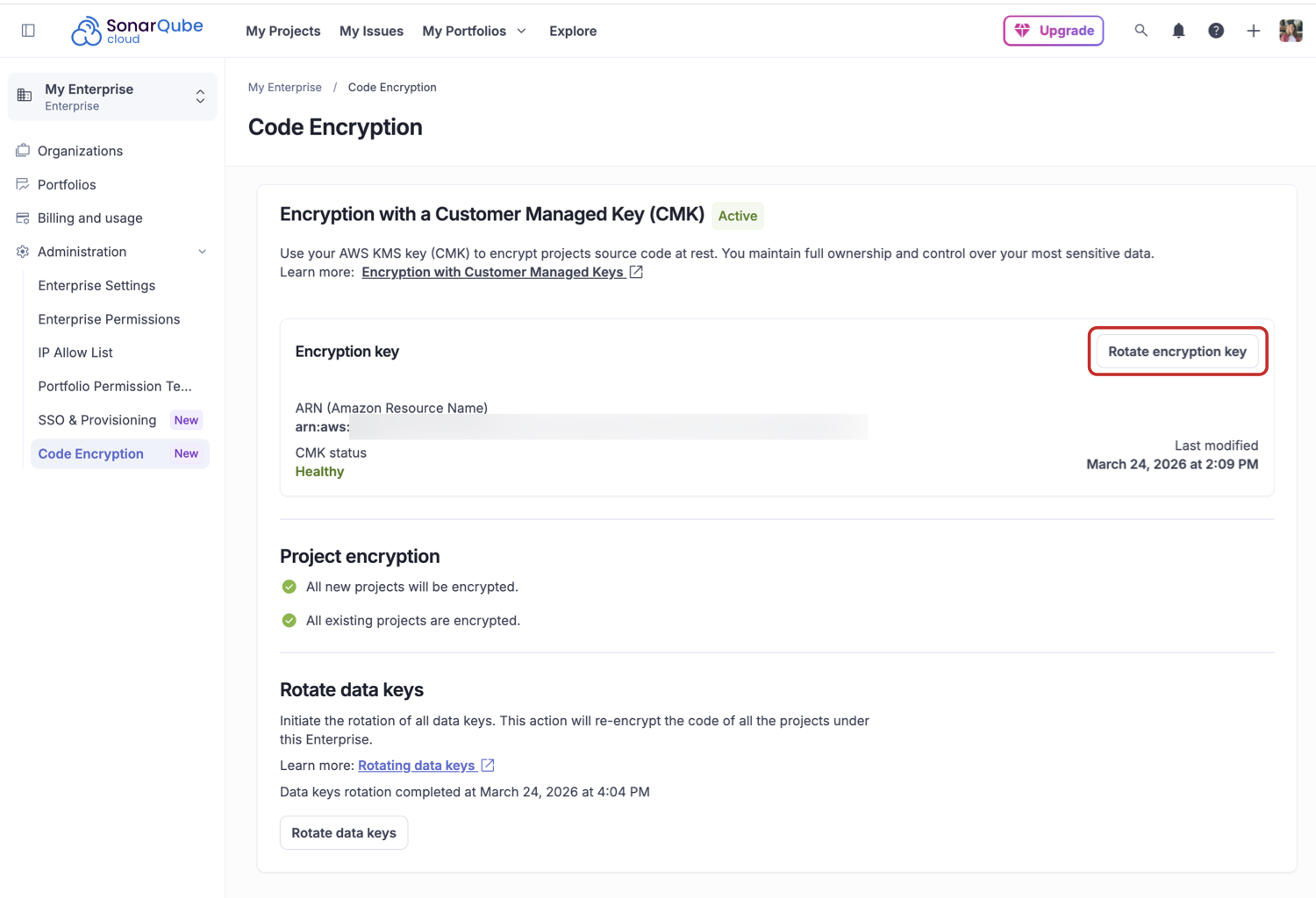
1. Go to **Account** menu > *your enterprise* > **Administration** > **Code Encryption.**
2. Select the **Rotate encryption key** button.
3. Enter the **New key ARN** (Amazon Resource Name).
4. Select the checkbox for *I understand my responsibilities for key management and the risks of irreversible loss of access to data if keys are lost.*
5. Select **Rotate encryption key.**
The new CMK is used to re-encrypt existing and future data keys, the source code is not re-encrypted. Both old and new CMK should be enabled during the rotation procedure. Upon completion, disable the old CMK if needed, but we recommend keeping it for a 30-day retention period.
#### Using AWS KMS key rotation
It’s possible to rotate the key material for an existing AWS KMS key by either enabling automatic key rotation or performing an on-demand rotation. Refer to [AWS documentation](https://docs.aws.amazon.com/kms/latest/developerguide/rotate-keys.html) for more information. SonarQube Cloud operates transparently regarding AWS KMS key rotation, meaning no action is required on the SonarQube Cloud side when the keys are rotated.
## Revoking the encryption key in case of an incident
Should an incident occur, your security team can instantly block access to all encrypted data by revoking the CMK within AWS KMS. To do this, locate the key in the AWS KMS interface, open it, and select **Disable** under **Key actions**.
> **Note:** Due to data keys caching, some projects might still be available for up to 5 minutes.
## Rotating data keys
Once all projects are encrypted, you can manually trigger rotation of their data keys.
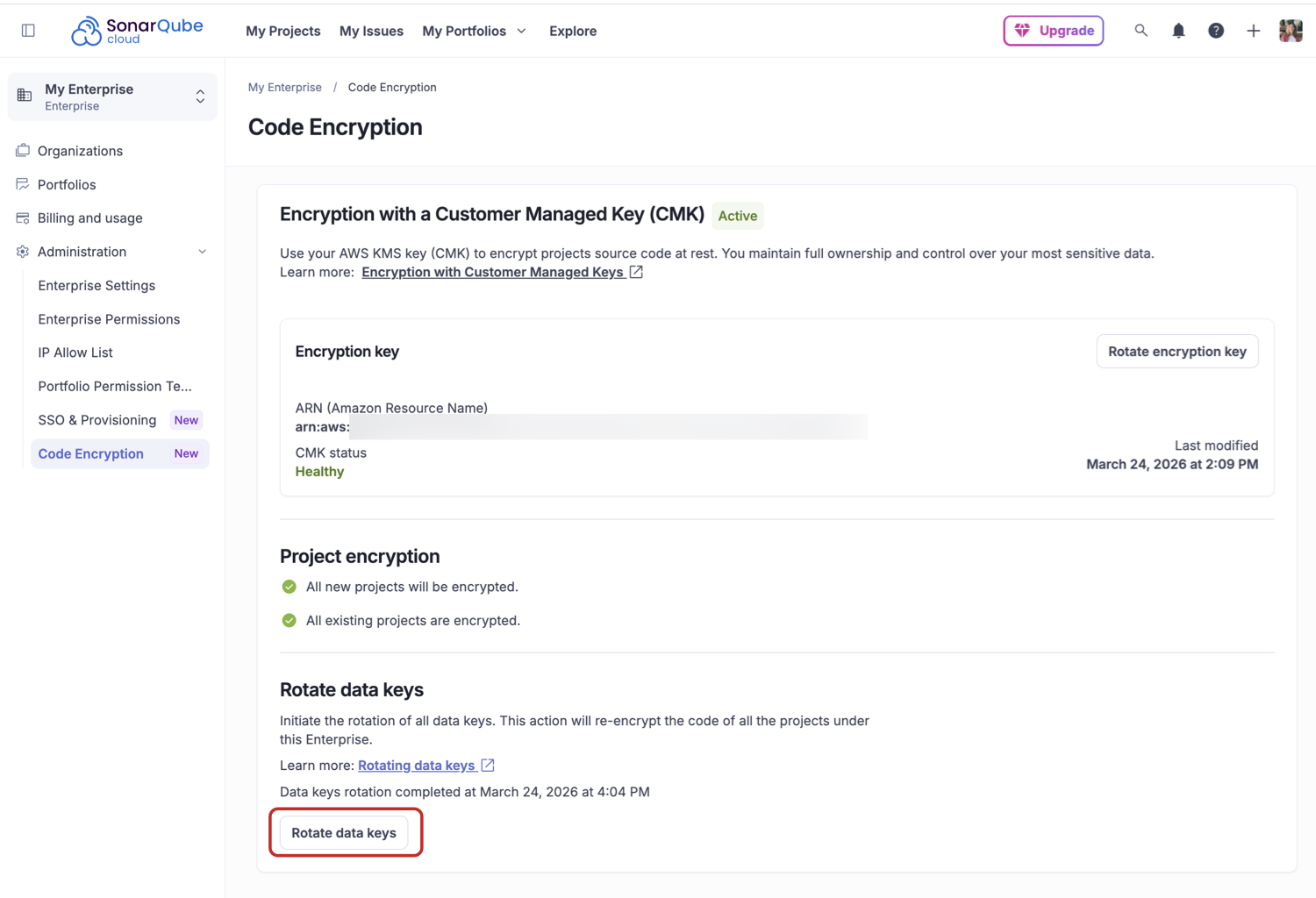
1. Go to **Account** menu > *Your Enterprise* > **Administration** > **Code Encryption**
2. Select **Rotate data keys**.
This process is resource-intensive as it requires the re-encryption of all project data. CMK rotation is not possible while data key rotation is in progress. This feature provides an extra layer of security that may be mandatory for some organizations.
## Organization encryption keys
Organization encryption keys let Enterprise Admins delegate key management to individual Organization Admins. Each organization within the enterprise can then configure and manage its own CMK independently, with no cross-department access or dependency.
### Enabling organization encryption keys
> **Important:** Enabling organization encryption keys is irreversible. Once enabled, they cannot be disabled or reversed.
To enable organization encryption keys:
1. Go to **Account** menu > *your enterprise* > **Administration** > **Code Encryption**.
2. Enable **Allow organizations to manage their own encryption key**
3. Confirm the irreversibility disclaimer.
Once organization encryption keys are enabled:
* Enterprise Admins cannot configure a CMK for individual organizations; CMK management is delegated to Organization Admins.
* Organizations that have not configured an organization CMK continue to use the enterprise-level CMK.
* New organizations added to the enterprise start with the enterprise-level CMK until their Organization Admin activates an organization CMK.
### Setting up CMK for an organization
Once organization encryption keys are enabled for your enterprise, each Organization Admin can configure a CMK for their organization.
Before activating a CMK for your organization, create one in AWS KMS following the same steps as for enterprise-level setup. See [#creating-cmk-in-aws-kms](#creating-cmk-in-aws-kms "mention").
To configure a CMK for your organization:
1. Go to **Account** menu > *your organization* > **Administration** > **Code Encryption**.
2. Select **Add encryption key** and enter the key ARN from AWS KMS.
3. Select the checkboxes to acknowledge that you accept the responsibilities for key management.
* *I understand my responsibilities for key management and the risks of irreversible loss of access to data if keys are lost.*
* *I understand that code encryption cannot be reverted.*
Once the CMK is activated for your organization, existing projects are re-encrypted with it, and all new projects are encrypted from their first analysis.
### Rotating CMK and data keys (per organization)
Organization Admins can rotate their CMK and data keys independently. The rotation procedure is the same as for enterprise-level rotation; see [#rotating-cmk](#rotating-cmk "mention") and [#rotating-data-keys](#rotating-data-keys "mention").
Rotation in one organization does not affect or block rotation in other organizations or at the enterprise level.
### Enterprise overview of organization encryption
When organization encryption keys are enabled, the enterprise-level **Code Encryption** page displays a read-only summary of the encryption status at the organization level, including the last rotation dates for the CMK and data keys. Enterprise Admins cannot trigger operations on behalf of individual organizations from this view.
## Audit logs
Key operations related to code encryption are securely recorded in the audit logs of the enterprise. The logged events are:
| Event type | Description |
| ------------------------------------------ | ------------------------------------------ |
| `enterprise.master_key_added` | CMK added |
| `enterprise.master_key_rotation_started` | CMK rotation started |
| `enterprise.master_key_rotation_completed` | CMK rotation completed |
| `enterprise.projects_encryption_started` | Projects encryption started |
| `enterprise.projects_encryption_completed` | Projects encryption completed |
| `enterprise.data_key_rotation_started` | Data key rotation started |
| `enterprise.data_key_rotation_completed` | Data key rotation completed |
| `enterprise.org_key_override_enabled` | Organization key override enabled |
| `org.master_key_added` | Organization CMK added |
| `org.master_key_rotation_started` | Organization CMK rotation started |
| `org.master_key_rotation_completed` | Organization CMK rotation completed |
| `org.data_key_rotation_started` | Organization data key rotation started |
| `org.data_key_rotation_completed` | Organization data key rotation completed |
| `org.projects_encryption_started` | Organization projects encryption started |
| `org.projects_encryption_completed` | Organization projects encryption completed |
See [Audit logs](/sonarqube-cloud/administering-sonarcloud/enterprise-security/audit-logs.md#list-of-logged-events) for more information.
## CMK health status and troubleshooting
The CMK health indicator in the **Encryption key** section displays the status of your CMK. If the status is Unhealthy, it indicates that there’s a problem with the CMK, for example, the key is disabled or some required permissions are missing. When the key is Unhealthy, code from past analyses is still stored encrypted, while the new analyses will fail to store the code.
## Related page
* [Enterprise security](/sonarqube-cloud/administering-sonarcloud/enterprise-security.md)
* [Audit logs](/sonarqube-cloud/administering-sonarcloud/enterprise-security/audit-logs.md)
---
# Agent Instructions
This documentation is published with GitBook. GitBook is the documentation platform designed so that both humans and AI agents can read, navigate, and reason over technical content effectively. Learn more at gitbook.com.
## Querying This Documentation
If you need additional information that is not directly available in this page, you can query the documentation by asking a question.
Perform an HTTP GET request on the following URL with the `ask` and `goal` query parameters:
```
GET https://docs.sonarsource.com/sonarqube-cloud/administering-sonarcloud/enterprise-security/code-encryption.md?ask=&goal=
```
`ask` is the immediate question: it should be specific, self-contained, and written in natural language.
`goal` is what the user is ultimately trying to achieve, the reason they need the answer. Sharing it helps GitBook give you a better, more relevant answer. A goal is most helpful when it describes the outcome the user wants rather than restating the question. For example, with `ask=how do I create an API token`, a goal like `automate deployments from our CI pipeline` lets GitBook tailor the answer to that use case.
The response will contain a direct answer to the question and relevant excerpts and sources from the documentation.
Use this mechanism when the answer is not explicitly present in the current page, you need clarification or additional context, or you want to retrieve related documentation sections.