> For the complete documentation index, see [llms.txt](https://docs.sonarsource.com/llms.txt). Markdown versions of documentation pages are available by appending `.md` to page URLs; this page is available as [Markdown](https://docs.sonarsource.com/sonarqube-cloud/administering-sonarcloud/enterprise-security/sso-and-provisioning/set-up-scim.md).
# Set up SCIM
If Single Sign-On (SSO) is used in your SonarQube Cloud enterprise for user authentication, you can set up SCIM to automate provisioning. SCIM provisioning is supported with any identity provider.
*This feature requires the SonarQube Cloud* [*Enterprise*](https://www.sonarsource.com/plans-and-pricing/) *licence.*
For more information about the provisioning feature, see [About SSO and provisioning](/sonarqube-cloud/administering-sonarcloud/enterprise-security/sso-and-provisioning/about.md#related-pages).
{% hint style="warning" %}
* With SCIM provisioning, users and groups are provisioned exclusively in your identity provider but permissions are still managed in SonarQube Cloud.
* If you're migrating from SSO with Just-in-Time provisioning to SCIM provisioning, see [About SSO and provisioning](/sonarqube-cloud/administering-sonarcloud/enterprise-security/sso-and-provisioning/about.md#limitations-1).
* If you don't want to use SCIM, make sure you have created and configured the user groups in SonarQube Cloud as described in [Before setting up SSO and provisioning](/sonarqube-cloud/administering-sonarcloud/enterprise-security/sso-and-provisioning/before-you-start.md#managing-groups-in-sonarqube-cloud-if-using-jit-provisioning).
{% endhint %}
To set up SCIM provisioning in your enterprise, you must be the administrator of the enterprise in SonarQube Cloud.
## Step 1: Start the Provisioning setup assistant
1. Retrieve your enterprise. For more information, see [Retrieving and viewing your enterprise](/sonarqube-cloud/administering-sonarcloud/managing-enterprise/retrieving-and-viewing-your-enterprise.md).
2. Go to **Administration** > **SSO & Provisioning**. The **SSO & Provisioning** page opens.
3. Expand the **Provisioning (SCIM)** section and select **Set up provisioning**. The **Configure Provisioning** assistant opens.
{% hint style="danger" %}
* Before setting up SCIM provisioning, you must resolve any setup warnings for Single Sign-On. To find and fix them, see the [Troubleshooting SSO and provisioning](/sonarqube-cloud/administering-sonarcloud/enterprise-security/sso-and-provisioning/troubleshooting.md) page.
* Note that the attribute mapping was changed recently. If your SSO setup was performed before this change, a warning will be displayed. In that case, follow the instructions to update your mapping in SonarQube Cloud. Check also the attribute mapping in your identity provider to make sure it matches the new SonarQube Cloud's mapping. For more information, see [Set up SSO](/sonarqube-cloud/administering-sonarcloud/enterprise-security/sso-and-provisioning/set-up-sso.md#create-and-set-up-the-sonarqube-cloud-application-in-your-identity-provider).
{% endhint %}
## Step 2: Set up SCIM provisioning in your identity provider
In this step, you will configure your identity provider’s application for SonarQube Cloud by copying values from SonarQube Cloud’s SCIM provisioning setup assistant. Follow the instructions in the assistant. For more information on some configurations, see below.
{% hint style="info" %}
If you used Okta Express Configuration to set up SSO, SCIM provisioning is not available, because that method adds the SonarQube Cloud app from the Okta App Catalog. See the [Using Okta Express Configuration](/sonarqube-cloud/administering-sonarcloud/enterprise-security/sso-and-provisioning/using-okta-express-configuration.md) page for detailed instructions when using the Okta Express Configuration.
{% endhint %}
With Okta SAML
1. In Okta, open the application used to manage Single Sign-On in SonarQube Cloud.
2. In the **General** tab, in **App Settings**, select **Edit**.
3. In **Provisioning**, select **SCIM** and save. The **Provisioning** tab is added to your application.
4. Open the **Provisioning** tab.
> **Note:** The **To Okta** tab displays an attribute mapping section that requires no changes:
>
> * Do not add an **Active** attribute mapping; this causes user provisioning to fail.
> * Do not modify the email mapping; the default works correctly.
> * Do not enable **Import New Users and Profile Updates**; this controls the reverse direction (Okta importing from SonarQube Cloud) and is not required.
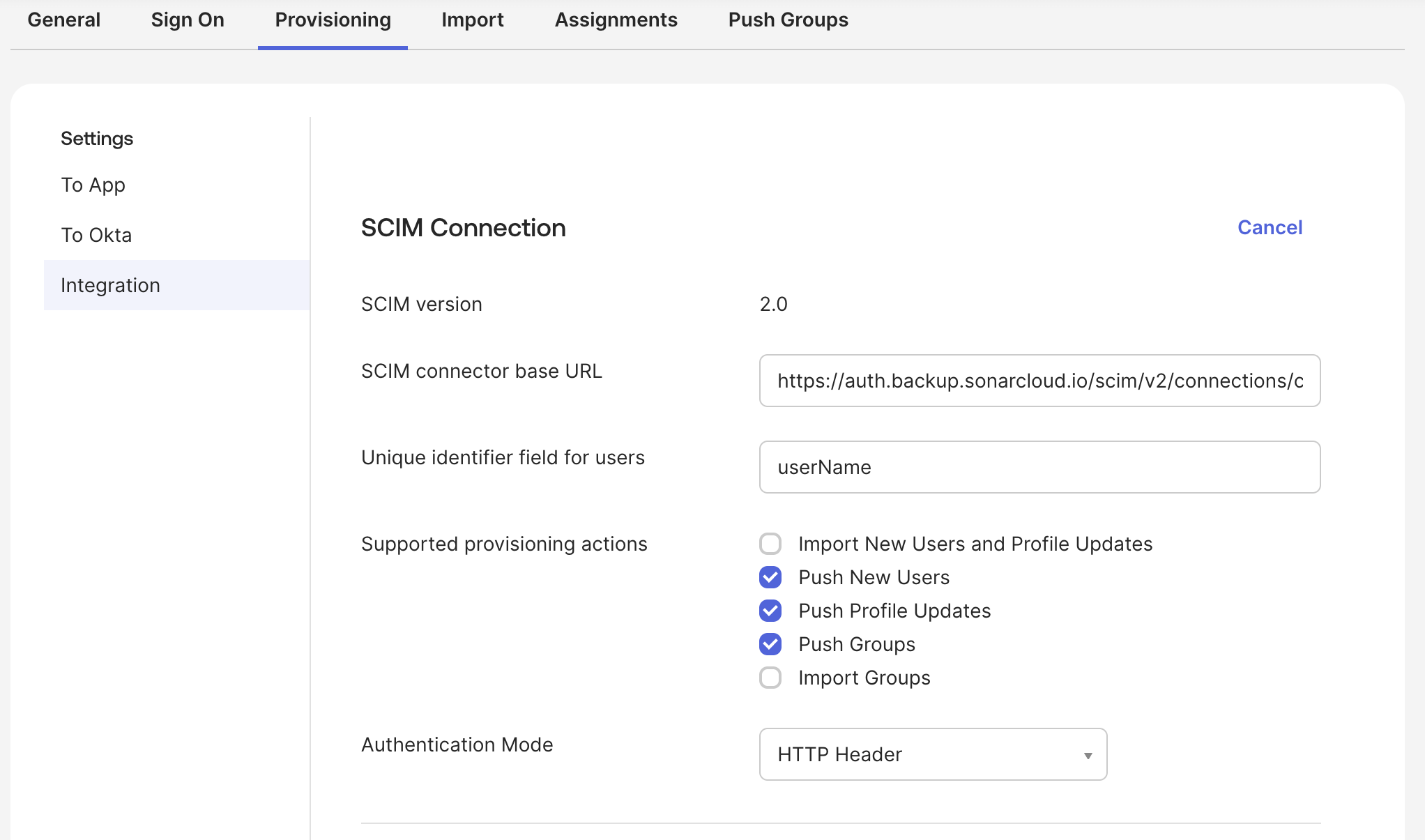
5. In **SCIM Connection**, set the parameters as described below:
* **SCIM connector base URL**: Copy-paste the **Provisioning Endpoint URL** from SonarQube Cloud’s setup assistant.
* **Unique identifier field for users**: Copy-paste the **User ID** attribute value in **Required attributes** from SonarQube Cloud’s setup assistant.
* **Supported provisioning actions**: Select the following options:
* **Push New Users**
* **Push Profile Updates**
* **Push Groups**
* **Authentication Mode**: `HTTP Header`
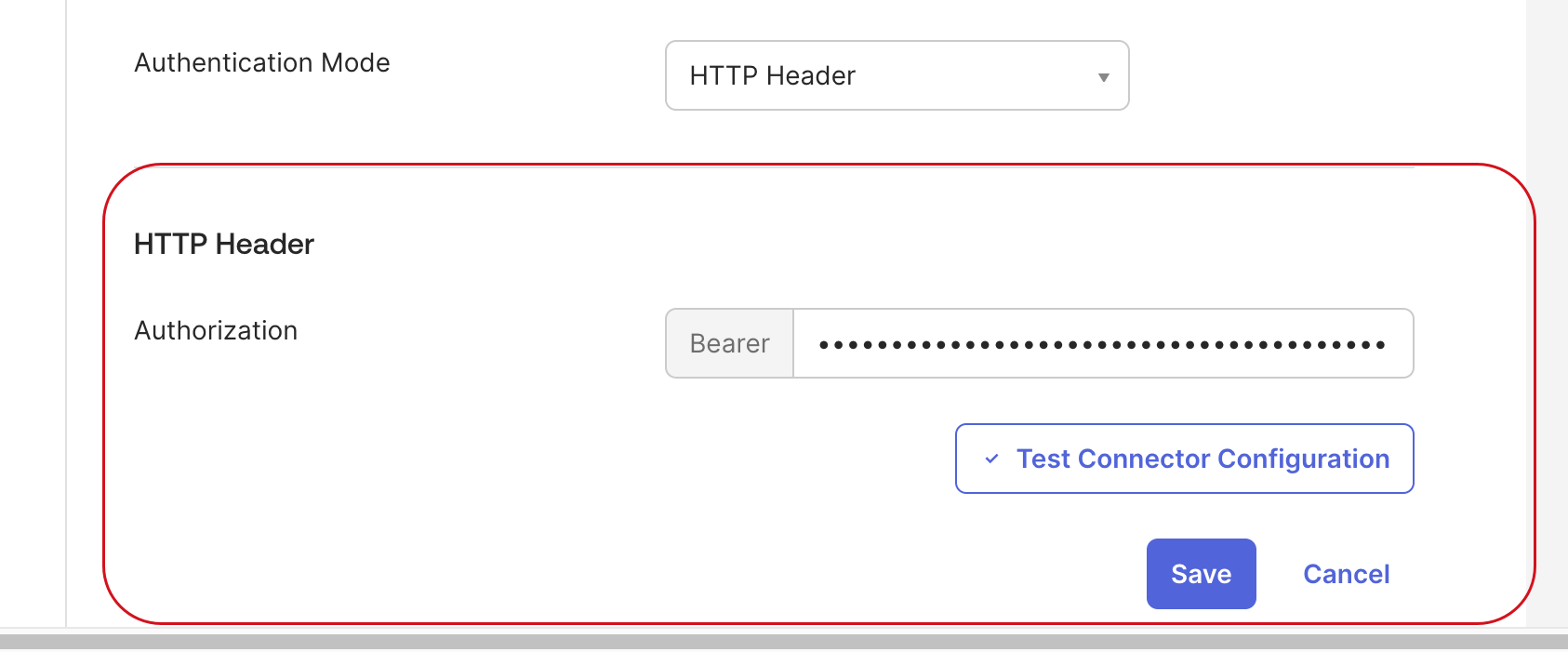
6. In SonarQube Cloud’s SCIM provisioning setup assistant, select **Generate Token** in the **Bearer Token** section.
7. Copy the generated token.
8. In your identity provider, in the **HTTP Header** section, paste the token into **Bearer**.
9. Select **Test Connector Configuration**. The test starts. Note that only user deprovisioning is currently supported in SonarQube Cloud.
10. Close the test configuration window.
11. Select **Save**.
12. In SonarQube Cloud’s SCIM provisioning setup assistant, select **Done**.
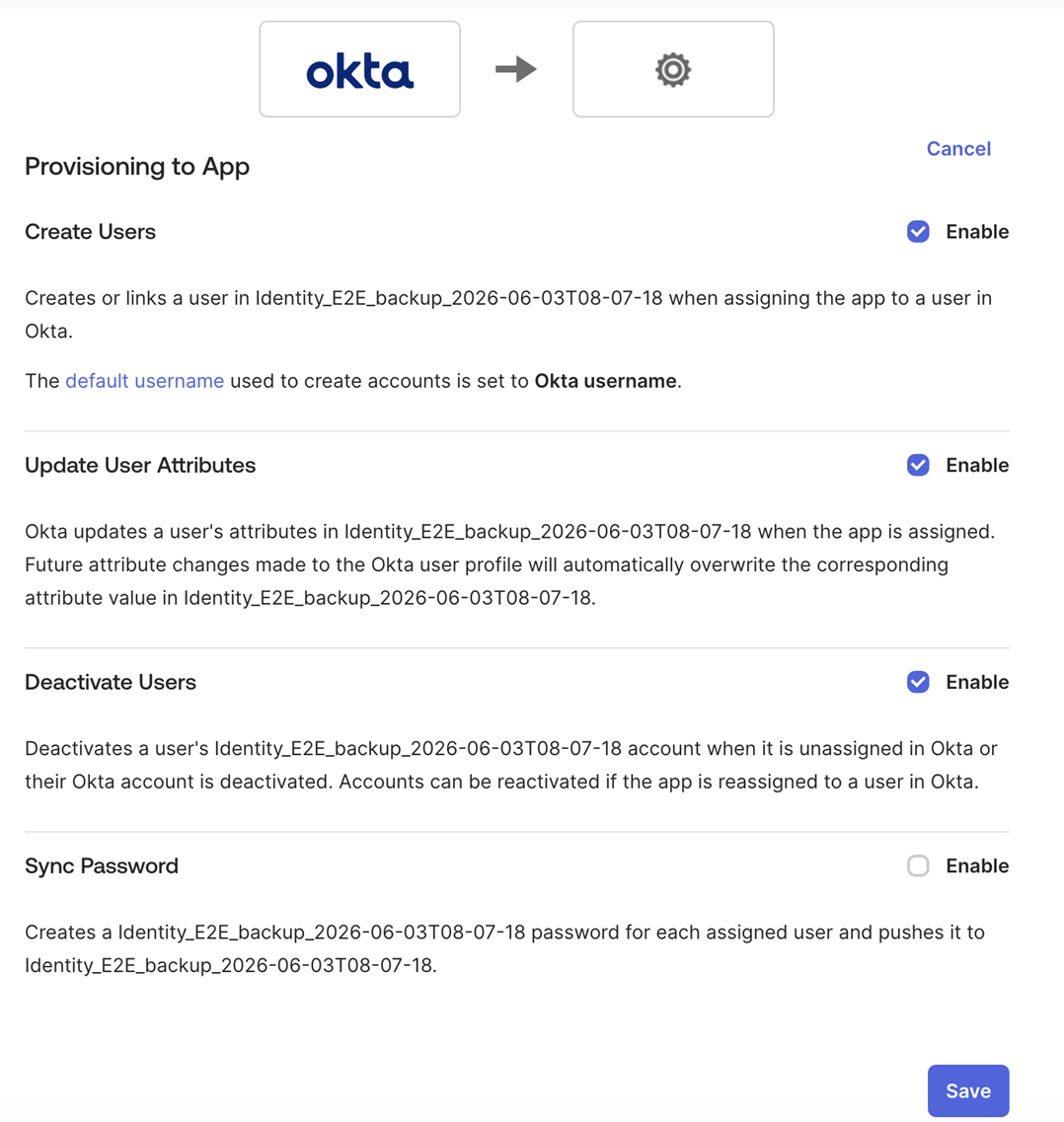
13. Finalize the provisioning setup in Okta:
1. Open the **Provisioning** tab and select **To Okta**.
2. Select **Edit** and enable the following features:
* **Create Users**
* **Update User Attributes**
* **Deactivate Users**
3. Select **Save**.
> **Note:** The **To Okta** tab displays an attribute mapping section that requires no changes:
>
> * Do not add an **Active** attribute mapping; this causes user provisioning to fail.
> * Do not modify the email mapping; the default works correctly.
> * Do not enable **Import New Users and Profile Updates**; this controls the reverse direction (Okta importing from SonarQube Cloud) and is not required.
With Okta OIDC
With Okta OIDC, you use two applications in Okta: the custom OIDC application that manages Single Sign-On, and a separate SCIM application that you add from the Okta App Catalog in the following steps. Okta occasionally changes its own interface, so treat the setup assistant as the source of truth for step order and expect the Okta labels below to differ slightly.
These steps apply to SSO set up with a custom OIDC application, as described in the [Set up SSO](/sonarqube-cloud/administering-sonarcloud/enterprise-security/sso-and-provisioning/set-up-sso.md#if-using-okta-oidc) section. If you used Okta Express Configuration, see the [Using Okta Express Configuration](/sonarqube-cloud/administering-sonarcloud/enterprise-security/sso-and-provisioning/using-okta-express-configuration.md) page.
1. In SonarQube Cloud’s SCIM provisioning setup assistant, go to **1. Add SCIM Template App**.
2. In Okta, go to **Applications** and select **Browse App Catalog**.
3. Search for **(OAuth Bearer Token) Governance with SCIM 2.0**, select it, and select **Add Integration**.
4. In **General Settings**, set the following:
* **Application label**: Enter a meaningful name for your SCIM application.
* **Application Visibility**: Select **Do not display application icon to users**.
* **Browser plugin auto-submit**: Clear **Automatically log in when user lands on login page**.
Then select **Next**.
5. In **Sign-On Options**, keep the default selection and select **Done**. Your SSO application continues to use OIDC.
6. In SonarQube Cloud’s setup assistant, select **Next** to go to **2. Configure SCIM**.
7. In Okta, open the **Provisioning** tab of the new application. In **Integration**, select **Configure API Integration**.
8. Select **Enable API integration**.
9. In SonarQube Cloud’s setup assistant, copy the **Base URL** and paste it into **Base URL** in Okta.
10. In the **Bearer Token** section of the setup assistant, select **Generate Token**. In the **Bearer Token Information** dialog, select **Copy And Close**.
{% hint style="warning" %}
Copy the token before you close the dialog, because SonarQube Cloud does not display it again.
{% endhint %}
11. In Okta, paste the token into **OAuth Bearer Token**.
12. Leave **Import Groups** selected, and select **Test API Credentials**. Okta displays a success message when it can reach SonarQube Cloud.
13. Select **Save**.
14. In the **Provisioning** tab, open **To App** and select **Edit**. Select **Enable** for **Create Users**, **Update User Attributes**, and **Deactivate Users**.
15. Clear **Set password when creating new users**, which appears selected after you enable **Create Users**. Leave **Sync Password** cleared, and select **Save**.
16. In SonarQube Cloud’s setup assistant, select **Next** to go to **3. SCIM Mapping**.
17. In Okta, return to the **Provisioning** tab, open **To App**, and scroll to the **Attribute Mappings** section. Remove the **Primarmy email type**, **Primary phone type**, and **Address type** mappings. For each one, select the × at the end of the row, select **Remove Mapping**, and select **OK**. These mappings can cause issues during PUT operations for users. The setup assistant then shows steps for adding attributes in the Okta Profile Editor; you do not need to follow those steps.
18. In SonarQube Cloud’s setup assistant, select **Next** to go to **4. Sync Groups**.
19. Assign the same **People** and **Groups** that can sign in with SSO to the SCIM application. This prevents login failures caused by missing attribute mappings. To assign people and groups:
1. In Okta, you’re already in the SCIM application under **Applications and Resources** > **Applications**. Switch to the **Assignments** tab.
2. Select **Assign** > **Assign to People** or **Assign to Groups**.
3. Select **Assign** next to each person or group, and select **Save and Go Back** for each group you want to add.
4. Close the dialog.
20. In Okta, go to the **Push Groups** tab of the SCIM application. To push groups:
1. Select **Push Groups** > **Find groups by name**.
2. In **Enter a group to push...**, enter the name of a group to provision and select it.
3. Select **Save & Add Another**, and then repeat sub-steps 2 and 3 for each additional group.
4. Select **Close**. To check that your groups were added, select **All** under **Pushed Groups**. In the **Push Status** column, each group shows **Pushing** and then changes to **Active**.
21. In SonarQube Cloud’s setup assistant, select **Done**.
Then complete your group mapping in [#map-groups](#map-groups "mention").
With Microsoft Entra ID OIDC
1. Follow the instructions in the **1. Create application** step of the SonarQube Cloud’s setup assistant.
2. Select **Next** to go to step **2. Configure SCIM**.
3. Follow the instructions in the assistant.
{% hint style="warning" %}
Make sure to add `?aadOptscim062020` to the end of the tenant URL.
{% endhint %}
Once you have stored the Bearer token in your SCIM application in Microsoft Azure, perform the following in the provisioning configuration of the SCIM app:
1. Go to **Manage** > **Attribute mapping**.
2. Select the **Provision Microsoft Entra ID Users** link to edit the attribute mapping for users. The editor opens.
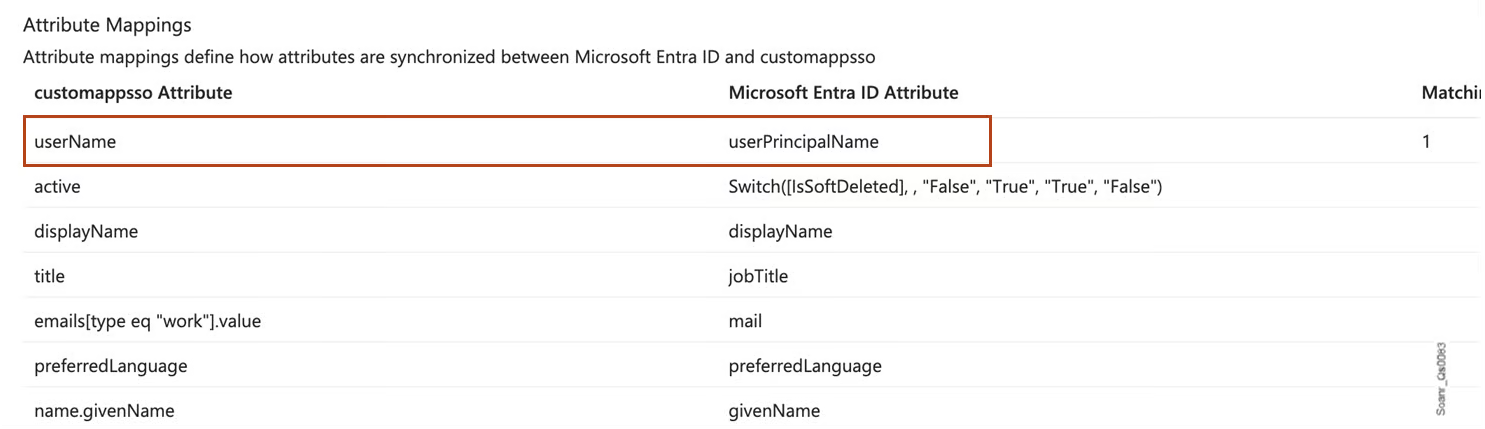
3. In the **Attribute Mappings** list, locate the record whose **customappsso Attribute** is `userName`.
4. In the far right of the record, select **Edit**.
5. In **Source attribute**, select o**bjectId**.
3. Select **OK**. The editor closes.
4. Select **Save** and confirm.
With Microsoft Entra ID SAML
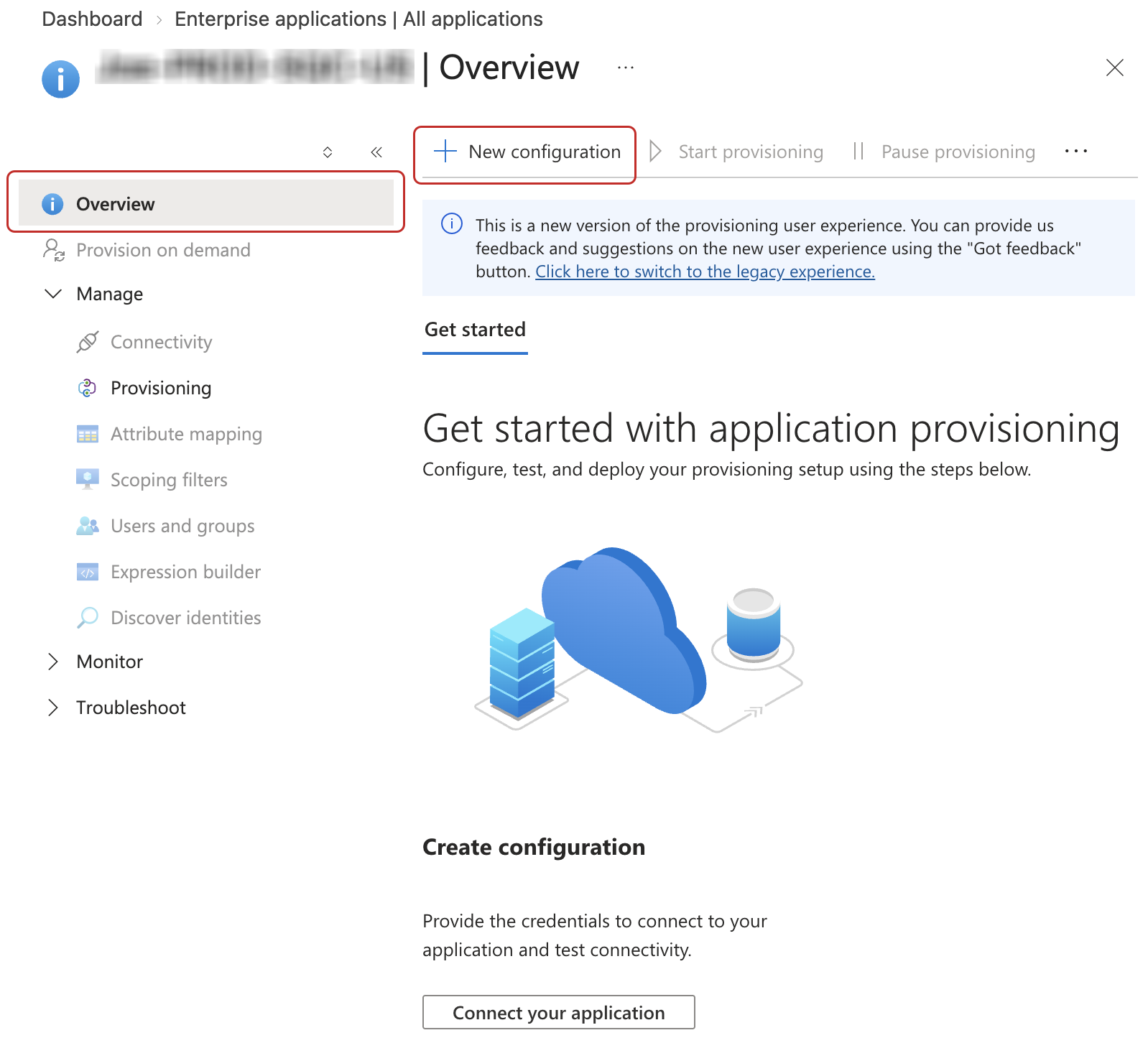
1. In Microsoft Entra ID, go to **Identity** > **Applications** > **Enterprise applications** > **All applications** and select the application created for SonarQube Cloud.
2. On the application’s page, select **Provisioning** in the left-hand side menu.
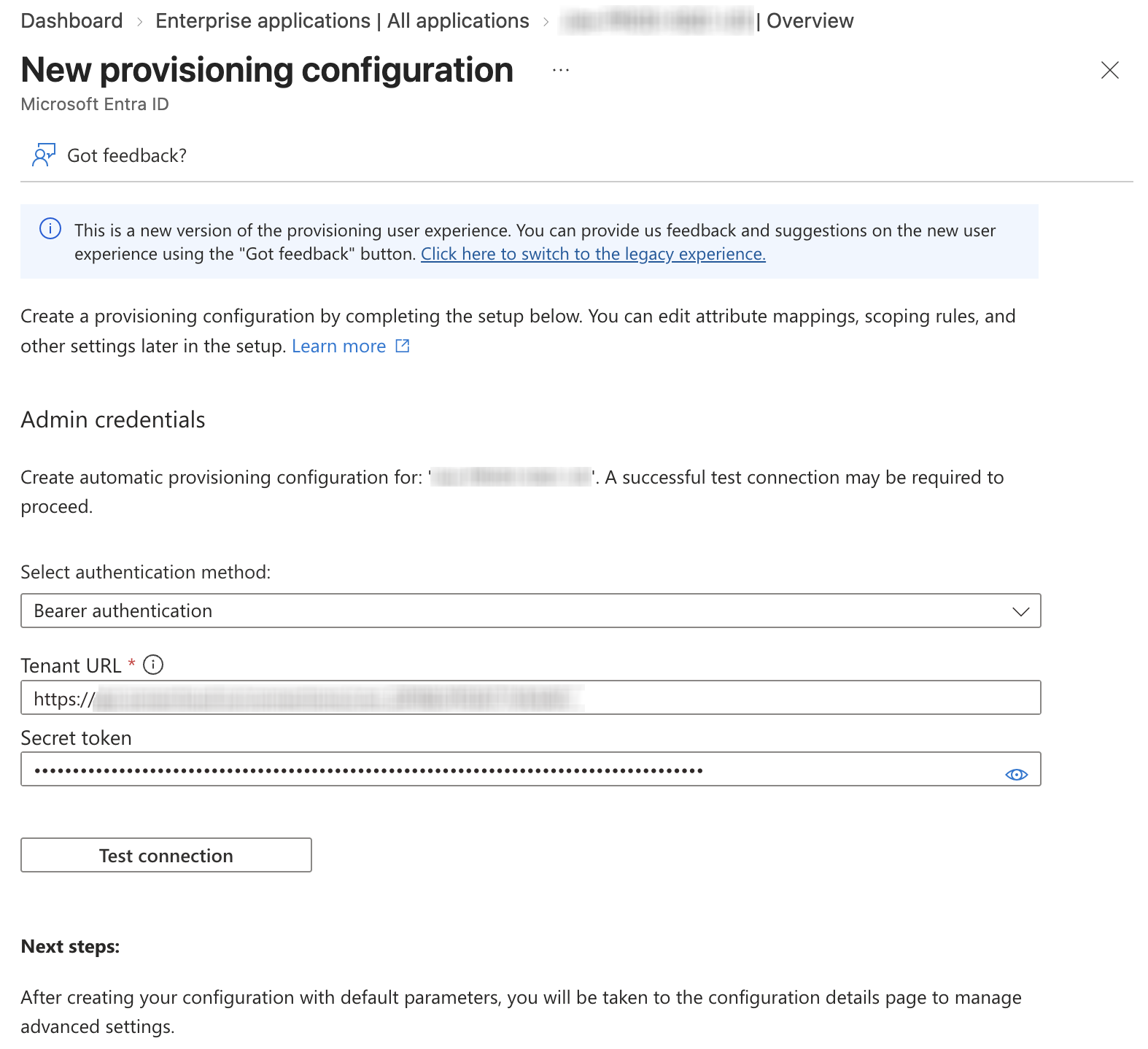
3. In the top menu bar, select **New configuration**.
4. In **Admin credentials**, set the fields as follows:
* **Select authentication method**: Select **Bearer authentication**
* **Secret token**: In SonarQube Cloud’s SCIM provisioning setup assistant, select **Generate Token** in the **Bearer Token** section.
Copy the generated token and paste it to this field.
* **Tenant URL**: Copy-paste the **Provisioning Endpoint URL** from SonarQube Cloud’s setup assistant. See **Warning** below.
{% hint style="warning" %}
For the **Tenant URL**, you currently have to follow the additional step defined in [Flags to alter the SCIM behavior](https://learn.microsoft.com/en-us/entra/identity/app-provisioning/application-provisioning-config-problem-scim-compatibility#flags-to-alter-the-scim-behavior) and add `?aadOptscim062020` to the end of the URL value.
{% endhint %}
5. Select the **Test connection** button. You should see a success pop-up at the top right corner of the page.
6. Select the **Create** button.
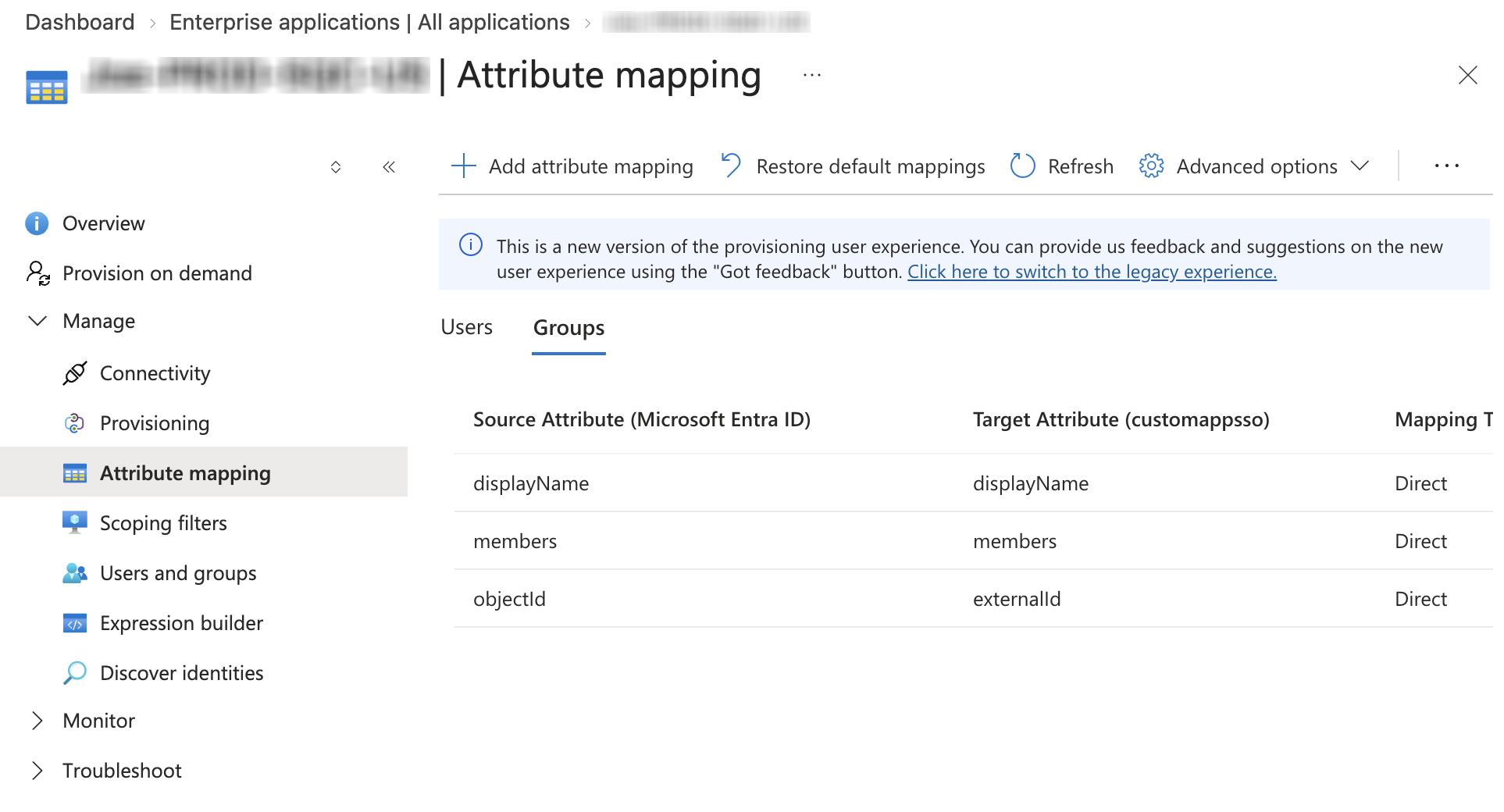
7. In the left-hand side menu, select **Attribute mapping**.
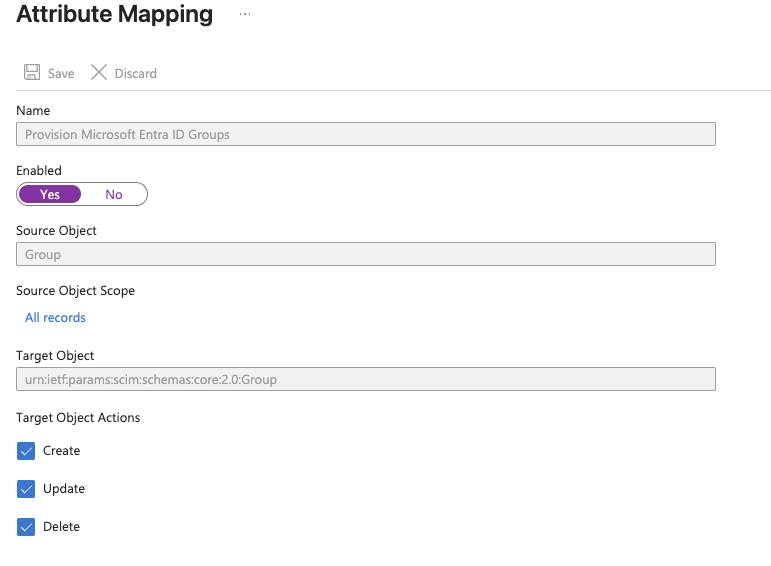
8. Select the **Groups** tab to access attribute mapping for your groups.
9. Ensure the feature is enabled and the **Create**, **Update** and **Delete** actions are selected in **Target Object Actions**.
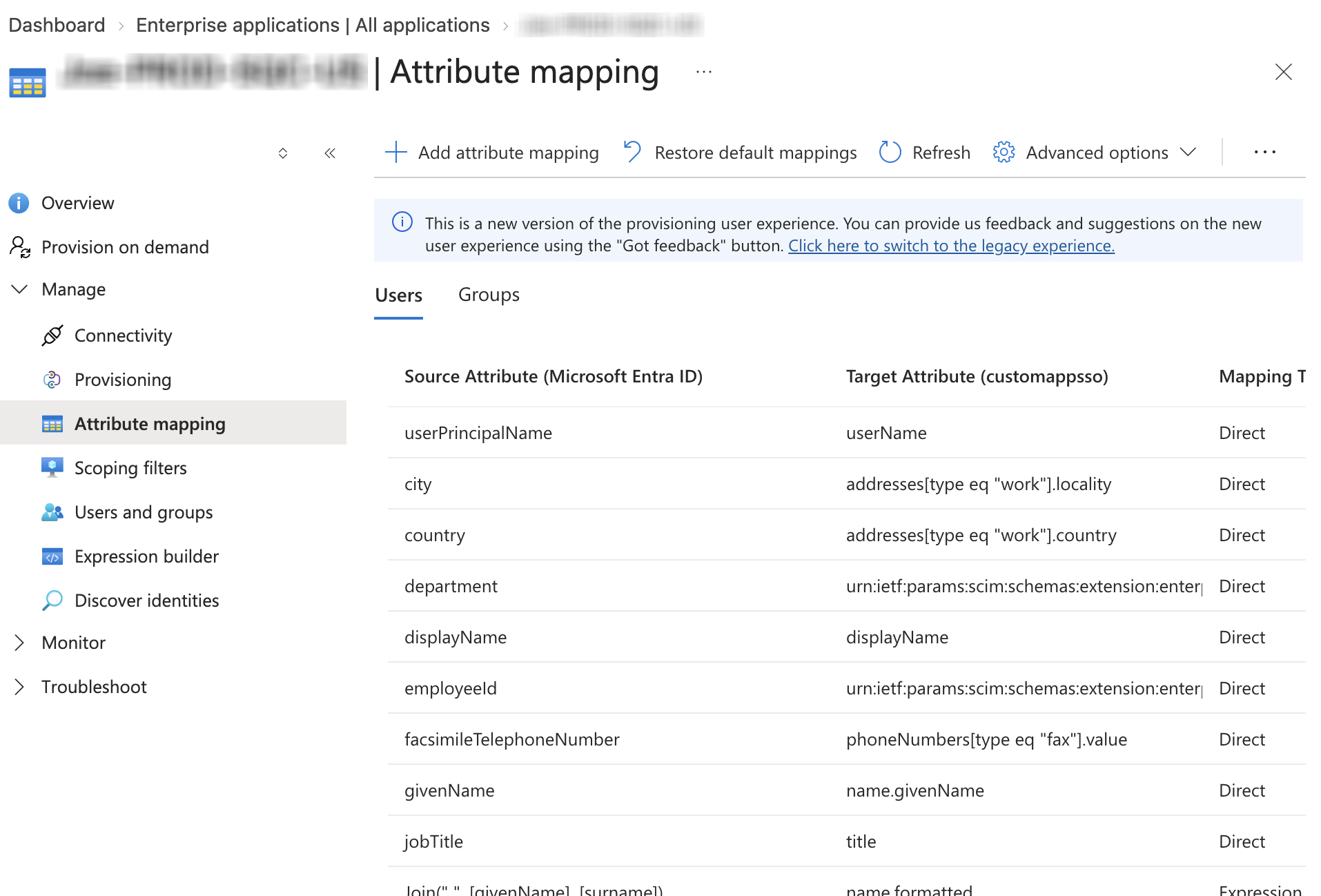
10. Switch to the **Users** tab to access attribute mapping for your users.
11. Ensure the feature is enabled and the **Create**, **Update** and **Delete** actions are selected in **Target Object Actions**.
12. In **Attribute Mappings**, map the `userName` **customappsso Attribute** (target) to the **Microsoft Entra ID Attribute** (source) used as SAML user login attribute in your SAML configuration. For example, if your login attribute is `http://schemas.xmlsoap.org/ws/2005/05/identity/claims/emailaddress` in your SonarQube Cloud’s SAML configuration and it is mapped to `user.userprincipalname` (default), use `userprincipalname` here. Otherwise, if it is mapped to `user.mail`, then use `mail` instead.
13. Select **Save**. This takes you back to the **Provisioning** page.
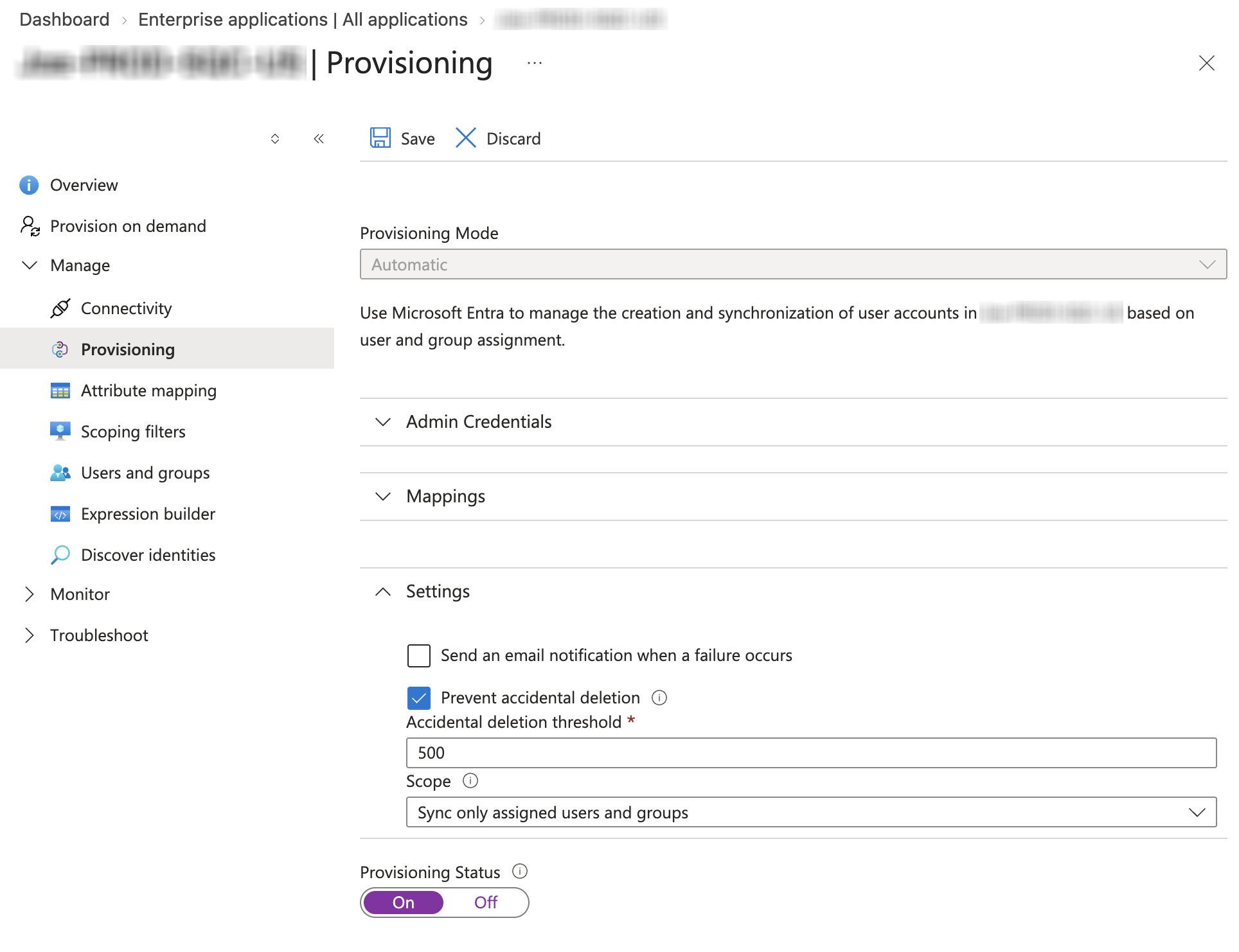
14. Ensure that **Provisioning Mode** is **Automatic**.
15. Open the **Settings** section and in the **Scope** subsection, select **Sync only assigned users and groups**.
16. Set the **Provisioning Status** to **On** and select **Save**.
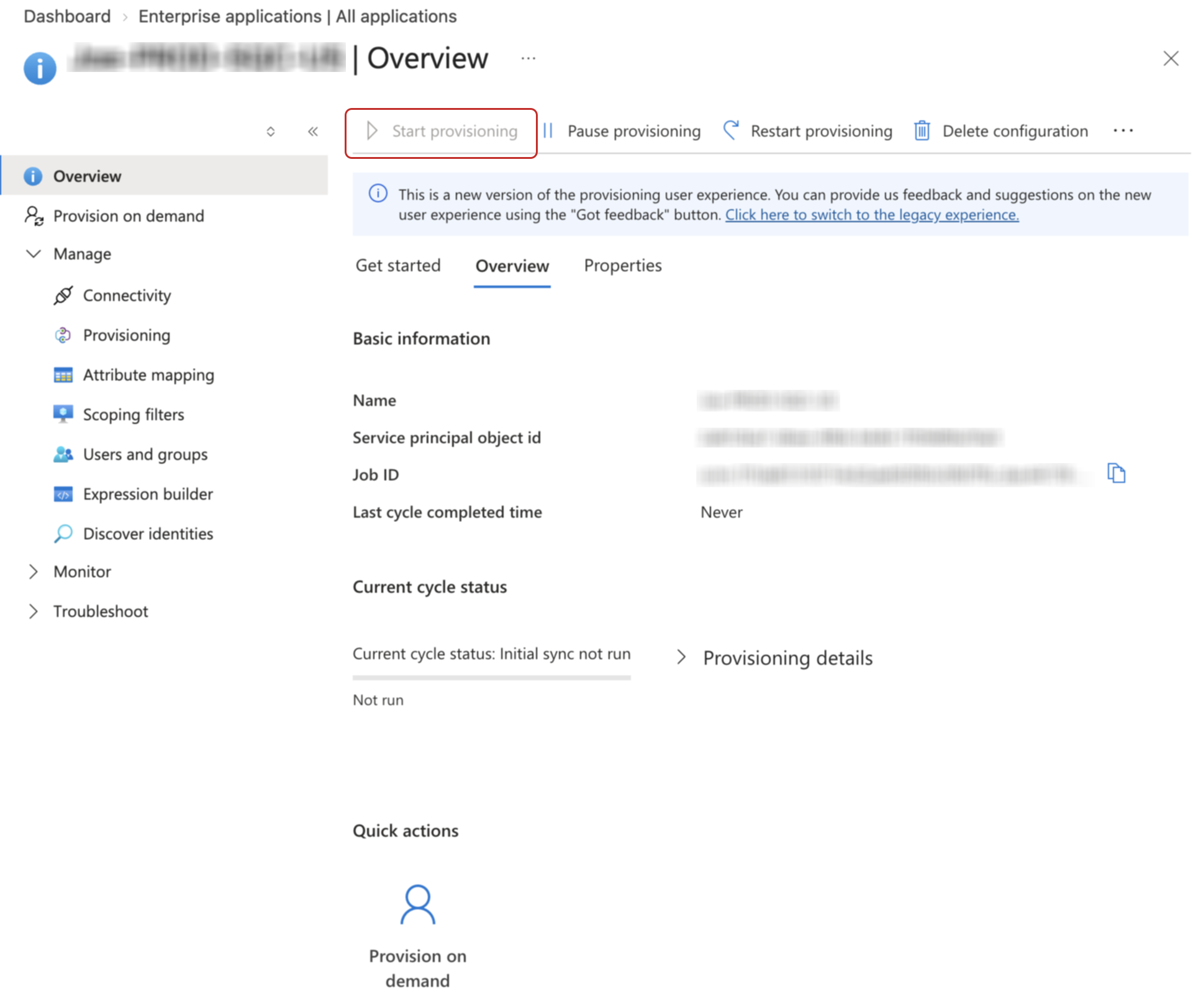
17. Go back to the **Overview** page and select the **Start provisioning** button.
18. In SonarQube Cloud’s SCIM provisioning setup assistant, select **Done**.
{% hint style="info" %}
Microsoft Entra ID runs a SCIM synchronization every 40 minutes. Changes in Microsoft Entra ID are not reflected immediately in SonarQube Cloud.
{% endhint %}
With JumpCloud SAML
1. In JumpCloud, open the application used to manage Single Sign-On in SonarQube Cloud and open the **Identity Management** tab.
2. In **Configuration Settings** > **Service Provider (SP) Configuration** set the fields as described below:
* **API Type**: `SCIM API`
* **SCIM Version**: `SCIM 2.0`
* **Base URL**:
1. Copy-paste the **Provisioning Endpoint URL** from SonarQube Cloud’s setup assistant.
2. Remove the trailing slash from the URL. **This step is very important. The SCIM connection will fail if the URL has a trailing slash.**
* **Token Key**: In SonarQube Cloud’s SCIM provisioning setup assistant, select **Generate Token** in the **Bearer Token** section. Copy the generated token and paste it to this field.
* **Test User Email**: Enter any email address.
{% hint style="warning" %}
Make sure you remove the trailing slash from the base URL. The figure below shows the trailing slash.
{% endhint %}
4. Select the **Test Connection** button. If the test was successful, proceed with the setup.
5. Unselect the **Enable management of User Groups and Group Membership in this application** option, and select **Activate**.
6. In SonarQube Cloud’s SCIM provisioning setup assistant, select **Done**.
## Step 3: Map your groups to organizations
Only groups that are both assigned to the SonarQube Cloud application in your identity provider and manually mapped to SonarQube Cloud organizations will be provisioned by SCIM. The following applies:
* The same group can be mapped to several organizations.
* You can update the group mapping anytime.
{% hint style="info" %}
Upon completion of this step, the groups will be created within your SonarQube Cloud organizations. Should a group with an identical name already exist, the members specified in your identity provider will be added to the existing group and any existing SSO member will be overwritten by the new member list. See also [About SSO and provisioning](/sonarqube-cloud/administering-sonarcloud/enterprise-security/sso-and-provisioning/about.md#special-case-of-existing-groups-with-non-sso-users).
{% endhint %}
You can either:
* [Map all groups to all organizations](#mapping-all-groups-to-all-organizations).
* or [define a custom mapping](#defining-a-custom-mapping).
Once completed, [check your mapping](#checking-your-groups-in-sonarqube-cloud) by going to SonarQube Cloud > *Your organization* **Access** > **Groups**.
### Mapping all groups to all organizations
You can map all groups to all organizations in one click. If necessary, you can then refine the mapping as explained below in [#defining-a-custom-mapping](#defining-a-custom-mapping "mention").
Proceed as follows:
1. Make sure the user groups are assigned to the SonarQube Cloud application in your identity provider. With Okta OIDC, assign them to the SCIM application, not the OIDC SSO application.
2. Retrieve your enterprise. For more information, see [Retrieving and viewing your enterprise](/sonarqube-cloud/administering-sonarcloud/managing-enterprise/retrieving-and-viewing-your-enterprise.md).
3. Go to **Administration** > **SSO & Provisioning**. The **SSO & Provisioning** page opens.
4. Expand the **IdP group mapping** section and select the **Map groups** button. The button is only available if you have set up SSO and provisioning properly.\
The **Group mapping** page opens.
5. In the top right corner, select the **Map all** button. A confirmation dialog opens.
6. Confirm. The mapping is started and may take several minutes. Don’t leave the page as long as the mapping is in progress.\
Once the mapping is complete, a **Mapping complete** dialog is displayed.
7. Close the dialog. All groups are mapped to all organizations.
### Defining a custom mapping
1. Make sure the user groups are assigned to the SonarQube Cloud application in your identity provider. With Okta OIDC, assign them to the SCIM application, not the OIDC SSO application.
2. Retrieve your enterprise. For more information, see [Retrieving and viewing your enterprise](/sonarqube-cloud/administering-sonarcloud/managing-enterprise/retrieving-and-viewing-your-enterprise.md).
3. Go to **Administration** > **SSO & Provisioning**.
4. Expand the **IdP group mapping** section and select the **Map groups** button. The button is only available if you have set up SSO and provisioning properly.\
The **Group mapping** page opens.
5. In the **SonarQube Organizations** panel (a), select the organization you want to map.
6. In the **Map IdP groups to \** table (b), select the groups you want to map to your organization. You can filter the groups by using the **Search IdP groups** field. Toggle the selection of all groups by clicking the checkbox next to **Group** in the table header.
7. Select **Save changes** (c). A confirmation dialog opens.
8. Confirm the mapping. The mapping is started and may take several minutes. Don’t leave the page as long as the mapping is in progress.\
Once the mapping is complete, a **Mapping complete** dialog is displayed.
9. Close the dialog and proceed the same way for each organization.
### Checking your groups in SonarQube Cloud
After the mapping is complete, check that your groups were created in each organization:
1. In your organization, go to **Access** > **Groups**. The **Groups** page opens with the list of user groups for the organization.
2. Check that the groups you mapped are listed and labeled **IdP managed**.
## Step 4: Define the permissions in SonarQube Cloud
Users and groups are now provisioned in SonarQube Cloud and you can set their permissions.
To manage the user and group permissions in your enterprise, see [Managing the enterprise-related permissions](/sonarqube-cloud/administering-sonarcloud/managing-enterprise/managing-the-enterprise-related-permissions.md).
To manage the user and group permissions in an organization, you can:
* Define the users and/or groups that can create projects in the organization. See [Managing organization permissions](/sonarqube-cloud/administering-sonarcloud/managing-organization/users-and-permissions/organization-permissions.md) for more details.
* Verify the default permissions on new projects. See [Using permission templates](/sonarqube-cloud/administering-sonarcloud/managing-organization/manage-org-projects/manage-project-permissions/templates.md) for more details.
## Next step
Go to [Invite users to sign in](/sonarqube-cloud/administering-sonarcloud/enterprise-security/sso-and-provisioning/complete-setup.md).
## Related pages
* [Before setting up SSO and provisioning](/sonarqube-cloud/administering-sonarcloud/enterprise-security/sso-and-provisioning/before-you-start.md)
* [Set up SSO](/sonarqube-cloud/administering-sonarcloud/enterprise-security/sso-and-provisioning/set-up-sso.md)
* [Invite users to sign in](/sonarqube-cloud/administering-sonarcloud/enterprise-security/sso-and-provisioning/complete-setup.md)
* [Domain verification](/sonarqube-cloud/administering-sonarcloud/enterprise-security/sso-and-provisioning/verify-domain.md)
* [Recovery account for SSO](/sonarqube-cloud/administering-sonarcloud/enterprise-security/sso-and-provisioning/recovery-account.md)
* [Editing or deleting SSO configuration](/sonarqube-cloud/administering-sonarcloud/enterprise-security/sso-and-provisioning/edit-or-delete-sso-setup.md)
* [Troubleshooting SSO and provisioning](/sonarqube-cloud/administering-sonarcloud/enterprise-security/sso-and-provisioning/troubleshooting.md)
---
# Agent Instructions
This documentation is published with GitBook. GitBook is the documentation platform designed so that both humans and AI agents can read, navigate, and reason over technical content effectively. Learn more at gitbook.com.
## Querying This Documentation
If you need additional information that is not directly available in this page, you can query the documentation by asking a question.
Perform an HTTP GET request on the following URL with the `ask` and `goal` query parameters:
```
GET https://docs.sonarsource.com/sonarqube-cloud/administering-sonarcloud/enterprise-security/sso-and-provisioning/set-up-scim.md?ask=&goal=
```
`ask` is the immediate question: it should be specific, self-contained, and written in natural language.
`goal` is what the user is ultimately trying to achieve, the reason they need the answer. Sharing it helps GitBook give you a better, more relevant answer. A goal is most helpful when it describes the outcome the user wants rather than restating the question. For example, with `ask=how do I create an API token`, a goal like `automate deployments from our CI pipeline` lets GitBook tailor the answer to that use case.
The response will contain a direct answer to the question and relevant excerpts and sources from the documentation.
Use this mechanism when the answer is not explicitly present in the current page, you need clarification or additional context, or you want to retrieve related documentation sections.