> For the complete documentation index, see [llms.txt](https://docs.sonarsource.com/llms.txt). Markdown versions of documentation pages are available by appending `.md` to page URLs; this page is available as [Markdown](https://docs.sonarsource.com/sonarqube-cloud/administering-sonarcloud/enterprise-security/sso-and-provisioning/set-up-sso.md).
# Set up SSO
How to set up Single Sign-On (SSO) in your enterprise by using the SonarQube Cloud setup assistant.
*This feature requires the SonarQube Cloud's* [*Enterprise*](https://www.sonarsource.com/plans-and-pricing/) *licence.*
{% hint style="warning" %}
* Before starting, read [Before setting up SSO and provisioning](/sonarqube-cloud/administering-sonarcloud/enterprise-security/sso-and-provisioning/before-you-start.md).
* **If you don't intend to use SCIM provisioning, you must first create manually the user groups in your SonarQube Cloud organizations or verify your existing groups as described in** [Before setting up SSO and provisioning](/sonarqube-cloud/administering-sonarcloud/enterprise-security/sso-and-provisioning/before-you-start.md#managing-groups-in-sonarqube-cloud-if-using-jit-provisioning).
{% endhint %}
{% hint style="info" %}
To set up SSO with Okta Express Configuration, see [Using Okta Express Configuration](/sonarqube-cloud/administering-sonarcloud/enterprise-security/sso-and-provisioning/using-okta-express-configuration.md).
{% endhint %}
To set up SSO in your enterprise, you must be the administrator of the enterprise in SonarQube Cloud.
## Start the SSO setup assistant
1. In SonarQube Cloud, retrieve your enterprise. See [Retrieving and viewing your enterprise](/sonarqube-cloud/administering-sonarcloud/managing-enterprise/retrieving-and-viewing-your-enterprise.md) for more details.
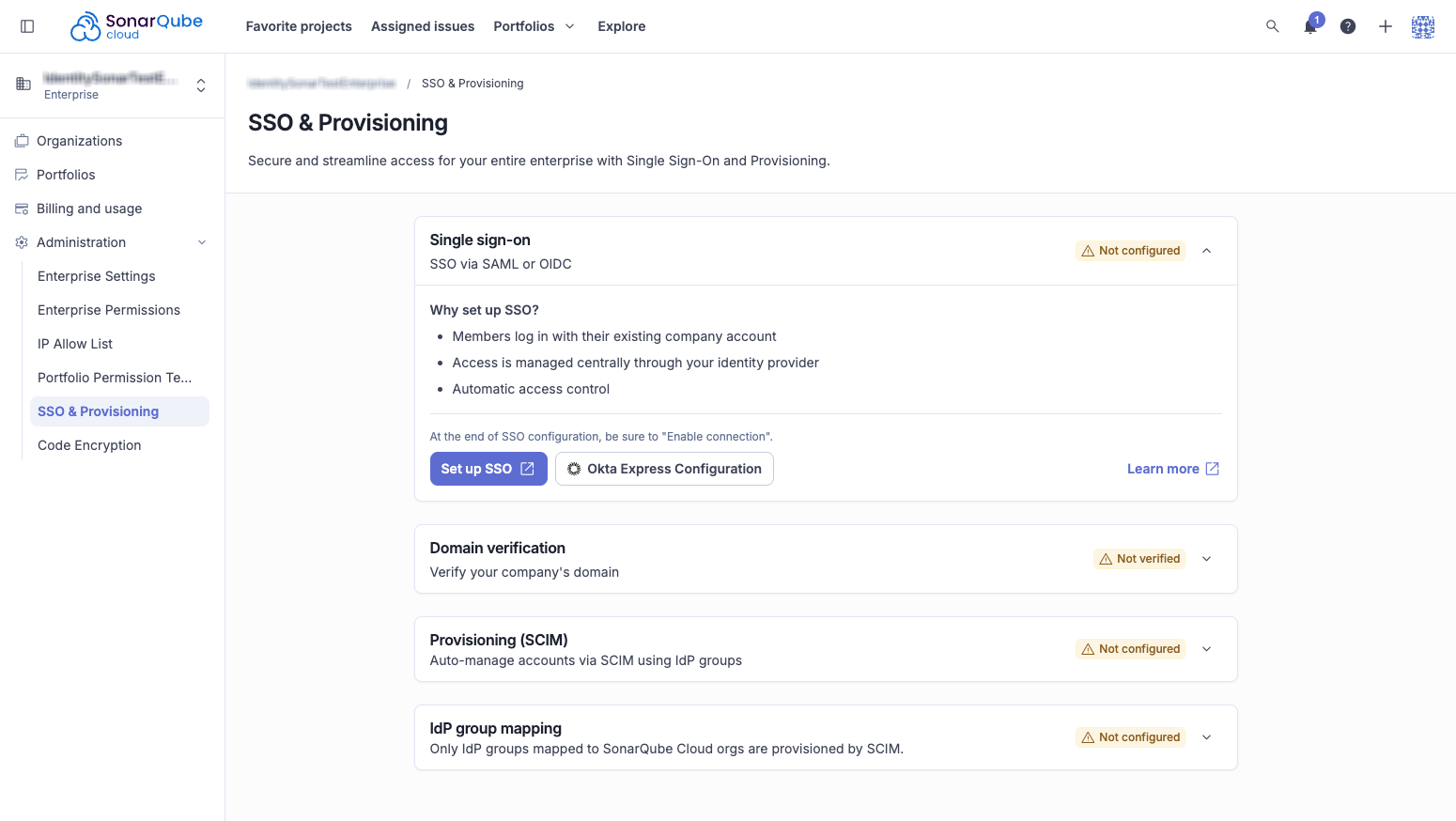
2. Go to **Administration** > **SSO & Provisioning**. The **SSO & Provisioning** page opens.
3. Expand the **Single sign-on** section and select **Set up SSO**. A new page opens.
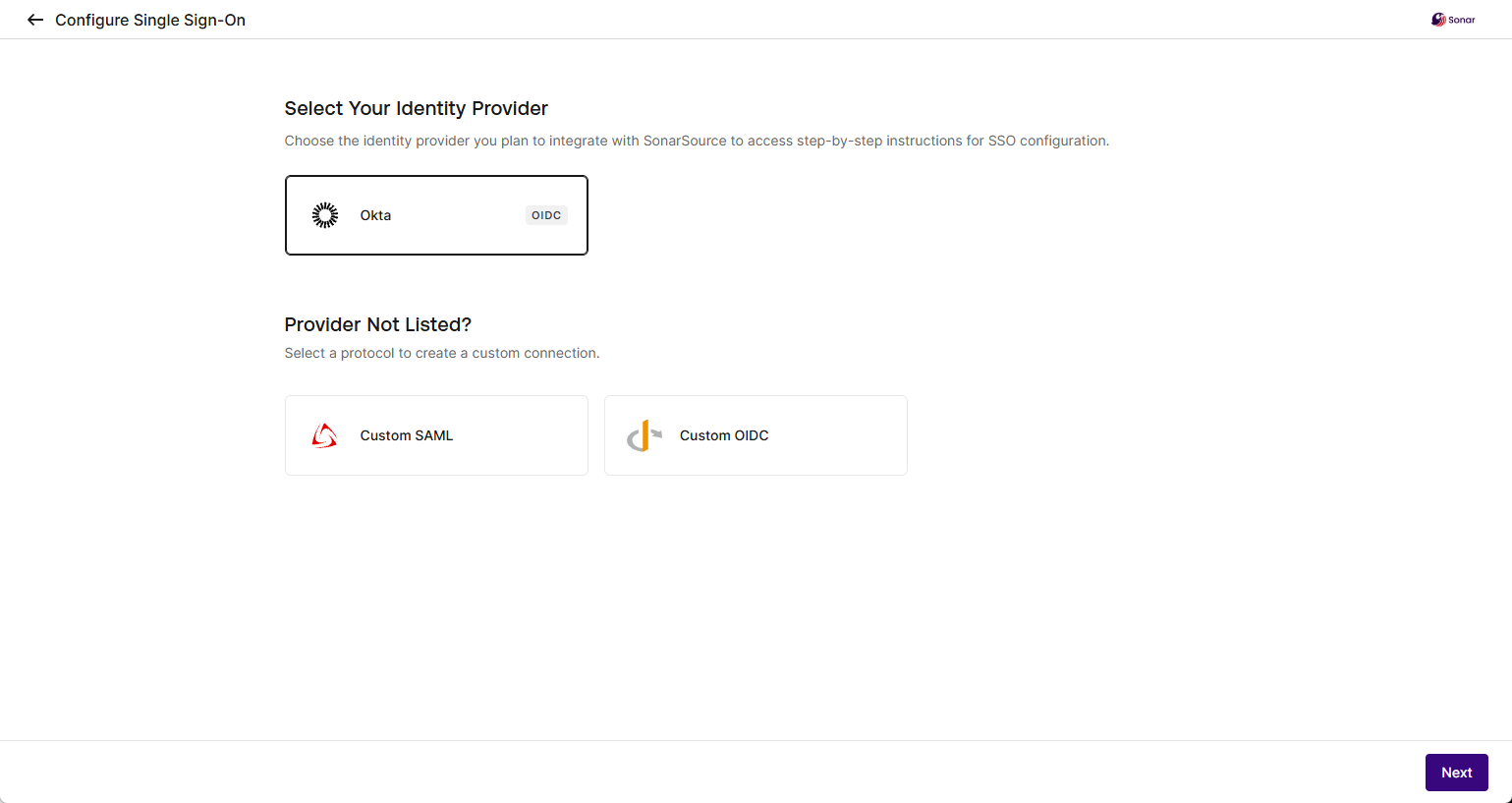
4. In the bottom-right corner, select **Get Started**. The **Configure Your Connection** page opens.
5. Select your identity provider or protocol, and select **Next**.
The SSO setup assistant opens. Follow the instructions below depending on your selection:
* [#if-using-okta-oidc](#if-using-okta-oidc "mention")
* [#ms-entra-id-oidc](#ms-entra-id-oidc "mention")
* [#related-pages](#related-pages "mention")
## If using Okta OIDC
Setting up SSO with Okta moves between two interfaces: the SonarQube Cloud SSO setup assistant (see [#start-the-sso-setup-assistant](#start-the-sso-setup-assistant "mention")) and the Okta Admin Console. Okta occasionally changes its own UI, so treat the setup assistant as the source of truth for field names and step order, and expect the Okta labels below to differ slightly from what you see.
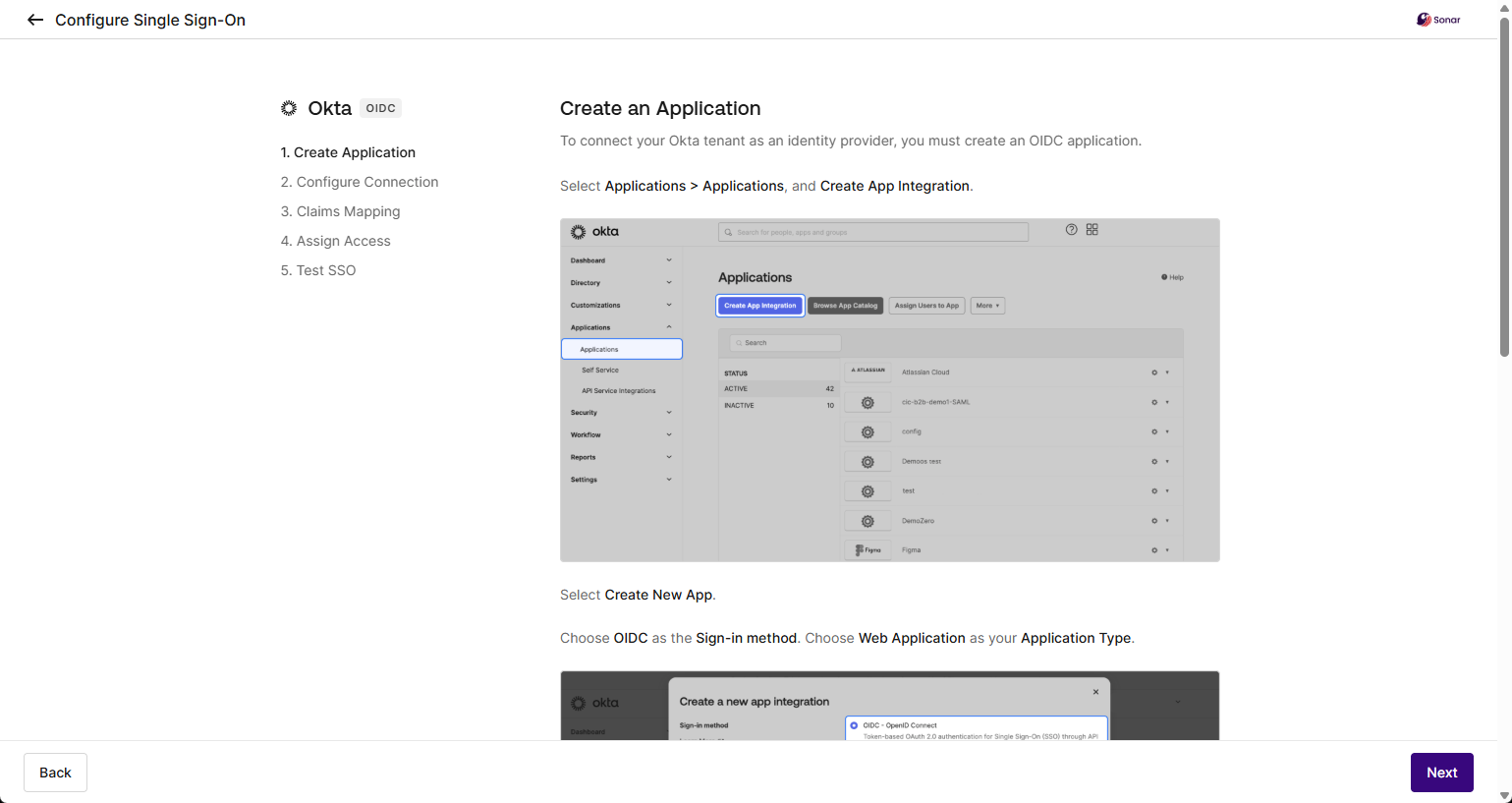
### Step 1: Create application
The setup assistant walks you through creating the application and does not call out that your access-control choice here determines whether you will need [#step-4-assign-access-okta](#step-4-assign-access-okta "mention").
Follow the instructions in the SSO setup assistant to create the application in Okta.
* **Assignments**\
Under **Controlled access**, choose one of the following options:
* **Allow everyone in your organization to access**: grants access to all users in your Okta organization. If you also enable immediate access with **Federation Broker Mode**, Okta automatically assigns all groups to the application, so you can skip [#step-4-assign-access-okta](#step-4-assign-access-okta "mention").
* **Limit access to selected groups**: select the specific groups that should have access. If you choose this option, you can skip [#step-4-assign-access-okta](#step-4-assign-access-okta "mention").
* **Skip group assignment for now**: defer the access decision. If you choose this option, you must complete [#step-4-assign-access-okta](#step-4-assign-access-okta "mention").
Then select **Next** to go to the step **2. Configure Connection**.
### Step 2: Configure connection
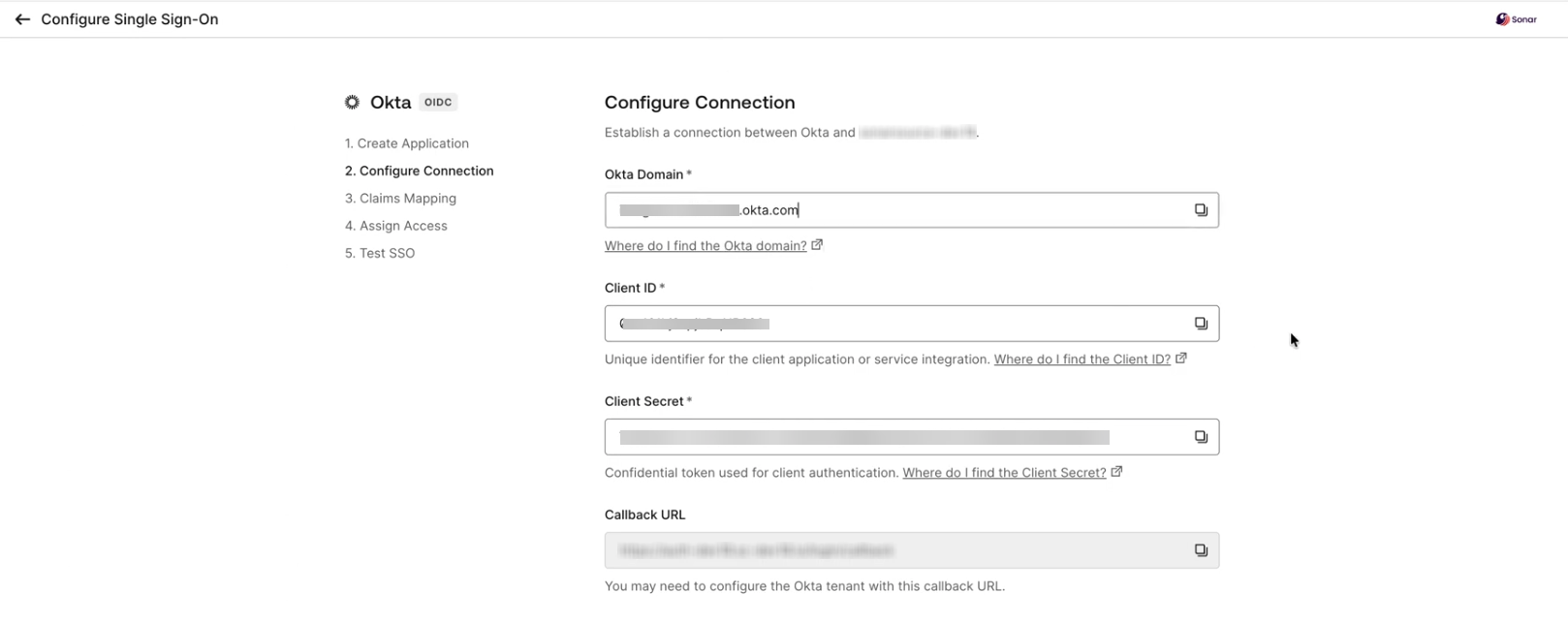
The setup assistant asks for values it does not show you how to find. This step points you to where each one lives in Okta.
1. Go back to Okta and select your account / name profile in the top-right corner.
2. Copy your Okta organization URL / domain.
3. Paste the copied value to the **Okta Domain** field in the setup assistant.
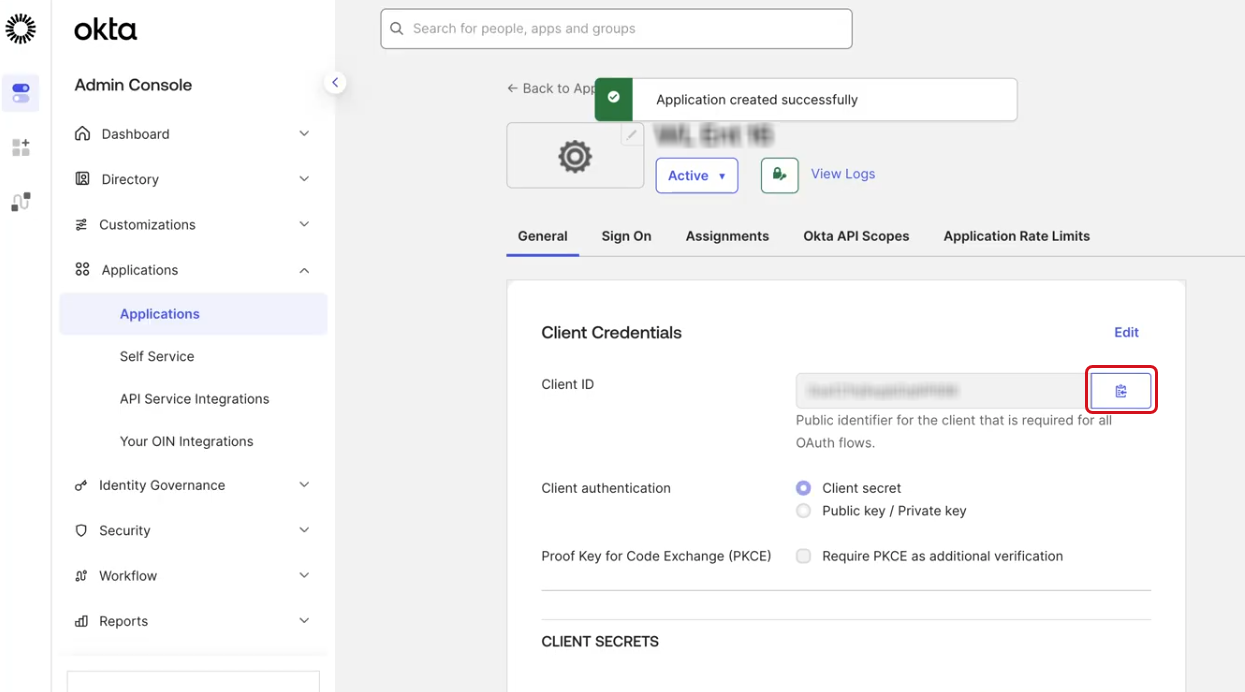
4. In Okta’s SonarQube Cloud application, go to **General** > **Client Credentials**.
5. Copy the value of the **Client ID** field.
6. Paste the copied value to the **Client ID** field in the setup assistant page.
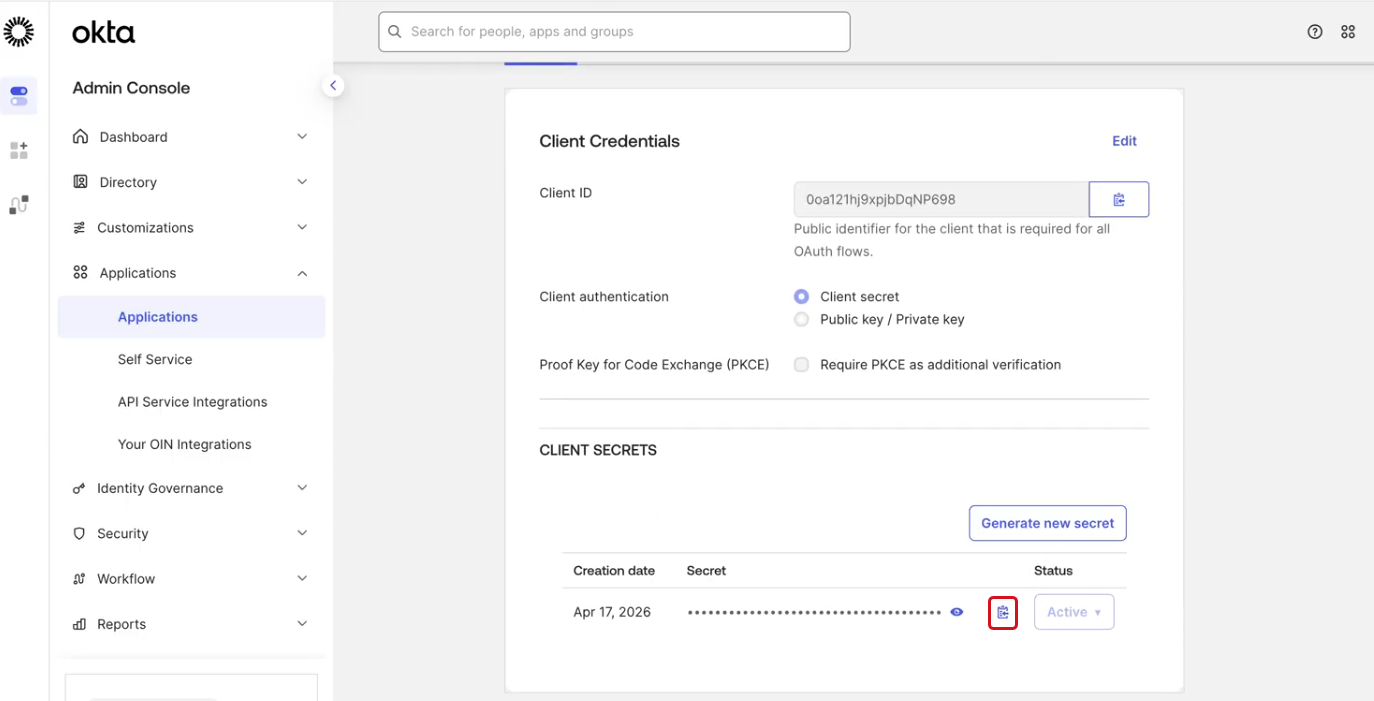
7. Go back to your Okta’s SonarQube Cloud application and copy the client secret.
8. Paste the copied value to the **Client Secret** field in the setup assistant page.
9. In the bottom right corner of the assistant, select **Create Connection** and then **Proceed.** SonarQube Cloud is trying to connect to your Identity Provider. If the connection is established, the assistant moves to step **3. Claims Mapping**.
### Step 3: Claims Mapping
This step takes place entirely in the Okta Admin Console.
> **Note:** This step is mandatory. The groups that match the filter below are sent as claims to SonarQube Cloud whenever a user logs in, independent of which groups you assigned access to the application in Step 4.
1. In the **Okta Admin Console**, go to **Applications and Resources** > **Applications**, select your SonarQube Cloud application, and go to **Sign On**.
2. Go down to the **Token claims** section, open the **Show legacy configuration** panel, and go to **Group Claims**.
3. Select **Edit**.
4. Set the fields as follows:
* Groups claim type: **Filter**
* Groups claim filter:
* First field: `groups`
* Second field: Select **Matches regex** and set the value to `.*` to match all groups in your organization, or use a more restrictive expression depending on your organization's needs.
> **Important:** The filter type must be set to **Matches regex**. The default **Starts with** filter type does not work with `.*` (which matches all groups) and will cause group sync to silently fail.
{% hint style="warning" %}
Regardless of your chosen provisioning method, you must configure the groups attribute in the OIDC payload. If you use SCIM provisioning, ensuring this value aligns with the data SCIM transmits to SonarQube Cloud is essential. See [Before setting up SSO and provisioning](/sonarqube-cloud/administering-sonarcloud/enterprise-security/sso-and-provisioning/before-you-start.md#group-setup-is-mandatory) for more details.
{% endhint %}
5. Select **Save**.
6. In the SonarQube Cloud's setup assistant, select **Next** to go to the step **4. Assign Access**.
### Step 4: Assign Access
Whether you need to complete this step depends on your choice in [#step-1-create-application-okta](#step-1-create-application-okta "mention").
> **Note:** If you already granted access while creating your application in [#step-1-create-application-okta](#step-1-create-application-okta "mention") by selecting **Allow everyone in your organization to access** with **Federation Broker Mode** enabled, Okta automatically assigned all groups to the application, so you can skip sub-steps 1-4 below and go directly to sub-step 5 to continue in the SonarQube Cloud setup assistant. The same applies if you selected **Limit access to selected groups**. If you selected **Allow everyone in your organization to access** without enabling **Federation Broker Mode**, or selected **Skip group assignment for now**, complete all the sub-steps below.
1. In the **Okta Admin Console**, go to **Applications and Resources** > **Applications**, select your SonarQube Cloud application, and go to **Assignments**.
2. Select **Assign**, then **Assign to Groups** (or **Assign to People** to assign individual users instead of groups).
3. Select the groups to assign to the application.
4. Select **Done**.
5. In the SonarQube Cloud's setup assistant, select **Next** to go to the step **5. Test SSO**.
{% hint style="warning" %}
To ensure users can reach their organization, you must assign groups to your application. Access via SSO is strictly limited to users who are members of a group within that specific organization. If you use SCIM, the mapping of groups to organizations is done during the SCIM setup. If you use the JIT provisioning, you must create the groups manually in SonarQube Cloud's organizations as described in [Before setting up SSO and provisioning](/sonarqube-cloud/administering-sonarcloud/enterprise-security/sso-and-provisioning/before-you-start.md#managing-groups-in-sonarqube-cloud-if-using-jit-provisioning).
{% endhint %}
### Step 5: Test SSO
Beyond running the connection test, this step also covers what to check in the results and an optional domain verification step.
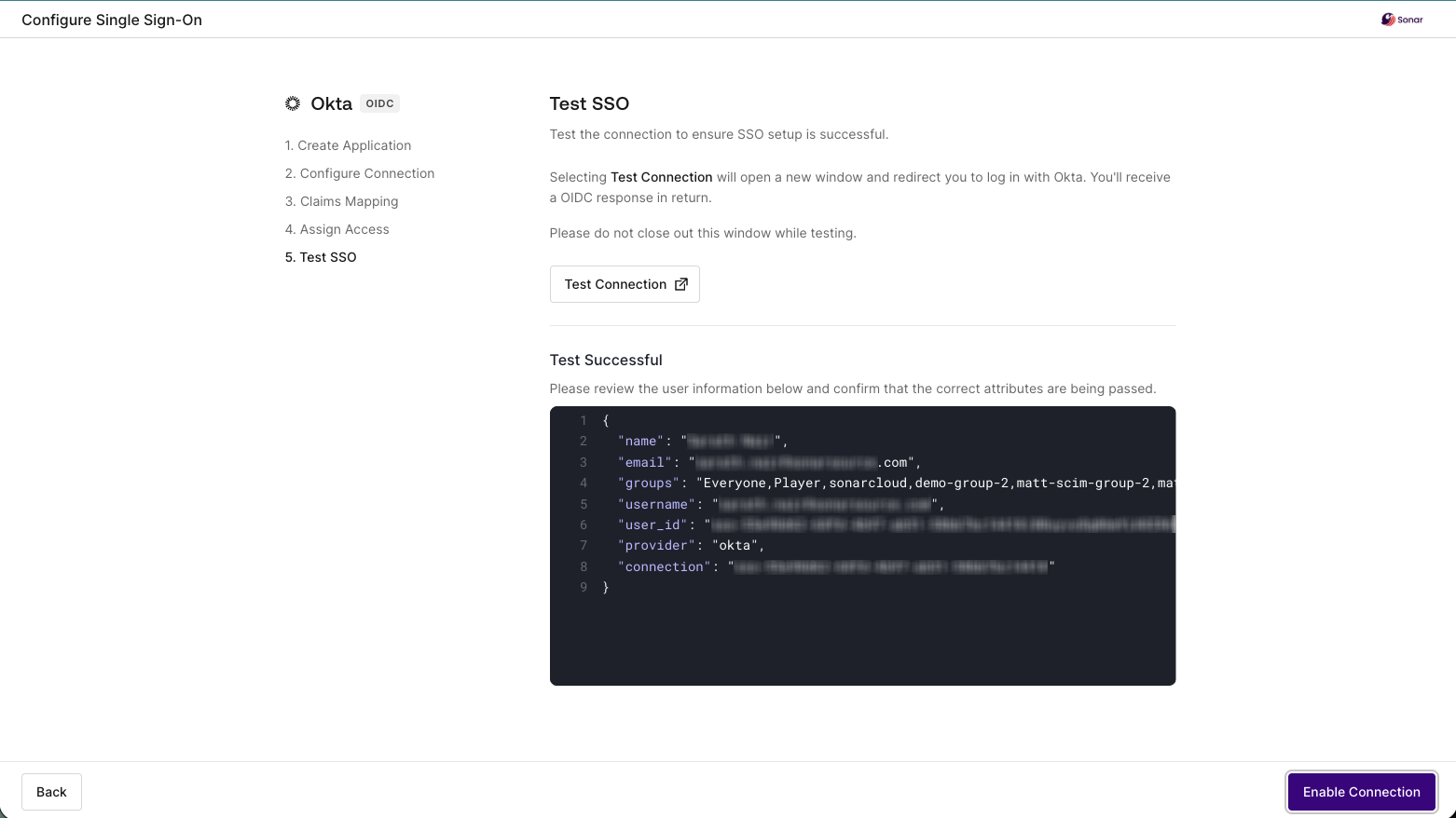
1. Select the **Test Connection** button. The test is started and the results are displayed on the page.
2. Verify the JSON response. In particular, verify that the email and groups attributes are correct. If the test was successful, select **Enable Connection** and **Proceed**.
3. You can now verify your company's email domain to avoid one-time email verification during SSO login. To do so, select **Domain Configuration** to open the Domain Configuration assistant. See [Domain verification](/sonarqube-cloud/administering-sonarcloud/enterprise-security/sso-and-provisioning/verify-domain.md#step-2-verify-your-domain-in-the-assistant) for detailed instructions.
### Next steps
* Go to the [Set up SCIM](/sonarqube-cloud/administering-sonarcloud/enterprise-security/sso-and-provisioning/set-up-scim.md) step if you want to set up SCIM provisioning.
* Go to the [Invite users to sign in](/sonarqube-cloud/administering-sonarcloud/enterprise-security/sso-and-provisioning/complete-setup.md) step to terminate your setup.
## If using Entra ID OIDC
### Step 1: Create application
1. Follow the instructions in the first step of the SonarQube Cloud’s setup assistant.
2. Select **Next** to go to step **2. Configure Connection**.
### Step 2: Configure connection
1. In the setup assistant, paste the secret value copied in the previous step to the **Client Secret** field.
2. In your Microsoft Azure application, go to **Overview**.
3. In **Essentials**, copy the **Application (client) ID** and paste it to the **Client ID** field in the setup assistant.
4. Retrieve your domain ID as follows:
1. In Microsoft Azure, select your account in the top right corner, and select **Switch directory** in the account menu.
2. In the list of directories, locate your tenant and copy the value in the **Domain** column.
3. Paste this value to the **Microsoft Entra ID Domain** field in the setup assistant.
Alternatively, retrieve your domain ID from the **Settings** > **Custom domain names** page of your application and copy the ID from the **Name** column.
5. In the assistant, select **Create Connection** and then **Proceed**. SonarQube Cloud is trying to connect to your Identity Provider. If the connection is established, the assistant moves to step **3. Claims Mapping**.
### Step 3: Claims Mapping
Select **Next**. The assistant moves to step **4. Assign Access**.
### Step 4: Assign Access
1. Follow the instructions in the **Specific Users or Groups** tab of the setup assistant to assign either all users or a subset of users or groups to the app you created in the first step.
2. In the assistant, select **Next**. The assistant moves to step **5. Test SSO**.
### Step 5: Test SSO
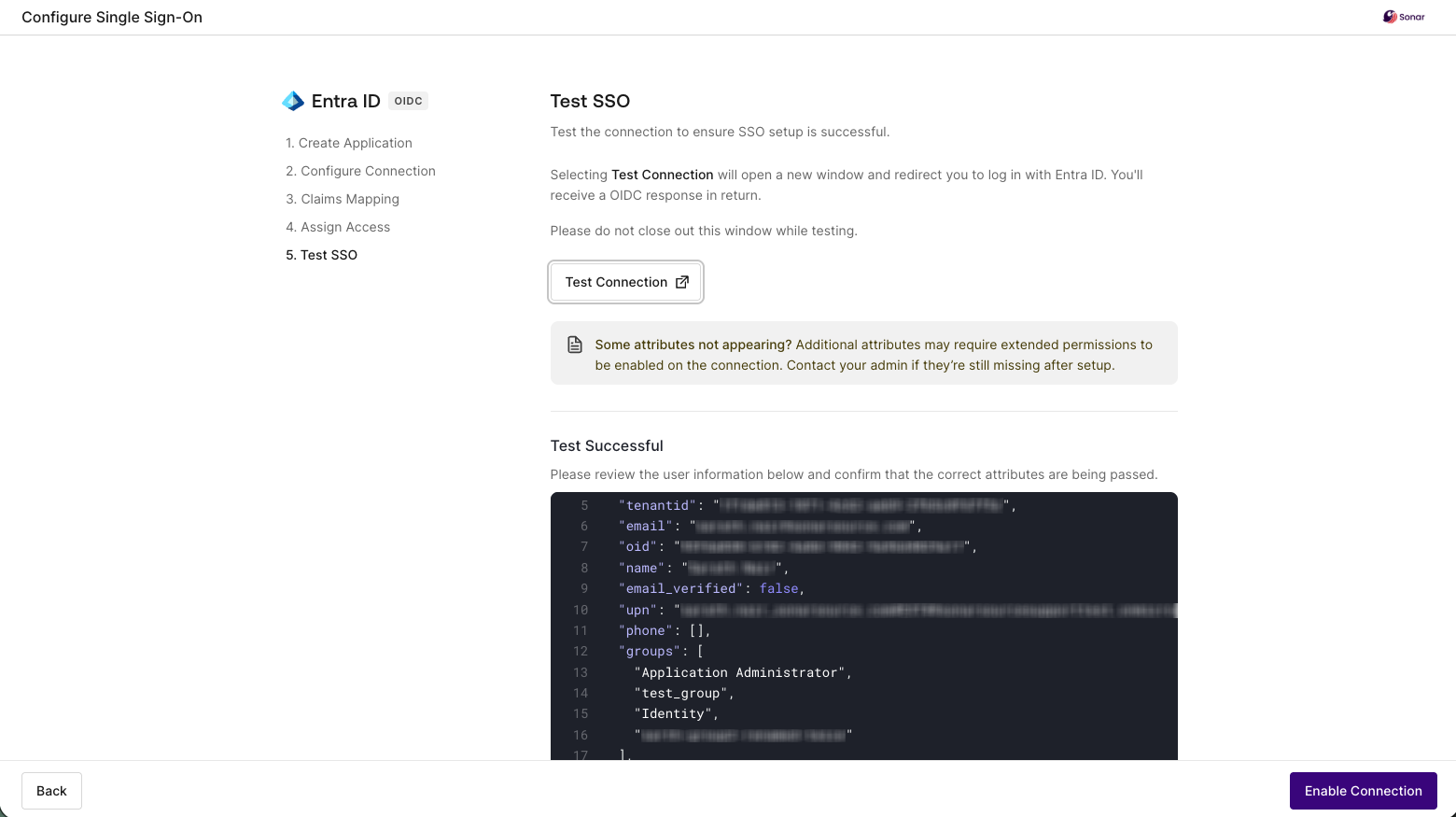
1. Select the Test Connection button. The test is started and the results are displayed on the page.
2. Verify the JSON response. In particular, verify the email and groups attributes, and the OID claim. If the test was successful, select **Enable Connection** and **Proceed**.
```json
{
"provider": "waad",
"identity_api": "microsoft-identity-platform-v2.0",
"user_id": "sso-f70765b9-51ef-4f07-b7b3-0f2abdce93d0|95fda830-b182-4a8d-9042-9a96d4029",
"tenantid": "1f1de813-1071-4c62-aeb9-2fb5c0fd7f5c",
"email": "lina@mycompany.com",
"oid": "95fda830-b182-4a8d-9042-9a96d4029a",
"name": "Lina",
"email_verified": false,
"upn": "lina_mycompany.com#EXT#@myorg.onmicrosoft.com",
"phone": [],
"groups": [
"Application Administrator",
"group2",
"group3",
"group4"
],
"connection": "sso-f70765b9-51ef-4f07-b7b3-0f2abdce93"
}
```
3. You can now verify your company's email domain to avoid one-time email verification during SSO login. To do so, select **Domain Configuration** to open the Domain Configuration assistant. See [Domain verification](/sonarqube-cloud/administering-sonarcloud/enterprise-security/sso-and-provisioning/verify-domain.md#step-2-verify-your-domain-in-the-assistant) for detailed instructions.
### Next steps
* Go to the [Set up SCIM](/sonarqube-cloud/administering-sonarcloud/enterprise-security/sso-and-provisioning/set-up-scim.md) step if you want to set up SCIM provisioning.
* Go to the [Invite users to sign in](/sonarqube-cloud/administering-sonarcloud/enterprise-security/sso-and-provisioning/complete-setup.md) step to terminate your setup.
## If using Custom SAML
### Step 1: Create and set up the SonarQube Cloud application in your identity provider
This step depends on your identity provider.
Okta
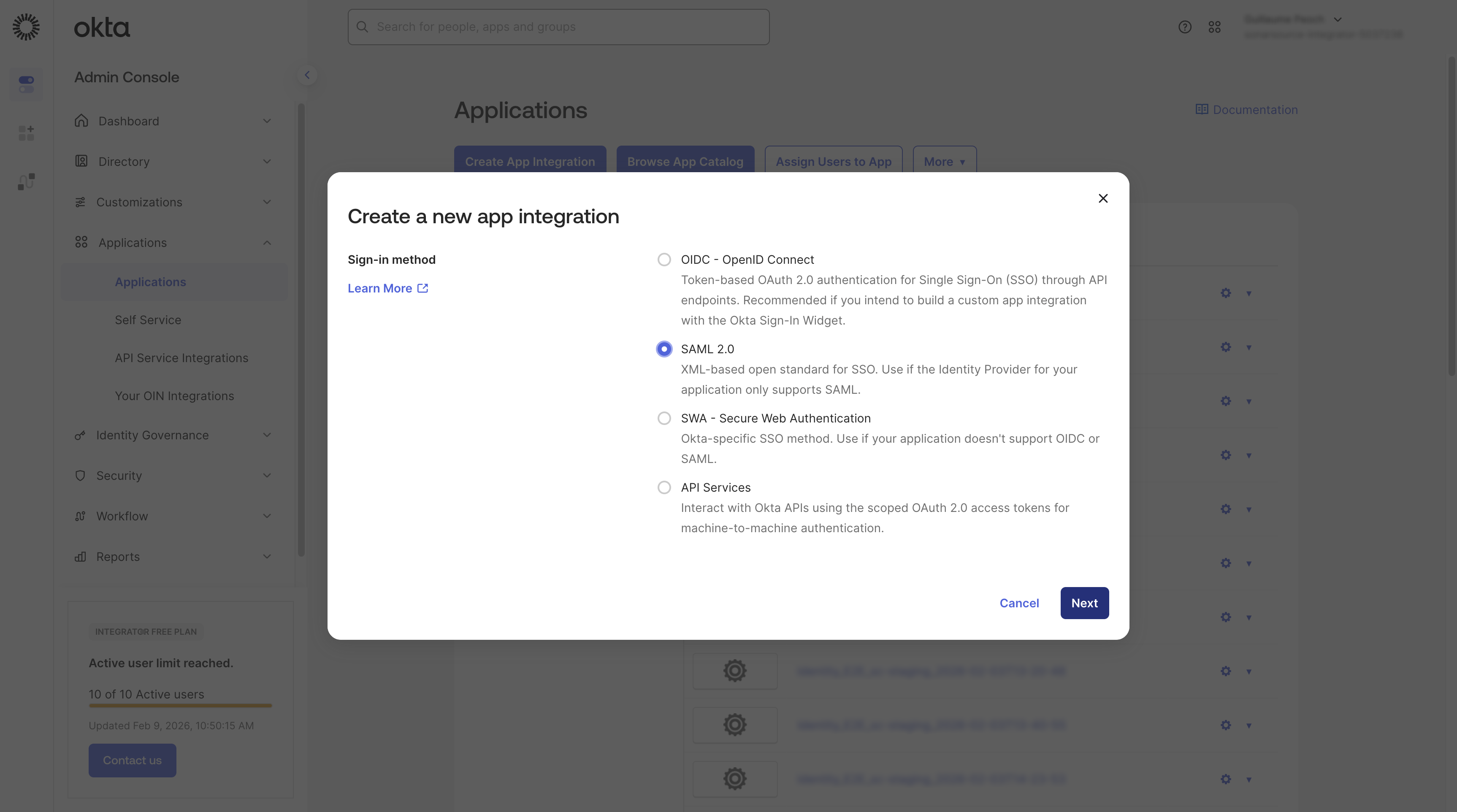
1. In Okta, under **Applications**, select **Create App Integration**.
2. In the dialog, select **SAML 2.0**.
3. Select **Next**.
4. Fill in the fields and options as described below.
* **General settings:**
* **App name**: SonarQube Cloud application name.
Example: SonarQube Cloud.
* **App visibility: Do not display application icon to users**: Select this option. (This is because SonarQube Cloud doesn’t support IdP-initiated SSO)
* **SAML settings:**
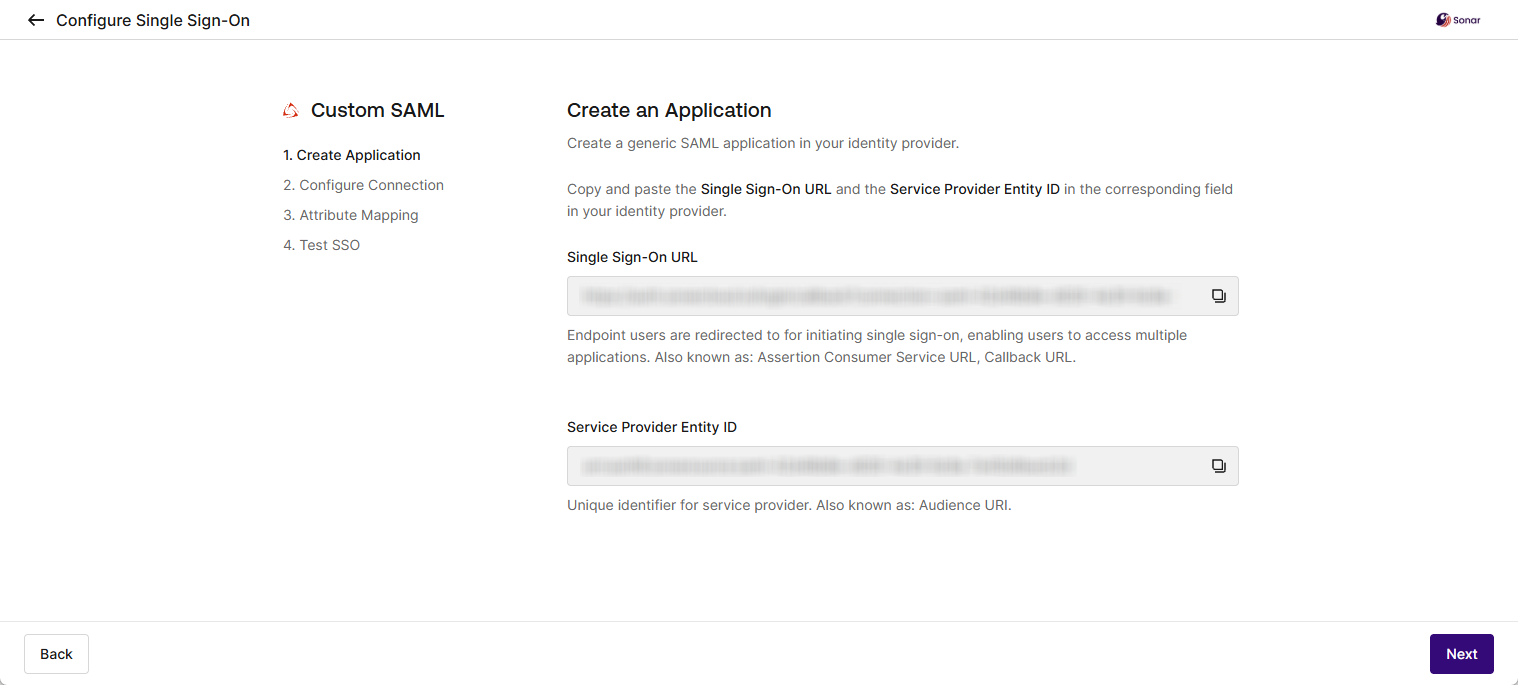
* **Single sign on URL**: Copy-paste the **Single Sign-On URL** field value from the setup assistant.
* **Audience URI (SP Entity ID)**: Copy-paste the **Service Provider Identity ID** field value from the setup assistant.
* **Response**: `Signed`
* **Assertion Signature**: `Signed`
* **Signature Algorithm**: `RSA-SHA256`
* *For assertion encryption:*
* **Assertion Encryption**: If you want to enable assertion encryption, select **Encrypted** and fill in the fields below.
* **Encryption Algorithm**: Select `AES256-GCM` for high security.
* **Key Transport Algorithm**: `RSA-OAEP`
* **Encryption Certificate**: The public X.509 certificate used by the identity provider to authenticate SAML messages.
{% hint style="danger" %}
Only a single sign-on URL is allowed. Attempting to configure URLs in **Other Requestable SSO URLs** will lead to errors in your SSO setup.
{% endhint %}
5. In the **Feedback** dialog, select **Finish** to confirm the creation of the SonarQube Cloud application.
6. In the setup assistant, select **Next** to go to the step **2. Configure Connection**.
**2. Configure Connection**
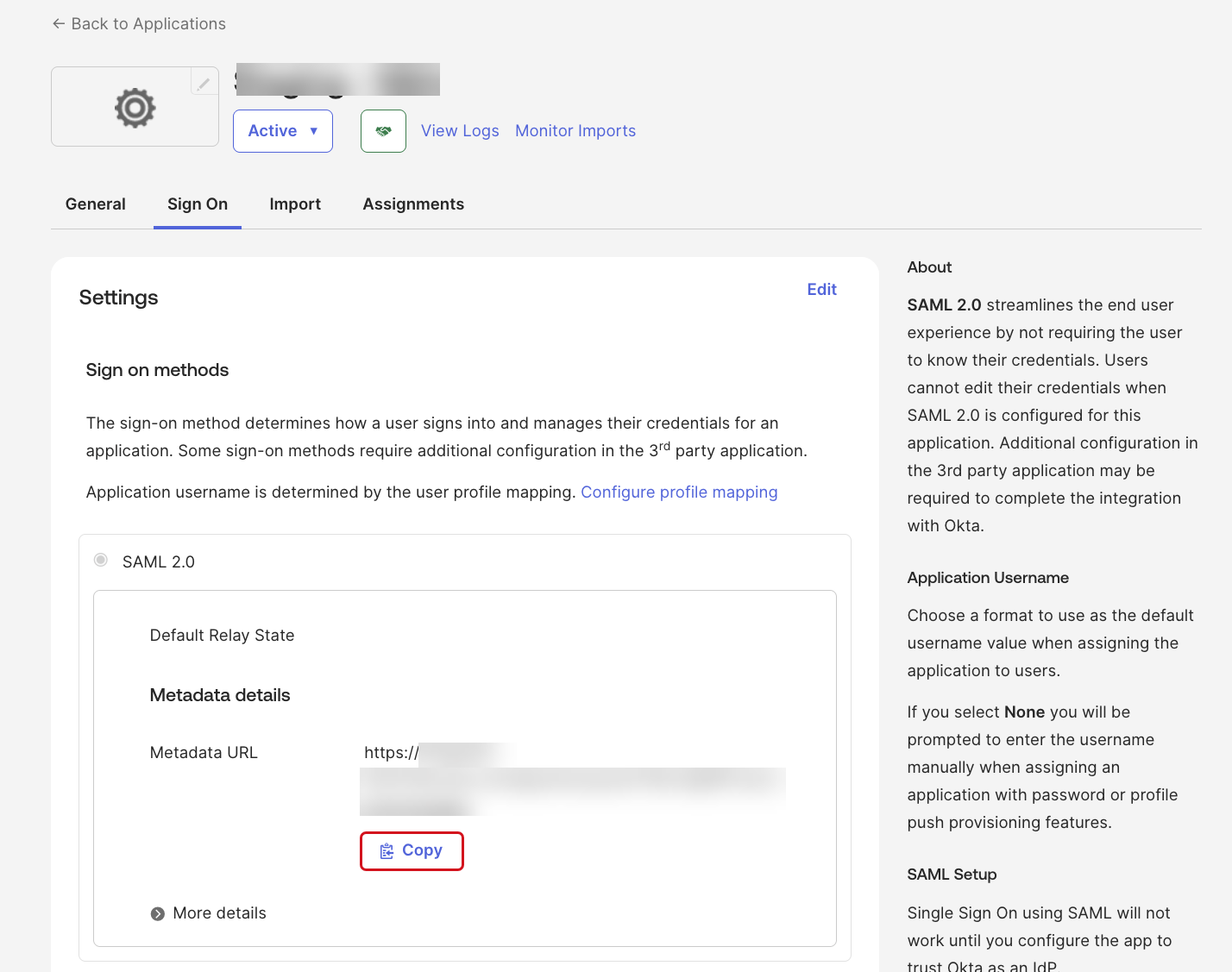
1. In Okta’s SonarQube Cloud application, go to **Sign On** > **Settings** > **Sign on methods**. Copy the value of the **Metadata URL** field
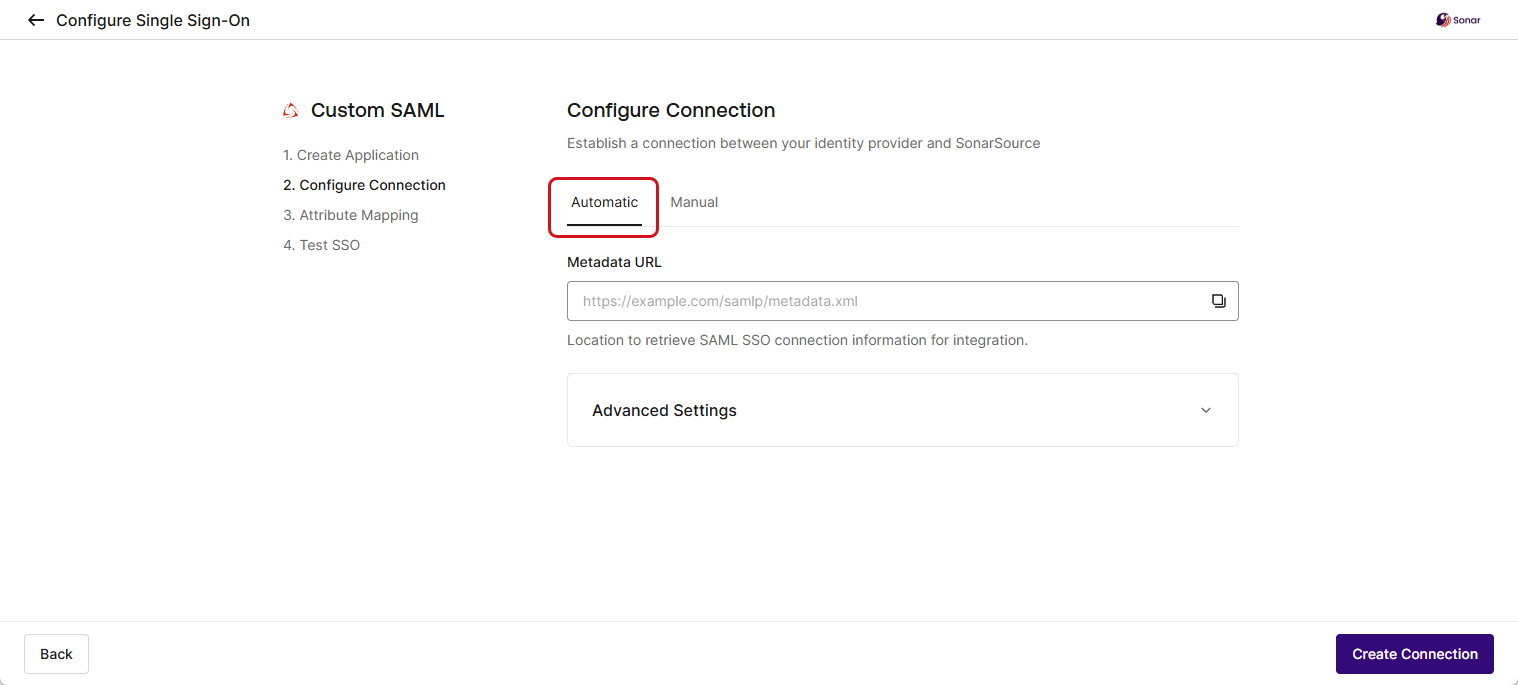
2. Paste the copied value to the **Metadata URL** field in the **Automatic** tab of the setup assistant page.
3. In the assistant, select **Create Connection** and **Proceed.** SonarQube Cloud is trying to connect to your Identity Provider. If the connection is established, the assistant moves to step **3. Attribute Mapping**.
**3. Attribute Mapping**
1. In Okta’s SonarQube Cloud application, go to **Sign On**.
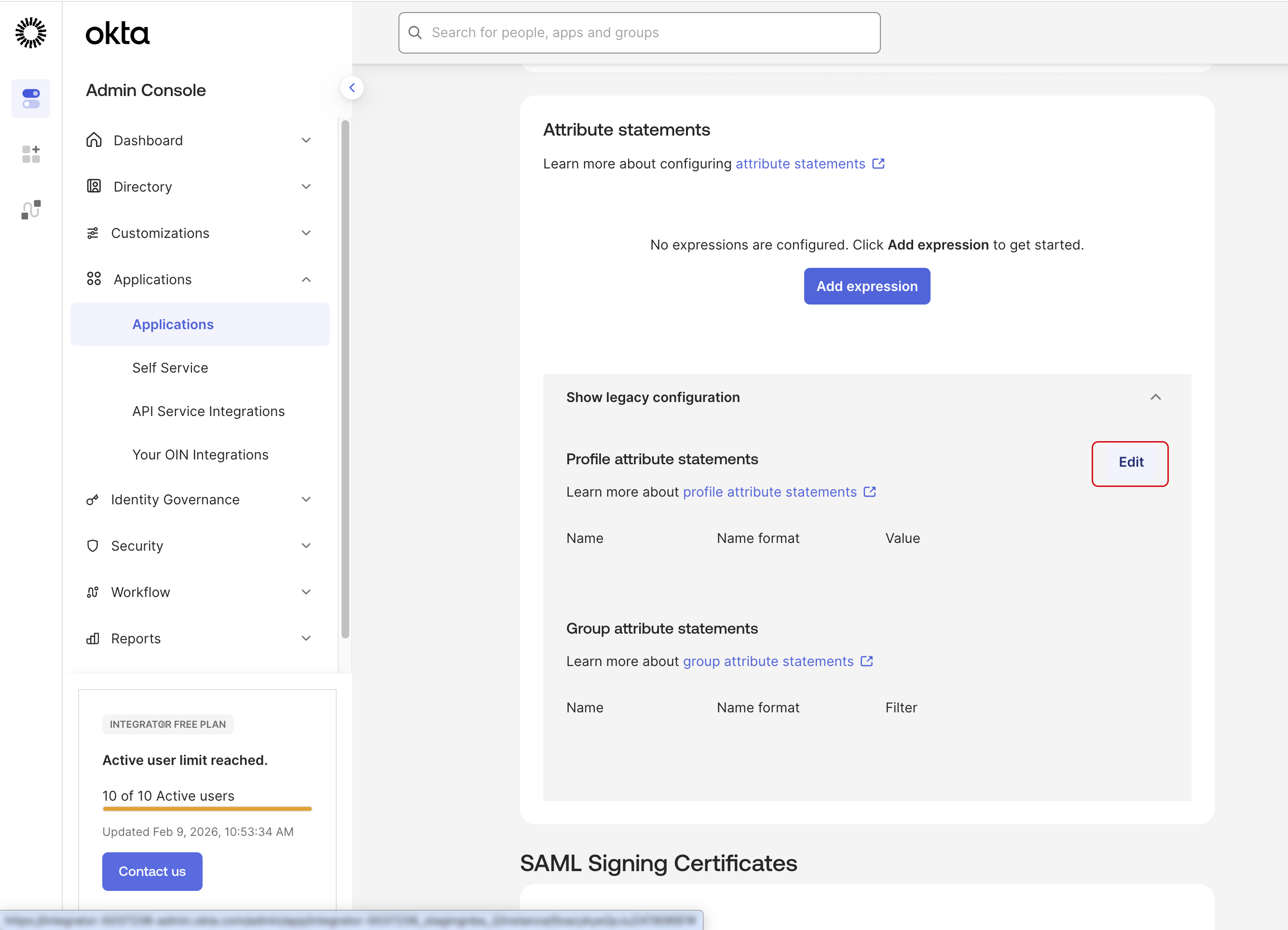
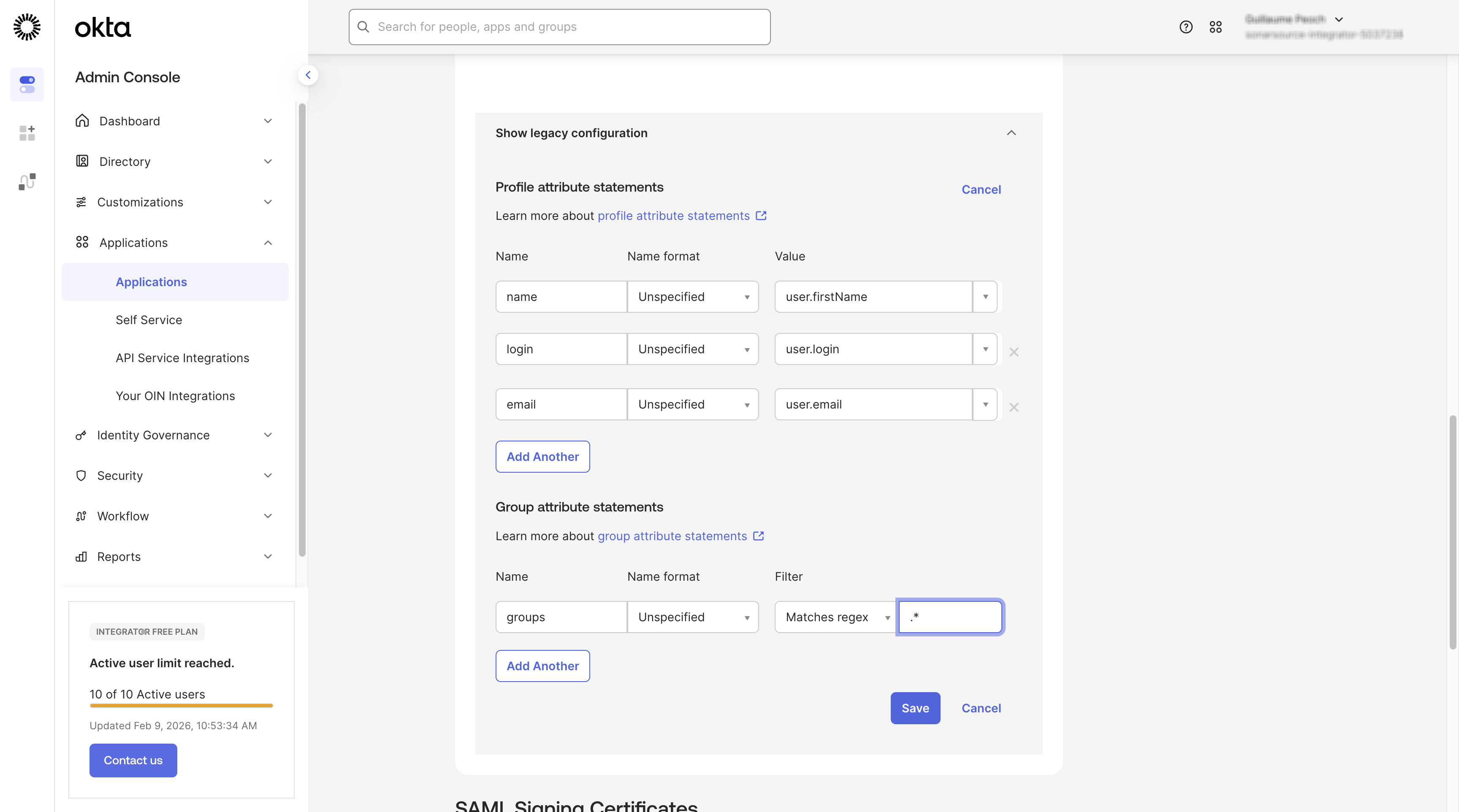
2. Go down to the **Attribute statements** section and open the **Show legacy configuration** panel.
3. Select **Edit.**
4. In **Profile attribute statements**, add the attributes for Name, Login, and Email, and in **Group Attribute Statements**, add the attribute for Groups, as described below.
* Name attribute**:**
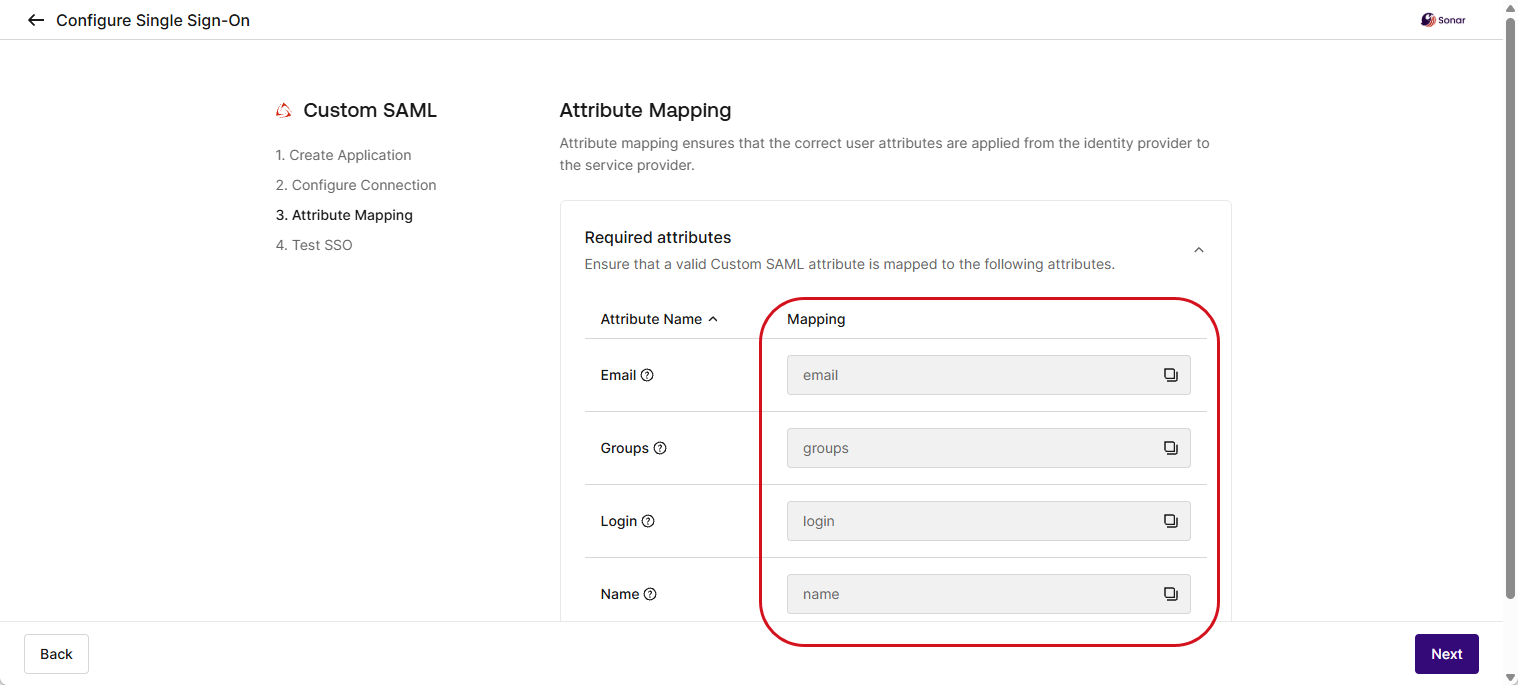
* **Name**: Copy the attribute's **Mapping** value from the assistant (use the Copy tool).
* **Name format**: `Unspecified`
* **Value**: `user.firstName`
* Login attribute:
* **Name**: Copy the attribute's **Mapping** value from the assistant (use the Copy tool).
* **Name format**: `Unspecified`
* **Value**: `user.login`
* Email attribute:
* **Name**: Copy the attribute's **Mapping** value from the assistant (use the Copy tool).
* **Name format**: `Unspecified`
* **Value**: `user.email`
* Groups attribute:
* **Name**: Copy the attribute's **Mapping** value from the assistant (use the Copy tool).
* **Name format**: `Unspecified`
* **Filter**: Select `Matches regex` and set the value to **`.*`** to synchronize all groups from Okta or use a more restrictive expression depending on your needs.
{% hint style="warning" %}
Regardless of your chosen provisioning method, you must configure the groups attribute in the SAML payload. If you use SCIM provisioning, ensuring this value aligns with the data SCIM transmits to SonarQube Cloud is essential. See [Before setting up SSO and provisioning](/sonarqube-cloud/administering-sonarcloud/enterprise-security/sso-and-provisioning/before-you-start.md#group-setup-is-mandatory) for more details.
{% endhint %}
5. Select **Save**.
6. In the SonarQube Cloud's setup assistant, select **Next** to go to the step **4. Test SSO**. See [#test-the-sso-connection](#test-the-sso-connection "mention").
Microsoft Entra ID
{% hint style="warning" %}
* Group synchronization doesn’t work with Microsoft Entra ID’s nested groups.
* Microsoft Entra ID’s SAML tokens have a limit regarding the number of groups a user can belong to (see the description of groups in the [Claims in SAML Token](https://learn.microsoft.com/en-us/entra/identity-platform/reference-saml-tokens#claims-in-saml-tokens) table). In such cases, you might need to reduce the number of groups the user is in.
{% endhint %}
Proceed as follows:
1. In Microsoft Entra ID, go to **Applications** > **Enterprise applications** > **All applications**.
2. Select **New application** and then **Create your own application**.
{% hint style="danger" %}
Make sure you choose **Create your own application**. Do not select the non-affiliated **Sonarqube** Microsoft Entra Gallery app, which contains configurations that may prevent proper integration.
{% endhint %}
3. Fill in the name and select the **Integrate any other application you don’t find in the gallery** option.
4. Select **Create**.
5. From the **Manage** section of the SonarQube Cloud application, go to **Single sign-on** > **SAML**.
6. In the **Basic SAML Configuration** section, select **Edit,** fill in the **Identifier** and the **Reply URL** fields as described below, and save:
* **Identifier (Entity ID)**: Copy-paste the **Service Provider Identity ID** field value from the setup assistant.
* **Reply URL (Assertion Consumer Service URL)**: Copy-paste the **Single Sign-On URL** field value from the setup assistant.
* **Sign On URL (Optional)**: Until IdP initiated SSO is available, you can use this URL: `https://sonarcloud.io/login/sso?enterprise_key=`.
{% hint style="danger" %}
Only a single reply URL is allowed. Attempting to configure multiple reply URLs will lead to errors in your SSO setup.
{% endhint %}
7. In the setup assistant, select **Next** to go to the step **2. Configure Connection**.
**2. Configure Connection**
1. In your SonarQube Cloud application in Microsoft Entra ID, go to **SAML Certificates**. Copy the value of the **App Federation Metadata Url** field and paste it into the **Metadata URL** field in the **Automatic** tab of the setup assistant page.
2. In the assistant, select **Create Connection** and **Proceed.** SonarQube Cloud is trying to connect to your Identity Provider. If the connection is established, the assistant moves to step **3. Attribute Mapping**.
**3. Attribute Mapping**
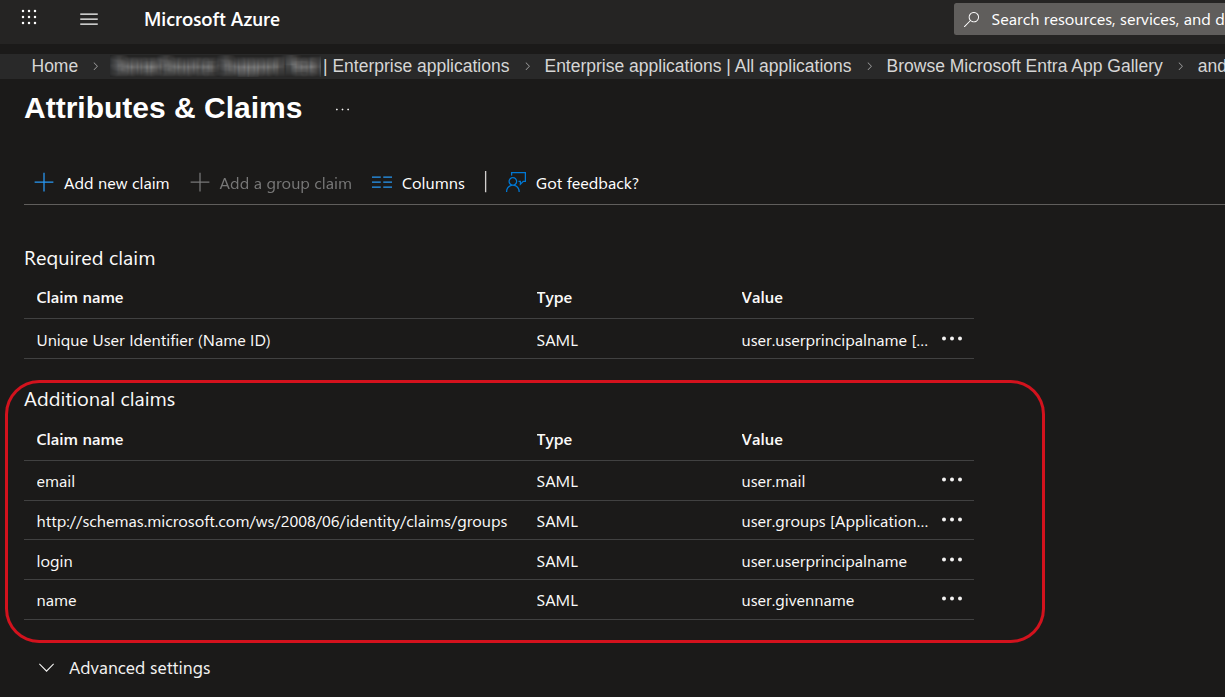
1. In Microsoft Entra ID, go to he **Attributes & Claims** section of your SonarQube Cloud application.
2. Remove the namespaced attributes added by Microsoft Entra ID and listed in the **Additional claims** section.
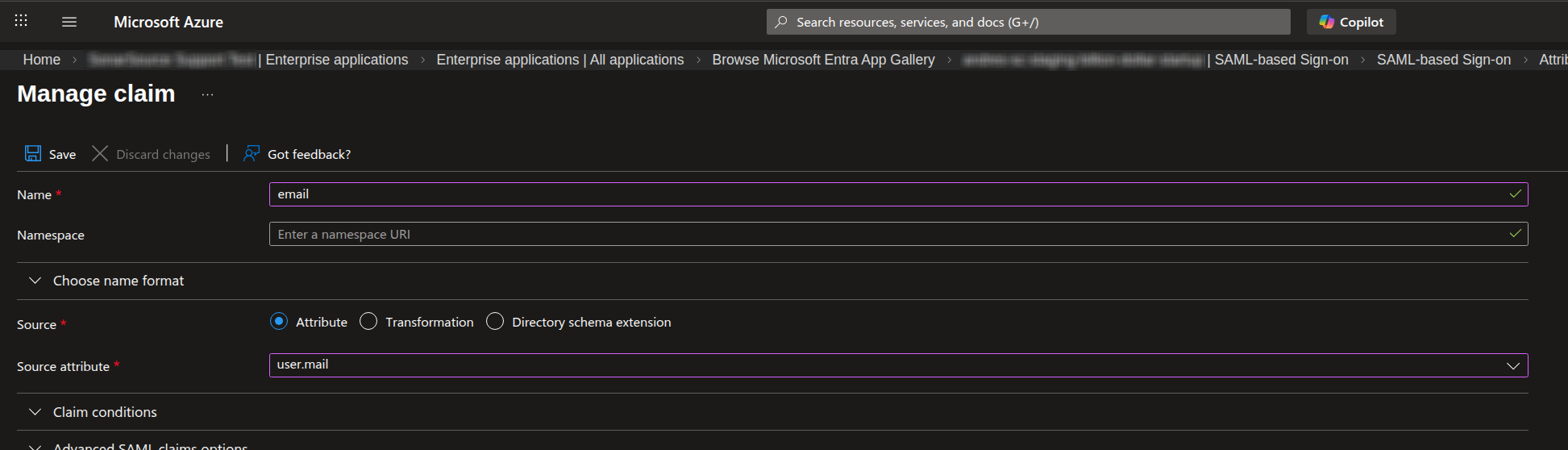
3. Select **Add new claim** and define a claim for the Email attribute. This attribute is used to manage the email of the user.
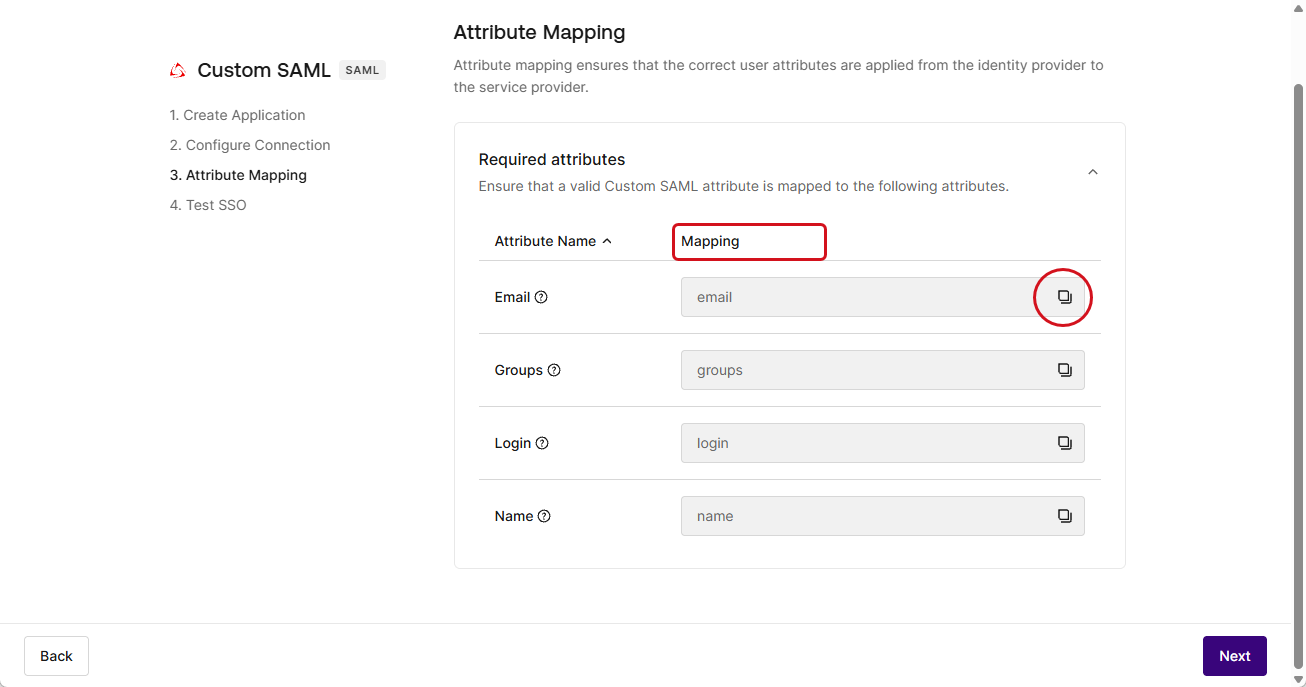
* In **Name**, paste the name copied from the Email's **Mapping** value in SonarQube Cloud's setup assistant.
* In **Source attribute**, select `user.mail` .
The figure below shows the setup assistant of SonarQube Cloud. Use the copy tool to copy the **Mapping** value.
2. The same way, define a claim for the Login attribute. This attribute is the unique name used to identify the user in SonarQube Cloud. In **Source attribute**, select `user.userprincipalname`.
3. The same way, define a claim for the Name attribute. This attribute is the full name of the user. In **Source attribute**, select `user.givenname` or your own user name attribute.
{% hint style="info" %}
The default list of attributes includes `user.givenname` (first name) and `user.surname` (last name). If you prefer to show the full name, you must create a new claim in MS Entra ID.
{% endhint %}
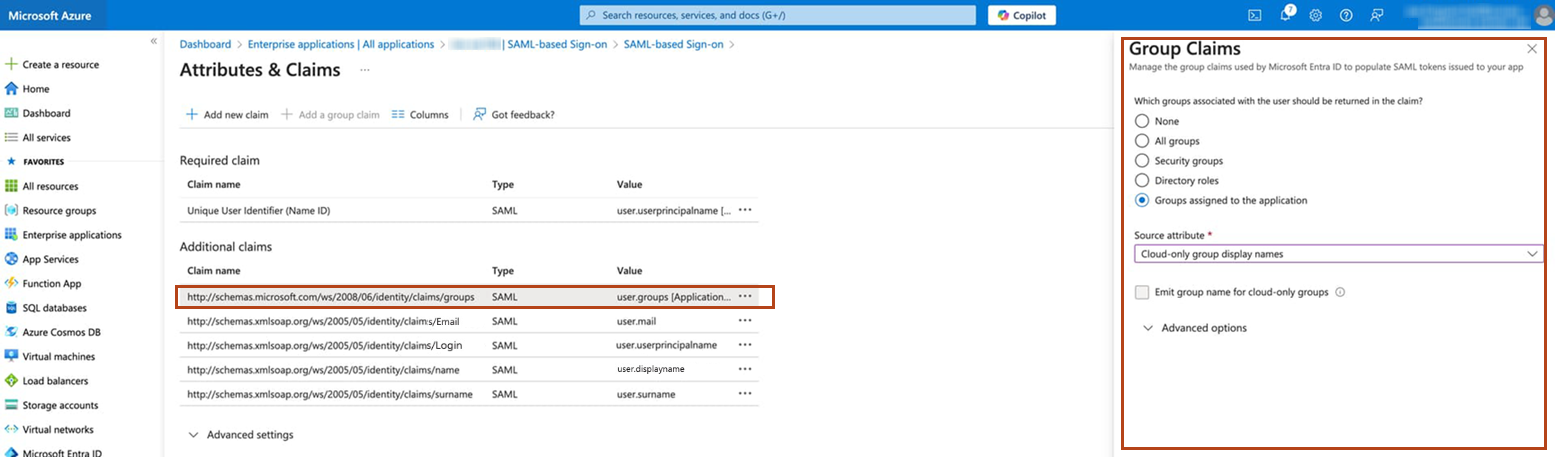
4. Select **Add a group claim** to define the Groups attribute. Set the parameters as follows:
* **Which groups associated with the user should be returned in the claim?**: **Groups assigned to the application**
* **Source attribute**: **Cloud-only group display names** or (if using on-prem Active Directory for group synchronisation) **sAMAccountName**
* **Emit group name for cloud-only groups option**: If you use sAMAccountName, select the option. Otherwise, ignore the option.
{% hint style="warning" %}
Regardless of your chosen provisioning method, you must configure the groups attribute in the SAML payload. If you use SCIM provisioning, ensuring this value aligns with the data SCIM transmits to SonarQube Cloud is essential. See [Before setting up SSO and provisioning](/sonarqube-cloud/administering-sonarcloud/enterprise-security/sso-and-provisioning/before-you-start.md#group-setup-is-mandatory) for more details.
{% endhint %}
The figure below shows a group attribute definition example.
Save. The option to add a group will be unavailable and the group attribute will be listed with the other attributes in the **Additional claims** section as illustrated below.
5. In the setup assistant, select **Next** to go to the step **4. Test SSO**. See [#test-the-sso-connection](#test-the-sso-connection "mention").
JumpCloud
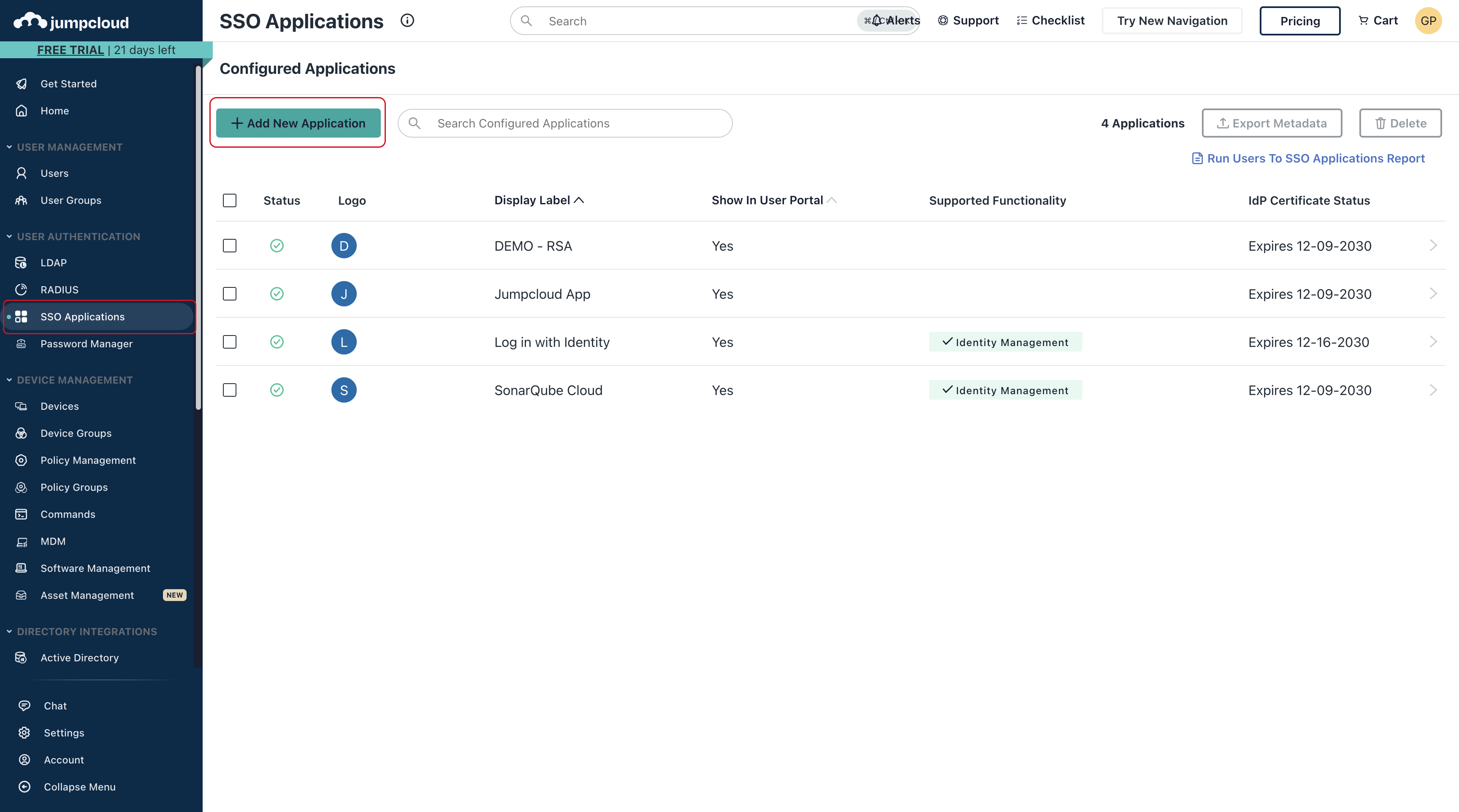
1. In JumpCloud, go to **SSO Applications** and select **+ Add New Application.**
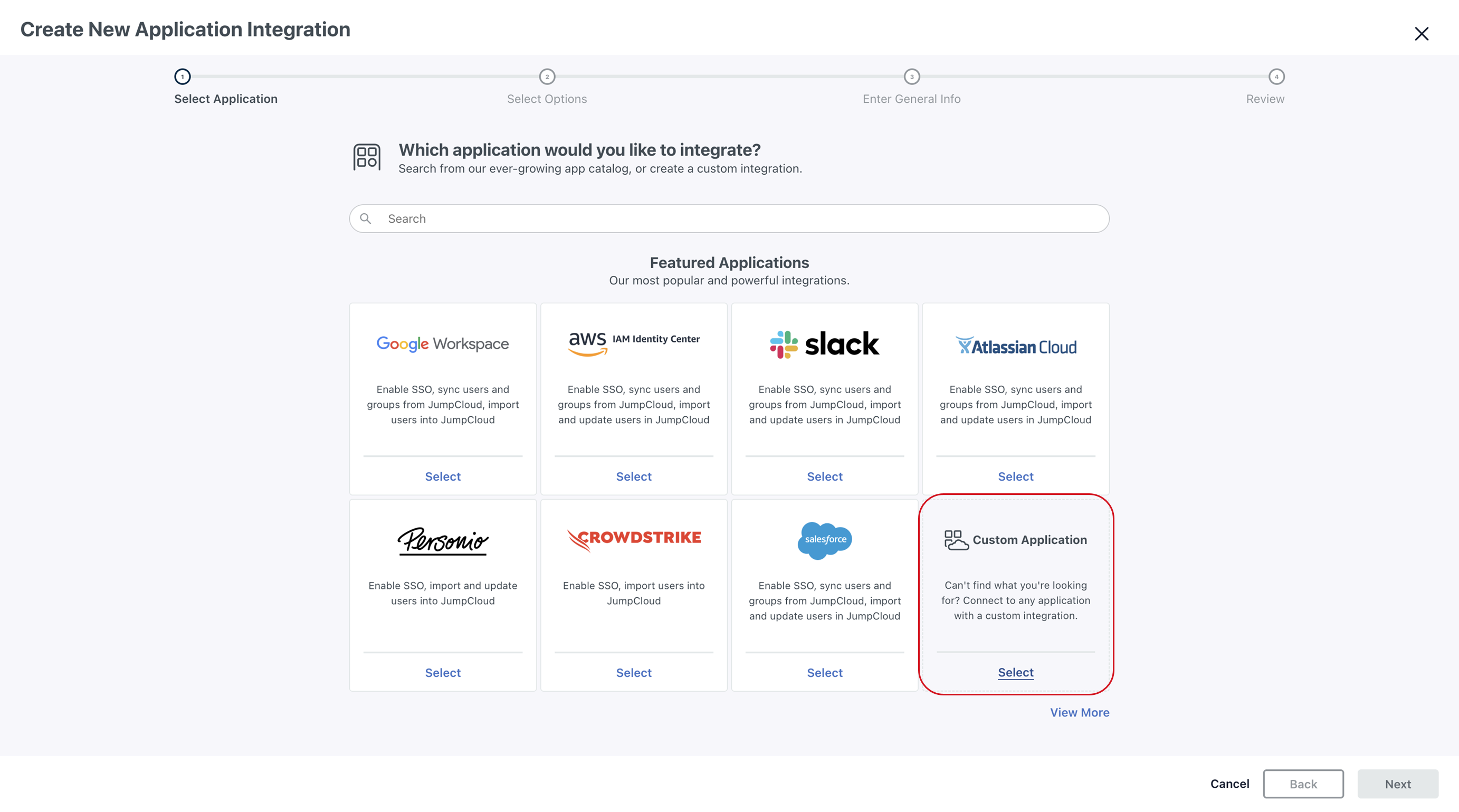
2. Select Custom **Application** and select **Next.**
3. Click **Next**.
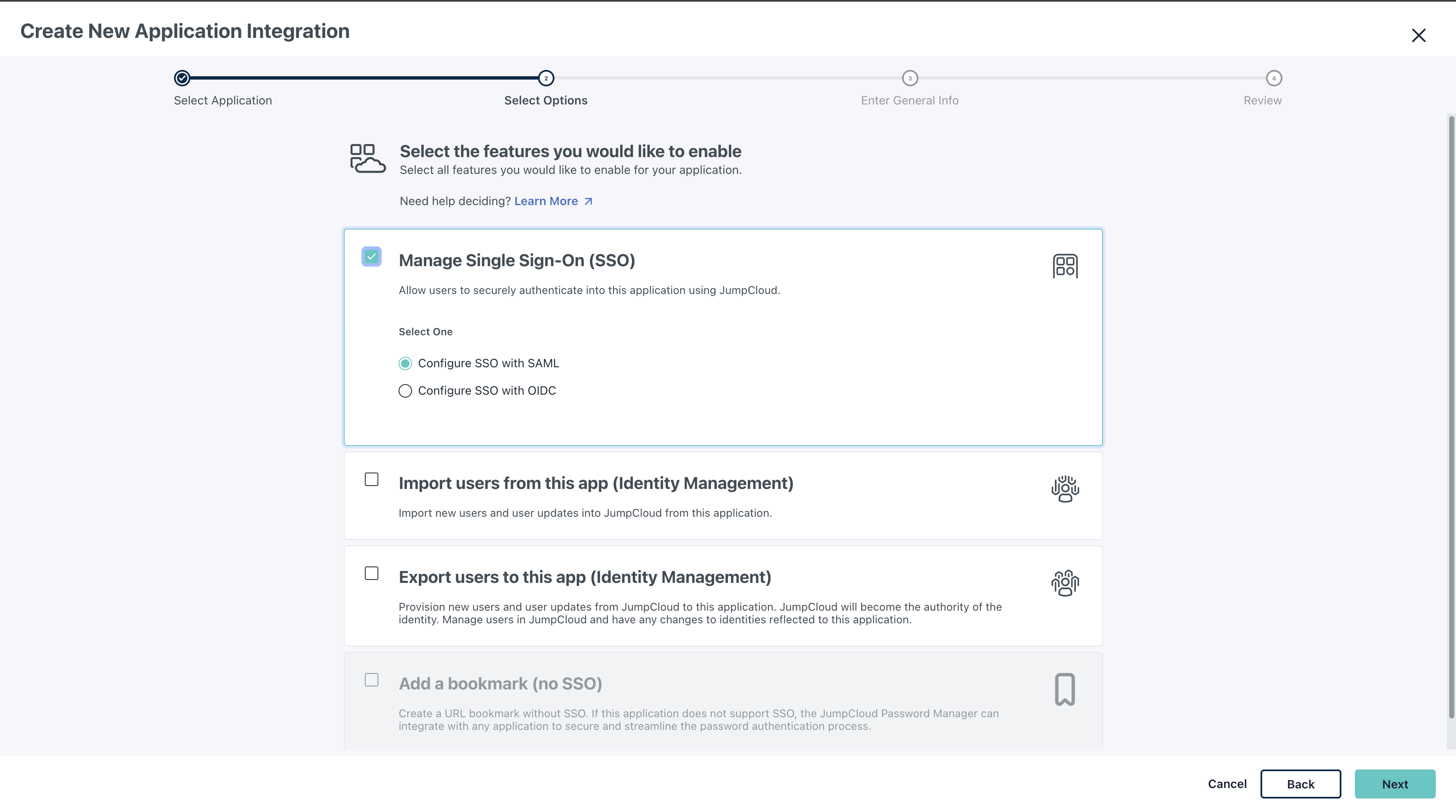
4. Select Manage **Single Sign-On (SSO)** and **Configure SSO with SAML**, and select **Next**.
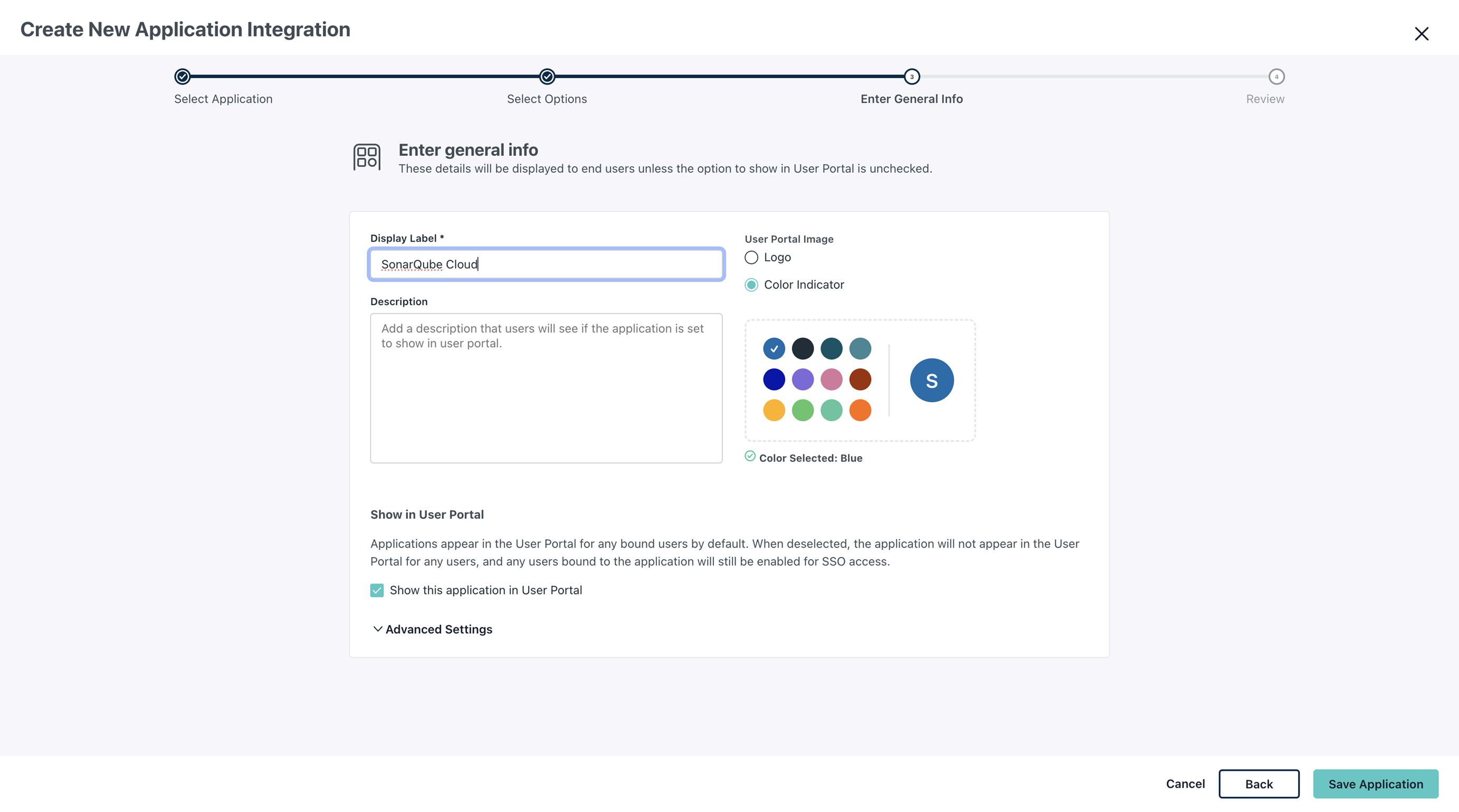
5. Enter a display label and select **Save Application**. The application is created.
6. Select **Configure Application**.
7. In the **SSO** tab, in the **Configuration Settings** section, set the parameters as described below:
* **IdP Entity ID**: Don't change the default value.
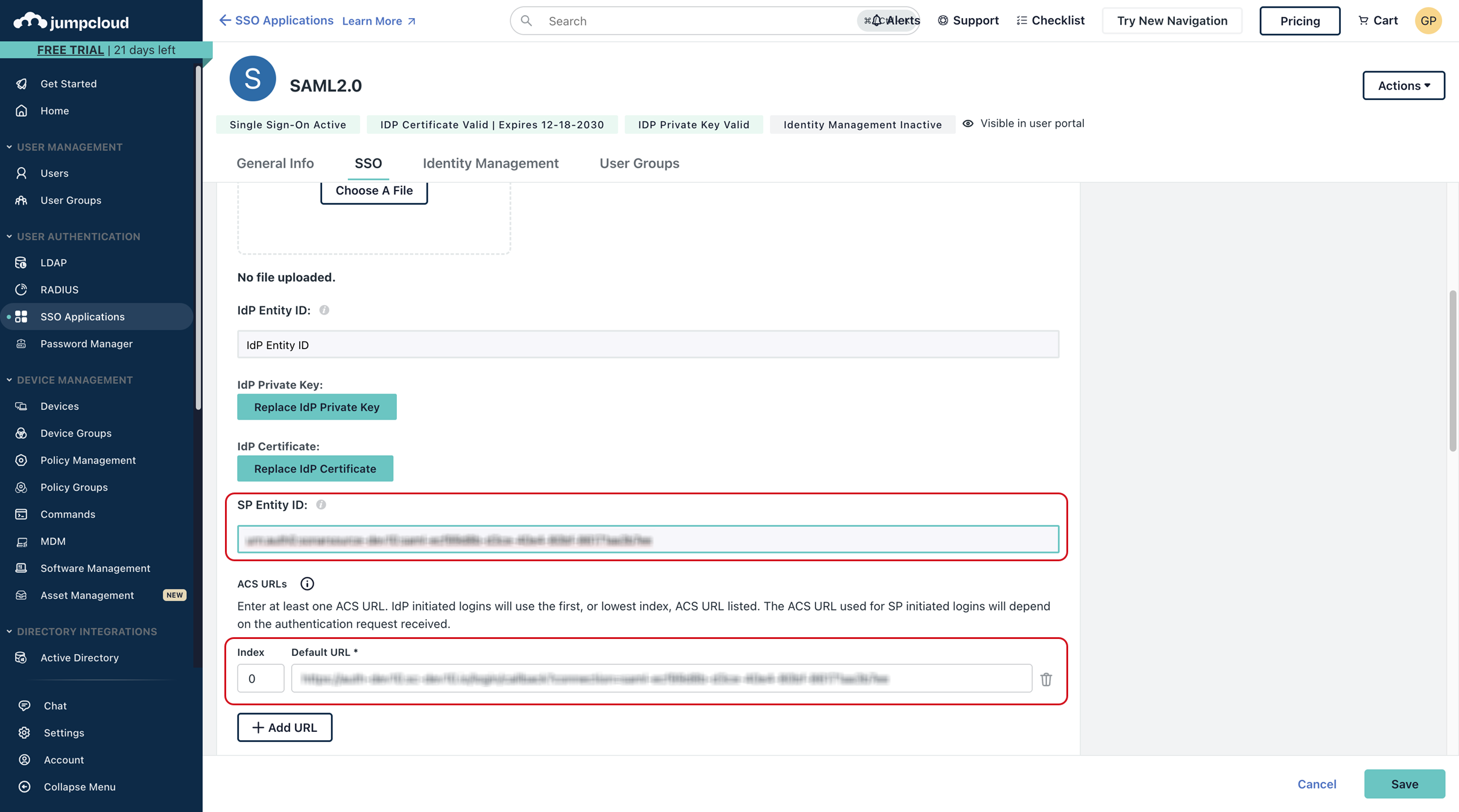
* **SP Entity ID**: Copy-paste the **Single Sign-On URL** field value from the setup assistant.
* **ACS URL**: Copy-paste the **Single Sign-On URL** field value from the setup assistant to **Default URL**.
{% hint style="danger" %}
Only a single ACS URL is allowed. Attempting to configure multiple ACS URLs will lead to errors in your SSO setup.
{% endhint %}
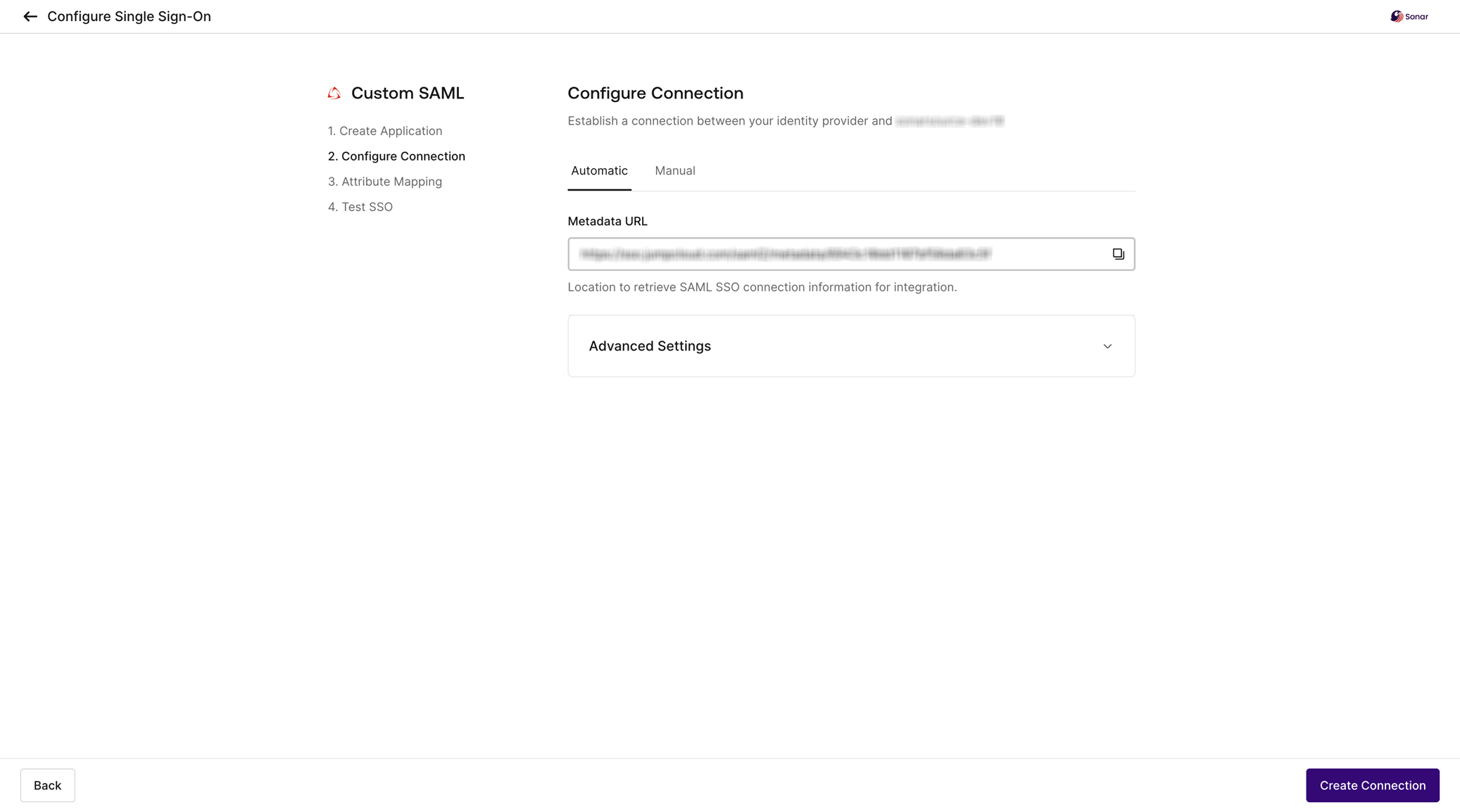
8. In **JumpCloud Metadata** in the same section, select the **Copy Metadata URL** button.
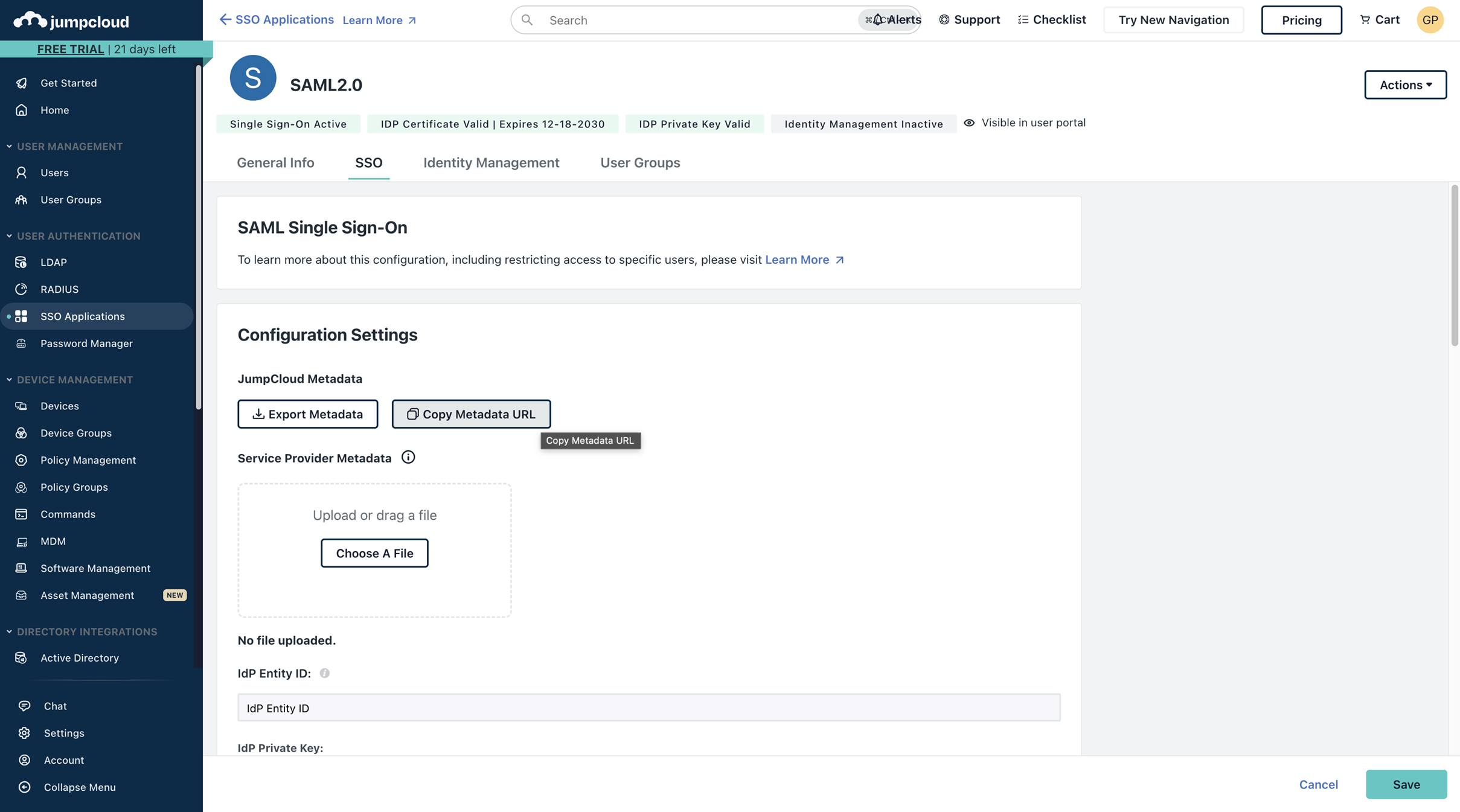
9. In SonarQube Cloud's SAML SSO setup assistant, go the step **2. Configure Connection** and paste the copied value to **Metadata URL** in the **Automatic** tab.
10. Select **Create Connection** and then **Proceed.**
11. In SonarQube Cloud's SAML SSO setup assistant, go the step **3. Attribute Mapping**.
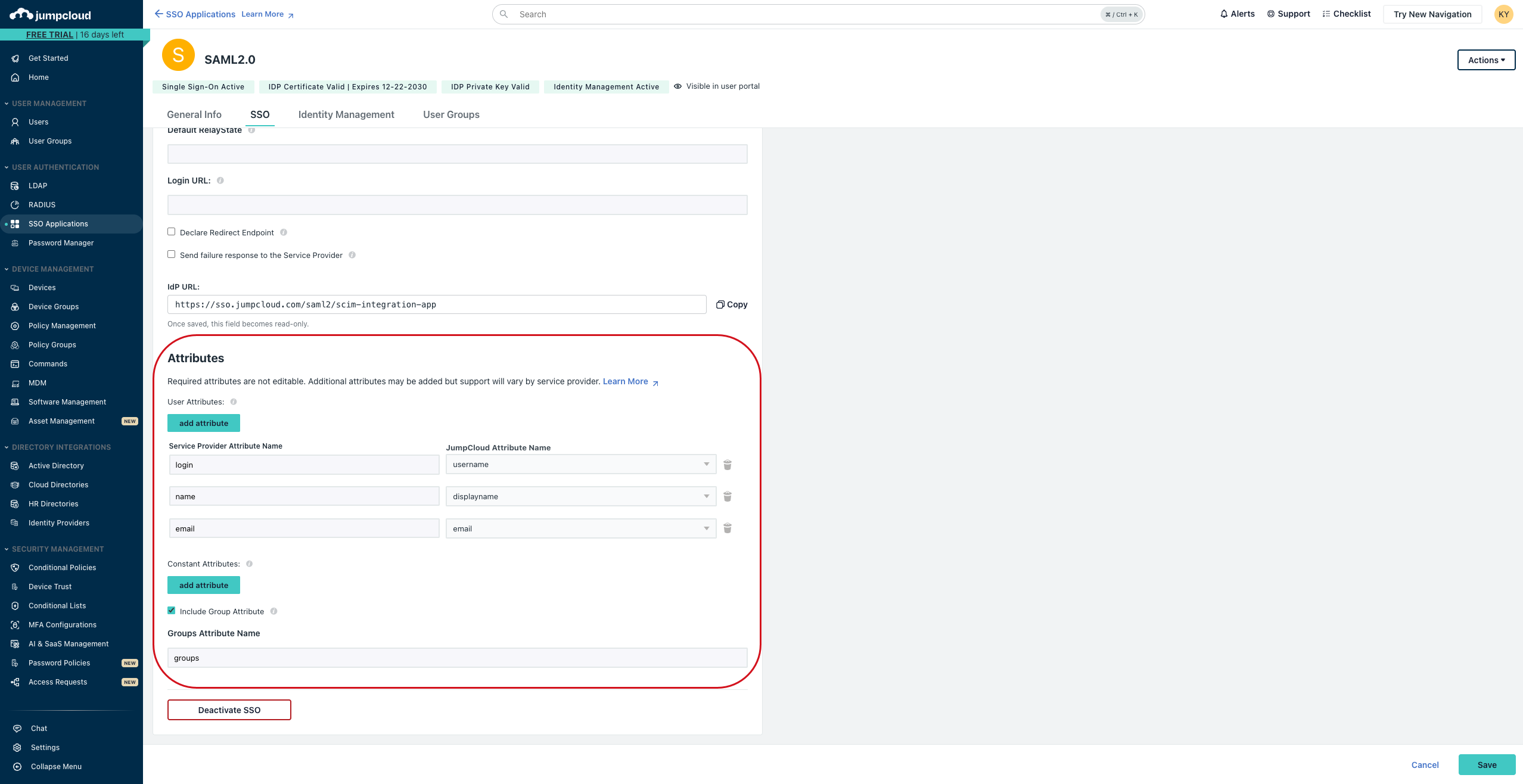
12. In the **SSO** tab of the JumpCloud's application, go to the **Attributes > User Attributes** section and add three new attributes with the values described below:
* Name attribute:
* **Service Provider Attribute Name**: Paste the name copied from the **Mapping** value in SonarQube Cloud's setup assistant.
* **JumpCloud Atttribute Name**: `username`
* Login attribute:
* **Service Provider Attribute Name**: Paste the name copied from the **Mapping** value in SonarQube Cloud's setup assistant.
* **JumpCloud Atttribute Name**: `displayname`
* Email attribute:
* **Service Provider Attribute Name**: Paste the name copied from the **Mapping** value in SonarQube Cloud's setup assistant.
* **JumpCloud Atttribute Name**: `email`
13. Under the **Constant Attributes** section, select the **Include Group Attribute** option. Copy the group attribute name from the assistant and paste it into **Groups Attribute Name**.
{% hint style="warning" %}
Regardless of your chosen provisioning method, you must configure the groups attribute in the SAML payload. If you use SCIM provisioning, ensuring this value aligns with the data SCIM transmits to SonarQube Cloud is essential. See [Before setting up SSO and provisioning](/sonarqube-cloud/administering-sonarcloud/enterprise-security/sso-and-provisioning/before-you-start.md#group-setup-is-mandatory) for more details.
{% endhint %}
14. Select **Save**.
15. In SonarQube Cloud's SAML SSO setup assistant, select **Next** to go to step **4. Test SSO**. See [#test-the-sso-connection](#test-the-sso-connection "mention") below.
Other identity providers
1. Create the SonarQube Cloud application in your identity provider.
2. Copy the **Service Provider Identity ID** field value from the setup assistant and paste it into the corresponding field in your identity provider.
3. Copy the **Single Sign-On URL** field value from the setup assistant and paste it into the corresponding field in your identity provider.
{% hint style="danger" %}
Only a single sign-on URL is allowed. Attempting to configure multiple sign-on URLs in your identity provider will lead to errors in your SSO setup.
{% endhint %}
4. In SonarQube Cloud's SSO setup assistant, select **Next** to go to the step **2. Configure Connection**.
**2. Configure Connection**
The operation is different depending on whether your identity provider supports the SAML metadata URL field (URL used by SonarQube Cloud to access metadata information) or not.
**Metadata URL supported**
1. In your SonarQube Cloud application in your identity provider, copy the value of the field corresponding to the SAML metadata URL .
2. Paste it into the **Metadata URL** field in the **Automatic** tab of the setup assistant page.
3. In the assistant, select **Create Connection** and **Proceed.** SonarQube Cloud is trying to connect to your Identity Provider. If the connection is established, the assistant moves to step **3. Attribute Mapping**.
**Metadata URL not supported**
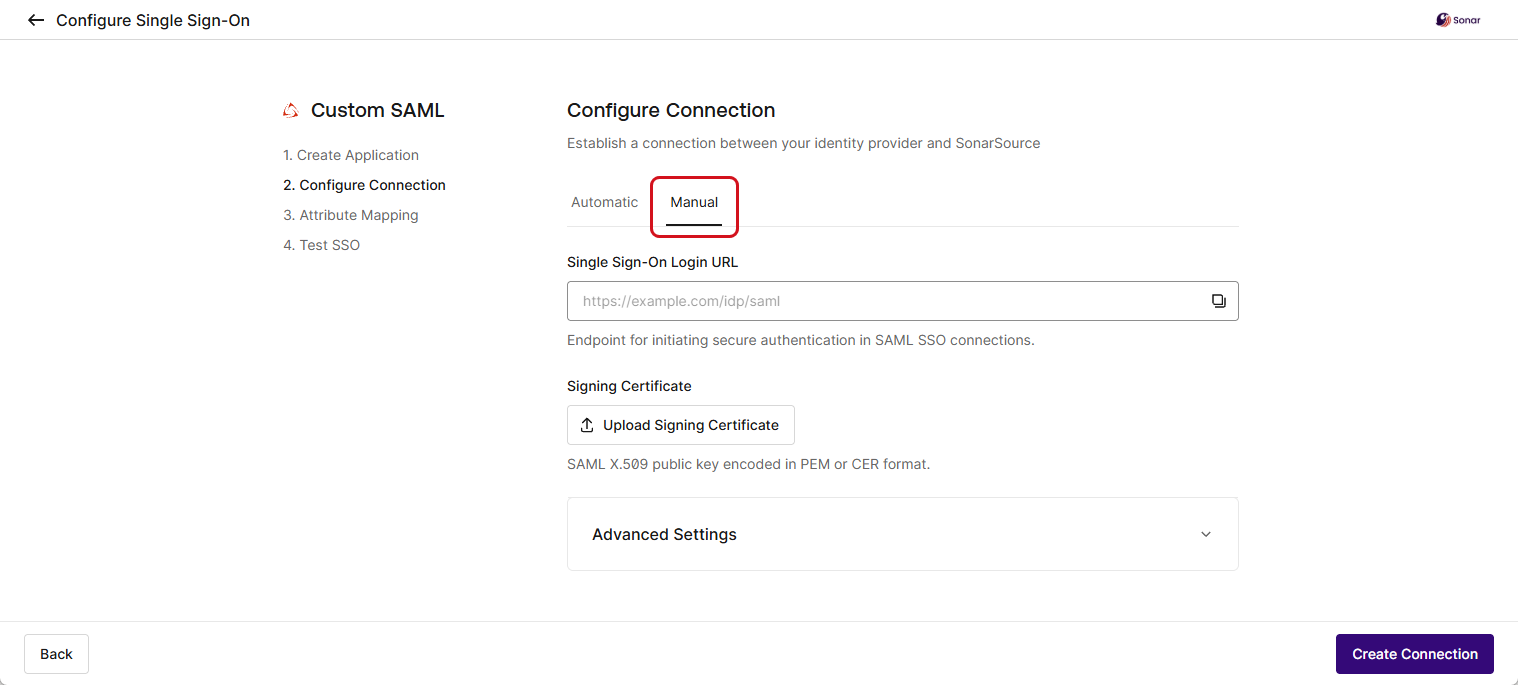
1. In the assistant, select the **Manual** tab.
2. In your identity provider, copy the value of the SSO login URL field and paste it into **Single Sign-On Login URL** in the assistant.
3. In your identity provider, download the certificate and upload it to the assistant.
4. In the assistant, select **Create Connection** and **Proceed.** SonarQube Cloud is trying to connect to your Identity Provider. If the connection is established, the assistant moves to step **3. Attribute Mapping**.
**3. Attribute Mapping**
1. In your identity provider, create the attributes for Name, Login, Email, and Groups (the group attribute is used for automatic group synchronization). To do so, for each attribute, copy the attribute's **Mapping** value from the assistant (use the Copy tool) and paste it into the attribute’s name field in your identity provider.
{% hint style="warning" %}
Regardless of your chosen provisioning method, you must configure the groups attribute in the SAML payload. If you use SCIM provisioning, ensuring this value aligns with the data SCIM transmits to SonarQube Cloud is essential. See [Before setting up SSO and provisioning](/sonarqube-cloud/administering-sonarcloud/enterprise-security/sso-and-provisioning/before-you-start.md#group-setup-is-mandatory) for more details.
{% endhint %}
2. In the assistant, select **Next** to go to step **4. Test SSO**. See [#test-the-sso-connection](#test-the-sso-connection "mention").
### Step 2: Test the SSO connection
1. In your identity provider, assign the user groups to the SonarQube Cloud application (to be able to perform the test, at least one group or user must be assigned).
{% hint style="warning" %}
To ensure users can reach their organization, you must assign groups to your application. Access via SSO is strictly limited to users who are members of a group within that specific organization. If you use SCIM, the mapping of groups to organizations is done during the SCIM setup. If you use the JIT provisioning, you must create the groups manually in SonarQube Cloud's organizations as described in [Before setting up SSO and provisioning](/sonarqube-cloud/administering-sonarcloud/enterprise-security/sso-and-provisioning/before-you-start.md#managing-groups-in-sonarqube-cloud-if-using-jit-provisioning).
{% endhint %}
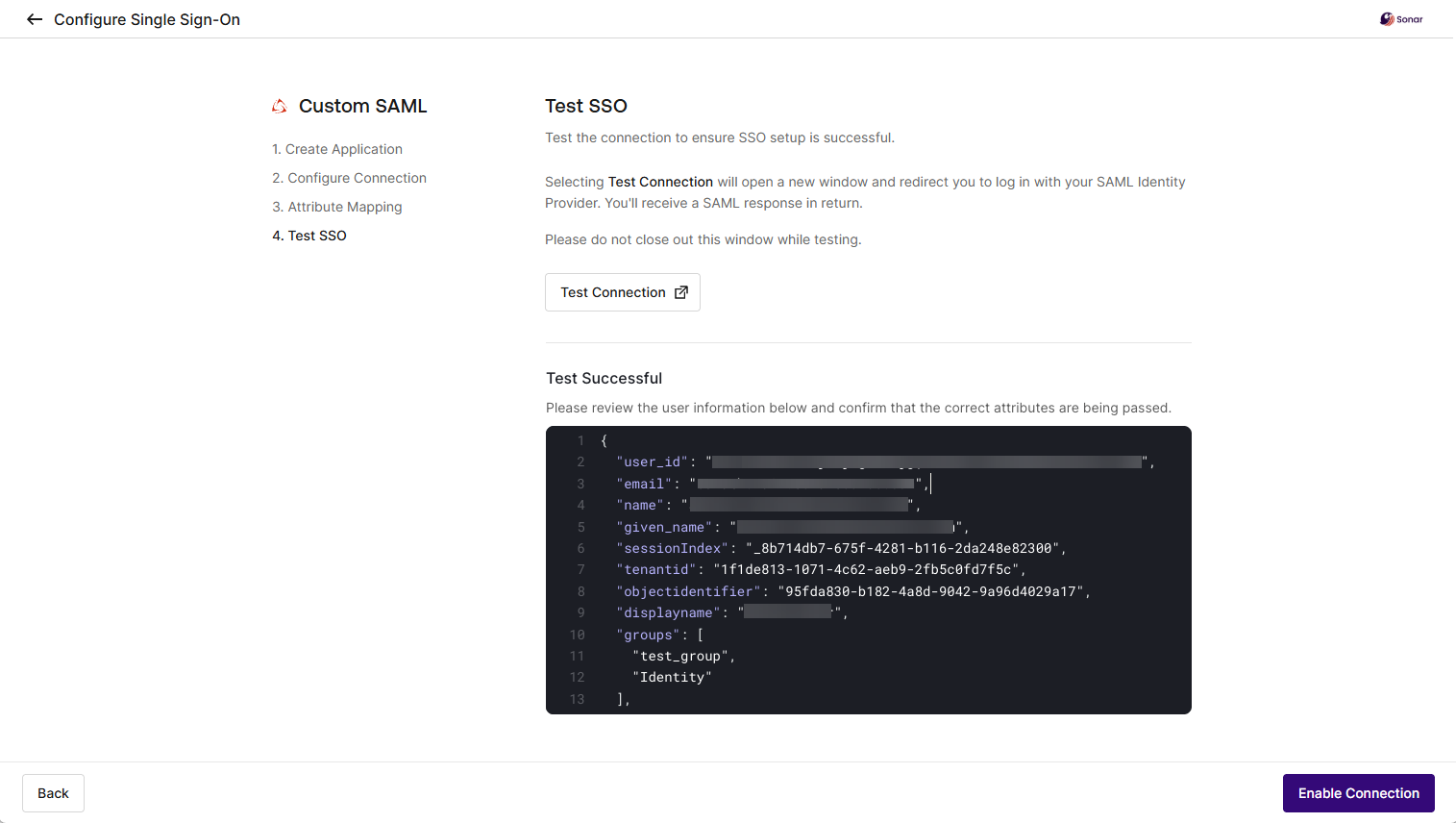
2. In the SonarQube Cloud's setup assistant, select the **Test Connection** button. The test is started and the results are displayed on the page as illustrated below.[Step b: Test the SSO connection](https://app.gitbook.com/o/2ibCvzwZt86Nlk2zloB7/s/B4UT2GNiZKjtxFtcFAL7/~/edit/~/changes/1197/administering-sonarcloud/enterprise-security/sso-and-provisioning/set-up-sso/with-assistant#step-b-test-the-sso-connection)
3. If the test was successful, select **Enable Connection** and **Proceed**.
4. You can now verify your company's email domain to avoid one-time email verification during SSO login. To do so, select **Domain Configuration** in the setup assistant. See [Domain verification](/sonarqube-cloud/administering-sonarcloud/enterprise-security/sso-and-provisioning/verify-domain.md) for detailed instructions.
### Next steps
* Go to the [Set up SCIM](/sonarqube-cloud/administering-sonarcloud/enterprise-security/sso-and-provisioning/set-up-scim.md) step if you want to set up SCIM provisioning.
* Go to the [Invite users to sign in](/sonarqube-cloud/administering-sonarcloud/enterprise-security/sso-and-provisioning/complete-setup.md) step to terminate your setup.
## Related pages
* [Before setting up SSO and provisioning](/sonarqube-cloud/administering-sonarcloud/enterprise-security/sso-and-provisioning/before-you-start.md)
* [Set up SCIM](/sonarqube-cloud/administering-sonarcloud/enterprise-security/sso-and-provisioning/set-up-scim.md)
* [Invite users to sign in](/sonarqube-cloud/administering-sonarcloud/enterprise-security/sso-and-provisioning/complete-setup.md)
* [Using Okta Express Configuration](/sonarqube-cloud/administering-sonarcloud/enterprise-security/sso-and-provisioning/using-okta-express-configuration.md)
* [Domain verification](/sonarqube-cloud/administering-sonarcloud/enterprise-security/sso-and-provisioning/verify-domain.md)
* [Recovery account for SSO](/sonarqube-cloud/administering-sonarcloud/enterprise-security/sso-and-provisioning/recovery-account.md)
* [Editing or deleting SSO configuration](/sonarqube-cloud/administering-sonarcloud/enterprise-security/sso-and-provisioning/edit-or-delete-sso-setup.md)
* [Troubleshooting SSO and provisioning](/sonarqube-cloud/administering-sonarcloud/enterprise-security/sso-and-provisioning/troubleshooting.md)
## Related online learning
* :desktop: [Initial SonarQube Cloud Enterprise set up](https://www.sonarsource.com/learn/course/sonarqube-cloud/e390f0fe-64f4-4840-b74c-e63598af72f2/initial-sonarqube-cloud-enterprise-set-up)
---
# Agent Instructions
This documentation is published with GitBook. GitBook is the documentation platform designed so that both humans and AI agents can read, navigate, and reason over technical content effectively. Learn more at gitbook.com.
## Querying This Documentation
If you need additional information that is not directly available in this page, you can query the documentation by asking a question.
Perform an HTTP GET request on the following URL with the `ask` and `goal` query parameters:
```
GET https://docs.sonarsource.com/sonarqube-cloud/administering-sonarcloud/enterprise-security/sso-and-provisioning/set-up-sso.md?ask=&goal=
```
`ask` is the immediate question: it should be specific, self-contained, and written in natural language.
`goal` is what the user is ultimately trying to achieve, the reason they need the answer. Sharing it helps GitBook give you a better, more relevant answer. A goal is most helpful when it describes the outcome the user wants rather than restating the question. For example, with `ask=how do I create an API token`, a goal like `automate deployments from our CI pipeline` lets GitBook tailor the answer to that use case.
The response will contain a direct answer to the question and relevant excerpts and sources from the documentation.
Use this mechanism when the answer is not explicitly present in the current page, you need clarification or additional context, or you want to retrieve related documentation sections.