> For the complete documentation index, see [llms.txt](https://docs.sonarsource.com/llms.txt). Markdown versions of documentation pages are available by appending `.md` to page URLs; this page is available as [Markdown](https://docs.sonarsource.com/sonarqube-cloud/administering-sonarcloud/managing-enterprise/managing-the-lines-of-code-within-your-enterprise.md).
# Managing the lines of code within your enterprise
You must be an enterprise admin to be able to manage the lines of code (LOC) limits within your enterprise.
## About the enterprise lines of code limit (Shared LOC and Allocated LOC)
Your enterprise license entitles you to a maximum lines of code (enterprise LOC limit). For more information about lines of code, see [Subscription plans](/sonarqube-cloud/administering-sonarcloud/managing-subscription/subscription-plans.md#loc-based-pricing).
By default, the enterprise LOC limit is *shared* by all organizations in the enterprise: the total LOC consumed by all organizations in the enterprise cannot exceed this limit.
You have the flexibility to **allocate** an individual LOC limit to one or more organizations within your enterprise (including the option to apply it to all): the LOC consumed by the organization cannot exceed the limit allocated to this organization. The other organizations in your enterprise will share the remaining LOC limit. For example, an enterprise with a total LOC limit of 5 M and containing 4 organizations may be configured as follows:
* Organization1 is allocated a 2M LOC limit.
* Organization2 is allocated a 1.3M LOC limit.
* Organization3 and Organization4 share the remaining LOC limit, i.e. 1.7 M.
We use the following concepts to refer to the different LOC limit uses:
* **Shared LOC** refers to the collective lines of code limit shared by organizations within the enterprise.
* **Allocated LOC** refers to the individual lines of code limits allocated to organizations within the enterprise.
{% hint style="info" %}
An allocated LOC must be a multiple of 100k with a minimum allocation of 100k. If you have less than 1M LOC limit in your enterprise, we recommend that you use only the Shared LOC.
{% endhint %}
## Allocating a LOC limit to an organization
You can allocate a LOC limit to an organization within your enterprise, as long as the enterprise LOC limit has not been fully allocated. The remaining LOC available for allocation are determined by subtracting already allocated LOC limits from the enterprise LOC limit.
To allocate a LOC limit to an organization within your enterprise:
1. Retrieve the enterprise. See [Retrieving and viewing your enterprise](/sonarqube-cloud/administering-sonarcloud/managing-enterprise/retrieving-and-viewing-your-enterprise.md) for more information.
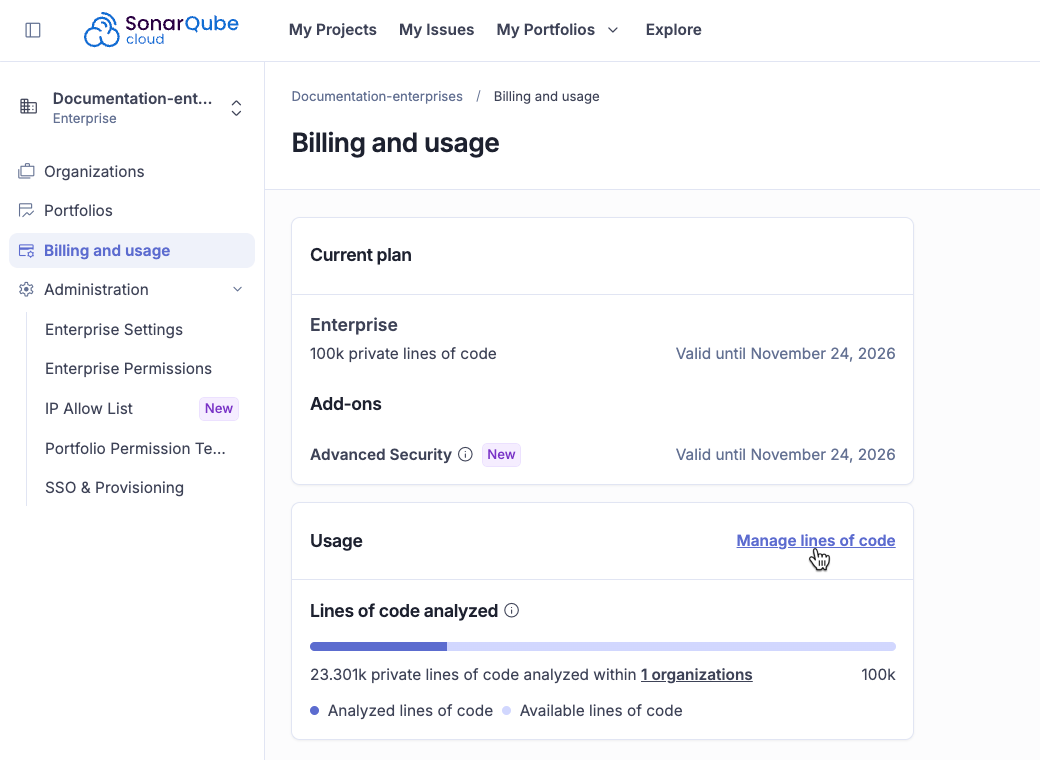
2. Go to **Billing and usage**.
3. Click on the **Manage lines of code** link under **Usage**. In the page that opens, the **Shared LOC** tab lists the organizations that use the shared LOC.
4. Locate the organization in the list (navigate to the next page if necessary) and select **Allocate LOC**. The corresponding dialog opens.
5. Enter the LOC limit value to be allocated and select **Allocate LOC**. The LOC limit is allocated and the organization is moved to the **Allocated LOC** tab.
## Changing the LOC limit allocated to an organization
To change the allocated LOC limit of an organization within your enterprise:
1. Retrieve your enterprise.
2. Go to the **Billing and usage** tab.
3. Select the **Manage lines of code** link under **Usage**.
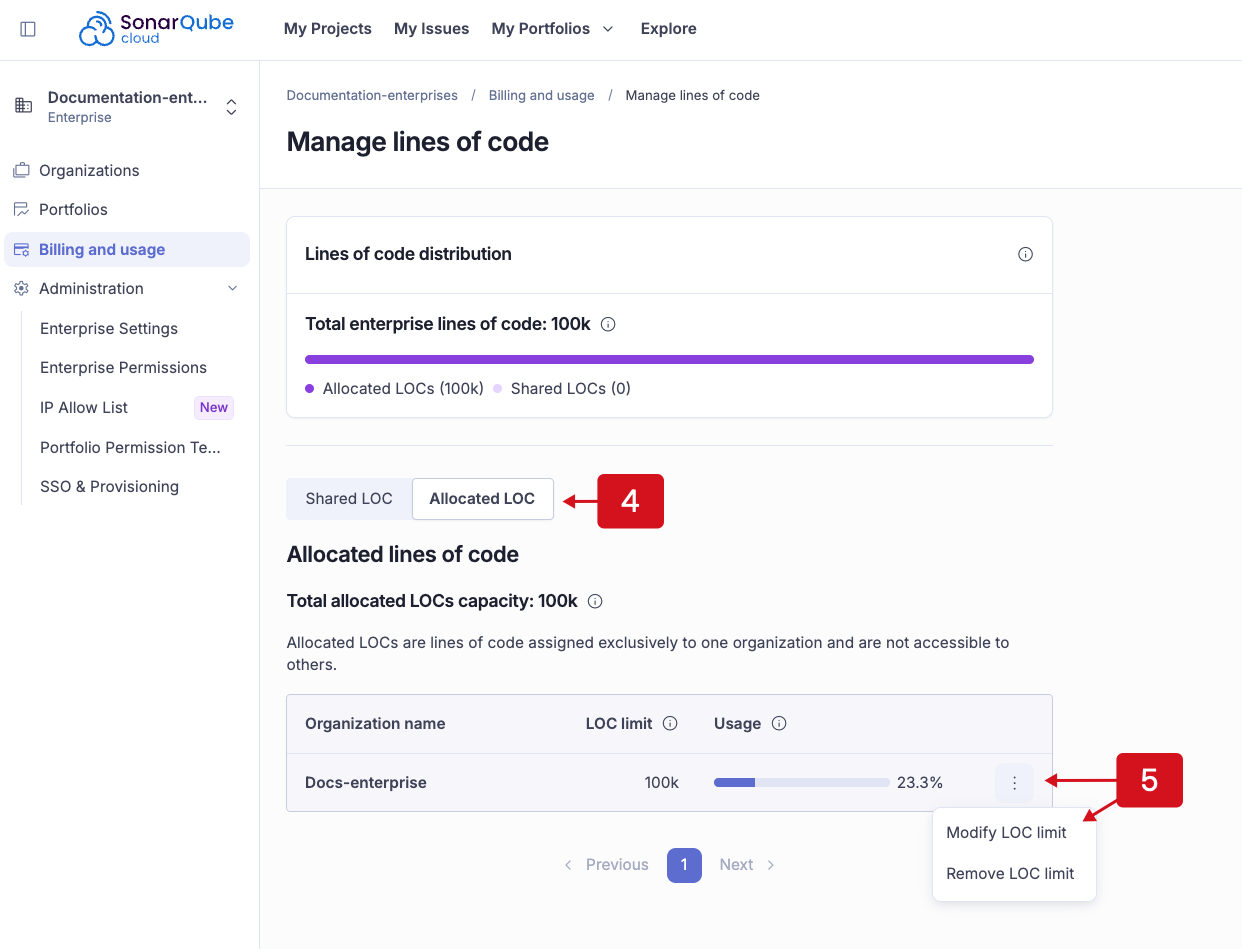
4. In the page that opens, select the **Allocated LOC** tab. The tab lists the organizations using an allocated lines of code limit.
5. Locate the organization in the list. Select the action menu and then **Modify LOC limit**. The corresponding dialog opens.
6. Enter the new LOC limit value and select **Modify limit**. The limit is changed.
## Changing the enterprise LOC limit
To change your enterprise LOC limit, you must change your enterprise license: [contact our team](https://www.sonarsource.com/products/sonarqube/cloud/contact-enterprise-sales/).
## Removing the LOC limit allocated to an organization
To remove the allocated LOC limit of an organization within your enterprise:
1. Retrieve your enterprise.
2. Go to the **Billing and usage** tab.
3. Select the **Manage lines of code** link under **Usage**.
4. In the page that opens, select the **Allocated LOC** tab. The tab lists the organizations using an allocated lines of code limit.
5. Locate the organization in the list (navigate to the next page if necessary). Select the three-dot menu and then **Remove LOC limit**. The confirmation dialog opens.
6. Select **Confirm removal.** The allocated limit is removed and the organization is moved to the **Shared LOC** tab.
## Viewing the lines of code consumption
1. Retrieve your enterprise.
2. Go to the **Billing and usage** tab.
3. In front of **Usage**, select the **Manage lines of code** link. In the page that opens:
* The **Shared LOC** tab shows the consumption of the organizations using the shared LOC.
* The **Allocated LOC** tab shows the allocated LOC consumption for each organization.
## Related pages
* [Retrieving and viewing your enterprise](/sonarqube-cloud/administering-sonarcloud/managing-enterprise/retrieving-and-viewing-your-enterprise.md)
* [Creating your enterprise](/sonarqube-cloud/administering-sonarcloud/managing-enterprise/creating-your-enterprise.md)
* [Enterprise security](/sonarqube-cloud/administering-sonarcloud/enterprise-security.md)
* [Adding organizations to your enterprise](/sonarqube-cloud/administering-sonarcloud/managing-enterprise/adding-organizations-to-your-enterprise.md)
* [Managing the enterprise-related permissions](/sonarqube-cloud/administering-sonarcloud/managing-enterprise/managing-the-enterprise-related-permissions.md)
* [Changing enterprise settings](/sonarqube-cloud/administering-sonarcloud/managing-enterprise/changing-enterprise-settings.md)
* [Downgrading your enterprise](/sonarqube-cloud/administering-sonarcloud/managing-enterprise/downgrading-your-enterprise.md)
* [Recovering enterprise admin access](/sonarqube-cloud/administering-sonarcloud/managing-enterprise/recovering-enterprise-admin-access.md)
---
# Agent Instructions
This documentation is published with GitBook. GitBook is the documentation platform designed so that both humans and AI agents can read, navigate, and reason over technical content effectively. Learn more at gitbook.com.
## Querying This Documentation
If you need additional information that is not directly available in this page, you can query the documentation by asking a question.
Perform an HTTP GET request on the following URL with the `ask` and `goal` query parameters:
```
GET https://docs.sonarsource.com/sonarqube-cloud/administering-sonarcloud/managing-enterprise/managing-the-lines-of-code-within-your-enterprise.md?ask=&goal=
```
`ask` is the immediate question: it should be specific, self-contained, and written in natural language.
`goal` is what the user is ultimately trying to achieve, the reason they need the answer. Sharing it helps GitBook give you a better, more relevant answer. A goal is most helpful when it describes the outcome the user wants rather than restating the question. For example, with `ask=how do I create an API token`, a goal like `automate deployments from our CI pipeline` lets GitBook tailor the answer to that use case.
The response will contain a direct answer to the question and relevant excerpts and sources from the documentation.
Use this mechanism when the answer is not explicitly present in the current page, you need clarification or additional context, or you want to retrieve related documentation sections.