> For the complete documentation index, see [llms.txt](https://docs.sonarsource.com/llms.txt). Markdown versions of documentation pages are available by appending `.md` to page URLs; this page is available as [Markdown](https://docs.sonarsource.com/sonarqube-cloud/administering-sonarcloud/managing-organization/creating-organization/importing-bitbucket-workspace-with-forge-app.md).
# Importing Bitbucket workspace with SonarQube Cloud Forge app
This page helps you understand how to import your Bitbucket workspace into SonarQube Cloud and explains prerequisites and key procedures.
When you import a Bitbucket Cloud workspace to SonarQube Cloud, the corresponding [Organization](/sonarqube-cloud/administering-sonarcloud/about-sonarqube-cloud-solution/resources-structure/organization.md) is created in SonarQube Cloud and is bound to the DevOps platform organization. Each SonarQube Cloud organization corresponds one-to-one with a Bitbucket Cloud workspace. See [Binding with the DevOps platform](/sonarqube-cloud/administering-sonarcloud/about-sonarqube-cloud-solution/resources-structure/binding-with-dop.md) for more information.
SonarQube Cloud binds to Bitbucket Cloud using the SonarQube Cloud Forge app, which you install from your Bitbucket workspace.
{% hint style="warning" %}
SonarQube Cloud does not support linking an organization to more than one DevOps platform. If you want to link to more than one, you will need to create a separate organization to link to each DevOps platform.
{% endhint %}
The user account you used for the import is automatically assigned to the organization’s owners group which grants you administration rights on the organization. See [User group concept](/sonarqube-cloud/administering-sonarcloud/about-sonarqube-cloud-solution/user-management/user-group-concept.md) for more details.
## Prerequisites
You must be an administrator of the Bitbucket workspace:
* You will already be an administrator of your default workspace.
* For any other workspace, you have to add your Bitbucket account to a user group with the **Administer workspace** user right enabled.
* You have permission to install apps on the Bitbucket workspace you want to bind.
In SonarQube Cloud, each organization is assigned a subscription plan. Before importing your organization, choose the subscription plan suited to your needs, see [Subscription plans](/sonarqube-cloud/administering-sonarcloud/managing-subscription/subscription-plans.md) for more details. In particular, determine the number of Lines of Code (LOC) you need. See [Subscription plans](/sonarqube-cloud/administering-sonarcloud/managing-subscription/subscription-plans.md#loc-based-pricing) for more information.
{% hint style="info" %}
To avoid exceeding [Bitbucket Cloud API rate limits](https://support.atlassian.com/bitbucket-cloud/docs/api-request-limits/), it is recommended to use a dedicated Bitbucket user for SonarQube Cloud integration.
{% endhint %}
## Import procedure
To import a Bitbucket Cloud workspace to SonarQube Cloud:
1. If you’re not already signed in to SonarQube Cloud, sign in with your Bitbucket account:\
a. Go to [SonarQube Cloud product page](https://www.sonarsource.com/products/sonarqube/cloud/) and select **Start now** or **Log in**. If you select **Start now** and want to use the US region, go to [sonarqube.us](https://sonarqube.us/) instead. If you select **Log in**, select your region from the drop-down on the login page. See [Choosing your server region](/sonarqube-cloud/getting-started/choosing-your-region.md) for more information.\
b. Select **Bitbucket** from the list of DevOps platforms. You’ll be taken to the Bitbucket login page.\
c. Sign in using your Bitbucket credentials.\
For prerequisites on your DevOps account’s email address, see [Signing in to SonarQube Cloud](/sonarqube-cloud/managing-your-account/signing-in.md#via-devops-platform).
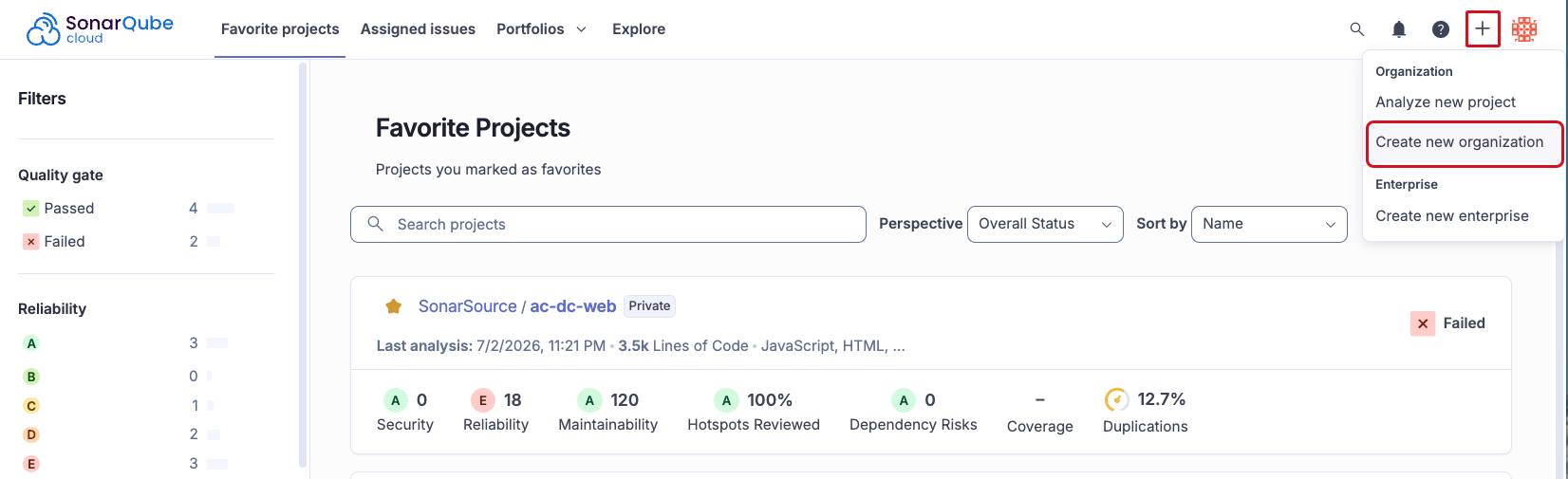
2. Select the **+** menu, then select **Create new organization**.
3. Under **Import from a DevOps platform**, select **Bitbucket**. An onboarding tutorial opens in SonarQube Cloud. Follow the instructions, then select **Install application** to continue in Atlassian.
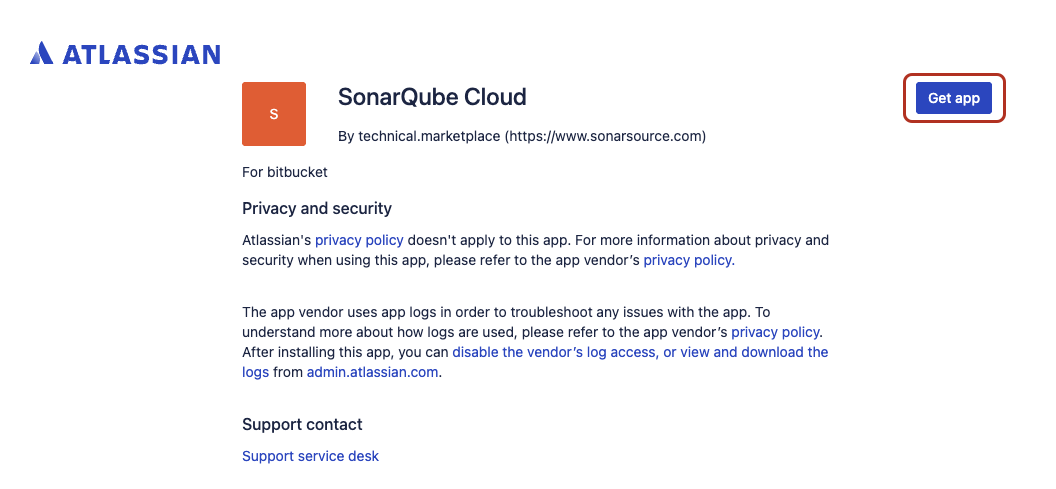
4. In Atlassian, select **Get app**.
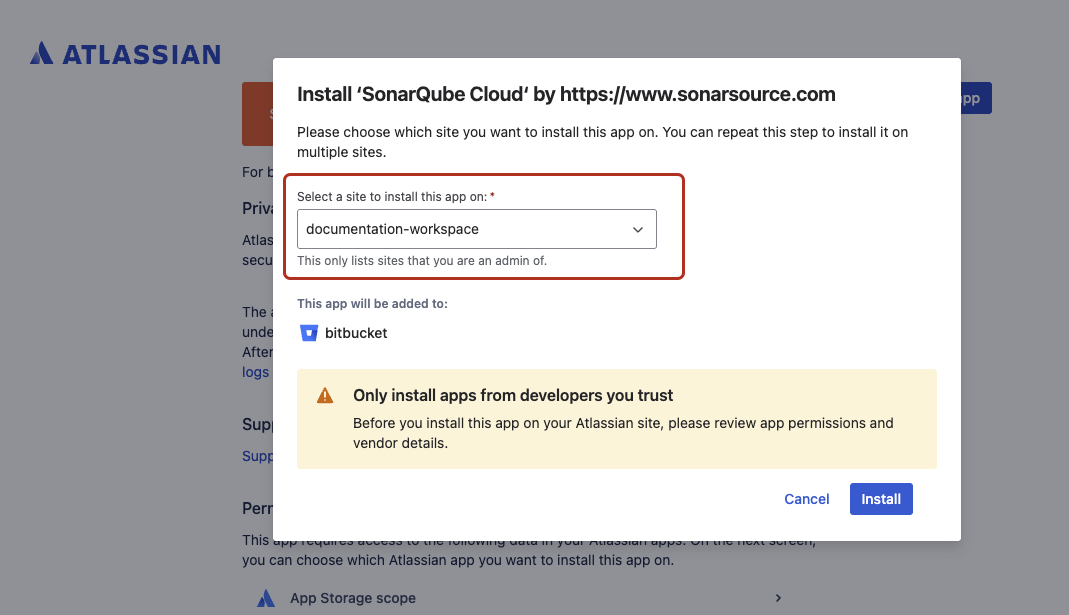
5. Select a site to install the app from the drop-down list.
6. Select **Install**.
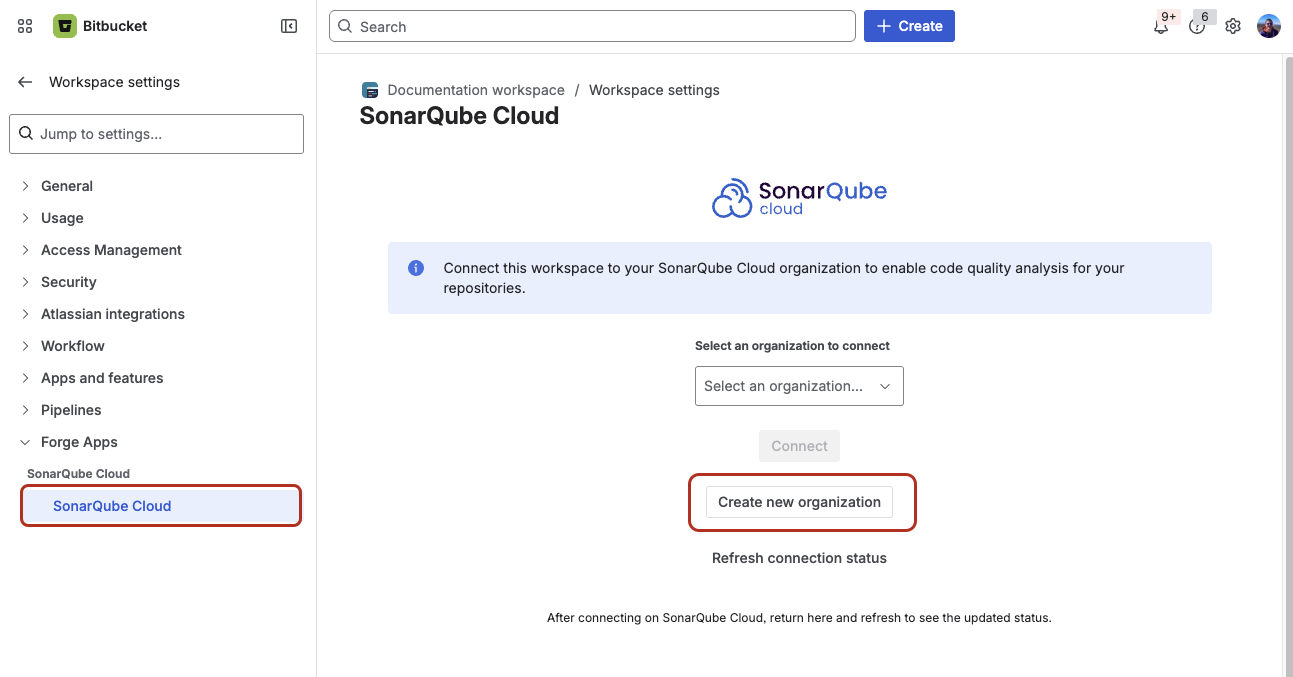
7. In Bitbucket, go to your **Workspace settings** > **Forge apps** > **SonarQube Cloud**.
8. Select **Create new organization**, confirming the redirect to SonarQube Cloud if prompted.
9. In **Import organization details**, SonarQube Cloud suggests a **Name** and **Key** for your SonarQube Cloud organization. The key is unique across all organizations within SonarQube Cloud. You can accept the suggestion or change it manually. The interface will prevent you from changing it to an already existing key.
10. Select **Add additional info** to add:
* An avatar: a small image representing the organization and displayed on the UI near the organization name.
* A description of the organization.
* A URL: the URL of the homepage of the organization displayed on the UI.
11. Select the subscription plan for your organization. See [Subscription plans](/sonarqube-cloud/administering-sonarcloud/managing-subscription/subscription-plans.md) for more information.
12. If you selected a paid plan, select the number of Lines of Code (LOC) for your plan and follow the instructions to enter your billing and payment information.
13. Select **Create Organization**. The organization is created and opened in SonarQube Cloud.
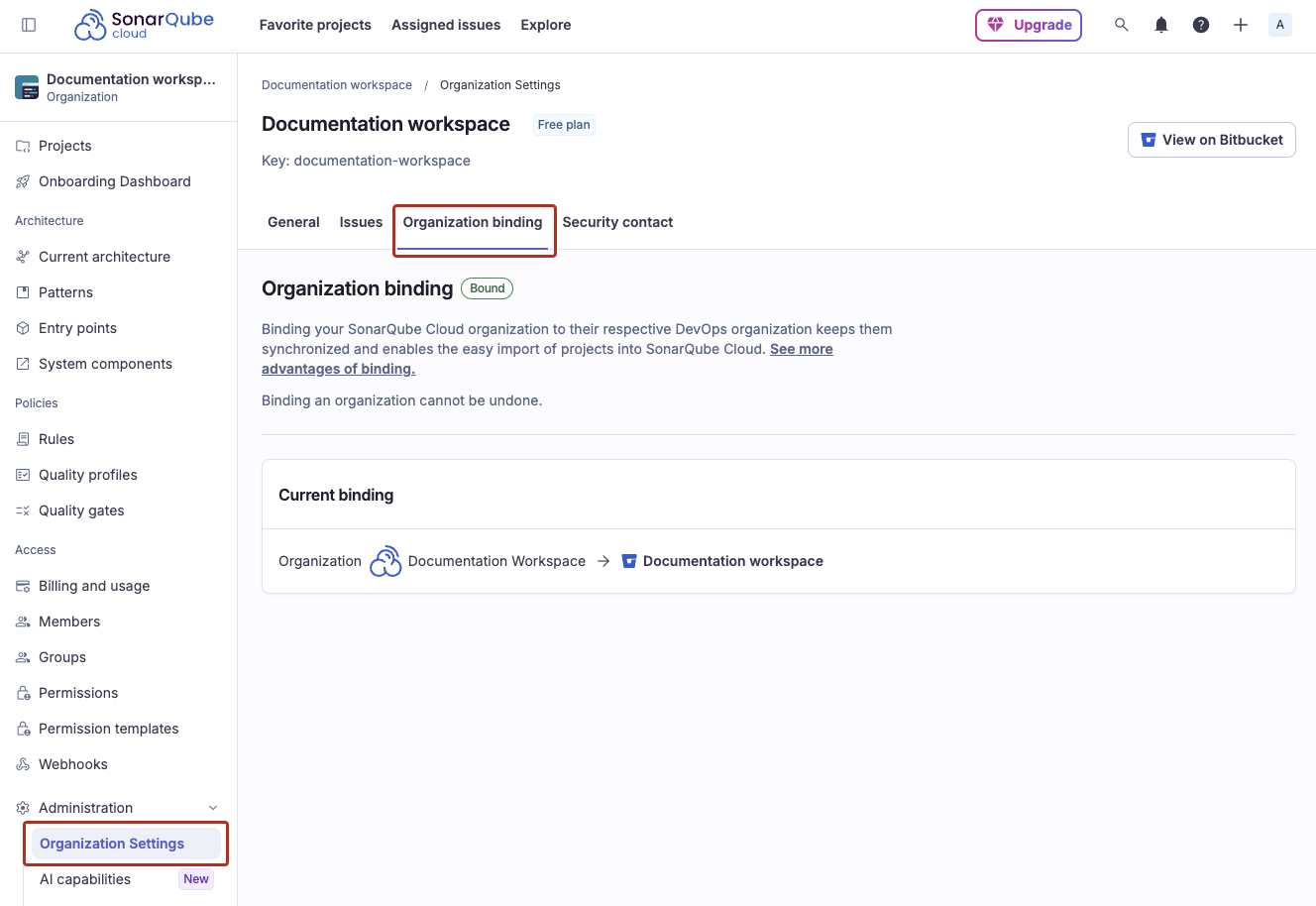
Your organization now appears as bound. To verify, retrieve your organization in SonarQube Cloud and go to **Administration** > **Organization settings** > **Organization binding**. In Bitbucket's app settings, you can select **Refresh connection status** to confirm the binding on Bitbucket's side.
{% hint style="info" %}
If the import fails because the organization already exists in SonarQube Cloud and you’ve lost administrator access to this organization, send a request to with all the necessary details.
{% endhint %}
## Bind an existing organization to a Bitbucket workspace
If your organization was created manually and isn't yet bound to a Bitbucket workspace, you can bind it using the SonarQube Cloud Forge app.
First, install the SonarQube Cloud Forge app, if it isn't already installed on your Bitbucket workspace:
1. [Retrieve your organization](/sonarqube-cloud/getting-started/viewing-organizations.md#viewing) in SonarQube Cloud.
2. Go to **Administration** > **Organization settings** > **Organization binding**, then select **Bitbucket**. An onboarding tutorial opens in SonarQube Cloud. Follow the instructions, then select **Install application** to continue in Atlassian.
3. In Atlassian, select **Get app**.
4. Select a site to install the app from the drop-down list.
5. Select **Install**.
After installing the SonarQube Cloud Forge app:
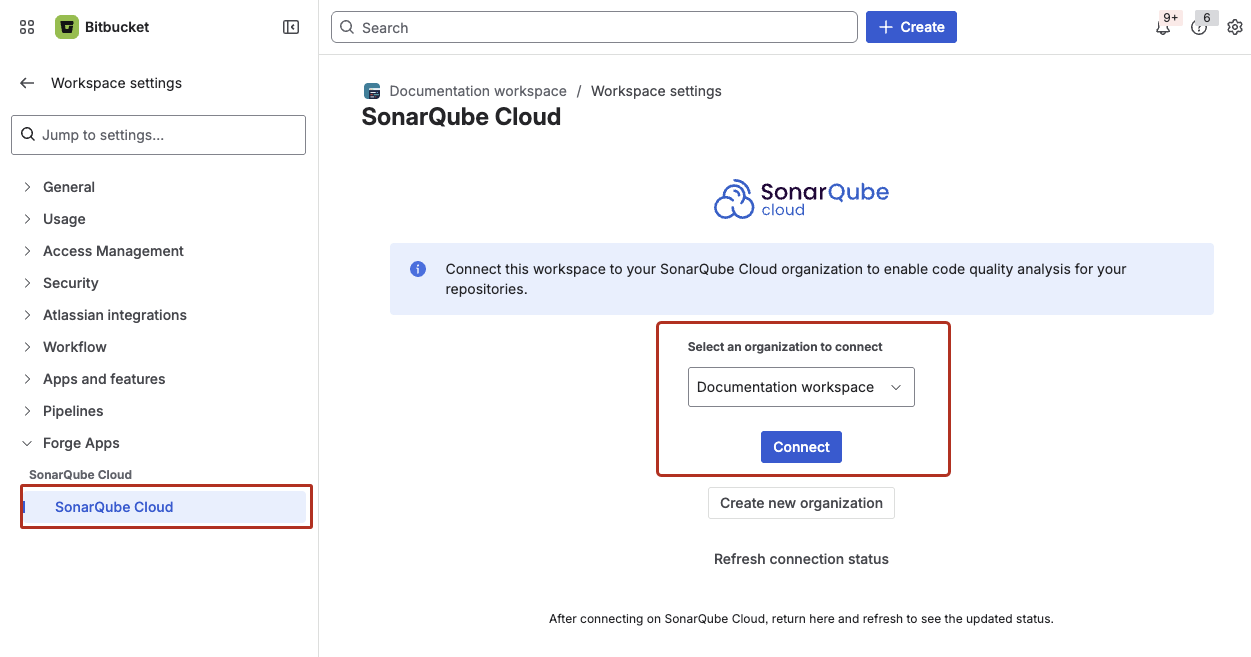
1. In Bitbucket, go to your **Workspace settings** > **Forge apps** > **SonarQube Cloud**.
2. **Select an organization to connect** from the drop-down list, then select **Connect**.
Your organization is now bound and its repositories are available to import.
## Migrate from the Connect app to the Forge app
{% hint style="info" %}
Migrating to the Forge app requires no reconfiguration. Your organization and project bindings stay intact, and the repository overview and pull request widgets keep working without changes.
{% endhint %}
This procedure applies if your organization is currently bound via the previous SonarQube Cloud Connect app.
1. In Bitbucket, go to **Workspace settings** > **Apps and features** > **Installed apps**.
2. On the **SonarQube Cloud** row, select **Get the Forge app**.
3. In Atlassian, select **Get app**.
4. Select your workspace, then select **Install**.
5. Go back to the installed apps page and refresh it. The SonarQube Cloud Forge app now appears installed, and the previous app is removed automatically.
---
# Agent Instructions
This documentation is published with GitBook. GitBook is the documentation platform designed so that both humans and AI agents can read, navigate, and reason over technical content effectively. Learn more at gitbook.com.
## Querying This Documentation
If you need additional information that is not directly available in this page, you can query the documentation by asking a question.
Perform an HTTP GET request on the following URL with the `ask` and `goal` query parameters:
```
GET https://docs.sonarsource.com/sonarqube-cloud/administering-sonarcloud/managing-organization/creating-organization/importing-bitbucket-workspace-with-forge-app.md?ask=&goal=
```
`ask` is the immediate question: it should be specific, self-contained, and written in natural language.
`goal` is what the user is ultimately trying to achieve, the reason they need the answer. Sharing it helps GitBook give you a better, more relevant answer. A goal is most helpful when it describes the outcome the user wants rather than restating the question. For example, with `ask=how do I create an API token`, a goal like `automate deployments from our CI pipeline` lets GitBook tailor the answer to that use case.
The response will contain a direct answer to the question and relevant excerpts and sources from the documentation.
Use this mechanism when the answer is not explicitly present in the current page, you need clarification or additional context, or you want to retrieve related documentation sections.