> For the complete documentation index, see [llms.txt](https://docs.sonarsource.com/llms.txt). Markdown versions of documentation pages are available by appending `.md` to page URLs; this page is available as [Markdown](https://docs.sonarsource.com/sonarqube-cloud/administering-sonarcloud/managing-organization/creating-organization/importing-ghes-organization.md).
# Importing GHES organization
Learn how to import your GitHub Enterprise Server (GHES) organization into your existing SonarQube Cloud enterprise.
This feature is available in the [Enterprise](https://www.sonarsource.com/plans-and-pricing/) plan.
When you import your GitHub Enterprise Server (GHES) organization to your SonarQube Cloud enterprise, the corresponding organization is created in SonarQube Cloud and is bound to the DevOps platform organization. See [Binding with the DevOps platform](/sonarqube-cloud/administering-sonarcloud/about-sonarqube-cloud-solution/resources-structure/binding-with-dop.md) for more information.
The user account you used for the import is automatically assigned to the organization's owners group which grants you administration rights on the organization. See [User group concept](/sonarqube-cloud/administering-sonarcloud/about-sonarqube-cloud-solution/user-management/user-group-concept.md) for more details.
{% hint style="warning" %}
The minimum supported version is **GHES 3.14**. Earlier versions are not supported.
{% endhint %}
Notes:
* If you're [Setting up your enterprise](/sonarqube-cloud/getting-started-with-enterprise/setting-up-your-enterprise.md) first, you can select **GHES** during that flow to create the SonarQube Cloud organization and bind it directly to your GHES organization.
* For more information about the GHES integration solution and its current limitations, see [GitHub](/sonarqube-cloud/discovering-sonarcloud/integration-with-devops-platforms/github.md).
* Do not confuse GHES with GHE.com (GitHub Enterprise Cloud with Data Residency). GHES is self-hosted by you; GHE.com is hosted by GitHub. See [Importing GHE.com Cloud organization](/sonarqube-cloud/administering-sonarcloud/managing-organization/creating-organization/importing-ghecom-cloud-organization.md) if you're importing a GHE.com organization instead.
{% hint style="warning" %}
GHES is typically deployed behind a customer firewall. If SonarQube Cloud cannot reach your GHES instance, see [Networking requirements](/sonarqube-cloud/appendices/networking-requirements.md#outgoing-traffic) before you continue.
{% endhint %}
## Signing in to SonarQube Cloud
SonarQube Cloud does not support signing in with GHE.com or GHES credentials through the **GitHub** login option. Importing your organization connects its repositories to SonarQube Cloud. It does not configure user sign-in or synchronize organization members.
To give developers access, [set up SonarQube Cloud Single Sign-On (SSO)](/sonarqube-cloud/administering-sonarcloud/enterprise-security/sso-and-provisioning/set-up-sso.md). [GitHub member synchronization](/sonarqube-cloud/administering-sonarcloud/about-sonarqube-cloud-solution/user-management/github-member-synchronization.md) is not available for these platforms.
To import organizations, sign in with a DevOps platform or SSO account that has the **Administer Enterprise** permission. For example, use the account you used to create your enterprise.
GHES does not require an external identity provider (IdP). If you use an IdP for GHES, we recommend using the same IdP for SonarQube Cloud SSO, but you can use a different one. Create a separate SSO connection in your IdP for SonarQube Cloud.
## Prerequisites
* Your SonarQube Cloud enterprise exists and you're an admin of it.
* You are an admin/owner of the GHES organization.
* Your GHES instance runs version 3.14 or later.
* SonarQube Cloud can reach your GHES instance over the network. If your GHES organization enforces a strict IP allow list or sits behind a firewall, you must allow SonarQube Cloud access as described in [Networking requirements](/sonarqube-cloud/appendices/networking-requirements.md#outgoing-traffic).
## Step 1: Create your GHES application
You must first create the GHES application that will be used by SonarQube Cloud to authenticate to your GHES organization.
### Create the app
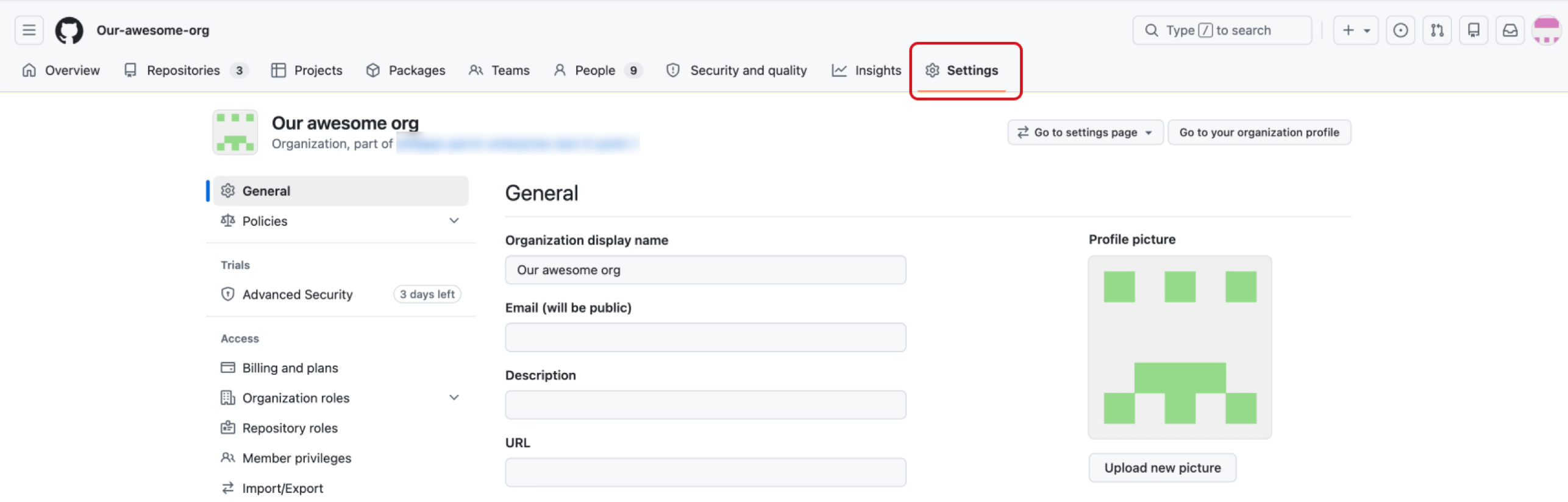
1. Inside GHES, go to the organization you want to import to SonarQube Cloud.
2. Open the **Settings** tab.
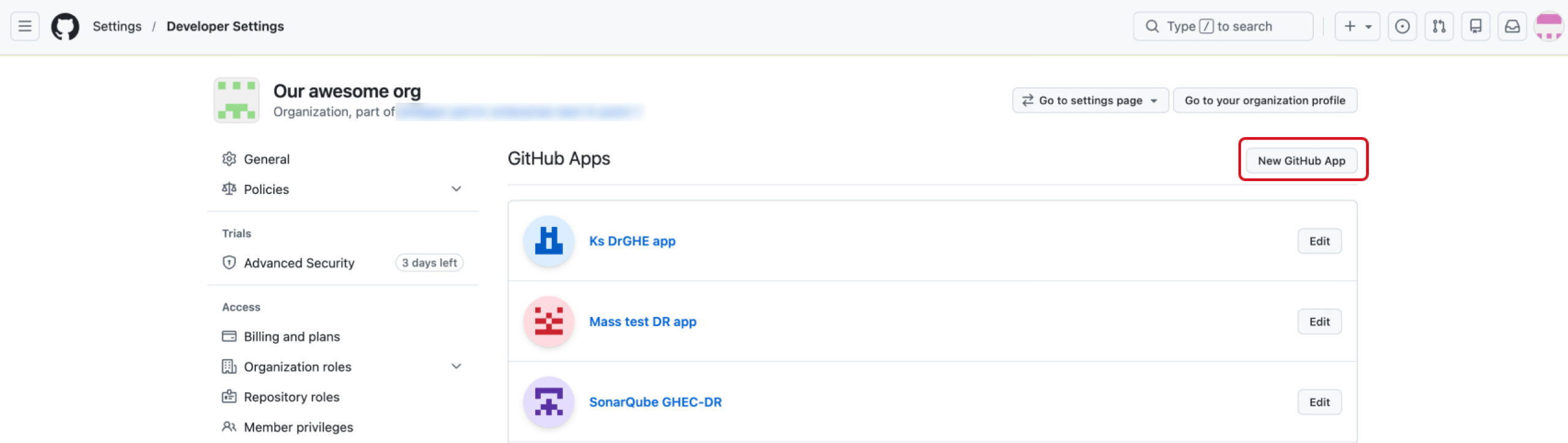
3. In the left panel, scroll down to the bottom of the menu and select **Developer Settings > GitHub Apps**. The **GitHub Apps** page opens.
4. Select the **New GitHub App** button in the top right corner. The **Create GitHub App** page opens.
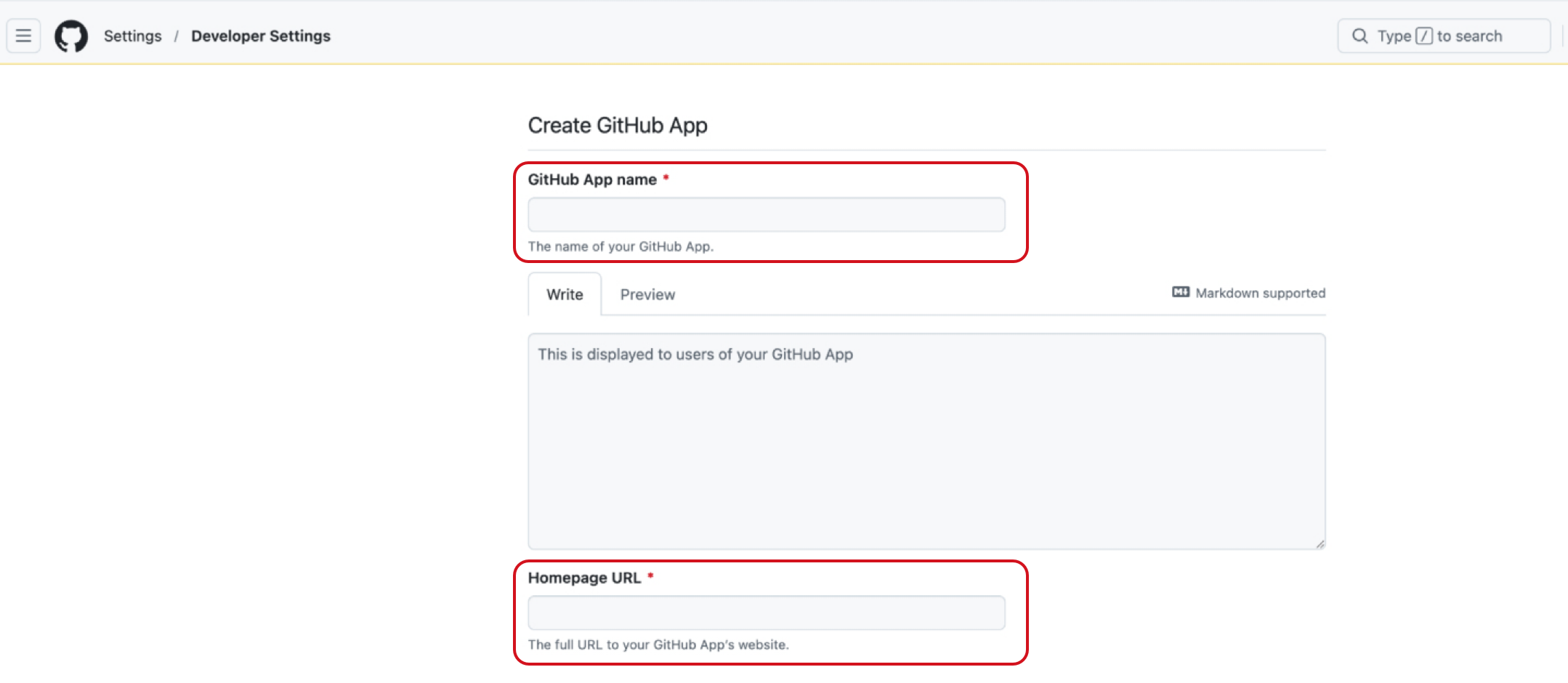
5. Fill in the following mandatory fields:
* **GitHub App name**: A name you choose for your app that's easily identifiable.
* **Homepage URL**: Your SonarQube Cloud's server base URL (for information purposes only). Enter `https://sonarcloud.io` for the EU region or `https://sonarqube.us` for the US region.
6. In the **Webhook** section, select **Active** and fill in the webhook parameters.
* For EU it is: `https://api.sonarcloud.io/github-events-dispatcher/ghes`
* For US it is: `https://api.sonarqube.us/github-events-dispatcher/ghes`
7. Create a **Webhook secret**. To create a secret, enter a value [following the GitHub documentation](https://docs.github.com/en/webhooks/using-webhooks/best-practices-for-using-webhooks#use-a-webhook-secret) best practices. You'll need the webhook secret in [Step 3](#step-3).
8. In the **Permissions** section, set the **Repository** permissions as follows:
* **Checks**: Read & Write
* **Contents**: Read
* **Metadata**: Read
* **Pull requests**: Read & Write
* **Code scanning alerts (Optional)**: Read & Write. We recommend enabling this now to avoid reconfiguring permissions when new features are released
9. In **Subscribe to events**, select the following event types: **Pull request**, **Push**, **Repository**, and **Code scanning alert** (optional, enable now to avoid reconfiguring events when new features are released).
10. In the **Where can this GitHub App be installed?** section at the bottom, select **Only on this account**, or **Any account** if you want your app to be reused by multiple organizations.
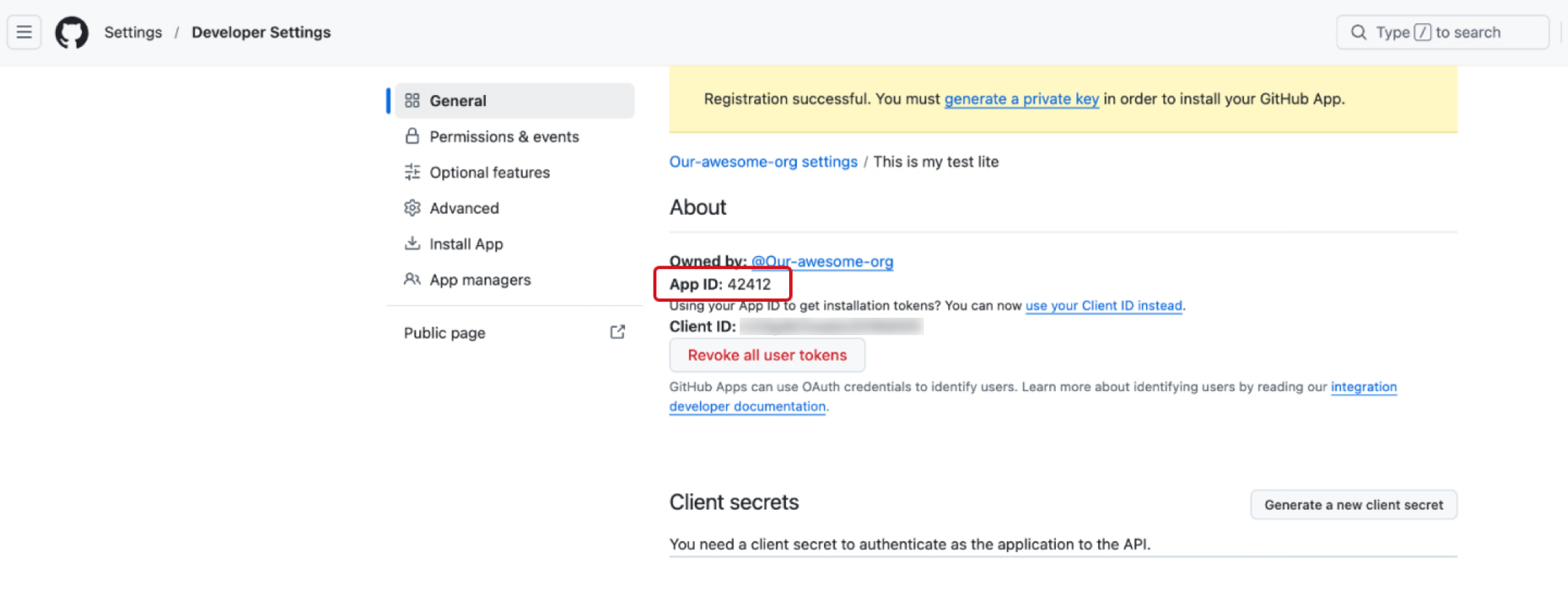
11. Select the **Create GitHub App** button at the bottom of the page. Your app is created. The App page displays the **App ID** you'll need in [Step 3](#step-3).
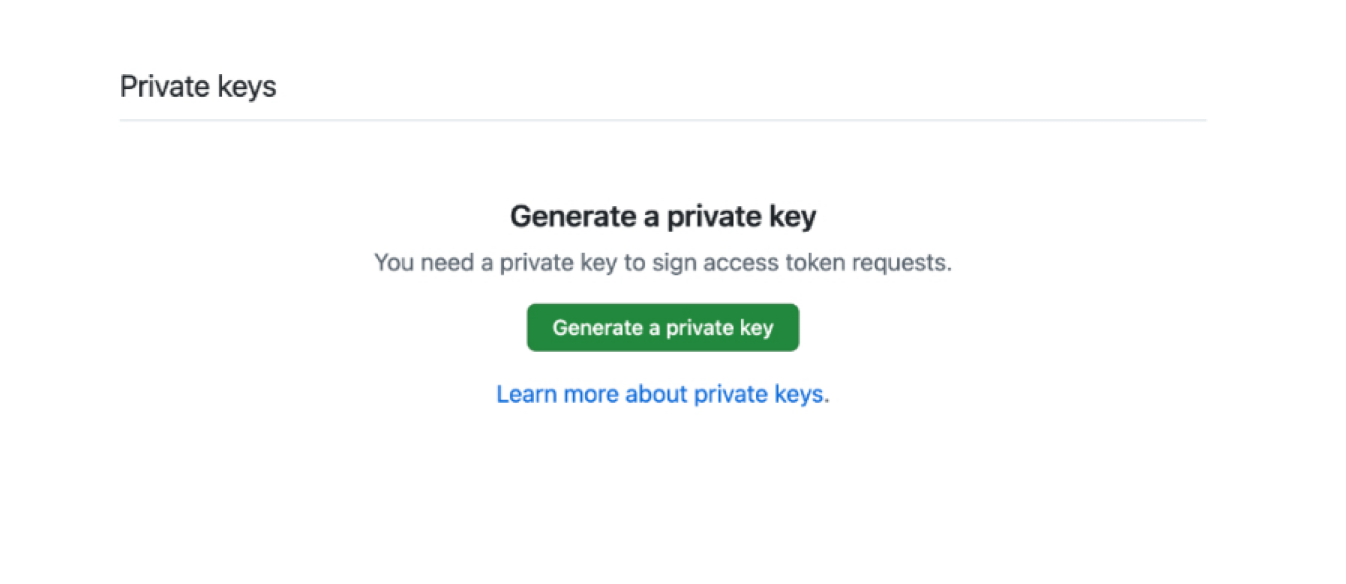
12. Navigate down to **Private keys**, and select **Generate a private key**. A private key in PEM format is downloaded to your computer. You'll need this file in [Step 3](#step-3).
13. Do not leave the page and go to [Step 2](#step-2).
## Step 2: Install your app to your GHES organization
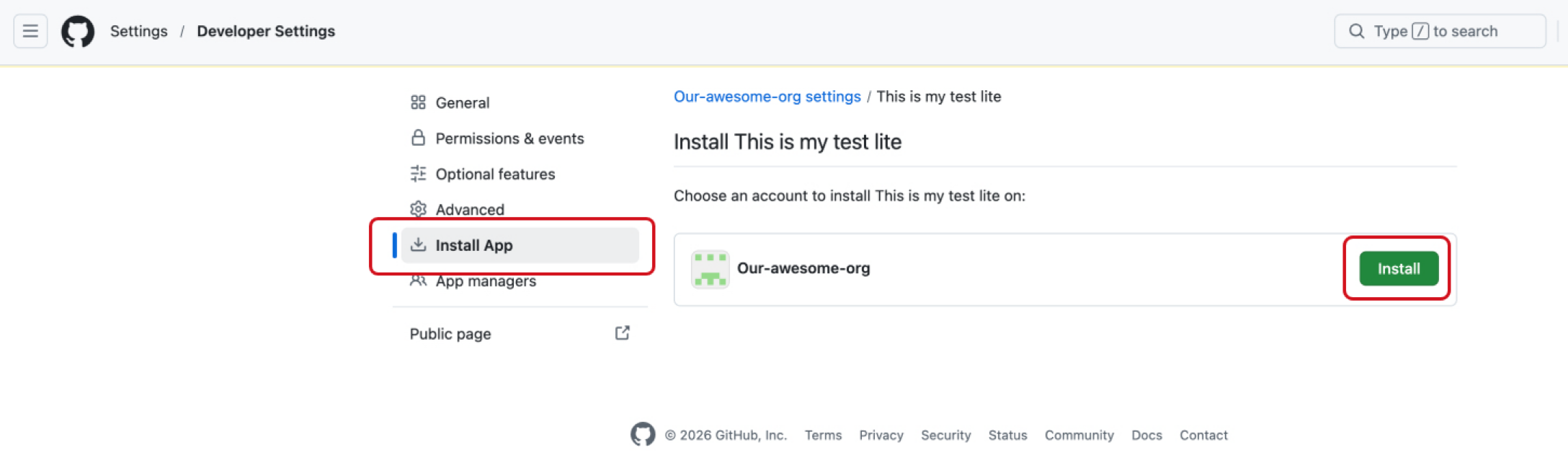
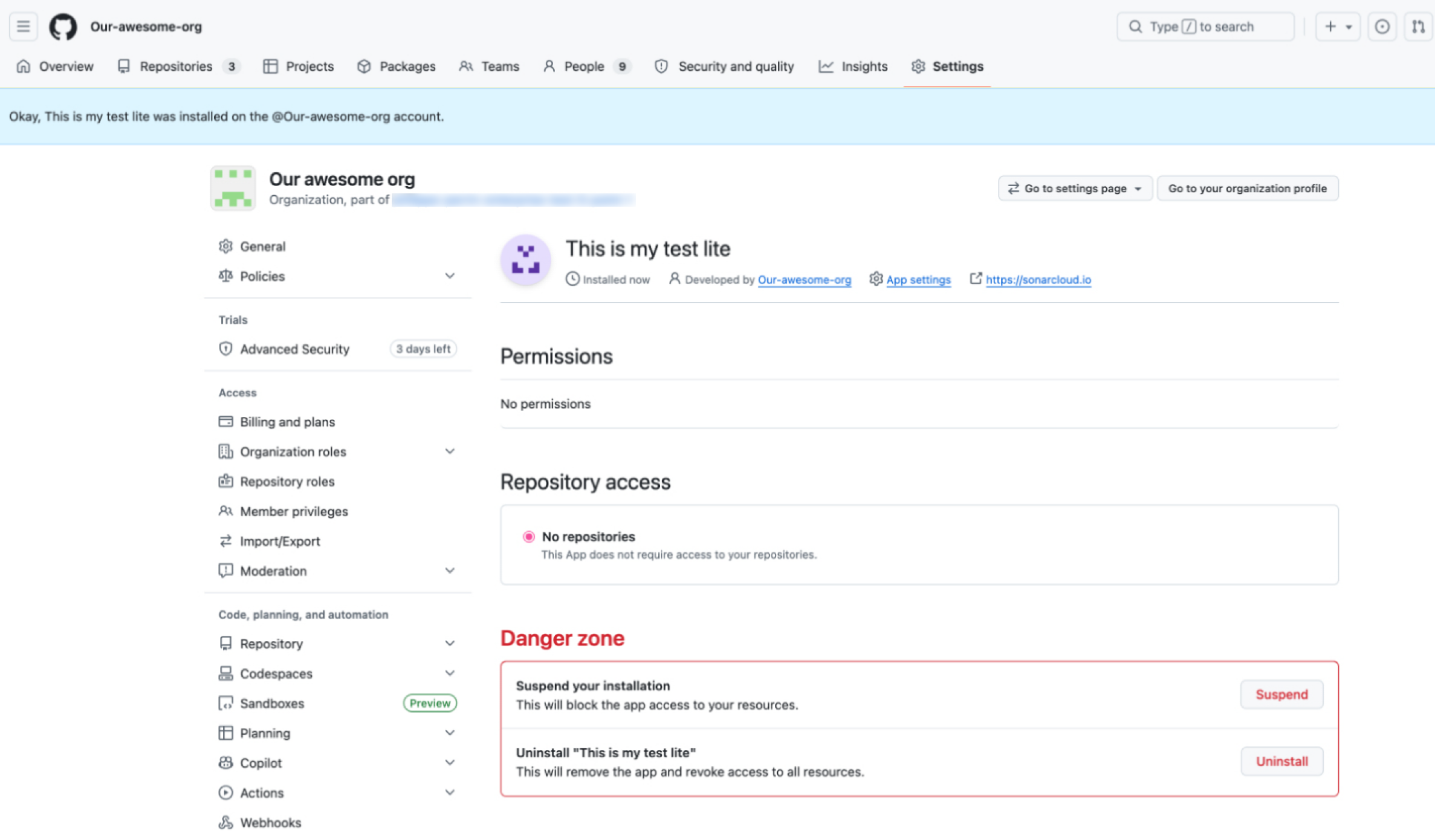
1. From the app you created in your GHES organization, select **Install App** in the left menu. The **Install \** page opens.
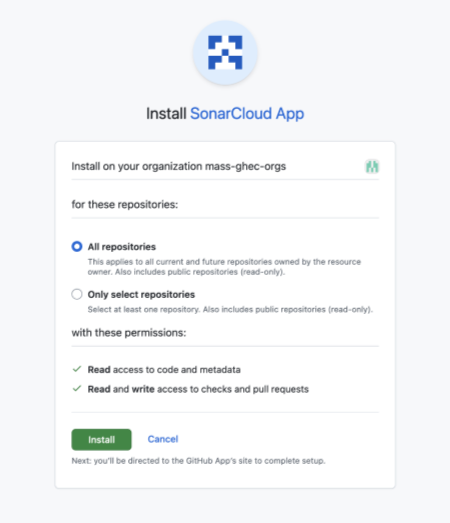
2. Select the **Install** button in front of your GHES organization. You're redirected to the app installation page.
3. The app configuration page opens. The browser URL shows the **Installation ID** you'll need in [Step 3](#step-3): the number at the end of the URL. For example, if your URL is `https://github.mycompany.com/organizations/my-org/settings/installations/66`, then the installation ID is `66`.
## Step 3: Import your GHES organization
1. Sign in to SonarQube Cloud with an account that can administer your enterprise. See [Signing in to SonarQube Cloud](#signing-in-to-sonarqube-cloud).
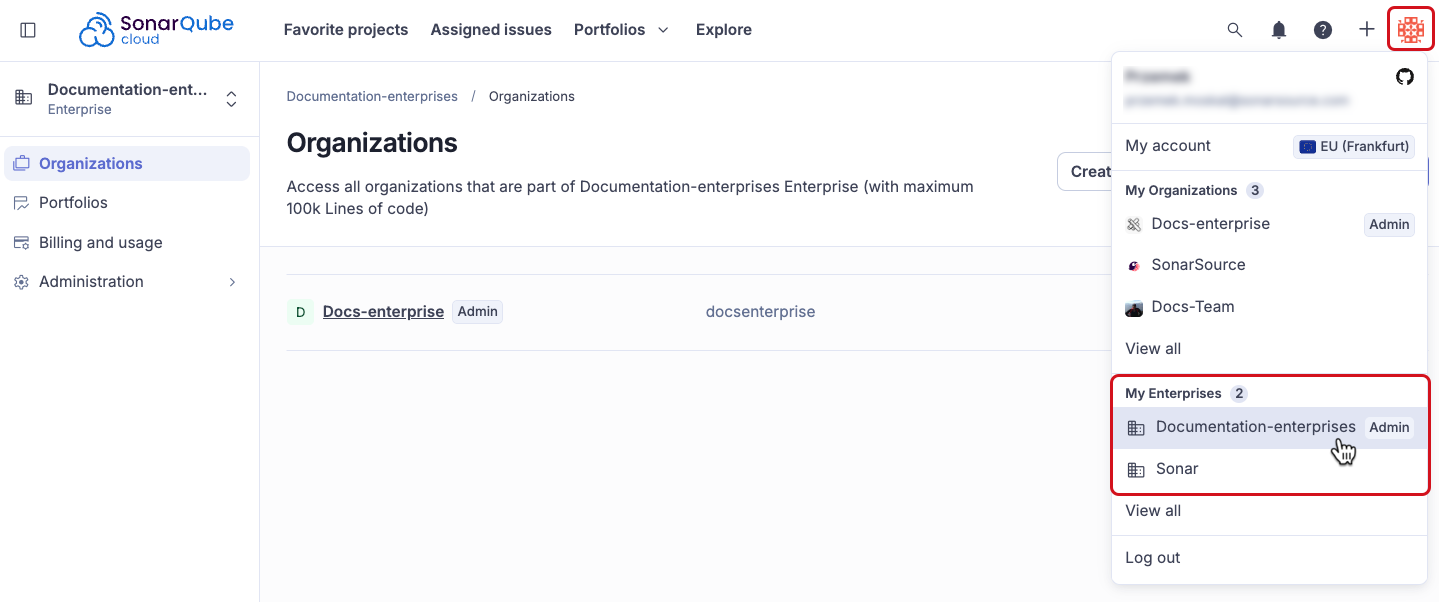
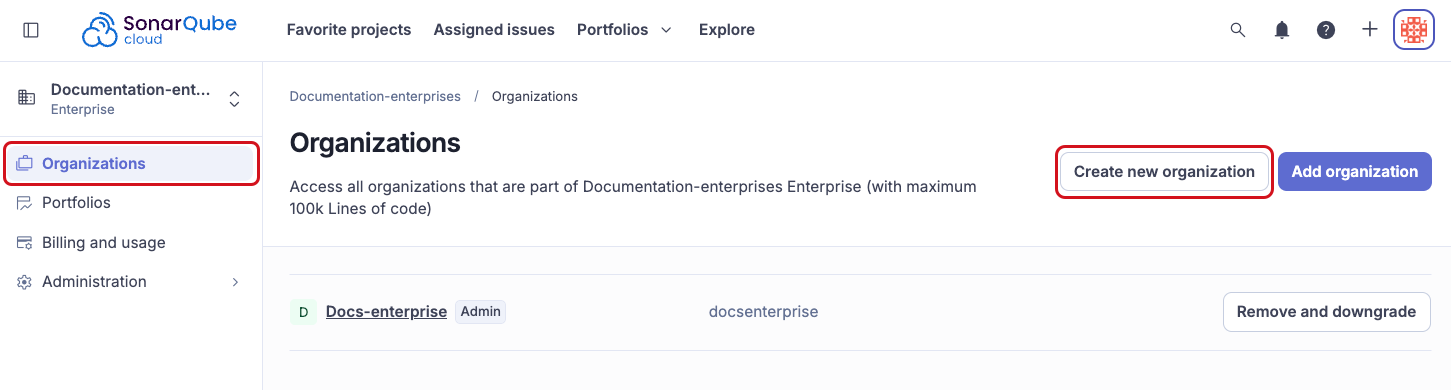
2. Select your account menu in the top right corner, then under **My Enterprises**, select your enterprise. The **Organizations** page of the enterprise opens. See [Retrieving and viewing your enterprise](/sonarqube-cloud/administering-sonarcloud/managing-enterprise/retrieving-and-viewing-your-enterprise.md) for more details.
{% hint style="warning" %}
GHES organizations must be created from your enterprise's **Organizations** page. The **+** menu > **Create new organization** flow does not support GHES.
{% endhint %}
3. On the **Organizations** page, select **Create new organization**. The **Create an organization** page opens.
4. Under **GitHub**, select **GHES**. The **GitHub Enterprise Server application** step opens.
5. Fill in the fields as follows:
* **Server URL**: Your GHES instance's own URL, for example `https://github.mycompany.com`. Because GHES is self-hosted, unlike GHE.com or github.com it does not use a fixed hostname pattern.
* **API URL**: Auto-filled from the **Server URL**. Edit it only if your instance uses a different API URL.
* **Application ID**: The **App ID** value you retrieved in [Step 1 > 11](#step-1).
* **Private key**: Select the private key file you generated in [Step 1 > 12](#step-1).
* **Webhook secret**: The secret you created in [Step 1 > 7](#step-1).
* **Installation ID**: The number retrieved in [Step 2 > 3](#step-2).
6. Select **Continue**.
After you create your organization, use *Your organization* > **Project coverage** to find repositories that are not imported or analyzed yet. See the [Project coverage](/sonarqube-cloud/quickstart-guides/project-coverage.md) page for more information.
## Updating the GHES app details in SonarQube Cloud
To modify in your SonarQube Cloud organization the details of the GHES application used to import your GHES organization:
1. Retrieve your SonarQube Cloud organization. See [Retrieving your organizations](/sonarqube-cloud/getting-started/viewing-organizations.md) for more information.
2. Go to **Administration > Organization settings > Organization binding**.
3. In **Application details**, select **Edit**. For information about the parameters, see [Step 3: Import your GHES organization](#step-3).
## Rotating the GHES app's private key
To rotate the private key used by SonarQube Cloud to authenticate to GHES, proceed as follows:
1. Generate a new private key:\
a. Retrieve your GHES app.\
b. Under **Private keys**, select **Generate a private key**. A private key in PEM format is downloaded to your computer.
2. In SonarQube Cloud, edit the organization binding as described in [Updating the GHES app details in SonarQube Cloud](#updating-the-ghes-app-details).
3. In **Private key**, select your private key file.
## Rotating the GHES app's webhook secret
To rotate the secret used by your GHES instance to send webhooks to SonarQube Cloud, proceed as follows:
{% hint style="warning" %}
Updating the webhook secret is a time-sensitive procedure that can result in missed webhook events. We recommend executing these steps during periods of minimal activity and ensuring simultaneous access to both platforms before beginning.
{% endhint %}
1. In SonarQube Cloud, edit the organization binding as described in [Updating the GHES app details in SonarQube Cloud](#updating-the-ghes-app-details) and enter the new secret value, but do not save yet.
2. Within your GHES app configuration, navigate to the **Webhook** area, select **Change secret**, and enter the same new secret value, but do not save yet.
3. Save the new value in SonarQube Cloud, then immediately save the value in your GHES app configuration, to minimize the time the two platforms have mismatched secrets.
## Troubleshooting
{% hint style="warning" %}
GHES is typically deployed behind a customer firewall. If you're troubleshooting a connectivity issue, check your firewall and networking configuration first. See [Networking requirements](/sonarqube-cloud/appendices/networking-requirements.md#outgoing-traffic).
{% endhint %}
### Developers cannot access the imported organization
Membership in your GitHub organization does not give developers access to the SonarQube Cloud organization. Developers need SSO, group access, and your enterprise's SSO login link. See the [SSO and provisioning setup overview](/sonarqube-cloud/administering-sonarcloud/enterprise-security/sso-and-provisioning/before-you-start.md#sso-and-provisioning-setup-overview).
If SSO is configured and developers still cannot access the organization, see [Troubleshooting SSO and provisioning](/sonarqube-cloud/administering-sonarcloud/enterprise-security/sso-and-provisioning/troubleshooting.md).
### GitHub App is missing required permissions
Grant your GHES app the missing permissions as follows:
1. Retrieve your GHES app.
2. Go to **Permissions & events**.
3. Make sure the required permissions are set as described in [Step 1 > 8](#step-1) of Create the app.
4. Save.
### Could not reach GitHub API
SonarQube Cloud cannot connect to the GitHub API URL. In that case, check the following:
1. The API URL field value is correct.
2. The GHES hostname is reachable.
3. Your firewall does not block outbound traffic from SonarQube Cloud to your GHES instance. See [Networking requirements](/sonarqube-cloud/appendices/networking-requirements.md#outgoing-traffic) for more information.
### Your GitHub organization has an IP allow list that is blocking SonarQube Cloud
See [Networking requirements](/sonarqube-cloud/appendices/networking-requirements.md#outgoing-traffic).
### GitHub app validation failed
Verify that your app is not suspended:
1. Retrieve your GHES app. In the **Danger zone**, check if the app is suspended.
2. If it's the case, select **Unsuspend**.
### Your private key is not a valid .pem file
Change the key as described in [Rotating the GHES app's private key](#rotating-the-private-key).
### Your Application ID or private key is invalid
Make sure the correct private key file is stored in SonarQube Cloud. To change the private key, see [Rotating the GHES app's private key](#rotating-the-private-key).
### Your Application ID was not found on GitHub
Check that the application ID stored in SonarQube Cloud is correct:
1. Retrieve your GHES app and copy the **App ID**.
2. In SonarQube Cloud, edit the organization binding as described in [Updating the GHES app details in SonarQube Cloud](#updating-the-ghes-app-details) and paste the copied value to **Application ID**.
### Your installation ID was not found or does not belong to this GitHub app
Make sure that the installation ID stored in SonarQube Cloud organization is correct:
1. In your GHES organization, go to the **GitHub Apps** page.
2. In front of the SonarQube Cloud app, select **Configure**.
3. Copy the **Installation ID** field value.
4. In SonarQube Cloud, edit the organization binding as described in [Updating the GHES app details in SonarQube Cloud](#updating-the-ghes-app-details) and paste the copied value to **Installation ID**.
### SonarQube Cloud cannot find your GHES organization
If SonarQube Cloud cannot locate your organization during import, perform the following checks:
1. Make sure you're an administrator of the organization.
2. Make sure the **Server URL** you entered in [Step 3](#step-3) matches your GHES instance's actual URL.
3. If the organization has an IP allow list enabled, make sure SonarQube Cloud has access. See [Networking requirements](/sonarqube-cloud/appendices/networking-requirements.md#outgoing-traffic) for the steps to allow SonarQube Cloud access.
4. Double check your SonarQube Cloud app configuration.
5. Make sure your SonarQube Cloud app is not suspended as described in [GitHub app validation failed](#github-app-validation-failed).
### Automatic analysis, automatic project import, or branch renaming is not working
These features rely on webhook events from GHES. Verify your GHES app's webhook configuration:
1. Make sure the webhook is active and its URL matches your SonarQube Cloud region. See [Step 1: Create your GHES application](#step-1).
2. Make sure the webhook secret in your GHES app matches the **Webhook secret** stored in the SonarQube Cloud organization binding. See [Updating the GHES app details in SonarQube Cloud](#updating-the-ghes-app-details).
3. Follow GitHub's instructions to [view recent webhook deliveries](https://docs.github.com/en/webhooks/testing-and-troubleshooting-webhooks/viewing-webhook-deliveries) and check that events are being delivered to the configured SonarQube Cloud webhook URL.
{% hint style="warning" %}
A successful delivery confirms that the webhook request reached SonarQube Cloud. It does not confirm that the webhook secret is correct. If the secrets configured in GHES and SonarQube Cloud do not match, SonarQube Cloud receives the request but cannot validate its signature. The event is rejected and webhook-dependent features are not triggered.
{% endhint %}
---
# Agent Instructions
This documentation is published with GitBook. GitBook is the documentation platform designed so that both humans and AI agents can read, navigate, and reason over technical content effectively. Learn more at gitbook.com.
## Querying This Documentation
If you need additional information that is not directly available in this page, you can query the documentation by asking a question.
Perform an HTTP GET request on the following URL with the `ask` and `goal` query parameters:
```
GET https://docs.sonarsource.com/sonarqube-cloud/administering-sonarcloud/managing-organization/creating-organization/importing-ghes-organization.md?ask=&goal=
```
`ask` is the immediate question: it should be specific, self-contained, and written in natural language.
`goal` is what the user is ultimately trying to achieve, the reason they need the answer. Sharing it helps GitBook give you a better, more relevant answer. A goal is most helpful when it describes the outcome the user wants rather than restating the question. For example, with `ask=how do I create an API token`, a goal like `automate deployments from our CI pipeline` lets GitBook tailor the answer to that use case.
The response will contain a direct answer to the question and relevant excerpts and sources from the documentation.
Use this mechanism when the answer is not explicitly present in the current page, you need clarification or additional context, or you want to retrieve related documentation sections.