# Managing organization permissions

This section explains how to manage the user and group permissions related to an organization.

{% hint style="info" %}

* It’s recommended to manage the permissions through the user groups, see [Managing user groups](/sonarqube-cloud/administering-sonarcloud/managing-organization/users-and-permissions/user-groups.md). This feature is available starting in Team plan. In addition, with the Team plan, you can manage the permissions set by default to new projects, see [Using permission templates](/sonarqube-cloud/administering-sonarcloud/managing-organization/manage-org-projects/manage-project-permissions/templates.md).
* If you lost administrator access to your organization, send a request to [contact@sonarsource.com](http://contact@sonarsource.com) with all the necessary details.
  {% endhint %}

## Permissions related to an organization <a href="#permissions-related-to-organization" id="permissions-related-to-organization"></a>

The following permissions are available for an organization:

<table><thead><tr><th width="224">Permission Type</th><th width="524">Description</th></tr></thead><tbody><tr><td><strong>Administer organization</strong></td><td><p>Has full control over the administration functions for the organization, including the following permission-related functions:</p><ul><li>Management of the organization’s user and group permissions</li><li>Management of project template permissions</li><li>Recovery of project administrator permissions. See <a data-mention href="/pages/RFDDT2Dz7HGpFxocV0Cj">/pages/RFDDT2Dz7HGpFxocV0Cj</a> for more information.</li><li>Bulk apply of project permission templates. See <a data-mention href="/pages/94a2836yBMtNaqs6SQ6e">/pages/94a2836yBMtNaqs6SQ6e</a> for more information.</li></ul></td></tr><tr><td><strong>Administer Quality Gates</strong></td><td>Can create and update <a data-mention href="/pages/8xApxZtaDzjCuy6eb9oB">/pages/8xApxZtaDzjCuy6eb9oB</a> that can be applied to the organization’s projects.</td></tr><tr><td><strong>Administer Quality Profiles</strong></td><td>Can create and update quality profiles that can be applied to the organization’s projects. See <a data-mention href="/pages/OEWS8DYTT3K2UXi6ACv7">/pages/OEWS8DYTT3K2UXi6ACv7</a> for more details.</td></tr><tr><td><strong>Execute analysis</strong></td><td><p>Grants the ability to: </p><ul><li>Retrieve all settings required to run the analysis, including secured credentials like passwords.</li><li>Push analysis results to SonarQube Cloud.</li><li>Run scans on any project in the organization, including private ones, regardless of existing project-level permissions.</li></ul></td></tr><tr><td><strong>Create projects</strong></td><td>Can create new projects in the organization.</td></tr></tbody></table>

{% hint style="info" %}
View access to organizations is not managed through permissions but depends on the organization’s subscription plan: any user can view a free plan organization whereas access to a Team or Enterprise plan organization is restricted to its members. See [Subscription plans](/sonarqube-cloud/administering-sonarcloud/managing-subscription/subscription-plans.md) for more information.
{% endhint %}

## Setting the permissions of the groups and users <a href="#setting-permissions" id="setting-permissions"></a>

You must be an organization admin to be able to manage the permissions related to your organization.

{% hint style="info" %}
If you have a Free plan organization, you cannot change group permissions.
{% endhint %}

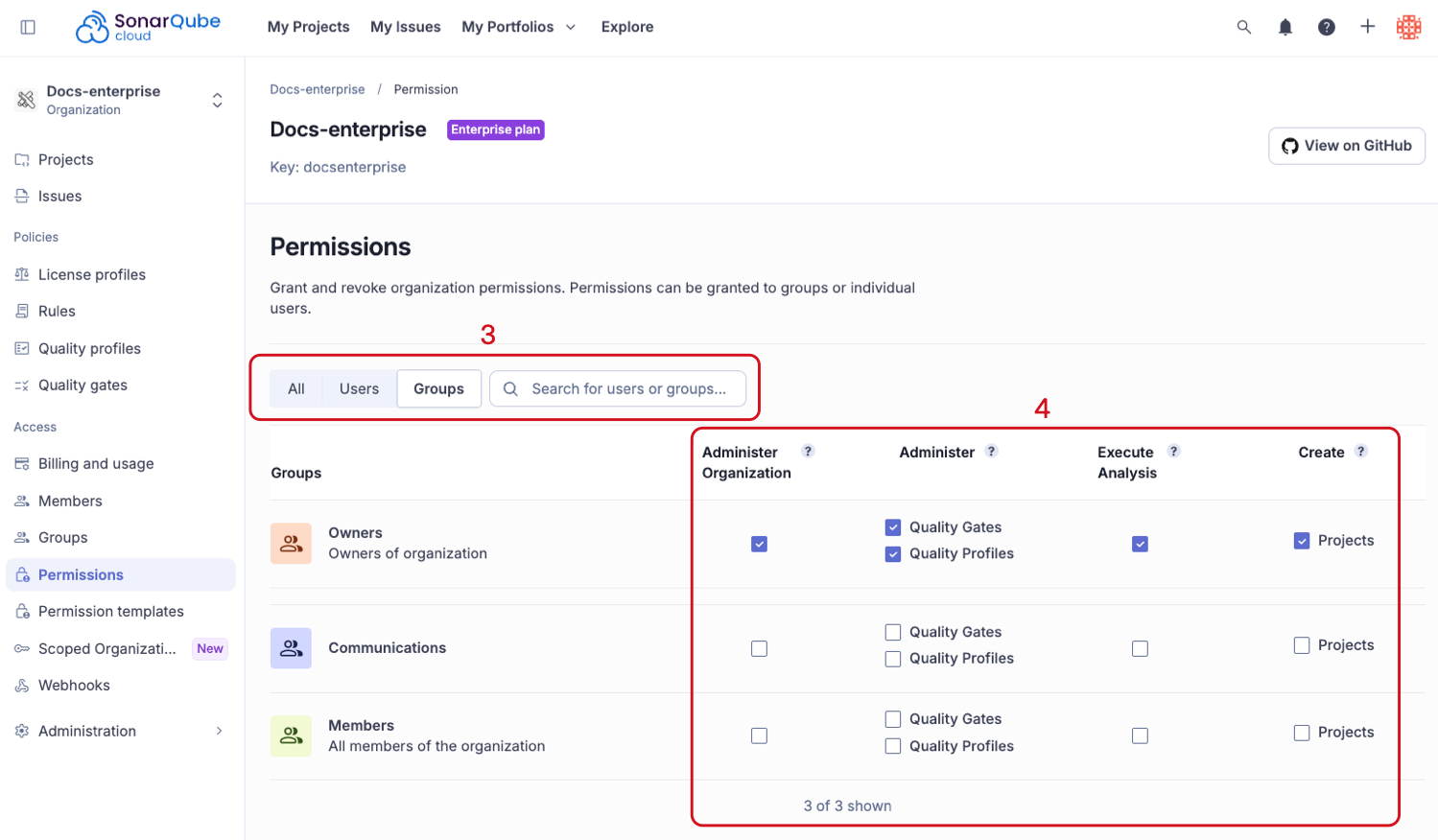
To set the organization-related permissions of the groups and users:

1. Retrieve your organization. See [Retrieving your organizations](/sonarqube-cloud/getting-started/viewing-organizations.md) for more information.
2. Go to **Permissions.**
3. Select **All**, **Users**, or **Groups** to filter the results, or search for specific users or groups.
4. Apply permissions for users or groups by checking the boxes in the appropriate columns. The permission options are: **Administer Organization,** **Administer Quality Gate**, **Administer Quality Profile**, **Execute Analysis**, **Create Projects**.

<div align="left"><figure><img src="/files/GaVvnqBvnYeVz3Sm2kva" alt="Permissions page with various permission options you can apply to an organiation"><figcaption></figcaption></figure></div>

## Transferring ownership of an organization <a href="#transferring-ownership-of-organization" id="transferring-ownership-of-organization"></a>

As the administrator, there may be cases where you wish to transfer ownership of an organization. For example, if you are leaving a team or company, you can simply grant the **Administer Organization** permission to another member.

## Related pages <a href="#related-pages" id="related-pages"></a>

* [Adding organization members](/sonarqube-cloud/administering-sonarcloud/managing-organization/users-and-permissions/organization-members.md)
* [Managing user groups](/sonarqube-cloud/administering-sonarcloud/managing-organization/users-and-permissions/user-groups.md)
* [User onboarding and offboarding](/sonarqube-cloud/administering-sonarcloud/managing-organization/users-and-permissions/user-on-and-offboarding.md)
* [Disabling GitHub member synchronization](/sonarqube-cloud/administering-sonarcloud/managing-organization/users-and-permissions/github-member-sync.md)
* [Recovering organization admin access](/sonarqube-cloud/administering-sonarcloud/managing-organization/recovering-org-admin-access.md)
* [Permissions](/sonarqube-cloud/administering-sonarcloud/permissions.md)


---

# Agent Instructions: Querying This Documentation

If you need additional information that is not directly available in this page, you can query the documentation dynamically by asking a question.

Perform an HTTP GET request on the current page URL with the `ask` query parameter:

```
GET https://docs.sonarsource.com/sonarqube-cloud/administering-sonarcloud/managing-organization/users-and-permissions/organization-permissions.md?ask=<question>
```

The question should be specific, self-contained, and written in natural language.
The response will contain a direct answer to the question and relevant excerpts and sources from the documentation.

Use this mechanism when the answer is not explicitly present in the current page, you need clarification or additional context, or you want to retrieve related documentation sections.
