> For the complete documentation index, see [llms.txt](https://docs.sonarsource.com/llms.txt). Markdown versions of documentation pages are available by appending `.md` to page URLs; this page is available as [Markdown](https://docs.sonarsource.com/sonarqube-cloud/managing-portfolios/administering-portfolios.md).

# Administering portfolios

As a SonarQube Cloud portfolio administrator, you can grant permissions to administer, edit, create, and view portfolios, and avoid duplicate project branches in hierarchies.

This feature is only available in the [Enterprise plan](https://www.sonarsource.com/plans-and-pricing/#sonarqube-cloud-features).

A portfolio is a set of projects within an enterprise that enables an aggregate view of its state through various lenses, including releasability, security, reliability, and maintainability.

{% hint style="info" %}
Before you can view the Enterprise-level reports, your organization must be added to an enterprise. For more information, see [Managing your enterprise](/sonarqube-cloud/administering-sonarcloud/managing-enterprise.md).
{% endhint %}

## Permissions <a href="#permissions" id="permissions"></a>

* To create a portfolio or a portfolio permission template, you must first be granted the **Create Portfolios** permission by enterprise administrator. See [Setting up your enterprise](/sonarqube-cloud/getting-started-with-enterprise/setting-up-your-enterprise.md#step-3-set-the-enterprise-permissions-of-users) for details.
* The permissions to administer, edit, or view a portfolio are granted by the portfolio administrator in the portfolio settings.

### Administer, edit, and view permissions <a href="#administer-edit-and-view-permissions" id="administer-edit-and-view-permissions"></a>

The following permissions are available for a portfolio:

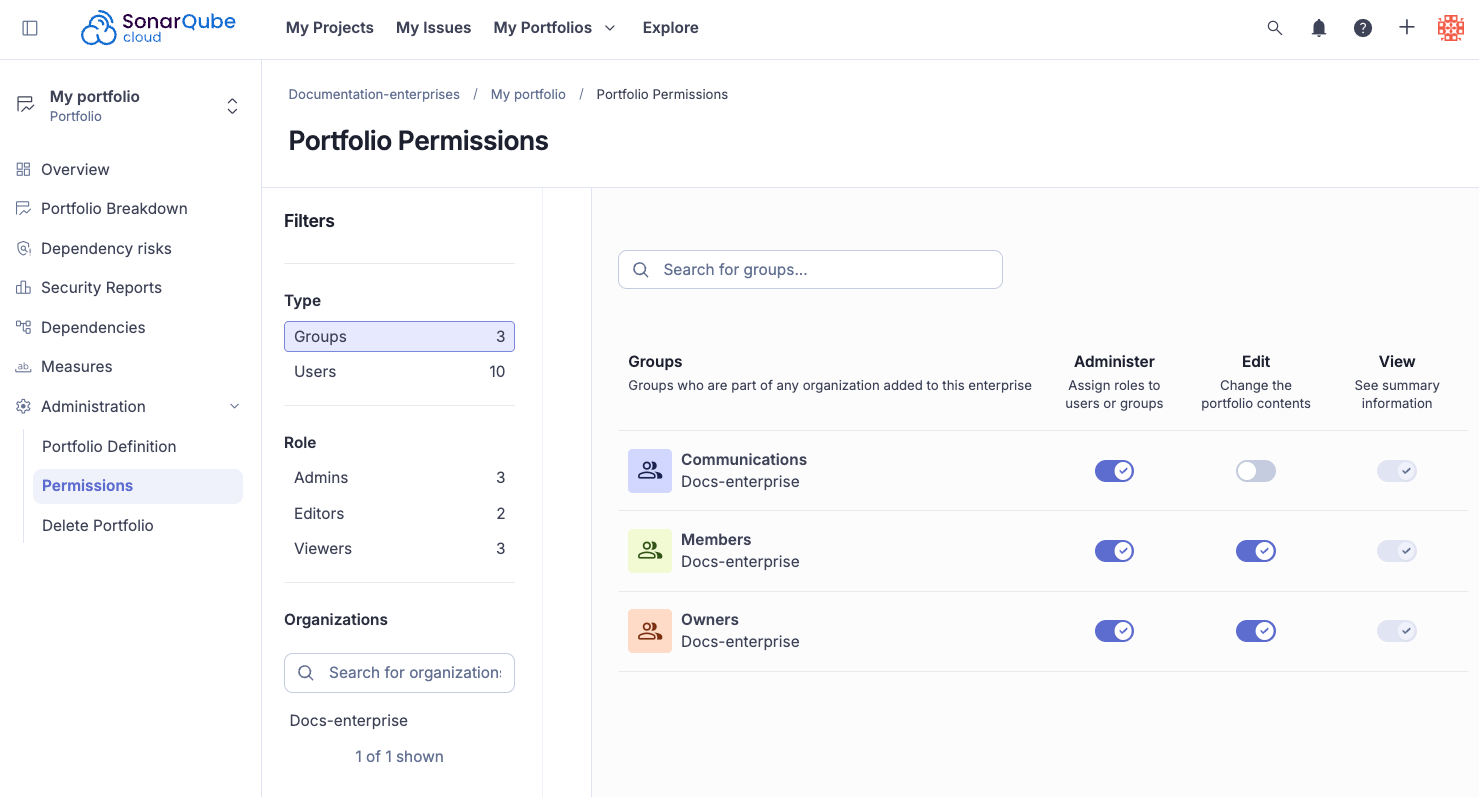
<table><thead><tr><th width="198.82421875">Permission</th><th>Description</th></tr></thead><tbody><tr><td><strong>Administer</strong></td><td>Can change the portfolio’s permissions.</td></tr><tr><td><strong>Edit</strong></td><td><p>Grants the ability to:</p><ul><li>Delete a portfolio.</li><li>Add projects by name (with projects’ Browse permission), by project tags, by organizations, or using regex (without projects’ Browse permission).</li><li>Remove any projects. When editing the portfolio, projects without the Browse permission still appear by name in its project list and can be removed. Their project keys are not shown in the UI, but the Web API returns them. Once removed, they cannot be added back by name without the Browse permission. Seeing a project’s name or key does not grant access to the project.</li></ul></td></tr><tr><td><strong>View</strong></td><td>Can view the portfolio. Projects without the Browse permission are hidden throughout the portfolio.</td></tr></tbody></table>

<div align="left"><figure><img src="https://2223713658-files.gitbook.io/~/files/v0/b/gitbook-x-prod.appspot.com/o/spaces%2FB4UT2GNiZKjtxFtcFAL7%2Fuploads%2Fgit-blob-728eba94f9a0c6d826904c68b7ce7b0aa3af5b0b%2Fportfolio-permissions.png?alt=media" alt="Portfolio permissions page"><figcaption></figcaption></figure></div>

1. Go to **Portfolios** in the top navigation and select your enterprise.
2. Select the portfolio you want to add the permissions to from the **Portfolios** page
3. Go to **Administration** > **Permissions**
4. Assign users and groups the **Administer**, **Edit**, and **View** permissions or select **Apply Permission Template**. The Filters sidebar allows you to find users by **Type**, **Role**, and **Organization**.

## Portfolio permission templates <a href="#permission-templates" id="permission-templates"></a>

Portfolio permission template defines the portfolio-related permissions granted to groups and members of your enterprise. Enterprise administrators can define several permission templates in your organization including a default template. Using permission templates allows you to:

* Grant or revoke different sets of permissions to users or groups.
* Set a default template for new portfolios.

### Creating portfolio permission templates <a href="#creating-permission-templates" id="creating-permission-templates"></a>

The Enterprise administrator permission is required to create permission templates:

1. Retrieve your enterprise. See [Retrieving and viewing your enterprise](/sonarqube-cloud/administering-sonarcloud/managing-enterprise/retrieving-and-viewing-your-enterprise.md).
2. Select **Administration** > **Portfolio Permission Templates**.
3. Select **Create new template** at the top right of the page.
4. Enter the **Template Name** and **Description** in the modal.
5. Assign users and groups the **Administer**, **Edit,** and **View** permissions. The Filters sidebar allows you to find users by **Type**, **Role**, and **Organization**.

### Editing portfolio permission templates <a href="#editing-permission-templates" id="editing-permission-templates"></a>

To edit an existing permission template:

1. Retrieve your enterprise. See [Retrieving and viewing your enterprise](/sonarqube-cloud/administering-sonarcloud/managing-enterprise/retrieving-and-viewing-your-enterprise.md).
2. Select **Administration** > **Portfolio Permission Templates**.
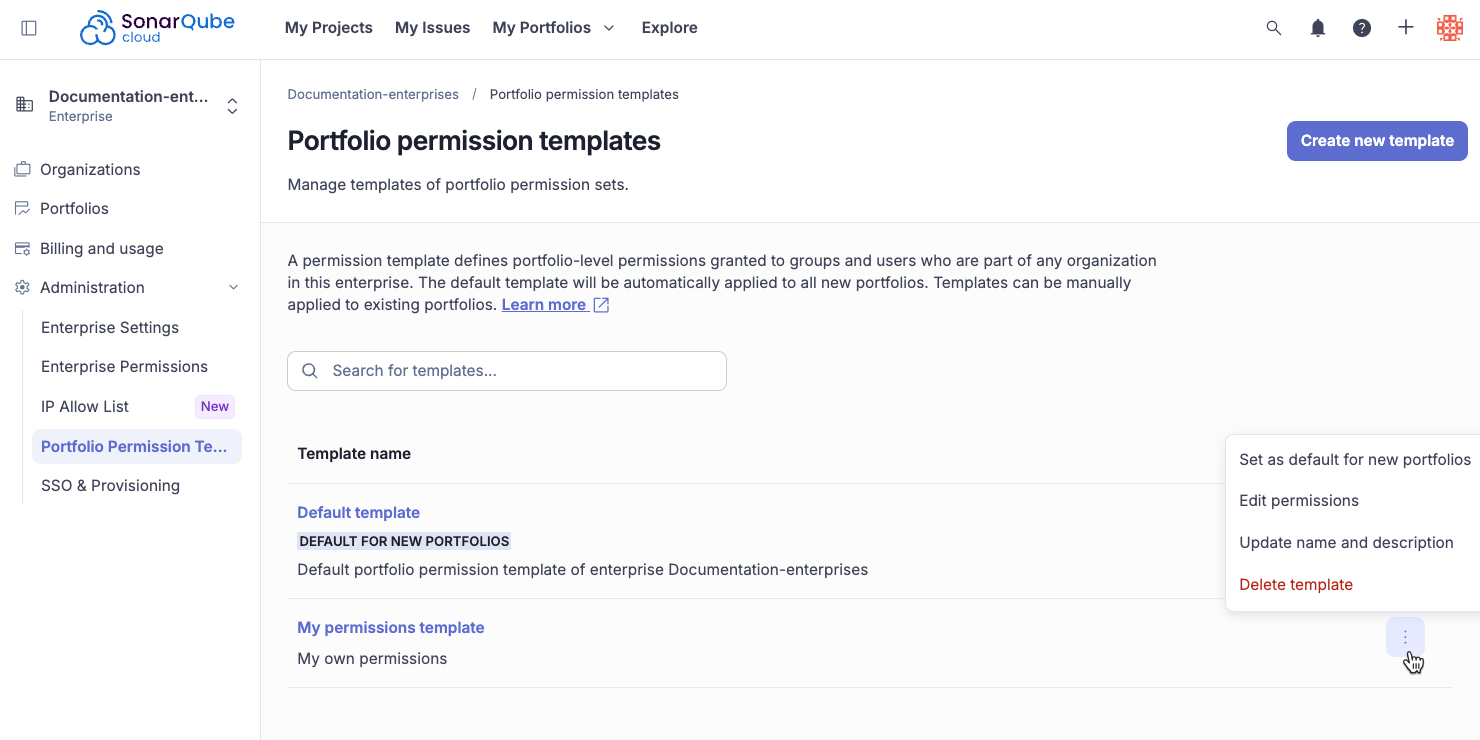
3. From your permission template’s **Actions** menu you can set the template as default for new portfolios, edit permissions, update name and description or delete the template.

<div align="left"><figure><img src="https://2223713658-files.gitbook.io/~/files/v0/b/gitbook-x-prod.appspot.com/o/spaces%2FB4UT2GNiZKjtxFtcFAL7%2Fuploads%2Fgit-blob-6f75766dcde6a6fc054b5a5040d5ec1f819b564a%2Fportfolio-permission-template.png?alt=media" alt="Options for the portfolio permission template"><figcaption></figcaption></figure></div>

{% hint style="info" %}
If you update a portfolio permission template, the changes are not reflected in any previously created or updated portfolios using that template.
{% endhint %}

## Duplicate project branches <a href="#duplicate-project-branches" id="duplicate-project-branches"></a>

In a portfolio hierarchy, the same project branch can be selected in more than one portfolio. This can happen with dynamic selections, for example when a tag selection in one child portfolio and a RegEx selection in another match the same project.

Duplicates do not block the portfolio computation. Totals and metrics count each project branch once, so the aggregated results stay accurate.

As a best practice, add each project branch directly to only one portfolio in the hierarchy. This keeps the hierarchy easy to understand, with each project branch belonging to a single part of your organization.

To find and remove duplicates:

1. Retrieve the root portfolio. See [Viewing portfolios](/sonarqube-cloud/managing-portfolios/viewing-portfolios.md#retrieving-portfolio).
2. Go to *your portfolio* > **Administration** > **Portfolio definition**. If the hierarchy contains duplicate project branches, the page shows a warning.
3. Select **Manage portfolio contents**.
4. In the **Portfolio tree**, select a portfolio with a warning icon. Its **Add projects directly** section shows how many duplicate project branches it has.
5. Select **View locations with duplicates** to see the other portfolios that select the same project branches.
6. Change the project selection of the affected portfolios so that only one portfolio selects each project branch. See [Creating portfolios](/sonarqube-cloud/managing-portfolios/creating-portfolios.md#adding-projects-directly).
7. Select **Save**.

## Related pages <a href="#related-pages" id="related-pages"></a>

* [Getting started with Enterprise](/sonarqube-cloud/getting-started-with-enterprise.md)
* [Viewing portfolios](/sonarqube-cloud/managing-portfolios/viewing-portfolios.md)
* [Managing portfolios](/sonarqube-cloud/managing-portfolios.md)
* [Permissions](/sonarqube-cloud/administering-sonarcloud/permissions.md)


---

# Agent Instructions
This documentation is published with GitBook. GitBook is the documentation platform designed so that both humans and AI agents can read, navigate, and reason over technical content effectively. Learn more at gitbook.com.

## Querying This Documentation
If you need additional information that is not directly available in this page, you can query the documentation by asking a question.

Perform an HTTP GET request on the following URL with the `ask` and `goal` query parameters:

```
GET https://docs.sonarsource.com/sonarqube-cloud/managing-portfolios/administering-portfolios.md?ask=<question>&goal=<user_goal>
```

`ask` is the immediate question: it should be specific, self-contained, and written in natural language.
`goal` is what the user is ultimately trying to achieve, the reason they need the answer. Sharing it helps GitBook give you a better, more relevant answer. A goal is most helpful when it describes the outcome the user wants rather than restating the question. For example, with `ask=how do I create an API token`, a goal like `automate deployments from our CI pipeline` lets GitBook tailor the answer to that use case.

The response will contain a direct answer to the question and relevant excerpts and sources from the documentation.

Use this mechanism when the answer is not explicitly present in the current page, you need clarification or additional context, or you want to retrieve related documentation sections.