> For the complete documentation index, see [llms.txt](https://docs.sonarsource.com/llms.txt). Markdown versions of documentation pages are available by appending `.md` to page URLs; this page is available as [Markdown](https://docs.sonarsource.com/sonarqube-cloud/managing-portfolios/creating-portfolios.md).
# Creating portfolios
Create a SonarQube Cloud portfolio with the portfolio creation wizard, add projects to it, and organize them into a hierarchy of child portfolios.
This feature is only available in the [Enterprise plan](https://www.sonarsource.com/plans-and-pricing/).
## Creating a portfolio
You can create a portfolio if you have the **Create Portfolios** permission enabled. See [Setting up your enterprise](https://docs.sonarsource.com/sonarqube-cloud/getting-started-with-enterprise/setting-up-your-enterprise.md#step-3-set-the-enterprise-permissions-of-users) for more details.
1. Go to **Portfolios** in the top navigation bar and select the enterprise to which you want to add a new portfolio.
2. Select **Create portfolio** on the **Portfolios** page to start the portfolio creation wizard.
You can also create a portfolio by selecting the ‘+’ sign at the top right of the page.
### Portfolio creation wizard
The wizard takes you through four steps. SonarQube Cloud saves your progress each time you go to the next step, and you can select **Save draft and exit** at any time. Draft portfolios appear in the **My drafts** tab of the **Portfolios** page, where you can resume them. A draft becomes a live portfolio in your enterprise only when you select **Complete** in the last step.
The portfolio creation process consists of the following steps:
1. **Add details**: Choose the enterprise where the portfolio will reside if you have permission to more than one enterprise. Then, enter the portfolio name and description.
2. **Add projects**: Add projects to the portfolio directly, organize them into child portfolios, or both. See [#adding-projects-directly](#adding-projects-directly "mention") and [#creating-child-portfolios](#creating-child-portfolios "mention").
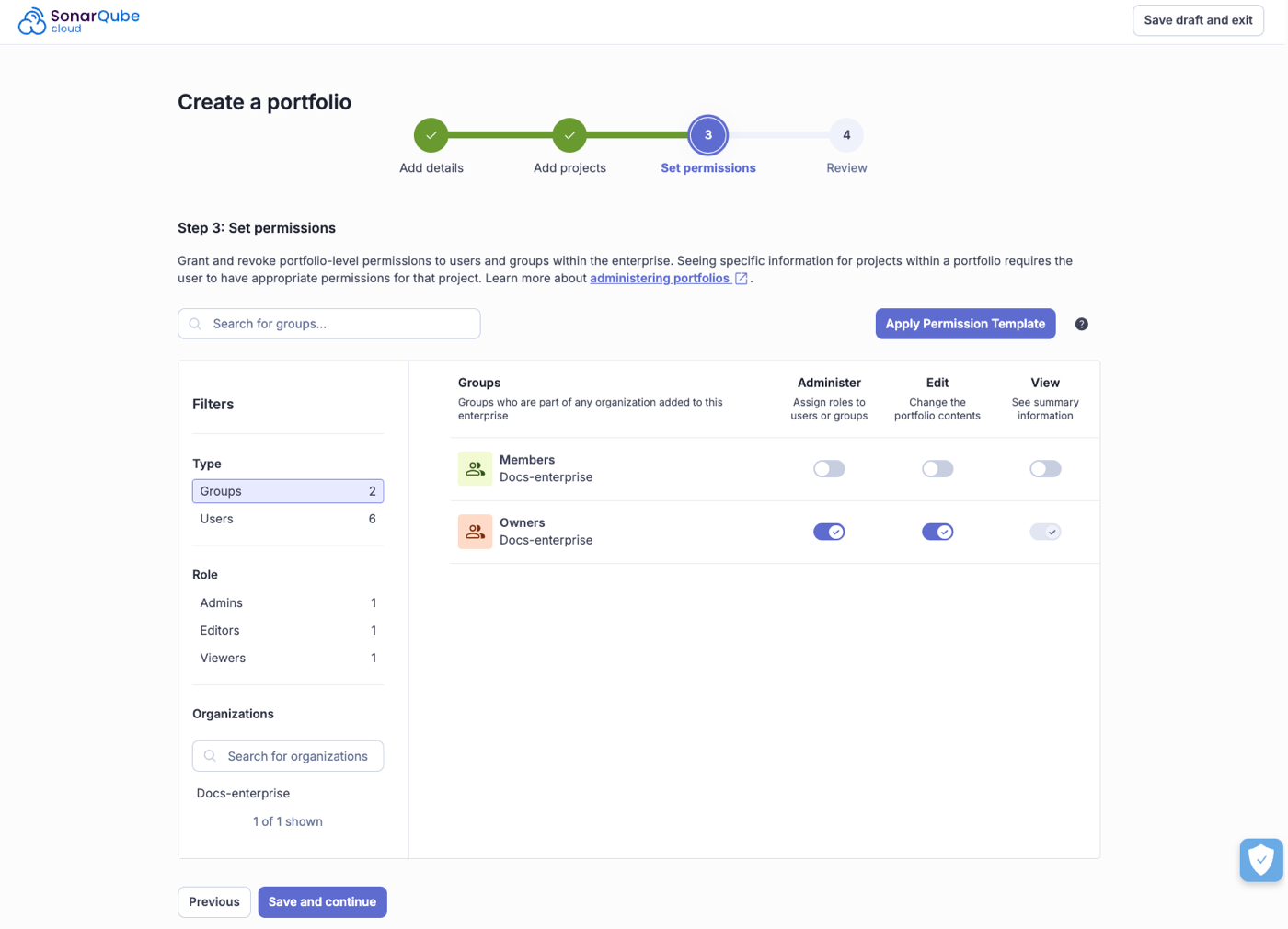
3. **Set permissions**: Add portfolio Administer, Edit, and View permissions to specific groups and users or apply a permission template. The permissions you set apply to the portfolio and to all its child portfolios. To see the details of a project in the portfolio, a user also needs permission on that project. Select **Save and continue**.
4. **Review**: Check the summary of the portfolio details, projects, and permissions. To change a section, select its **Edit** button. If the hierarchy contains duplicate project branches, the **Projects** section shows a warning. See [#duplicate-project-branches](#duplicate-project-branches "mention"). Select **Complete** to create the portfolio.
Once the portfolio is created, it will be populated with ratings for Releasability, Security, Reliability, Maintainability, and Security Review (deprecated).
### Adding projects directly
In the **Add projects** step, every portfolio, whether it's the root portfolio or a child portfolio, has its own **Add projects directly** section.
1. Select **Add projects**. If the portfolio already has projects, select **Manage project selection** instead.
2. In **How do you want to add projects?**, select a method:
* **By name**: This option shows the list of organizations and projects associated with them. Select the projects and choose the project’s branch you want to include in the portfolio.
* **By tag**: Select existing tags by which you want to query projects and define the project branch to add to the portfolio. If you choose a branch other than the main branch, you need to specify the branch’s name.
* **By regular expression** (RegEx) using project keys: Write RegEx to query the project by project key and define the project branch to add to the portfolio. If you choose a branch other than the main branch, you need to specify the branch’s name. See [#defining-a-portfolio-with-regular-expressions-regex](#defining-a-portfolio-with-regular-expressions-regex "mention").
* **By organization**: Select the organizations whose projects you want to include. All projects in the selected organizations are added to the portfolio. Then define the project branch to include. If you choose a branch other than the main branch, you need to specify the branch’s name.
3. Select **Add to portfolio**.
Selections by tag, regular expression, and organization are dynamic. Projects that match the selection later are added to the portfolio automatically.
To remove the selection from a portfolio, select **Clear selection**.
{% hint style="info" %}
You cannot mix methods within a single portfolio. For example, you cannot combine RegEx and tags to select the projects of one portfolio. Each child portfolio can use its own method.
{% endhint %}
### Creating child portfolios
Child portfolios let you organize projects to match the structure of your organization, for example by division and team. Project counts and metrics roll up from each child portfolio to its parent, up to the root portfolio. A child portfolio can contain projects added directly, its own child portfolios, or both, and there is no limit to how deep you can nest them.
You create child portfolios in the creation wizard or, for an existing portfolio, on its **Portfolio definition** page by selecting **Manage portfolio contents**. You cannot add an existing portfolio as a child portfolio.
1. In the **Add projects** step, select **Create child portfolio** on the portfolio that you want to be the parent.
2. In the **Create a child portfolio** dialog, enter the **Portfolio name** and, optionally, a **Description**.
3. Select **Create child portfolio**. The new child portfolio appears in the **Portfolio tree**. It's managed through the settings of its root portfolio.
4. Add projects to the child portfolio. See [#adding-projects-directly](#adding-projects-directly "mention").
After you create the first child portfolio, the **Portfolio tree** appears. Select a portfolio in the tree to work on it. The breadcrumb shows where the selected portfolio sits in the hierarchy, and the **Root portfolio** label marks the top of the tree.
Each portfolio in the hierarchy shows three counts:
* **Projects added directly**: The project branches selected in this portfolio's **Add projects directly** section.
* **Projects rolled up from child portfolios**: The project branches that come from the portfolio's child portfolios and their descendants.
* **Total projects aggregated at this level**: The number of unique project branches in the portfolio and its descendants. If a project branch is selected in several portfolios, it's counted only once. For this reason, the total can be lower than the sum of the other two counts.
To rename, move, or delete a child portfolio, see [Editing portfolios](https://docs.sonarsource.com/sonarqube-cloud/managing-portfolios/editing-portfolios.md).
### Duplicate project branches
The same project branch can be selected in more than one portfolio of a hierarchy. This does not block the portfolio computation: totals and metrics count each project branch once.
When the direct selection of a portfolio includes a project branch that's also selected directly in another portfolio of the hierarchy:
* A warning icon appears next to the portfolio in the **Portfolio tree**.
* The **Add projects directly** section of the portfolio shows how many duplicate project branches it has. Select **View locations with duplicates** to see the other portfolios that select them.
As a best practice, add each project branch directly to only one portfolio in the hierarchy. See [Administering portfolios](https://docs.sonarsource.com/sonarqube-cloud/managing-portfolios/administering-portfolios.md#duplicate-project-branches).
### Ensuring a reliable security report
To ensure a reliable security report, check that the relevant security rules are activated in your quality profiles for projects you have included in your portfolio. For instance, if no rule corresponding to a given OWASP category is activated in your quality profile, you will not get Security issues or Security Hotspots (deprecated) linked to that specific category in the OWASP report. See [Project compliance reports](https://docs.sonarsource.com/sonarqube-cloud/getting-started-with-enterprise/viewing-enterprise-reports/project-compliance-reports.md#checking-security-rules) for more information.
## Defining a portfolio with regular expressions (RegEx)
You write RegEx against project keys included in your enterprise. A project key is not necessarily the same as a project name and, by default, it starts with the name of the organization that the project belongs to.
* To retrieve a project key, go to your project and select **Information** located in the left side bar.
* To change a project key, go to *Your Project* > **Administration** > **Update Key** and enter the new project key.
Following are examples of RegEx that may help you write your own expressions and retrieve matches against project keys.
Selects all projects with a key that includes `python`:
```regex
.*python.*
```
Selects all projects with a key that starts with `sonar`:
```regex
^sonar.*
```
Select all projects with a key that starts with either `docs` or `Docs`. Keep in mind that RegEx matches are case sensitive.
```regex
^[dD]ocs.*
```
Selects all projects with a key that ends with `-scanner`:
.*-scanner$
Select all projects with a key that contains `sonar` but does not contain `test`. If your enterprise has a large number of projects, more complex expressions might impact performance.
```regex
(?=.*sonar)(?!.*test).*
```
For more information about how to write regular expressions, see [regex101.com](https://regex101.com/). When testing your RegEx in third-party tools such as [regex101.com](https://regex101.com/) make sure that the whole test string is selected when the match is found.
## Related pages
* [Managing portfolios](https://docs.sonarsource.com/sonarqube-cloud/managing-portfolios.md)
* [Editing portfolios](https://docs.sonarsource.com/sonarqube-cloud/managing-portfolios/editing-portfolios.md)
* [Viewing portfolios](https://docs.sonarsource.com/sonarqube-cloud/managing-portfolios/viewing-portfolios.md)
* [Administering portfolios](https://docs.sonarsource.com/sonarqube-cloud/managing-portfolios/administering-portfolios.md)
---
# Agent Instructions
This documentation is published with GitBook. GitBook is the documentation platform designed so that both humans and AI agents can read, navigate, and reason over technical content effectively. Learn more at gitbook.com.
## Querying This Documentation
If you need additional information that is not directly available in this page, you can query the documentation by asking a question.
Perform an HTTP GET request on the following URL with the `ask` and `goal` query parameters:
```
GET https://docs.sonarsource.com/sonarqube-cloud/managing-portfolios/creating-portfolios.md?ask=&goal=
```
`ask` is the immediate question: it should be specific, self-contained, and written in natural language.
`goal` is what the user is ultimately trying to achieve, the reason they need the answer. Sharing it helps GitBook give you a better, more relevant answer. A goal is most helpful when it describes the outcome the user wants rather than restating the question. For example, with `ask=how do I create an API token`, a goal like `automate deployments from our CI pipeline` lets GitBook tailor the answer to that use case.
The response will contain a direct answer to the question and relevant excerpts and sources from the documentation.
Use this mechanism when the answer is not explicitly present in the current page, you need clarification or additional context, or you want to retrieve related documentation sections.