> For the complete documentation index, see [llms.txt](https://docs.sonarsource.com/llms.txt). Markdown versions of documentation pages are available by appending `.md` to page URLs; this page is available as [Markdown](https://docs.sonarsource.com/sonarqube-cloud/managing-your-projects/administering-your-projects/integrations/jira-cloud.md).
# Connecting your project to Jira Cloud
How to connect your SonarQube Cloud project to a Jira Cloud space to allow users to push issues to Jira Cloud.
*The Jira Cloud integration is available in the Team and Enterprise plans. For more information about this integration, see* [Jira Cloud](/sonarqube-cloud/discovering-sonarcloud/integrations/jira-cloud.md)*.*
Once your SonarQube organization [has been connected to your Jira Cloud instance](/sonarqube-cloud/administering-sonarcloud/integrations/jira-cloud.md), you are now ready to connect your SonarQube project to a Jira space. You only need to be a project admin provided your organization admin has allowed project admins to connect their projects to Jira. Otherwise, you must be an organization admin.
{% stepper %}
{% step %}
#### Prepare the Jira Cloud space to be connected
You must select the Jira Cloud space you want to connect your SonarQube Cloud project to.
Be aware that SonarQube Cloud supports only the following Jira’s mandatory fields:
* Summary
* Description
* Reporter
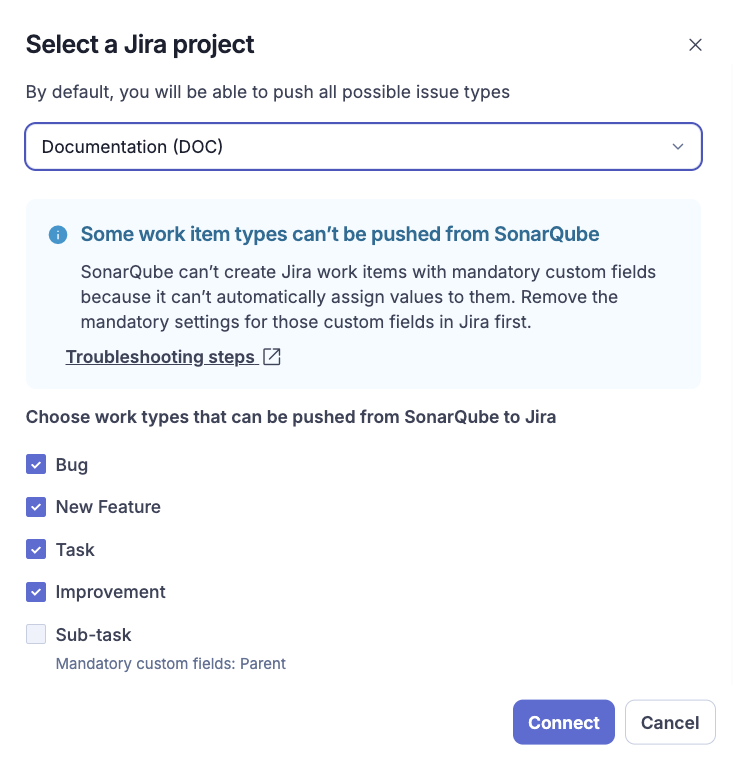
Jira work types that have other mandatory fields associated with them, and have no default value, are not supported and are disabled in SonarQube Cloud. You can either remove these mandatory fields in Jira or choose a supported work type in SonarQube. At least one supported Jira work type is required to save the configuration.
{% hint style="warning" %}
The SonarQube Cloud’s Jira widget will show the open Jira work items in the earliest unreleased version of your project regardless of whether they are associated with SonarQube issues or not (see [Jira Cloud](/sonarqube-cloud/discovering-sonarcloud/integrations/jira-cloud.md#jira-widget) for more information). It means that:
* You must use the release concept with your Jira Cloud space to benefit from the widget.
* If your project contains work items that are not connected to SonarQube issues, they may be shown by the widget.
{% endhint %}
{% endstep %}
{% step %}
**Connect your SonarQube project to your Jira space**
To connect your SonarQube Cloud project to your Jira Cloud space:
1. Go to *Your Project* > **Administration** > **General Settings** > **Jira**.
2. Click **Connect** to open the connection modal.
3. In the modal, select a Jira space from a dropdown list. A maximum of 1,000 items is available. Use the search option to quickly find a specific project.
4. Choose the work types that you can push from SonarQube to Jira Cloud (you can change them later if necessary).
5. Click **Connect**. A confirmation dialog opens.
6. Confirm. Once the connection is created you will see the connection details along with options to edit or delete the project binding.
{% endstep %}
{% step %}
**Test the connection**
1. Go to the **Summary** page of your SonarQube Cloud project and verify that the widget is shown. If the widget shows a warning indicating that it cannot show the issues, it means that your Jira Cloud space doesn’t use the release concept. See [#prepare-the-jira-cloud-space-to-be-connected](#prepare-the-jira-cloud-space-to-be-connected "mention").
2. Navigate to an issue in your SonarQube Cloud project and push it to Jira: see [Pushing issues to Jira](/sonarqube-cloud/managing-your-projects/issues/pushing-issues-to-jira.md). If the **Push to Jira** button is not displayed, it might mean that none of the Jira work types configured in the project connection is supported by SonarQube Cloud. See [#prepare-the-jira-cloud-space-to-be-connected](#prepare-the-jira-cloud-space-to-be-connected "mention").
{% endstep %}
{% endstepper %}
## Editing your project connection
You can change the connection of your SonarQube project by connecting it to another Jira space or by updating the list of Jira work types configured for the connection.
{% hint style="info" %}
Changing your project connection is non destructive, meaning that all the connections of the project’s issues with Jira work items will remain intact.
{% endhint %}
Proceed as follows:
1. If you want to connect to another project, follow the instructions in [#prepare-the-jira-cloud-space-to-be-connected](#prepare-the-jira-cloud-space-to-be-connected "mention") above.
2. Go to *Your Project* > **Administration** > **General Settings** > **Jira**.
3. Select **Edit**. The connection modal opens.
4. You can select another project and / or select other work types.
5. Select **Connect**.
## Deleting your project connection
Deleting the project connection is a complete reset between your SonarQube project and Jira. It means that the Jira widget will be removed from your project and the connections to the created Jira work items will be lost.
Proceed as follows:
1. Go to *Your Project* > **Administration** > **General Settings** > **Jira**.
2. Select the delete icon.
## Related pages
* [Jira Cloud](/sonarqube-cloud/discovering-sonarcloud/integrations/jira-cloud.md) (integration overview)
* [Connecting your organization to Jira Cloud](/sonarqube-cloud/administering-sonarcloud/integrations/jira-cloud.md)
* [Pushing issues to Jira](/sonarqube-cloud/managing-your-projects/issues/pushing-issues-to-jira.md)
---
# Agent Instructions
This documentation is published with GitBook. GitBook is the documentation platform designed so that both humans and AI agents can read, navigate, and reason over technical content effectively. Learn more at gitbook.com.
## Querying This Documentation
If you need additional information that is not directly available in this page, you can query the documentation by asking a question.
Perform an HTTP GET request on the following URL with the `ask` and `goal` query parameters:
```
GET https://docs.sonarsource.com/sonarqube-cloud/managing-your-projects/administering-your-projects/integrations/jira-cloud.md?ask=&goal=
```
`ask` is the immediate question: it should be specific, self-contained, and written in natural language.
`goal` is what the user is ultimately trying to achieve, the reason they need the answer. Sharing it helps GitBook give you a better, more relevant answer. A goal is most helpful when it describes the outcome the user wants rather than restating the question. For example, with `ask=how do I create an API token`, a goal like `automate deployments from our CI pipeline` lets GitBook tailor the answer to that use case.
The response will contain a direct answer to the question and relevant excerpts and sources from the documentation.
Use this mechanism when the answer is not explicitly present in the current page, you need clarification or additional context, or you want to retrieve related documentation sections.