> For the complete documentation index, see [llms.txt](https://docs.sonarsource.com/llms.txt). Markdown versions of documentation pages are available by appending `.md` to page URLs; this page is available as [Markdown](https://docs.sonarsource.com/sonarqube-cloud/quickstart-guides/transition-from-devops-platform-authentication-to-sso.md).
# Transition from DevOps-platform authentication to SSO
How to move a SonarQube Cloud Enterprise from DevOps-platform authentication to SSO, including group mapping, provisioning, pilot rollout, and rollback.
This guide walks Enterprise administrators through moving a SonarQube Cloud Enterprise whose users currently sign in through GitHub, GitLab, Bitbucket Cloud, or Azure DevOps to enterprise SSO.
{% hint style="warning" %}
This isn't an in-place conversion of user accounts. The first SSO login creates a distinct SSO account. Existing DevOps-platform accounts can stay enabled during the transition, so you can roll out in stages and roll back if needed.
{% endhint %}
## Prerequisites
Before you start, confirm the following:
* Your subscription is SonarQube Cloud Enterprise.
* Your SonarQube admin or admins have the Administer Enterprise permission.
* Your identity provider (IdP) administrator is available.
* You've decided on a provisioning model:
* SCIM, to provision and sync users and groups from the IdP.
* JIT provisioning, if accounts should be created at first SSO login and SCIM isn't the first use case internally.
* You've identified:
* At least one SSO test user.
* At least two emergency or recovery DevOps-platform administrators.
## Important behavior to communicate before the change
* SonarQube Cloud supports both DevOps-platform authentication and SSO in the same enterprise during the transition, but only one SSO configuration can be managed at a time.
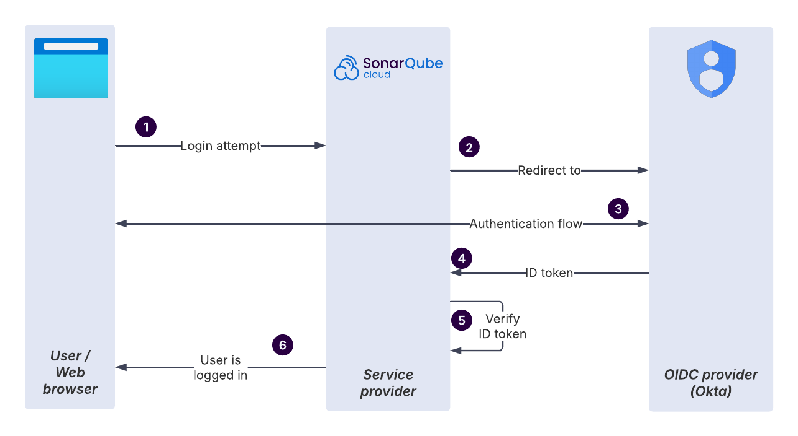
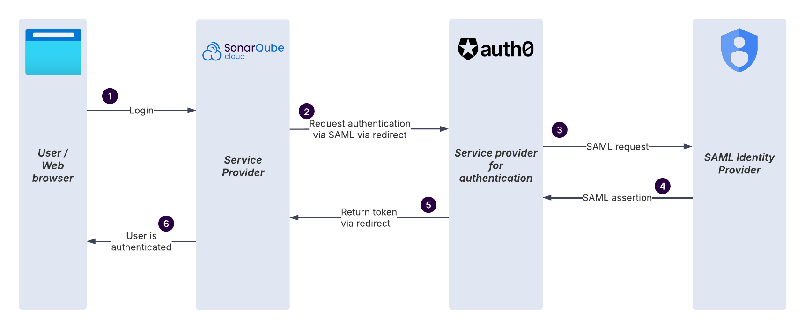
* SSO is service-provider initiated: users start from SonarQube Cloud, which redirects them to the IdP and back to SonarQube Cloud.
* The first SSO login creates a new user account. Comments, issue history, favorites, and similar personal history from the DevOps-platform account don't carry over.
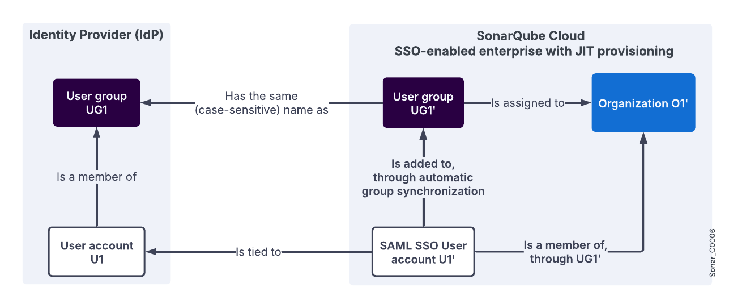
* Group membership is handled on the IdP side. With JIT provisioning, SonarQube Cloud resets a user's SSO group membership to match the IdP at every login. SCIM synchronizes membership dynamically instead.
* With JIT provisioning, an SSO user gets organization access only when an IdP group matches a SonarQube Cloud group name exactly, including case. The user must belong to that group on the IdP side.
* With SCIM provisioning, the SonarQube admin must ensure to map the IdP group to the correct SonarQube Cloud organization, which is configured in SonarQube Cloud. Otherwise, users cannot see their organization.
SAML SSO
OIDC SSO
## Phase 1: Prepare groups and access
1. Inventory every organization in the enterprise.
2. For each organization, list:
* Current SonarQube Cloud groups.
* Users who need administrator or portfolio permissions.
3. In the IdP, create and validate the groups that will obtain SonarQube Cloud access.
4. Make sure each group name exactly matches its counterpart in the IdP, including case.
5. Assign the test user and recovery administrator to an IdP group that maps to the appropriate SonarQube Cloud organization group.
{% hint style="warning" %}
Don't manually add SSO users to non-IdP groups. That membership disappears at their next SSO login.
{% endhint %}
## Phase 2: Configure the SSO connection
1. Sign in with a DevOps-platform account that has Administer Enterprise.
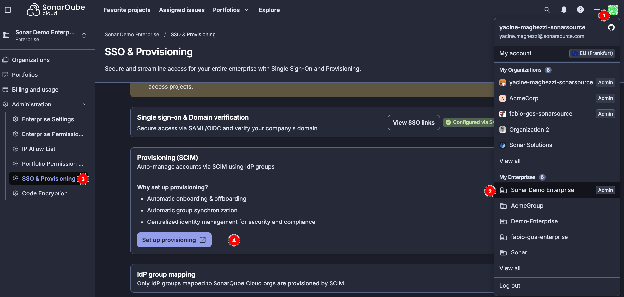
2. Open the enterprise, then go to **Administration** > **SSO & Provisioning**.
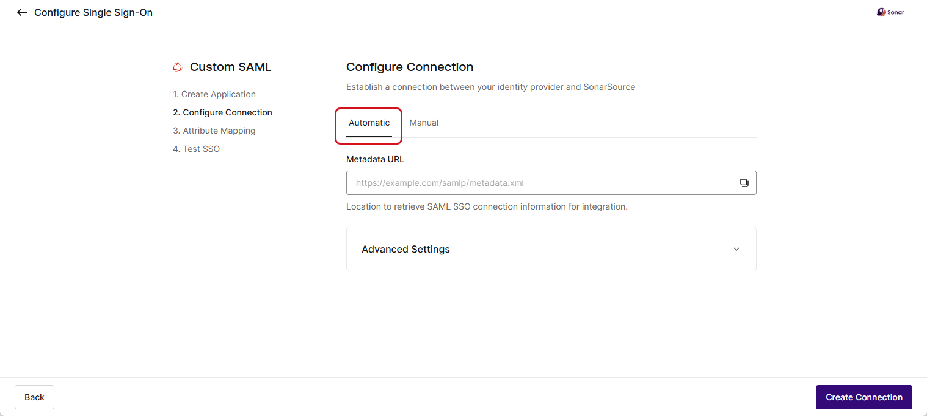
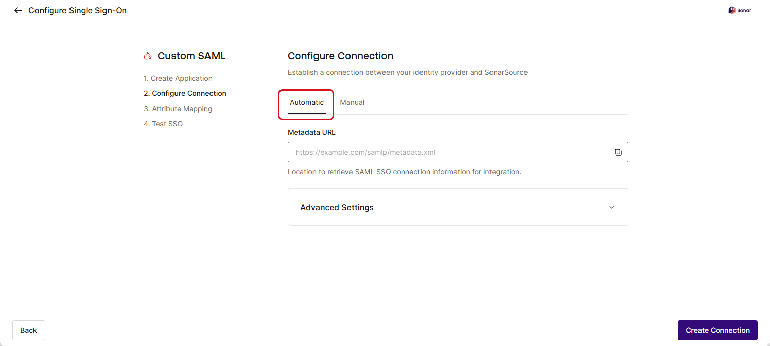
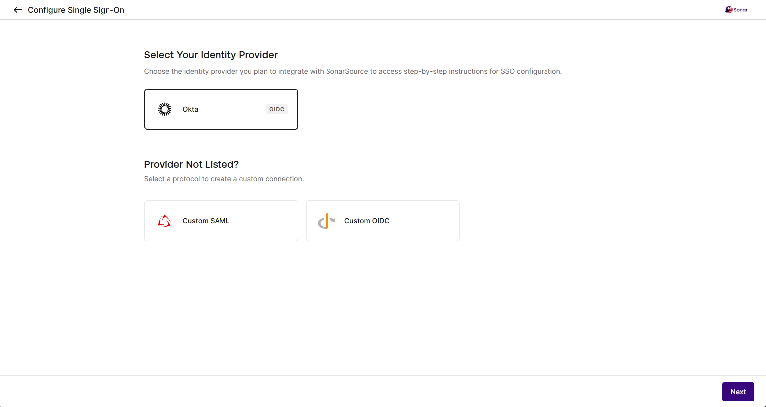
3. Expand **Single sign-on**, select **Set up SSO**, then select **Get Started**. Choose your IdP or protocol. In most cases, you can choose Custom SAML, which is the simplest SAML configuration to set.
4. Configure the SonarQube Cloud application in the IdP using the values the assistant displays:
* Service-provider identifier or entity ID.
* Assertion consumer service or single sign-on URL.
* Metadata URL or certificate.
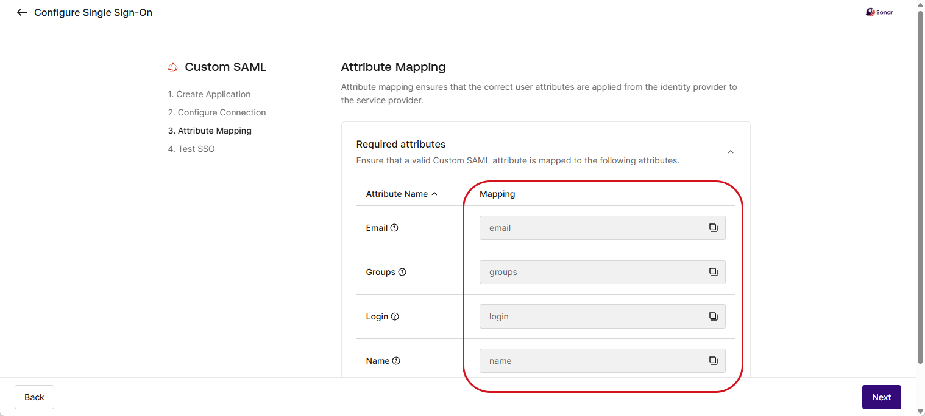
* Required user attributes: name, login, email, and groups.
5. Configure the group claim. It's required for automatic group synchronization, whether you use SCIM or JIT.
6. Assign the test user or test group to the IdP application.
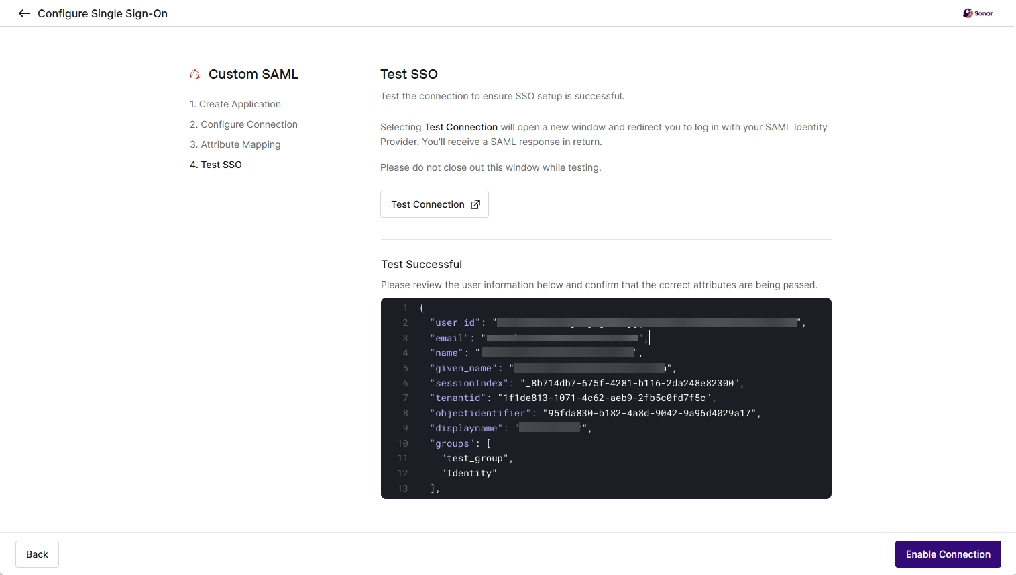
7. In the SonarQube Cloud assistant, run **Test Connection** and validate the returned attributes:
* Email.
* Login or unique identifier.
* Name.
* Groups.
8. Enable the connection only after the test confirms the correct user and group values.
## Phase 3: Configure provisioning and domain verification
1. Choose one provisioning method:
* (RECOMMENDED) Configure SCIM if you need centralized provisioning and deprovisioning.
* Otherwise, use JIT provisioning and confirm that all matching groups already exist in SonarQube Cloud. Users must connect at least once to be created.
2. Verify your corporate email domain in the SSO assistant. This avoids one-time email verification for users who sign in with SSO, especially if the user is a service account.
3. Configure the enterprise recovery account after SSO is working. We strongly recommend this step to preserve enterprise access if the IdP or SSO configuration becomes unavailable.
SCIM handles user and group provisioning, deprovisioning, and membership sync.
## Phase 4: Pilot migration
1. Retrieve the enterprise SSO login URL from **Administration** > **SSO & Provisioning** > **Single sign-on** > **Invite users to sign in**.
2. Send the URL to a small number of test users only.
3. Ask each pilot user to:
* Sign in through the enterprise SSO URL.
* Confirm access to the expected organization or organizations.
* Verify their expected project permissions.
* Create new analysis tokens under the SSO account, if you use personal tokens.
## Phase 5: Roll out to all users
1. Communicate the enterprise SSO URL and the migration date to all users.
2. Tell users they must start login from SonarQube Cloud using the supplied URL or go to **Administration** > **SSO & Provisioning** > **Single sign-on** > **Configure one-click access** to get a URL for one-click SSO login.
## Rollback approach
If access or group synchronization is incorrect:
1. Don't remove the retained DevOps-platform administrator accounts.
2. Use the DevOps-platform enterprise administrator account to correct:
* IdP application assignment.
* Group claim mapping.
* Exact group-name matching.
* SonarQube Cloud group permissions.
* Recovery-account configuration.
* IdP group mapping to organizations (SCIM).
3. Retest with the pilot user before inviting more users.
4. Don't delete the SSO configuration as a first troubleshooting step. Keeping DevOps-platform authentication active during rollout gives you a safer recovery path.
## Completion checklist
* [ ] IdP groups match SonarQube Cloud groups exactly.
* [ ] SonarQube Cloud group permissions are validated for every organization.
* [ ] The SSO connection test returns the correct identity and group claims.
* [ ] The corporate domain is verified.
* [ ] Test users have validated organization, project, and administration access.
* [ ] SSO admins have Administer Enterprise.
* [ ] The recovery account is configured and documented.
* [ ] CI analysis tokens and integrations are validated.
* [ ] DevOps-platform fallback admins and service accounts are retained.
* [ ] End-user DevOps-platform memberships are removed only after validation.
## Related pages
* [Set up SSO](/sonarqube-cloud/administering-sonarcloud/enterprise-security/sso-and-provisioning/set-up-sso.md)
* [Set up SCIM](/sonarqube-cloud/administering-sonarcloud/enterprise-security/sso-and-provisioning/set-up-scim.md)
* [Recovery account for SSO](/sonarqube-cloud/administering-sonarcloud/enterprise-security/sso-and-provisioning/recovery-account.md)
* [Editing or deleting SSO configuration](/sonarqube-cloud/administering-sonarcloud/enterprise-security/sso-and-provisioning/edit-or-delete-sso-setup.md)
* [Troubleshooting SSO and provisioning](/sonarqube-cloud/administering-sonarcloud/enterprise-security/sso-and-provisioning/troubleshooting.md)
---
# Agent Instructions
This documentation is published with GitBook. GitBook is the documentation platform designed so that both humans and AI agents can read, navigate, and reason over technical content effectively. Learn more at gitbook.com.
## Querying This Documentation
If you need additional information that is not directly available in this page, you can query the documentation by asking a question.
Perform an HTTP GET request on the following URL with the `ask` and `goal` query parameters:
```
GET https://docs.sonarsource.com/sonarqube-cloud/quickstart-guides/transition-from-devops-platform-authentication-to-sso.md?ask=&goal=
```
`ask` is the immediate question: it should be specific, self-contained, and written in natural language.
`goal` is what the user is ultimately trying to achieve, the reason they need the answer. Sharing it helps GitBook give you a better, more relevant answer. A goal is most helpful when it describes the outcome the user wants rather than restating the question. For example, with `ask=how do I create an API token`, a goal like `automate deployments from our CI pipeline` lets GitBook tailor the answer to that use case.
The response will contain a direct answer to the question and relevant excerpts and sources from the documentation.
Use this mechanism when the answer is not explicitly present in the current page, you need clarification or additional context, or you want to retrieve related documentation sections.