> For the complete documentation index, see [llms.txt](https://docs.sonarsource.com/llms.txt). Markdown versions of documentation pages are available by appending `.md` to page URLs; this page is available as [Markdown](https://docs.sonarsource.com/sonarqube-cloud/standards/managing-quality-profiles/maintaining-your-custom-quality-profiles.md).
# Maintaining quality profiles
Maintaining your custom quality profile in SonarQube Cloud is important if it's not inherited from a Sonar way built-in profile.
You should regularly maintain your organization’s custom quality profiles *that do not inherit from a built-in profile*. The built-in quality profiles are regularly updated to reflect the addition of new rules and the deprecation of existing ones. As a user with Administer Quality Profile permission, you will be notified by email each time a built-in profile is updated. Updates can be introduced through a SonarQube or third-party analyzer upgrade.
Custom general profiles always inherit from Sonar way comprehensive, so they automatically benefit from these updates.
To edit a custom quality profile, you need the Administer Quality Profiles permission in your organization or be authorized to manage this particular profile. To delete a custom quality profile, you need the Administer Quality Profiles permission.
## Ensuring your quality profile has all relevant new rules
To ensure that your custom quality profile has all relevant new rules, you can check for the recently added rules and for the stagnant profiles. Stagnant profiles are custom profiles that have not been updated for more than one year.
### In the Quality profiles page
To check for recently added rules and stagnant profiles:
1. Go to *Your organization* > **Policies** > **Quality profiles** and select the **Language-specific** tab. See [Retrieving your organizations](/sonarqube-cloud/getting-started/viewing-organizations.md) to access your organization. The right-hand side of the tab shows the stagnant profiles and recently implemented rules.
2. To inspect a new rule, select it in the **Recently added rules** section.
3. To edit a stagnant profile, select it in the **Stagnant profiles** section. The quality profile page opens. To add the new rules to your profile, you can now:
1. Either select **\ inactive rules** in the **Inheritance** section and then activate the new rules from the list of inactive rules.
2. Or compare the stagnant profile with the built-in profile it’s based on (Sonar way core, extended, or comprehensive).
### In the Rules page
To check for recently added rules:
1. See [Retrieving your organizations](/sonarqube-cloud/getting-started/viewing-organizations.md) to access your organization, then go to the **Rules** page.
2. In **Filters**, set the **Available Since** criterion.
## Managing the deprecated rules in quality profiles
A deprecated rule is a rule that SonarQube will not be supported any more in the near future. A rule may be deprecated if it has become obsolete or if it has been replaced by one or several new rules. When a rule becomes deprecated, it will be deactivated in the corresponding language’s built-in profile and in the profile inheriting from it.
If your custom profile does not inherit from a built-in profile, you should regularly check your quality profiles for deprecated rules as follows:
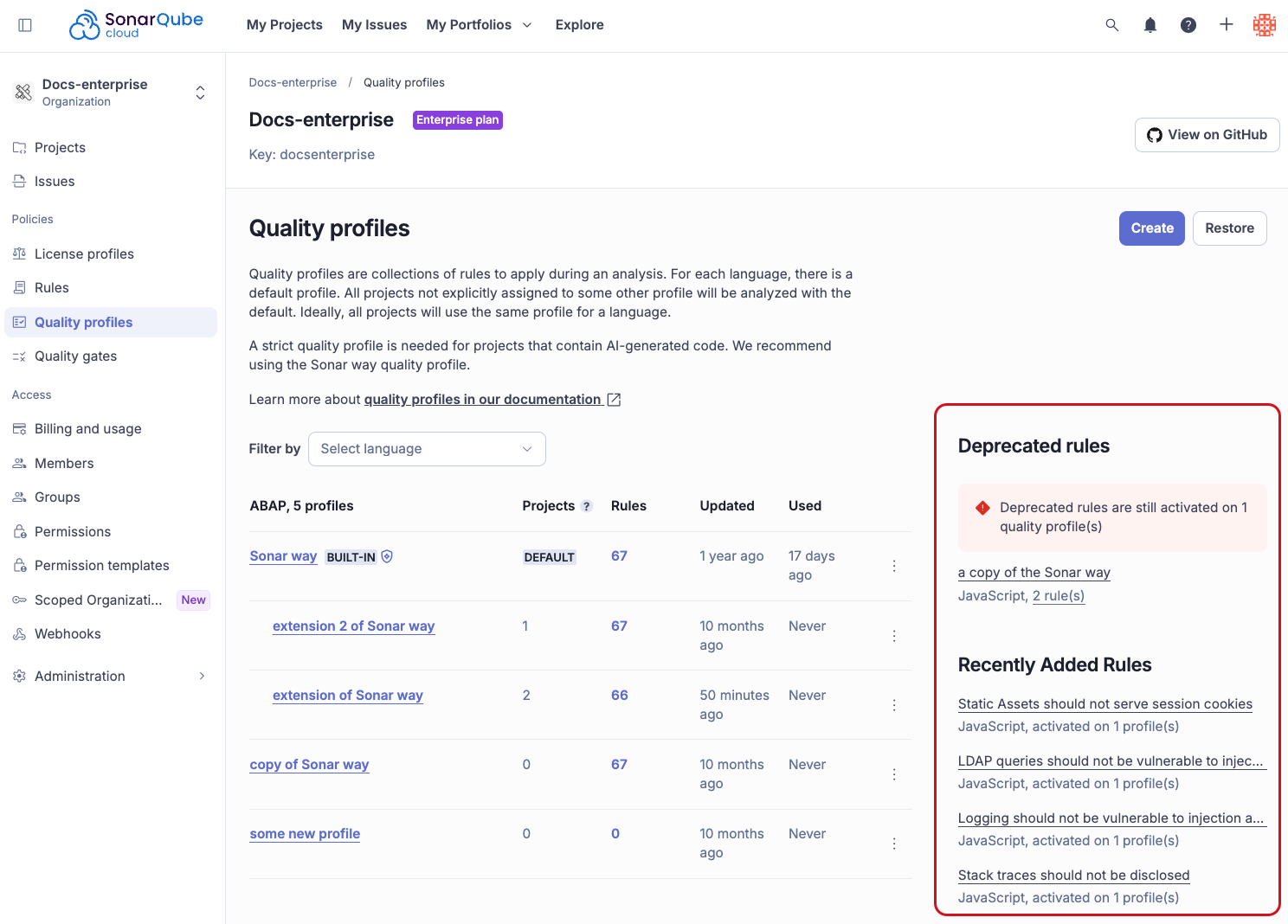
1\. Go to *Your organization* > **Policies** > **Quality profiles** and select the **Language-specific** tab. See [Retrieving your organizations](/sonarqube-cloud/getting-started/viewing-organizations.md) to access your organization. On the right-hand side of the tab, the **Deprecated rules** section lists the quality profiles containing deprecated rules.
2\. To manage one of these profiles, select the **\ rules** hyperlink under the profile name. The list of deprecated rules in the profile is displayed.
3\. To deactivate a rule, select the respective **Deactivate** button. To deactivate all rules at a time, select **Bulk Change** > **Deactivate in <**YOUR PROFILE**>** in the top tool bar.
## Deleting a quality profile
### Deleting a general profile
1. Go to *Your organization* > **Policies** > **Quality profiles** and, on the **General** tab, locate the custom profile in the **In use** or **All** tab. See [Retrieving your organizations](/sonarqube-cloud/getting-started/viewing-organizations.md) to access your organization.
2. In the action menu of the profile, select **Delete**. A confirmation dialog opens.
3. Select **Delete**.
You cannot delete a general profile that is the default for one or more languages. If you try, a message lists those languages. Set another profile as the default for these languages first, then delete the profile. See [Changing default quality profile](/sonarqube-cloud/standards/managing-quality-profiles/changing-default-quality-profile.md). On the **Language-specific** tab, **Delete** is not available in the action menu of a general profile that is the default for the language.
### Deleting a language-specific profile
1. Go to *Your organization* > **Policies** > **Quality profiles** and select the **Language-specific** tab. See [Retrieving your organizations](/sonarqube-cloud/getting-started/viewing-organizations.md) to access your organization.
2. Retrieve the custom quality profile you want to delete.
3. In the top right corner of the quality profile page, select the action menu and select **Delete**. A confirmation dialog opens.
4. Select **Delete**.
## Related pages
* [Viewing quality profiles](/sonarqube-cloud/standards/managing-quality-profiles/viewing-quality-profiles.md)
* [Built-in quality profiles](/sonarqube-cloud/standards/managing-quality-profiles/built-in-quality-profiles.md)
* [Understanding quality profiles](/sonarqube-cloud/standards/managing-quality-profiles/understanding-quality-profiles.md)
* [Viewing quality profiles](/sonarqube-cloud/standards/managing-quality-profiles/viewing-quality-profiles.md)
* [Creating a quality profile](/sonarqube-cloud/standards/managing-quality-profiles/creating-a-quality-profile.md)
* [Editing a quality profile](/sonarqube-cloud/standards/managing-quality-profiles/editing-a-custom-quality-profile.md)
* [Associating with projects](/sonarqube-cloud/standards/managing-quality-profiles/associating-a-quality-profile-with-projects.md)
* [Changing default quality profile](/sonarqube-cloud/standards/managing-quality-profiles/changing-default-quality-profile.md)
* [Granting permissions to users](/sonarqube-cloud/standards/managing-quality-profiles/authorizing-other-users-to-manage-quality-profile.md)
* [Quality profile](/sonarqube-cloud/managing-your-projects/project-analysis/quality-profile-association.md)
* [Quality profiles for agentic AI](/sonarqube-cloud/standards/ai-code-assurance/quality-profiles-for-agentic-ai.md)
---
# Agent Instructions
This documentation is published with GitBook. GitBook is the documentation platform designed so that both humans and AI agents can read, navigate, and reason over technical content effectively. Learn more at gitbook.com.
## Querying This Documentation
If you need additional information that is not directly available in this page, you can query the documentation by asking a question.
Perform an HTTP GET request on the following URL with the `ask` and `goal` query parameters:
```
GET https://docs.sonarsource.com/sonarqube-cloud/standards/managing-quality-profiles/maintaining-your-custom-quality-profiles.md?ask=&goal=
```
`ask` is the immediate question: it should be specific, self-contained, and written in natural language.
`goal` is what the user is ultimately trying to achieve, the reason they need the answer. Sharing it helps GitBook give you a better, more relevant answer. A goal is most helpful when it describes the outcome the user wants rather than restating the question. For example, with `ask=how do I create an API token`, a goal like `automate deployments from our CI pipeline` lets GitBook tailor the answer to that use case.
The response will contain a direct answer to the question and relevant excerpts and sources from the documentation.
Use this mechanism when the answer is not explicitly present in the current page, you need clarification or additional context, or you want to retrieve related documentation sections.