# Importing GitLab group
When you import a GitLab group to SonarQube Cloud, the corresponding [organization](https://docs.sonarsource.com/sonarqube-cloud/~/changes/1027/administering-sonarcloud/about-sonarqube-cloud-solution/resources-structure/organization "mention") is created in SonarQube Cloud and is bound to the DevOpos platform organization. Each SonarQube Cloud organization corresponds one-to-one with a GitLab group. See [binding-with-dop](https://docs.sonarsource.com/sonarqube-cloud/~/changes/1027/administering-sonarcloud/about-sonarqube-cloud-solution/resources-structure/binding-with-dop "mention") for more information.
{% hint style="info" %}
You can import subgroups and your personal GitLab group. The latter refers to the repositories that are under your personal namespace.
{% endhint %}
{% hint style="warning" %}
SonarQube Cloud does not support linking an organization to more than one DevOps platform. If you want to link to more than one, you will need to create a separate organization to link to each DevOps platform.
{% endhint %}
The user account you used for the import is automatically assigned to the organization’s owner's group which grants you administration rights on the organization. See [user-group-concept](https://docs.sonarsource.com/sonarqube-cloud/~/changes/1027/administering-sonarcloud/about-sonarqube-cloud-solution/user-management/user-group-concept "mention") for more details.
{% hint style="warning" %}
You cannot unbind nor change the binding of an organization bound on GitLab.
{% endhint %}
## Prerequisites
You must be an owner of the GitLab group to be imported.
In SonarQube Cloud, each organization is assigned a subscription plan. Before importing your organization, choose the subscription plan suited to your needs: see [subscription-plans](https://docs.sonarsource.com/sonarqube-cloud/~/changes/1027/administering-sonarcloud/managing-subscription/subscription-plans "mention"). In particular, determine the number of Lines of Code (LOC) you need. See [#loc-based-pricing](https://docs.sonarsource.com/sonarqube-cloud/~/changes/1027/managing-subscription/subscription-plans#loc-based-pricing "mention") for more information.
## Step 1: Create a GitLab personal access token
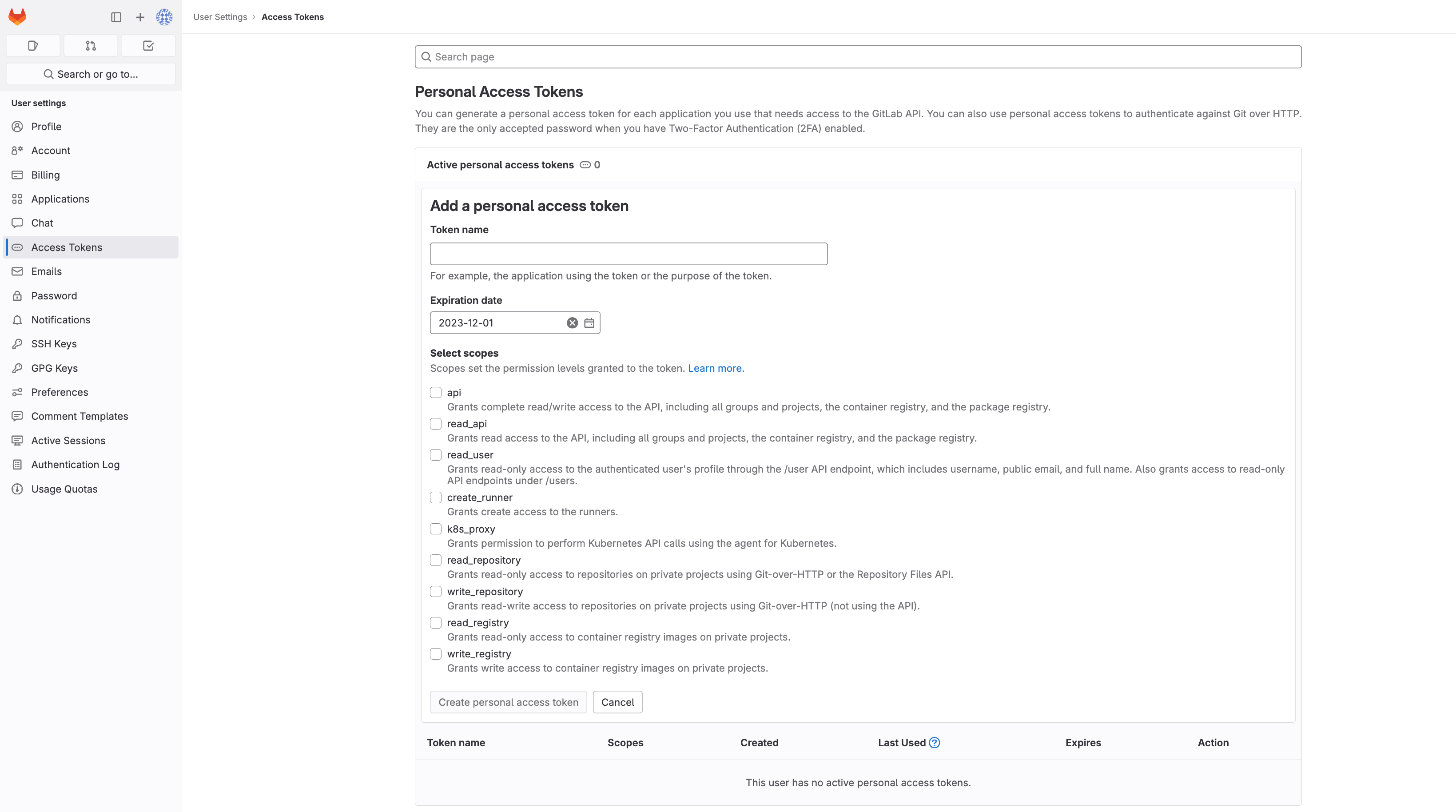
SonarQube Cloud uses a GitLab user account to import your GitLab organization and repositories. You must provide a personal access token from this account (the personal access token will be stored in the respective SonarQube Cloud organization). We highly recommend that you use a dedicated technical user account in GitLab (the account must be an owner of the GitLab group).
{% hint style="info" %}
For the token, an `api` scope is required. This gives SonarQube Cloud more access rights than strictly necessary, but due to the lack of more fine-grained access control in GitLab, it is the only viable option. Note that:
* Using a technical user account to create the token will mitigate this potential security concern.
* SonarQube Cloud will always limit its actions to those required for effective integration with GitLab and will never use the full access right provided by the `api` scope.
{% endhint %}
To create a GitLab personal access token:
1. Log in to GitLab (with the technical account mentioned above if applicable).
2. Go to **User settings** > **Personal Access Tokens** or select the [Personal Access Token](https://gitlab.com/-/profile/personal_access_tokens) hyperlink.
3. Select the **api** scope.
4. Select the **Create personal access token** button.
5. When the personal access token is displayed at the top of the page, copy the token (you will have to paste it into the field on the SonarQube Cloud setup page in Step 3 below).
{% hint style="info" %}
If you need to change the personal access token stored in the SonarQube Cloud organization, see [changing-organization-settings](https://docs.sonarsource.com/sonarqube-cloud/~/changes/1027/administering-sonarcloud/managing-organization/creating-organization/changing-organization-settings "mention") for more information.
{% endhint %}
## Step 2: Retrieve the GitLab group key
If you want to import a GitLab group that is not your personal GitLab group, you will have to provide a group key. You can provide:
* Either the ID of the group.\
The group ID can be found under the group name on the group page.
* Or the key of the group.\
The group key is the last element in the path of the group and is found in the URL.\
For example, `gitlab.com/my-group`.
## Step 3: Import the GitLab group
To import a GitLab group to SonarQube Cloud:
1. Log in to SonarQube Cloud with your GitLab account.\
If you’re a member of an enterprise, you may use any of your DevOps Platform accounts or your SSO account. In that case, see [importing-from-multiple-platforms](https://docs.sonarsource.com/sonarqube-cloud/~/changes/1027/administering-sonarcloud/managing-organization/creating-organization/importing-from-multiple-platforms "mention") for important insights.
2. At the top right of the SonarQube Cloud interface, select the ✚ (plus) menu and select **Create new organization**. The **Create an organization** page opens.
3. Under **Import from a DevOps platform**, select the **GitLab** button.
4. Select either
* **Import any GitLab group**, if you want to import a GitLab group other than your personal one, or
* **Import my personal GitLab group**, if you want to import only the repositories that are under your personal namespace.
5. **In GitLab group key** (if you don’t import your personal GitLab group), enter the group key retrieved in Step 2.
6. In **Personal Access Token**, paste the personal access token you created in Step 1.
7. Select **Continue**.
8. In **Import organization details**, SonarQube Cloud suggests a **Name** and **Key** for your SonarQube Cloud organization. The key is unique across all organizations within SonarQube Cloud. You can accept the suggestion or change it manually. The interface will prevent you from changing it to an already existing key.
9. Select **Add additional info** to add:
* An avatar: a small image representing the organization and displayed on the UI near the organization name.
* A description of the organization.
* A URL: the URL of the homepage of the organization displayed on the UI.
10. Select the subscription plan for your organization. See [subscription-plans](https://docs.sonarsource.com/sonarqube-cloud/~/changes/1027/administering-sonarcloud/managing-subscription/subscription-plans "mention") for more information.
11. If you selected a paid plan, select the number of Lines of Code (LOC) for your plan and follow the instructions to enter your billing and payment information.
12. Select **Create Organization**. The organization is created and opened in SonarQube Cloud.
{% hint style="info" %}
If the import fails because the organization already exists in SonarQube Cloud and you’ve lost administrator access to this organization, send a request to with all the necessary details.
{% endhint %}
## Related pages
* [importing-github-organization](https://docs.sonarsource.com/sonarqube-cloud/~/changes/1027/administering-sonarcloud/managing-organization/creating-organization/importing-github-organization "mention")
* [importing-bitbucket-workspace](https://docs.sonarsource.com/sonarqube-cloud/~/changes/1027/administering-sonarcloud/managing-organization/creating-organization/importing-bitbucket-workspace "mention")
* [importing-azure-devops-organization](https://docs.sonarsource.com/sonarqube-cloud/~/changes/1027/administering-sonarcloud/managing-organization/creating-organization/importing-azure-devops-organization "mention")
* [importing-from-multiple-platforms](https://docs.sonarsource.com/sonarqube-cloud/~/changes/1027/administering-sonarcloud/managing-organization/creating-organization/importing-from-multiple-platforms "mention")
* [creating-organization-manually](https://docs.sonarsource.com/sonarqube-cloud/~/changes/1027/administering-sonarcloud/managing-organization/creating-organization/creating-organization-manually "mention")
* [binding-unbound-organization](https://docs.sonarsource.com/sonarqube-cloud/~/changes/1027/administering-sonarcloud/managing-organization/creating-organization/binding-unbound-organization "mention")
* [changing-organization-binding](https://docs.sonarsource.com/sonarqube-cloud/~/changes/1027/administering-sonarcloud/managing-organization/creating-organization/changing-organization-binding "mention")
* [changing-organization-settings](https://docs.sonarsource.com/sonarqube-cloud/~/changes/1027/administering-sonarcloud/managing-organization/creating-organization/changing-organization-settings "mention")
* [deleting-organization](https://docs.sonarsource.com/sonarqube-cloud/~/changes/1027/administering-sonarcloud/managing-organization/creating-organization/deleting-organization "mention")