> For the complete documentation index, see [llms.txt](https://docs.sonarsource.com/llms.txt). Markdown versions of documentation pages are available by appending `.md` to page URLs; this page is available as [Markdown](https://docs.sonarsource.com/sonarqube-for-eclipse/connect-your-ide/advanced-configuration.md).
# Advanced configuration
Sometimes network infrastructures require custom setups to let SonarQube for Eclipse perform HTTP requests. These are some properties that will help make this happen.
## HTTP configuration
To operate, SonarQube for Eclipse needs to perform HTTP requests, especially in [Connected mode](/sonarqube-for-intellij/connect-your-ide/connected-mode.md). While SonarQube for Eclipse will work out-of-the-box in most situations, some network infrastructure may require a custom configuration.
## Passing SonarQube for IDE properties
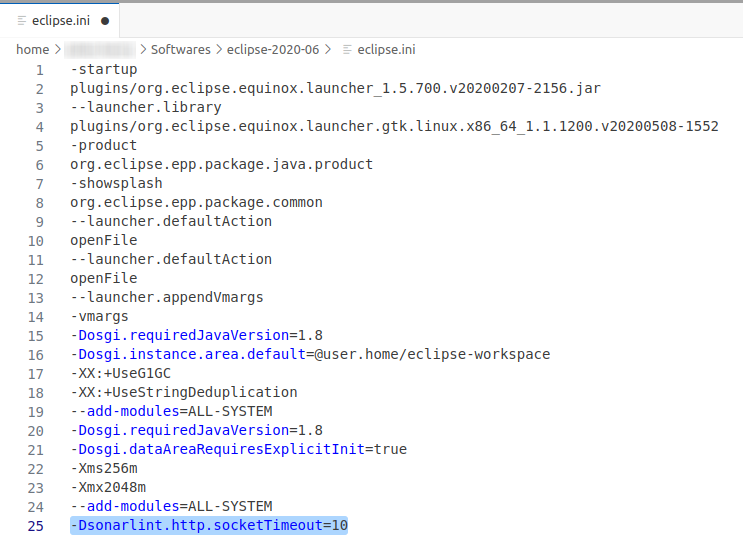
In SonarQube for Eclipse, you must edit the eclipse.ini and define extra VM arguments, such as those we describe below.
## Proxy configuration
When connecting to a SonarQube instance running behind a proxy, pass your proxy settings using the [Eclipse IDE Network Connections](https://help.eclipse.org/latest/index.jsp?topic=%2Forg.eclipse.platform.doc.user%2Freference%2Fref-net-preferences.htm). In Eclipse, go to the **Settings** > **General** > **Network Connections** and enter your details.
## Manage your configuration
### HTTP Client timeouts
SonarQube for IDE supports various timeouts. Below you will find the properties added to control them:
`sonarlint.http.connectTimeout`
* Determines the timeout, in minutes, until a new connection is fully established.
* **Default**: 1 min
`sonarlint.http.socketTimeout`
* Determines the default socket timeout value, in minutes, for I/O operations.
* **Default**: infinite
`sonarlint.http.connectionRequestTimeout`
* The connection lease request timeout, in minutes, is used when requesting a connection from the connection manager.
* **Default**: 1 min
`sonarlint.http.responseTimeout`
* Determines the timeout, in minutes, until the arrival of a response from the opposite endpoint.
* **Default**: 10 min
### Server SSL certificates
SonarQube for IDE manages its own TrustStore in addition to the OS and Java TrustStores. When encountering an untrusted certificate, SonarQube for IDE will ask the user if the certificate should be trusted. If the answer is yes, the certificate will be added to the TrustStore.
SonarQube for IDE depends on you to provide server certificates when required by your environment. Here’s a generalization of a few basic steps you can use to help make that easier. Note that these instructions are for *server SSL certificates*. If you're dealing with a *client SSL certificate*, you'll need to create and configure a "key store" instead.
Install a server SSL certificate
**To install a server SSL certificate**
**Step 1:** Import your certificate into SonarQube for IDE. Here is a common command to import your certificate (`.cer`) into a TrustStore (`C:/`):
```bash
keytool -import -keystore C:/ -storepass password -noprompt -alias sonarqube-ssl -file .cer
```
* Replace `C:/` with your desired path and `password` with your chosen TrustStore password.
**Step 2:** Now that you’ve created the file, tell Eclipse where to find it by adding these lines to your eclipse.ini file. See the [#passing-sonarqube-for-eclipse-properties](#passing-sonarqube-for-eclipse-properties "mention") instructions for more details.
```bash
-Dsonarlint.ssl.trustStorePath=C:/
-Dsonarlint.ssl.trustStorePassword=
-Dsonarlint.ssl.trustStoreType=PKCS12
```
* Check that your path and password match what you used for your TrustStore.
**Step 3:** Restart your IDE.
**TrustStore**
**sonarlint.ssl.trustStorePath**
* Path to the keystore used by SonarLint to store custom trusted server certificates
* **default**: `~/.sonarlint/ssl/truststore.p12`
**sonarlint.ssl.trustStorePassword**
* Password of the truststore.
* **default**: `sonarlint`
**sonarlint.ssl.trustStoreType**
* The format of the keystore file is found in the [Oracle documentation](https://docs.oracle.com/en/java/javase/17/docs/specs/security/standard-names.html#keystore-types).
* **default**: `PKCS12`
### Client SSL certificates
Some servers or proxies may also require SonarQube for IDE to authenticate using client-side SSL certificates. This is a rare use case, and at for the moment, there is no UI to configure client-side SSL certificates. To properly authenticate client-side SSL certificates, you must manually create a keystore at the default location, or use the following properties:
**KeyStore**
**sonarlint.ssl.keyStorePath**
* Path to the keystore used by SonarQube for IDE to store client certificates.
* **default**: `~/.sonarlint/ssl/keystore.p12`
**sonarlint.ssl.keyStorePassword**
* Password of the keystore.
* **default**: `sonarlint`
**sonarlint.ssl.keyStoreType**
* The format of the keystore file is found in the [Oracle documentation](https://docs.oracle.com/en/java/javase/17/docs/specs/security/standard-names.html#keystore-types).
* **default**: `PKCS12`
## Providing a Java runtime
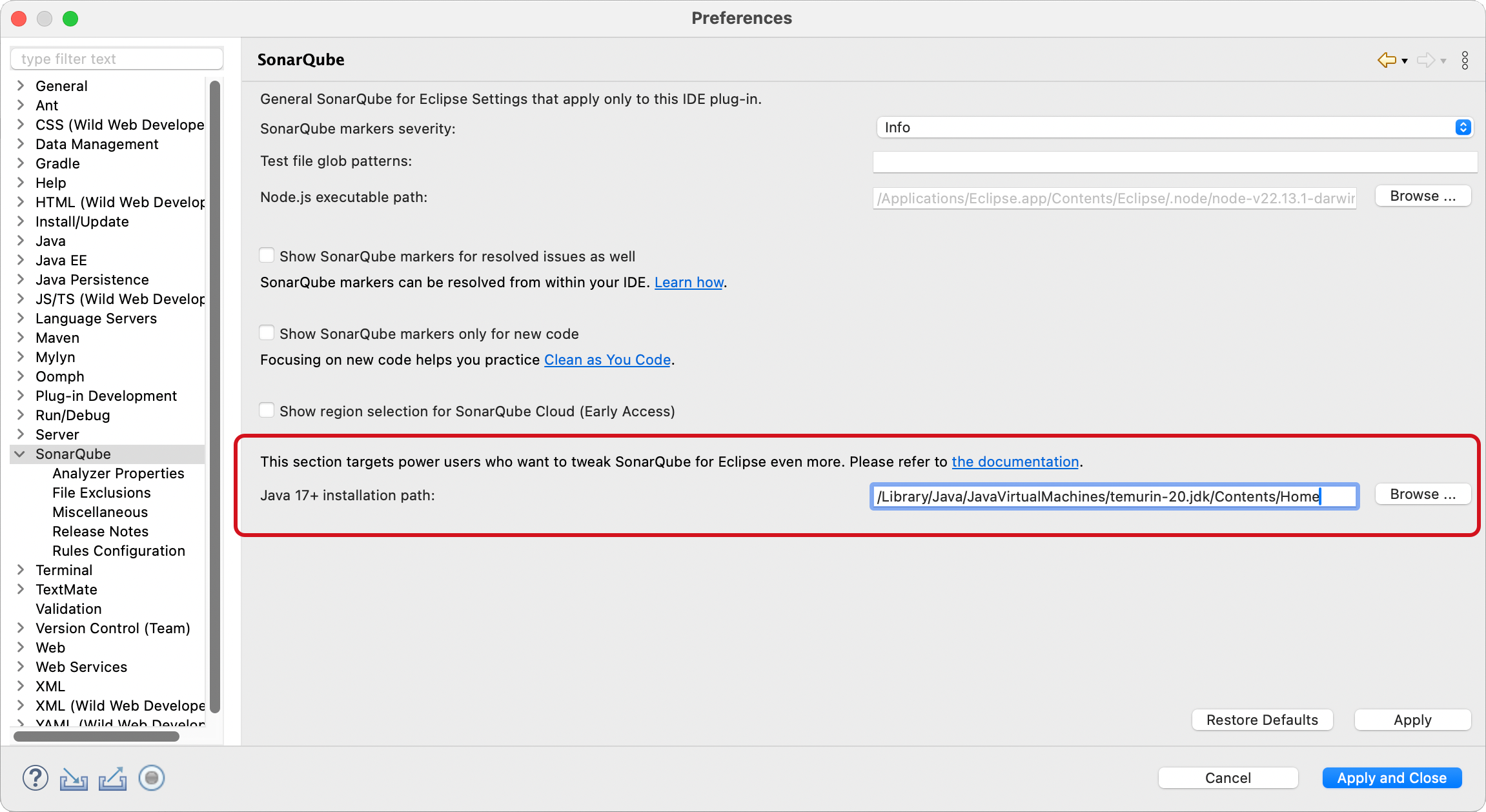
SonarQube for Eclipse 10.0+ provides its own JRE if the IDE’s JRE doesn’t match the minimum requirement for Sonar’s analyzers. This ensures that SonarQube for Eclipse can be compatible with Eclipse IDEs running on Java 11. However, it’s possible to define a unique, self-managed Java runtime in the SonarQube Eclipse **Preferences** window.
To define a self-managed runtime, go to **Window** > **Preferences** > **SonarQube** (**Eclipse** > **Settings…** > **SonarQube** for macOS), select the Java installation path; then restart your IDE.
* After the restart, the **SonarQube Console** will display the specified Java runtime, matching the SonarQube **Preference** window.
* If you provide your own runtime, please check that your environment matches the version [Requirements](/sonarqube-for-eclipse/getting-started/requirements.md). If the specified runtime is moved or cannot be found, SonarQube for Eclipse will see the field as blank.
* If the field is blank, SonarQube for Eclipse will default to the Eclipse JRE *as long as it meets the minimum requirement*. This will be displayed in both the **Preferences** and the **SonarQube Console**.
* If the Eclipse JRE does not meet the minimum requirement, SonarQube for Eclipse will use its own JRE. This will be displayed in both the **Preferences** and the **SonarQube Console**.
---
# Agent Instructions
This documentation is published with GitBook. GitBook is the documentation platform designed so that both humans and AI agents can read, navigate, and reason over technical content effectively. Learn more at gitbook.com.
## Querying This Documentation
If you need additional information that is not directly available in this page, you can query the documentation by asking a question.
Perform an HTTP GET request on the following URL with the `ask` and `goal` query parameters:
```
GET https://docs.sonarsource.com/sonarqube-for-eclipse/connect-your-ide/advanced-configuration.md?ask=&goal=
```
`ask` is the immediate question: it should be specific, self-contained, and written in natural language.
`goal` is what the user is ultimately trying to achieve, the reason they need the answer. Sharing it helps GitBook give you a better, more relevant answer. A goal is most helpful when it describes the outcome the user wants rather than restating the question. For example, with `ask=how do I create an API token`, a goal like `automate deployments from our CI pipeline` lets GitBook tailor the answer to that use case.
The response will contain a direct answer to the question and relevant excerpts and sources from the documentation.
Use this mechanism when the answer is not explicitly present in the current page, you need clarification or additional context, or you want to retrieve related documentation sections.