> For the complete documentation index, see [llms.txt](https://docs.sonarsource.com/llms.txt). Markdown versions of documentation pages are available by appending `.md` to page URLs; this page is available as [Markdown](https://docs.sonarsource.com/sonarqube-for-eclipse/connect-your-ide/setup.md).
# Connected mode setup
Setting up connected mode and sharing your connection with your team is the easiest way to get started with using the Sonar Solution to bring SonarQube's AI capabilities into your IDE.
## Connection setup
SonarQube for Eclipse offers a Sonar connection wizard to help you set up connected mode; it can be accessed in two different ways:
* Go to **File** > **New** > **Other…** to open Eclipse’s **Select a wizard** menu. Then, find **SonarQube** > **New SonarQube (Server, Cloud) Connection** and select **Next**.
* Or, Right-click in the **SonarLint Bindings** tasks view tab and select **New Connection…**. This method will start the wizard right away.
Choose SonarQube Cloud or SonarQube Server, and select the **Next** button to continue. Follow the SonarQube Server instruction when connecting to SonarQube Community Build:
{% tabs %}
{% tab title="SONARQUBE SERVER" %}
#### **Automatic setup with SonarQube Server**
SonarQube and SonarQube Community Build offer the easiest way to set up connected mode: simply use the [Investigating issues](/sonarqube-for-eclipse/using/investigating-issues.md#opening-issues-in-the-ide) feature from SonarQube Server or SonarQube Community Build. You must trust SonarQube Server to store a token for the connection, and it’s best if you already have the project open in your IDE.
Check the [Troubleshooting](/sonarqube-for-eclipse/resources/troubleshooting.md#troubleshooting-connected-mode-setup) if something doesn’t work right or follow the instructions below to manually create a SonarQube Server connection.
#### **Create a new SonarQube Server Connection**
1\. Select **SonarQube Server** and select **Next** to continue.\
2\. Enter the server URL before selecting **Next** to proceed. The default URL is `http://localhost:9000`, but your URL might differ.
3\. Choose your authentication method & authenticate:
* **Token**: generate a *User token* in your [SonarQube instance](https://docs.sonarsource.com/sonarqube-server/instance-administration/security/administering-tokens). Selecting **Generate token** will open the `https:///account/security/` page in your default browser. You can always create a token manually, if needed. See the [Tokens](/sonarqube-server/2026.1/instance-administration/security/administering-tokens.md) page in SonarQube Server for more information.
{% hint style="warning" %}
*User tokens* are required when setting up connected mode or an MCP Server between SonarQube (Server, Cloud) and SonarQube for IDE. Note that the binding will not function properly if *project tokens*, *global tokens*, or *scoped organization tokens* are used during the setup process.
{% endhint %}
4\. Enter a **Connection name** so that you can find it later in the **SonarQube Bindings** view window, and click **Next** to continue.
5\. Then, choose if you want to receive Notifications; you have the option to allow SonarQube Server to send Smart Notifications to the IDE. [Connected mode](/sonarqube-server/2026.1/user-guide/connected-mode.md#smart-notifications) make you aware of changes made on the server. Finally, select **Finish** to complete the Connection wizard.
SonarQube for Eclipse will automatically compare SonarQube Server’s project list against open projects in your workspace. If you’ve accepted notifications, SonarQube for Eclipse will suggest a binding. The final step involves binding your local project to the project on the server.
Note that logging in with your **Username** + **Password** was available in previous versions of SonarQube for Eclipse to create a connection setup with SonarQube Server. If you used this method in a previous version and then updated SonarQube for Eclipse, you will need to reauthenticate your connection by adding a *user token*.
{% endtab %}
{% tab title="SONARQUBE CLOUD" %}
#### **Automatic setup with SonarQube Cloud**
SonarQube Cloud offers the easiest way to set up connected mode: simply use the **Open in IDE** feature from SonarQube Cloud (see [Investigating issues](/sonarqube-for-eclipse/using/investigating-issues.md#opening-issues-in-the-ide)). You must trust the SonarQube Cloud server to store a token for the connection, and it’s best if you already have the project open in your IDE.
Check the [Troubleshooting](/sonarqube-for-eclipse/resources/troubleshooting.md#troubleshooting-connected-mode-setup) article if something doesn’t work right or follow the instructions below to manually create a SonarQube Cloud connection.
#### **Create a new SonarQube Cloud connection**
1\. Select **SonarQube Cloud** and select **Next** to continue. Choose your region (the EU option is selected by default).
> **Note:** The US region (`sonarqube.us`) requires a SonarQube Cloud Enterprise plan and is currently invite-only. For more information, see the [Choosing your server region](/sonarqube-cloud/getting-started/choosing-your-region.md) page.
2\. You will be prompted to add a User **Token** generated by SonarQube Cloud. If you don’t already have a token, selecting **Generate token** will open the `https://sonarcloud.io/account/access-tokens` page in your default browser; see the [Managing personal access tokens](/sonarqube-cloud/managing-your-account/managing-tokens.md) page in SonarQube Cloud if needed. Select **Next** to continue.
{% hint style="warning" %}
*User tokens* are required when setting up connected mode or an MCP Server between SonarQube (Server, Cloud) and SonarQube for IDE. Note that the binding will not function properly if *project tokens*, *global tokens*, or *scoped organization tokens* are used during the setup process.
{% endhint %}
3\. Start typing the name of your SonarQube Cloud **Organization** and choose your organization from the filtered list that appears; your Organization Key will automatically populate the field. Select **Next** to continue.
* Your Organization Key can be found at any time by going to your SonarQube Cloud **Account** > **Organizations** page: `https://sonarcloud.io/account/organizations`. Keys for third-party organizations can be found by going to the project’s; see the [Retrieving projects](/sonarqube-cloud/managing-your-projects/retrieving-projects.md) page for more information.
4\. Enter a **Connection name** so that you can find it later in the **SonarQube Bindings** view window. Select **Next** to continue. **Connection Name** is a friendly name for your connections.
5\. Then, choose if you want to receive Notifications; you have the option to allow [SonarQube for IDE](/sonarqube-cloud/analyzing-source-code/connected-mode.md#smart-notifications) to send Smart Notifications to the IDE. Smart notifications inform you of changes made on the server. Finally, select **Finish** to complete the Connection wizard.
SonarQube for Eclipse will automatically compare the SonarQube Cloud organization’s project list against open projects in your workspace. If you’ve accepted notifications, SonarQube for Eclipse will suggest a binding. The final steps involve binding your local project to the project on the server.
{% endtab %}
{% endtabs %}
## First-time connection setup for shared binding
One team member must step through the first-time setup process, then export and commit the binding configuration to the repository. Any team member who opens the project while running SonarQube for IDE will automatically receive a notification to bind the project. Each team member must use their own project credentials and SonarQube for IDE will use the binding details found in the configuration file to complete the connection.
To begin, one person from the team must follow the steps outlined in **Using the connection wizard** and **Configure your binding**, then follow the **Save and share your setup** instructions below to save the project configuration for the rest of the team.
Using the connection wizard
**Connected mode setup**
Follow the [#connection-setup](#connection-setup "mention") instructions above for your SonarQube (Server, Cloud) connection.
Configure your binding
**Bind your project**
If you just created a new connection, the *connection wizard* will transition into a *binding wizard* where you can add projects that you want to bind. Or, you can select your remote server in the **SonarQube Bindings** tab, right-click, and select **Bind Projects…** to open the wizard, then **Add…** to open the **Project selection** window.
1. The **Project selection** window presents a list of projects open in the Eclipse workspace.
2. In the next window, start typing the name of a project you have on the server; double-click on the matching project, and the wizard will grab and load the Project Key.
3. Click **Finish** and check the progress bar in the lower right corner.
You will receive a notification that the binding is successful.
Lastly, follow the [#save-and-share-your-setup-recommended-for-teams](#save-and-share-your-setup-recommended-for-teams "mention") instructions below to save the project configuration for the rest of the team.
Save and share your setup: Recommended for teams
**Reuse the binding configuration**
**Export the binding configuration**
There are two ways to create a binding configuration file:
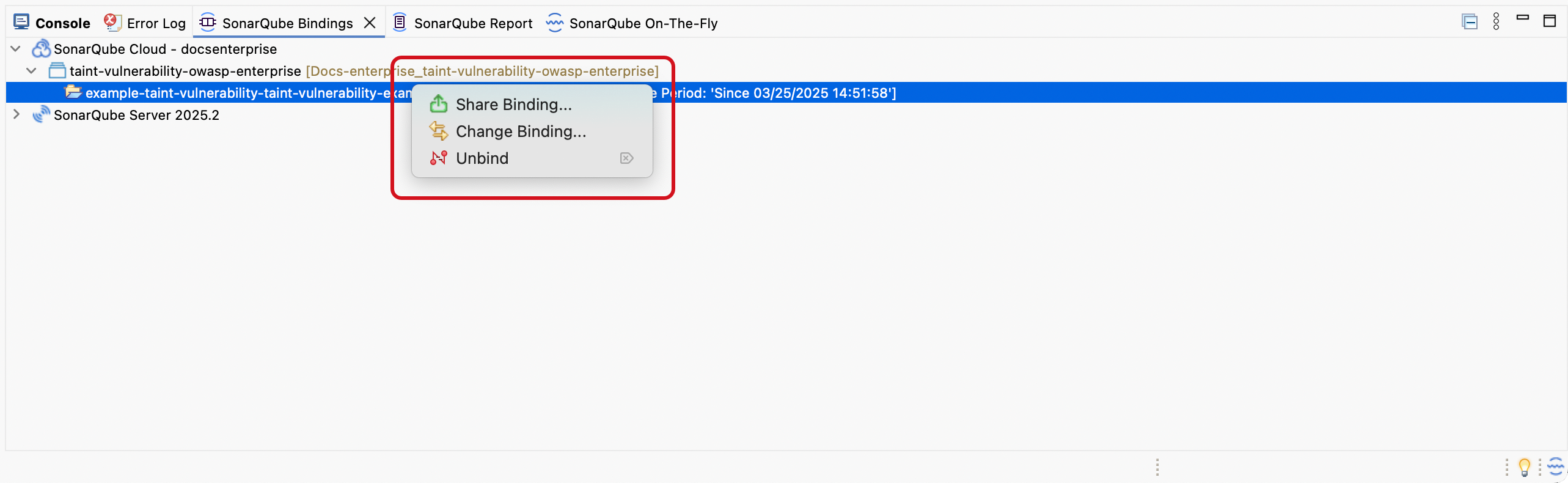
1. Right-click on a connection found in the **SonarQube Bindings** view and select  **Share Binding…**.
2. Right-click on a project in the Eclipse Explorer, then navigate to **SonarQube** and select  **Share Binding…**.
Either method prompts a confirmation window to explain that a configuration file will be created. Once confirmed, a .json file containing the SonarQube Server URI and Project Key or SonarQube Cloud Organization and Project Key will be added to the .sonarlint folder in your project.
**Export binding configurations for a hierarchical directory**
SonarQube for Eclipse gives you the ability to export shared binding configurations to match hierarchical project directories.
* If you right-click on the parent-level project and select **Share Binding…**,
* the binding configuration file will be saved at the root project level.
* If you right-click on a child-level project and select **Share Binding…**,
* choose **Save to Project** to create a binding configuration file at the child level or,
* choose **Save to Root Project** to create a binding configuration file at the parent level.
**Share the binding configuration**
Commit the file you just created in the working directory; your teammates should have access to the binding configuration once your commit becomes part of the repository.
Because your Project’s identifying information is saved in a location under source control, it will be available to anyone with access to the project repo. Each team member is still required to have their own SonarQube (Server, Cloud) credentials; these are managed in
* See the [Managing your tokens](/sonarqube-server/2026.1/user-guide/managing-tokens.md) page in SonarQube Server.
* See the [Managing personal access tokens](/sonarqube-cloud/managing-your-account/managing-tokens.md) page in SonarQube Cloud.
Each team member is still required to have their own SonarQube Server or SonarQube Cloud connection and credentials.
## Bind using shared configuration
When opening or adding a new project to the Eclipse Explorer, SonarQube for Eclipse will check for a shared binding configuration file and promptly notify users.
If no connection exists, SonarQube for Eclipse will ask to create a new connection. Users must provide their own User Token in the connection mode setup wizard; selecting the **Generate token** button will open SonarQube (Server, Cloud) to step through this process and populate the setup form with your new token.
If a matching connection setup exists, users are asked only to bind the project using the shared binding configuration.
### Bind configurations for hierarchical directories
Because Eclipse can have multiple local projects open in the Eclipse Explorer, SonarQube for Eclipse might find multiple shared binding configuration files. When there are multiple combinations, SonarQube for Eclipse will suggest the best match between the local projects and those on the server.
To confirm the project bindings, select the **More information** link in the notification window to check how SonarQube for Eclipse will map the configuration. If the suggested matches are incorrect, you must configure or reconfigure the bindings manually.
### Sharing configurations between different IDEs
SonarQube for IDE extensions are available for IntelliJ (and other JetBrains IDEs), Visual Studio, VS Code, and Eclipse. Although the information stored in the shared configuration file is the same, each extension *might export the JSON file to a slightly different location* depending on IDE and project type. This may cause friction when opening a configuration in an IDE other than the IDE that created it.
If SonarQube for IDE does not send you a notification to accept a shared configuration, please check first if you have opened your project’s root. If SonarQube for IDE still does not suggest a matching configuration, you must configure binding manually. Please see the **Configure your binding** collapsible above for instructions.
## Project binding
SonarQube for IDE keeps server-side data in local storage and synchronizes with configured servers at startup; one example would be the quality profile defined by your SonarQube Cloud Organization.
A binding update will automatically be attempted once every hour or after an IDE restart and SonarQube for IDE will do its best to synchronize with the most appropriate branch from the server.
### View connections
Connections and their bindings can be retrieved in the **SonarQube Bindings** view tab which is found by navigating to the **File Menu** > **Window** > **Show View** > **Other…** > **SonarQube** > **SonarQube Bindings**:
Right-clicking on a connection will open a tooltip to edit or delete the connection and can be useful, for example, to update credentials and bindings if they have changed.
Right-clicking on a connection will reveal an option to select **Update All Project Bindings**.
## SonarQube for IDE-SonarQube Server version support policy
The latest release of SonarQube for IDE receives support. Each release is compatible with SonarQube Cloud and with the SonarQube Server versions that receive patches under the [Release cycle model](/sonarqube-server/server-update-and-maintenance/update/release-cycle-model.md#sonarqube-server-patch-policy) at the time of that release: the latest SonarQube Server version and each LTA (Long-Term Active) version. Staying on the latest release keeps SonarQube for IDE compatible.
For more information about long-term support of SonarQube Server, check out our page describing the SonarQube Server [Release cycle model](/sonarqube-server/2026.1/server-update-and-maintenance/update/release-cycle-model.md). Review your SonarQube for IDE-specific requirements for version-to-version differences.
## Learn more
Check out the main [Connected mode](/sonarqube-for-eclipse/connect-your-ide/connected-mode.md) page to learn more about the benefits of using connected mode, information about SonarQube for Eclipse’s branch matching strategy, and how to activate and deactivate your Sonar Smart Notifications in the IDE.
## Related online courses
* :video: [Setting up SonarQube for IDE in Connected Mode with Eclipse](https://www.sonarsource.com/learn/course/sonarqube-for-ide/decf1afe-f6bf-45d3-aa21-ea2d97a9fc93/setting-up-sonarqube-for-ide-in-connected-mode-with-eclipse)
---
# Agent Instructions
This documentation is published with GitBook. GitBook is the documentation platform designed so that both humans and AI agents can read, navigate, and reason over technical content effectively. Learn more at gitbook.com.
## Querying This Documentation
If you need additional information that is not directly available in this page, you can query the documentation by asking a question.
Perform an HTTP GET request on the following URL with the `ask` and `goal` query parameters:
```
GET https://docs.sonarsource.com/sonarqube-for-eclipse/connect-your-ide/setup.md?ask=&goal=
```
`ask` is the immediate question: it should be specific, self-contained, and written in natural language.
`goal` is what the user is ultimately trying to achieve, the reason they need the answer. Sharing it helps GitBook give you a better, more relevant answer. A goal is most helpful when it describes the outcome the user wants rather than restating the question. For example, with `ask=how do I create an API token`, a goal like `automate deployments from our CI pipeline` lets GitBook tailor the answer to that use case.
The response will contain a direct answer to the question and relevant excerpts and sources from the documentation.
Use this mechanism when the answer is not explicitly present in the current page, you need clarification or additional context, or you want to retrieve related documentation sections.