> For the complete documentation index, see [llms.txt](https://docs.sonarsource.com/llms.txt). Markdown versions of documentation pages are available by appending `.md` to page URLs; this page is available as [Markdown](https://docs.sonarsource.com/sonarqube-for-eclipse/using/fixing-issues.md).
# Fixing issues
How to fix issues found by SonarQube in your Eclipse IDE.
Whether your issue is about *a potential security problem*, considered to be *a bad coding practice*, or *a more serious logic error*, fixing issues usually involves changes to the code. SonarQube for IDE’s issue messages contain useful information about how to fix the potential problem and include a rule description so that you can learn more about why the issue is reported.
SonarQube for Eclipse offers multiple ways to investigate and fix problems in your code. Issues are usually presented in multiple locations and you can typically hover and/or click or right-click over these markers to open a tooltip that reveals your options. See the [Investigating issues](/sonarqube-for-eclipse/using/investigating-issues.md) page for more information about finding and identifying your issues.
## Rule selection
Issues are reported when your code violates one or more of Sonar's rules. When running SonarQube for Eclipse in standalone mode (ie: when you're *not in connected mode*), it's possible to locally manage which rules are used to find issues in your code. See the [Rules and languages](/sonarqube-for-eclipse/using/rules.md#using-sonar-rules) articles to learn what's possible.
If you simply want to toggle a rule, jump straight to the [Rules and languages](/sonarqube-for-eclipse/using/rules.md#edit-rules) article to learn how to turn Sonar rules on or off in your IDE.
{% hint style="info" %}
When a project is bound to a SonarQube project, the configuration in this UI location is ignored. In this case, the rules configuration from the server applies. For more information, see the server documentation about quality profiles:
* [Managing quality profiles](/sonarqube-cloud/standards/managing-quality-profiles.md) in SonarQube Cloud
* [Managing quality profiles](/sonarqube-server/2026.1/quality-standards-administration/managing-quality-profiles.md) in SonarQube Server
{% endhint %}
## Quick fixes
Eclipse relies on the language support from the IDE to display quick fixes in different ways. Hovering over the issue in your code editor will reveal the SonarQube for Eclipse tooltip. Sonar Quick Fix options such as *Deactivate rule* or *Insert placeholder comment* will be shown when available. Depending on the language type and/or issue type, an action item such as *Show issue data flows* or *Remove unused local variable* will be offered. In addition, right-clicking an issue in the **SonarQube On-The-Fly** view will also reveal Quick Fix options.
You will always be offered the option in the tooltip and in all SonarQube for Eclipse view panels to open the issue’s rule in the **SonarQube Rule Description** view. The rule description explains why the issue is raised and details how to fix it. See the [Investigating issues](/sonarqube-for-eclipse/using/investigating-issues.md) page for more details.
Sometimes your issue is recognized by additional analyzers. When this occurs, a full list of *all* quick fixes will appear in the tooltip; SonarQube for IDE’s Quick Fixes are distinguishable by the SonarQube for IDE icon preceding the text title.
## AI CodeFix in your IDE
When using the AI CodeFix feature in in SonarQube (Server, Cloud) while in connected mode, you can use **View Fix in IDE** to generate a diff view in the IDE which provides an opportunity to accept or reject the suggestion before committing the change. Please see the AI Capabilities pages in SonarQube (Server, Cloud) for more details:
* [AI capabilities](/sonarqube-server/2026.1/ai-capabilities.md) in SonarQube Server
* [AI capabilities](/sonarqube-cloud/ai-capabilities.md) in SonarQube Cloud
## Fixing security hotspots and injection vulnerabilities
The use of connected mode is required to identify both security hotspots and injection vulnerabilities (also called taint vulnerabilities). Security hotspots require that your project be bound to SonarQube Server or SonarQube Community Build; injection vulnerabilities can be found with a connected mode binding to either SonarQube Server or SonarQube Cloud.
By default, a SonarQube for IDE hotspot badge and vulnerability padlock are displayed for security hotspots and injection vulnerabilities (respectively) in the Eclipse **Vertical ruler**.
If you don’t see the data flow displayed in the code editor for injection vulnerabilities, make sure that *code minings* are enabled in the **Preferences** > **Java** > **Editor** > **Code Minings** menu.
Please have a look at the SonarQube for Eclipse documentation on [Security hotspots](/sonarqube-for-eclipse/using/security-hotspots.md) and [Injection vulnerabilities](/sonarqube-for-eclipse/using/taint-vulnerabilities.md) for more details about working with these types of security issues.
## Marking issues
When using SonarQube for Eclipse in connected mode it’s possible to change the resolution of issues to reclassify them in SonarQube.
In SonarQube for Eclipse 9.0+ running in [Connected mode](/sonarqube-for-eclipse/connect-your-ide/connected-mode.md) with SonarQube Server 10.2 and newer and SonarQube Community Build, it is possible to mark issues as **Won’t Fix** or **False Positive** before submitting your code for PR analysis.
{% hint style="info" %}
When running in connected mode with SonarQube Server 10.4 or newer, **Won’t Fix** becomes **Accept**.
{% endhint %}
Marking an issue can be applied to both *known issues* and *new issues*. Marks made on *known issues* will be reflected on SonarQube Server or SonarQube Community Build within a few minutes; marks made on new issues will be reflected on the server when a new analysis is run.
In version 9.0, marking *new issues* is not yet possible when bound to a SonarQube Cloud project.
{% hint style="info" %}
The option to mark an issue will not appear if you are connected to an unsupported version of SonarQube Server.
{% endhint %}
### Requirements for marking issues
* Running SonarQube for Eclipse in [Connected mode](/sonarqube-for-eclipse/connect-your-ide/connected-mode.md) with SonarQube 10.2 or newer, or SonarQube Community Build.
* Note that when bound to a project in SonarQube Cloud, *it is possible to mark only known issues*, those already found by a SonarQube Cloud analysis.
* You are granted the Administer Issues permission level by a project administrator. See the SonarQube [Setting project permissions](/sonarqube-server/2026.1/project-administration/setting-project-permissions.md) page for more information.
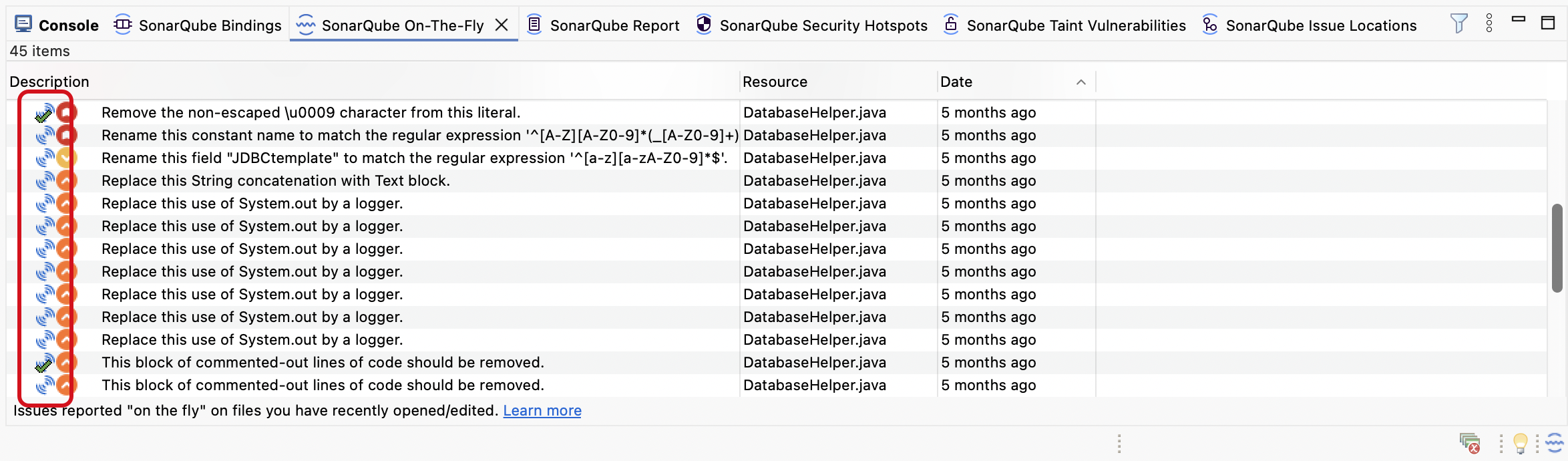
In the **Description** column of your SonarQube for Eclipse view, *Marked issues* will have a checkmark. *Known issues* found on the server will have an additional icon SonarQube. *New issues* show only the software quality icon; please see the [Software qualities](/sonarqube-for-eclipse/using/software-qualities.md) page for more information about software qualities and what they mean.
To change the resolution of an existing issue from the IDE:
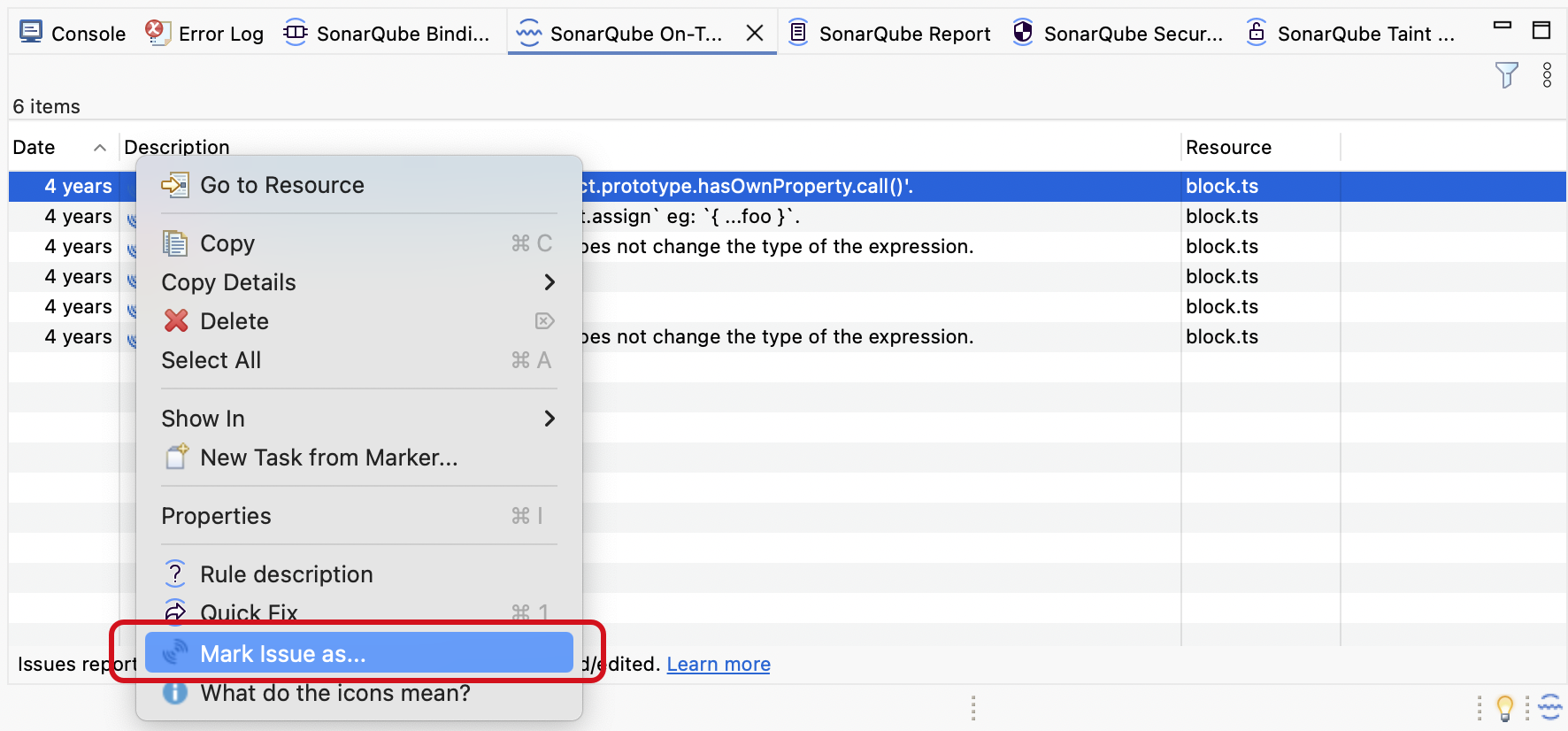
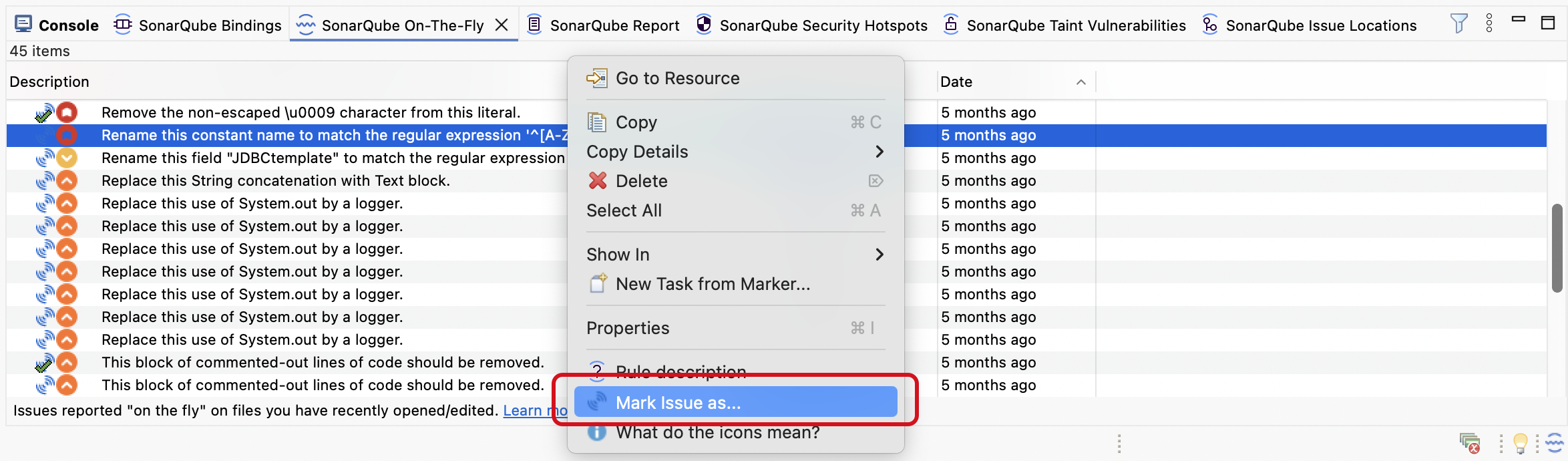
* Right-click on an issue from one of the following SonarQube view windows: **On-The-Fly**, **Report**, or **Taint Vulnerabilities**. Then select **Mark Issue as…**
Once selected, you can define the issue’s resolution as **Won’t Fix** or **False Positive** and add a comment if needed. The issue status will immediately be reflected on SonarQube.
{% hint style="info" %}
When running in connected mode with SonarQube Server 10.4 or newer, **Won’t Fix** becomes **Accept**.
{% endhint %}
### Reopening issues
It is possible to reopen issues from any of the three views: **SonarQube On-The-Fly**, **SonarQube Report**, and **SonarQube Taint Vulnerabilities**; by default, this setting is turned off.
To activate the feature, navigate to **Window** > **Preferences** > **SonarQube** (or **Eclipse** > **Settings…** > **SonarQube** for Mac OS) and select **Show SonarQube markers for resolved issues**.
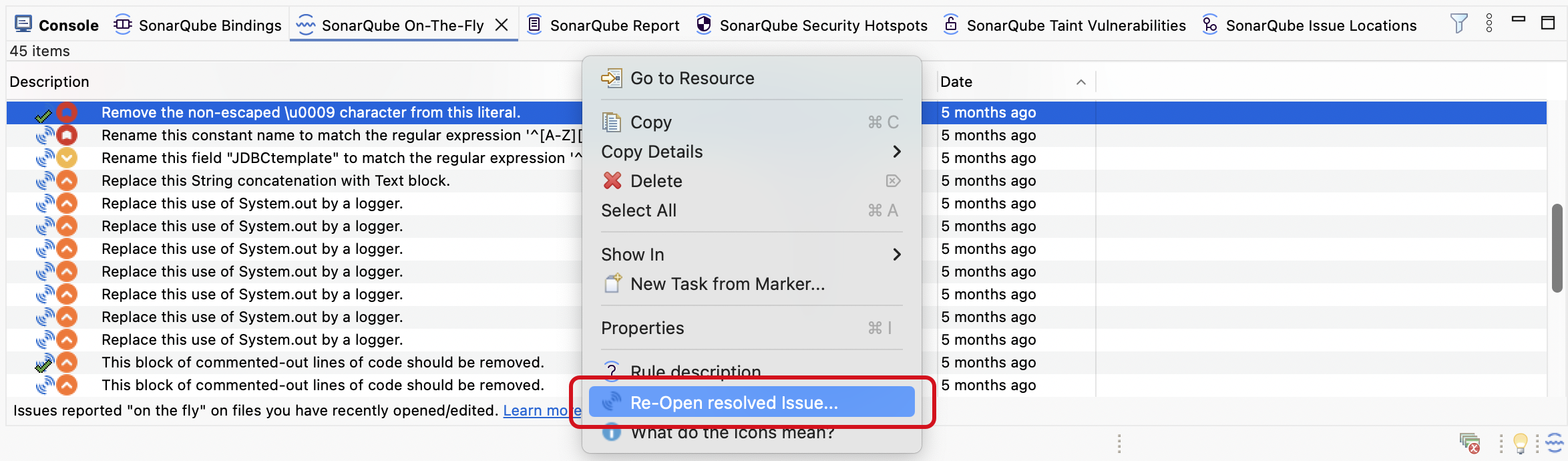
To reopen an issue that was previously resolves, right-click on the issue and select **Re-Open resolved Issue…**.
Status changes made to *known issues* are recognized by SonarQube Server within a few minutes; if you’re re-opening a *new issue*, SonarQube Server will recognize the change in the next analysis.
---
# Agent Instructions
This documentation is published with GitBook. GitBook is the documentation platform designed so that both humans and AI agents can read, navigate, and reason over technical content effectively. Learn more at gitbook.com.
## Querying This Documentation
If you need additional information that is not directly available in this page, you can query the documentation by asking a question.
Perform an HTTP GET request on the following URL with the `ask` and `goal` query parameters:
```
GET https://docs.sonarsource.com/sonarqube-for-eclipse/using/fixing-issues.md?ask=&goal=
```
`ask` is the immediate question: it should be specific, self-contained, and written in natural language.
`goal` is what the user is ultimately trying to achieve, the reason they need the answer. Sharing it helps GitBook give you a better, more relevant answer. A goal is most helpful when it describes the outcome the user wants rather than restating the question. For example, with `ask=how do I create an API token`, a goal like `automate deployments from our CI pipeline` lets GitBook tailor the answer to that use case.
The response will contain a direct answer to the question and relevant excerpts and sources from the documentation.
Use this mechanism when the answer is not explicitly present in the current page, you need clarification or additional context, or you want to retrieve related documentation sections.