> For the complete documentation index, see [llms.txt](https://docs.sonarsource.com/llms.txt). Markdown versions of documentation pages are available by appending `.md` to page URLs; this page is available as [Markdown](https://docs.sonarsource.com/sonarqube-for-intellij/resources/previous-versions.md).
# Previous versions
Everything you need to know about installing and running previous versions of SonarQube for IntelliJ.
Please remember that Sonar officially supports only the latest version of SonarQube for IntelliJ. The most up-to-date version is always listed on the [JetBrains Marketplace](https://plugins.jetbrains.com/plugin/7973-sonarlint/versions).
## Installing previous versions
Previous versions of SonarQube for IntelliJ are available on the [JetBrains Marketplace](https://plugins.jetbrains.com/plugin/7973-sonarlint/versions); there, you will also find a table to find the minimum requirements for your version.
{% hint style="info" %}
Previous versions of SonarQube for IDE are compatible with specific versions of IntelliJ. A full compatibility matrix is available on the [JetBrains Marketplace](https://plugins.jetbrains.com/plugin/7973-sonarlint/versions).
{% endhint %}
SonarQube for IDE tabs, version 10 and older
The SonarQube for IDE tabs were reorganized in version 11. Below is the description of the SonarQube for IDE tabs in version 10 and older.
**The SonarQube for IDE tabs**
**The Current File tab**
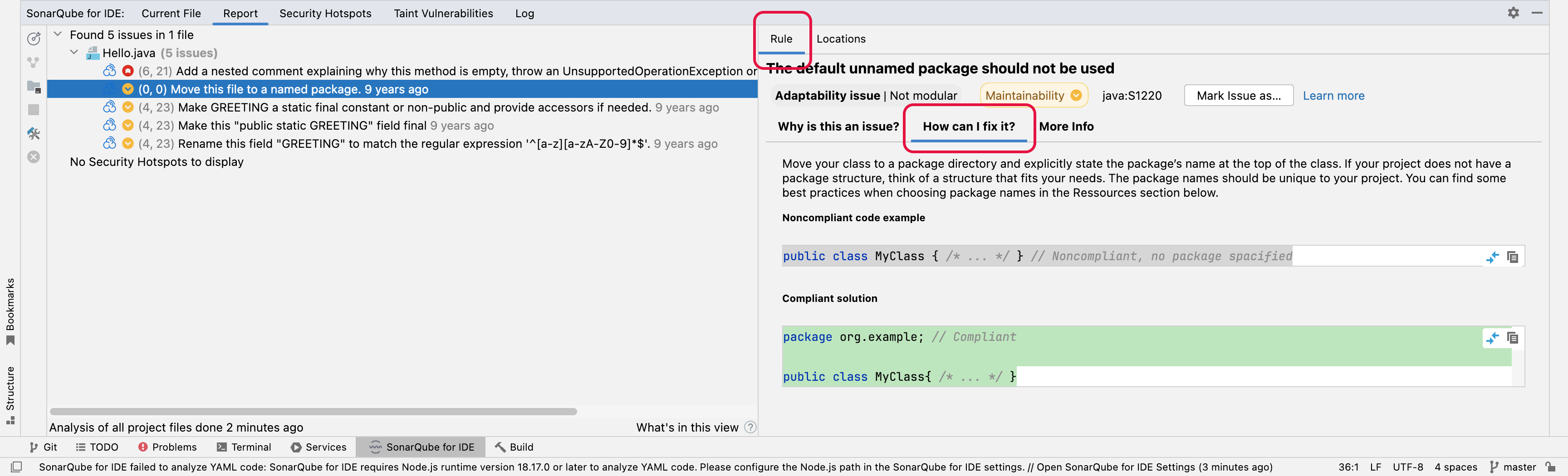
From the **SonarQube for IDE view window**, click the **green arrow** to analyze the active file; you will get a notice if *Automatic analysis is enabled*. Once the analysis is complete, select an issue from the list and review the **Rule** description in the right panel; a noncompliant and compliant code example will be presented for most rule violations. Some rule descriptions provide external links for more information.
The **Locations** tab gives you a list of locations where this issue is repeated within the current file; a list of corresponding numbers will appear next to your code in the Explorer to correlate the location report with the location in the current file. Double-clicking on the issue in this tab highlights the applicable code line in the explorer.
Hover over the highlighted code in the explorer to reveal one or more recommended actions.
{% hint style="info" %}
Reports about secondary locations, even those issues occurring in multiple files, only include locations found in the current file. Similarly, locations found under the **Report** > **Locations** tab are locations found *within* the selected file, not locations found *between* all files.
{% endhint %}
**The Report tab**
Issues listed in the **Report** tab are displayed in a collapsible tree menu and present information regarding the **Rule** and the issue’s **Locations** in the same way as in the **Current File** tab. Information found in the **Report** > **Locations** tab about secondary locations are locations found *within* the selected file, not *between* all files.
**The Security Hotspots tab**
In SonarQube for IntelliJ, local detection of Security Hotspots is enabled if you are using [Connected mode](/sonarqube-for-intellij/connect-your-ide/connected-mode.md) with a project on SonarQube Server or SonarQube Cloud. Like the **Report** tab, Security Hotspots are displayed in a collapsible tree menu and present information regarding the **Rule** and the hotspot’s **Locations**. Hotspots found on the server are labeled with a SonarQube Server or Cloud icon; in this way, SonarQube for IntelliJ shows you hotspots that you may not want to introduce into your next server analysis.
Please see the [Security hotspots](/sonarqube-for-intellij/using/security-hotspots.md) page for more information about understanding hotspots in your IDE.
**The Taint Vulnerabilities tab**
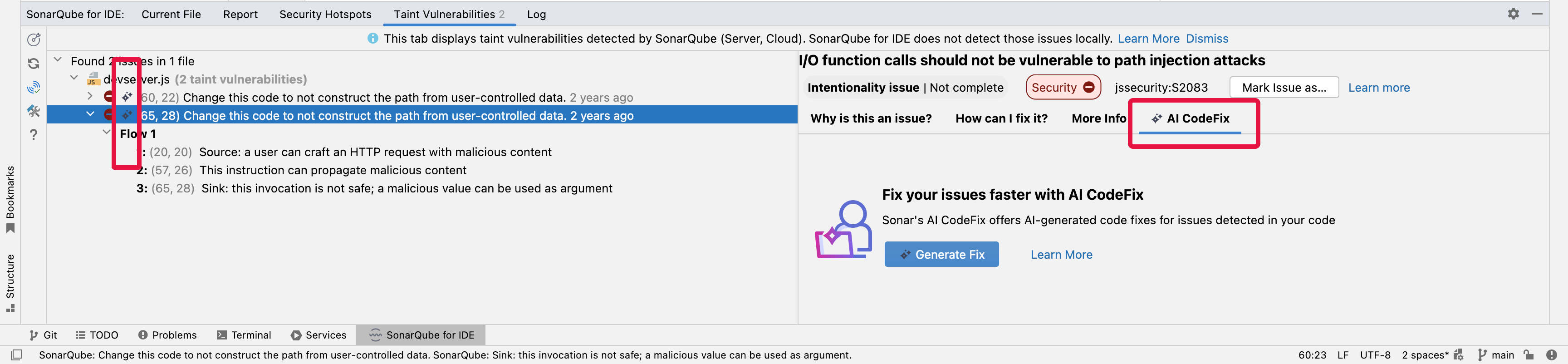
SonarQube for IntelliJ relies on a SonarQube (Server, Cloud) analysis to report Taint Vulnerabilities in the IDE therefore, running in connected mode is required. Taint vulnerabilities found by the server are reported in the **Taint Vulnerabilities** tab; taint issues from all files are displayed in a collapsible tree menu.
Selecting a taint issue automatically opens the issue’s rule description. Opening an issue reveals the vulnerability’s flow or flows in the tree menu and also in the editor.
Please see the [Injection vulnerabilities](/sonarqube-for-intellij/using/taint-vulnerabilities.md) page for more information about understanding these types of issues in your IDE.
**The Rule tab**
The **Rule** tab is a sub-tab for each of the issue view tabs listed above, displaying information about your issue’s rule description.
Simply select an issue in the **SonarQube for IDE view** or choose **SonarQube for IDE: Show rule description** from the tooltip to open the **Rule** tab. Here, you will find a brief explanation of the rule as well as Noncompliant and Compliant code samples.
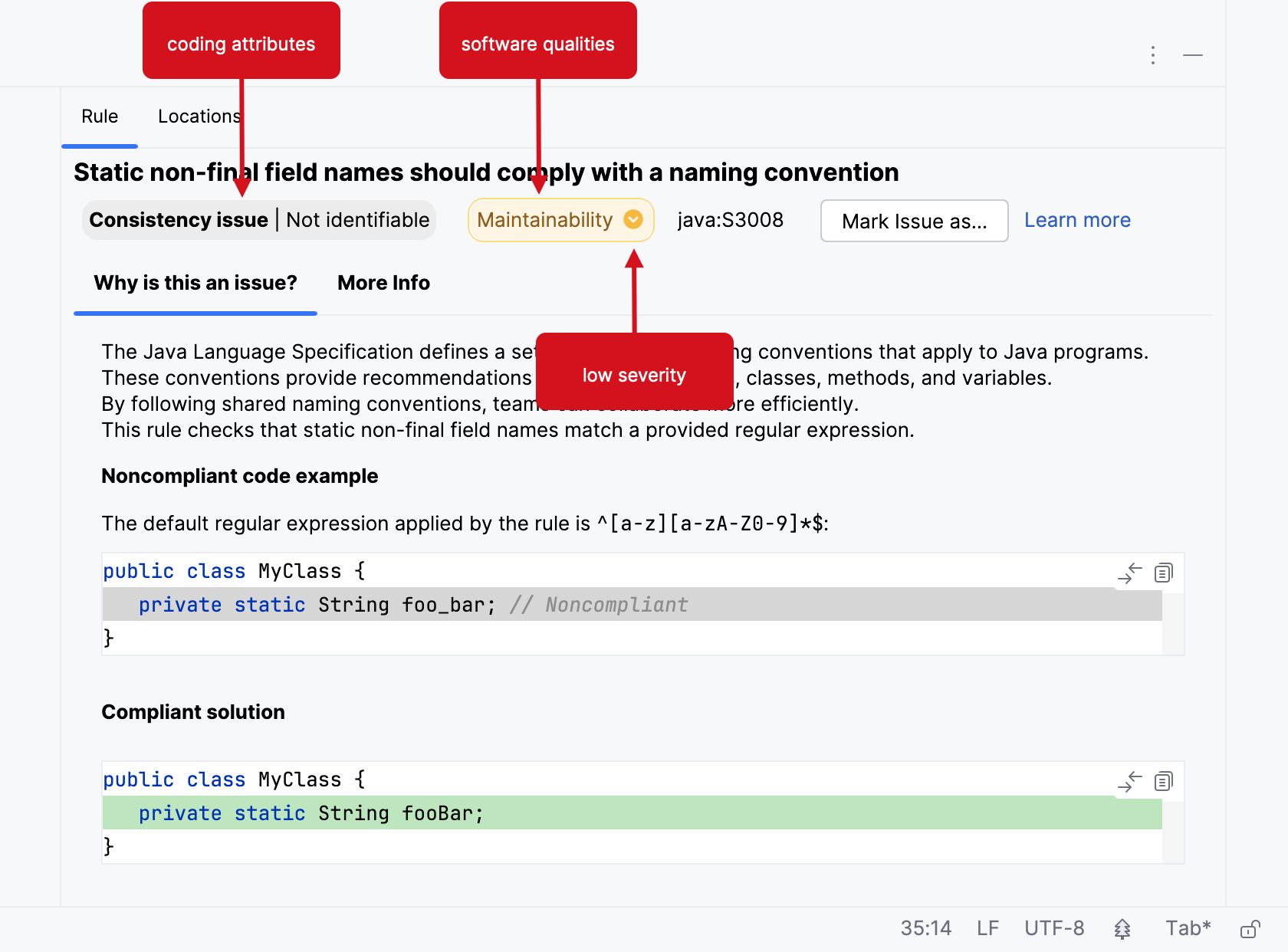
SonarQube for IntelliJ supports syntax highlighting. In addition, users are able to visualize a diff view for the non & compliant code samples which should help you fix your issue. Note that diff highlighting is only available for rules descriptions migrated to the [new format](https://community.sonarsource.com/t/sonarlint-for-intellij-7-3-better-help-for-taint-vulnerabilities-support-front-end-languages/79312), and we’re progressively migrating all existing rules to the new format.
If you’re running in connected mode with SonarQube Server or SonarQube Cloud, you might see the  icon which means that there is an AI-generated fix suggestion available. Please check the requirements for using [AI CodeFix](/sonarqube-for-intellij/ai-capabilities/ai-codefix.md#ai-codefix).
An issue’s coding attribute, software qualities, and severity are found when opening the SonarQube Rule tab. Below the rule title, you will find the coding attributes that highlight an issue’s classification. Check the [SonarQube glossary](/sonarqube-for-intellij/resources/glossary.md) for details about coding attributes, and the [Software qualities](/sonarqube-for-intellij/using/software-qualities.md) page to better understand how they help classify your issue.
**When in Connected Mode**
If you’re running SonarQube for IntelliJ while in connected mode *with SonarQube Server or SonarQube Community Build*, your view will change according to the server settings. Standard Experience mode encompasses the use of rule types such as bugs, code smells, and vulnerabilities. Alternatively, if SonarQube Server is set to Multi-Quality Rule mode, you will more accurately represent the impact an issue has on all software qualities.
Please see the pages about the MQR mode and Standard Experience for detailed information about the available rule modes for your instance:
* [Choosing a mode for your instance](/sonarqube-server/2026.1/instance-administration/analysis-functions/instance-mode.md) in SonarQube Server
* [Choosing a mode for your instance](/sonarqube-community-build/instance-administration/analysis-functions/instance-mode.md) in SonarQube Community Build
**The Log tab**
The SonarQube for IntelliJ logs are found here. See the [Troubleshooting](/sonarqube-for-intellij/resources/troubleshooting.md) page to learn how to set the correct log levels when looking for support from the [Help](/sonarqube-for-intellij/resources/help.md).
**The Help & Feedback tab**
Here, you will find all the quick links you need to access our documentation, reach out to the forum for community support, and find a link to suggest features and impact the future of SonarQube.
---
# Agent Instructions
This documentation is published with GitBook. GitBook is the documentation platform designed so that both humans and AI agents can read, navigate, and reason over technical content effectively. Learn more at gitbook.com.
## Querying This Documentation
If you need additional information that is not directly available in this page, you can query the documentation by asking a question.
Perform an HTTP GET request on the following URL with the `ask` and `goal` query parameters:
```
GET https://docs.sonarsource.com/sonarqube-for-intellij/resources/previous-versions.md?ask=&goal=
```
`ask` is the immediate question: it should be specific, self-contained, and written in natural language.
`goal` is what the user is ultimately trying to achieve, the reason they need the answer. Sharing it helps GitBook give you a better, more relevant answer. A goal is most helpful when it describes the outcome the user wants rather than restating the question. For example, with `ask=how do I create an API token`, a goal like `automate deployments from our CI pipeline` lets GitBook tailor the answer to that use case.
The response will contain a direct answer to the question and relevant excerpts and sources from the documentation.
Use this mechanism when the answer is not explicitly present in the current page, you need clarification or additional context, or you want to retrieve related documentation sections.