> For the complete documentation index, see [llms.txt](https://docs.sonarsource.com/llms.txt). Markdown versions of documentation pages are available by appending `.md` to page URLs; this page is available as [Markdown](https://docs.sonarsource.com/sonarqube-for-visual-studio/getting-started/installation.md).
# Installation
The steps you need to install SonarQube for Visual Studio in your IDE.
SonarQube for Visual Studio is available for Visual Studio version [2026 & 2022](https://marketplace.visualstudio.com/items?itemName=SonarSource.SonarLintforVisualStudio2022). It can be installed directly from your IDE’s Marketplace.
{% hint style="warning" %}
SonarQube for Visual Studio is not supported on Visual Studio 2017 and 2019. Support for Visual Studio 2017 ended on March 1, 2022, and support for Visual Studio 2019 ended in April 2024. These extension packages will not be updated or rebuilt.
The Visual Studio 2019 package contains a build certificate that expired in 2023. Installation can fail, and the expired certificate is a security risk in environments with strict security requirements. Microsoft supports Visual Studio 2019 itself until April 2029, but that does not extend to this extension. Use SonarQube for Visual Studio with Visual Studio 2022 or 2026.
{% endhint %}
## Instructions
To install SonarQube for Visual Studio from within Visual Studio:
1. From Visual Studio, go to **Extensions** > **Manage Extensions** and search **SonarQube for Visual Studio**.
2. Select **SonarQube for Visual Studio** and click **Download**.
The extension will be installed after all instances of Visual Studio have been closed.
SonarQube for Visual Studio needs a Java Runtime (JRE) to operate and will use its own JRE if you don’t provide one.
* To specify a JRE, go to **Extensions** > **SonarQube** > **Options…** > **SonarQube** > **General** > **Java Home**, add the path to your JRE, and restart your IDE to apply the setting.
## First taste of SonarQube for Visual Studio
Now that you have SonarQube for Visual Studio installed, open or create a new project containing source files in a programming language SonarQube for Visual Studio can analyze out of the box. See the [Rules and languages](/sonarqube-for-visual-studio/using/rules.md) page for a table languages that work with your IDE.
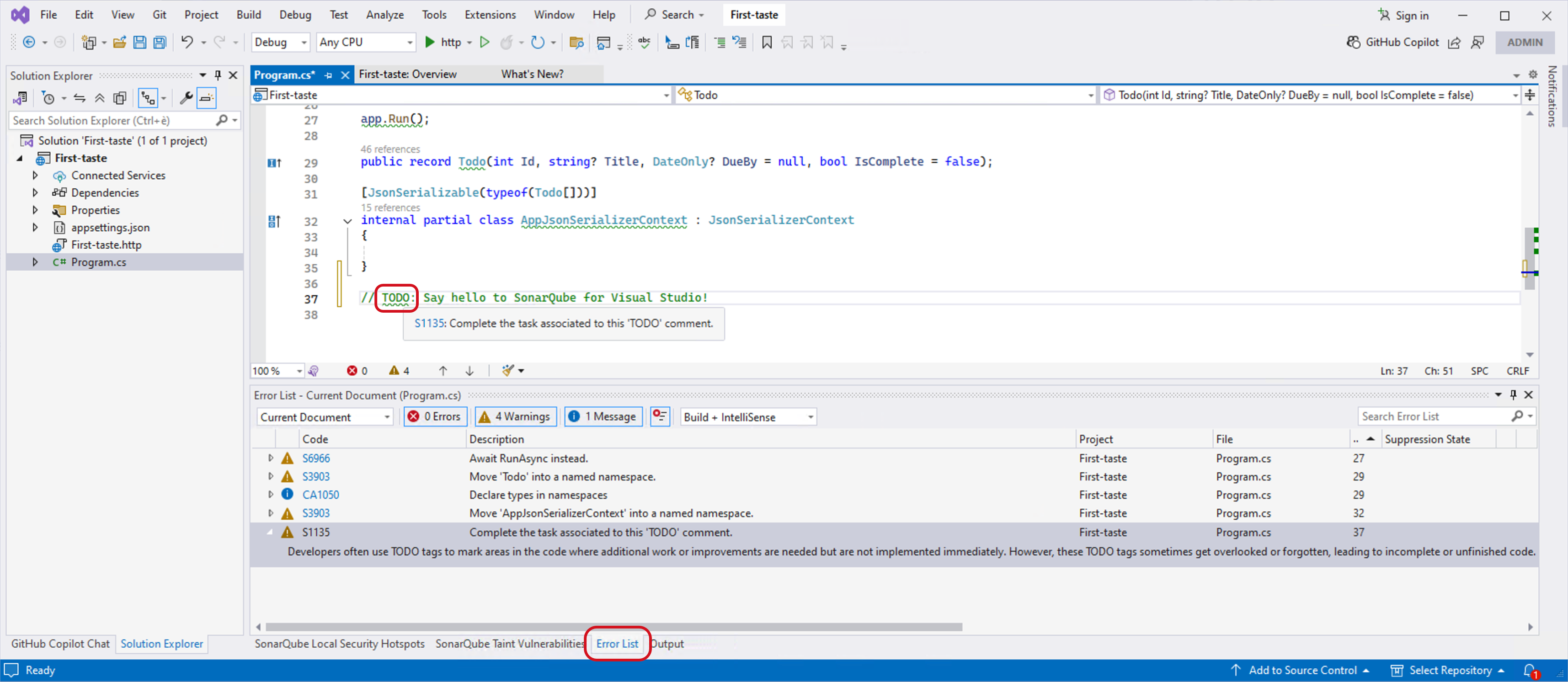
For example in C#, you can copy-paste this code snippet into your file and have a look at what SonarQube for Visual Studio returns in the **Error List**:
```csharp
// TODO: Say hello to SonarQube for Visual Studio!
```
## Connect to your server
Connect SonarQube for VS Code to your instance of [SonarQube Server](/sonarqube-server/2026.1/user-guide/connected-mode.md), [SonarQube Cloud](/sonarqube-cloud/analyzing-source-code/connected-mode.md), or [SonarQube Community Build](/sonarqube-community-build/user-guide/connected-mode.md) to expand your analysis capabilities and share quality profiles with your team. See the article about connected mode [Connected mode](/sonarqube-for-visual-studio/connect-your-ide/connected-mode.md#benefits), and the [Connected mode setup](/sonarqube-for-visual-studio/connect-your-ide/setup.md) page for full instructions to get going.
---
# Agent Instructions
This documentation is published with GitBook. GitBook is the documentation platform designed so that both humans and AI agents can read, navigate, and reason over technical content effectively. Learn more at gitbook.com.
## Querying This Documentation
If you need additional information that is not directly available in this page, you can query the documentation by asking a question.
Perform an HTTP GET request on the following URL with the `ask` and `goal` query parameters:
```
GET https://docs.sonarsource.com/sonarqube-for-visual-studio/getting-started/installation.md?ask=&goal=
```
`ask` is the immediate question: it should be specific, self-contained, and written in natural language.
`goal` is what the user is ultimately trying to achieve, the reason they need the answer. Sharing it helps GitBook give you a better, more relevant answer. A goal is most helpful when it describes the outcome the user wants rather than restating the question. For example, with `ask=how do I create an API token`, a goal like `automate deployments from our CI pipeline` lets GitBook tailor the answer to that use case.
The response will contain a direct answer to the question and relevant excerpts and sources from the documentation.
Use this mechanism when the answer is not explicitly present in the current page, you need clarification or additional context, or you want to retrieve related documentation sections.