For the complete documentation index, see llms.txt. This page is also available as Markdown.

Requirements

The software requirements to run SonarQube for Visual Studio in your IDE.

Each IDE extension of SonarQube for IDE has its own requirements to work properly with the most recent releases.

Overview

SonarQube for Visual Studio is available for Visual Studio version 2026 & 2022.

The only thing you need to install is the SonarQube for IDE VSIX available on the Visual Studio Marketplace. Please see the Installation for complete install instructions.

SonarQube for Visual Studio needs a Java Runtime (JRE) to operate and uses by default its own JRE.

If you want to use your own JRE:

  1. The minimum JRE version requirement for SonarQube for Visual Studio version 10.0 is Java 21.

  2. Specify the JRE path as follows:

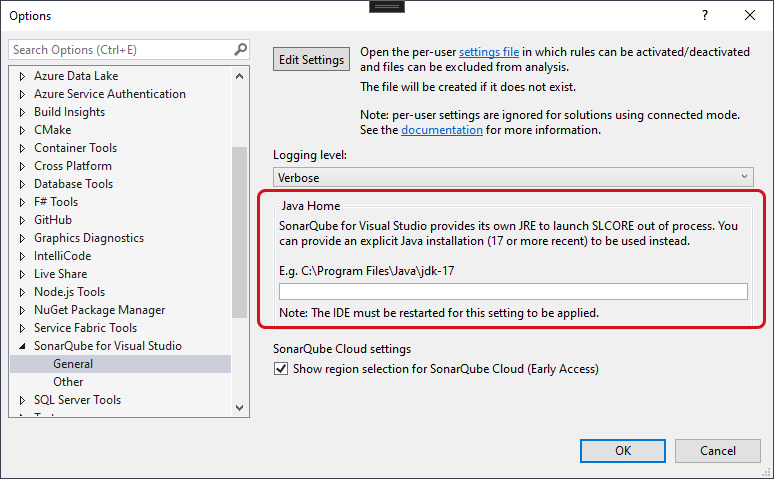
    1. In Visual Studio, go to Extensions > SonarQube > Options… > SonarQube > General > Java Home.

    2. Enter the path to your JRE.

    3. Restart your IDE to apply the setting.

You can set your own JRE or use the JRE bundled with SonarQube for Visual Studio.

In versions prior to v4.34, additional steps were required for some languages. See below for more details.

Supported IDEs

See the Sonar website for information about the currently supported IDEs, and also for details about which languages are supported in which IDEs.

Unsupported IDEs

SonarQube for Visual Studio is not currently available for Visual Studio for Mac. However, it is still possible to use the Sonar C# and VB.NET analyzers in that IDE with a little manual configuration.

Support for analyzing C# and VB.NET in other IDEs

Visual Studio for Mac supports the running of Roslyn analyzers that are shipped as NuGet packages. This includes Sonar C# and VB.NET rules.

The NuGet package id for the Sonar C# rules is SonarAnalyzer.CSharp. The NuGet package id for the Sonar VB.NET rules is SonarAnalyzer.VisualBasic

See below for information on setting up analysis in specific IDEs.

Visual Studio for Mac

To configure a project to use the Sonar C# analyser, edit the project file to include the following XML:

Use SonarAnalyzer.VisualBasic instead of SonarAnalyzer.CSharp to configure the Sonar VB.NET analyzer.

Note that instead of editing every project file, you can create a single Directory.Build.props file at the solution level or repo level that will apply to all projects in the solution/repo.

It is possible to add references to NuGet packages through the UI but that will not add the necessary Analyzer entries in the project file; you must still add them manually by directly editing the project file. See this StackOverflow post for more information.

Language-specific requirements

JavaScript and TypeScript analysis

NodeJS prerequisites for JS and TS

Sonar’s JavaScript and TypeScript analyzers require specific Node.js versions to be installed on the machine. If no compatible version is found, the analysis will not be performed. See the table below for the minimal required Node.js version per SonarQube for Visual Studio version:

SonarQube for Visual Studio
Minimal required Node.js version

v8.28.0

for Node v20, it must be at least 20.12.0.

for Node v22 the Active LTS, it must be at least 22.11.0, with acceptance of v23 and v24.

v8.22.0

for Node v18, it must be at least 18.20.0.

for Node v20, it must be at least 20.12.0.

for Node v22 the Active LTS, it must be at least 22.11.0, with acceptance of v23 and v24.

v7.8

Node.js v18.17.1 and higher

v7.6

Node.js v16 and higher

v6.9

Node.js v14.17 and higher

v6.8

Node.js v12.22 and higher

v6.7 and earlier

Node.js v10 and higher, excluding Node.js v11

Auto-detection of compatible Node.js versions

SonarQube for Visual Studio will attempt to locate a compatible Node.js version on the machine by searching on the %PATH%. If SonarQube for Visual Studio cannot find a compatible Node.js version, it will show a notification in a gold bar like the following:

Your JS/TS analysis will fail if SonarQube for Visual Studio cannot find a supported version of Node.js on your computer.

The Output Window will contain additional information about the Node.js versions that were located:

Your Output window will look similar if a compatible Node.js version is not found by SonarQube for Visual Studio

Manually specifying a custom location of Node.js installation

You can also set the environment variable SONAR_NODEJS_PATH to specify a custom location. The value should be the full file path to the node executable e.g. c:\custom\node.exe. The environment variable takes precedence over the automatic detection. You will need to restart Visual Studio after setting or changing the environment variable.

Installing Node.js

If the machine does not have a compatible version of Node.js, you can manually install one. Node.js versions can be downloaded from the official website nodejs.org. Both the 32-bit and 64-bit versions are supported. The simplest installation method on Windows is to use the appropriate .msi.

Deprecation of older Node.js versions

From time to time the Sonar JavaScript/TypeScript analyzer will increase the minimum required Node.js version as older versions go out of support. The dropping of support will be announced in advance in the Community Forum (e.g. this post regarding the deprecation of Node.js v16 and dropping of support for Node.js vs14).

This page will be updated as the minimum required Node.js version changes.
Analyzing CMake projects

This article is an overview of how to get started with analyzing CMake projects in Visual Studio 2022 and later versions, along with information about known issues. This feature is available starting with SonarQube for Visual Studio version 4.38.

If you need more help, please start a post on the SonarQube for IDE Community - Visual Studio channel in the Sonar Community forum.

Getting started - VS2022 and later

1) Open / create a new CMake project in Visual Studio

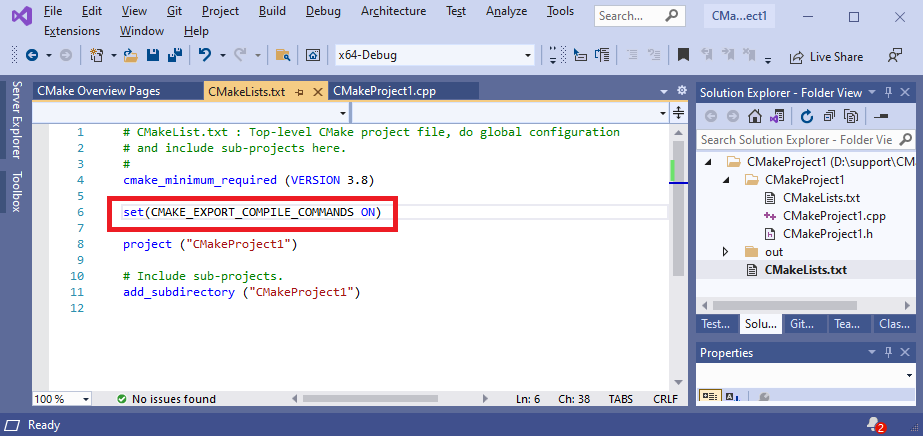
2) Add the command set(CMAKE_EXPORT_COMPILE_COMMANDS ON) to the top-level CMakeLists.txt file:

Add a command to your CMakeLists.txt file to generate the compilation database.

3) Save the file.

4) Check that VS has generated the compilation database.

Source and header files will now be analyzed on opening/saving. The SonarQube for Visual Studio Output Window will contain more information about the progress of the analysis.

CMake - known limitations

Environment variable overrides in CMakeSettings.json are not supported

SonarQube for Visual Studio will not process environment variable overrides in CMakeSettings.json files.

The SonarQube for Visual Studio analysis results may be incorrect if the overridden environment variables affect the CMake compilation e.g. changing the paths that are searched for header files.

CMake presets are not currently supported by SonarQube for Visual Studio

See the Microsoft documentation for more information about support for CMake presets in Visual Studio.

Only the Ninja generator is supported

SonarQube for Visual Studio uses the generated compilation database (compile_commands.json) to fetch the compiler options to use during analysis. The Ninja generator creates a compilation database, and the other Visual Studio generators do not. Visual Studio uses the Ninja generator by default. For more information, see the Microsoft documentation on the CMake generator. You can also configure Visual Studio to use the Ninja generator by providing an appropriate CMakeSettings.json file, for example:

C and C++ analysis-specific requirements

Downloading the CFamily analyzer

The CFamily analyzer is not included with the release files to optimize download times. After you install SonarQube for IDE, a download of the CFamily analyzer starts automatically therefore, an internet connection is required.

Last updated

Was this helpful?