> For the complete documentation index, see [llms.txt](https://docs.sonarsource.com/llms.txt). Markdown versions of documentation pages are available by appending `.md` to page URLs; this page is available as [Markdown](https://docs.sonarsource.com/sonarqube-for-visual-studio/using/security-hotspots.md).
# Security hotspots
How to fix security hotspots using SonarQube for Visual Studio.
> **Note:** To simplify the classification of findings, we are gradually transitioning security hotspots to vulnerabilities. As a result, rules that previously raised security hotspots will start raising vulnerabilities (type) or security issues (software quality).
A security hotspot highlights a security-sensitive piece of code that the developer needs to review. Upon review, you’ll either find there is no threat or you need to apply a fix to secure the code. For more information about what security hotspots are and why they're different than other security issues, take a look at the server documentation:
* [Managing Security Hotspots](/sonarqube-server/2026.1/user-guide/security-hotspots.md) in SonarQube Server
* [Security hotspot rules](/sonarqube-cloud/standards/managing-rules/security-hotspots.md) in SonarQube Cloud
* [Managing Security Hotspots](/sonarqube-community-build/user-guide/security-hotspots.md) in SonarQube Community Build
## Hotspot analysis
It is possible to locally detect and report hotspots in SonarQube for Visual Studio for all supported languages. The full list is available on the [Rules and languages](/sonarqube-for-visual-studio/using/rules.md) page.
Requirements include running SonarQube for Visual Studio in [Connected mode](/sonarqube-for-visual-studio/connect-your-ide/connected-mode.md) and being bound to a project in SonarQube 2025.1 or newer, or to a project on SonarQube Cloud. Security hotspot analysis rules are run each time a local analysis is triggered.
Security hotspots are displayed in the [Investigating issues](/sonarqube-for-visual-studio/using/investigating-issues.md#sonarqube-issue-visualization-tool-window) tool window. If it's not already visible, navigate to the default location of the tool window in the Visual Studio main menu: **Extensions** > **SonarQube** and select **View SonarQube Report**.
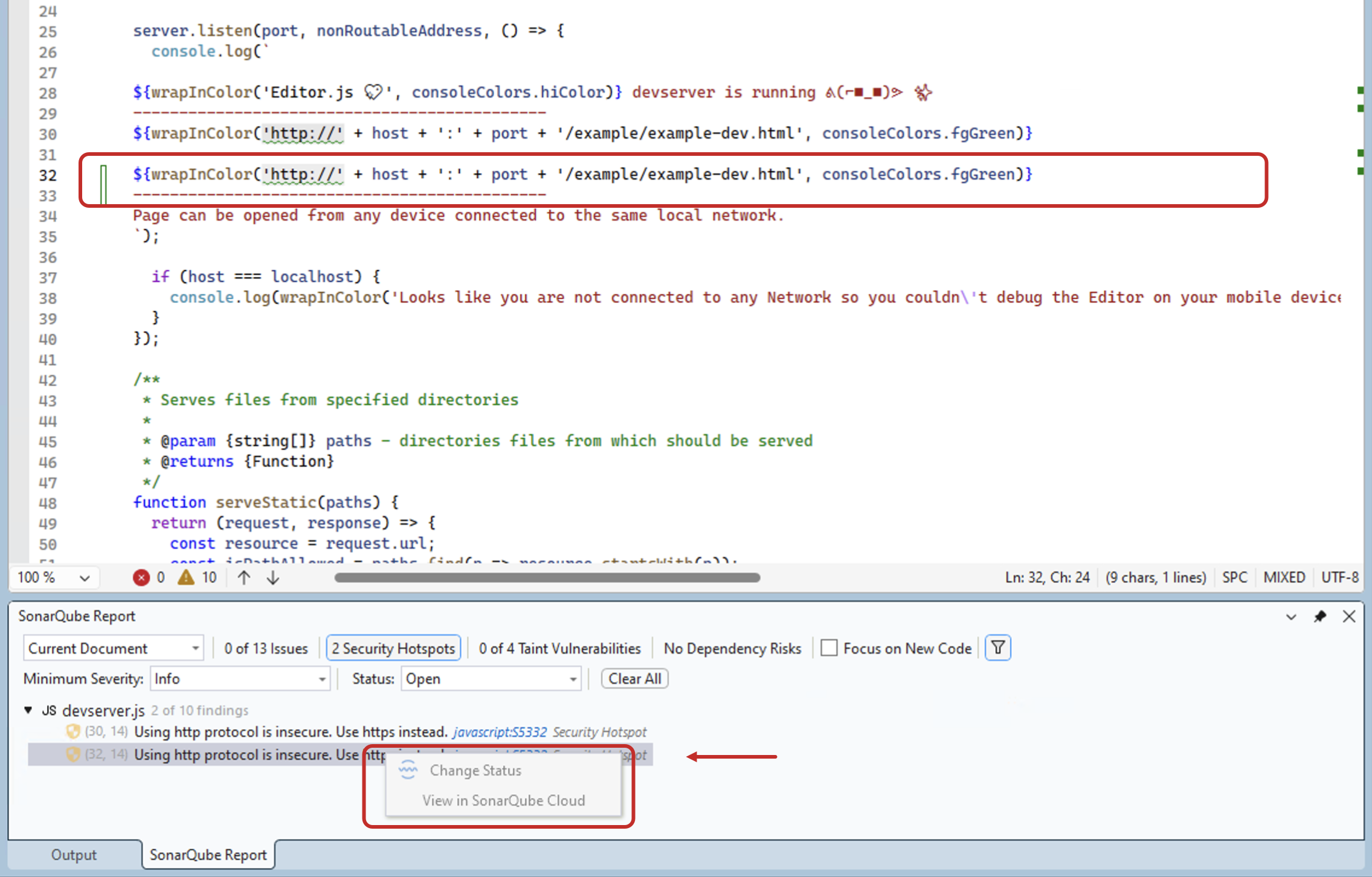
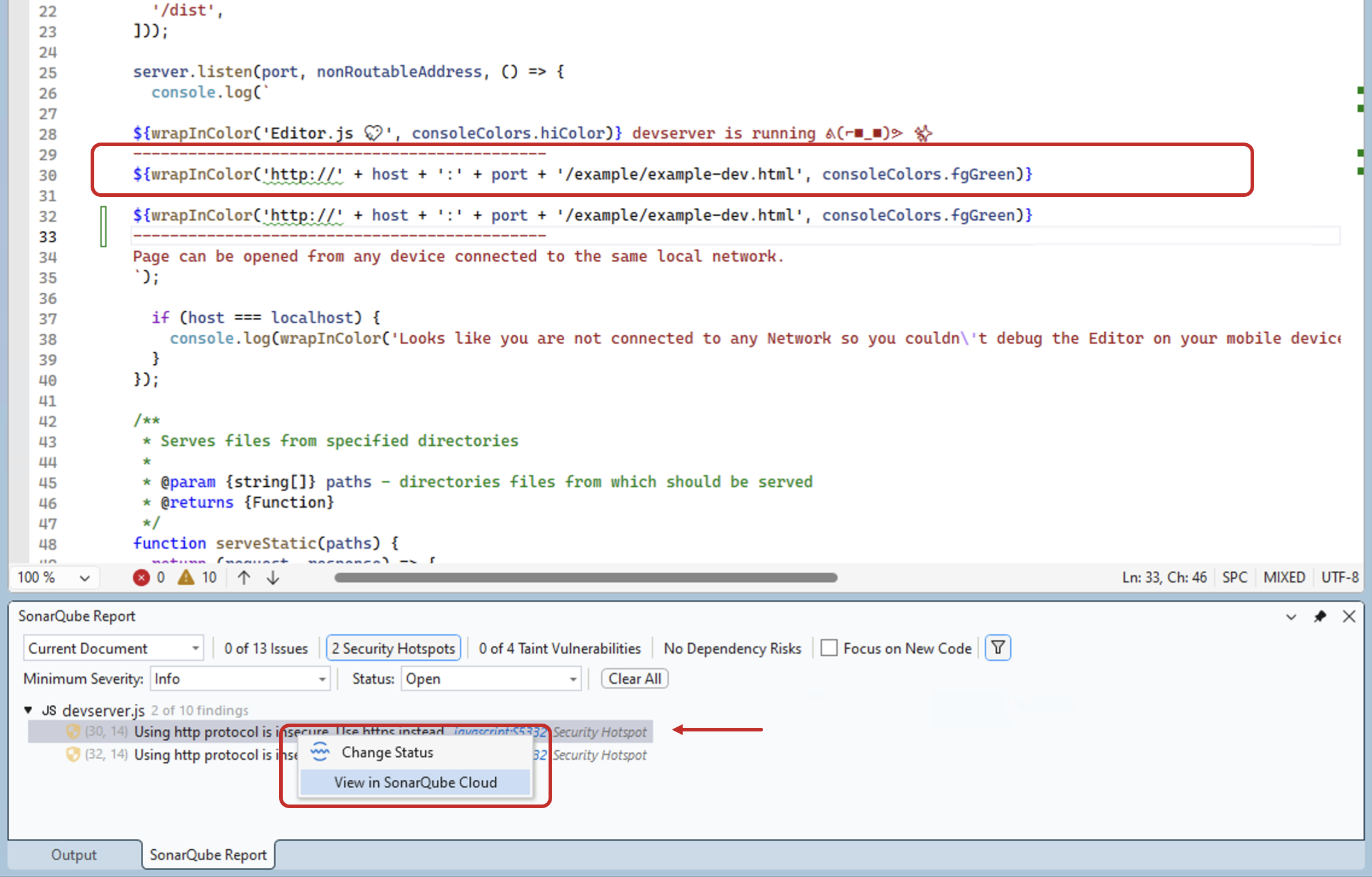
Locally detected hotspots are differentiated from those found on the server in the SonarQube Security Hotspots view window by the option to open the security hotspot on the server.
Newly detected security hotspot
Matching security hotspot
In addition, hotspots can be filtered by **Current Document** or **Open Documents**, and sorted the issue's **Status** if desired; see the [Investigating issues](/sonarqube-for-visual-studio/using/investigating-issues.md#issues-with-secondary-locations) article for more information.
### Newly detected Hotspots
Locally found hotspots will be highlighted in the editor using the characteristic SonarQube for Visual Studio squiggles. In addition, a list of all locally found hotspots will be found in the [Investigating issues](/sonarqube-for-visual-studio/using/investigating-issues.md#sonarqube-issue-visualization-tool-window) tool window. Selecting the rule key will open the [Rules and languages](/sonarqube-for-visual-studio/using/rules.md#sonar-rule-descriptions) window where you can review descriptive and educational content associated with the hotspot.
### Already known hotspots
Hotspots already detected by the SonarQube are identifiable by the addition of an icon shown in the same **SonarQube Report** tool window.
Security hotspots that are marked as Fixed or Safe on the server can be viewed by selecting the **Resolved** or **Any** filter; see the [Investigating issues](/sonarqube-for-visual-studio/using/investigating-issues.md#issues-with-secondary-locations) article for instructions.
It’s possible to open a security hotspot found on SonarQube Server or SonarQube Cloud directly from your IDE. Simply right-click on the hotspot and select **View in SonarQube (Server, Cloud)** when available.
## Open in IDE from SonarQube
SonarQube for Visual Studio provides a way to investigate security hotspots found on the server. This is an integration feature: when viewing a hotspot on SonarQube Server, you will notice a button named **Open in IDE**; selecting that button while Visual Studio is running will open the hotspot’s code file in the IDE.
See the [Investigating issues](/sonarqube-for-visual-studio/using/investigating-issues.md#opening-issues-in-the-ide) article to see how it looks in SonarQube Server. Unfortunately, the SonarQube Cloud **Open in IDE** feature is not available for security hotspots at this time but more information can be found on the [Managing Security Hotspots](/sonarqube-server/2026.1/user-guide/security-hotspots.md) page in the SonarQube Server docs.
### Feature requirements
* The correct solution must be open in Visual Studio and you must be running SonarQube for Visual Studio in [Connected mode](/sonarqube-for-visual-studio/connect-your-ide/connected-mode.md). SonarQube Server will not open Visual Studio if it is closed.
* **Open in IDE** is not yet supported in SonarQube Cloud with SonarQube for Visual Studio.
### Feature overview
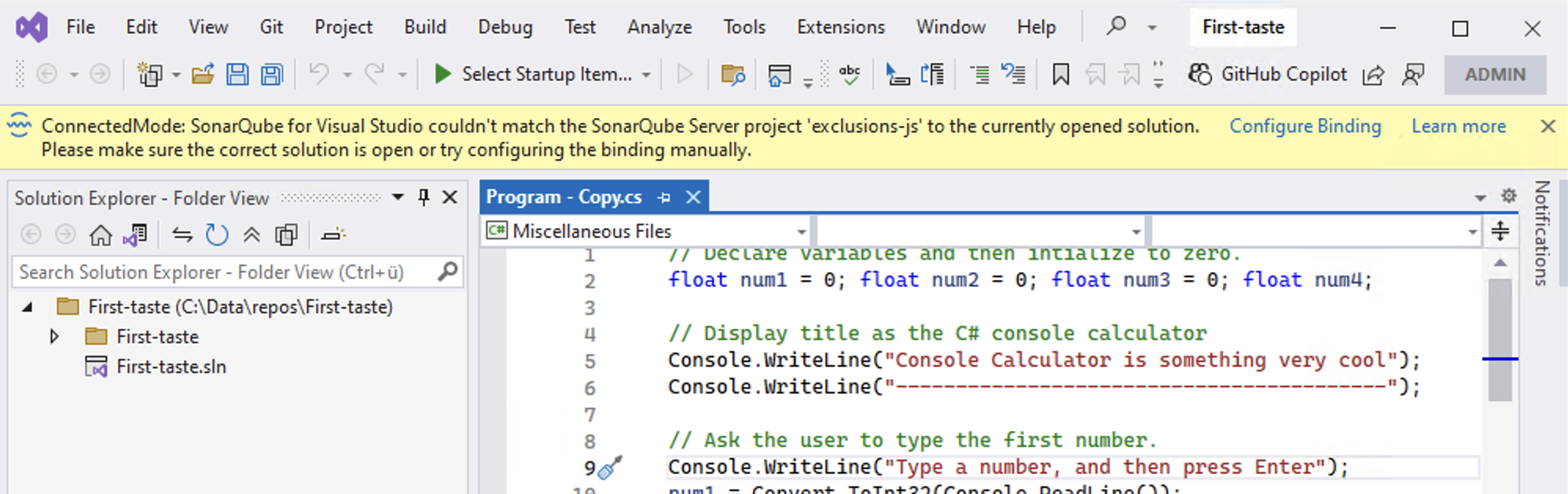
When SonarQube for Visual Studio receives an **Open in IDE** request from the browser, SonarQube for Visual Studio will verify that the correct solution is open in connected mode. If not, a gold bar will be displayed asking you to check if you’ve got the correct solution open, or to try and configure the binding manually:
If the correct solution is open and the hotspot’s code location can be found in the solution, SonarQube for Visual Studio will open the file and navigate to the relevant code. In addition, the hotspot is added to the **SonarQube Report** tool window where you will find additional information:
It is possible that the code on the server does not match your local code version. For example:
* if code changes have been made since the last analysis
* if the relevant code project is not included in the solution
In this case, only the hotspots that are found during the local analysis are shown.
### Security Hotspots list functionality
Once a hotspot has been added to the list, you can navigate to it using a double-click or the Enter key. In addition, your list of **Security Hotspots** can be filtered by **Current** or **Open Documents**, **Severity**, and **Status** alongside **Taint Vulnerabilities** and **Dependency Risks**.
### Implementation notes
When Visual Studio starts, SonarQube for Visual Studio will start listening in the background for *Open in IDE* requests originating from your local browser. This listener does not require a lot of resources and should not affect your machine’s performance and memory consumption in any way, nor should it interfere with your work.
SonarQube for Visual Studio will try to find an available port in the range 64120-64130 inclusive. Information about the port selection will be logged in the SonarQube for Visual Studio pane in the Output Window. If a port cannot be found, *Open in IDE* will not be handled. The port range is not configurable.
---
# Agent Instructions
This documentation is published with GitBook. GitBook is the documentation platform designed so that both humans and AI agents can read, navigate, and reason over technical content effectively. Learn more at gitbook.com.
## Querying This Documentation
If you need additional information that is not directly available in this page, you can query the documentation by asking a question.
Perform an HTTP GET request on the following URL with the `ask` and `goal` query parameters:
```
GET https://docs.sonarsource.com/sonarqube-for-visual-studio/using/security-hotspots.md?ask=&goal=
```
`ask` is the immediate question: it should be specific, self-contained, and written in natural language.
`goal` is what the user is ultimately trying to achieve, the reason they need the answer. Sharing it helps GitBook give you a better, more relevant answer. A goal is most helpful when it describes the outcome the user wants rather than restating the question. For example, with `ask=how do I create an API token`, a goal like `automate deployments from our CI pipeline` lets GitBook tailor the answer to that use case.
The response will contain a direct answer to the question and relevant excerpts and sources from the documentation.
Use this mechanism when the answer is not explicitly present in the current page, you need clarification or additional context, or you want to retrieve related documentation sections.