> For the complete documentation index, see [llms.txt](https://docs.sonarsource.com/llms.txt). Markdown versions of documentation pages are available by appending `.md` to page URLs; this page is available as [Markdown](https://docs.sonarsource.com/sonarqube-for-vs-code/connect-your-ide/connected-mode.md).
# Connected mode
Using connected mode in SonarQube for IDE completes the Sonar Solution to make the most of your analyses. Running in connected mode helps bring SonarQube's AI capabilities into your IDE.
Connecting SonarQube for IDE to [SonarQube Server](https://docs.sonarsource.com/sonarqube-server/2026.1/), [SonarQube Cloud](https://docs.sonarsource.com/sonarqube-cloud/), or [SonarQube Community Build](https://docs.sonarsource.com/sonarqube-community-build/) is the first step in setting up the Sonar Solution, to take advantage of having consistent issues reported on both sides. Setting up connected mode will permit the transmission of information SonarQube for IDE needs, such as URLs and user credentials or file exclusions and marked issues, to communicate with SonarQube. When binding your local workspace folder to your SonarQube project(s), SonarQube for IDE will try to match, as much as possible, the same rules and settings as found on the server.
While in connected mode, SonarQube for IDE receives notifications from SonarQube about your quality gate changes and new issues. Smart notifications can be enabled or disabled from the UI while creating or editing the connection settings.
## **Benefits**
* Analyze more *languages* and detect more *issues* by combining rules in the IDE with those supported by SonarQube.
* See [Rules and languages](/sonarqube-for-vs-code/using/rules.md) in SonarQube for VS Code
* See [Supported languages](/sonarqube-server/2026.1/analyzing-source-code/languages/overview.md) in SonarQube Server
* See [Supported languages](/sonarqube-cloud/discovering-sonarcloud/overview.md) in SonarQube Cloud
* See [Supported languages](/sonarqube-community-build/analyzing-source-code/languages/overview.md) in SonarQube Community Build
* Highlight advanced issues (in the IDE) like [Injection vulnerabilities](/sonarqube-for-vs-code/using/taint-vulnerabilities.md), detected by SonarQube Server and SonarQube Cloud.
* An issue discovered in SonarQube can be quickly explored in the IDE via a dedicated button. See the [Investigating issues](/sonarqube-for-vs-code/using/investigating-issues.md#opening-issues-in-the-ide) article for details.
* Use the same *quality profile* locally as is defined by SonarQube.
* See the [Managing quality profiles](/sonarqube-server/2026.1/quality-standards-administration/managing-quality-profiles.md) pages in SonarQube Server.
* See the [Managing quality profiles](/sonarqube-cloud/standards/managing-quality-profiles.md) pages in SonarQube Cloud.
* Apply settings, such as [Rules and languages](/sonarqube-for-vs-code/using/rules.md#rule-selection) and [File exclusions](/sonarqube-for-vs-code/using/file-exclusions.md) defined on the server to your local analysis.
* Define specific *analyzer parameters* on the server and have those parameters applied locally.
* See the [Analysis parameters](/sonarqube-server/2026.1/analyzing-source-code/analysis-parameters.md) page in SonarQube Server.
* See the [Analysis parameters](/sonarqube-cloud/analyzing-source-code/analysis-parameters.md) page in SonarQube Cloud.
* See the [Analysis parameters](/sonarqube-community-build/analyzing-source-code/analysis-parameters.md) page in SonarQube Community Build.
* Automatically suppress issues that are marked as **Accepted** or **False Positive** on the server. See the [Fixing issues](/sonarqube-for-vs-code/using/fixing-issues.md#marking-issues) article to understand how this works locally.
{% hint style="info" %}
When running in connected mode with SonarQube Server 10.4 or newer, **Won’t Fix** becomes **Accept**.
{% endhint %}
* Use the SonarQube for VS Code **Focus on new code** feature to concentrate the detection of issues only in new code, as you defined in SonarQube.
* See the [Investigating issues](/sonarqube-for-vs-code/using/investigating-issues.md#focusing-on-new-code) article
* Check the page on [New code](/sonarqube-for-vs-code/using/new-code.md) for information about how it affects quality standards locally and on the server.
* When you accept [#notifications](#notifications "mention") in your IDE, changes made to your quality gates on the server arrive in your IDE.
* See the [Quality standards administration](/sonarqube-server/2026.1/quality-standards-administration.md) pages in SonarQube Server
* See the [Setting your quality standards](/sonarqube-cloud/standards.md) pages in SonarQube Cloud.
{% hint style="info" %}
Connected mode does not push issues to the server. Rather, its purpose is to configure the IDE so that it uses the same settings, as much as possible, as it is defined on the server.
{% endhint %}
[Free and open-source](https://www.sonarsource.com/open-source-editions/) versions of [SonarQube Community Build](https://www.sonarsource.com/products/sonarqube/downloads/) and [SonarQube Cloud](https://www.sonarsource.com/products/sonarqube/cloud/signup/) are available to work in connected mode. In [SonarQube Cloud](https://www.sonarsource.com/products/sonarqube/cloud/), it’s always free to analyze your publicly accessible projects; if you want to link to a private repository, see the instructions found on SonarQube Cloud's [Subscription plans](/sonarqube-cloud/administering-sonarcloud/managing-subscription/subscription-plans.md) page.
## Prerequisites and supported languages
To run SonarQube for VS Code in connected mode, you must have a SonarQube Server project in an active version (see the [Release cycle model](/sonarqube-server/2026.1/server-update-and-maintenance/update/release-cycle-model.md) page) or a SonarQube Cloud project.
In addition to the published languages on the [Rules and languages](/sonarqube-for-vs-code/using/rules.md), you can unlock Apex rules, COBOL rules, PL/SQL rules, and T-SQL rules when using connected mode with SonarQube Server and SonarQube Cloud.
## Branch awareness
Branch awareness allows SonarQube for IDE to consider the branch currently checked out in the IDE and synchronize it with the most appropriate branch from the SonarQube; we call this *branch matching*.
In connected mode, SonarQube for IDE synchronizes some data from the issues found on the server, such as the issue’s status and resolution. It is important that SonarQube for IDE knows which branch the user is on at that moment to sync the local analysis with the correct branch analyzed by SonarQube.
The use of Git is required for SonarQube for VS Code to find the best match between the local branch and the branch analyzed by SonarQube.
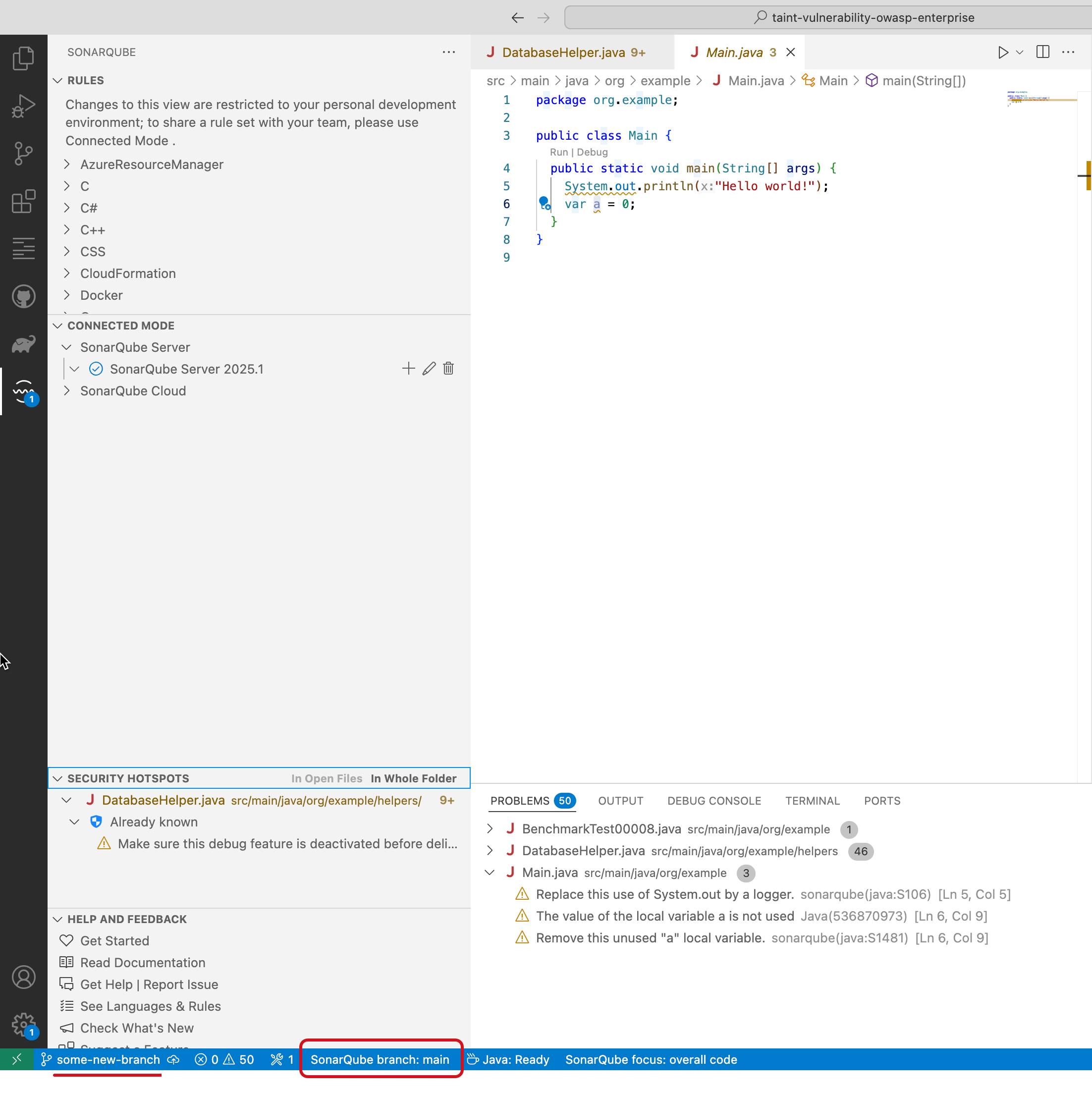
SonarQube for VS Code shows the name of the branch used to reference issues synchronized in the IDE’s status bar. In the picture below, the checked-out git branch is named "current\_branch", and the analyzed branch on the SonarQube Server is named "branch\_to\_analyze".
### Checking which branches are analyzed on the server
In SonarQube Server, open the highlighted drop-down list shown below (as it looks in SonarQube Server) for a list of analyzed branches and pull requests.
To analyze branches other than `master`|`main` , please check these pages on branch analysis:
* The [Branch analysis](https://app.gitbook.com/s/LWhbesChsC4Yd1BbhHhS/analyzing-source-code/branch-analysis) page in SonarQube Server.
* The [Branch analysis](/sonarqube-cloud/analyzing-source-code/branch-analysis/branch-analysis.md) page in SonarQube Cloud.
### How SonarQube for IDE selects which branch to sync
SonarQube for IDE deploys these three methods to choose which branch (in SonarQube (Server, Cloud)) to sync with the local analysis.
**Exact match**
Branches with the same name are considered the same branch. If the branch that is currently checked out locally is analyzed on the server, SonarQube for IDE will pick this branch for synchronization.
**Closest branch**
SonarQube for IDE will consider all local branches that also exist on the server. For each branch, SonarQube for IDE will compute the distance between the current `HEAD` and the branch by the count of commits. The closest branch will be kept. In case the number of commits is the same for two or more branches and the main branch is among them, the main branch will be preferred; otherwise, the tie will be broken with a random choice (from the list of equidistant branches).
**Default to main branch**
All other cases will default to the branch marked as "main" on the server. For example, if there is an error in reading the branch, or if there is no Git repo, SonarQube for IDE will default to the main branch.
**Long and short-lived branches**
When using Connected Mode with SonarQube Cloud, issues on short-lived branches are not synchronized. When an issue is marked in SonarQube Cloud *accepted* or *false positive* on a short-lived branch, SonarQube for IDE will still show that issue in the IDE.
SonarQube Server does not distinguish between long- and short-lived branches therefore, all issue resolutions are recognized.
### PR analysis synchronization
Currently, this feature does not support synchronization with pull request analysis.
## Connection setup
SonarQube for VS Code provides a connection wizard to help you set up connected mode with SonarQube. Please see the [Connected mode setup](/sonarqube-for-vs-code/connect-your-ide/setup.md) page for detailed instructions to set up connected mode and bind your project.
### Sharing your setup
It’s possible to share a setup configuration file with your team, simplifying the process.
One team member must step through the first-time setup process, and then export and commit the binding configuration to the repository. Any team member running SonarQube for IDE will find the binding details inside the project’s source folder and automatically receive a notification to bind the project.
Please see the [Connected mode setup](/sonarqube-for-vs-code/connect-your-ide/setup.md#first-time-connection-setup-for-shared-binding) article for detailed instructions.
## Known limits
Some features do not work when running in connected mode. Here are the reasons why:
**Open in IDE**
When running SonarQube for IDE in connected mode with SonarQube Server 10.3 and above or SonarQube Cloud, the **Open in IDE** feature is available (see [Investigating issues](/sonarqube-for-vs-code/using/investigating-issues.md#opening-issues-in-the-ide)). *This feature relies on local communication between your web browser and SonarQube for VS Code* therefore, is not available in some remote environments such as GitPod, or GitHub CodeSpaces.
**Jupyter notebooks**
When working with Jupyter Notebooks, connected mode will be ignored. You will only have local analysis. This is because SonarQube does not yet support the analysis of Jupyter Notebooks. /
## SonarQube for IDE-SonarQube Server version support policy
The latest release of SonarQube for IDE receives support. Each release is compatible with SonarQube Cloud and with the SonarQube Server versions that receive patches under the [Release cycle model](/sonarqube-server/server-update-and-maintenance/update/release-cycle-model.md#sonarqube-server-patch-policy) at the time of that release: the latest SonarQube Server version and each LTA (Long-Term Active) version. Staying on the latest release keeps SonarQube for IDE compatible.
For more information about long-term support of SonarQube Server, check out our page describing SonarQube Server's [Release cycle model](/sonarqube-server/2026.1/server-update-and-maintenance/update/release-cycle-model.md). Review your SonarQube for IDE-specific requirements for version-to-version differences.
## Notifications
Connected mode allows SonarQube to send smart alerts to individuals or teams as soon as something appears on the server that something failed, when new issues are discovered or when the Sonar Quality Profile is updated, for example. With everyone in the loop, issues can be addressed promptly, improving the overall software quality and delivery. The notification will include a link to call back to SonarQube where you can learn more about the issues that were introduced.
You’ll receive smart notifications in your IDE in the following cases:
* The quality gate status of a project you have *open in your IDE* changes. See these pages on managing quality gates:
* [Managing quality gates](/sonarqube-server/2026.1/quality-standards-administration/managing-quality-gates.md) in SonarQube Server
* [Managing quality gates](/sonarqube-cloud/standards/managing-quality-gates.md) in SonarQube Cloud
* A SonarQube analysis raises new issues *that you’ve introduced in a project open in your IDE*.
You can activate or deactivate smart notifications in SonarQube for IDE on the IDE side for a server-by-server basis.
Sonar Smart Notifications are available in all editions of SonarQube.
## Related online courses
* :video: [Setting up SonarQube for IDE in Connected Mode with VS Code](https://www.sonarsource.com/learn/course/sonarqube-for-ide/eeeb80b2-b142-4475-8804-48a553bd2b45/setting-up-sonarqube-for-ide-in-connected-mode-with-vs-code)
* :video: [Setting up SonarQube for IDE in Connected Mode with Cursor](https://www.sonarsource.com/learn/course/sonarqube-for-ide/ad2919d7-197f-4ad8-8605-7d8c10d4cd09/setting-up-sonarqube-for-ide-in-connected-mode-with-cursor)
---
# Agent Instructions
This documentation is published with GitBook. GitBook is the documentation platform designed so that both humans and AI agents can read, navigate, and reason over technical content effectively. Learn more at gitbook.com.
## Querying This Documentation
If you need additional information that is not directly available in this page, you can query the documentation by asking a question.
Perform an HTTP GET request on the following URL with the `ask` and `goal` query parameters:
```
GET https://docs.sonarsource.com/sonarqube-for-vs-code/connect-your-ide/connected-mode.md?ask=&goal=
```
`ask` is the immediate question: it should be specific, self-contained, and written in natural language.
`goal` is what the user is ultimately trying to achieve, the reason they need the answer. Sharing it helps GitBook give you a better, more relevant answer. A goal is most helpful when it describes the outcome the user wants rather than restating the question. For example, with `ask=how do I create an API token`, a goal like `automate deployments from our CI pipeline` lets GitBook tailor the answer to that use case.
The response will contain a direct answer to the question and relevant excerpts and sources from the documentation.
Use this mechanism when the answer is not explicitly present in the current page, you need clarification or additional context, or you want to retrieve related documentation sections.