> For the complete documentation index, see [llms.txt](https://docs.sonarsource.com/llms.txt). Markdown versions of documentation pages are available by appending `.md` to page URLs; this page is available as [Markdown](https://docs.sonarsource.com/sonarqube-for-vs-code/using/investigating-issues.md).
# Investigating issues
How to investigate issues found by a SonarQube analysis in your VS Code IDE.
SonarQube for IDE can help developers by letting them perform local analyses to check their code before pushing it back to the SCM. While running an analysis, SonarQube for IDE raises an issue every time a piece of code breaks a coding rule.
Usually, a first analysis is performed as soon as one of the supported files is opened. Then, regular analyses are triggered when the editor content changes and/or when the file is saved.
This page describes how to find and investigate issues in your IDE.
## Defining issues
An *issue* is a problem in your code that violates one of the Sonar rules. Issues found in code are linked to coding attributes and software qualities that determine the overall severity of an issue. Software qualities determine the overall severity of an issue that feeds back into the overall status of your code; please see pages on quality standards in the SonarQube Server and SonarQube Cloud documentation for more information:
* [Quality standards and new code](/sonarqube-server/2026.1/user-guide/about-new-code.md) in SonarQube Server
* [Quality standards and new code](/sonarqube-cloud/standards/about-new-code.md) in SonarQube Cloud
Each issue is linked to one coding attribute which is associated with one or more software qualities; each software quality has a level of severity. See [Software qualities](/sonarqube-for-vs-code/using/software-qualities.md) for more information.
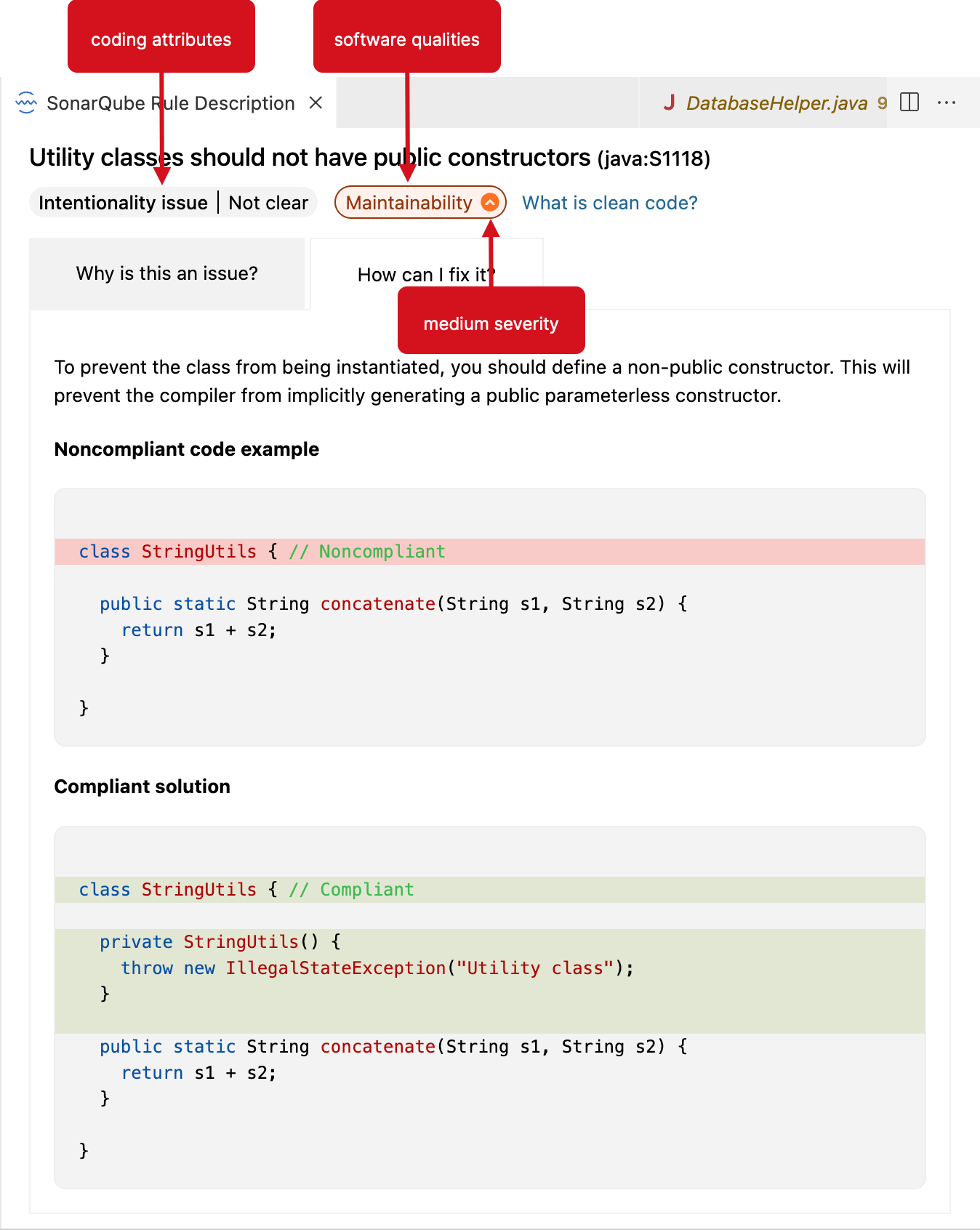
To communicate the code attributes, software qualities, and severity of issues found in your code, SonarQube for VS Code displays them in the **SonarQube Rule Description** webview as described below.
## Finding issues
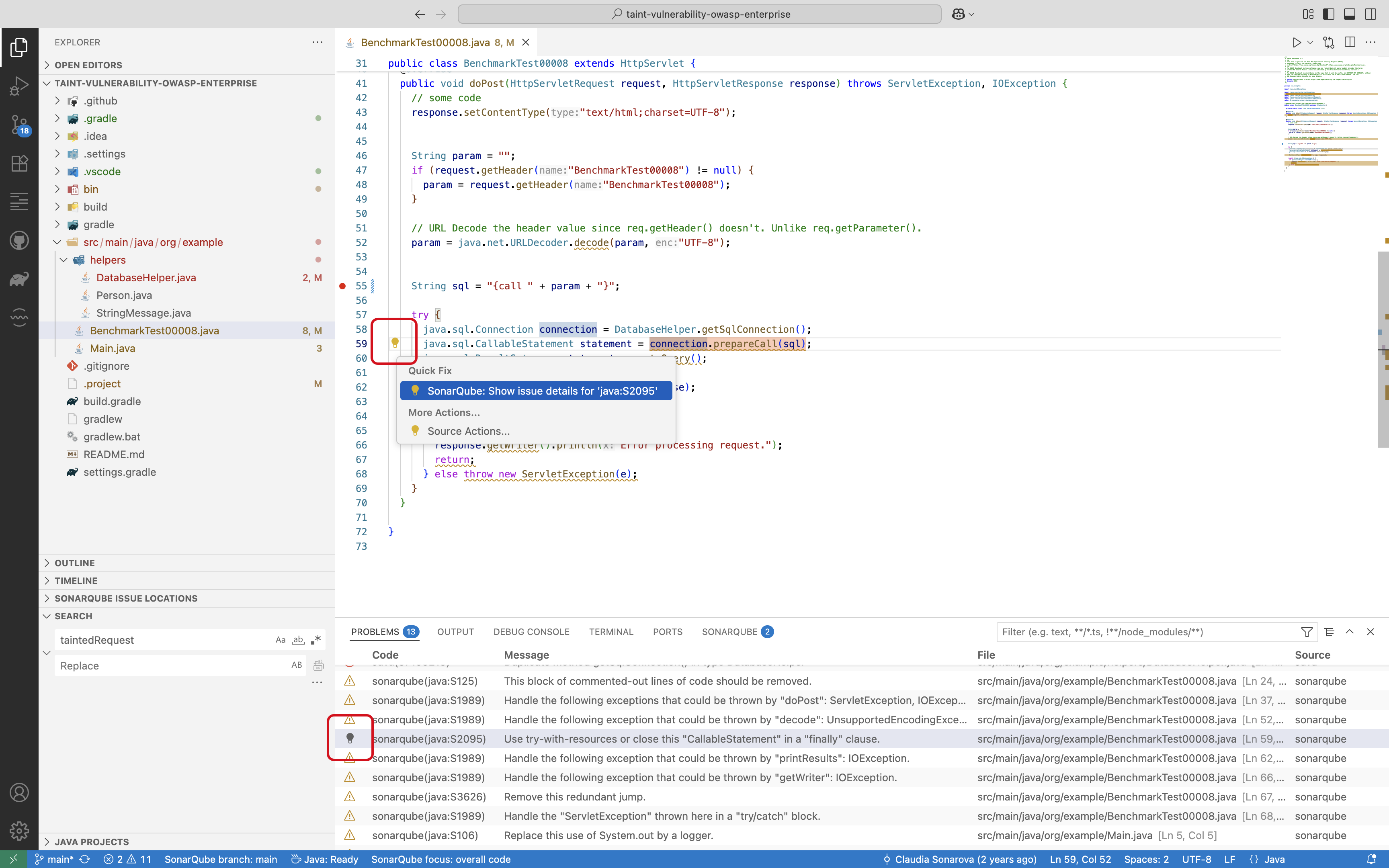
For most issues, SonarQube for VS Code provides information about *why* there is an issue and offers one or more actions to fix your issue. Information for [Fixing issues](/sonarqube-for-vs-code/using/fixing-issues.md) can be found in four places:
1. In the **VS Code Text Editor**, identifiable by the classic squiggles underlining issues in the code.
2. In the **Tooltip**, recommended action(s) can be found by clicking on the light bulb in the left margin of the code explorer view.
3. In the **PROBLEMS** panel, select your issue to highlight the issue-causing code in the Editor. Right-clicking on the issue opens the same tooltip action as described above.
4. In the **SONARQUBE** panel, working with issues is similar to the **PROBLEMS** panel except that all issues are shown, including [Security hotspots](/sonarqube-for-vs-code/using/security-hotspots.md), [Injection vulnerabilities](/sonarqube-for-vs-code/using/taint-vulnerabilities.md), and [Dependency risks](/sonarqube-for-vs-code/using/dependency-risks.md).
Injection vulnerabilities work a bit differently. At the **Tooltip**, select **Show all locations** to view the execution flow in the **SONARQUBE ISSUE LOCATIONS** view. See the [Injection vulnerabilities](/sonarqube-for-vs-code/using/taint-vulnerabilities.md) page for more details about working with these items.
### Opening issues in the IDE
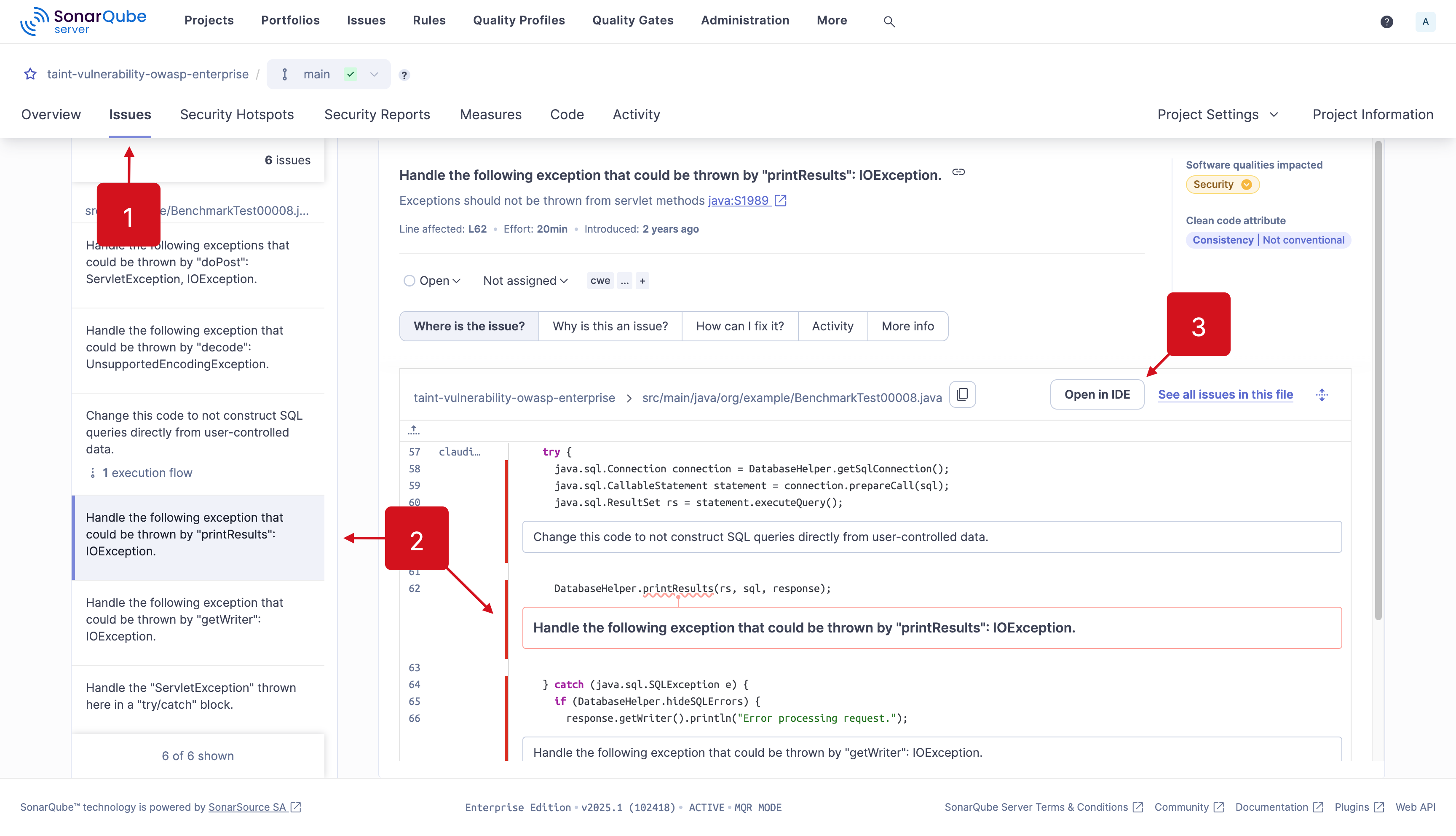
Understanding issues in context is a helpful way to address problems more effectively. Beginning in SonarQube Server 10.3 and SonarQube Cloud, it is possible to open all issues in your IDE, including taint vulnerabilities. Using the **Open in IDE** feature includes an automated connected mode setup to help with the process.
In your instance of SonarQube:
1. Navigate to your **Project** > **Issues** page,
2. select an issue’s detail view,
3. and select the **Open in IDE** button as an authenticated user to edit the issue in your IDE.
{% hint style="warning" %}
**Open in IDE** is not supported in Safari. Safari has strict security policies regarding custom protocol links which are required to open files directly in your IDE. When using SonarQube, please use Chrome or Firefox for this functionality.
{% endhint %}
It’s best if your project is already open in the appropriate IDE and bound to the server using connected mode; if not, you will be prompted to set up a new connection and/or bind your project using the automatic connected mode setup feature. If you use **Open in IDE** and Windows Subsystem for Linux (WSL), check the [Troubleshooting](/sonarqube-for-vs-code/resources/troubleshooting.md#open-in-ide) troubleshooting article if you’re having problems.
If you’ve already fixed the issue in your code, SonarQube for IDE will not be able to find it; only the matching code will be highlighted. In this case, check that recent changes have been analyzed by SonarQube, then check the documentation on the relevant Issues pages for details about managing your issues on the server:
* [Managing issues](/sonarqube-server/2026.1/user-guide/issues.md) in SonarQube Server.
* [Managing code issues](/sonarqube-cloud/managing-your-projects/issues.md) in SonarQube Cloud.
* [Managing issues](/sonarqube-community-build/user-guide/issues.md) in SonarQube Community Build.
Please see the [Connected mode](/sonarqube-for-vs-code/connect-your-ide/connected-mode.md) documentation to [Connected mode setup](/sonarqube-for-vs-code/connect-your-ide/setup.md#connection-setup) to an instance of SonarQube. And if you have troubles with the automatic connected mode setup, we identified the most common errors for [Troubleshooting](/sonarqube-for-vs-code/resources/troubleshooting.md#troubleshooting-connected-mode-setup).
**AI CodeFix and Open in IDE**
SonarQube (Server, Cloud) will offer AI-generated fix suggestions for issues detected in your code when AI CodeFix is enabled on your project. You can view the suggestions as a diff view directly in your IDE by selecting **View Fix in IDE** from the **Issues** page in SonarQube (Server, Cloud).
The process is similar to selecting the **Open in IDE** button: it’s best to set up connected mode beforehand. Otherwise, you’ll be prompted to set up a new connection and/or bind your project using the automatic connected mode setup feature.
SonarQube (Server, Cloud) will offer AI-generated fix suggestions for issues detected in your code when AI CodeFix is enabled on your project. You can view the suggestions as a diff view directly in your IDE by selecting **View Fix in IDE** from the **Issues** page in SonarQube (Server, Cloud).
The process is similar to selecting the **Open in IDE** button: it’s best to set up connected mode beforehand. Otherwise, you’ll be prompted to set up a new connection and/or bind your project using the automatic connected mode setup feature.
## Focusing on new code
The **Focus on New Code** feature works when SonarQube for VS Code is running in either connected mode or standalone mode. As mentioned above, new code is defined differently in each mode. Please see the [New code](/sonarqube-for-vs-code/using/new-code.md) page to understand your options when using a New Code Definition.
**Focus on new code in connected mode**
Setting your focus on new code has these prerequisites running in [Connected mode](/sonarqube-for-vs-code/connect-your-ide/connected-mode.md):
* Your local project must be bound to a SonarQube project.
* The new code definition must be defined in SonarQube using a **Previous version**, **Number of days**, or **Specific analysis**.
* The **Reference branch** new code definition is not supported. Please check the server documentation for more details about setting your new code definition:
* [Quality standards and new code](/sonarqube-server/2026.1/user-guide/about-new-code.md) in SonarQube Server
* [Quality standards and new code](/sonarqube-cloud/standards/about-new-code.md) in SonarQube Cloud
* [Quality standards and new code](/sonarqube-community-build/user-guide/about-new-code.md) in SonarQube Community Build
By default, the **Focus on New Code** feature is set to **overall code** when you set up a new connection and establish the project binding; the last saved setting persists through restarts.
**Focus on new code in standalone mode**
When not running in connected mode, the **SonarQube focus** can still be used to highlight only issues found in new code. By default, the **SonarQube focus** feature is set to **overall code** when you open SonarQube for VS Code for the first time; the last saved setting persists through restarts.
### Change your SonarQube focus
Setting your **SonarQube focus** is easy. To activate or deactivate this mode, select either the  **eye icon** from the **SONARQUBE** panel or, when you select **SonarQube focus**: in the VS Code Status Bar, a quick pick window will pop up allowing you to switch focus.
Additionally, you can select or deselect the **Focus on New Code** mode from the VS Code > **Settings…** > **Settings** > **Extensions** > **SonarLint** > **User** settings menu.
{% hint style="info" %}
When deciding to override a globally defined new code definition at the project level in SonarQube, note that it is not possible to specify a unique new code definition at the branch level and still activate the **Focus on New Code** option.
{% endhint %}
## The SonarQube views
### The SONARQUBE SETUP view container in VS Code
**CONNECTED MODE**
Here you can find your active connections and set up new connections if needed. Please see the [Connected mode](/sonarqube-for-vs-code/connect-your-ide/connected-mode.md) page to learn about the Sonar solution. If you’re running an AI-enabled IDE and want to install the SonarQube MCP Server, see the [Cursor](/sonarqube-for-vs-code/ai-capabilities/ides/cursor.md#setup-the-sonarqube-mcp-server) article for instructions.
1. Set up a connected-mode connection to SonarQube Server or SonarQube Cloud
2. Open **SonarQube Setup** > **AI Integrations**, and expand **Manage agents** in the **SonarQube MCP Server** card. Each supported agent row shows the configuration file that will be updated
3. Select **Set up** for the agent you want to configure, then select the IDE connection to use if you have more than one. Repeat for any other agents you want to configure. The extension updates only the selected agent's configuration file
4. Use **Open configuration** to inspect an existing entry. Select **MCP configuration guide**, at the bottom of the card, for manual setup instructions
Self-hosted MCP setup does not require SonarQube CLI installation or CLI authentication. This view only configures a self-hosted MCP server, not the SonarQube Server-hosted or SonarQube Cloud-hosted MCP server. Its status describes the file it inspected:
* **Not configured**: Select **Set up** to create the SonarQube entry
* **Configured**: A self-hosted SonarQube entry exists. Select **Open configuration** to inspect it
* **Managed by CLI**: The inspected file contains an entry managed by the SonarQube CLI. Open the file to inspect it; self-hosted setup does not change that entry
* **Needs attention**: The file is malformed or its `sonarqube` entry cannot be managed by this view. Select **Open configuration** to inspect the diagnostic. An existing MCP connection may still work
At startup, the extension refreshes `SONARQUBE_IDE_PORT` only in a recognized self-hosted entry that already has that key. It does not add a missing key or change the server URL, token, or other settings.
The view currently checks for an MCP entry named `sonarqube`. A URL-based, cloud-hosted entry with that name may show **Needs attention**, but the extension does not replace it. An entry under another name remains untouched but is not recognized as the SonarQube entry, so **Set up** may create a separate `sonarqube` entry.
The extension preserves unrelated configuration when it updates a supported file. It does not replace malformed configuration with an empty file or overwrite an entry managed by the SonarQube CLI. If it detects legacy agent instructions in your workspace, **Open file** opens those instructions for review.
Self-hosted MCP setup is unavailable in remote IDE windows. Use the documentation links or open an existing configuration file.
If your agent does not have a self-hosted setup action, see the [AI integrations guide](/sonarqube-for-vs-code/ai-capabilities/integrations.md) for its available setup path.
**RULES**
Sonar Rules can individually be turned on or off while running SonarQube for VS Code in standalone mode. Simply go to **SONARQUBE SETUP** > **RULES** view in the VS Code Activity Bar and deactivate or activate rules at will. Each rule is clearly marked as *on* or *off*, and it’s possible to filter the visible list by an **Active**, **All**, and **Inactive** status.
The **RULES** view is only visible while running SonarQube for VS Code in standalone mode because, when your project is bound to SonarQube using [Connected mode](/sonarqube-for-vs-code/connect-your-ide/connected-mode.md), the rule set is managed on the server side as defined by the quality profile.
**SONARQUBE ISSUE LOCATIONS**
If your issue is an injection vulnerability or a security hotspot with multiple locations, the security issue’s Flow will be shown here. The view will only appear when you select an injection vulnerability or security hotspot in the **SONARQUBE** panel. If there are no issues with secondary locations to report, the view is hidden.
Please see the documentation on [Injection vulnerabilities](/sonarqube-for-vs-code/using/taint-vulnerabilities.md) and [Security hotspots](/sonarqube-for-vs-code/using/security-hotspots.md) for more information.
**AI INTEGRATIONS**
Open **SonarQube Setup** > **AI Integrations** to see detected agents and the available SonarQube CLI and self-hosted MCP actions. Expand **Manage agents** in either card to see each agent's status. Detection alone does not confirm that SonarQube integration has been completed. See the [MCP quickstart guides](/sonarqube-mcp-server/setup/quickstart-guides.md) for manual setup instructions.
### Editor Groups
**Code Editor**
In the VS Code code editor, colored waves (squiggles) underline *Warning* and *Information* issues. By default, *Hint* issues are marked by an ellipsis at the beginning of the line. Hovering over the squiggles will reveal code actions and more information about the issue.
**SonarQube Rule Description**
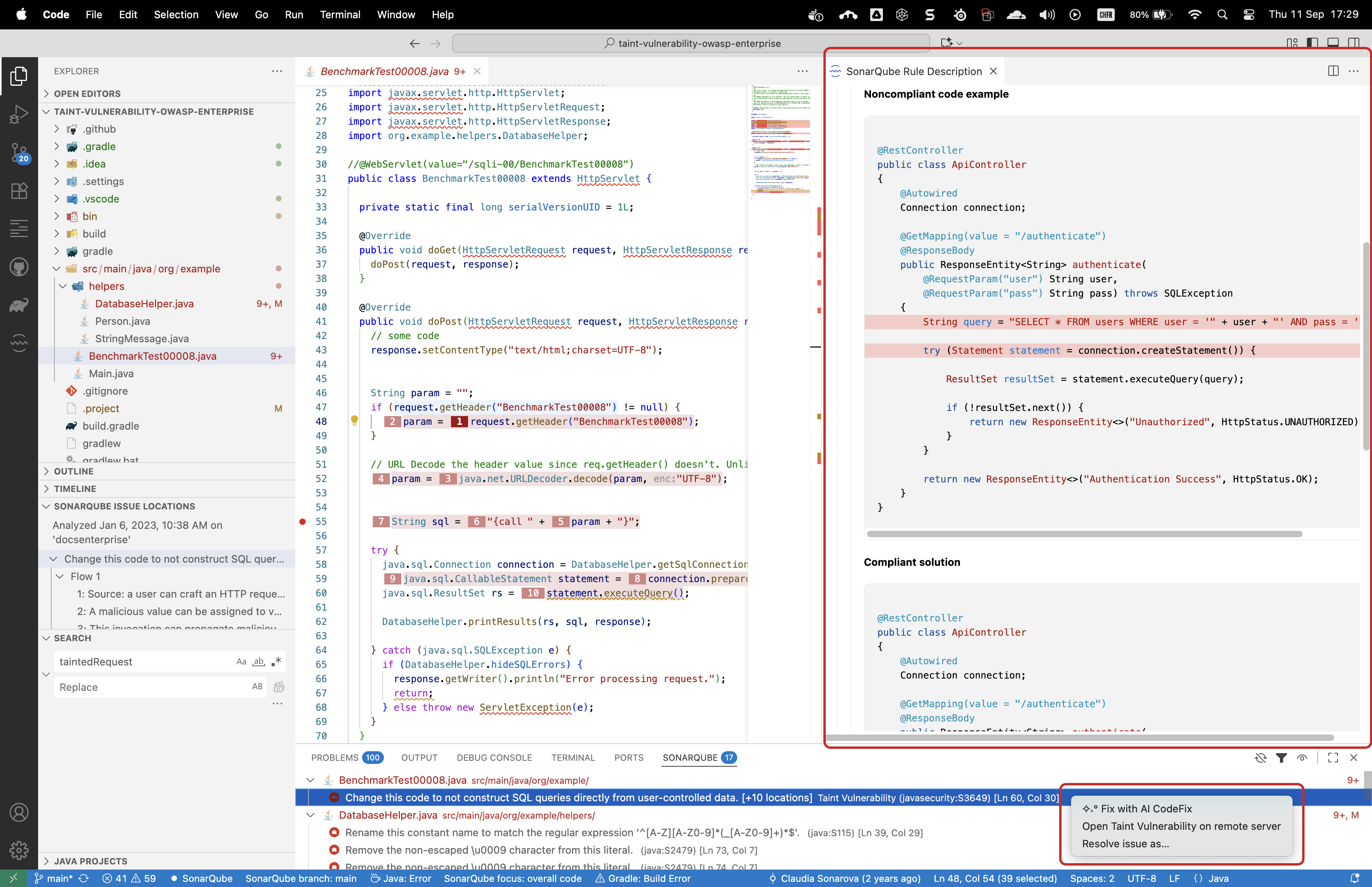
The **SonarQube Rule Description** Editor Group will display a brief explanation of the rule, along with a noncompliant and compliant code example.
Simply select any issue in the **PROBLEMS** or **SONARQUBE** panels and the **SonarQube Rule Description** webview will open automatically. Here you will find a brief explanation of the rule, along with a noncompliant and compliant code example (where available).
For some **SonarQube Rule Descriptions**, you can visualize a diff view for the noncompliant and compliant code sample, which should help you fix your issue.
If an [AI CodeFix](/sonarqube-for-vs-code/ai-capabilities/ai-codefix.md) is available, you'll see the option in the actions menu (when right-clicking on an issue).
An issue’s coding attribute, software qualities, and severity are found when opening the SonarQube Rule tab. Below the rule title, you will find the coding attributes that highlight an issue’s classification. Check the [SonarQube glossary](/sonarqube-for-vs-code/resources/glossary.md) for details about coding attributes, and the [Software qualities](/sonarqube-for-vs-code/using/software-qualities.md) page to better understand how they help classify your issue.
**When in Connected Mode**
If you’re running SonarQube for VS Code while in connected mode *with SonarQube Server or SonarQube Community Build*, your view will change according to the server settings. Standard Experience mode encompasses the use of rule types such as bugs, code smells, and vulnerabilities. Alternatively, if SonarQube Server is set to Multi-Quality Rule mode, you will more accurately represent the impact an issue has on all software qualities.
Please see the pages about the MQR mode and Standard Experience for detailed information about the available rule modes for your instance:
* [Choosing a mode for your instance](/sonarqube-server/2026.1/instance-administration/analysis-functions/instance-mode.md) in SonarQube Server
* [Choosing a mode for your instance](/sonarqube-community-build/instance-administration/analysis-functions/instance-mode.md) in SonarQube Community Build
### Panels
If you don't immediately see the Panels described below, either select the **Toggle Panels** icon in the upper right corner of VS Code, or toggle the **Warnings** display switch in the **Status Bar**.
**PROBLEMS**
Ideally, the team wouldn’t introduce any new issues (any new technical debt) when writing code. But in real life, it’s not always possible to code without creating new technical debt, and sometimes it’s just not worth it.
Selecting issues from the **PROBLEMS** panel will jump you to the line of code in your file where the code is highlighted. Right-clicking on an issue will reveal fixes that are available for that issue.
Each issue’s severity is indicated by the icon to the left of the description. Selecting an issue or hovering over the severity icon is another way to reveal the **Show fixes** lightbulb. In addition, issues from open files are shown in the SONARQUBE panel where they can be filtered and accessed alongside your security hotspots and injection vulnerabilities; a complete list of available filters is [#sonarqube](#sonarqube "mention").
**OUTPUT**
This panel contains the SonarQube for VS Code logs. To view them in more detail and improve troubleshooting, you must enable the **Show Verbose Logs** option in the **Extensions** settings.
Please see the [Troubleshooting](/sonarqube-for-vs-code/resources/troubleshooting.md) page for complete details.
To better control the way you see and manage issues, check out the VS Code documentation on [Fixing issues](/sonarqube-for-vs-code/using/fixing-issues.md) for quick ways to fix problems. Also, look at the article about running SonarQube for VS Code in [Connected mode](/sonarqube-for-vs-code/connect-your-ide/connected-mode.md) for details about integrating your local analysis with your SonarQube analysis.
**SONARQUBE**
All issues are available in the **SONARQUBE** panel. Select an issue to open its details and jump to the issue in the code editor. If multiple locations are impacted by the issue, the **Explorer** > **SONARQUBE ISSUE LOCATIONS** view will open to reveal the injection flow.
Right-click on any issue in the **SONARQUBE** panel to reveal more actions. The option to generate an AI CodeFix suggestion will be present if available. Selecting **More Actions…** will reveal Quick Fixes, the ability to **Accept** and issue, or open the SonarQube Rule description tab.
For a full list of Security Hotspots, run `SonarQube: Scan for Hotspots in Folder` from the command palette (**Ctrl** + **Shift** + **P** on Windows/Linux or **Command** + **Shift** + **P** on MacOS).
There are two filter mechanisms available in the SONARQUBE panel: **Focus on New Code** and **Filter Findings**:
1. **Focus on New Code**: switches the issues shown according to the new code definition used for your project. Changing the **SonarQube focus** is easily done from the SONARQUBE panel. Simply select the  eye icon to change your focus. More information about new code and quality standards is available on the [New code](/sonarqube-for-vs-code/using/new-code.md) page.
2. **Filter Findings**: sorts issues by which file state (All, Current, or Open), fix availability, or severity. Fix availability includes Quick Fix or AI CodeFix-eligible issues. When selecting **Severity**, only issues from open files will be shown. Injection vulnerabilities are also shown for open files (see point 5 below).
3. Enable or disable automatic analysis. The white circle in the status bar means that automatic analysis is enabled.
4. Filtering for **All** displays all issues in your open files.
5. In addition, when selecting **All** while in connected mode with SonarQube Server or SonarQube Cloud, you will see:
* [Injection vulnerabilities](/sonarqube-for-vs-code/using/taint-vulnerabilities.md) in all files even if the file is not open.
* all [Security hotspots](/sonarqube-for-vs-code/using/security-hotspots.md) in all files (even unopened files) when you run the **Scan for Hotspots in Folder** command.
## SonarQube for IDE Labs
**SONARQUBE FOR IDE LABS**
The **SONARQUBE FOR IDE LABS** panel highlights early access features; you'll need to join SonarQube for IDE Labs to have access to *Experimental* features. If closed, the panel will expand when selecting the **>** arrow on the right side of your **SONARQUBE** panel.
After signing up, a series of active features are available, ready with descriptions and links to open Feedback forms where you can share your thoughts!
Current early-access features include:
* [Running an analysis](/sonarqube-for-vs-code/getting-started/running-an-analysis.md#analyze-changed-files)
* [Fixing issues](/sonarqube-for-vs-code/using/fixing-issues.md#remediation-center)
It's possible to **Enable** or **Disable** *Experimental* features at anytime by selecting the gear icon; features marked as *Stable* and *New* will always remain active.
---
# Agent Instructions
This documentation is published with GitBook. GitBook is the documentation platform designed so that both humans and AI agents can read, navigate, and reason over technical content effectively. Learn more at gitbook.com.
## Querying This Documentation
If you need additional information that is not directly available in this page, you can query the documentation by asking a question.
Perform an HTTP GET request on the following URL with the `ask` and `goal` query parameters:
```
GET https://docs.sonarsource.com/sonarqube-for-vs-code/using/investigating-issues.md?ask=&goal=
```
`ask` is the immediate question: it should be specific, self-contained, and written in natural language.
`goal` is what the user is ultimately trying to achieve, the reason they need the answer. Sharing it helps GitBook give you a better, more relevant answer. A goal is most helpful when it describes the outcome the user wants rather than restating the question. For example, with `ask=how do I create an API token`, a goal like `automate deployments from our CI pipeline` lets GitBook tailor the answer to that use case.
The response will contain a direct answer to the question and relevant excerpts and sources from the documentation.
Use this mechanism when the answer is not explicitly present in the current page, you need clarification or additional context, or you want to retrieve related documentation sections.