> For the complete documentation index, see [llms.txt](https://docs.sonarsource.com/llms.txt). Markdown versions of documentation pages are available by appending `.md` to page URLs; this page is available as [Markdown](https://docs.sonarsource.com/sonarqube-server/2025.1/instance-administration/authentication/saml/ms-entra-id/setup-in-entra-id.md).
# Setup in Microsoft Entra ID
This page explains how to register SonarQube Server in Microsoft Entra ID. This is the first step of SAML authentication setup with Microsoft Entra ID.
This page explains how to register SonarQube Server in Microsoft Entra ID. This is the first step of SAML authentication setup with Microsoft Entra ID. For an overview of the complete setup, see [Introduction](/sonarqube-server/2025.1/instance-administration/authentication/saml/ms-entra-id/introduction.md).
## Step 1: Create the SAML application for SonarQube Server in MS Entra ID
1. In **Microsoft Entra ID**, go to **Manage > Enterprise applications > All applications**.
2. Select **New application** and then **Create your own application**.
{% hint style="warning" %}
Make sure you choose "Create your own application". Do not select the non-affiliated "Sonarqube" Microsoft Entra Gallery app, which contains configurations that may prevent proper integration.
{% endhint %}

3. Fill in the name and select the **Integrate any other application you don’t find in the gallery** option.

4. Select **Create**.
## Step 2: Configure the application for SonarQube Server in MS Entra ID
1. Go to **Single sign-on > SAML**. The **Set up Single Sign-On with SAML** page opens

2. In the **Basic SAML Configuration** section of the page, select **Edit**, fill in the **Identifier** and the **Reply URL** fields as described below, and save.
Basic configuration fields
| **Field** | **Description** |
| ---------- | ------------------------------------------------------------------------------------------------------------------------------------------------------------------------------------------------------------------------------------------------------------------------------------------------------------------------------------------------------------------------------------------ |
| Identifier | Identifier of the SonarQube Server application in Entra ID. |
| Reply URL |
|

3. In the **Attributes & Claims** section of the page, configure the attributes used by SonarQube Server as described below. To add an attribute, select **Add new claim**.
Attributes & claims
The table below shows possible mappings you can use for the SAML attributes used by SonarQube Server.
SAML attribute used by SonarQube
Description
Attribute in Microsoft Entra ID
Required
Login
A unique name to identify the user in SonarQube.
Example: user.userprincipalname
x
Name
The full name of the user.
Example: user.displayname
x
Email
The email of the user.
Example: user.mail
{% hint style="warning" %}
The NameID attribute is not used in SonarQube Server.
{% endhint %}
4. If you use Just-in-Time provisioning with the group synchronization feature:
1. Verify the user groups in SonarQube Server (see see *Just-in-Time provisioning > Group synchronization* in [Overview of authentication and provisioning](/sonarqube-server/2025.1/instance-administration/authentication/overview.md))
2. Add a group attribute by selecting Add a group claim and do one of the following:
* To enable the synchronization of Active Directory (AD) groups, set **Source attribute** to **sAMAccountname**.
* To enable the synchronization of cloud-only groups, set **Source attribute** to **Cloud-only group display names.**
* To enable the synchronization of both AD groups and cloud-only groups, set **Source attribute** to **sAMAccountname** and select the **Emit group name for cloud-only groups** checkbox\*\*.\*\*
Once done, the option to add a group will be unavailable and the group attribute will be listed with the other attributes in the **Add new claim** tab.
{% hint style="warning" %}
* Group synchronization doesn’t work with Microsoft Entra ID’s nested groups.
* Microsoft Entra ID SAML tokens have a limit regarding the number of groups a user can belong to (see the description of groups in the [Claims in SAML Token](https://learn.microsoft.com/en-us/entra/identity-platform/reference-saml-tokens#claims-in-saml-tokens) table). In such cases, you might need to reduce the number of groups the user is in.
{% endhint %}
5. Alternatively to step 4 above, you may use SCIM user and group provisioning, see [With Microsoft Entra ID](/sonarqube-server/2025.1/instance-administration/authentication/saml/scim/scim-provisioning-with-azure-ad.md).
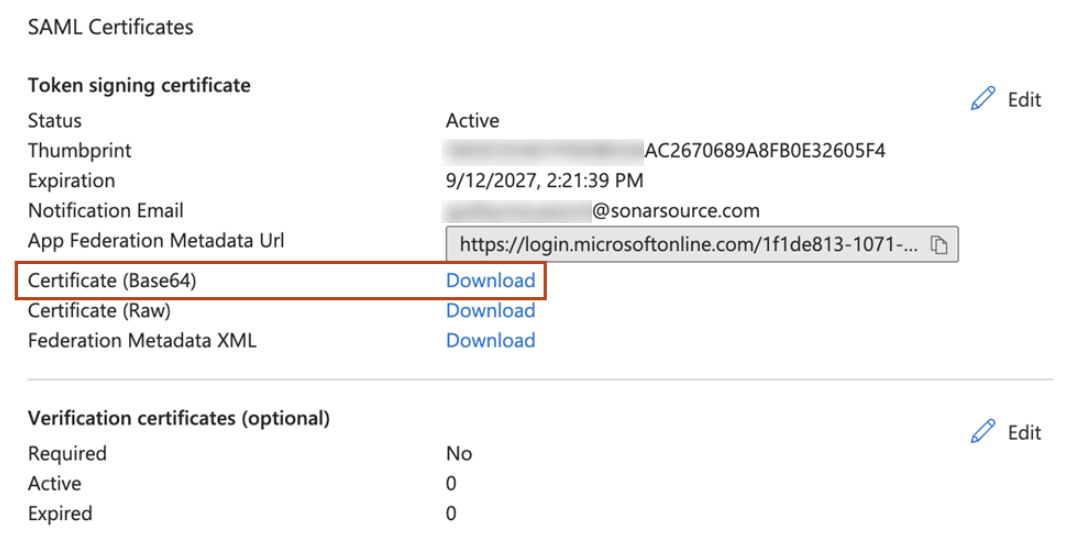
6. In the **SAML Certificates** section of the page, download **Certificate (Base64)**. (You will have to copy-paste the downloaded certificate into SonarQube Server during the [Setup in SonarQube Server](/sonarqube-server/2025.1/instance-administration/authentication/saml/ms-entra-id/setup-in-sq.md).)
7. Assign users and groups as follows:
1. Go to **Manage > Users and groups**.
2. Select **Add user/group** to assign users or groups to the application.
## Related pages
* [Overview](/sonarqube-server/2025.1/instance-administration/authentication/saml/overview.md)
* [Setup in SonarQube Server](/sonarqube-server/2025.1/instance-administration/authentication/saml/ms-entra-id/setup-in-sq.md)
* [Setup of security features](/sonarqube-server/2025.1/instance-administration/authentication/saml/ms-entra-id/optional-security-features.md)
* [With Microsoft Entra ID](/sonarqube-server/2025.1/instance-administration/authentication/saml/scim/scim-provisioning-with-azure-ad.md)
---
# Agent Instructions
This documentation is published with GitBook. GitBook is the documentation platform designed so that both humans and AI agents can read, navigate, and reason over technical content effectively. Learn more at gitbook.com.
## Querying This Documentation
If you need additional information that is not directly available in this page, you can query the documentation dynamically by asking a question.
Perform an HTTP GET request on the current page URL with the `ask` query parameter, and the optional `goal` query parameter:
```
GET https://docs.sonarsource.com/sonarqube-server/2025.1/instance-administration/authentication/saml/ms-entra-id/setup-in-entra-id.md?ask=&goal=
```
`ask` is the immediate question: it should be specific, self-contained, and written in natural language.
`goal` is optional and describes the broader end goal you are ultimately trying to accomplish on behalf of the user. GitBook uses it to tailor the answer towards what is most useful for that goal.
The response will contain a direct answer to the question and relevant excerpts and sources from the documentation.
Use this mechanism when the answer is not explicitly present in the current page, you need clarification or additional context, or you want to retrieve related documentation sections.