> For the complete documentation index, see [llms.txt](https://docs.sonarsource.com/llms.txt). Markdown versions of documentation pages are available by appending `.md` to page URLs; this page is available as [Markdown](https://docs.sonarsource.com/sonarqube-server/2025.1/user-guide/issues/fixing.md).
# Fixing issues
Starting with the Enterprise edition, you can get AI-suggested fixes for your code issues in SonarQube Server 2025.1.
Depending on the issue, you may get fix suggestions:
* In the **How can I fix it?** tab of the [Retrieving issues](/sonarqube-server/2025.1/user-guide/issues/retrieving.md).
* If an AI-generated fix suggestion is available for your issue, the **AI CodeFix** tab will appear. Please see the *Getting AI-generated fix suggestions* article below for more details.
## Opening issues in your IDE
To speed up the time it takes to find and fix the issue, use [Connected mode](/sonarqube-server/2025.1/user-guide/connected-mode.md) to connect SonarQube Server with SonarQube for IDE and use the **Open in IDE** feature.
{% hint style="info" %}
If you’ve already fixed the issue in your code, SonarQube for IDE will not be able to find it in the IDE; only matching code will be highlighted. Keep in mind that the revision or branch analyzed by SonarQube Server may not be the same as what you have opened in the IDE. When setting up connected mode, SonarQube for IDE considers the branch currently checked out in the IDE and tries to synchronize it with the most appropriate branch from the server (this is called branch matching in SonarQube for IDE).
{% endhint %}
To open an issue in your IDE, it’s easier if you are already running in [Connected mode](/sonarqube-server/2025.1/user-guide/connected-mode.md):
1. [Retrieving issues](/sonarqube-server/2025.1/user-guide/issues/retrieving.md) and open its detail view.
2. In the **Where is the issue?** tab, select **Open in IDE**.
## Getting AI-generated fix suggestions
AI CodeFix is available in SonarQube Server, [Enterprise and Data Center editions](https://www.sonarsource.com/plans-and-pricing/sonarqube/) and uses space.vars.SQS\_20251\_Supported\_LLM\_version to suggest fixes for your issues.
AI-generated fix suggestions are available for a select set of rules in Java, JavaScript, TypeScript, Python, HTML, CSS, C#, and C++. To learn more about which rules are eligible for AI CodeFix, please see the list of [Rules for AI CodeFix](/sonarqube-server/2025.1/user-guide/rules/rules-for-ai-codefix.md#ai-codefix-rules).
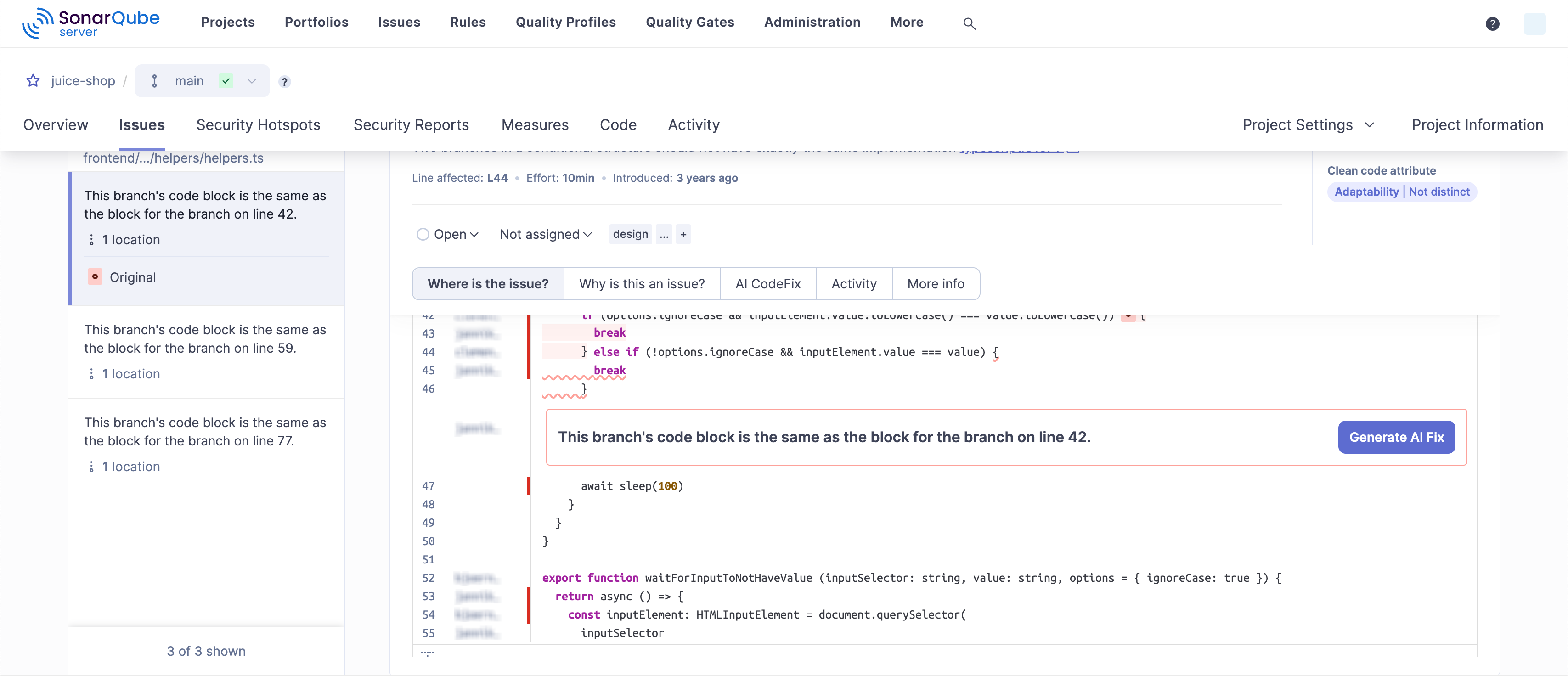
When an Instance Admin [Enable AI CodeFix](/sonarqube-server/2025.1/instance-administration/ai-features/enable-ai-codefix.md#enabling-ai-generated-fix-suggestions), you can get an AI-generated fix suggestion for eligible issues. To generate a fix suggestion:
* [Retrieving issues](/sonarqube-server/2025.1/user-guide/issues/retrieving.md) and open its detail view. If an AI CodeFix is an option for that particular issue, you will see the **Generate AI Fix** button.
* From either the **Where is the Issue?** or the **AI CodeFix** tabs, select **Generate Fix**.
An AI CodeFix will be generated, and you’ll see a diff view in the **AI CodeFix** tab. If you’re using SonarQube for IDE and have [Connected mode](/sonarqube-server/2025.1/user-guide/connected-mode.md) set up, select **View fix in IDE** to streamline the process and see the diff view in your IDE. Then, simply copy and paste the generated fix into your IDE.
* If you are running SonarQube for Visual Studio, selecting **View fix in IDE** will directly paste the fix suggestion into your IDE.
An AI Code Assurance badge is available to mark your AI projects as reviewed by SonarQube Server. Any user with project access can use the badge. For more detailed instructions, see the [Set your AI standards](/sonarqube-server/2025.1/instance-administration/analysis-functions/ai-code-assurance/overview.md#label-projects-with-ai-code) article on the *Project settings* page.
## Usage limits
Limits are placed on the AI CodeFix feature to manage abuse. Developers will be notified directly when the monthly allocation is reached for your organization. If the instance is blocked due to reaching the allowance, users attempting to generate a fix will see an error message. Usage quotas are reset on the first day of each month.
---
# Agent Instructions
This documentation is published with GitBook. GitBook is the documentation platform designed so that both humans and AI agents can read, navigate, and reason over technical content effectively. Learn more at gitbook.com.
## Querying This Documentation
If you need additional information that is not directly available in this page, you can query the documentation by asking a question.
Perform an HTTP GET request on the following URL with the `ask` and `goal` query parameters:
```
GET https://docs.sonarsource.com/sonarqube-server/2025.1/user-guide/issues/fixing.md?ask=&goal=
```
`ask` is the immediate question: it should be specific, self-contained, and written in natural language.
`goal` is what the user is ultimately trying to achieve, the reason they need the answer. Sharing it helps GitBook give you a better, more relevant answer. A goal is most helpful when it describes the outcome the user wants rather than restating the question. For example, with `ask=how do I create an API token`, a goal like `automate deployments from our CI pipeline` lets GitBook tailor the answer to that use case.
The response will contain a direct answer to the question and relevant excerpts and sources from the documentation.
Use this mechanism when the answer is not explicitly present in the current page, you need clarification or additional context, or you want to retrieve related documentation sections.