> For the complete documentation index, see [llms.txt](https://docs.sonarsource.com/llms.txt). Markdown versions of documentation pages are available by appending `.md` to page URLs; this page is available as [Markdown](https://docs.sonarsource.com/sonarqube-server/2025.2/devops-platform-integration/bitbucket-integration/bitbucket-cloud-integration.md).
# Bitbucket Cloud integration
The integration of SonarQube Server 2025.2 with Bitbucket Cloud allows you to maintain code quality and security in your Bitbucket Cloud repositories.
With this integration, you’ll be able to:
* **Import your Bitbucket Cloud repositories**: Import your Bitbucket Cloud repositories into SonarQube Server to easily set up SonarQube Server projects.
* **Analyze projects with Bitbucket Pipelines**: Integrate analysis into your build pipeline. SonarScanners running in Bitbucket Pipelines can automatically detect branches or pull requests being built so you don’t need to specifically pass them as parameters to the scanner.
* **Report your quality gate status to your pull requests**: See your quality gate and code metric results right in Bitbucket Cloud so you know if it’s safe to merge your changes.
* **Authenticate with Bitbucket Cloud**: Sign in to SonarQube Server with your Bitbucket Cloud credentials.
## Importing your Bitbucket Cloud repositories into SonarQube Server
Setting up the import of BitBucket Cloud repositories into SonarQube Server allows you to easily create SonarQube Server projects from your Bitbucket Cloud repositories. This is also the first step in adding authentication and the first step in reporting your analysis and quality gate status to your pull requests.
{% hint style="info" %}
To import your Bitbucket repositories into SonarQube Server, you can only have one global configuration of Bitbucket, including Bitbucket Server, Bitbucket Data Center, and Bitbucket Cloud. See the **Configuring multiple DevOps platform instances** section below for more information.
{% endhint %}
To set up the import of BitBucket Cloud repositories:
1. Create an OAuth client.
2. Set your global DevOps Platform integration settings.
3. Add your Bitbucket username and an API token.
### Creating your OAuth client
SonarQube Server uses a dedicated [OAuth client](https://support.atlassian.com/bitbucket-cloud/docs/use-oauth-on-bitbucket-cloud/) to import repositories and display your quality gate status on pull requests. Create the OAuth client in your Bitbucket Cloud workspace settings and specify the following:
* On the **Details** tab, **Name**: The name of your OAuth client.
* On the **Authorization** tab, **Supported grant types**: Select **Client credentials**. SonarQube Server does not use the **Authorization code** or **Refresh token** grant types, so you do not need a callback URL.
* On the **Scopes** tab: Grant **Read** access for the **Pull requests** permission.
### Setting your global DevOps platform integration settings
To set your global DevOps Platform Integration settings, navigate to **Administration** > **Configuration** > **General Settings** > **DevOps Platform Integrations**, select the **Bitbucket** tab, and select **Bitbucket Cloud** as the variant you want to configure. From here, specify the following settings:
* **Configuration Name** (Enterprise and Data Center Edition only): The name used to identify your Bitbucket Cloud configuration at the project level. Use something succinct and easily recognizable.
* **Workspace ID**: The workspace ID is part of your bitbucket cloud URL `https://bitbucket.org//`
* **OAuth Key**: The client ID of your OAuth client. Bitbucket Cloud generates it when you create the OAuth client. You can find it in your Bitbucket Cloud workspace settings under **OAuth clients**.
* **OAuth Secret**: The secret of your OAuth client. Bitbucket Cloud generates it when you create the OAuth client. You can find it in your Bitbucket Cloud workspace settings under **OAuth clients**. Administrators can encrypt this secret at **Administration** > **Configuration** > **Encryption**. See the [Settings encryption](/sonarqube-server/2025.2/instance-administration/encrypting-settings.md) for more information.
### Adding your Bitbucket username and an API token
After defining your global settings, you can add a project from Bitbucket Cloud by selecting **Create Project** in the upper-right corner of the **Projects** homepage and choosing **From Bitbucket Cloud**.
Then, you’ll be asked to provide your Bitbucket username and an [API token](https://support.atlassian.com/bitbucket-cloud/docs/api-tokens/):
* Provide your email address as the Bitbucket username.
* Your API token needs the `read:repository:bitbucket` scope (Read permission for the repositories).
{% hint style="warning" %}
Bitbucket's API tokens replace the App passwords which are deprecated. See the [Bitbucket documentation](https://www.atlassian.com/blog/bitbucket/bitbucket-cloud-transitions-to-api-tokens-enhancing-security-with-app-password-deprecation) for more details.
{% endhint %}
{% hint style="info" %}
To avoid exceeding [Bitbucket Cloud API rate limits](https://support.atlassian.com/bitbucket-cloud/docs/api-request-limits/), it is recommended to use a dedicated Bitbucket user for SonarQube Server integration.
{% endhint %}
After adding your Bitbucket username and API token, you’ll see a list of your Bitbucket Cloud projects that you can set up by adding them to SonarQube. Setting up your projects this way also sets your project settings to display your quality gate status on pull requests.
## Analyzing projects with Bitbucket Pipelines
SonarScanners running in Bitbucket Pipelines can automatically detect branches or pull requests being built so you don’t need to specifically pass them as parameters to the scanner.
To analyze your projects with Bitbucket Pipelines, you need to:
* Set your environment variables.
* Configure your `bitbucket-pipelines.yml file`.
### Setting environment variables
You can set environment variables securely for all pipelines in Bitbucket Cloud’s settings. See [User-defined variables](https://support.atlassian.com/bitbucket-cloud/docs/variables-and-secrets/#User-defined-variables) for more information.
{% hint style="info" %}
You may need to commit your `bitbucket-pipelines.yml` before being able to set environment variables for pipelines.
{% endhint %}
You need to set the following environment variables in Bitbucket Cloud for analysis:
* `SONAR_TOKEN`: Generate a SonarQube Server [Managing your tokens](/sonarqube-server/2025.2/user-guide/managing-tokens.md) for Bitbucket Cloud and create a custom, **secure** environment variable in Bitbucket Cloud with `SONAR_TOKEN` as the **Name** and the token you generated as the **Value**.
* `SONAR_HOST_URL`: Create a custom environment variable with `SONAR_HOST_URL` as the **Name** and your SonarQube Server URL as the **Value**.
### Configuring your bitbucket-pipelines.yml file
This section shows you how to configure your `bitbucket-pipelines.yml` file. Bitbucket Pipelines can build specific branches and pull requests if you use the `branches` and `pull-requests` pipelines as shown in the example configurations below.
**Note:** This assumes a typical gitflow workflow. See [Use glob patterns on the Pipelines YAML file](https://support.atlassian.com/bitbucket-cloud/docs/use-glob-patterns-on-the-pipelines-yaml-file/) provided by Atlassian for more information on customizing which branches or pull requests trigger an analysis.
{% hint style="warning" %}
The errors "*Missing blame information…*" and "*Could not find ref…*" can be caused by checking out with a partial or shallow clone, or when using Git submodules. You should clone the full depth to make sure the scanner has access to all of your history when running analysis.
For more information, see the documentation about [Git clone behavior in Bitbucket](https://support.atlassian.com/bitbucket-cloud/docs/git-clone-behavior/).
{% endhint %}
SonarScanner for Gradle
In SonarQube Server, after you select a project imported from Bitbucket, you’ll need to select an analysis method. Select **With Bitbucket Pipelines** and follow the in-product tutorial to create environment variables and configure your `bitbucket-pipelines.yml` for analysis.
**Note:** A project key might have to be provided through a `build.gradle` file, or through the command line parameter. For more information, see the [SonarScanner for Gradle](/sonarqube-server/2025.2/analyzing-source-code/scanners/sonarscanner-for-gradle.md) documentation.
SonarScanner for Maven
In SonarQube Server, after you select a project imported from Bitbucket, you’ll need to select an analysis method. Select **With Bitbucket Pipelines** and follow the in-product tutorial to create environment variables and configure your `bitbucket-pipelines.yml` for analysis.
**Note:** A project key might have to be provided through the command line parameter. For more information, see the [SonarScanner for Maven](/sonarqube-server/2025.2/analyzing-source-code/scanners/sonarscanner-for-maven.md) documentation.
SonarScanner for .NET
In SonarQube Server, after you select a project imported from Bitbucket, you’ll need to select an analysis method. Select **With Bitbucket Pipelines** and follow the in-product tutorial to create environment variables and configure your `bitbucket-pipelines.yml` for analysis.
SonarScanner CLI
{% hint style="info" %}
The Advanced Configuration below is an alternative to the SonarQube Scan Bitbucket Pipe. If you do not need a setup that allows for scanner caching, we recommend using the Bitbucket Pipe configuration.
{% endhint %}
You can set up the SonarScanner CLI configuration the following ways:
* **SonarQube Scan Bitbucket Pipe**: Using the SonarQube Scan Bitbucket Pipe is an easy way to set up a basic configuration. You’ll find the Bitbucket Pipe and configuration instructions on the [SonarQube Scan Bitbucket Pipe](https://bitbucket.org/sonarsource/sonarqube-scan/) page.
* **Advanced Configuration**: If you need an advanced setup that allows for scanner caching, you can add the following to your `bitbucket-pipelines.yml` file:
```css-79elbk
image:
definitions:
steps: &build-step
- step:
name: SonarQube analysis
image: sonarsource/sonar-scanner-cli:latest
caches:
- sonar
script:
- sonar-scanner
caches:
sonar: /opt/sonar-scanner/.sonar
clone:
depth: full
pipelines:
branches:
'{master,main,develop}':
- step: *build-step
pull-requests:
'**':
- step: *build-step
```
{% hint style="info" %}
A project key has to be provided through a `sonar-project.properties` file, or through the command line parameter. For more information, see the [SonarScanner CLI](/sonarqube-server/2025.2/analyzing-source-code/scanners/sonarscanner.md) documentation.
{% endhint %}
### Failing the pipeline job when the quality gate fails
You can use the [SonarQube Server quality gate check Bitbucket Pipe](https://bitbucket.org/sonarsource/sonarqube-quality-gate) to ensure your code meets your quality standards by failing your pipeline job when your [Introduction to quality gates](/sonarqube-server/2025.2/quality-standards-administration/managing-quality-gates/introduction-to-quality-gates.md) fails.
If you do not want to use the SonarQube Server quality gate Check Pipe, you can instruct the scanner to wait for the SonarQube Server quality gate status at the end of the analysis. To enable this, pass the `-Dsonar.qualitygate.wait=true` parameter to the scanner in the `bitbucket-pipelines.yml` file.
This will make the analysis step poll SonarQube Server regularly until the quality gate is computed. This will increase your pipeline duration. Note that, if the quality gate is red, this will make the analysis step fail, even if the actual analysis itself is successful. We advise only using this parameter when necessary (for example, to block a deployment pipeline if the quality gate is red). It should not be used to report the quality gate status in a pull request.
You can set the `sonar.qualitygate.timeout` property to an amount of time (in seconds) that the scanner should wait for a report to be processed. The default is 300 seconds.
### For more information
For more information on configuring your build with Bitbucket Pipelines, see the [Configure bitbucket-pipelines.yml](https://support.atlassian.com/bitbucket-cloud/docs/configure-bitbucket-pipelinesyml/) documentation provided by Atlassian.
## Reporting your quality gate status in Bitbucket Cloud
After you create your OAuth client, SonarQube Server can report your quality gate status and analysis metrics directly to your Bitbucket Cloud pull requests; this is sometimes called *pull request decoration*.
To do this, add a project from Bitbucket by clicking the **Add project** button in the upper-right corner of the **Projects** homepage and select **Bitbucket** from the drop-down menu.
Then, follow the steps in SonarQube Server to analyze your project. SonarQube Server automatically sets the project settings required to show your quality gate in your pull requests.
{% hint style="info" %}
To report your quality gate status in your pull requests, a SonarQube Server analysis needs to be run on your code. You can find the additional parameters required for pull request analysis on the [Setting up the pull request analysis](/sonarqube-server/2025.2/analyzing-source-code/pull-request-analysis/setting-up-the-pull-request-analysis.md) page.
{% endhint %}
If you’re creating your projects manually or adding quality gate reporting to an existing project, see the following section.
### Reporting your quality gate status in manually created or existing projects
SonarQube Server can also report your quality gate status to Bitbucket Cloud pull requests for existing and manually-created projects. After you’ve created your OAuth client and updated your global settings as shown in the **Importing your Bitbucket Cloud repositories into SonarQube Server** section above, set the following project settings at **Project Settings** > **General Settings** > **DevOps Platform Integration**:
* **Configuration name**: The configuration name that corresponds to your GitHub instance.
* **Repository SLUG**: The Repository SLUG is part of your Bitbucket Cloud URL. For example, `https://bitbucket.org//`
### Advanced configuration Reporting your quality gate status on pull requests in a monorepo
Reporting quality gate statuses to pull requests in a monorepo setup is supported starting in [Enterprise Edition](https://www.sonarsource.com/plans-and-pricing/enterprise/).
In a monorepo setup, multiple SonarQube Server projects, each corresponding to a separate project within the monorepo, are all bound to the same Bitbucket Cloud repository. You’ll need to set up each SonarQube Server project that’s part of a monorepo to report your quality gate status.
You need to set up projects that are part of a monorepo manually as shown in the **Reporting your quality gate status in manually created or existing projects** section above. You also need to set the **Enable monorepo support** setting to true at **Project Settings** > **General Settings** > **DevOps Platform Integration**.
After setting your project settings, ensure the correct project is being analyzed by adjusting the analysis scope and pass your project names to the scanner. See the following sections for more information.
### Ensuring the correct project is analyzed
You need to adjust the analysis scope to make sure SonarQube Server doesn’t analyze code from other projects in your monorepo. To do this set up a **Source File Inclusion** for your project at **Project Settings** > **Analysis Scope** with a pattern that will only include files from the appropriate folder. For example, adding `./MyFolderName/**/*` to your inclusions would only include code from the `MyFolderName` folder in your analysis. For more information, see [Introduction](/sonarqube-server/2025.2/project-administration/setting-analysis-scope/introduction.md).
### Passing project names to the scanner
Because of the nature of a monorepo, SonarQube Server scanners might read all project names of your monorepo as identical. To avoid having multiple projects with the same name, you need to pass the `sonar.projectName` parameter to the scanner. For example, if you’re using the Maven scanner, you would pass `mvn org.sonarsource.scanner.maven:sonar-maven-plugin:sonar -Dsonar.projectName=YourProjectName`.
Configuring multiple DevOps platform instances
SonarQube Server can report your quality gate status to multiple DevOps Platform instances. To do this, you need to create a configuration for each DevOps Platform instance and assign that configuration to the appropriate projects.
* As part of [Developer Edition](https://www.sonarsource.com/plans-and-pricing/developer/), you can create one configuration for each DevOps Platform.
* Starting in [Enterprise Edition](https://www.sonarsource.com/plans-and-pricing/enterprise/), you can create multiple configurations for each DevOps Platform.
Linking issues
When adding a quality gate status to your pull requests, individual issues will be linked to their SonarQube Server counterparts automatically. For this to work correctly, go to **Administration** > **Configuration** > **General Settings** > **General** > **General** to set the instance’s *Server base URL*. Otherwise, the links will default to `localhost`.
## Authenticating with Bitbucket Cloud
See the article on [Bitbucket Cloud](/sonarqube-server/2025.2/instance-administration/authentication/bitbucket-cloud.md) authentication for details to change your OAuth settings.
## Preventing pull request merges when the quality gate fails
After setting up a pull request analysis, you can block pull requests from being merged if it is failing the quality gate. There are two options to accomplish this (both methods require a Premium Bitbucket Cloud plan).
**Option 1: if using Bitbucket Pipelines**
1. You must be using Bitbucket Pipelines with a Premium Bitbucket Cloud plan.
2. Make sure that the Bitbucket Pipeline fails when the quality gate fails (refer to **Failing the pipeline job when the quality gate fails** above)
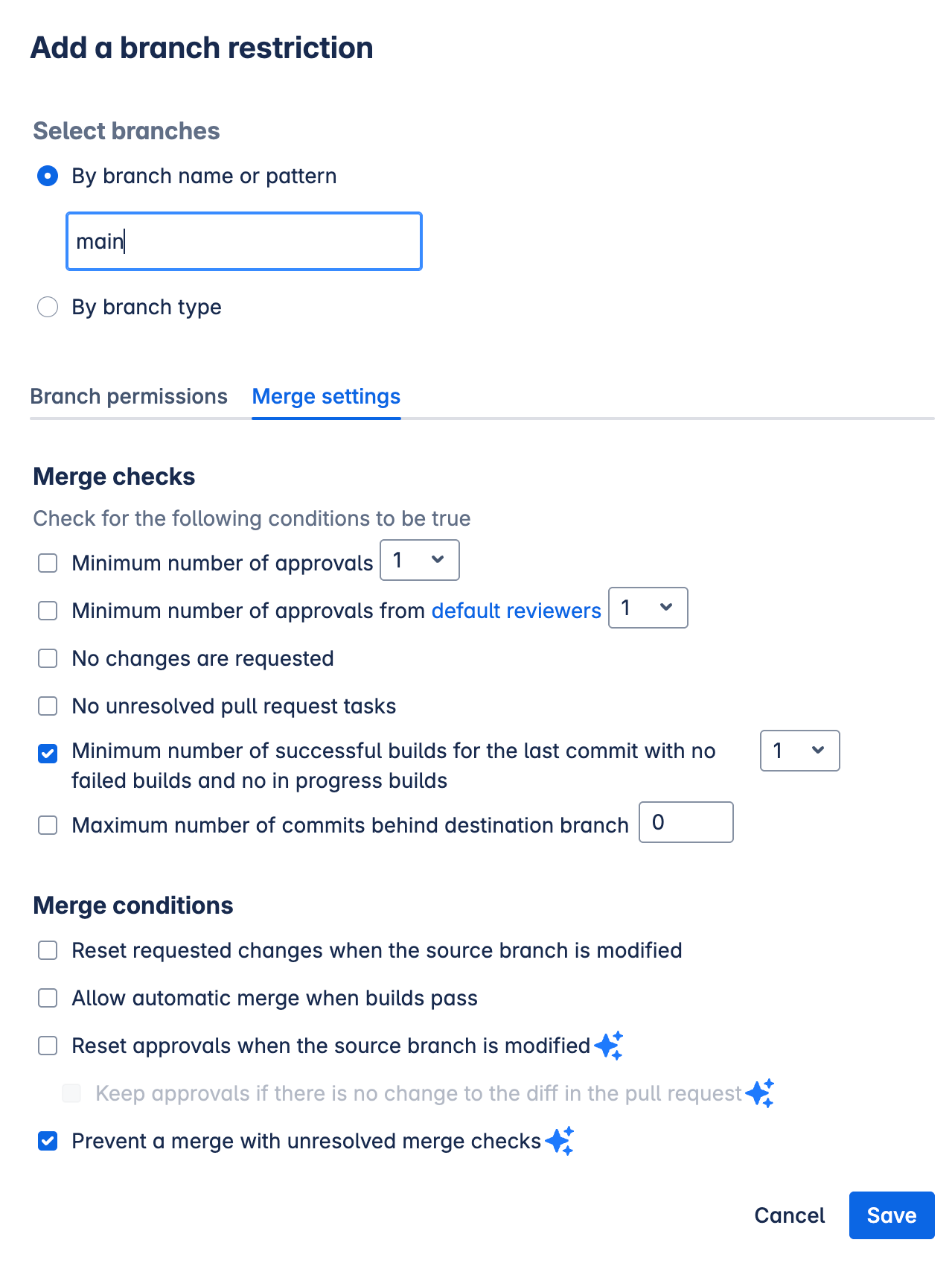
3. In Bitbucket, go to **Repository settings** > **Branch restrictions** to either **Add a branch restriction** or edit your existing one:
* In the **Merge settings** tab, select:
* **Minimum number of successful builds for the last commit with no failed builds and no in progress builds** and
* **Prevent a merge with unresolved merge checks**
**Option 2: counting your builds**
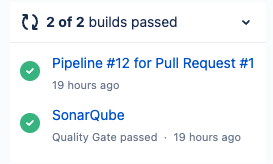
If you know how many builds you have for a PR, you can run your SonarQube Server analysis and not block the pipeline waiting for results. The SonarQube Server Quality Gate will appear in the build for your PR after the analysis results are available.
You can set the **Minimum number of successful builds for the last commit with no failed builds and no in progress** in Bitbucket, to the number of builds that run for the PR.
{% hint style="warning" %}
Preventing pull request merges when the quality gate fails is not supported for monorepos.
{% endhint %}
## Troubleshooting
### Docker memory limit
If your Pipelines fail with the error `Container ‘docker' exceeded memory limit`, you’ll need to increase the memory limit for the docker process in your `bitbucket-pipelines.yml` file:
```css-79elbk
...
definitions:
services:
docker:
memory: 2048
pipelines:
...
```
### API request limit exceeded
If your Bitbucket Cloud API calls fail with HTTP 429 code and "[Rate limit for this resource has been exceeded](https://support.atlassian.com/bitbucket-cloud/docs/api-request-limits/)" error, try to use a dedicated Bitbucket user for SonarQube Server integration.
---
# Agent Instructions
This documentation is published with GitBook. GitBook is the documentation platform designed so that both humans and AI agents can read, navigate, and reason over technical content effectively. Learn more at gitbook.com.
## Querying This Documentation
If you need additional information that is not directly available in this page, you can query the documentation by asking a question.
Perform an HTTP GET request on the following URL with the `ask` and `goal` query parameters:
```
GET https://docs.sonarsource.com/sonarqube-server/2025.2/devops-platform-integration/bitbucket-integration/bitbucket-cloud-integration.md?ask=&goal=
```
`ask` is the immediate question: it should be specific, self-contained, and written in natural language.
`goal` is what the user is ultimately trying to achieve, the reason they need the answer. Sharing it helps GitBook give you a better, more relevant answer. A goal is most helpful when it describes the outcome the user wants rather than restating the question. For example, with `ask=how do I create an API token`, a goal like `automate deployments from our CI pipeline` lets GitBook tailor the answer to that use case.
The response will contain a direct answer to the question and relevant excerpts and sources from the documentation.
Use this mechanism when the answer is not explicitly present in the current page, you need clarification or additional context, or you want to retrieve related documentation sections.