> For the complete documentation index, see [llms.txt](https://docs.sonarsource.com/llms.txt). Markdown versions of documentation pages are available by appending `.md` to page URLs; this page is available as [Markdown](https://docs.sonarsource.com/sonarqube-server/2025.2/instance-administration/authentication/gitlab/managing-automatic-provisioning.md).
# Managing automatic provisioning
Starting from the Developer Edition, you can enable the automatic user and group provisioning in SonarQube Server 2025.2.
You can enable the automatic user and group provisioning and benefit from:
* Automatic user and group provisioning and de-provisioning.
* Automatic synchronization of users’ group memberships.
* Automatic synchronization of user permissions on projects.
* Automatic project visibility synchronization.
For more information, see [Automatic provisioning](/sonarqube-server/2025.2/instance-administration/authentication/gitlab/provisioning-modes/automatic.md).
{% hint style="warning" %}
With the automatic provisioning mode, the actions you can perform on local users are restricted (The local users are all the users who are not managed by the automatic provisioning process.): see **Limitations** in [Automatic provisioning](/sonarqube-server/2025.2/instance-administration/authentication/gitlab/provisioning-modes/automatic.md).
{% endhint %}
{% hint style="info" %}
The automatic provisioning process does not synchronize the global permissions. You must still set them manually. See [Managing permissions](/sonarqube-server/2025.2/instance-administration/user-management/user-permissions.md#global-permissions) for more details.
{% endhint %}
## Enabling the automatic provisioning
You can enable the automatic provisioning mode once you’ve set up the [Setting up authentication](/sonarqube-server/2025.2/instance-administration/authentication/gitlab/setting-up.md) (The automatic mode is disabled by default.).
{% hint style="warning" %}
* The first user and group provisioning run happens immediately when you enable the feature.
* During the first synchronization, existing manually added group memberships and permissions of auto-provisioned accounts are reset in SonarQube.
{% endhint %}
To enable the automatic provisioning mode:
1\. In GitLab, create the GitLab token that will be used by SonarQube Server to access and synchronize with the GitLab server. You can use either a group or a personal access token, as long as it has visibility on the allowed GitLab groups (see **Setting the allowed GitLab groups** below) . The token’s scope must include `read_api`.
2\. In SonarQube Server, go to **Administration > Configuration > General Settings > Authentication > GitLab**.
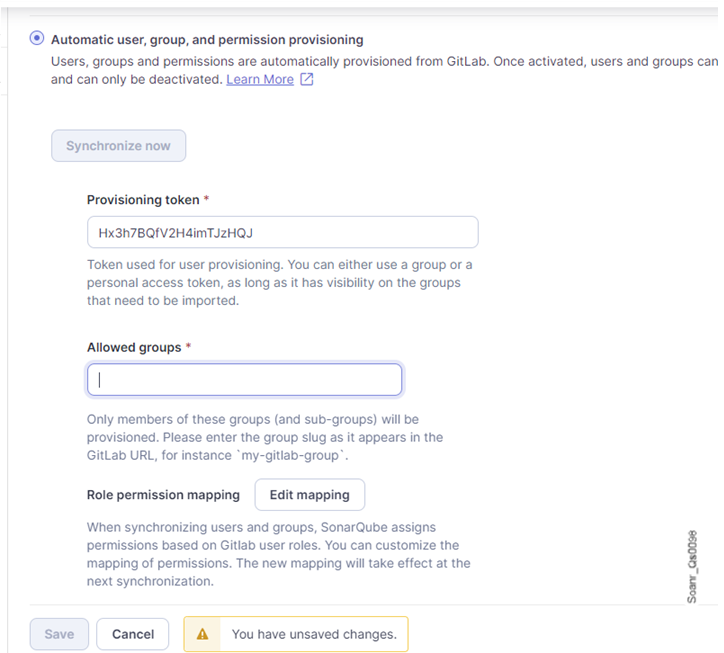
3\. In the **Provisioning** section, select **Automatic user, group, and permission provisioning.**
4\. In **Provisioning token**, enter the GitLab token created in the first step.
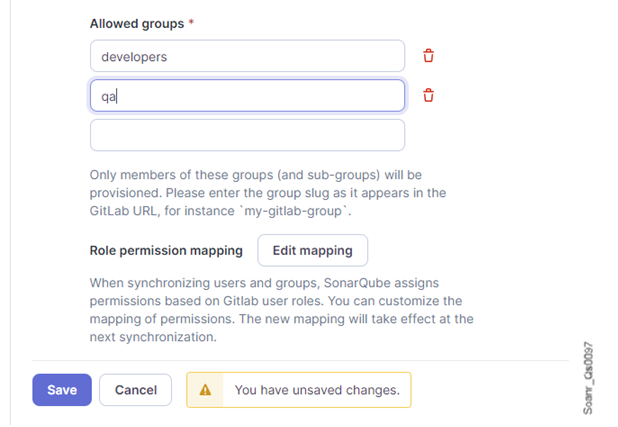
5\. In **Allowed groups**, enter the GitLab root groups (groups with no parent) to be provisioned in SonarQube Server: see below.
6\. If you want to change the role permission mapping, select the **Edit mapping** button in **Role permission mapping**. See **Editing the role permission mapping** below.
## Setting the allowed GitLab groups
When using the GitLab automatic provisioning mode in SonarQube Server, you must define which GitLab root groups (groups with no parent) will be provisioned: only members of these *Allowed* groups and all their subgroups will be provisioned. For more information, see **User and group provisioning** in [Automatic provisioning](/sonarqube-server/2025.2/instance-administration/authentication/gitlab/provisioning-modes/automatic.md).
To set or change the allowed GitLab groups:
1. Go to **Administration > Configuration > General Settings > Authentication > GitLab**.
2. In **Automatic user and group provisioning > Allowed groups,** enter the root group slug as it appears in the GitLab URL. For instance, if the first group URL is `https://gitlab.com/my-root-group`, then enter `my-root-group`. A new text box is added underneath.
3. Enter the second root group slug, etc.
## Editing the role permission mapping
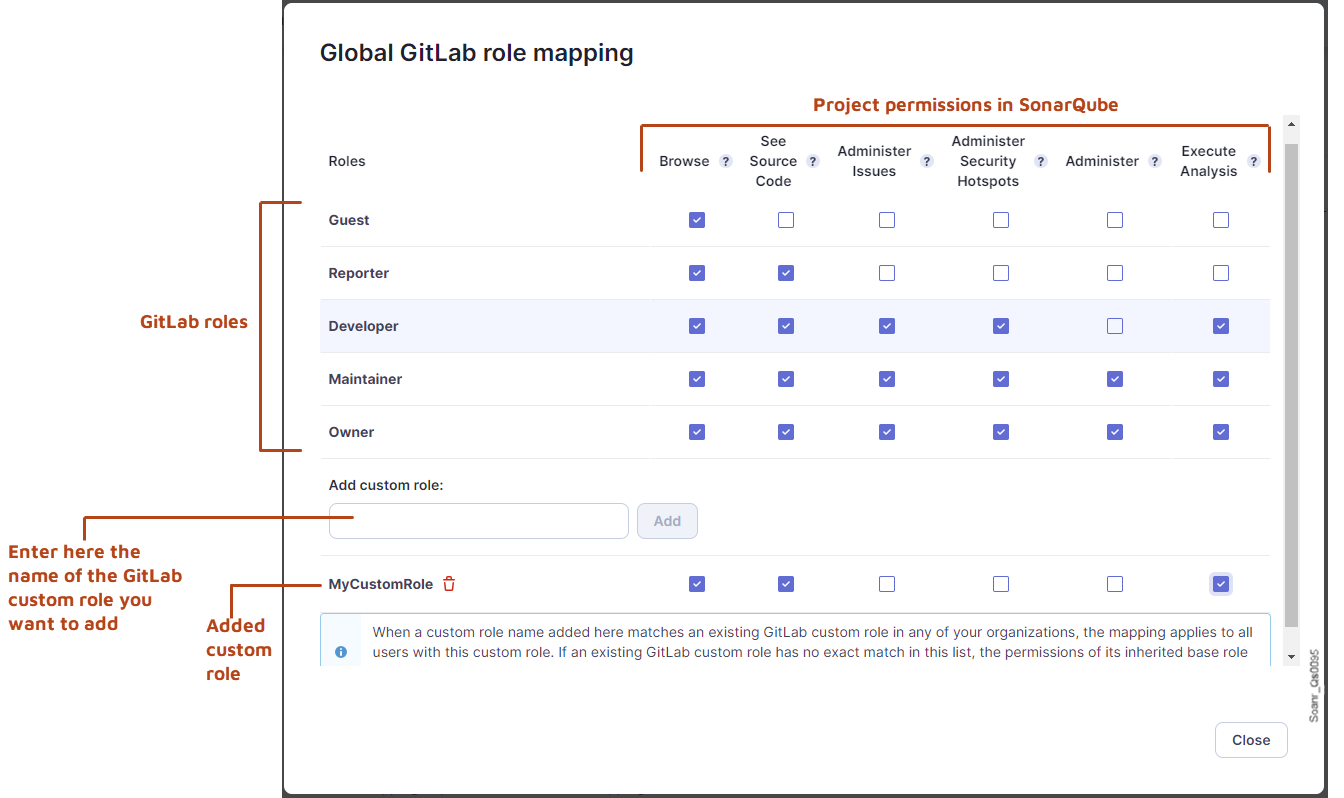
SonarQube Server synchronizes the project permissions of auto-provisioned users based on the configured role permission mapping. You can change the mapping provided by default, and if you use custom rules in GitLab, you can configure their mapping to SonarQube Server project permissions. For more information, see Project permissions synchronization in [Automatic provisioning](/sonarqube-server/2025.2/instance-administration/authentication/gitlab/provisioning-modes/automatic.md).
To edit the mapping of GitLab roles with SonarQube Server permissions:
1. Go to **Administration > Configuration > General Settings > Authentication > GitLab**.
2. In **Provisioning > Role permission mapping**, select **Edit mapping**. The **Global GitLab role mapping** dialog opens.
3. Select or unselect a checkbox to modify the permissions of the different roles.
4. To add a custom role:
* In the **Add custom role** section, enter the exact name of the custom role.
* Select **Add**. The custom role is added below the section.
* Configure the permissions of the custom role.
5. To remove a custom role, select the dustbin icon near the custom role name.
6. Select **Close**. The dialog closes and the changes are saved.
## Enabling/disabling the Just-in-Time group membership synchronization
In addition to the hourly synchronization, you can enable SonarQube Server to synchronize the group memberships of any existing auto-provisioned user at authentication time (Just-in-Time (JIT) synchronization).
To enable or disable the JIT group membership synchronization:
1. Go to **Administration > Configuration > General Settings > Authentication > GitLab**.
2. On the far right of **App ID**, select **Edit**. The **Edit GitLab Configuration** dialog opens.
3. Select or unselect the **Synchronize user groups** option.
4. Select **Save configuration**.
## Monitoring the synchronization
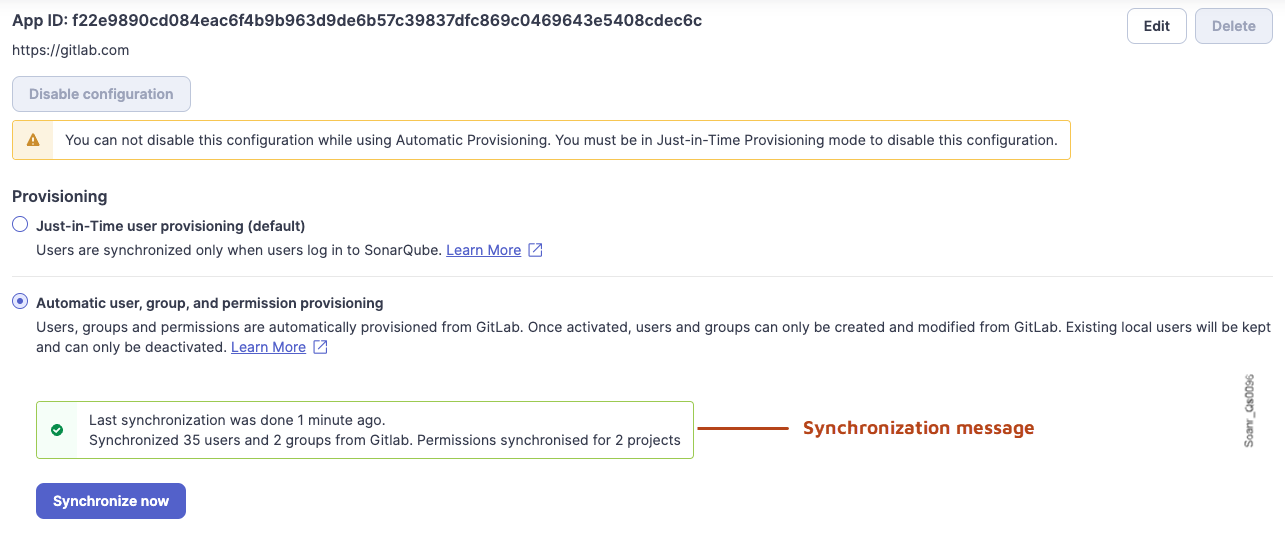
You can check the status and possible errors of the last synchronization between GitLab and SonarQube Server, with statistics on the number of users and groups synchronized from GitLab, and the number of projects for which user permissions have been synchronized.
To monitor the synchronization:
* Go to **Administration > Configuration > General Settings > Authentication > GitLab**. The synchronization message is shown in the **Automatic user, group, and permission provisioning** section. If a synchronization is in progress, "Synchronization is pending" is displayed.
## Manually starting a synchronization
Synchronization is started automatically every hour. If necessary, you can start a synchronization manually. The next automatic synchronization will happen one hour after the last synchronization.
To start a synchronization:
1. Go to **Administration > Configuration > General Settings > Authentication > GitLab**.
2. In the **Automatic user, group, and permission provisioning** section, select the **Synchronize now** button.
## Changing the provisioning token
1. In GitLab, create the new GitLab token that will be used by SonarQube Server to access and synchronize with the GitLab server. You can use either a group or a personal access token, as long as it has visibility on the allowed GitLab groups (see **Setting the allowed GitLab groups** above). The token’s scope must include `read_api`.
2. In SonarQube Server, go to **Administration > Configuration > General Settings > Authentication > GitLab**.
3. In **Automatic user, group, and permission provisioning** > Provisioning token, select the **Update field value** button.
4. Copy-paste the new token.
5. Select **Save**.
## Disabling the automatic provisioning
1. Go to **Administration > Configuration > General Settings > Authentication > GitLab**.
2. In the **Provisioning** section, select the **Just-in-time user provisioning** option.
3. Select the **Save** button.
4. To manage the JIT provisioning mode, see [Managing JIT provisioning](/sonarqube-server/2025.2/instance-administration/authentication/gitlab/managing-jit-mode.md).
## Related pages
* [Automatic provisioning](/sonarqube-server/2025.2/instance-administration/authentication/gitlab/provisioning-modes/automatic.md)
* [Setting up authentication](/sonarqube-server/2025.2/instance-administration/authentication/gitlab/setting-up.md)
---
# Agent Instructions
This documentation is published with GitBook. GitBook is the documentation platform designed so that both humans and AI agents can read, navigate, and reason over technical content effectively. Learn more at gitbook.com.
## Querying This Documentation
If you need additional information that is not directly available in this page, you can query the documentation by asking a question.
Perform an HTTP GET request on the following URL with the `ask` and `goal` query parameters:
```
GET https://docs.sonarsource.com/sonarqube-server/2025.2/instance-administration/authentication/gitlab/managing-automatic-provisioning.md?ask=&goal=
```
`ask` is the immediate question: it should be specific, self-contained, and written in natural language.
`goal` is what the user is ultimately trying to achieve, the reason they need the answer. Sharing it helps GitBook give you a better, more relevant answer. A goal is most helpful when it describes the outcome the user wants rather than restating the question. For example, with `ask=how do I create an API token`, a goal like `automate deployments from our CI pipeline` lets GitBook tailor the answer to that use case.
The response will contain a direct answer to the question and relevant excerpts and sources from the documentation.
Use this mechanism when the answer is not explicitly present in the current page, you need clarification or additional context, or you want to retrieve related documentation sections.