> For the complete documentation index, see [llms.txt](https://docs.sonarsource.com/llms.txt). Markdown versions of documentation pages are available by appending `.md` to page URLs; this page is available as [Markdown](https://docs.sonarsource.com/sonarqube-server/2025.2/project-administration/managing-project-history.md).
# Managing project history
Managing your project’s history by editing and deleting snapshots of your project in SonarQube Server 2025.2.
One of the most powerful features of SonarQube Server is that it shows you not just your project health today, but how it has changed over time. It does that by selectively keeping data from previous analyses (see [Housekeeping](/sonarqube-server/2025.2/instance-administration/system-functions/housekeeping.md)). It doesn’t keep all previous analyses. That would bloat the database. Similarly, for the analyses it does keep, SonarQube Server doesn’t keep all the data. Once a project snapshot moves from being the "last analysis" (i.e., the most recent) to being part of the project’s history, data below the project level is purged to keep from bloating the database.
Typically these aren’t things you need to even think about. SonarQube Server just handles them for you. But occasionally you may need to remove a bad snapshot from a project’s history or change the housekeeping algorithms.
To manage the history of your project, you must be a project administrator.
## Deleting a snapshot
Occasionally, you may need to manually delete a project snapshot, whether because the wrong quality profile was used, or because there was a problem with analysis, and so on. Note that the most recent snapshot (labeled **Last snapshot**) can never be deleted.
To delete a snapshot of your project:
1. Go to the [Viewing project activity](/sonarqube-server/2025.2/user-guide/viewing-projects/activity-and-history.md).
2. In the left panel, in front of the snapshot you want to delete, select the three-dot menu.
3. In the contextual menu, select **Delete Analysis**.
{% hint style="warning" %}
The snapshot is actually deleted during the next project analysis.
{% endhint %}
## Editing a snapshot
For every snapshot, it is possible to manually:
* Add, rename or remove a version.
* Add, rename or remove an event.
* Delete the snapshot
To edit a snapshot of your project:
1. Go to the [Viewing project activity](/sonarqube-server/2025.2/user-guide/viewing-projects/activity-and-history.md). The snapshots are listed in the left panel.
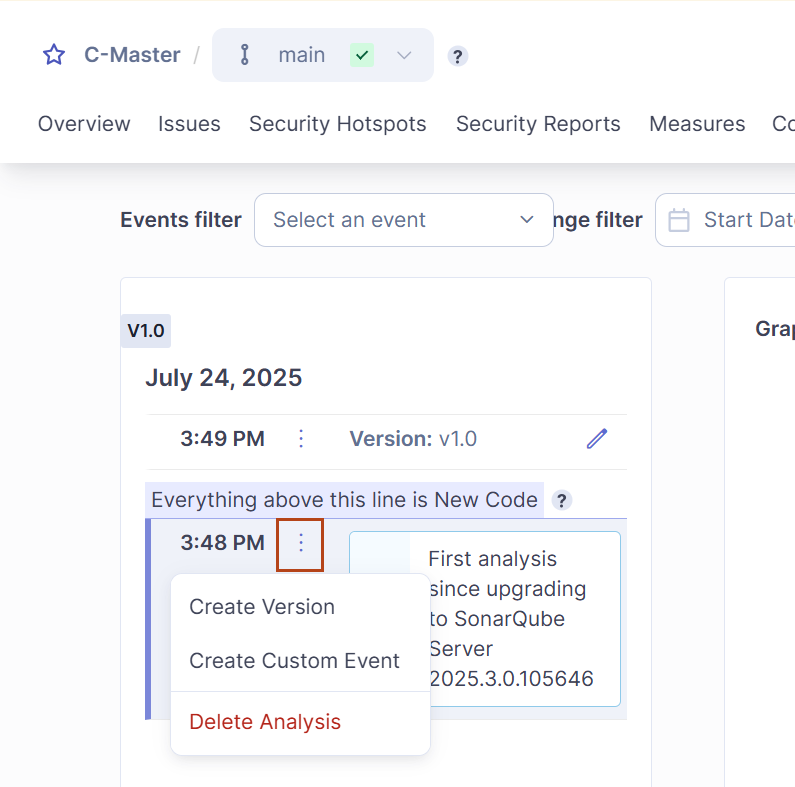
2. To add a custom version or an event to a snapshot:
* In front of the snapshot you want to configure, select the three-dot menu.
* In the contextual menu, select **Create Version** or **Create Custom Event**, respectively.
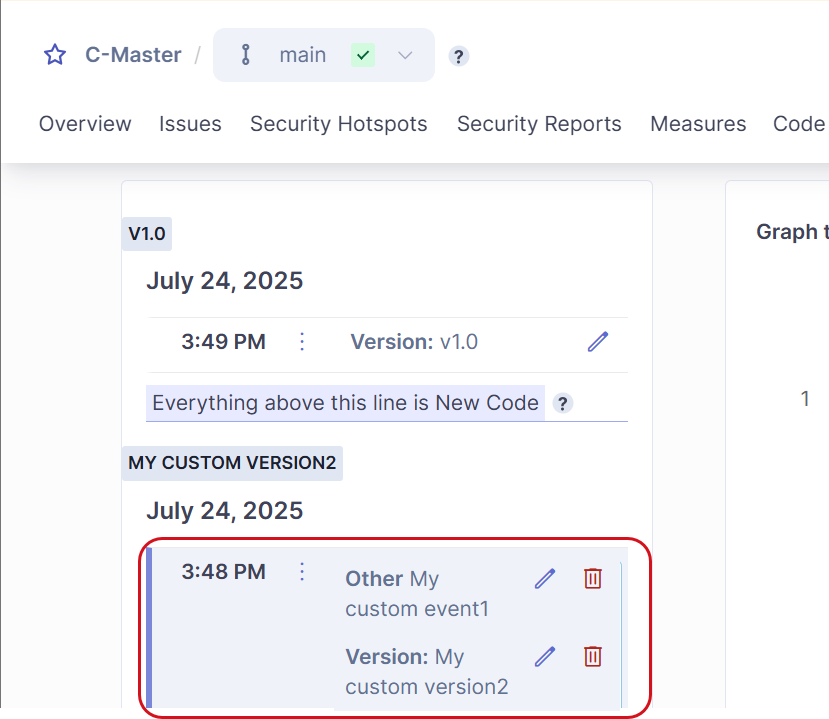
3. To edit or delete a custom version or event:
* In front of the custom version or event you want to manage, select the edit or delete icon.
## Related pages
* [Viewing project activity](/sonarqube-server/2025.2/user-guide/viewing-projects/activity-and-history.md)
---
# Agent Instructions
This documentation is published with GitBook. GitBook is the documentation platform designed so that both humans and AI agents can read, navigate, and reason over technical content effectively. Learn more at gitbook.com.
## Querying This Documentation
If you need additional information that is not directly available in this page, you can query the documentation by asking a question.
Perform an HTTP GET request on the following URL with the `ask` and `goal` query parameters:
```
GET https://docs.sonarsource.com/sonarqube-server/2025.2/project-administration/managing-project-history.md?ask=&goal=
```
`ask` is the immediate question: it should be specific, self-contained, and written in natural language.
`goal` is what the user is ultimately trying to achieve, the reason they need the answer. Sharing it helps GitBook give you a better, more relevant answer. A goal is most helpful when it describes the outcome the user wants rather than restating the question. For example, with `ask=how do I create an API token`, a goal like `automate deployments from our CI pipeline` lets GitBook tailor the answer to that use case.
The response will contain a direct answer to the question and relevant excerpts and sources from the documentation.
Use this mechanism when the answer is not explicitly present in the current page, you need clarification or additional context, or you want to retrieve related documentation sections.