> For the complete documentation index, see [llms.txt](https://docs.sonarsource.com/llms.txt). Markdown versions of documentation pages are available by appending `.md` to page URLs; this page is available as [Markdown](https://docs.sonarsource.com/sonarqube-server/2025.2/quality-standards-administration/managing-quality-gates/managing-custom-quality-gates.md).
# Managing custom quality gates
You can create your own, custom quality gates in SonarQube Server 2025.2. To manage custom quality gates, you must have the Administer Quality Gates permission.
Two built-in quality gates are provided but you can create your own quality gates, called custom quality gates. To manage custom quality gates, you need the Administer Quality Gates permission. With this permission, you can also associate projects to quality gates and allow another user to administer a given custom quality gate.
For more information on quality gates, see [Introduction to quality gates](/sonarqube-server/2025.2/quality-standards-administration/managing-quality-gates/introduction-to-quality-gates.md).
To associate a custom quality gate with projects, see [Associating projects with quality gate](/sonarqube-server/2025.2/quality-standards-administration/managing-quality-gates/associating-projects-with-quality-gate.md).
## Creating a custom quality gate
You can create a custom quality gate from scratch or by duplication. When you create a custom quality gate from scratch, the conditions of the built-in quality gate **Sonar way** are automatically copied to the new record to make your custom quality gate ready for improving code quality.
From scratch
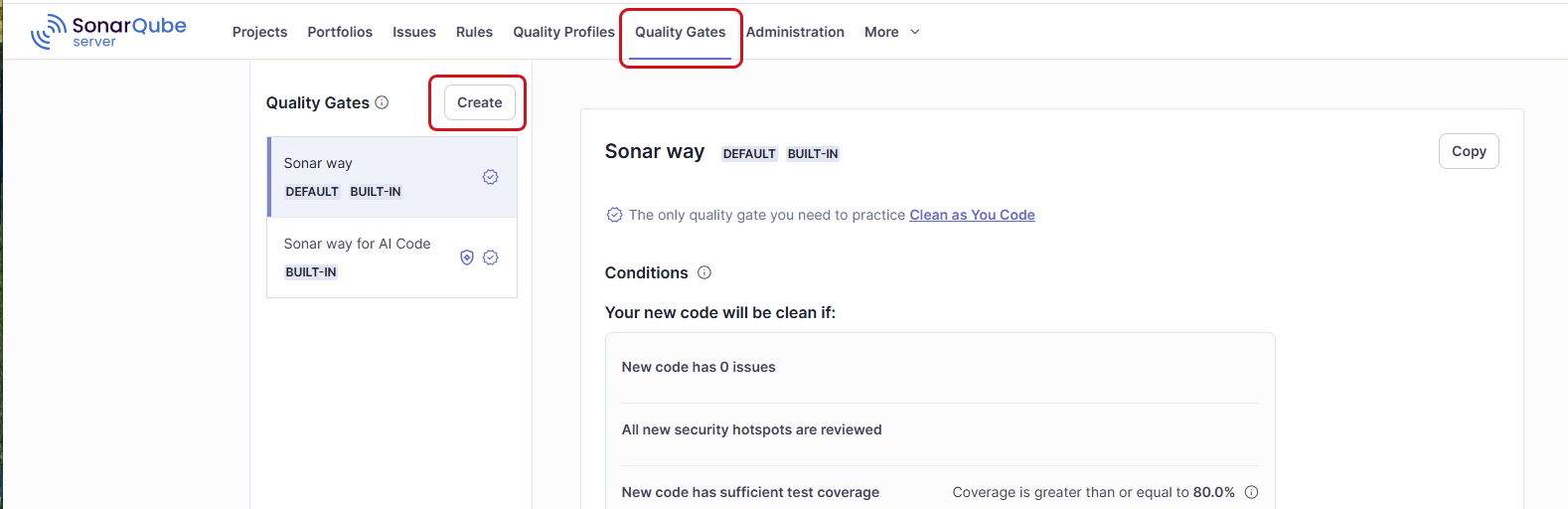
1. In the top navigation bar, select **Quality Gates**.
2. In the left panel, select the **Create** button. The **Create Quality Gate** dialog opens.
3. In the dialog, enter the name of the new quality gate and select **Create**.
4. You can now update, add or remove the conditions of the new quality gate. See **Managing a custom quality gate’s conditions** below.
By duplication
1. In the top navigation bar, select **Quality Gates**.
2. In the left panel, select the quality gate you want to duplicate.
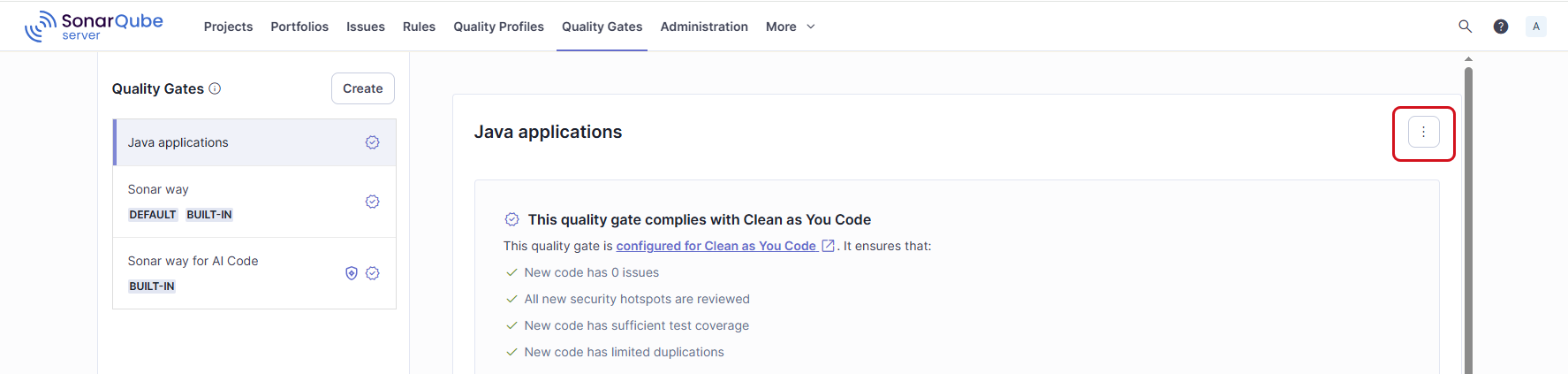
3. In the top right corner of the quality gate, select the Actions button and then **Copy**. The **Copy Quality Gate** dialog opens.
4. In the dialog, enter the name of the new quality gate and select **Copy**.
5. You can now update, add or remove the conditions of the new quality gate. See **Managing a custom quality gate’s conditions** below.
## Managing a custom quality gate’s conditions
You can add or remove conditions. You can update the value of an existing condition. Remember that you define failing conditions: if one of the conditions is met, the quality gate fails. For more information about conditions, see **Quality gate definition based on conditions** in [Introduction to quality gates](/sonarqube-server/2025.2/quality-standards-administration/managing-quality-gates/introduction-to-quality-gates.md).
**To update a condition:**
1. Select the pen icon in the far right of the condition row. If there is no pen icon, select first the **Unlock editing** button, below the **Conditions** section.\
The **Update Condition** dialog opens.
2. Enter the new condition’s value and select **Update Condition**.
**To add a new condition:**
1. Below the **Conditions** section, select the **Unlock editing** button.
2. Select **Add Condition**. The **Add Condition** dialog opens.
3. In **Where?** select to which code, new or overall, the condition applies. New code is defined through the [Quality standards and new code](/sonarqube-server/2025.2/user-guide/about-new-code.md).
4. In **Quality Gate fails when**, select the metric to which the condition applies. For information about the metrics, see [Understanding measures and metrics](/sonarqube-server/2025.2/user-guide/code-metrics/metrics-definition.md).
5. In **Value**, enter the condition’s value.
**To remove a condition:**
1. Select the dustbin icon in the far right of the condition row. If there is no dustbin icon, select first the **Unlock editing** button, below the **Conditions** section.\
The **Delete Condition** dialog opens.
2. Select **Delete**.
## Upgrading a quality gate for improving code quality
We recommend configuring all your quality gates to improve code quality. For more information, see **Quality gate configured for improving code quality** in [Introduction to quality gates](/sonarqube-server/2025.2/quality-standards-administration/managing-quality-gates/introduction-to-quality-gates.md).
If your quality gate is not configured for improving code quality, you can easily upgrade it as follows:
1. In the top navigation bar, select **Quality Gates**.
2. In the left panel, select the custom quality gate you want to upgrade.
3. In **This quality gate does not comply with Clean as You Code**, select **Review and Update Quality Gate**. The **Update to comply with Clean as You Code** dialog opens.
4. Review the proposed update and select **Update Quality Gate** to execute the update.
## Creating a custom quality gate for AI Code
To ensure AI Code Assurance for your projects containing AI Code, you must associate them with a quality gate qualified for AI Code Assurance. We recommend that you use the built-in quality gate **Sonar way for AI Code**, but you can create a custom quality gate and qualify it for AI Code Assurance. In that case, we recommend that you use a custom quality gate configured for improving code quality and that you use the same conditions on overall code as in **Sonar way for AI Code**.
For more information about AI Code Assurance, see [Standards for AI code](/sonarqube-server/2025.2/ai-capabilities/ai-standards.md).
To create a custom quality gate for AI code:
1. Create your custom quality gate as described in **Creating a custom quality gate** above.
2. Qualify your custom quality gate for AI Code Assurance as follows: In the top right corner of your quality gate, select the Actions button and then **Qualify for AI Code Assurance**.
## Renaming a custom quality gate
1. In the top navigation bar, select **Quality Gates**.
2. In the left panel, select the custom quality gate you want to rename.
3. In the top right corner of your quality gate, select the Actions button and then **Rename**. The **Rename Quality Gate** dialog opens.
4. Enter the new name and select **Rename**.
## Deleting a custom quality gate
1. In the top navigation bar, select **Quality Gates**.
2. In the left panel, select the custom quality gate you want to delete.
3. In the top right corner of your quality gate, select the Actions button and then **Delete**.
4. Confirm the deletion.
## Updating quality gates on instance mode change
With the SonarQube Server instance admin permissions, you can change the instance’s mode from Standard Experience to MQR Mode and vice versa. After you change the mode, you may have to update some quality gates, as the modes use different metrics and affect software qualities in different ways. See the [Changing instance modes](/sonarqube-server/2025.2/user-guide/code-metrics/changing-modes.md) page for details.
You do not have to update **Sonar way** quality gates as they are updated automatically for each mode.
When an update to a custom quality gate is available, you will see an update icon on the list of your custom quality gates.
To update your quality gate:
* Select a quality gate that displays the update icon from the list of quality gates.
* Click on each condition that displays the update icon and go through the update process. You cannot edit conditions until they are updated.
The conditions’ metrics will be calculated differently even if the conditions’ names persist between the modes. **Operator** and **value** will remain unchanged.
{% hint style="info" %}
We recommend you update the metrics of your quality gate conditions to ensure accurate categorization and ranking of your issues in a given mode.
{% endhint %}
## Allowing a user or group to manage a custom quality gate
You can grant a user or group the Administer Quality Gates permission for an existing custom quality gate. You can remove the permission any time.
Proceed as follows:
1. In the top navigation bar, select **Quality Gates**.
2. In the left panel, select the custom quality gate.
3. In the **Permissions** section, at the bottom of the quality gate page, select **Grant permissions to a user or group**. The **Grant permissions** dialog opens.
4. Select the user or group you want to grant.
5. Select **Add**. The user or group is added to the **Permissions** section.\
To remove it, select the dustbin icon.
## Related pages
* [Introduction to quality gates](/sonarqube-server/2025.2/quality-standards-administration/managing-quality-gates/introduction-to-quality-gates.md)
* [Viewing a quality gate](/sonarqube-server/2025.2/quality-standards-administration/managing-quality-gates/viewing-quality-gate.md)
* [Changing default quality gate](/sonarqube-server/2025.2/quality-standards-administration/managing-quality-gates/changing-default-quality-gate.md)
* [Associating projects with quality gate](/sonarqube-server/2025.2/quality-standards-administration/managing-quality-gates/associating-projects-with-quality-gate.md)
* [Subscribing to notifications](/sonarqube-server/2025.2/user-guide/managing-your-account/subscribing-to-notifications.md)
---
# Agent Instructions
This documentation is published with GitBook. GitBook is the documentation platform designed so that both humans and AI agents can read, navigate, and reason over technical content effectively. Learn more at gitbook.com.
## Querying This Documentation
If you need additional information that is not directly available in this page, you can query the documentation by asking a question.
Perform an HTTP GET request on the following URL with the `ask` and `goal` query parameters:
```
GET https://docs.sonarsource.com/sonarqube-server/2025.2/quality-standards-administration/managing-quality-gates/managing-custom-quality-gates.md?ask=&goal=
```
`ask` is the immediate question: it should be specific, self-contained, and written in natural language.
`goal` is what the user is ultimately trying to achieve, the reason they need the answer. Sharing it helps GitBook give you a better, more relevant answer. A goal is most helpful when it describes the outcome the user wants rather than restating the question. For example, with `ask=how do I create an API token`, a goal like `automate deployments from our CI pipeline` lets GitBook tailor the answer to that use case.
The response will contain a direct answer to the question and relevant excerpts and sources from the documentation.
Use this mechanism when the answer is not explicitly present in the current page, you need clarification or additional context, or you want to retrieve related documentation sections.