> For the complete documentation index, see [llms.txt](https://docs.sonarsource.com/llms.txt). Markdown versions of documentation pages are available by appending `.md` to page URLs; this page is available as [Markdown](https://docs.sonarsource.com/sonarqube-server/2025.2/quality-standards-administration/managing-quality-profiles.md).
# Managing quality profiles
Quality profiles are a key part of your SonarQube Server 2025.2 configuration because they are composed of a list of rules to check your code against.
Quality profiles are a key part of your SonarQube Server configuration. They define the set of [Overview](/sonarqube-server/2025.2/user-guide/rules/overview.md) to be applied during code analysis and review. The mode your SonarQube Server instance is set to will determine how your rules are categorized. See the [Changing instance modes](/sonarqube-server/2025.2/user-guide/code-metrics/changing-modes.md) page for details.
Every project has a quality profile set for each supported language. When a project is analyzed, SonarQube Server determines which languages are used and uses the active quality profile for each of those languages in that specific project.
Go to **Quality Profiles** to see all the currently defined profiles grouped by language.
## Built-in and default profiles
SonarQube Server comes with a built-in quality profile defined for each supported language, called the **Sonar way** profile (it is marked with the **BUILT-IN** tag in the interface). The **Sonar way** activates a set of rules that should be applicable to most projects.
In a newly set up instance, the **Sonar way** profile is the default for every language (marked with the **DEFAULT** tag in the interface). The default profile is used for that language if no other profile is explicitly defined at the project level. The default profile for a given language can be changed.
{% hint style="info" %}
As a Quality Profile Administrator, you receive an email notification when a built-in quality profile is modified (after a SonarQube Server or analyzer update).
{% endhint %}
## Customizing a quality profile
The **Sonar way** profile is designed to be broadly suitable for most projects, but it is intended only as a starting point. In most cases, you will want to adjust your profile as the project progresses.
If you have multiple projects, you might also need to have different profiles for each. You might run into the following situations
* You have different technical requirements from one project to another.
* You want to ensure stronger requirements for some of your projects than for others.
New profiles can be created in two ways:
1. Copying an existing profile and adjusting the copy.
2. Extending an existing profile.
{% hint style="info" %}
Customizing your profiles by extending the **Sonar way** profile allows you to manage most use cases. Indeed, it is highly recommended that your profiles inherit from the **Sonar way** profile because in that case, you will automatically benefit from:
* Newly implemented rules.
* Changes in a rule’s default configuration.
{% endhint %}
### Extending a quality profile
When you extend a profile, you create a child profile that inherits all the *activated* rules in the parent profile. You can then activate additional rules in the child, beyond those that are inherited. If enabled in your SonarQube Server instance, you can also deactivate rules that are activated in the parent.
Follow these steps to extend a profile:
1. Create a base profile with your core set of rules by selecting the **Create** button on the Quality Profiles page, or use an existing profile as a base profile.
2. Find your base profile (**Quality Profiles** > *profile name*) and select **Extend** from the menu.
3. After giving your new profile a name, SonarQube Server opens your new profile page.\
Your new profile has all of the activated rules from the profile you extended.
4. To activate more rules in your extended profile: Below the **Rules** table, select **Activate More**.
5. To deactivate rules: In the **Rules** table, select a number in the **Active** column.
6. From the **Inheritance** table, you can see the hierarchy of inheritance for your profile, and you can change the parent profile by selecting **Change Parent**.
### Copying a quality profile
When you copy a profile, you clone all activated rules of the original. From here, you independently activate or deactivate rules to fit your needs; your new profile won’t inherit changes made to the original profile.
Follow these steps to copy a profile
1. Go to the page of the profile you want to copy (**Quality Profiles** > ***profile name***).
2. Select **Copy** from the menu in the upper-right corner of the page.
3. Give your new profile a name and select **Copy**.
4. Modify the copy as needed.
### Differences between copying and extending
The key differences between an extension of a profile and a copy are:
* With an extension, any changes made to the parent will be automatically reflected in the child. This includes rules activated in the parent, rules deactivated in the parent, and new rules added to the parent by Sonar. With a copy, changes are not propagated because the copy is entirely independent.
* In case the deactivation of inherited rules is disabled in your SonarQube Server instance then, with an extension, you can only activate rules that are deactivated in the parent. With a copy, you can activate or deactivate any rules you like.
Copied profiles are typically used to establish a new common profile that you want full control over and that can serve as the base profile for all your projects. Extension is typically used to provide customized profiles for projects which all follow a common base set of rules, but where each also requires different additional ones.
### Overriding a rule in a quality profile
Some rules have configuration parameters. A quality profile may define different configuration parameter values than the rule’s default parameter values. In that case, the rule is considered "overridden" in the profile. The number of overridden rules in a quality profile is displayed in the **Inheritance** section of the profile page.
You can change the configuration parameters of a rule during the activation of the rule in the profile.
## Prioritizing Rules
\*Prioritized rules are available starting in \*[*Enterprise edition*](https://www.sonarsource.com/plans-and-pricing/enterprise/)
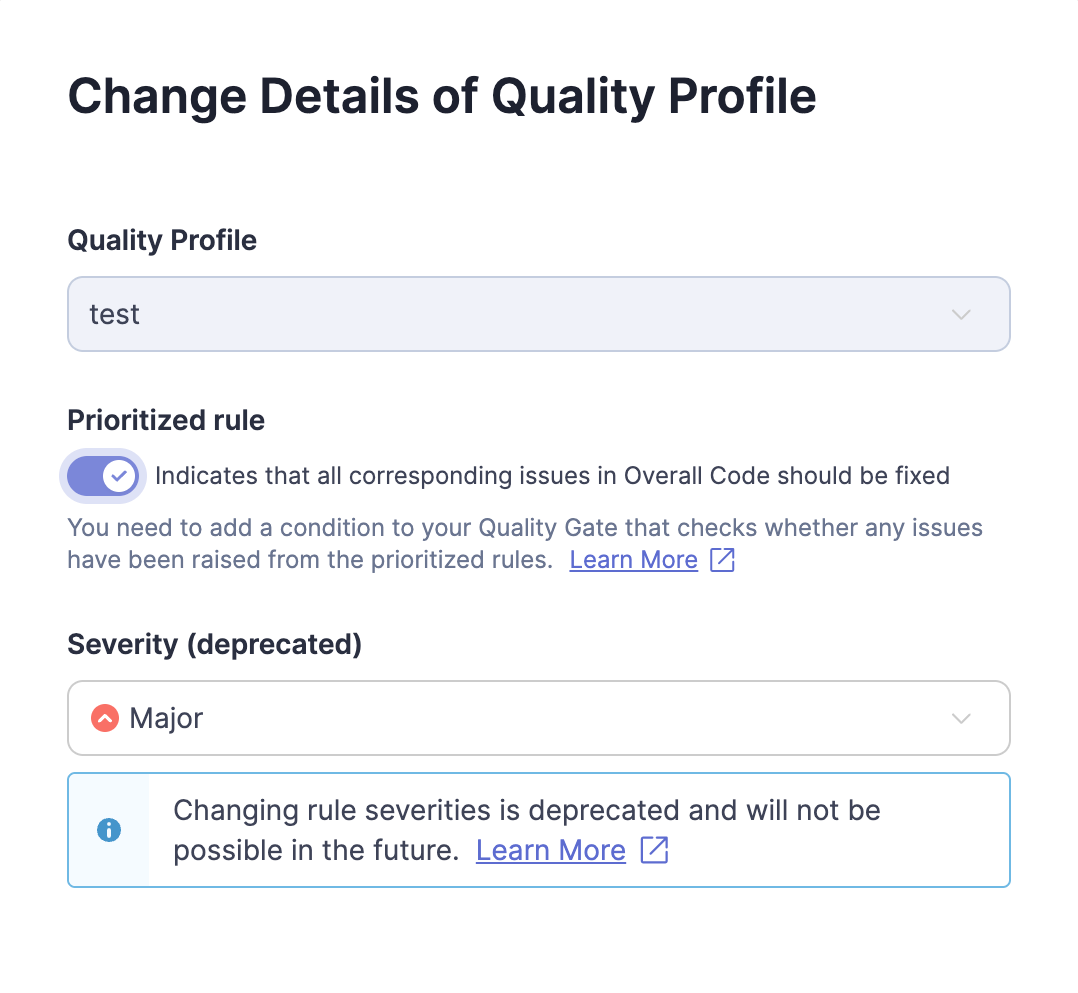
Prioritized rules recognize the need to specify a set of [Overview](/sonarqube-server/2025.2/user-guide/rules/overview.md) that will break the quality gate on a per-rule per-project basis. Using this option allows for early intervention on high-impact issues detected in your overall code.
When you activate a rule, you have the option to mark it as prioritized:
1. Go to **Quality Profiles** > *your quality profile.*
2. In the **Inheritance** section, click on the number of active rules for your quality profile.
3. For the rule you want to prioritize, click **Change** and activate the **Prioritized rule** option.
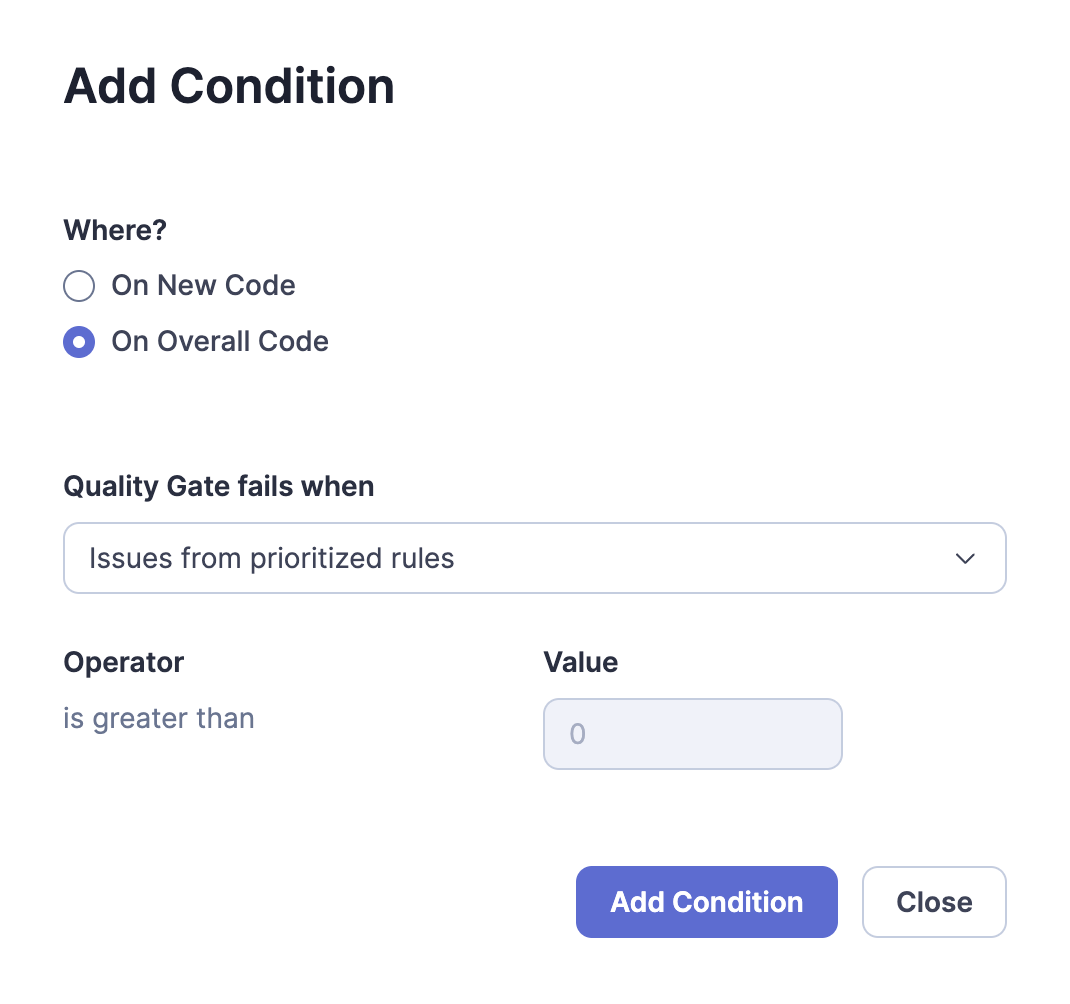
For your [Introduction to quality gates](/sonarqube-server/2025.2/quality-standards-administration/managing-quality-gates/introduction-to-quality-gates.md) to fail when corresponding issues exist in the overall code, you must add a condition that checks whether any issues have been raised from prioritized rules. To add this condition go to **Quality Gates** > **Unlock editing** > **Add condition** > **On Overall Code** > **issues from prioritized rules**. Once added, prioritized rules have a value of 0, so any issues found cause your quality gate to fail.
## Quality profile permissions
By default, only users with the global **Administer Quality Profiles** permission can edit quality profiles. User permissions are defined at **Administration** > **Security** > **Global Permissions**.
SonarQube Server also allows users with the global **Administer Quality Profiles** permission to give an expert or group of experts permission to manage a specific profile. These experts only have permission for that specific profile.
Permissions can be granted to manage specific quality profiles on that profile’s page (**Quality Profiles** > ***profile name*****)** under **Permissions** by selecting **Grant permissions to more users**.
The permission to deactivate inherited rules in a child profile is managed at the level of the SonarQube Server instance. It is by default enabled. As a SonarQube Server Administrator, you can disable it in **Administration** > **Configuration** > **General Settings** > **Quality Profile** by unchecking the **Enable deactivation of inherited rules** option.
## Comparing two quality profiles
You can compare the activated rules between two quality profiles. This is especially useful when you’re using a quality profile copied from another profile because you won’t automatically inherit new rules added to the original quality profile.
To compare two profiles:
1. From the **Quality Profiles** page, select the name of the first profile you’d like to compare.
2. Select **Compare** from the menu.
3. Select the second profile you’d like to compare from the **Compare with** drop-down menu.
From here you can push rules between the two profiles using the buttons.
## Finding out what has changed in a quality profile
When SonarQube Server notices that an analysis was performed with a quality profile that is different in some way from the previous analysis, a *quality profile event* is added to the project’s event log. To see the changes in a profile, navigate to the profile (**Quality Profiles** > ***profile name***) and choose **Changelog**. This can help you understand how profile changes impact the issues raised in an analysis.
Additionally, users with the **Administer Quality Profile** privilege are notified by email each time a built-in profile is updated. These updates can be caused by updating SonarQube Server or updating third-party analyzers.
## Importing a quality profile from another SonarQube Server instance
To import a profile from another SonarQube Server instance, do the following:
1. From the source SonarQube Server instance, open the quality profile you want to use.
2. Select **Back up** from the menu. This exports the profile as an XML file.
3. From the target SonarQube Server instance, select the **Restore** button on the **Quality Profiles** main page.
4. Choose the XML file that you exported previously, and select **Restore**.
## Applying profiles to projects
One profile for each language is marked as the default. Barring any other intervention, all projects that use that language will be analyzed with that profile. To have a project analyzed by a non-default profile instead, start from **Quality Profiles**, and navigate to your target profile, then use the **Projects** part of the interface to manage which projects are explicitly assigned to that profile.
## Ensuring your quality profile has all relevant new rules
Each time a new SonarQube Server version is released, new rules are added. New rules won’t appear automatically in your profile unless you’re using a built-in profile or a profile extended from a built-in profile.
If you’re not using a built-in profile, you can compare your profile to the built-in profile to see which rules you’re missing.
Another option is to go to the **Rules** page in SonarQube Server and use the **Available Since** search facet to see what rules have been added to the platform since the day you upgraded.
Finally, the **Quality Profiles** main page shows recently added rules in the **Recently Added Rules** section on the right side of the page.
## Avoiding deprecated rules
The **Deprecated Rules** section of the **Quality Profiles** page has a pink background and is your first warning that a profile contains deprecated rules. This section gives the total number of instances of deprecated rule(s) that are currently active in each quality profile and provides a breakdown of deprecated rule(s) per profile. Selecting the **Deprecated Rules** section takes you either to the **Rules** page or to the relevant quality profile to investigate further.
Alternatively, you can perform a **Rules** search for the rules in a profile and use the **Status** rule search facet (in the left sidebar) to narrow the list to the ones that need attention.
## Security
The **Quality Profiles** page can be accessed by any user (even anonymous users). All users can view every aspect of any profile. That means anyone can see which rules are included in a profile, which rules have been left out, how a profile has changed over time, and compare the rules between any two profiles.
To create, edit, or delete a profile, a user must be granted the **Administer Quality Profiles** permission.
A project administrator can choose which profiles their project is associated with.
## Rule Severity in your Quality Profile
If you have the proper permissions, you can customize the severity of a rule in your quality profile, however, this will not change the recommended severity of the rule.
In MQR mode, a rule’s severity is defined by the [Software qualities](/sonarqube-server/2025.2/user-guide/rules/software-qualities.md) it impacts. A rule can impact multiple software qualities, and each software quality has its own severity.
---
# Agent Instructions
This documentation is published with GitBook. GitBook is the documentation platform designed so that both humans and AI agents can read, navigate, and reason over technical content effectively. Learn more at gitbook.com.
## Querying This Documentation
If you need additional information that is not directly available in this page, you can query the documentation by asking a question.
Perform an HTTP GET request on the following URL with the `ask` and `goal` query parameters:
```
GET https://docs.sonarsource.com/sonarqube-server/2025.2/quality-standards-administration/managing-quality-profiles.md?ask=&goal=
```
`ask` is the immediate question: it should be specific, self-contained, and written in natural language.
`goal` is what the user is ultimately trying to achieve, the reason they need the answer. Sharing it helps GitBook give you a better, more relevant answer. A goal is most helpful when it describes the outcome the user wants rather than restating the question. For example, with `ask=how do I create an API token`, a goal like `automate deployments from our CI pipeline` lets GitBook tailor the answer to that use case.
The response will contain a direct answer to the question and relevant excerpts and sources from the documentation.
Use this mechanism when the answer is not explicitly present in the current page, you need clarification or additional context, or you want to retrieve related documentation sections.