# Setup in SonarQube Server

This page explains how to set up SAML with Ping Identity in in SonarQube Server. This is the second step of SAML authentication setup with Ping Identity. For an overview of the complete setup, see [introduction](https://docs.sonarsource.com/sonarqube-server/2025.4/instance-administration/authentication/saml/ping-identity/introduction "mention").

Proceed as follows:

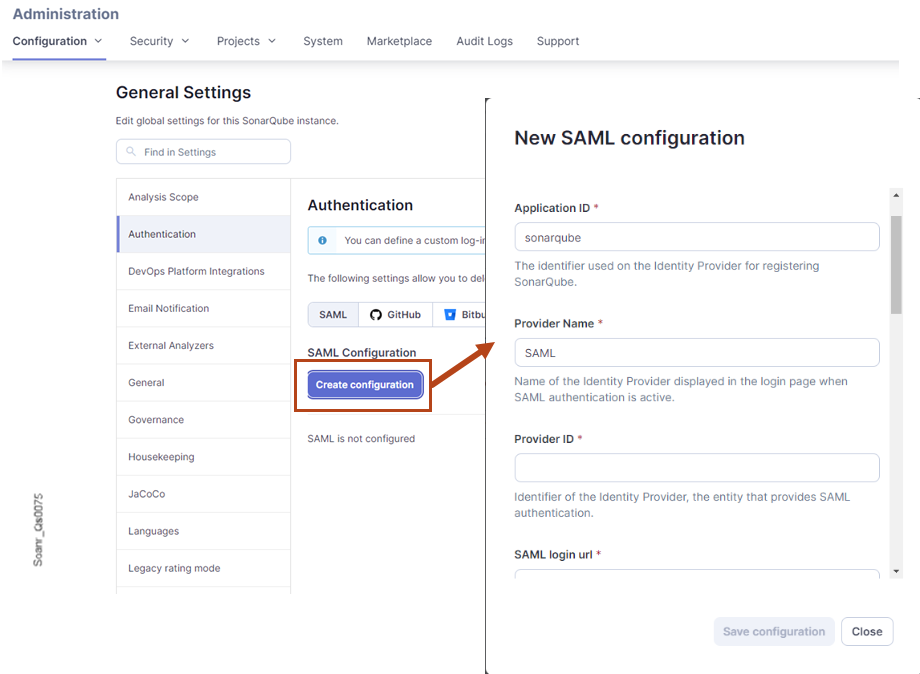
1. Go to **Administration > Configuration > General Settings > Authentication> SAML**.
2. Select **Create Configuration**.

<figure><img src="https://512221655-files.gitbook.io/~/files/v0/b/gitbook-x-prod.appspot.com/o/spaces%2FyDv2XwTC1xoOKBYeCK45%2Fuploads%2Fgit-blob-941d3baa942653e8bf71b0764b15cde018ce0607%2F9234c56e45de9d269bfd986b068a2a2f183ae440.png?alt=media" alt="In SonarQube create a new configuration for PingOne"><figcaption></figcaption></figure>

3. Fill in the fields as explained in the table below.
   * Some fields must be filled with the values set in the application created in PingOne (or PingFederate) during the setup in Ping Identity (see [setup-in-ping-identity](https://docs.sonarsource.com/sonarqube-server/2025.4/instance-administration/authentication/saml/ping-identity/setup-in-ping-identity "mention")). To retrieve these values, retrieve the application in PingOne as follows: go to **Applications > Applications** and open the application’s detail page.
   * Some fields must be filled with values retrieved from the metadata file downloaded in **Step 2** of [setup-in-ping-identity](https://docs.sonarsource.com/sonarqube-server/2025.4/instance-administration/authentication/saml/ping-identity/setup-in-ping-identity "mention").

<table><thead><tr><th width="224">Field in in SonarQube Server</th><th>Description</th></tr></thead><tbody><tr><td>Application ID</td><td>In the application’s <strong>Configuration</strong> tab: <strong>Entity ID</strong>.</td></tr><tr><td>Provider ID</td><td>Is retrieved from the downloaded metadata file. See below.</td></tr><tr><td>Provider Name</td><td>Name of the Identity Provider displayed in in SonarQube Server login page when SAML authentication is active.</td></tr><tr><td>SAML Login URL</td><td>Is retrieved from the downloaded metadata file. See below.</td></tr><tr><td>Identity provider certificate</td><td>Is retrieved from the downloaded metadata file. See below.</td></tr><tr><td>SAML user login attribute</td><td><code>login</code></td></tr><tr><td>SAML user name attribute</td><td><code>name</code></td></tr><tr><td>SAML user email attribute</td><td><code>email</code></td></tr><tr><td>SAML group attribute</td><td><code>group_names</code></td></tr></tbody></table>

<details>

<summary>Retrieving values from the downloaded metadata file</summary>

1. Open the metadata file (`saml2-metadata-idp-<UUID>.xml`) you downloaded in **Step 2** of [setup-in-ping-identity](https://docs.sonarsource.com/sonarqube-server/2025.4/instance-administration/authentication/saml/ping-identity/setup-in-ping-identity "mention"). This file contains your X.509 certificate.
2. Find the `<md:EntityDescriptor...` node and look for the `entityID` attribute. Set this value as your SonarQube Server’s **SAML Provider ID**.

<figure><img src="https://512221655-files.gitbook.io/~/files/v0/b/gitbook-x-prod.appspot.com/o/spaces%2FyDv2XwTC1xoOKBYeCK45%2Fuploads%2Fgit-blob-5efac6cc780b9ff9242ad4a7c4bf4155dd7361e7%2Fbbfd647dd882bd18325802cf5d61cbc119941b6a.png?alt=media" alt="Find the <md:EntityDescriptor... node in Ping Identity&#x27;s metadata file"><figcaption></figcaption></figure>

3. Find the first instance of `<md:SingleSignOnService...` node and look for the `Location` attribute. Set this value as your in SonarQube Server’s **SAML Login URL**.

<figure><img src="https://512221655-files.gitbook.io/~/files/v0/b/gitbook-x-prod.appspot.com/o/spaces%2FyDv2XwTC1xoOKBYeCK45%2Fuploads%2Fgit-blob-c3d6eb81edf17b914e671744a940abc6a0984fe1%2Fa78c93f19d48a08cd48d19f412eb8ec5ca94e7db.png?alt=media" alt="Find the first instance of <md:SingleSignOnService... node in Ping Identity&#x27;s metadata file"><figcaption></figcaption></figure>

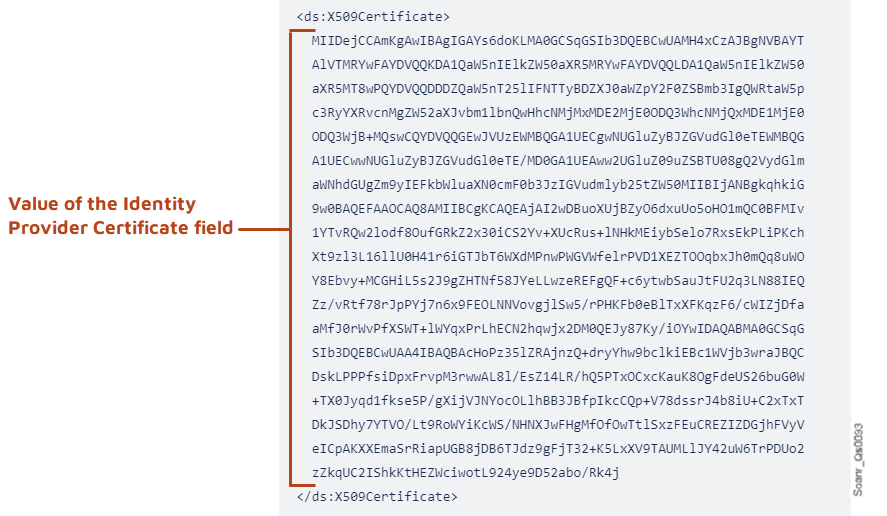
4. Find the `<ds:X509Certificate>` node. Set its contents as the in SonarQube Server’s **Identity provider certificate**. Note that end-of-line spaces and new line characters are fine, it does not need to be all on one line of text.

<figure><img src="https://512221655-files.gitbook.io/~/files/v0/b/gitbook-x-prod.appspot.com/o/spaces%2FyDv2XwTC1xoOKBYeCK45%2Fuploads%2Fgit-blob-be57132cc2044f5c05e91bfead77b6963a2ca86d%2Fa92ac6584bbb7823a9083e16cb6c792f79714e9c.png?alt=media" alt="Find the <ds:X509Certificate> node in the Ping Identity&#x27;s metadata file"><figcaption></figcaption></figure>

</details>

4. Save the configuration.
5. Before enabling SAML authentication on in SonarQube Server, you can verify that the configuration is correct by selecting **Test Configuration**. This will initiate a SAML login and return useful information about the SAML response obtained from the identity provider.
6. Select **Enable configuration**.
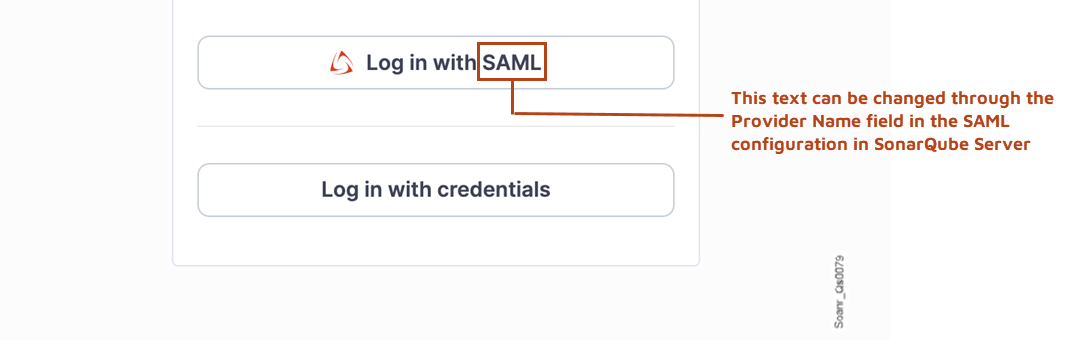
7. Check that the SonarQube Server login form now contains a SAML login button.

<figure><img src="https://512221655-files.gitbook.io/~/files/v0/b/gitbook-x-prod.appspot.com/o/spaces%2FyDv2XwTC1xoOKBYeCK45%2Fuploads%2Fgit-blob-e4048a17485e48c75278fbbf2bbbd84ef3636038%2Fba7297aef9e9abca16504019fd00bc00ebed793c.png?alt=media" alt="SonarQube login form with SAML login button"><figcaption></figcaption></figure>

## Related pages <a href="#related-pages" id="related-pages"></a>

* [overview](https://docs.sonarsource.com/sonarqube-server/2025.4/instance-administration/authentication/saml/overview "mention")
* [setup-in-ping-identity](https://docs.sonarsource.com/sonarqube-server/2025.4/instance-administration/authentication/saml/ping-identity/setup-in-ping-identity "mention")
* [optional-security-features](https://docs.sonarsource.com/sonarqube-server/2025.4/instance-administration/authentication/saml/ping-identity/optional-security-features "mention")