> For the complete documentation index, see [llms.txt](https://docs.sonarsource.com/llms.txt). Markdown versions of documentation pages are available by appending `.md` to page URLs; this page is available as [Markdown](https://docs.sonarsource.com/sonarqube-server/9.9/instance-administration/authentication/scim/how-to-set-up-scim-in-okta.md).

# How to set up SCIM in Okta

Enable SCIM to automate user provisioning and deprovisioning for SonarQube 9.9 through Okta.

{% hint style="info" %}
**For AI agents:** You're in the SonarQube Server 9.9 documentation. For a list of all 9.9 pages, see the [SonarQube Server 9.9 page index](https://152261287-files.gitbook.io/~/files/v0/b/gitbook-x-prod.appspot.com/o/spaces%2FBmptmznn7RpPe5u7vdup%2Fuploads%2F7O6jgZAiehDGe0FMXDaC%2Fsonarqube-server-9.9-llms.txt?alt=media). For the whole site, see the [page index](https://docs.sonarsource.com/llms.txt) or the [full text](https://docs.sonarsource.com/llms-full.txt). For another version, replace 9.9 in the URL with that version. The [latest version](https://docs.sonarsource.com/sonarqube-server/) has no version number in its URL.
{% endhint %}

*SCIM provisioning is available starting in* [*Enterprise Edition*](https://www.sonarsource.com/plans-and-pricing/enterprise/)*.*

SCIM is a standard used to automate the exchange of user identity info between the identity provider and service provider. If you use Okta as an identity provider, you can enable SCIM to automate user provisioning and de-provisioning for SonarQube through Okta.

Once you enable SCIM in Okta, any user assigned to the SonarQube application in Okta is automatically provisioned in SonarQube. If a user gets unassigned from the SonarQube application or deactivated in Okta, the corresponding user account is automatically deactivated in SonarQube. However, if a user gets suspended in Okta, the corresponding user account remains unchanged in SonarQube.

## Prerequisites <a href="#prerequisites" id="prerequisites"></a>

You’ve integrated Okta with SonarQube, as described on the [How to set up Okta](/sonarqube-server/9.9/instance-administration/authentication/saml/how-to-set-up-okta.md) page.

## Enabling SCIM in SonarQube <a href="#enabling-scim-in-sonarqube" id="enabling-scim-in-sonarqube"></a>

To enable SCIM provisioning in SonarQube, do one of the following:

* In your configuration file, set the `sonar.scim.enabled` server property to *`true`.*
* In the SonarQube UI, go to **Administration** > **Configuration** > **General Settings** > **Authentication** > **SAML** and activate the **SCIM users (de)provisioning** option.

## Enabling SCIM in Okta <a href="#enabling-scim-in-okta" id="enabling-scim-in-okta"></a>

**Step 1**: From your Okta board, choose *your SonarQube application >* **General** > **App Settings** > **Edit**.

**Step 2**: Check **Enable SCIM provisioning** and click on **Save**. This will create a **Provisioning** tab.

**Step 3**: Choose the newly created **Provisioning** tab and click on **Edit.**
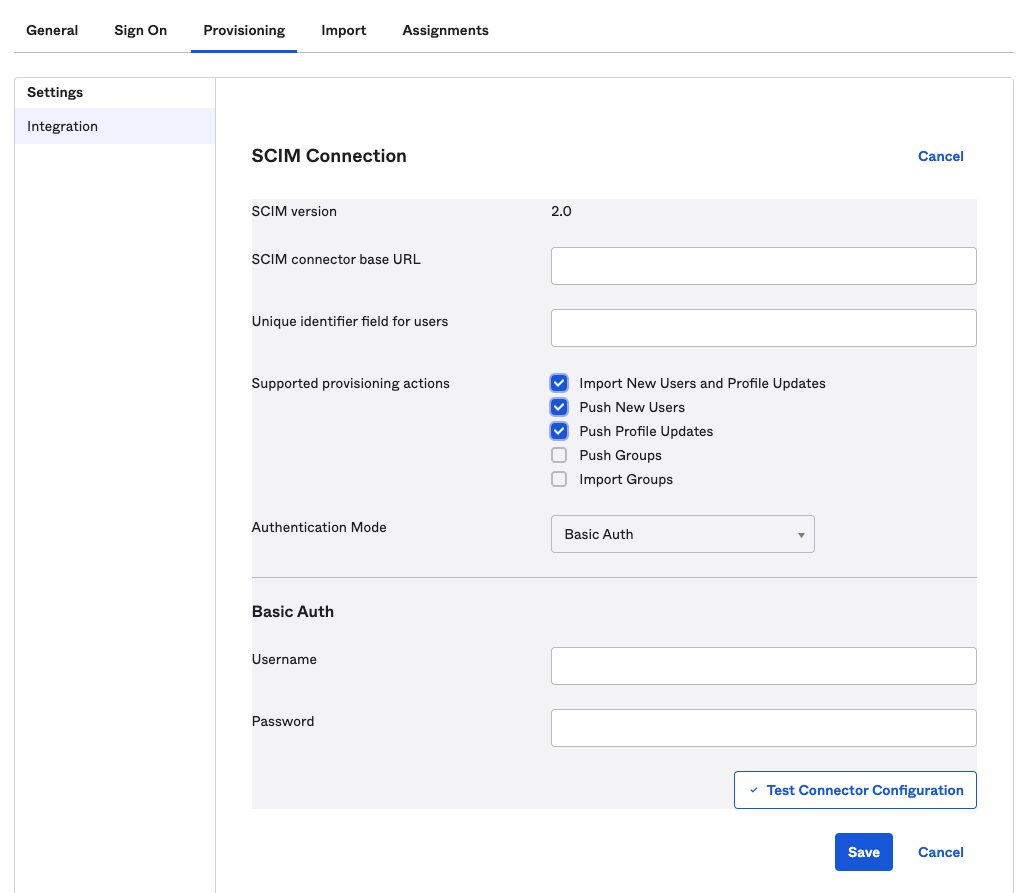
![Screenshot of the SCIM connection screen.](https://152261287-files.gitbook.io/~/files/v0/b/gitbook-x-prod.appspot.com/o/spaces%2FBmptmznn7RpPe5u7vdup%2Fuploads%2Fgit-blob-207a9310ab6253cd3d864fd221c5ca507884793c%2F8c2b207dcbe05c836d0db919a6612bf45bf18ebd.png?alt=media)

Screenshot of the SCIM connection screen.

**Step 4**: Configure the SCIM Connection fields as follows:

* **SCIM connector base URL**: `<Your SonarQube URL>/api/scim/v2`
* **Unique identifier field for users**: *`userName`*
* **Supported provisioning actions**: enable importing new users and profile updates, pushing new users, and pushing profile updates as shown in the above picture
* **Authentication Mode**: select **Basic Auth**

**Step 5**: In SonarQube, [Generating and using tokens](/sonarqube-server/9.9/user-guide/user-account/generating-and-using-tokens.md) for an admin account and copy the token into Okta’s **Basic Auth** > **Username** field.

**Step 6**: To check that the SCIM connection is valid, click on **Test Connector Configuration**. A green checkmark indicates that all the fields are properly filled.

**Step 7**: Click on **Save**.

**Step 8**: In the next screen, click **Edit** and check the **Create Users**, **Update User Attributes** and **Deactivate Users** provisioning options.
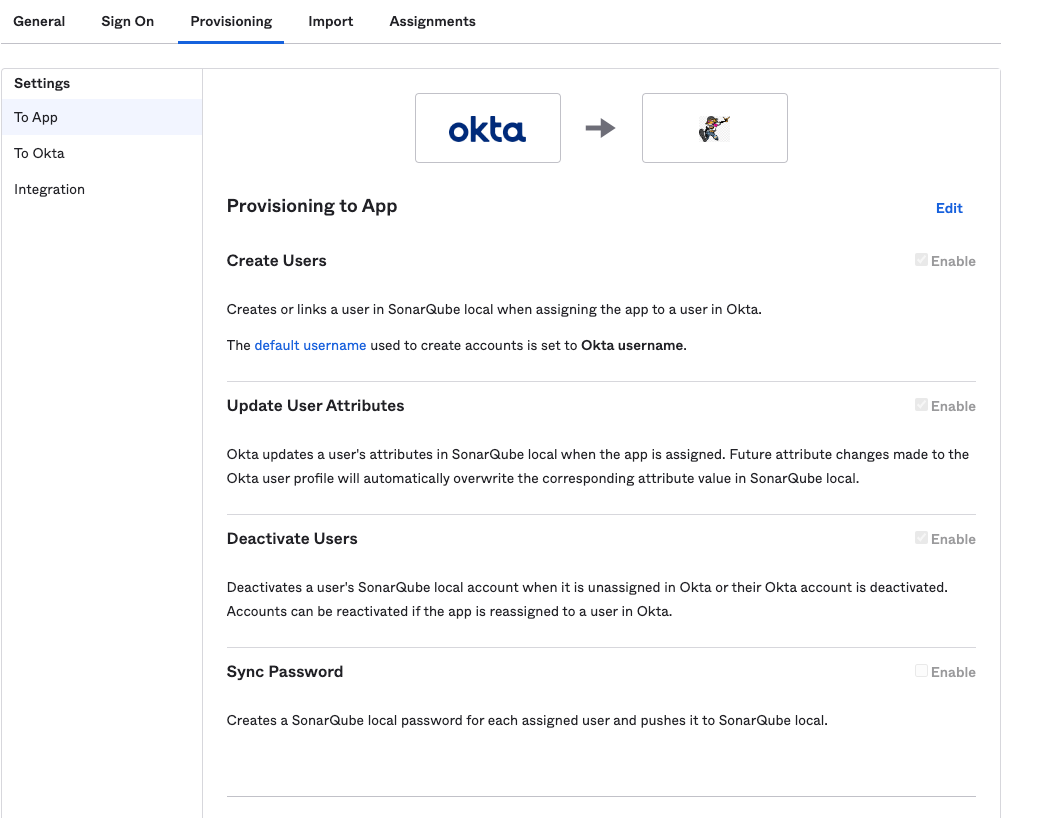
![Screenshot of the SCIM Provisioning to App page in Okta.](https://152261287-files.gitbook.io/~/files/v0/b/gitbook-x-prod.appspot.com/o/spaces%2FBmptmznn7RpPe5u7vdup%2Fuploads%2Fgit-blob-88f46467771ba37bd1e263704c41e45eb98a3f36%2Fe7899126e856b0e91a50caabd1c8a0a816aa22ea.png?alt=media)

Screenshot of the SCIM Provisioning to App page in Okta.

**Step 9**: Click on **Save**.

## Provisioning already assigned users <a href="#provisioning-already-assigned-users" id="provisioning-already-assigned-users"></a>

Users that are assigned before SCIM is enabled are not automatically provisioned. In the UI, an exclamation mark is displayed next to their names in the **Assignments** tab:
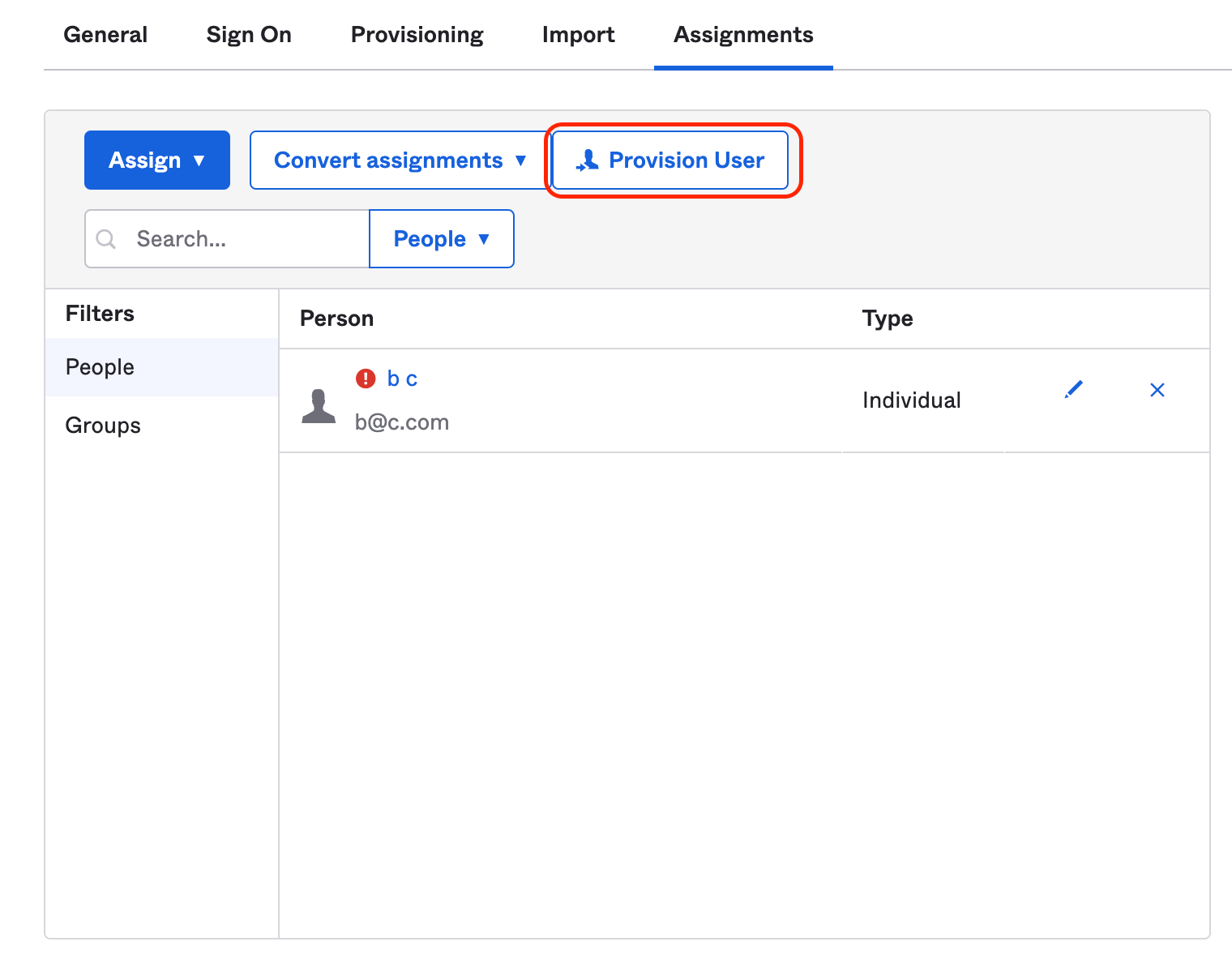
![Screenshot showing the Provision User button in Okta.](https://152261287-files.gitbook.io/~/files/v0/b/gitbook-x-prod.appspot.com/o/spaces%2FBmptmznn7RpPe5u7vdup%2Fuploads%2Fgit-blob-fa8d7edcc2f6c41c663d5c11de84cac446b8ca51%2Fef900448be8d85e8907c6a9b284a03c324ec79df.png?alt=media)

Screenshot showing the Provision User button in Okta.

To force the provision of these users, click on **Provision User**. The exclamation mark should disappear, meaning that the users have been provisioned.


---

# Agent Instructions
This documentation is published with GitBook. GitBook is the documentation platform designed so that both humans and AI agents can read, navigate, and reason over technical content effectively. Learn more at gitbook.com.

## Querying This Documentation
If you need additional information that is not directly available in this page, you can query the documentation by asking a question.

Perform an HTTP GET request on the following URL with the `ask` and `goal` query parameters:

```
GET https://docs.sonarsource.com/sonarqube-server/9.9/instance-administration/authentication/scim/how-to-set-up-scim-in-okta.md?ask=<question>&goal=<user_goal>
```

`ask` is the immediate question: it should be specific, self-contained, and written in natural language.
`goal` is what the user is ultimately trying to achieve, the reason they need the answer. Sharing it helps GitBook give you a better, more relevant answer. A goal is most helpful when it describes the outcome the user wants rather than restating the question. For example, with `ask=how do I create an API token`, a goal like `automate deployments from our CI pipeline` lets GitBook tailor the answer to that use case.

The response will contain a direct answer to the question and relevant excerpts and sources from the documentation.

Use this mechanism when the answer is not explicitly present in the current page, you need clarification or additional context, or you want to retrieve related documentation sections.
