> For the complete documentation index, see [llms.txt](https://docs.sonarsource.com/llms.txt). Markdown versions of documentation pages are available by appending `.md` to page URLs; this page is available as [Markdown](https://docs.sonarsource.com/sonarqube-server/analyzing-source-code/scanners/scanner-environment/manage-tls-certificates.md).
# TLS certificates on client side
If your SonarQube Server 2026.5 instance is secured, add the self-signed certificate to the CI/CD host. If mutual TLS is used, an additional setup is required.
If your SonarQube Server instance is secured behind a proxy and a self-signed certificate, then you must add the self-signed certificate to the trusted CA certificates of the SonarScanner.
In addition, if mutual TLS is used then you must define the access to the client certificate at the SonarScanner level.
## Managing the self-signed server certificate
### Introduction to server authentication
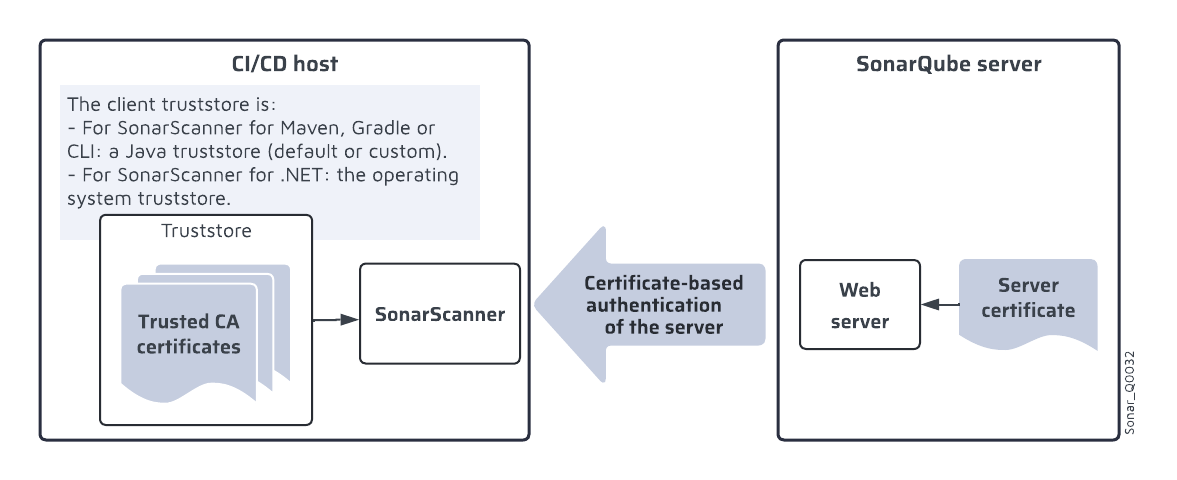
During the TLS authentication of the server, the client requests the server certificate from the server and verifies that this certificate is signed by a CA it trusts by checking its TrustStore. In case a self-signed server certificate is used, it must be added to the TrustStore of the client. The figure below shows the certificates involved in the authentication of SonarQube Server by the SonarScanner.
### Adding the self-signed server certificate to the trusted CA certificates
**Step 1: Add the certificate for your scanner**
The way you add your self-signed certificate depends on your scanner.
{% tabs %}
{% tab title="FOR MAVEN" %}
You can either:
* Insert your certificate in the default JVM TrustStore (something like `\jre\lib\security\cacerts`). To add the self-signed server certificate to the default TrustStore, use the JVM tool keytool. The instructions depend on your operating system and you will find many resources online, such as [this one](https://www.ibm.com/docs/en/tnpm/1.4.2?topic=security-import-certificate-jre-keystore) for Linux.
or:
* Provide a custom Java TrustStore. This operation depends on your scanner version:
* **Version >= 5.0**: We recommend using the properties `sonar.scanner.truststorePath` and `sonar.scanner.truststorePassword`. If this does not work, please retry after upgrading to the next scanner minor version.\
You can also use the properties described below for version <= 4.0.
* **Version <= 4.0**: Use the following properties:
* `javax.net.ssl.trustStore`: path to the TrustStore file (pkcs12 format is recommended).
* `javax.net.ssl.trustStorePassword`: password of the TrustStore.
{% hint style="warning" %}
The javax.net property is a JVM property, not a scanner property. It should be passed using the `SONAR_SCANNER_OPTS` environment variable. For example: `SONAR_SCANNER_OPTS="-Djavax.net.ssl.trustStore=C:/ssl/truststore.p12 -Djavax.net.ssl.trustStorePassword=changeit"` (on Windows, use forward slashes as path separators).
{% endhint %}
{% endtab %}
{% tab title="FOR GRADLE" %}
This scanner is still relying on the Java VM for the SSL configuration.
You can either:
* Insert your certificate in the default JVM TrustStore (something like `\jre\lib\security\cacerts` ). To add the self-signed server certificate to the default TrustStore, use the JVM tool keytool. The instructions depend on your operating system and you will find many resources online, such as [this one](https://www.ibm.com/docs/en/tnpm/1.4.2?topic=security-import-certificate-jre-keystore) for Linux.
or:
* Provide a custom Java TrustStore by using the following properties:
* `javax.net.ssl.trustStore` : path to the TrustStore file (pkcs12 format is recommended).
* `javax.net.ssl.trustStorePassword` : password of the TrustStore.
{% hint style="warning" %}
The javax.net property is a JVM property, not a scanner property. It should be passed using the `SONAR_SCANNER_OPTS` environment variable. For example: `SONAR_SCANNER_OPTS="-Djavax.net.ssl.trustStore=C:/ssl/truststore.p12 -Djavax.net.ssl.trustStorePassword=changeit"` (on Windows, use forward slashes as path separators).
{% endhint %}
{% endtab %}
{% tab title="FOR .NET" %}
The operation depends on the version of your SonarScanner for .NET.
**Scanner version > = 10.0**
You can use a PKCS#12 keystore as explained below.
{% hint style="warning" %}
The SonarScanner for .NET 10.0+ does not support a certificate revocation list (CRL) when the issuing certificate authority is given via the TrustStore file. This means that revoked certificates will still be trusted when the issuing certificate is given via the TrustStore file. To benefit from CRL, you can still use the method described for *Scanner version <= 9.1* below.
{% endhint %}
Consider the following when generating the PKCS#12 keystore:
* The default location for the TrustStore is `$SONAR_USER_HOME/ssl/truststore.p12` (default value for SONAR\_USER\_HOME is \~/.sonar). This location can be overridden using the property `sonar.scanner.truststorePath`.
* The default password for the TrustStore is `changeit`. This password can be overridden using the property `sonar.scanner.truststorePassword`.
To override the default parameters, set the sonar properties in the begin step, and, for the password, also in the end step.
**Generating the PKCS#12 keystore**
If you have a PEM or DER certificate, you can use OpenSSL or Keytool to generate the PKCS #12 keystore:
* With OpenSSL:
```bash
openssl pkcs12 -export -caname sonar -out "truststore.p12" -in "server.pem" -passout pass:"" -nokeys
```
* With Keytool
```bash
keytool -import -storetype PKCS12 -alias sonar -keystore truststore.p12 -file server.pem -storepass ""
```
**Scanner version < = 9.1**
You must use the operating system TrustStore. Proceed as follows:
1. From scanner version 7.0, disable JRE auto-provisioning (JRE auto-provisioning is not compatible with the system TrustStore if you use SonarScanner for .NET). To do so, see [Managing JRE auto-provisioning](/sonarqube-server/analyzing-source-code/scanners/scanner-environment/managing-jre-auto-provisioning.md#disabling-jre-auto-provisioning).
2. Add the self-signed server certificate to the operating system TrustStore:
* On Linux:
1. Copy the self-signed server certificate to `/usr/local/share/ca-certificates` .
2. Run `sudo update-ca-certificates` .
* On macOS: use [Keychain Access](https://support.apple.com/en-gb/guide/keychain-access/kyca2431/mac) or use the following command:
```bash
sudo security add-trusted-cert -d -r trustRoot \
-k /Library/Keychains/System.keychain
```
* On Windows: use [certutil](https://learn.microsoft.com/en-us/windows-server/administration/windows-commands/certutil). Here is an example:
```bash
certutil -addstore -f "ROOT"
```
3. Add the self-signed certificate to the Java TrustStore for SonarScanner CLI (which is used by SonarScanner for .NET) as explained in the *SonarScanner for NPM or CLI* tab, for *SonarScanner CLI < 6.0*.
{% endtab %}
{% tab title="FOR NPM, CLI, OR PYTHON" %}
The operation depends on the version of your SonarScanner for NPM or SonarScanner CLI.
**SonarScanner for NPM >= 4.0, SonarScanner CLI >= 6.0, and SonarScanner for Python**
You must provide a PKCS#12 keystore.
Consider the following when generating the PKCS#12 keystore:
* The default location for the TrustStore is `$SONAR_USER_HOME/ssl/truststore.p12` (default value for SONAR\_USER\_HOME is \~/.sonar). This location can be overridden using the property `sonar.scanner.truststorePath`.
* The default password for the TrustStore is `changeit`. This password can be overridden using the property `sonar.scanner.truststorePassword`.
**Generating the PKCS#12 keystore**
If you have a PEM or DER certificate, you can use OpenSSL or Keytool to generate the PKCS #12 keystore:
* With OpenSSL:
```css-79elbk
openssl pkcs12 -export -caname sonar -out "truststore.p12" -in "server.pem" -passout pass:"" -nokeys
```
* With Keytool
```css-79elbk
keytool -import -storetype PKCS12 -alias sonar -keystore truststore.p12 -file server.pem -storepass ""
```
**If running the scanner in Docker: use a mounted volume**
The preferred way is to mount a folder containing the PKCS #12 file under `/opt/sonar-scanner/.sonar/ssl`.
```bash
docker pull sonarsource/sonar-scanner-cli
docker run \
--rm \
-v ${DIR_WITH_TRUSTSTORE_DOT_P12}:/opt/sonar-scanner/.sonar/ssl \
-v ${YOUR_CACHE_DIR}:/opt/sonar-scanner/.sonar/cache \
-v ${YOUR_REPO}:/usr/src \
-e SONAR_HOST_URL="http://${SONARQUBE_URL}" \
sonarsource/sonar-scanner-cli \
-Dsonar.scanner.truststorePassword= // Not needed if the default password is used
```
**SonarScanner for NPM < 4.0 and SonarScanner CLI < 6.0**
This scanner is still relying on the Java VM for the SSL configuration.
You can either:
* Insert your certificate in the default JVM TrustStore (something like `\jre\lib\security\cacerts` ). To add the self-signed server certificate to the default TrustStore, use the JVM tool keytool. The instructions depend on your operating system and you will find many resources online, such as [this one](https://www.ibm.com/docs/en/tnpm/1.4.2?topic=security-import-certificate-jre-keystore) for Linux.
or:
* Provide a custom Java TrustStore by using the following properties:
* `javax.net.ssl.trustStore` : path to the TrustStore file (pkcs12 format is recommended).
* `javax.net.ssl.trustStorePassword` : password of the TrustStore.
{% hint style="warning" %}
The javax.net property is a JVM property, not a scanner property. It should be passed using the `SONAR_SCANNER_OPTS` environment variable. For example: `SONAR_SCANNER_OPTS="-Djavax.net.ssl.trustStore=C:/ssl/truststore.p12 -Djavax.net.ssl.trustStorePassword=changeit"` (on Windows, use forward slashes as path separators).
{% endhint %}
{% endtab %}
{% endtabs %}
For information about setting the mentioned sonar properties, see [Using the scanner](/sonarqube-server/analyzing-source-code/scanners/dotnet/using.md) for .NET, [Configuring the scanner](/sonarqube-server/analyzing-source-code/scanners/npm/configuring.md) for NPM, [SonarScanner for Python](/sonarqube-server/analyzing-source-code/scanners/sonarscanner-for-python.md) for Python, or the [SonarScanner CLI](/sonarqube-server/analyzing-source-code/scanners/sonarscanner.md) pages.
**Step 2: Additional step depending on your CI tool**
If you use GitHub Action or Azure Pipelines, an additional step is necessary as described below.
{% tabs %}
{% tab title="GITHUB ACTION" %}
If you use the [sonarqube-scan-action](https://github.com/SonarSource/sonarqube-scan-action) for your GitHub Action and your SonarQube Server instance has certificates that need to be recognized by the GitHub runner, you’ll need to set the `SONAR_ROOT_CERT` environment variable in GitHub.
To do this, go to *your GitHub repository >* **Settings** > **Secrets and Variables** and add the `SONAR_ROOT_CERT` environment variable in PEM format. You can also add it at the level of your GitHub organization (recommended).
{% hint style="info" %}
Due to a known [GitHub issue](https://github.com/actions/runner/issues/863), if your GitHub Action `v4` and above
* uses `SONAR_ROOT_CERT`
* and is executed in a containerized environment, for example when the job running the action declares `container: `
you need to explicitly set the `SONAR_USER_HOME` environment variable to be the `"$HOME/.sonar"`.
You can do that by adding the following step before executing the action:
```properties
# Workaround for https://github.com/actions/runner/issues/863
- name: Workaround for containerized environments
run: echo "SONAR_USER_HOME=$HOME/.sonar" >> $GITHUB_ENV
- name: Run sonar analysis
uses: SonarSource/sonarqube-scan-action@
...
```
{% endhint %}
{% endtab %}
{% tab title="AZURE PIPELINES" %}
If you want to add the SonarQube analysis to your Azure build pipeline and your SonarQube Server instance uses a self-signed certificate, you must provide the server certificate so that the AzureDevOps Extension for SonarQube can connect to SonarQube Server during the Prepare Analyze Configuration and Run Code Analysis tasks.
Proceed as follows:
* Define the following environment variable (this setup is required for the Prepare Analyze Configuration task):
* Key: `NODE_EXTRA_CA_CERTS`
* Value: path to the certificate
{% hint style="info" %}
Make sure you have added the certificate for the SonarScanner used with your Azure DevOps extension (SonarScanner for Maven, Gradle, .NET, or CLI) as described above in Step 1.
{% endhint %}
{% endtab %}
{% endtabs %}
## Managing the client certificates
### Introduction to client authentication
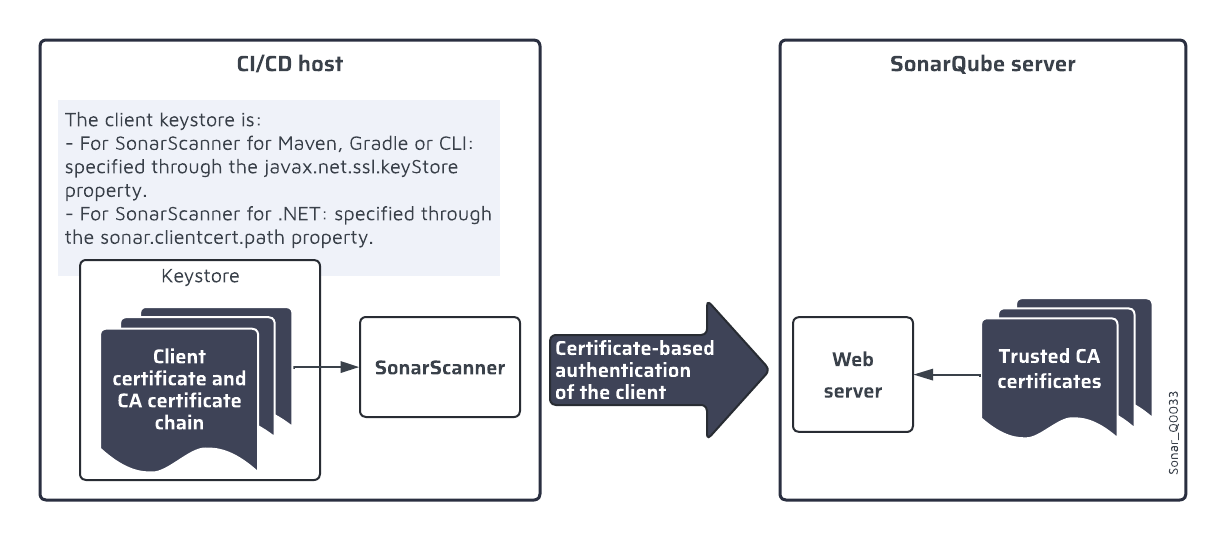
If mutual TLS is used then both the client and the server authenticate the other party. During the TLS authentication of the client, the client must provide its certificate with the corresponding CA certificate chain (intermediate and root CA certificates) to the server. The client manages its certificates in its own keystore. The figure below shows the certificates involved in SonarQube Server’s TLS authentication of the SonarScanner.
### Defining the access to the client certificates For SonarScanner for Maven, Gradle, CLI, or NPM
Store the client certificate and CA certificate chain in a keystore file and define the access to this file through the following properties:
* `javax.net.ssl.keyStore` or (for SonarScanner CLI from version 6.0 and SonarScanner for NPM from version 4.0) `sonar.scanner.keystorePath`: path to the keystore file.
* `javax.net.ssl.keyStorePassword` or (for SonarScanner CLI from version 6.0 and SonarScanner for NPM from version 4.0) `sonar.scanner.keystorePassword`: password of the keystore file.
For SonarScanner for .NET
1. Store the client certificate and CA certificate chain in a keystore file and define the access to this file through the following properties:
* `sonar.clientcert.path` : path to the keystore file, must be set in the begin step.
* `sonar.clientcert.password:` password of the keystore file, must be set in both the begin and end steps.
2. In addition, set the following options before the end step (for the SonarScanner CLI invocation):
* `javax.net.ssl.keyStore`: same value as `sonar.clientcert.path`
* `javax.net.ssl.keyStorePassword`: same value as `sonar.clientcert.password`
## Related pages
* [Reverse proxy and network security](/sonarqube-server/server-installation/network-security/securing-behind-proxy.md)
---
# Agent Instructions
This documentation is published with GitBook. GitBook is the documentation platform designed so that both humans and AI agents can read, navigate, and reason over technical content effectively. Learn more at gitbook.com.
## Querying This Documentation
If you need additional information that is not directly available in this page, you can query the documentation by asking a question.
Perform an HTTP GET request on the following URL with the `ask` and `goal` query parameters:
```
GET https://docs.sonarsource.com/sonarqube-server/analyzing-source-code/scanners/scanner-environment/manage-tls-certificates.md?ask=&goal=
```
`ask` is the immediate question: it should be specific, self-contained, and written in natural language.
`goal` is what the user is ultimately trying to achieve, the reason they need the answer. Sharing it helps GitBook give you a better, more relevant answer. A goal is most helpful when it describes the outcome the user wants rather than restating the question. For example, with `ask=how do I create an API token`, a goal like `automate deployments from our CI pipeline` lets GitBook tailor the answer to that use case.
The response will contain a direct answer to the question and relevant excerpts and sources from the documentation.
Use this mechanism when the answer is not explicitly present in the current page, you need clarification or additional context, or you want to retrieve related documentation sections.