> For the complete documentation index, see [llms.txt](https://docs.sonarsource.com/llms.txt). Markdown versions of documentation pages are available by appending `.md` to page URLs; this page is available as [Markdown](https://docs.sonarsource.com/sonarqube-server/instance-administration/analysis-functions/quality-standards.md).
# Quality standards
In SonarQube Server 2026.5, this page explains how to configure at the global level parameters or features impacting the quality gates or profiles.
You need the Administer system permission.
To manage the quality gates in your instance, see [Managing quality gates](/sonarqube-server/quality-standards-administration/managing-quality-gates.md).
To manage the quality profiles in your instance, see [Managing quality profiles](/sonarqube-server/quality-standards-administration/managing-quality-profiles.md).
## Setting up the Sandbox feature at the instance level
Some SonarQube updates may introduce new issues in your code on sections that have not been changed since the previous analysis. Such updates include Sonar analyzer improvements (improved rules), or changes to built-in quality profiles (addition of rules). This introduction of new issues may lead to abrupt and unexplained quality gate and pipeline failures, causing frustration and delays in releases.
As an instance admin, you can enable the Sandbox feature globally in your instance. Project administrators can then change the feature status (on or off) for their project.
For more information about this feature, see [Sandboxing of issues](/sonarqube-server/discovering/code-analysis/sandboxing-of-issues.md).
{% hint style="warning" %}
When you update your SonarQube Server from a version not supporting the Sandbox feature, enable the feature after the update but **before the first project analysis** otherwise you will not benefit from the feature for the current update. To ensure this, you can set up the feature through system properties during the update and before restarting SonarQube Server. See [#setting-up-the-sandbox-feature-through-system-properties](#setting-up-the-sandbox-feature-through-system-properties "mention").
{% endhint %}
{% hint style="info" %}
If you disable the Sandbox feature for your instance, any existing sandboxed issues will remain in the Sandbox and can still be triaged by users. Issues that already have a transition date are still automatically transitioned to Open status once that date passes. See [Sandboxing of issues](/sonarqube-server/discovering/code-analysis/sandboxing-of-issues.md#automatic-transition-of-sandboxed-issues-to-open-status).
{% endhint %}
To set up the Sandbox feature in your instance:
1. Go to **Administration** > **Configuration** > **General settings** > **General**.
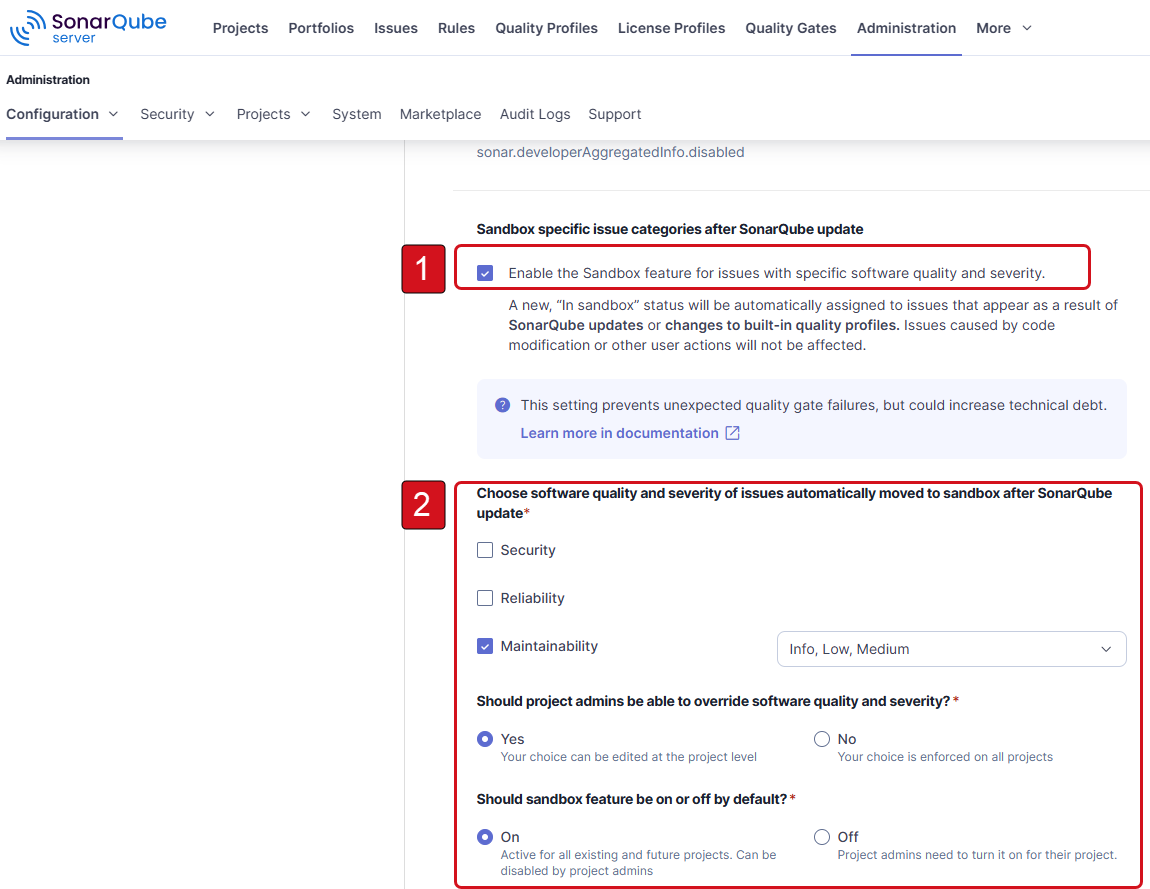
2. In **Issues** > **Sandbox specific issue categories after SonarQube update**, enable the feature. A configuration pane is displayed. The figure below shows the option to enable (1) and the configuration pane that is displayed (2) for an instance in MQR mode (for information about the instance mode, see [Changing instance modes](/sonarqube-server/user-guide/code-metrics/changing-modes.md)).
3. Define the sandbox conditions:
1. Select the software quality (in MQR mode) or the type (in Standard Experience) of issues to be moved to the Sandbox. The severity condition box is displayed.
2. Select the severity(ies) of the issues to be moved.
3. Proceed the same way for each other software quality or issue type you want to configure.
4. In **Automatically transition sandboxed issues to open status**, set the number of days after which a sandboxed issue is automatically transitioned to Open status if nobody has triaged it. Set `0` (the default) to disable automatic transition. For more information, see [Sandboxing of issues](/sonarqube-server/discovering/code-analysis/sandboxing-of-issues.md#automatic-transition-of-sandboxed-issues-to-open-status).
5. If project administrators should be able to change the Sandbox conditions and the number of days before automatic transition to Open status, select **Yes** for the corresponding option. Otherwise, select **No**.
6. In **Should sandbox feature be on or off by default?**, set the default status (On or Off) of the Sandbox feature for projects (the project admins can change it):
* **On**: The Sandbox feature will be On by default for all new projects. This will also set the Sandbox feature to On for existing projects (this applies when you first enable the sandbox feature and anytime you change this parameter).
* **Off**: The Sandbox feature will be Off by default for all new projects. This will also set the Sandbox feature to Off for existing projects (this applies when you first enable the Sandbox feature and anytime you change this parameter).
7. Select **Save**.
### Setting up the Sandbox feature through system properties
After an update, to make sure the feature is enabled before the analysis of any of your projects is done, you can set system properties before you restart your SonarQube Server after the update. The setup depends on your installation type.
For more information about the mentioned system properties, see [List of properties common to all editions](/sonarqube-server/server-installation/system-properties/common-properties.md#sandbox).
ZIP file installation
In Step 3 of the update procedure (see [Performing the update](/sonarqube-server/server-update-and-maintenance/update/update.md#zip-instance)), add the Sandbox properties to `sonar.properties` as illustrated below. Adapt the property values to your needs.
```properties
sonar.issues.sandbox.enabled=true
sonar.issues.sandbox.override.enabled=true
sonar.issues.sandbox.default=true
sonar.issues.sandbox.software-qualities=[{"softwareQuality":"MAINTAINABILITY","impactSeverities":["LOW","INFO"]}]
sonar.issues.sandbox.deferral.days=7
```
Docker image installation
In Step 2 of the update procedure (see [Performing the update](/sonarqube-server/server-update-and-maintenance/update/update.md#docker-instance)), add the Sandbox environment variables to the docker run command as illustrated below. Adapt the environment variable values to your needs.
```docker
-e SONAR_ISSUES_SANDBOX_ENABLED=true \
-e SONAR_ISSUES_SANDBOX_OVERRIDE_ENABLED=true \
-e SONAR_ISSUES_SANDBOX_DEFAULT=true \
-e SONAR_ISSUES_SANDBOX_SOFTWARE_QUALITIES='[{"softwareQuality":"MAINTAINABILITY","impactSeverities":["LOW","INFO"]}]' \
-e SONAR_ISSUES_SANDBOX_DEFERRAL_DAYS=7 \
```
Kubernetes installation
In step 1 of the standard update procedure (see [Performing the update](/sonarqube-server/server-update-and-maintenance/update/update.md#standard-procedure)), add the Sandbox system properties either as sonar properties (see *ZIP installation* above) or environment variables (see *Docker image installation* above) to your `values.yaml` . For information about the adding of system properties in a Kubernetes installation, see [Configuration methods](/sonarqube-server/server-installation/system-properties/configuration-methods.md#kubernetes).
## Changing the quality gate fudge factor at the global level
The quality gate fudge factor refers to a mechanism where conditions on duplication and coverage are ignored until the number of new lines is at least 20. This is used to avoid overly strict enforcement when dealing with small changes, as minor issues might disproportionately impact the overall quality gate status.
The fudge factor is enabled by default in your instance. This global setting is applied to all new projects. Project administrators can override it for their project.
To disable the fudge factor at the global level:
1. Go to **Administration** > **Configuration** > **General settings** > **General** > **Quality gate**.
2. Unselect the **Ignore duplication and coverage on small changes** option.
## Configuring options related to quality profiles
You can disable:
* The notifications sent by default to quality profile administrators on built-in quality profiles update.
* The deactivation of inherited rules by quality profile administrators.
Proceed as follows:
1. Go to **Administration** > **Configuration** > **General settings** > **General** > **Quality profile**.
2. Select **Avoid quality profiles notification** or unselect **Enable deactivation of inherited rules**.
## Related pages
* [Managing your project's quality gate](/sonarqube-server/project-administration/adjusting-analysis/changing-quality-gate-and-fudge-factor.md)
* [Changing your project's quality profiles](/sonarqube-server/project-administration/adjusting-analysis/changing-quality-gate.md)
* [Sandboxing of issues](/sonarqube-server/discovering/code-analysis/sandboxing-of-issues.md)
---
# Agent Instructions
This documentation is published with GitBook. GitBook is the documentation platform designed so that both humans and AI agents can read, navigate, and reason over technical content effectively. Learn more at gitbook.com.
## Querying This Documentation
If you need additional information that is not directly available in this page, you can query the documentation by asking a question.
Perform an HTTP GET request on the following URL with the `ask` and `goal` query parameters:
```
GET https://docs.sonarsource.com/sonarqube-server/instance-administration/analysis-functions/quality-standards.md?ask=&goal=
```
`ask` is the immediate question: it should be specific, self-contained, and written in natural language.
`goal` is what the user is ultimately trying to achieve, the reason they need the answer. Sharing it helps GitBook give you a better, more relevant answer. A goal is most helpful when it describes the outcome the user wants rather than restating the question. For example, with `ask=how do I create an API token`, a goal like `automate deployments from our CI pipeline` lets GitBook tailor the answer to that use case.
The response will contain a direct answer to the question and relevant excerpts and sources from the documentation.
Use this mechanism when the answer is not explicitly present in the current page, you need clarification or additional context, or you want to retrieve related documentation sections.