> For the complete documentation index, see [llms.txt](https://docs.sonarsource.com/llms.txt). Markdown versions of documentation pages are available by appending `.md` to page URLs; this page is available as [Markdown](https://docs.sonarsource.com/sonarqube-server/project-administration/creating-project/azure-devops/import-repos.md).
# Importing your Azure DevOps repository
Creating your project by importing your Azure DevOps repository in SonarQube Server 2026.5.
Once the [Binding to Azure DevOps](/sonarqube-server/instance-administration/devops-platforms/azure-devops.md) with Azure DevOps is complete, you can create your SonarQube Server project by importing your Azure DevOps repository. You can also create it manually but you won’t benefit from the integration features.
With the Administer System and Create Projects permissions, you can start an import from **Administration** > **Project coverage**, which shows how many of your repositories are imported and analyzed. See the [Project coverage](/sonarqube-server/quickstart-guide/project-coverage.md) page.
{% hint style="warning" %}
It’s highly recommended to create your SonarQube Server project before running your first analysis. Creating the project from the first analysis has side-effects (e.g., you can’t choose the main branch name).
{% endhint %}
## Before your first repository import
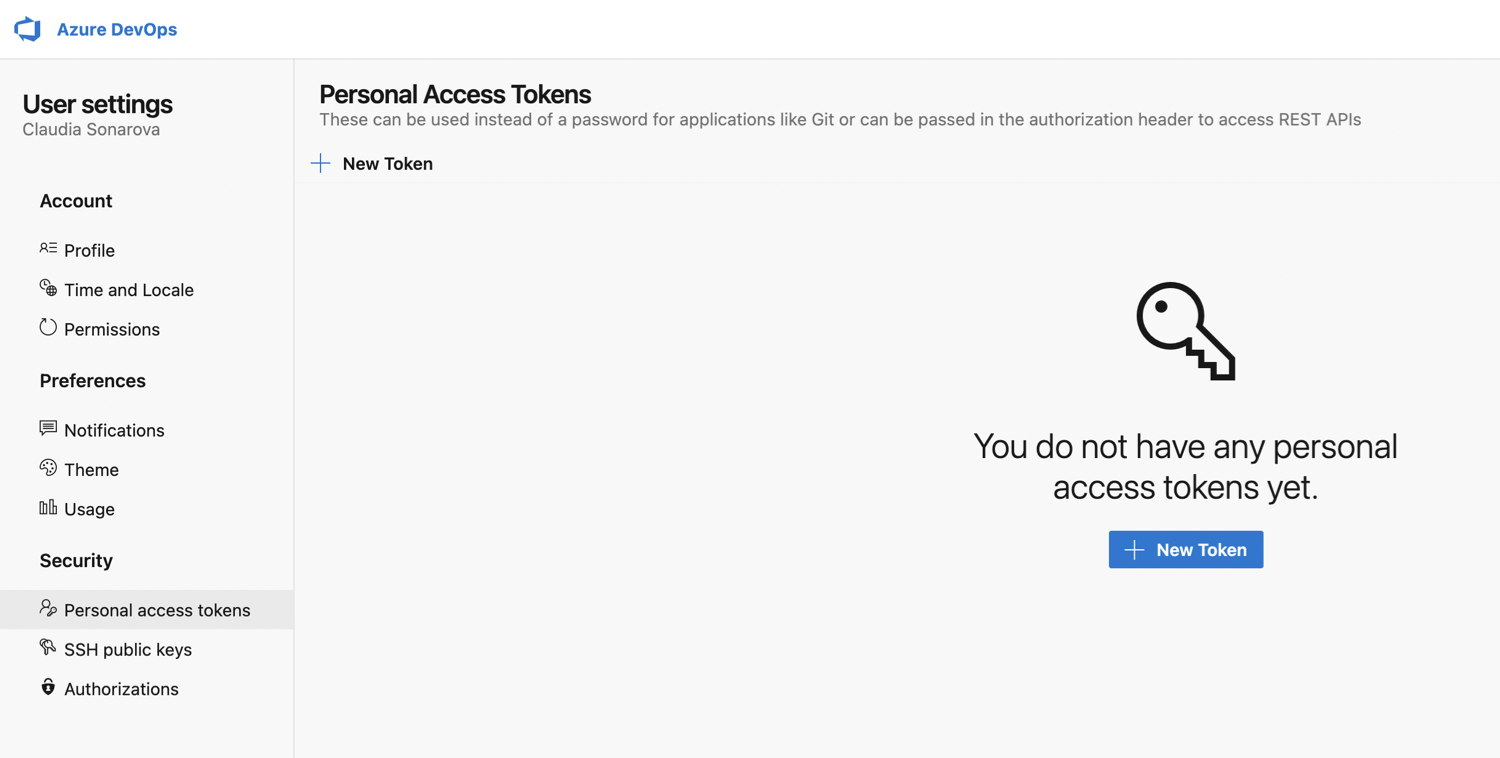
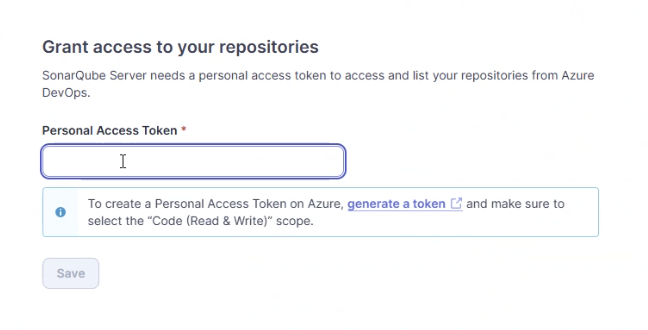
On your first repository import, you will have to insert an Azure Personal Authentication Token (PAT) so that you are able to list the repositories you have access to in Azure DevOps.
Proceed as follows to create your Azure PAT:
1\. Log in to Azure DevOps.
2\. Go to your Azure DevOps organization **User settings** > **Personal access tokens** and select **+ New token**.
> **Warning:** If you're using Azure DevOps Services, SonarQube Server does not allow Global PATs, personal access tokens scoped to **All accessible organizations**, which Microsoft is [retiring](https://devblogs.microsoft.com/devops/retirement-of-global-personal-access-tokens-in-azure-devops/). When creating your PAT, under **Organization**, select the specific organization you're integrating with instead. Azure DevOps Server users are not affected.
3\. If you're using Azure DevOps Services, on the next page, under **Organization**, select the organization you're integrating with. Under **Scopes**, make sure that you specify at least the scope **Code** > **Read & write**. This lets SonarQube Server import repositories and report the quality gate status. If you use the Remediation Agent, also add **Identity** > **Read**: select **Show all scopes** to find it. This lets the agent assign a reviewer to the pull request. Without it, the pull request opens with no reviewer assigned. SonarQube Server cannot verify these scopes for you on Azure DevOps, so check them here. For more details, check the [Remediation Agent's DevOps platform permission requirements](/sonarqube-server/instance-administration/ai-features/remediation-agent.md#devops-platform-permissions).
4\. Click **Create** to generate the token.
5\. When the personal access token is displayed, copy it (you will have to paste it during your first repository import as described below).\
You cannot encrypt this token. SonarQube Server stores it as a personal credential, not as a system property. See [Sensitive settings](/sonarqube-server/instance-administration/security/encrypting-settings.md) for more details.
## Importing your Azure DevOps repository
To import your repository, you need the Create Projects permission in SonarQube Server.
The so-created SonarQube Server project is "bound" to its Azure DevOps repository. With a bound project:
* You can see in the SonarQube Server UI with which repository the project is associated.
* You benefit from pull request integration features.
To import an Azure DevOps repository into SonarQube Server:
> **Warning:** If you’re using Azure DevOps Services, SonarQube Server does not allow Global PATs, personal access tokens scoped to **All accessible organizations**, which Microsoft is [retiring](https://devblogs.microsoft.com/devops/retirement-of-global-personal-access-tokens-in-azure-devops/). When creating your PAT, under **Organization**, select the specific organization you’re integrating with instead. Azure DevOps Server users are not affected.
1. In the top navigation bar of SonarQube Server, select the **Projects** tab.
2. In the top right corner, select the **Create Project** > **From Azure DevOps** button.
3. If it’s your first repository import, you’ll be prompted to enter the Azure PAT you created as described in *Before your first repository import* above. Enter your PAT and select **Save**.
4\. If your instance has multiple Azure DevOps Integrations, select the **Azure** **DevOps configuration** from which you want to import your project.
5\. Select the repository to be imported.
## Importing a monorepo
Starting in [Enterprise edition](https://www.sonarsource.com/plans-and-pricing/enterprise/), you can import an Azure DevOps monorepo. See [Managing monorepo projects](/sonarqube-server/project-administration/monorepos.md).
## Related pages
* [About Azure Pipelines integration](/sonarqube-server/analyzing-source-code/ci-integration/azure-pipelines/integration-overview.md)
* [Binding to Azure DevOps](/sonarqube-server/instance-administration/devops-platforms/azure-devops.md)
* [Setting up Azure integration for your project](/sonarqube-server/project-administration/creating-project/azure-devops/setting-up-project-integration.md)
* [Adding analysis to your Azure pipeline](/sonarqube-server/analyzing-source-code/ci-integration/azure-pipelines/introduction.md)
* [Troubleshooting analysis with Azure](/sonarqube-server/analyzing-source-code/ci-integration/azure-pipelines/troubleshooting-analysis.md)
* [Creating your project manually](/sonarqube-server/project-administration/creating-project/creating-project-manually.md)
---
# Agent Instructions
This documentation is published with GitBook. GitBook is the documentation platform designed so that both humans and AI agents can read, navigate, and reason over technical content effectively. Learn more at gitbook.com.
## Querying This Documentation
If you need additional information that is not directly available in this page, you can query the documentation by asking a question.
Perform an HTTP GET request on the following URL with the `ask` and `goal` query parameters:
```
GET https://docs.sonarsource.com/sonarqube-server/project-administration/creating-project/azure-devops/import-repos.md?ask=&goal=
```
`ask` is the immediate question: it should be specific, self-contained, and written in natural language.
`goal` is what the user is ultimately trying to achieve, the reason they need the answer. Sharing it helps GitBook give you a better, more relevant answer. A goal is most helpful when it describes the outcome the user wants rather than restating the question. For example, with `ask=how do I create an API token`, a goal like `automate deployments from our CI pipeline` lets GitBook tailor the answer to that use case.
The response will contain a direct answer to the question and relevant excerpts and sources from the documentation.
Use this mechanism when the answer is not explicitly present in the current page, you need clarification or additional context, or you want to retrieve related documentation sections.