> For the complete documentation index, see [llms.txt](https://docs.sonarsource.com/llms.txt). Markdown versions of documentation pages are available by appending `.md` to page URLs; this page is available as [Markdown](https://docs.sonarsource.com/sonarqube-server/quality-standards-administration/managing-quality-profiles/viewing-quality-profiles.md).
# Viewing quality profiles
Any user can view and compare quality profiles in SonarQube Server 2026.5.
For understand the concept of a quality profile, see the [Understanding quality profiles](/sonarqube-server/quality-standards-administration/managing-quality-profiles/understanding-quality-profiles.md) page.
## Retrieving quality profiles
In the top navigation bar of the SonarQube UI, select **Quality Profiles**. The **Quality Profiles** page opens with:
1. In the left-hand side: the list of profile sets by language.\
Quality profiles inherited from a parent profile are displayed under their parent and with a left indent.\
This list includes the following columns:
* The **Projects** column shows the count of projects associated with a quality profile. Alternatively, it displays **`DEFAULT`** when the profile is the language’s default (any profile not explicitly associated with a quality profile is associated with the default profile).
* The **Rules** column shows the total count of active rules within the profile. Additionally, if any of these active rules are deprecated, their number will also be indicated with a pink background.
* The **Updated** column shows when the quality profile was last updated.
* The **Used** column shows when the quality profile was last used during a project analysis.
2. In the right-hand side: different sections depending on the existing quality profiles:
* The **Deprecated Rules** section lists the quality profiles that contain deprecated rules.
* The **Recently Added Rules** section lists newly added rules and shows whether they are currently active in each profile.
* The **Stagnant Profiles** section lists the custom profiles that have not been updated for more than one year.
## Viewing a quality profile
In the **Quality Profiles** page:
1. To view a specific language, select a language in **Filter by** at the top of the left-hand side list of quality profiles.
2. Select the quality profile you want to view. The quality profile is displayed as illustrated below.
The quality profile page includes the following sections:
1. **Inheritance**: shows the quality profile with its possible parent(s) and / or children. For each profile, the number of active, inactive, and overridden rules in the profile is shown. Select a number to view the corresponding list of rules.
2. **Projects**: shows the projects explicitly associated with the quality profile.
3. **Rule breakdown**: shows statistics about active and inactive rules contained in the quality profile. Select a statistic to view the corresponding rules.
If you have the Administer Quality Profiles permission, you will also see a **Permissions** section under the **Projects** section. The **Permissions** section shows the users and groups authorized to manage this quality profile.
## Comparing quality profiles
You can compare quality profiles of the same language.
To compare one profile with another:
1. In the SonarQube UI, retrieve one of the quality profiles you want to compare (quality-profile-1).
2. In the top right corner of the quality profile page, select the three-dot button, and select **Compare** in the menu. The comparison page opens.
3. In **Compare with**, select the profile to be compared to (quality-profile-2). The left column corresponds to quality-profile-1 and the right column to quality-profile-2. In the comparison results, you can select a rule to inspect it.

In this example, the comparison reveals the following differences:
1. quality-profile-1 has 3 more rules. Click on **Deactivate** to remove them from the profile.
2. quality-profile-1 has 2 fewer rules than quality-profile-2. Click on **Activate** to add them to the profile.
3. One rule has a different configuration in quality-profile-1 and quality-profile-2: the severity level is different.
{% hint style="info" %}
The comparison doesn’t take into accounts the rule’s Prioritized option. This is supported starting with the Enterprise Edition.
{% endhint %}
## Viewing the overridden rules of a quality profile
A rule is considered overridden in a custom quality profile if this profile defines, for this rule, different parameters than its parent quality profile. The parameters may be severity level, rule’s configurable parameters, and, starting in [Enterprise Edition](https://www.sonarsource.com/plans-and-pricing/enterprise/), the Prioritized rule option.
To view the overridden rules of a quality profile:
1. Retrieve the quality profile as described above. The number of overridden rules in the profile (if any) is shown in the **Inheritance** section.
2. Select the **\ overridden rules** hyperlink. The list of overridden rules is displayed. In the list, you can only view the security level changes as illustrated below. To have more information, you can:
* Compare the quality profile with its parent, see [#comparing-quality-profiles](#comparing-quality-profiles "mention") for details.
* If you have the corresponding permission, select the **Change** button on the rule row.
* Select the rule and navigate to the **Quality Profiles** section on the rule’s page. If the rule has configurable parameters, their values will be displayed in the section for each quality profile where the rule is active.
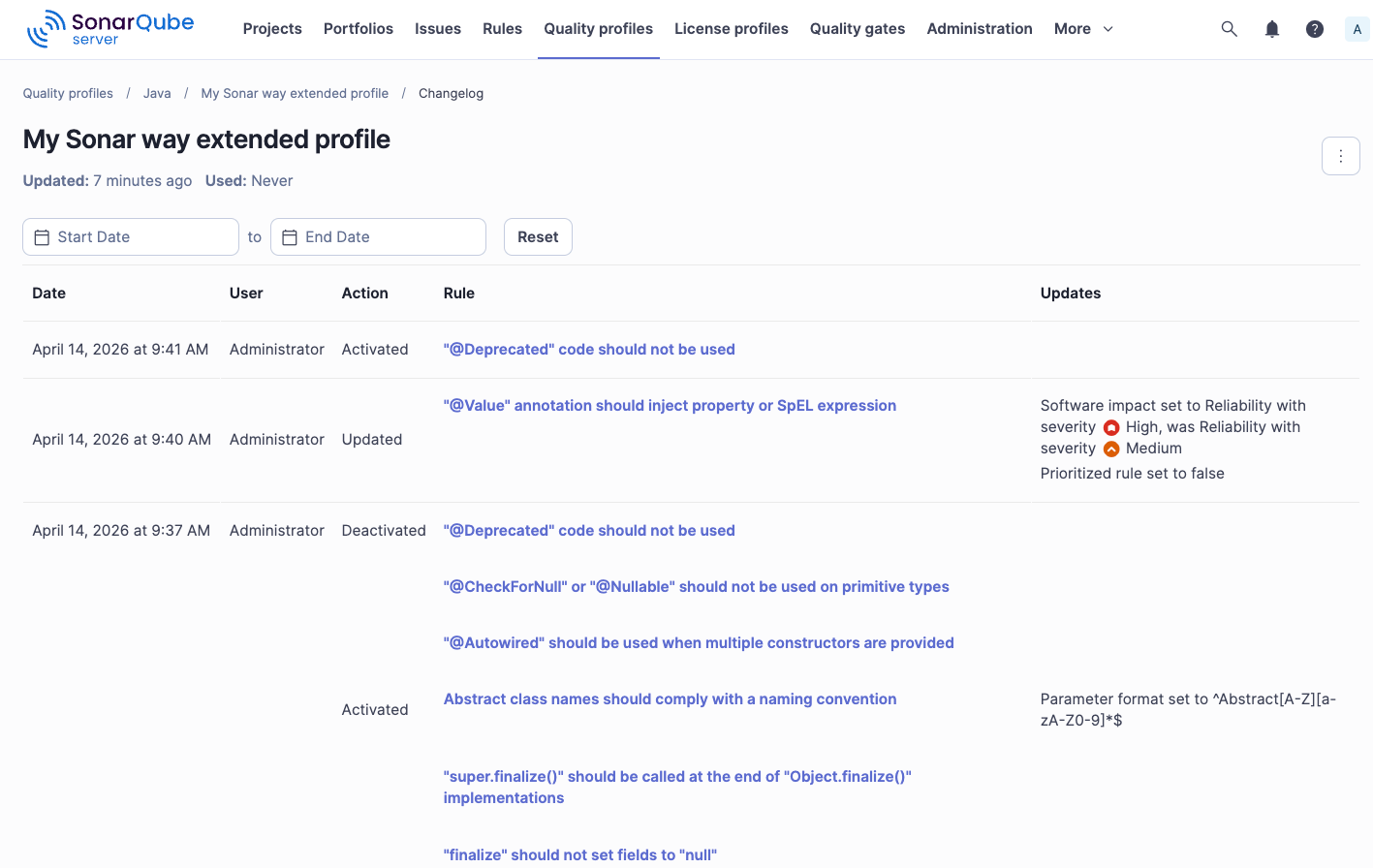
## Viewing the change history of a quality profile
1. Retrieve the quality profile.
2. Select **See Changelog** at the top of the page. The profile change history opens and lists the different actions performed on rules in the quality profile:
* **Date**: action date.
* **User**: user who performed the action.
* **Action**: action type (the user activated, deactivated, or updated the rule).
* **Rule**: rule on which the action was performed.
* **Updates**:
* For an Updated action: describes the update.
* For an Activated action: shows the rule’s configurable parameter values (if any) at activation time.
## Viewing the quality profiles associated with a project
1. See the instructions on the[Viewing projects](/sonarqube-server/user-guide/viewing-projects.md) page to access your project.
2. Go to **Project** > **Project information**. The **About this Project** section shows the quality profiles used during the last analysis.
3. If you are a project admin, go to *Your project* > **Project Settings** > **Quality profiles** to view the profiles configured for the project. If no profile is configured for a language, the built-in **Sonar way core** profile is used for this language.
## Viewing the projects associated with a quality profile
The **Projects** section of a quality profile shows the projects associated with the profile. See **Retrieving a quality profile** above.
## Viewing the quality profiles where a rule is active
To view the quality profiles where a given rule is active:
1. Go to **Rules** and retrieve the rule.
2. In the left column, navigate to the **Quality Profiles** section. The section lists all quality profiles where the rule is active.
## Exporting a report on the quality profiles used in a project
You can export all rules contained in your quality profiles and used for the analysis of a given project branch by downloading the regulatory report. The data is included in the `quality-profiles.csv` file of the regulatory report’s ZIP file. See the [Regulatory reports](/sonarqube-server/user-guide/viewing-reports/regulatory-reports.md) page for more information.
## Related pages
* [Built-in quality profiles](/sonarqube-server/quality-standards-administration/managing-quality-profiles/built-in-quality-profiles.md)
* [Understanding quality profiles](/sonarqube-server/quality-standards-administration/managing-quality-profiles/understanding-quality-profiles.md)
* [Creating a quality profile](/sonarqube-server/quality-standards-administration/managing-quality-profiles/creating-a-quality-profile.md)
* [Editing a quality profile](/sonarqube-server/quality-standards-administration/managing-quality-profiles/editing-a-custom-quality-profile.md)
* [Associating with projects](/sonarqube-server/quality-standards-administration/managing-quality-profiles/associating-a-quality-profile-with-projects.md)
* [Changing default quality profile](/sonarqube-server/quality-standards-administration/managing-quality-profiles/changing-default-quality-profile.md)
* [Maintaining quality profiles](/sonarqube-server/quality-standards-administration/managing-quality-profiles/maintaining-your-custom-quality-profiles.md)
* [Granting permissions to users](/sonarqube-server/quality-standards-administration/managing-quality-profiles/authorizing-other-users-to-manage-quality-profile.md)
* [Quality profiles for agentic AI](/sonarqube-server/quality-standards-administration/ai-code-assurance/quality-profiles-for-agentic-ai.md)
---
# Agent Instructions
This documentation is published with GitBook. GitBook is the documentation platform designed so that both humans and AI agents can read, navigate, and reason over technical content effectively. Learn more at gitbook.com.
## Querying This Documentation
If you need additional information that is not directly available in this page, you can query the documentation by asking a question.
Perform an HTTP GET request on the following URL with the `ask` and `goal` query parameters:
```
GET https://docs.sonarsource.com/sonarqube-server/quality-standards-administration/managing-quality-profiles/viewing-quality-profiles.md?ask=&goal=
```
`ask` is the immediate question: it should be specific, self-contained, and written in natural language.
`goal` is what the user is ultimately trying to achieve, the reason they need the answer. Sharing it helps GitBook give you a better, more relevant answer. A goal is most helpful when it describes the outcome the user wants rather than restating the question. For example, with `ask=how do I create an API token`, a goal like `automate deployments from our CI pipeline` lets GitBook tailor the answer to that use case.
The response will contain a direct answer to the question and relevant excerpts and sources from the documentation.
Use this mechanism when the answer is not explicitly present in the current page, you need clarification or additional context, or you want to retrieve related documentation sections.