> For the complete documentation index, see [llms.txt](https://docs.sonarsource.com/llms.txt). Markdown versions of documentation pages are available by appending `.md` to page URLs; this page is available as [Markdown](https://docs.sonarsource.com/sonarqube-server/quickstart-guide/project-coverage.md).
# Project coverage
In SonarQube Server 2026.5, project coverage guides administrators through connecting DevOps platforms, importing repositories, and analyzing projects, and remains the ongoing view of that progress.
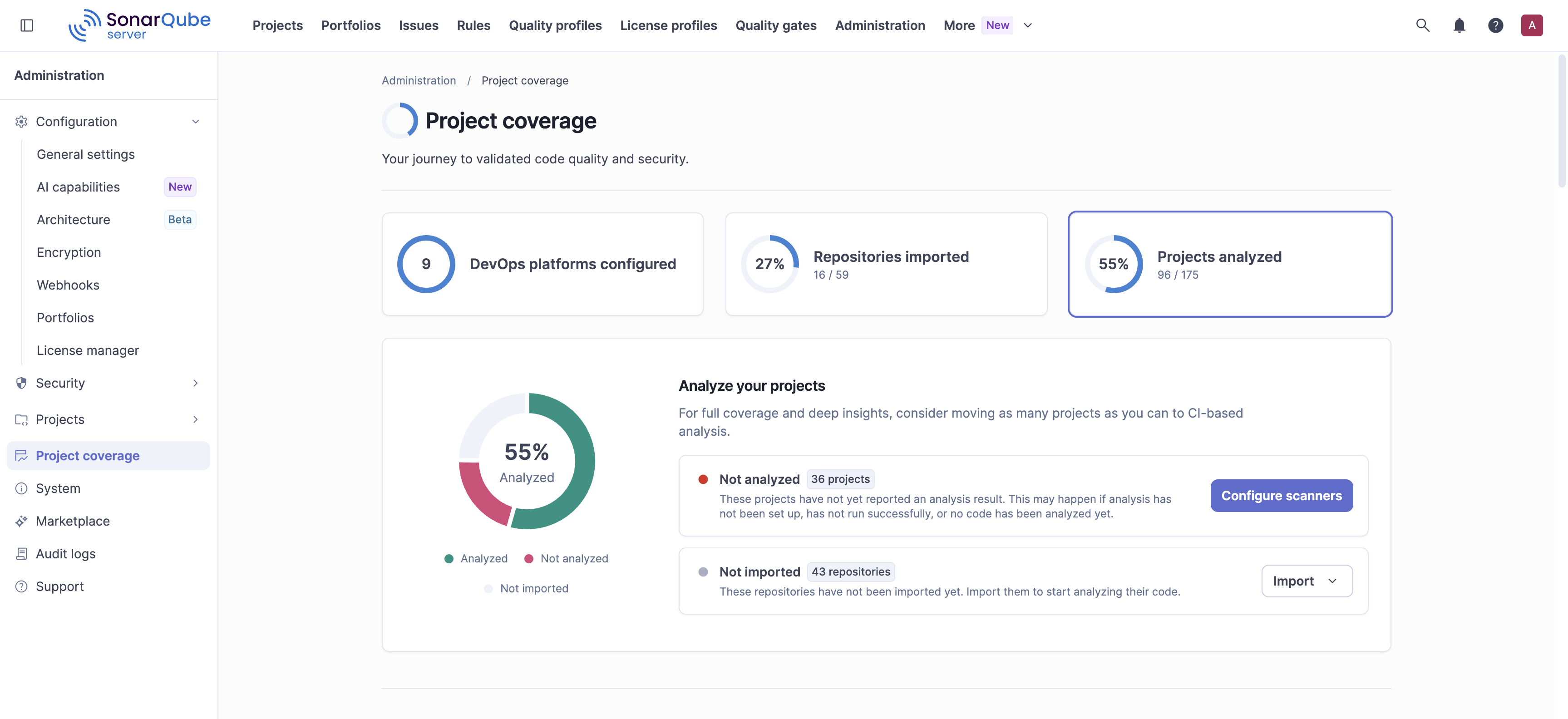
Project coverage shows whether every repository in your organization is connected, imported, and actually being scanned. Gaps at any step mean that code isn't getting analyzed for quality or security issues. Close those gaps by working through three steps: connect a DevOps platform, import your repositories, and get your projects analyzed. Go to **Administration** > **Project coverage** to access the page. A progress chart tracks how far you've gotten along the way, and a full project list at the bottom of the page lets you act on individual projects directly.
## Required permissions
You need the Administer System permission to view Project coverage. With this permission, the page shows all projects and DevOps platform configurations on your SonarQube instance, regardless of your project-level permissions.
To import repositories or configure a project from the **Project coverage** page, you also need the Create Projects permission. Creating a DevOps platform configuration needs only the Administer System permission. See the [Managing permissions](/sonarqube-server/instance-administration/user-management/user-permissions.md) page for more information.
If you don't have access to a linked DevOps platform or its repository, selecting it shows an error. This happens because of your access level on the DevOps platform itself, not a permissions problem with your SonarQube Server instance.
## DevOps platforms configured
Connecting a DevOps platform is the foundation every other step depends on: without one, there's nothing to import repositories from or discover projects in.
Select **DevOps platforms configured** to track how many DevOps platform configurations you've set up, grouped by platform type. Then select **Create configuration** to open the **General settings** > **DevOps Platform Integrations** page, where you choose your platform and follow its setup process:
* [Binding to GitHub](/sonarqube-server/instance-administration/devops-platforms/github.md)
* [Binding to GitLab](/sonarqube-server/instance-administration/devops-platforms/gitlab.md)
* [Binding to Bitbucket Cloud](/sonarqube-server/instance-administration/devops-platforms/bitbucket-cloud.md)
* [Binding to Bitbucket Data Center](/sonarqube-server/instance-administration/devops-platforms/bitbucket-data-center.md)
* [Binding to Azure DevOps](/sonarqube-server/instance-administration/devops-platforms/azure-devops.md)
The Developer edition supports one configuration per platform type. The Enterprise and Data Center editions support multiple configurations per platform type. See the [SonarQube Server editions](/sonarqube-server/discovering/sonarqube-server-editions.md) page for more information.
After you connect a platform, you're ready to import its repositories.
## Repositories imported
Importing a repository is what turns it into a SonarQube project that can actually be analyzed. Repositories left un-imported never get scanned.
Select **Repositories imported** to see how many repositories you've imported from your connected DevOps platforms. Then select **Import**, and choose to import from one of your connected DevOps platforms, or select **Import from other DevOps platforms** to import from a platform you haven't connected yet. If the platform isn't connected yet, you'll go through the same DevOps platform setup process described in [DevOps platforms configured](#devops-platforms-configured).
{% hint style="info" %}
A workflow to import multiple repositories at the same time is currently under development. When it's available, the documentation will be updated accordingly.
{% endhint %}
With your repositories imported, the next step is getting them analyzed.
## Projects analyzed
Analysis is where coverage becomes real value: an imported project that's never analyzed still isn't producing the quality or security results that a SonarQube analysis can provide.
Select **Projects analyzed** to check how many of your imported projects have been analyzed, and choose how you want to configure them:
* To configure one project at a time: select **Analyze projects**, then select **Configure** next to a project to go to its **Analysis Method** page; there, you will choose how to run the analysis:
* [Jenkins](/sonarqube-server/analyzing-source-code/ci-integration/jenkins-integration.md)
* [GitHub Actions](/sonarqube-server/analyzing-source-code/ci-integration/github-actions.md)
* [Azure Pipelines](/sonarqube-server/analyzing-source-code/ci-integration/azure-pipelines.md)
* [Not integrated CI tools](/sonarqube-server/analyzing-source-code/ci-integration/not-integrated-tools.md)
* [Try out SonarQube Server](/sonarqube-server/try-out-sonarqube.md)
* To configure many projects at once, see [Configuring analysis at scale](#configuring-analysis-at-scale).
Projects that come from a monorepo show a `Monorepo project: ` label under the project name, identifying which projects share a single repository source. Because a single monorepo repository can contain multiple SonarQube projects, templating and scripting your configuration at scale needs to account for each project's path within the repository individually. See the [Managing monorepo projects](/sonarqube-server/project-administration/monorepos.md) page for more information.
### Configuring analysis at scale
To configure analysis at scale across dozens or hundreds of repositories, follow these practices:
* Build one reusable pipeline template per language or build stack (for example, a GitHub reusable workflow, a GitLab CI include, or a Jenkins shared library) that adds: the scanner, the SonarQube connection, and its parameters. Set up your new repositories so that they will inherit the correct configuration instead of copy-pasting a YAML file to each:
* Use the build-system-specific scanner for Maven, Gradle, and .NET projects when possible: it integrates with your project's build ecosystem and supplies most of the necessary configuration. Some repositories may still need explicit settings for non-standard layouts, test or coverage reports, exclusions, or monorepos. See the [SonarScanner for Maven](/sonarqube-server/analyzing-source-code/scanners/sonarscanner-for-maven.md), [SonarScanner for Gradle](/sonarqube-server/analyzing-source-code/scanners/sonarscanner-for-gradle.md), and SonarScanner for .NET: [Installing the scanner](/sonarqube-server/analyzing-source-code/scanners/dotnet/installing.md) pages for details about each scanner.
* Use the SonarScanner CLI for other languages. This scanner typically needs more manual configuration than the build-system-specific scanners because it doesn't automatically detect your project's language or build setup. See the [SonarScanner CLI](/sonarqube-server/analyzing-source-code/scanners/sonarscanner.md) page to understand how to configure it in your CI/CD pipeline.
* Use the Python and NPM scanners when their package-manager integration is useful, though their limited automation benefit over the SonarScanner CLI may not justify maintaining a separate template. See the [SonarScanner for Python](/sonarqube-server/analyzing-source-code/scanners/sonarscanner-for-python.md) page to start analyzing a Python project, and the SonarScanner for NPM: [Installing the scanner](/sonarqube-server/analyzing-source-code/scanners/npm/installing.md) page to install the scanner for your project.
* Automate token generation and configuration: use `api/user_tokens/generate` to generate a project analysis token per project instead of creating them manually, and use your DevOps platform's API to add each token as a CI secret for its project. Alternatively, use a single global analysis token across all repositories. See the [Managing your tokens](/sonarqube-server/user-guide/managing-tokens.md#types-of-tokens) section for more information.
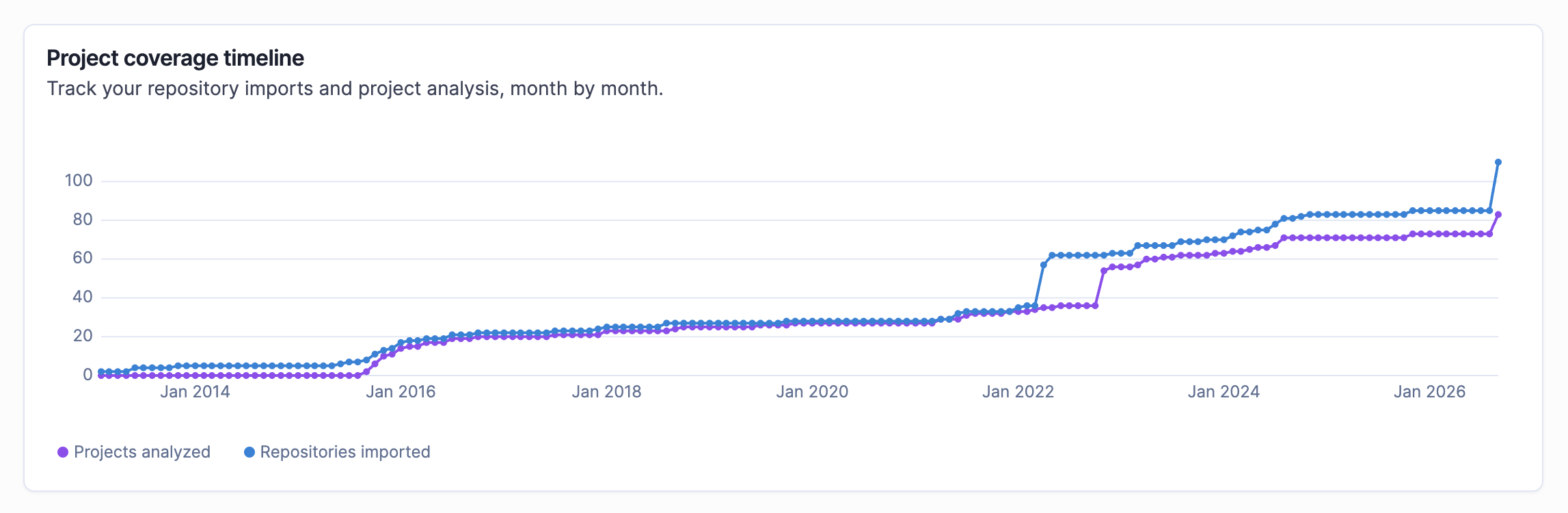
## Project coverage timeline
Connecting a DevOps platform, importing repositories, and analyzing projects give you a quick snapshot of where you stand right now. The **Project coverage timeline** complements that snapshot by tracking your progress over time, charting your projects analyzed and repositories imported. The graph appears when you configure your first DevOps platform and builds from there.
Additional statistics below the chart stay locked until you import your first repository.
## All projects
DevOps platforms configured, Repositories imported, Projects analyzed, and the Project coverage timeline track your aggregated progress and provide metrics to help you gain an overview; the **All projects** list helps you filter, find, and act on that progress, project by project.
This section shows a complete overview of every project on your instance. Use **Search projects** to find a specific project, or filter the list by **Analysis status** (All, Analyzed, or Not analyzed) and **Analysis mode** (All, CI-based analysis, or None).
Each row lists the repository name, its analysis status, and its analysis mode. Select the **⋮** menu next to a project to see **How to run a new analysis** or to **View project**.
---
# Agent Instructions
This documentation is published with GitBook. GitBook is the documentation platform designed so that both humans and AI agents can read, navigate, and reason over technical content effectively. Learn more at gitbook.com.
## Querying This Documentation
If you need additional information that is not directly available in this page, you can query the documentation by asking a question.
Perform an HTTP GET request on the following URL with the `ask` and `goal` query parameters:
```
GET https://docs.sonarsource.com/sonarqube-server/quickstart-guide/project-coverage.md?ask=&goal=
```
`ask` is the immediate question: it should be specific, self-contained, and written in natural language.
`goal` is what the user is ultimately trying to achieve, the reason they need the answer. Sharing it helps GitBook give you a better, more relevant answer. A goal is most helpful when it describes the outcome the user wants rather than restating the question. For example, with `ask=how do I create an API token`, a goal like `automate deployments from our CI pipeline` lets GitBook tailor the answer to that use case.
The response will contain a direct answer to the question and relevant excerpts and sources from the documentation.
Use this mechanism when the answer is not explicitly present in the current page, you need clarification or additional context, or you want to retrieve related documentation sections.