> For the complete documentation index, see [llms.txt](https://docs.sonarsource.com/llms.txt). Markdown versions of documentation pages are available by appending `.md` to page URLs; this page is available as [Markdown](https://docs.sonarsource.com/sonarqube-server/server-update-and-maintenance/monitoring/lines-of-code.md).
# Lines of Code
SonarQube Server 2026.5 calculates the Lines of Code analyzed against the subscription’s limit defined by the license.
In SonarQube Server, the number of Lines of Code (LOC) you intend to analyze plays an important role in your choice of commercial edition (Developer, Enterprise, or Data Center). See the Sonar [Plans and Pricing](https://www.sonarsource.com/plans-and-pricing/) page for more details.
## LOC definition
Your instance’s LOC is calculated by adding up the LOC of each project analyzed. In the case of a Data Center Edition, the LOC from each project in each cluster node is summed up.
To calculate the LOC of a project, SonarQube Server counts the lines of code found on the most recent analysis of the largest branch or pull request of the project by excluding:
* Test code.
* Files excluded from analysis.
* Code in unsupported languages.
* Comments or blank lines.
**Example**: Your instance has two projects:
* Project1 has 500 lines of code on its main branch and 400 on a secondary long-lived branch: its LOC is 500.
* Project2 has 0 lines of code on its main branch (provisioned but never analyzed) and 200 on a secondary long-lived branch: its LOC is 200.
* The total LOC for the organization is 500 + 200 = 700.
Note that you can’t *use up your license* by reanalyzing the same code (with the same number of lines).
{% hint style="info" %}
Lines of code found in an A*pplication* do not count against your LOC. This is because Applications aggregate code from projects, and we already count the LOC once for the "parent" *project*.
{% endhint %}
## Checking your LOC consumption
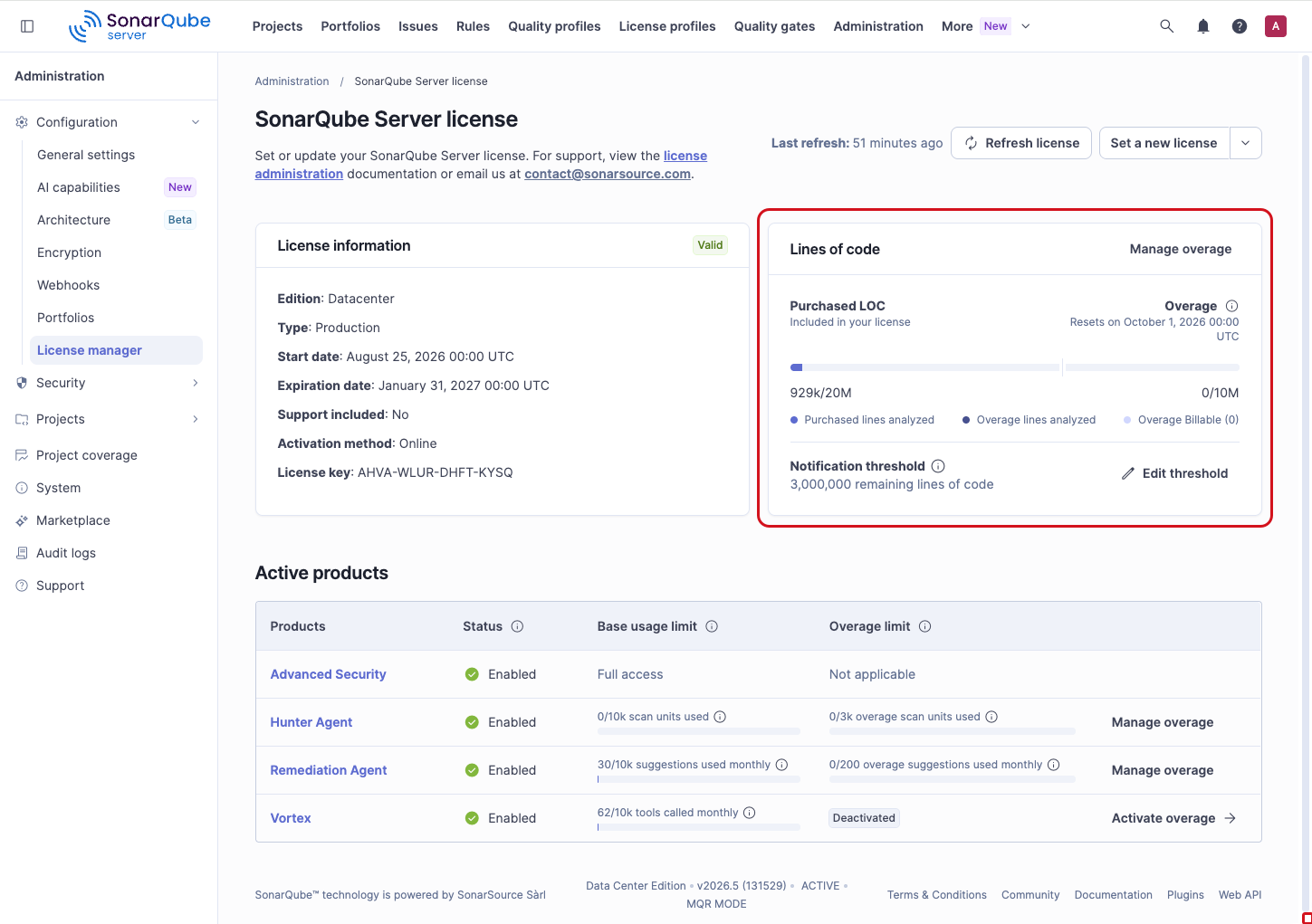
Go to **Administration** > **Configuration** > **License manager** to check how many lines of code you are currently using.
To receive a warning before you reach your **Purchased LOC** limit:
1. In the **Lines of code** section, select **Edit threshold**.
2. Enter a value for **Threshold**, in lines of code.
3. Select **Save**.
SonarQube Server sends an email notification when your remaining lines of code fall below this threshold, and resends it every 30 days as long as your remaining lines of code stay below the threshold. The saved value appears as **Notification threshold** in the **Lines of code** section.
You cannot exceed your LOC threshold unless you enable overage on your subscription. See the [Overage activation](/sonarqube-server/instance-administration/license-management/overage-activation.md#loc-overage) page for more information. If you’re near your limit, you may need to purchase additional lines of code.
You can check your LOC per project, per branch, in three different locations:
* Go to *Your project* > **Project** > **Project information** to reveal the LOC on your main branch (for that project). Note that this may not exactly be your max LOC, for example, another branch or PR might have more lines of code.
* Go to *Your Project* > **Reporting** > **Measures** > **Size** > **Lines of Code** for a list of files and folders with a LOC count for each one.
* Go to *Your project* > **Project** > **Code** page for a list of files and folders with a LOC count for each one.
{% hint style="info" %}
The LOC is a metric (`ncloc`) you can retrieve through the [Web API](/sonarqube-server/extension-guide/web-api.md) by using the `/api/measures` endpoint.
{% endhint %}
## If you exceed your LOC threshold
Once you are near your limit, you will receive a notification. On the **License manager** page, select **Edit threshold** to define *when* notifications will be sent.
If you reach your limit, you will receive an error message and the SonarQube Server instance will reject any analysis whose total lines of code exceed the limit defined by your license. In no way does this affect access to basic functionalities such as saving configuration changes and allowing project browsing. In all cases, you can still analyze your code if the new analysis doesn’t surpass the LOC limit defined by your license.
On Enterprise and Data Center edition instances with [online license activation](/sonarqube-server/instance-administration/license-management.md), you can activate LOC overage to continue analyzing code beyond your license limit without waiting for a license upgrade. See the [Overage activation](/sonarqube-server/instance-administration/license-management/overage-activation.md#loc-overage) page.
---
# Agent Instructions
This documentation is published with GitBook. GitBook is the documentation platform designed so that both humans and AI agents can read, navigate, and reason over technical content effectively. Learn more at gitbook.com.
## Querying This Documentation
If you need additional information that is not directly available in this page, you can query the documentation by asking a question.
Perform an HTTP GET request on the following URL with the `ask` and `goal` query parameters:
```
GET https://docs.sonarsource.com/sonarqube-server/server-update-and-maintenance/monitoring/lines-of-code.md?ask=&goal=
```
`ask` is the immediate question: it should be specific, self-contained, and written in natural language.
`goal` is what the user is ultimately trying to achieve, the reason they need the answer. Sharing it helps GitBook give you a better, more relevant answer. A goal is most helpful when it describes the outcome the user wants rather than restating the question. For example, with `ask=how do I create an API token`, a goal like `automate deployments from our CI pipeline` lets GitBook tailor the answer to that use case.
The response will contain a direct answer to the question and relevant excerpts and sources from the documentation.
Use this mechanism when the answer is not explicitly present in the current page, you need clarification or additional context, or you want to retrieve related documentation sections.