> For the complete documentation index, see [llms.txt](https://docs.sonarsource.com/llms.txt). Markdown versions of documentation pages are available by appending `.md` to page URLs; this page is available as [Markdown](https://docs.sonarsource.com/sonarqube-server/user-guide/managing-your-account/subscribing-to-notifications/email.md).
# Subscribing to email notifications
In SonarQube Server 2026.5, you can subscribe to email notifications for various analysis-related events. You cannot subscribe for another user.
{% hint style="info" %}
You’re automatically notified in the following cases:
* When one of your tokens is about to expire.
* As a Quality Profile Administrator, when a built-in quality profile is modified (after a SonarQube Server or analyzer update).
{% endhint %}
## List of notifications subject to subscription
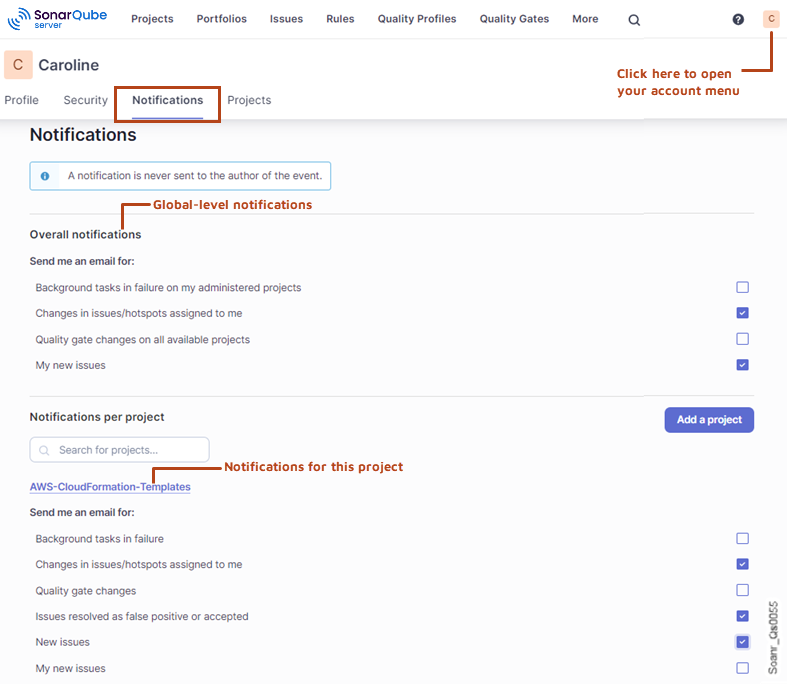
The notifications you can subscribe to are listed below.
Overall notifications (for any project)
| **Notification** | **Description** |
| ------------------------------------------------------- | ---------------------------------------------------------------------------------------------------------------- |
| Background tasks in failure on my administered projects | You are notified of any background task failure for any project you’re an admin of. |
| Changes in issues/hotspots assigned to me | You are notified of any change performed by another user on any issue or hotspot assigned to you on any project. |
| Quality gate changes on all available projects | You are notified of any status change for any project you have access. |
| My new issues | You are notified if new issues are assigned to you for the specific project. |
Notifications per project
| **Notification** | **Description** |
| --------------------------------------------- | -------------------------------------------------------------------------------------------------------------------------- |
| Background tasks in failure | You are notified of any background task failure on the specific project. |
| Changes in issues/hotspots assigned to me | You are notified of any change performed by another user on any issue or hotspot assigned to you for the specific project. |
| Quality gate changes | You are notified of any quality gate status change for the specific project. |
| Issues resolved as false positive or accepted | You are notified if issues have been marked as False Positive or Accepted in an analysis of the specific project. |
| New issues | You are notified of any new issues introduced by your code for the specific project. |
| My new issues | You are notified if new issues are assigned to you for the specific project. |
## Subscribing to overall notifications
1. In the upper right corner, select your account menu icon.
2. In the menu, select **My Account**.
3. In the account page’s navigation bar, select **Notifications**.
4. In the **Email** column, select or unselect the check box to enable or disable a notification.
## Subscribing to notifications for a project
1. In the upper right corner, select your account menu icon.
2. In the menu, select **My Account**.
3. In the account page’s navigation bar, select **Notifications**.
4. If the project is not listed in the **Notifications per project** section, then add it as follows:
1. Select **Add project** to add the project you want to configure. The Add a project dialog opens.
2. Enter the first letters of the project, select the project, and select **Add**.
5. In the list of projects, extend the project.
6. In the **Email** column, select or unselect the check box to enable or disable a notification.
## Related pages
[Setting up email notifications](/sonarqube-server/instance-administration/system-functions/email-notifications.md)
---
# Agent Instructions
This documentation is published with GitBook. GitBook is the documentation platform designed so that both humans and AI agents can read, navigate, and reason over technical content effectively. Learn more at gitbook.com.
## Querying This Documentation
If you need additional information that is not directly available in this page, you can query the documentation by asking a question.
Perform an HTTP GET request on the following URL with the `ask` and `goal` query parameters:
```
GET https://docs.sonarsource.com/sonarqube-server/user-guide/managing-your-account/subscribing-to-notifications/email.md?ask=&goal=
```
`ask` is the immediate question: it should be specific, self-contained, and written in natural language.
`goal` is what the user is ultimately trying to achieve, the reason they need the answer. Sharing it helps GitBook give you a better, more relevant answer. A goal is most helpful when it describes the outcome the user wants rather than restating the question. For example, with `ask=how do I create an API token`, a goal like `automate deployments from our CI pipeline` lets GitBook tailor the answer to that use case.
The response will contain a direct answer to the question and relevant excerpts and sources from the documentation.
Use this mechanism when the answer is not explicitly present in the current page, you need clarification or additional context, or you want to retrieve related documentation sections.