> For the complete documentation index, see [llms.txt](https://docs.sonarsource.com/llms.txt). Markdown versions of documentation pages are available by appending `.md` to page URLs; this page is available as [Markdown](https://docs.sonarsource.com/sonarqube-server/user-guide/project-badge.md).
# Using a project badge
In SonarQube Server 2026.5, you can promote your project’s status in third-party tools and external websites using project badges.
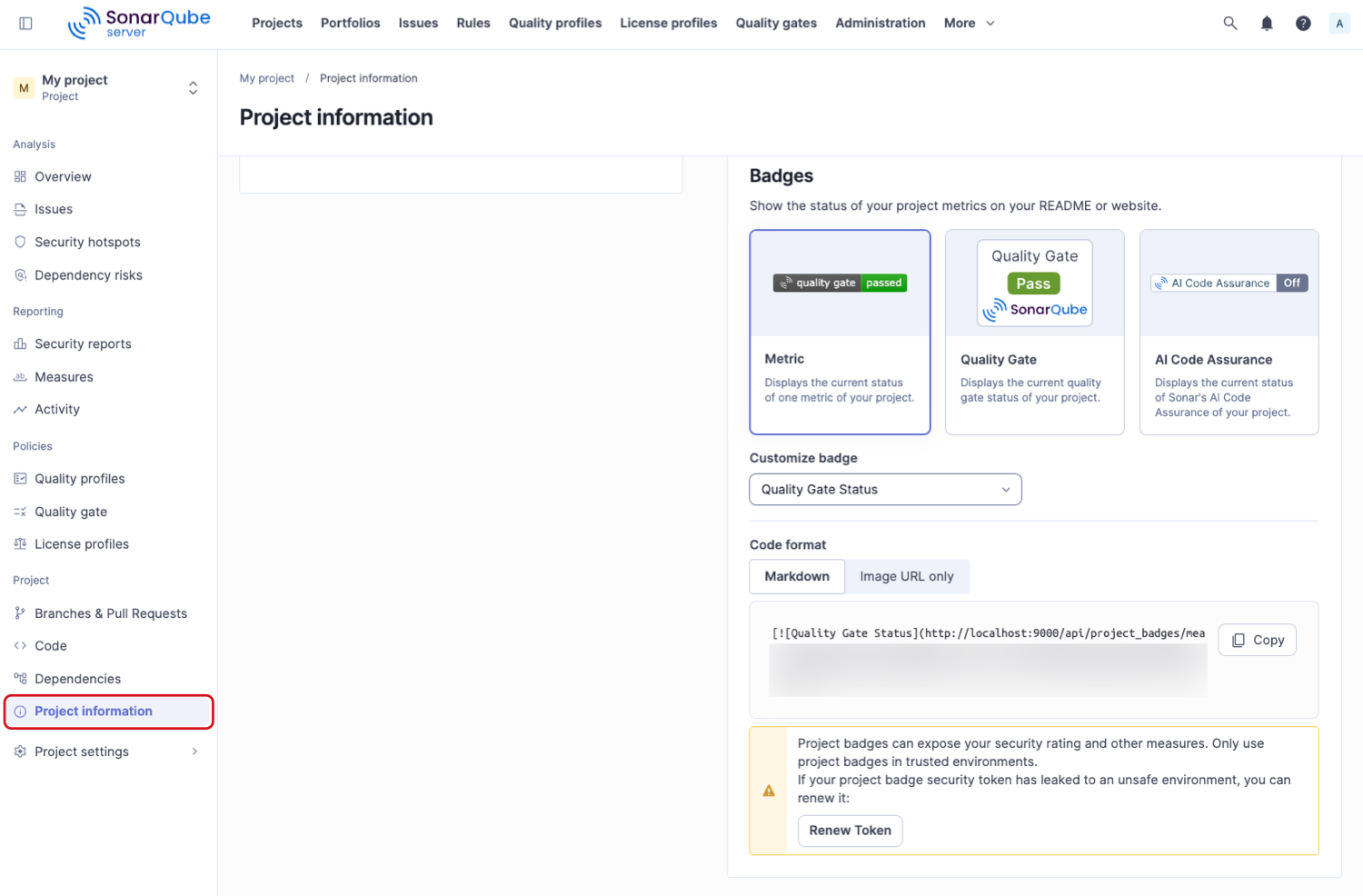
You can include dynamic SonarQube Server badges on your web pages to display information about your project such as the current value of specific metrics or the current quality gate status.
Markdown snippets and simple image URLs are provided to generate the badge code. A unique security token is generated for each project badge and is required to make the badge accessible from third-party tools.
{% hint style="warning" %}
Using project badges can expose sensitive information like your security rating and other metrics. You should only use them in trusted environments.
{% endhint %}
## Generating the badge code
To generate the code of your dynamic project badge:
1. Retrieve your project. See [Retrieving projects](/sonarqube-server/user-guide/viewing-projects/retrieving-projects.md) for more information.
2. Go to **Project** > **Project information**.
3. In the **Badges** section:
1. Select the information type you want to display: metric value or quality gate status.
2. If you selected the metric value information type, select the metric in **Customize badge**.
3. In Code format, select **Markdown** (markdown snippet) or **Image URL only** depending on how you want to include your badge.
4. Select the **Copy** button to copy the code of your badge.
## Renewing the badge token
If a project badge URL is accessed by someone who should not have access to it, you can renew the project badge’s unique token provided you’re a project admin. This invalidates any existing project badge URLs, and you’ll have to update all locations where the badge is being used.
To renew the badge token:
1. Retrieve your project. See [Retrieving projects](/sonarqube-server/user-guide/viewing-projects/retrieving-projects.md) for more information.
2. Go to **Project** > **Project information**.
3. In the **Badges** section, select **Renew token**.
## Using the AI Code Assurance project badge
The AI Code Assurance project badge is available if your project adheres to recommended Standards for AI generated code. See [AI Code Assurance](/agent-centric-development-cycle/ai-code-standards/ai-code-assurance.md) for more information. Follow these instructions before using the AI Code Assurance badge.
Sonar recognizes that AI-generated code should be monitored with additional quality standards. Recommended checks include high standards to reduce code complexity, remove bugs, and eliminate injection vulnerabilities. SonarQube’s AI Code Assurance features bring confidence that your AI-generated code is being reviewed to avoid any accountability crisis.
These objectives are achieved with three features that allow Quality Standard administrators to qualify projects as AI Code Assured:
1. [Set your AI standards](/sonarqube-server/quality-standards-administration/ai-code-assurance/overview.md#label-projects-with-ai-code)
2. [Set your AI standards](/sonarqube-server/quality-standards-administration/ai-code-assurance/overview.md#apply-qualified-quality-gate)
3. Publish an AI Code Assurance badge externally to your websites to [Monitor projects with AI code](/sonarqube-server/quality-standards-administration/ai-code-assurance/monitor-projects-with-ai-code.md).
---
# Agent Instructions
This documentation is published with GitBook. GitBook is the documentation platform designed so that both humans and AI agents can read, navigate, and reason over technical content effectively. Learn more at gitbook.com.
## Querying This Documentation
If you need additional information that is not directly available in this page, you can query the documentation by asking a question.
Perform an HTTP GET request on the following URL with the `ask` and `goal` query parameters:
```
GET https://docs.sonarsource.com/sonarqube-server/user-guide/project-badge.md?ask=&goal=
```
`ask` is the immediate question: it should be specific, self-contained, and written in natural language.
`goal` is what the user is ultimately trying to achieve, the reason they need the answer. Sharing it helps GitBook give you a better, more relevant answer. A goal is most helpful when it describes the outcome the user wants rather than restating the question. For example, with `ask=how do I create an API token`, a goal like `automate deployments from our CI pipeline` lets GitBook tailor the answer to that use case.
The response will contain a direct answer to the question and relevant excerpts and sources from the documentation.
Use this mechanism when the answer is not explicitly present in the current page, you need clarification or additional context, or you want to retrieve related documentation sections.