> For the complete documentation index, see [llms.txt](https://docs.sonarsource.com/llms.txt). Markdown versions of documentation pages are available by appending `.md` to page URLs; this page is available as [Markdown](https://docs.sonarsource.com/sonarqube-server/user-guide/project-dashboards/creating-dashboards.md).
# Creating dashboards
Creating custom dashboards using various widgets and filters in SonarQube Server 2026.5.
*Project dashboards are available starting in* [*Enterprise edition*](https://www.sonarsource.com/plans-and-pricing/enterprise/)*.*
There are two ways to create a custom dashboard: duplicate an existing dashboard or create one from scratch.
## Duplicating an existing dashboard
You can duplicate an existing dashboard and use it as a starting point. Sometimes, this is the fastest way to get started.
1. Retrieve your project. See [Retrieving projects](/sonarqube-server/user-guide/viewing-projects/retrieving-projects.md) for more information.
2. Go to **Dashboards**. The **All dashboards** page opens and lists all available dashboards.
3. In the action menu next to the existing dashboard, select **Duplicate**. You can duplicate both custom and built-in dashboards.
4. In the **Duplicate dashboard** modal, enter the dashboard name and description, then select **Create duplicate**. The new dashboard appears on the **All dashboards** page.
5. Select the name of the duplicated dashboard to open it, then select **Edit dashboard** to customize it.
## Creating a custom dashboard from scratch
To create a custom dashboard from scratch:
1. Retrieve your project. See [Retrieving projects](/sonarqube-server/user-guide/viewing-projects/retrieving-projects.md) for more information.
2. Go to **Dashboards**.
3. Select **Create custom dashboard** in the top-right corner.
4. In the **Create custom dashboard** modal, enter the dashboard name and description, then select **Create**. The new dashboard appears on the **All dashboards** page.
5. Select the name of the new dashboard to open it, then select **Edit dashboard** to customize it.
In edit mode, you can use the following options at the top of the page:
* **Add widget**: Opens a modal where you can configure the widget. See [#adding-a-widget](#adding-a-widget "mention") for details.
* **Add section**: Sections group a set of widgets together and are collapsible. See [#adding-a-section](#adding-a-section "mention") for details.
* **Cancel and exit**: Exits edit mode without saving changes.
* **Save changes**: Saves your changes.
## Adding a widget
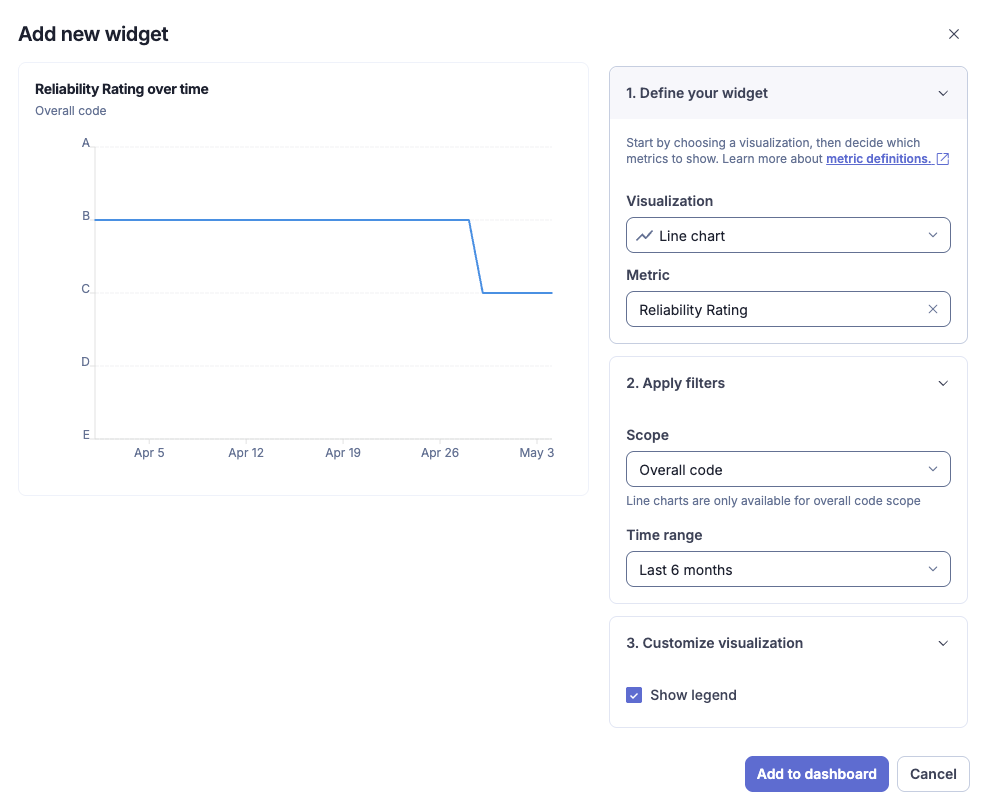
In the dashboard’s edit mode, select **Add widget** to open a modal. In the **Add new widget** modal, follow these steps:
### Step 1: Define your widget
* **Visualization**: Choose the visualization that represents the data. The options are **Count**, **Badge**, **Line chart**, **Donut chart**, **Pie chart,** and **Top list**. See [Viewing and managing dashboards](/sonarqube-server/user-guide/project-dashboards/viewing-and-managing-dashboards.md#viewing-dashboards) for more information about the chart options.
* **Metric**: Choose the metric you want to visualize. The metric drop-down list is filtered by the metrics available for the visualization you selected. See [#metrics](#metrics "mention") for a list of available metrics and associated visualizations.
* **Slice by**: This option appears only for pie and donut charts. Available options depend on the metric you have chosen.
### Step 2: Apply filters
Depending on the metric you have selected in the previous step, appropriate filters are displayed. Feel free to explore the filters and combine them with various metrics to find the desired results.
* **Scope**: For the count, rating badge, pie, and donut chart visualizations, you can choose between **Overall code** or **New code**. For the line chart, **Overall code** is the only option and is applied by default.
* **Time range**: This option appears only for the line chart because it is a time-based chart. The options are **Last 12 months**, **Last 6 months**, **Last 3 months**, and **Last month**.
* Additional filters appear that are relevant to the visualization and metric you selected in the previous step.
### Step 3: Customize visualization
* **Show legend**: Select this option to display a legend for a visualization. This applies to line, donut, and pie charts.
* **Show trend indicator**: Available only for the count visualization.
Once you are done configuring the widget:
* Select **Add to dashboard** at the bottom of the modal.
* Select **Save changes** at the top of the dashboard page, if you are done editing.
## Adding a section
Sections help you organize and group your widgets on a dashboard.
To create a section:
* Enter edit mode and select **Add section** to open a modal.
* Enter the section name and description in the modal.
* Select **Create section** to add it to the dashboard.
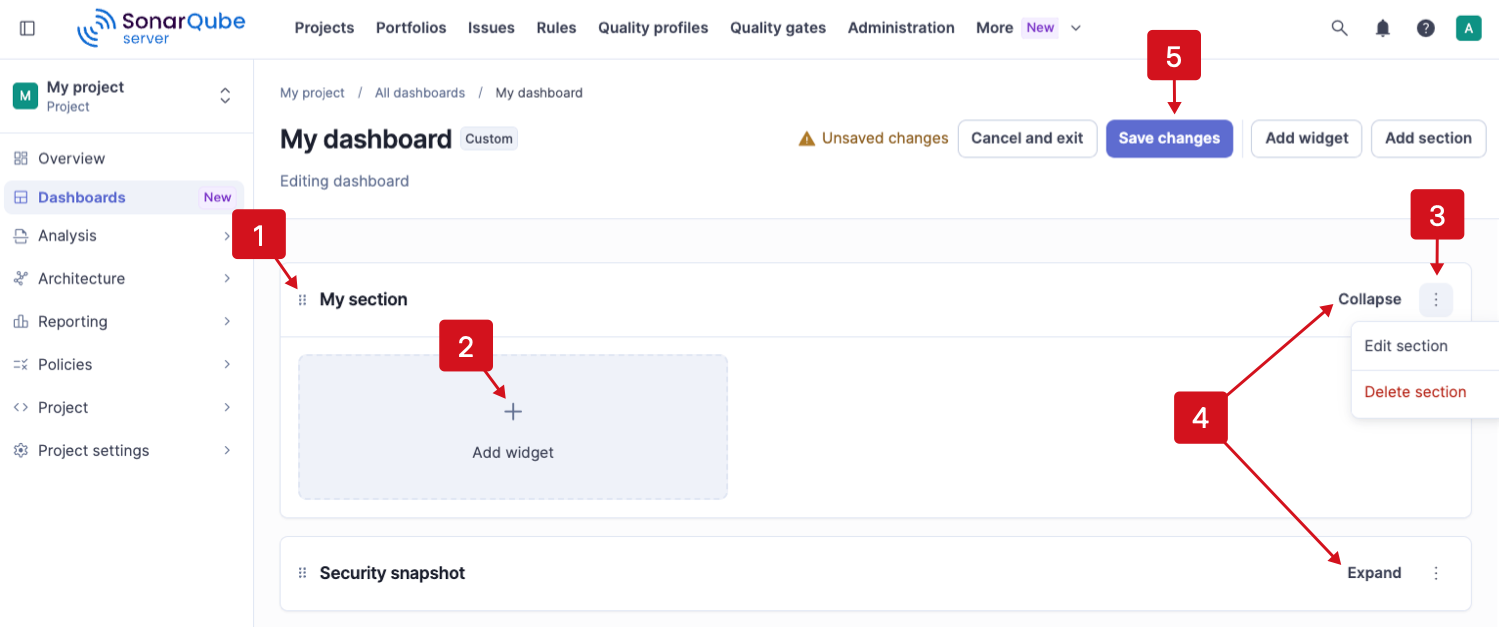
1. Once the section appears on the dashboard, you can move it by clicking the handle in the upper-left corner and dragging it to another location.
2. Select **Add widget** to add a new widget directly from within the section.
3. Select the action menu located in the upper-right corner of the section to edit or delete the section.
4. **Collapse** or **Expand** the section to change its visibility. This feature works even after you save the changes and exit edit mode.
5. Select **Save changes** at the top of the page when you are done.
## Metrics
The following table shows a list of metrics and associated visualizations.
| Metrics | Visualization | Additional information |
| ------------------------------------------------- | ------------------------------------------------------------------ | --------------------------------------------------------------------------------------------------------------------------------------------------------------------------------------------------------------------------------------------------------- |
| **Issues** | | |
| Issue count | Count, line and multi-line chart, donut chart, pie chart, top list | Shows the number of issues in all states. See [Understanding measures and metrics](/sonarqube-server/user-guide/code-metrics/metrics-definition.md#issues) |
| Issue density | Count, line chart | Shows the number of issues per 1000 lines of code. See [Understanding measures and metrics](/sonarqube-server/user-guide/code-metrics/metrics-definition.md#issues) |
| Closed issues | Count, line chart | Shows the number of issues that no longer appear in a later analysis. See [Understanding measures and metrics](/sonarqube-server/user-guide/code-metrics/metrics-definition.md#issues) |
| Mean time to resolve (MTTR) issues | Count, line chart | Shows the average time between an issue being detected and resolved. See [Understanding measures and metrics](/sonarqube-server/user-guide/code-metrics/metrics-definition.md#issues) |
| Mean time to resolve (MTTR) newly detected issues | Count, line chart | Shows the average time between an issue being detected and resolved, within 30 days. See [Understanding measures and metrics](/sonarqube-server/user-guide/code-metrics/metrics-definition.md#issues) |
| **Security** | | |
| Security remediation effort | Count, line chart | Shows the effort to fix all vulnerabilities. See [Understanding measures and metrics](/sonarqube-server/user-guide/code-metrics/metrics-definition.md#security) |
| Security hotspots | Count, line chart | Shows the number of security hotspots. See [Understanding measures and metrics](/sonarqube-server/user-guide/code-metrics/metrics-definition.md#security-review) |
| Security hotspots reviewed | Count, line chart | Shows the percentage of security hotspots that have been reviewed. See [Understanding measures and metrics](/sonarqube-server/user-guide/code-metrics/metrics-definition.md#security-review) |
| Security hotspot count | Donut chart, pie chart | Shows the number of security hotspots. See [Understanding measures and metrics](/sonarqube-server/user-guide/code-metrics/metrics-definition.md#security-review) |
| Security rating | Badge | Rating related to security. See [Understanding measures and metrics](/sonarqube-server/user-guide/code-metrics/metrics-definition.md#security) |
| Security review rating | Badge | Rating based on the percentage of reviewed security hotspots. See [Understanding measures and metrics](/sonarqube-server/user-guide/code-metrics/metrics-definition.md#security-review) |
| **Reliability** | | |
| Reliability remediation effort | Count, line chart | Shows the effort to fix all reliability issues. See [Understanding measures and metrics](/sonarqube-server/user-guide/code-metrics/metrics-definition.md#reliability) |
| Reliability rating | Badge | Rating related to reliability. See [Understanding measures and metrics](/sonarqube-server/user-guide/code-metrics/metrics-definition.md#reliability) |
| **Maintainability** | | |
| Effort to reach maintainability rating A | Count, line chart | Shows the effort required to reach maintainability rating A. See [Understanding measures and metrics](/sonarqube-server/user-guide/code-metrics/metrics-definition.md#maintainability) |
| Technical debt ratio | Count, line chart | Shows the ratio between the cost to develop the software and the cost to fix it. See [Understanding measures and metrics](/sonarqube-server/user-guide/code-metrics/metrics-definition.md#maintainability) |
| Technical debt ratio of new/changed code | Count, line chart | Shows the technical debt ratio for new code. See [Understanding measures and metrics](/sonarqube-server/user-guide/code-metrics/metrics-definition.md#maintainability) |
| Maintainability rating | Badge | Rating related to the value of the technical debt ratio. See [Understanding measures and metrics](/sonarqube-server/user-guide/code-metrics/metrics-definition.md#maintainability) |
| **Coverage** | | |
| Conditions to cover | Count, line chart | Shows the number of conditions that could be covered by unit tests. See [Understanding measures and metrics](/sonarqube-server/user-guide/code-metrics/metrics-definition.md#coverage) |
| Coverage by tests | Count, line chart | Shows a mix of line coverage and condition coverage. See [Understanding measures and metrics](/sonarqube-server/user-guide/code-metrics/metrics-definition.md#coverage) |
| Line coverage | Count, line chart | Shows the percentage of lines covered by unit tests. See [Understanding measures and metrics](/sonarqube-server/user-guide/code-metrics/metrics-definition.md#coverage) |
| Lines to cover | Count, line chart | Shows the number of lines of code that could be covered by unit tests. See [Understanding measures and metrics](/sonarqube-server/user-guide/code-metrics/metrics-definition.md#coverage) |
| Uncovered conditions | Count, line chart | Shows the number of conditions that are not covered by unit tests. See [Understanding measures and metrics](/sonarqube-server/user-guide/code-metrics/metrics-definition.md#coverage) |
| Uncovered lines | Count, line chart | Shows the number of lines of code that are not covered by unit tests. See [Understanding measures and metrics](/sonarqube-server/user-guide/code-metrics/metrics-definition.md#coverage) |
| **Duplications** | | |
| Duplicated blocks | Count, line chart | Shows the number of duplicated blocks of lines. See [Understanding measures and metrics](/sonarqube-server/user-guide/code-metrics/metrics-definition.md#duplication) |
| Duplicated files | Count, line chart | Shows the number of files involved in duplications. See [Understanding measures and metrics](/sonarqube-server/user-guide/code-metrics/metrics-definition.md#duplication) |
| Duplicated lines | Count, line chart | Shows the number of lines involved in duplications. See [Understanding measures and metrics](/sonarqube-server/user-guide/code-metrics/metrics-definition.md#duplication) |
| Duplicated lines density | Count, line chart | Shows the percentage of duplicated lines. See [Understanding measures and metrics](/sonarqube-server/user-guide/code-metrics/metrics-definition.md#duplication) |
| **Size** | | |
| Comment lines | Count, line chart | Shows the number of lines containing either a comment or commented-out code. See [Understanding measures and metrics](/sonarqube-server/user-guide/code-metrics/metrics-definition.md#size) |
| Comment lines density | Count, line chart | Shows the percentage of comment lines. See [Understanding measures and metrics](/sonarqube-server/user-guide/code-metrics/metrics-definition.md#size) |
| Lines | Count, line chart | Shows the number of physical lines. See [Understanding measures and metrics](/sonarqube-server/user-guide/code-metrics/metrics-definition.md#size) |
| Line count | Donut chart, pie chart | Shows the number of physical lines. See [Understanding measures and metrics](/sonarqube-server/user-guide/code-metrics/metrics-definition.md#size) |
| **Dependency risks** | | |
| Dependency risks | Count, line chart | Shows the total number of dependency risks found in your project or portfolio. See [Understanding measures and metrics](/sonarqube-server/user-guide/code-metrics/metrics-definition.md#sca) |
| Dependency security risks | Count, line chart | Shows total dependency risks that affect security, such as vulnerable or malicious packages. See [Understanding measures and metrics](/sonarqube-server/user-guide/code-metrics/metrics-definition.md#sca) |
| Vulnerable dependency risks | Count, line chart | Shows total third-party packages with a publicly reported vulnerability. See [Understanding measures and metrics](/sonarqube-server/user-guide/code-metrics/metrics-definition.md#sca) |
| Malicious package dependency risks | Count, line chart | Shows total third-party packages known to be malicious. See [Understanding measures and metrics](/sonarqube-server/user-guide/code-metrics/metrics-definition.md#sca) |
| Prohibited license dependency risks | Count, line chart | Shows total packages whose license is not allowed by your license policy. See [Understanding measures and metrics](/sonarqube-server/user-guide/code-metrics/metrics-definition.md#sca) |
| Dependency risk rating | Badge | Rating related to dependency risks. See [Understanding measures and metrics](/sonarqube-server/user-guide/code-metrics/metrics-definition.md#sca) |
| Mean time to resolve (MTTR) for dependency risks | Count, line chart | Shows the average time to resolve dependency risks in the last 30 days. It includes risks that are fixed or marked safe during that period. See [Understanding measures and metrics](/sonarqube-server/user-guide/code-metrics/metrics-definition.md#sca) |
Dashboards include metrics related to dependency risks. To view dependency risks, you need [SonarQube Advanced Security](https://www.sonarsource.com/solutions/security/). See [Advanced Security](/sonarqube-server/advanced-security.md) for more information.
## Related pages
* [Project dashboards](/sonarqube-server/user-guide/project-dashboards.md)
* [Viewing and managing dashboards](/sonarqube-server/user-guide/project-dashboards/viewing-and-managing-dashboards.md)
---
# Agent Instructions
This documentation is published with GitBook. GitBook is the documentation platform designed so that both humans and AI agents can read, navigate, and reason over technical content effectively. Learn more at gitbook.com.
## Querying This Documentation
If you need additional information that is not directly available in this page, you can query the documentation by asking a question.
Perform an HTTP GET request on the following URL with the `ask` and `goal` query parameters:
```
GET https://docs.sonarsource.com/sonarqube-server/user-guide/project-dashboards/creating-dashboards.md?ask=&goal=
```
`ask` is the immediate question: it should be specific, self-contained, and written in natural language.
`goal` is what the user is ultimately trying to achieve, the reason they need the answer. Sharing it helps GitBook give you a better, more relevant answer. A goal is most helpful when it describes the outcome the user wants rather than restating the question. For example, with `ask=how do I create an API token`, a goal like `automate deployments from our CI pipeline` lets GitBook tailor the answer to that use case.
The response will contain a direct answer to the question and relevant excerpts and sources from the documentation.
Use this mechanism when the answer is not explicitly present in the current page, you need clarification or additional context, or you want to retrieve related documentation sections.