> For the complete documentation index, see [llms.txt](https://docs.sonarsource.com/llms.txt). Markdown versions of documentation pages are available by appending `.md` to page URLs; this page is available as [Markdown](https://docs.sonarsource.com/sonarqube-server/user-guide/viewing-projects/retrieving-projects.md).
# Retrieving projects
Retrieving public, private, administered and favorite projects in SonarQube Server 2026.5, and viewing the Project overview page dashboard.
You can view any public project. You can view private projects for which you have the Browse permission.
## Retrieving a project
### Using the Search box
1. In the top navigation bar, select the magnifier icon. The **Search for projects…** box is displayed along with a list of pre-selected projects.\
Alternatively, press **S**.
2. You can enter a part of the project name in the box to filter the search.
3. Select the project in the list.
### Using the Projects page
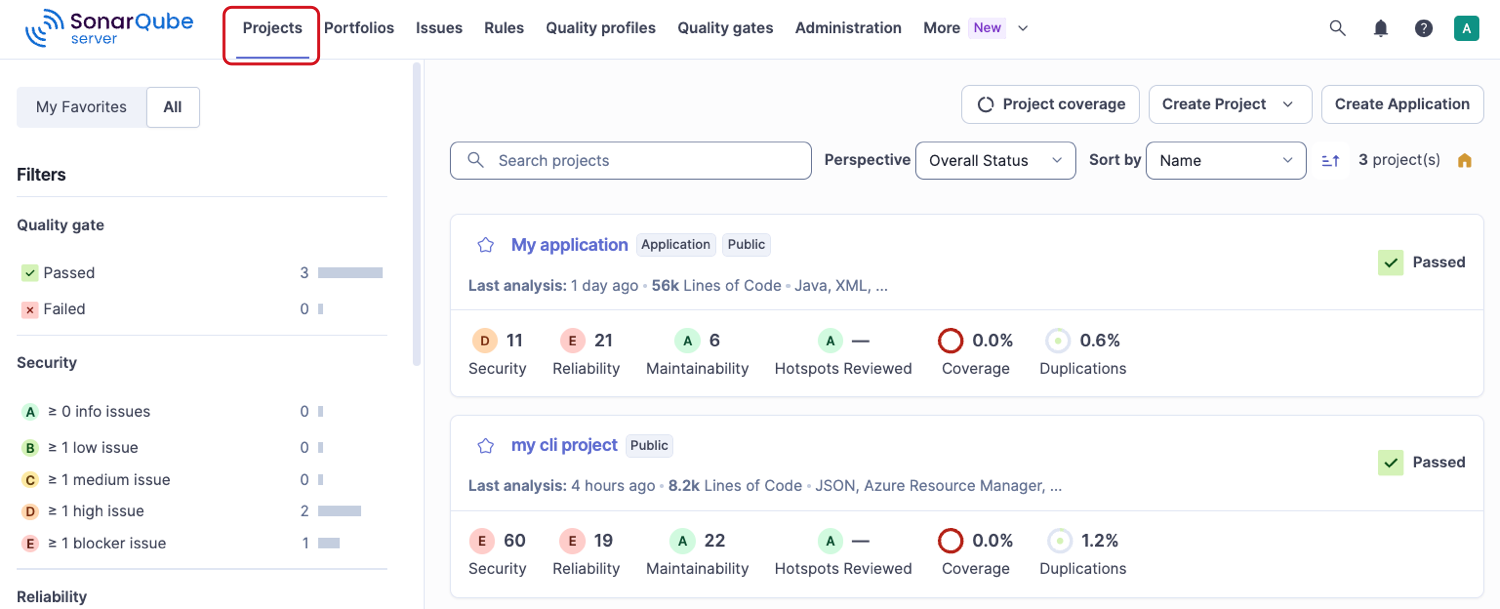
1. In the top navigation bar, select **Projects**.
2. You can apply a search filter.
3. Select a project in the list of projects.
{% hint style="info" %}
If the project administrator manages project tags, they can use the **Tags** filter. See [Managing project tags](/sonarqube-server/project-administration/setting-up-features/managing-project-tags.md) for more information.
{% endhint %}
## Viewing your administered projects
To view the projects you’re administering:
1. Select your account menu in the top right corner of the SonarQube Server interface.
2. In the menu, select **My Account**.
3. Go to **Projects**.
4. Select a project.
## Retrieving your favorite projects
Favorite projects are marked with a yellow star.
To retrieve your favorite projects:
1. In the top navigation bar, select **Projects**.
2. Select **My Favorites**. Your favorite projects are listed on the page.
## Project overview page
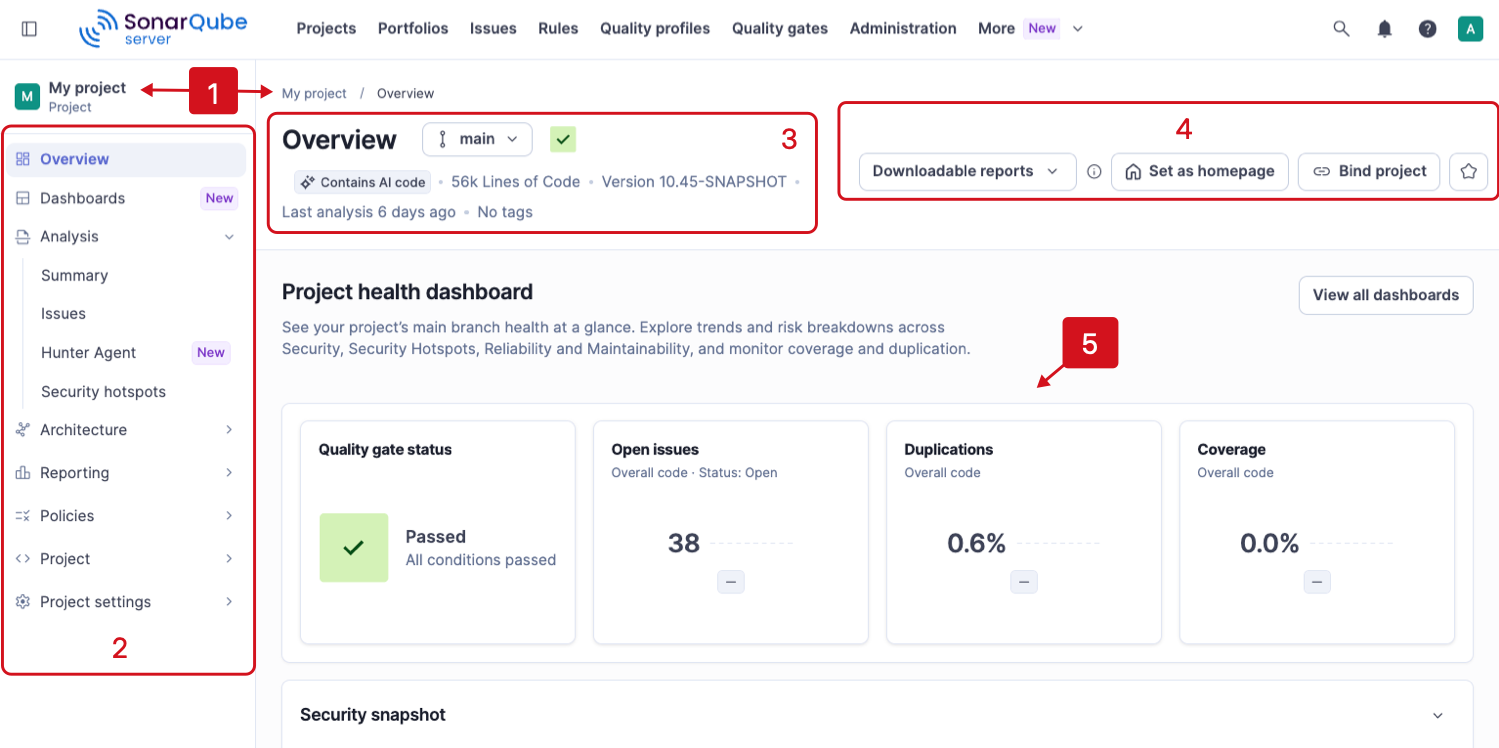
Once you retrieve a project, the project **Overview** page opens, displaying the **Project health dashboard**, a built-in dashboard provided by Sonar. The **Dashboards** are available in [*Enterprise edition*](https://www.sonarsource.com/plans-and-pricing/enterprise/).
The page includes the following:
1. Project name.
2. Project navigation.
3. Project information:\
a. Branch selector: Shows the branch you are viewing. Select it to switch to another branch.\
b. Quality gate status: Shows whether the project passes its quality gate.\
c. **Contains AI code**: Appears if the project is marked as containing AI-generated code. See [Monitor projects with AI code](/sonarqube-server/quality-standards-administration/ai-code-assurance/monitor-projects-with-ai-code.md#ai-code-assurance-labels) for more information.\
d. **Lines of Code** (LOC): The LOC used by the project.\
e. **Version**: The project version recorded at the last analysis.\
f. **Last analysis**: Shows the amount of time that has passed since the last project analysis.\
g. Tags: The tags assigned to the project, or **No tags** if there are none. See [Managing project tags](/sonarqube-server/project-administration/setting-up-features/managing-project-tags.md) for more information.
4. **Downloadable reports**, **Set as homepage**, **Bind project**, and **Star** buttons:\
a. Select **Downloadable reports** to view the available reports. See [Viewing reports](/sonarqube-server/user-guide/viewing-reports.md) for more information.\
b. Select **Set as homepage** to make this project your SonarQube Server homepage.\
c. Select **Bind project** to bind this project to a DevOps platform. If the project is already bound, the name of the DevOps platform appears here. See [Changing your project binding](/sonarqube-server/project-administration/maintaining-project/changing-project-binding.md) for more information.\
d. The **Star** button indicates whether the project belongs to your favorite projects. Select the star to add the project to your favorites, or select it again to remove it. You can also select or clear the star in front of a project listed on the **Projects** page.
5. The **Project health dashboard** is displayed by default. Go to **Dashboards** to see all available dashboards for the project. See [Project dashboards](/sonarqube-server/user-guide/project-dashboards.md) for more information.
### Project health dashboard
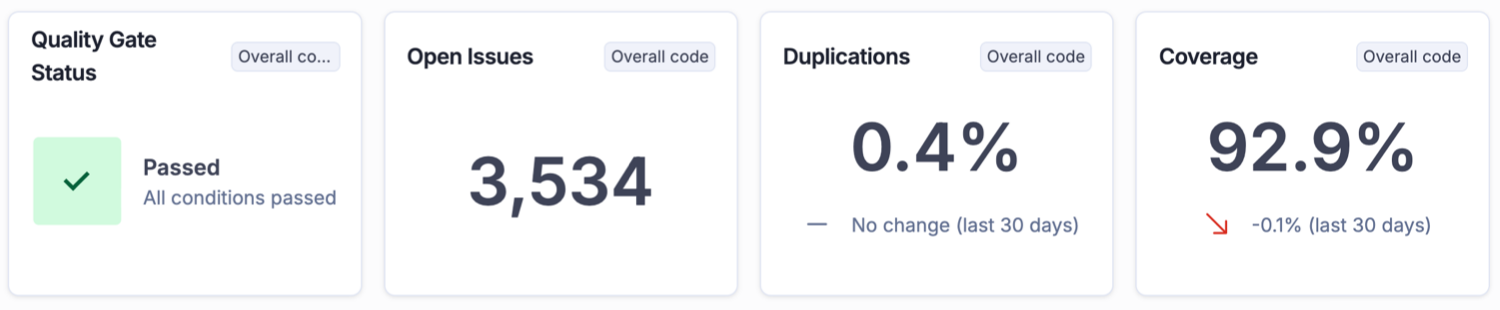
The Project health dashboard is a built-in dashboard that displays key measures related to your project’s health, helping you explore trends and risk breakdowns. The measures display information for overall code.
* **Quality Gate status**: Click *All conditions passed* or *(number) conditions failed* to navigate to the Summary page for more details.
* **Open issues**: Click the number to review open issues.
* **Duplications**: Click the percentage change link to open the Measures page.
* **Coverage**: Click the percentage change link to open the Measures page.
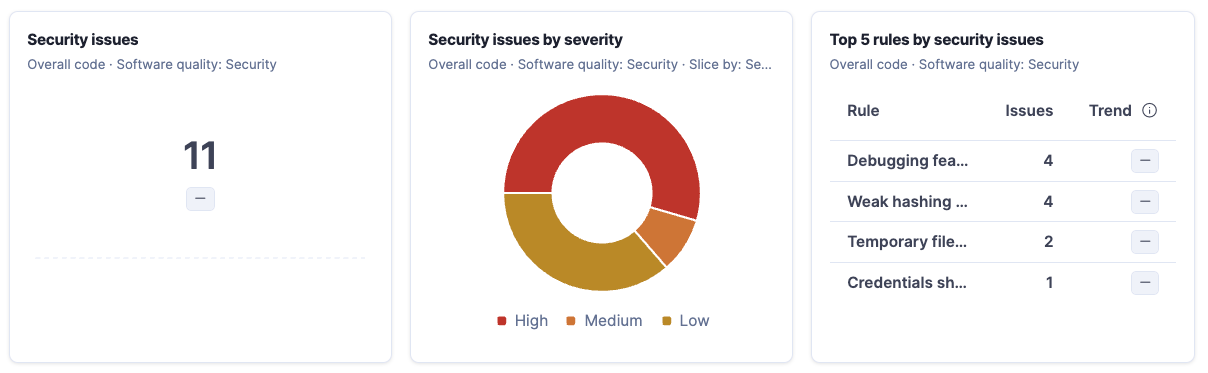
**Security snapshot:**
* **Security issues**: Click the number to review security issues. Click the percentage change link to open the Measures page.
* **Security issues by severity**: Click the chart slices or the legend items to review the issues.
* **Top 5 rules by security issues**: Lists the five rules that raised the most security issues, with the rule name, number of issues, and trend. Click a value to drill down.
* **MTTR for newly introduced security issues**: Mean time to resolve (MTTR) is the average time to resolve security issues that were introduced and detected in the last 30 days, and closed during that same period. An issue is considered closed when it no longer appears in a subsequent analysis. This metric excludes open, accepted, and false positive issues.
* **Security issues closed**: The number of security issues closed in the last 30 days. Click the number to review security issues.
* **Security issues closed over time**: A line chart of the security issues closed in the last 30 days. Hover over the line chart to reveal a tooltip with additional information.
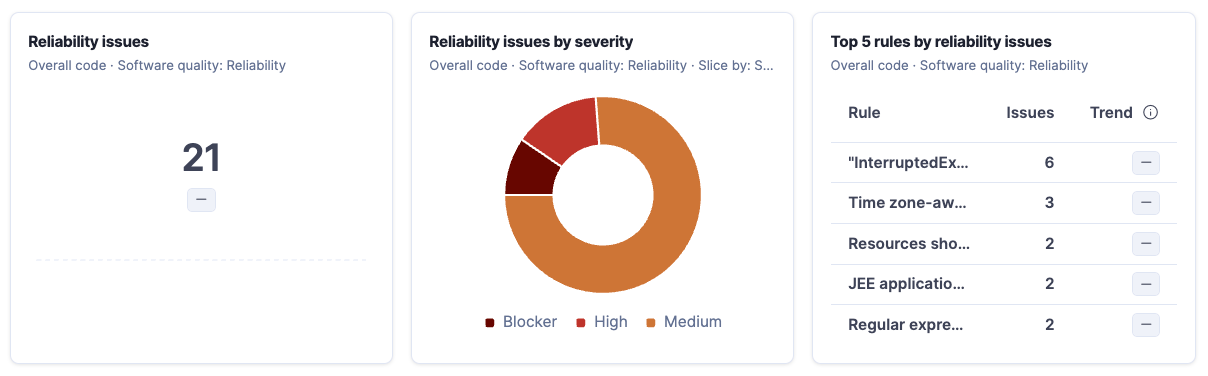
**Reliability snapshot:**
* **Reliability issues**: Click the number to review reliability issues. Click the percentage change link to open the Measures page.
* **Reliability issues by severity**: Click the chart slices or the legend items to review the issues.
* **Top 5 rules by reliability issues**: Lists the five rules that raised the most reliability issues, with the rule name, number of issues, and trend. Click a value to drill down.
* **MTTR for newly introduced reliability issues**: Mean time to resolve (MTTR) is the average time to resolve reliability issues that were introduced and detected in the last 30 days, and closed during that same period. An issue is considered closed when it no longer appears in a subsequent analysis. This metric excludes open, accepted, and false positive issues.
* **Reliability issues closed**: The number of reliability issues closed in the last 30 days. Click the number to review reliability issues.
* **Reliability issues closed over time**: A line chart of the reliability issues closed in the last 30 days. Hover over the line chart to reveal a tooltip with additional information.
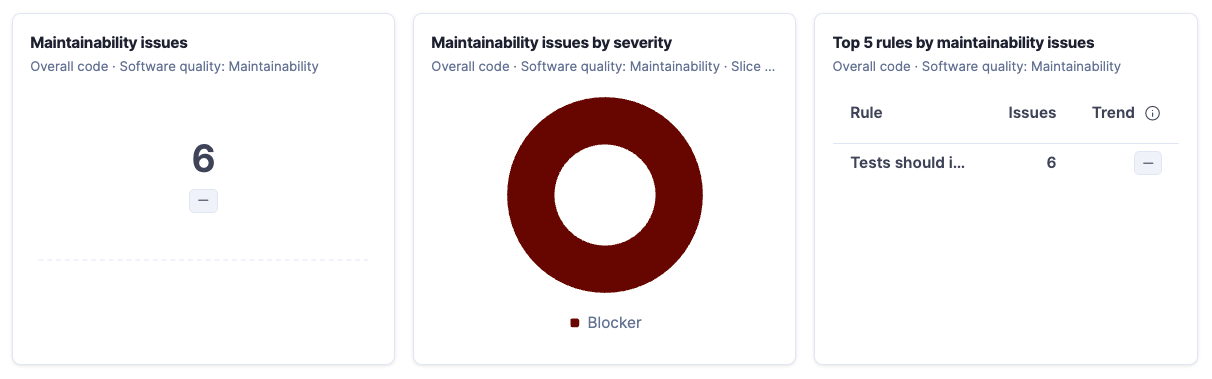
**Maintainability snapshot:**
* **Maintainability issues**: Click the number to review maintainability issues. Click the percentage change link to open the Measures page.
* **Maintainability issues by severity**: Click the chart slices or the legend items to review the issues.
* **Top 5 rules by maintainability issues**: Lists the five rules that raised the most maintainability issues, with the rule name, number of issues, and trend. Click a value to drill down.
* **MTTR for newly introduced maintainability issues**: Mean time to resolve (MTTR) is the average time to resolve maintainability issues that were introduced and detected in the last 30 days, and closed during that same period. An issue is considered closed when it no longer appears in a subsequent analysis. This metric excludes open, accepted, and false positive issues.
* **Maintainability issues closed**: The number of maintainability issues closed in the last 30 days. Click the number to review maintainability issues.
* **Maintainability issues closed over time**: A line chart of the maintainability issues closed in the last 30 days. Hover over the line chart to reveal a tooltip with additional information.
See [Creating dashboards](/sonarqube-server/user-guide/project-dashboards/creating-dashboards.md#metrics) for more information about measures used in the Project health dashboard.
## Related pages
* [Viewing analysis summary](/sonarqube-server/user-guide/viewing-projects/project-overview.md)
* [Project dashboards](/sonarqube-server/user-guide/project-dashboards.md)
* [Viewing project activity](/sonarqube-server/user-guide/viewing-projects/activity-and-history.md)
* [Viewing project structure](/sonarqube-server/user-guide/viewing-projects/viewing-project-structure.md)
* [Managing your tokens](/sonarqube-server/user-guide/managing-tokens.md)
* [Using a project badge](/sonarqube-server/user-guide/project-badge.md)
* [Notifications](/sonarqube-server/user-guide/managing-your-account/subscribing-to-notifications.md)
* [Introduction](/sonarqube-server/user-guide/issues/introduction.md)
---
# Agent Instructions
This documentation is published with GitBook. GitBook is the documentation platform designed so that both humans and AI agents can read, navigate, and reason over technical content effectively. Learn more at gitbook.com.
## Querying This Documentation
If you need additional information that is not directly available in this page, you can query the documentation by asking a question.
Perform an HTTP GET request on the following URL with the `ask` and `goal` query parameters:
```
GET https://docs.sonarsource.com/sonarqube-server/user-guide/viewing-projects/retrieving-projects.md?ask=&goal=
```
`ask` is the immediate question: it should be specific, self-contained, and written in natural language.
`goal` is what the user is ultimately trying to achieve, the reason they need the answer. Sharing it helps GitBook give you a better, more relevant answer. A goal is most helpful when it describes the outcome the user wants rather than restating the question. For example, with `ask=how do I create an API token`, a goal like `automate deployments from our CI pipeline` lets GitBook tailor the answer to that use case.
The response will contain a direct answer to the question and relevant excerpts and sources from the documentation.
Use this mechanism when the answer is not explicitly present in the current page, you need clarification or additional context, or you want to retrieve related documentation sections.