> For the complete documentation index, see [llms.txt](https://docs.sonarsource.com/llms.txt). Markdown versions of documentation pages are available by appending `.md` to page URLs; this page is available as [Markdown](https://docs.sonarsource.com/sonarqube-server/user-guide/issues/retrieving.md).
# Retrieving issues
In SonarQube Server 2026.5, retrieve and view detected issues after your project's analysis.
You can retrieve and view the issues detected during the analysis of any public project. For a private project, you need the Browse permission on the project.
{% hint style="info" %}
Issues can also be reported in your DevOps platform. For more information, see [In your DevOps platform](/sonarqube-server/user-guide/issues/in-devops-platform.md).
{% endhint %}
## Retrieving issues
Retrieve issues in one of these ways:
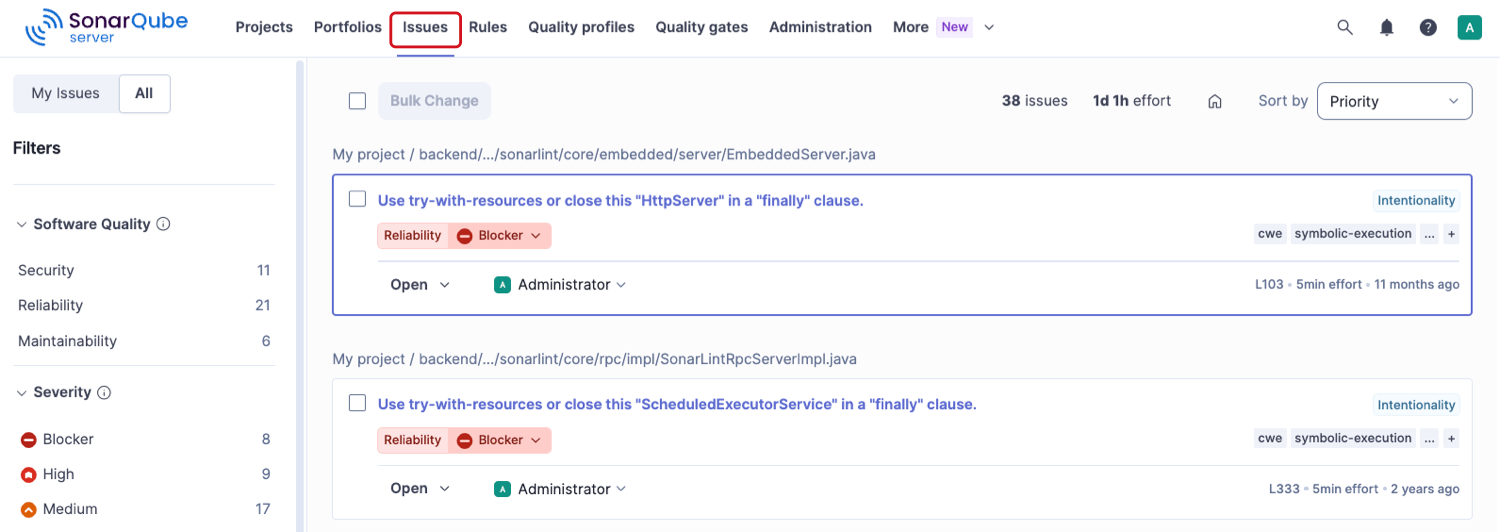
* Select **Issues** in the top navigation bar.
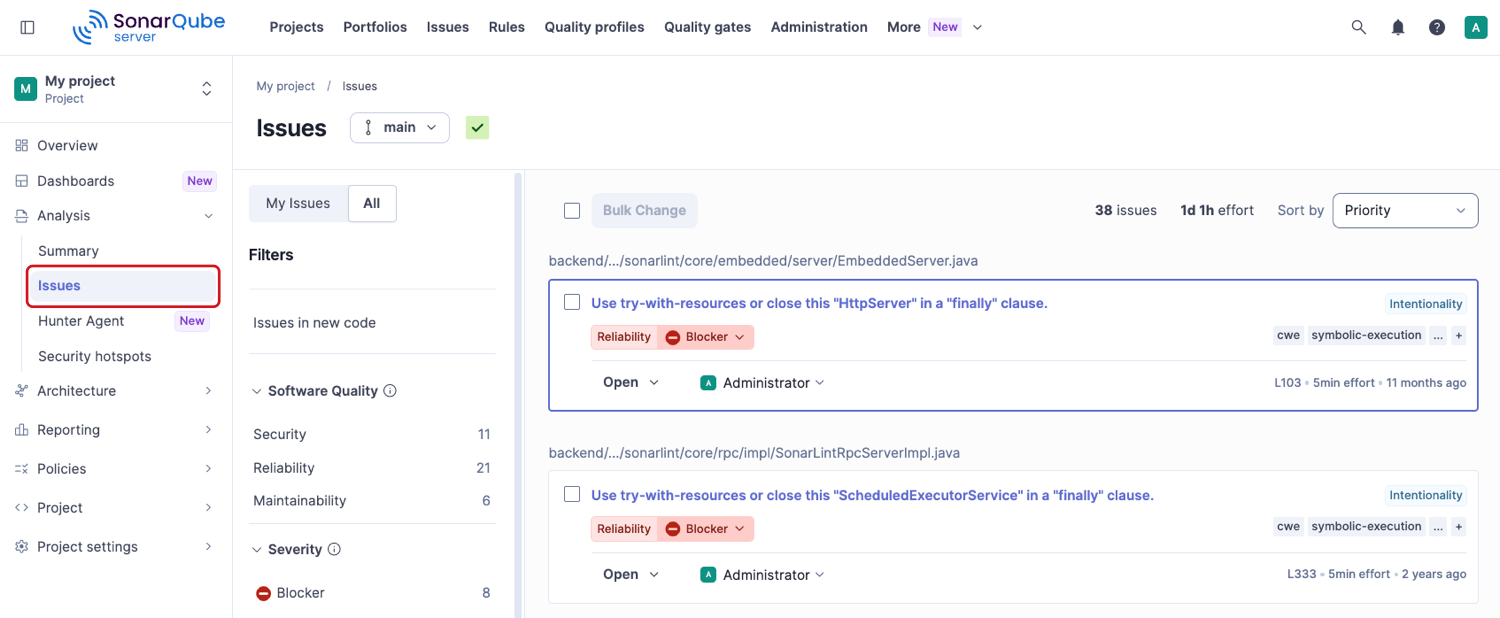
* In a project, application, or portfolio, go to **Analysis** > **Issues**.
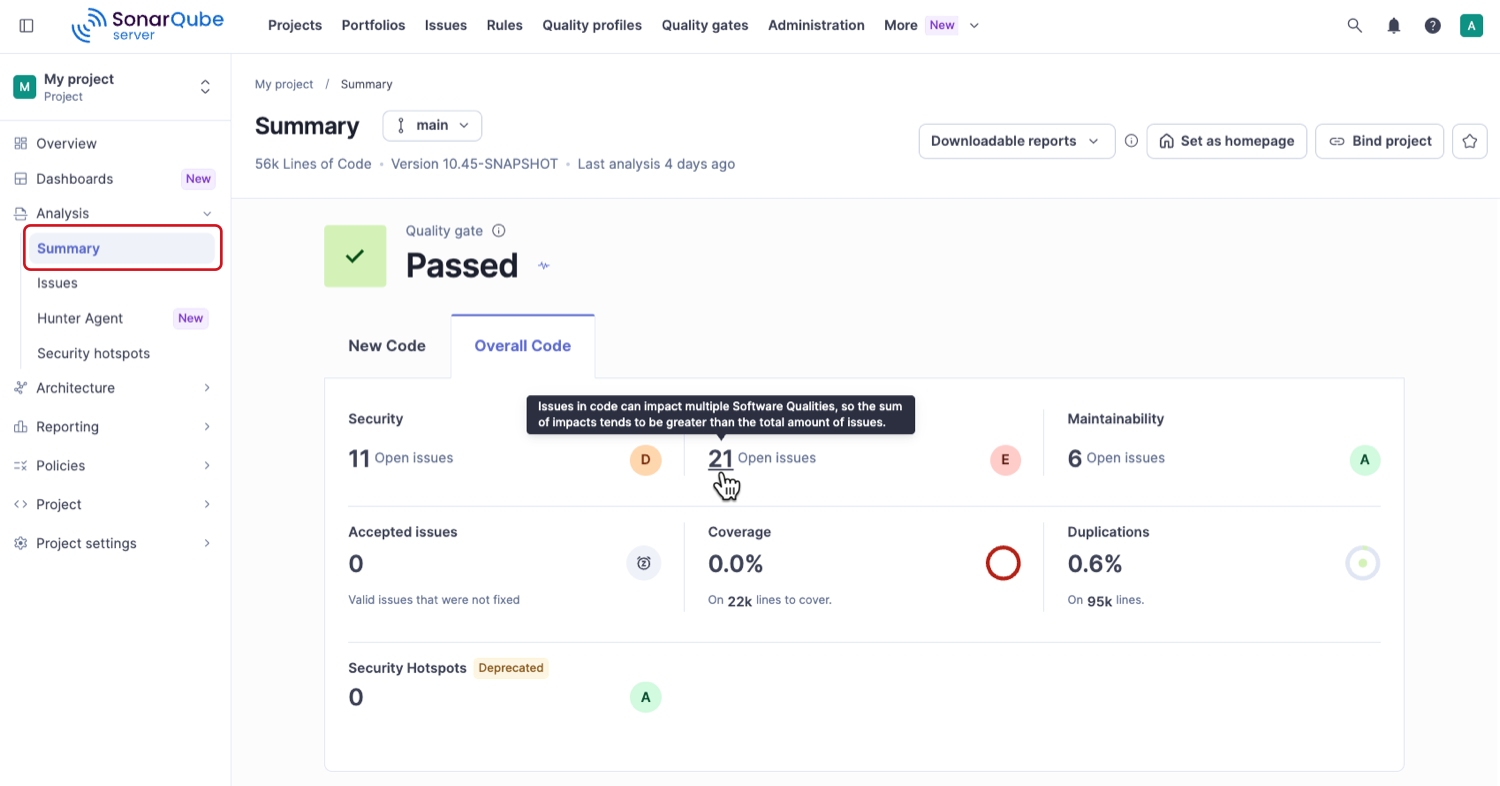
* In a project or application, go to **Analysis** > **Summary**, then select a number of open issues on the **New code** or **Overall code** tab.
Use the **My Issues** and **All** toggle at the top of the **Filters** section to list only the issues assigned to you or all issues. The selection shown when the page opens depends on where you opened it:
* From the top navigation bar, the page opens with the selection you used last.
* From a project, application, or portfolio, the page opens with **All** selected.
## Using the Issues page
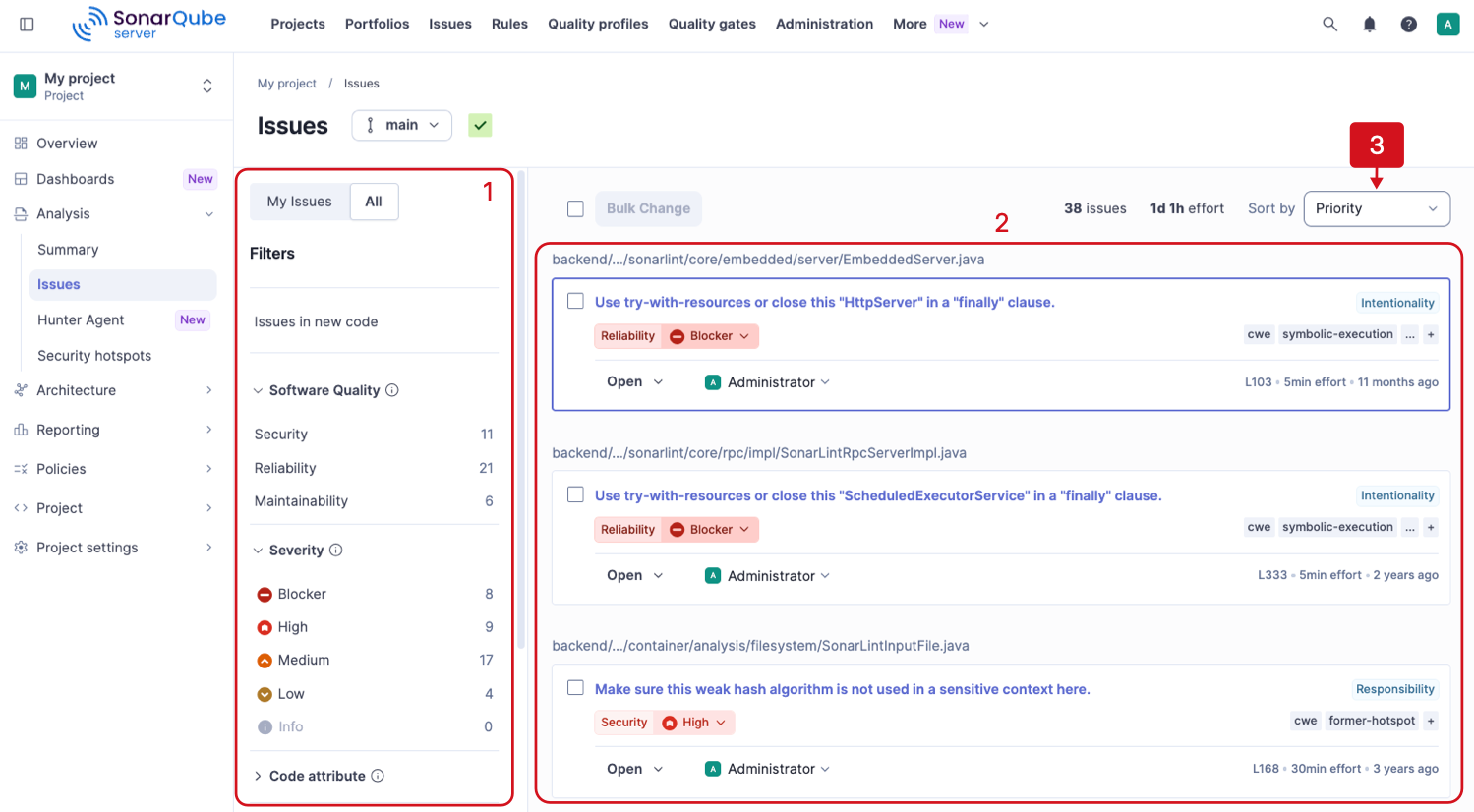
The **Issues** page opens with:
1. Filters in the left-side panel.
2. Issue results in the right section of the page.
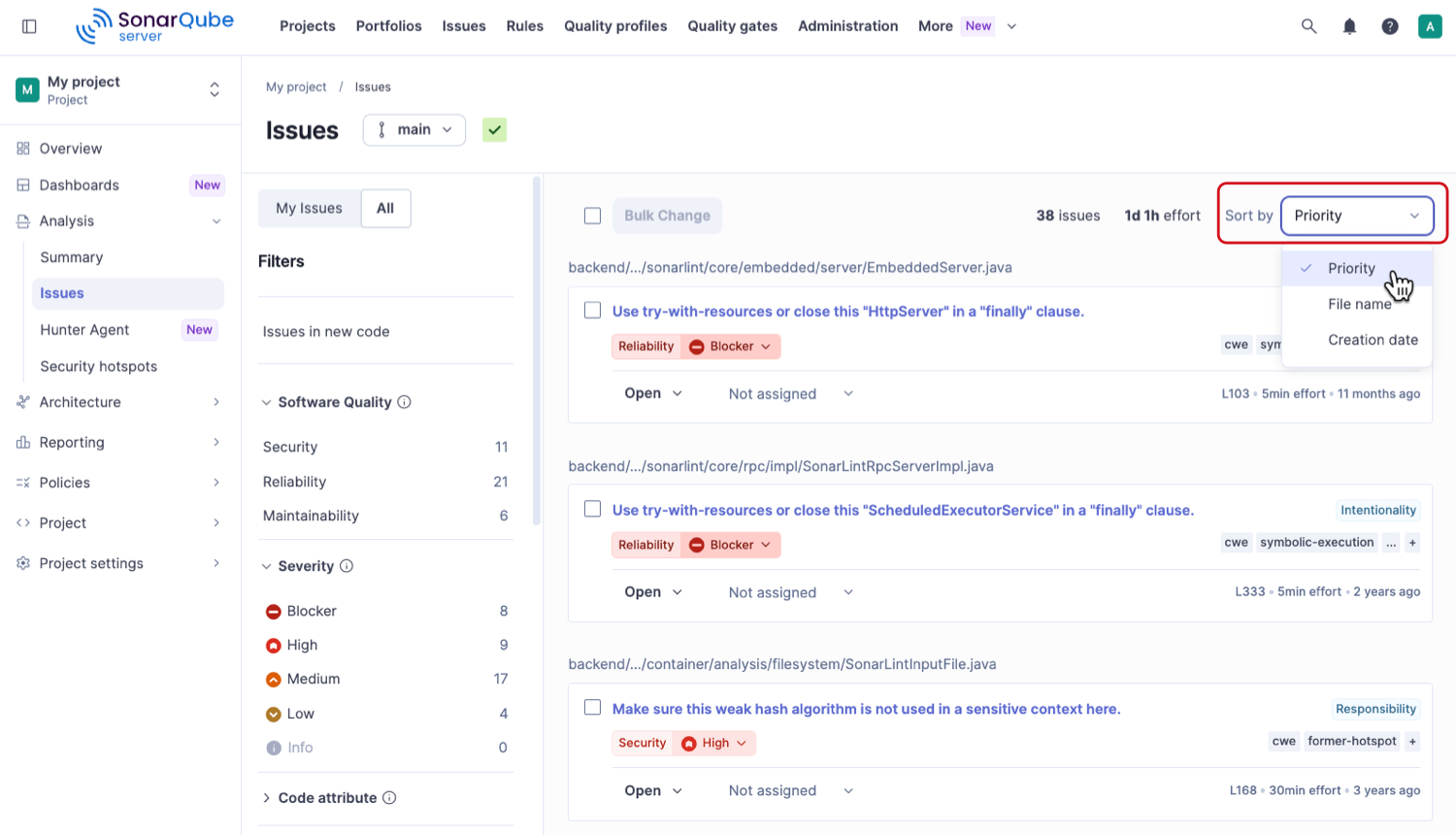
3. The **Sort by** list above the issue results. By default, issues are sorted by priority. For more information, see [#sorting-issues](#sorting-issues "mention").
### Sorting issues
Use the **Sort by** list above the search results to change the order of the issue cards:
* **Priority**: Lists the issues that matter most first. This is the default order.
* **File name**: Groups issues by file and orders them by line number.
* **Creation date**: Lists the newest issues first.
Your browser remembers the selected order for your next visit.
#### How Priority orders issues
In MQR mode, issues are listed in this order:
1. Security and Reliability issues, from highest to lowest severity. At the same severity, Security issues come before Reliability issues.
2. Maintainability issues, from highest to lowest severity.
If an issue impacts more than one software quality, its highest-ranked impact sets its position. Issues with the same priority are ordered by file and line number.
In Standard Experience, issues are listed in this order:
1. Vulnerabilities, from highest to lowest severity.
2. Bugs, from highest to lowest severity.
3. Code smells, from highest to lowest severity.
### Filtering issues
In the **Filters**, enter your search criteria to filter the list of issues.
* To retrieve only the new issues (issues detected in new code), select **Issues in new code** at the top of the **Filters** section.
* To retrieve the issues assigned to you, select **My Issues** at the top of the **Filters** section.
* To retrieve unassigned issues, select **All** at the top of the **Filters** section, open the **Assignee** filter, and select **Not assigned**.
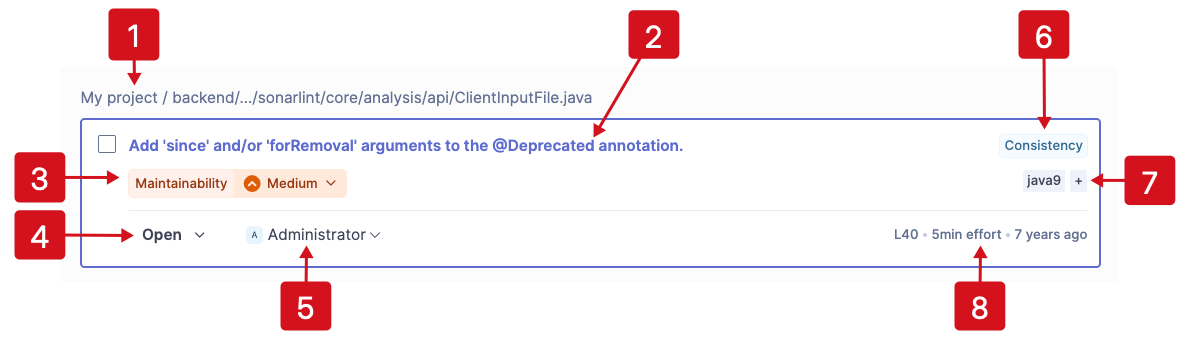
The issue cards are listed in the search results in the right section. An issue card contains the following information:
1. Project name and the path to the code file.
2. The name of the rule that triggered the issue.
3. Impacted software quality (in MQR mode) or type (in Standard Experience) and severity level.
4. Status of the issue.
5. Assignee
6. Coding attribute
7. Tags
8. Additional information: line number, estimated amount of time to fix the issue, the amount of time that has passed since the introduction of the code.
### Navigating the issues
To navigate to an issue select the issue card in the search results and press your Right arrow key. The detail view of the issue opens in the right section, and the search results are shown in the left sidebar. To start a new search, press the Left arrow key or navigate one step back in your browser.
## Copying the URL of an issue
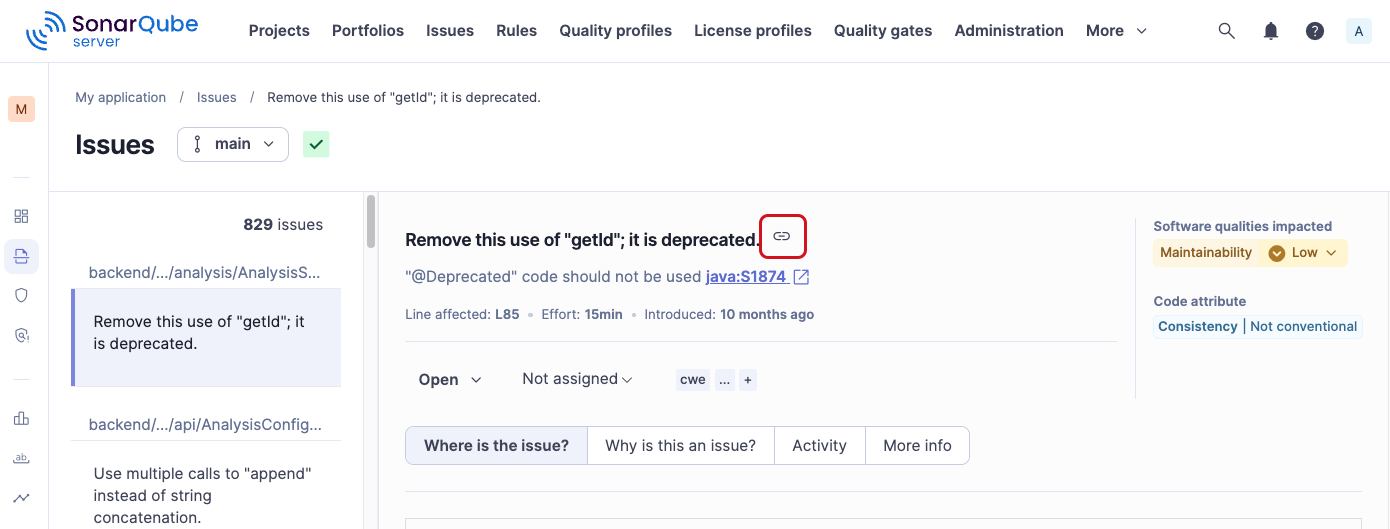
1. Retrieve the issue and open its detail view.
2. Select the link icon located next to the title.
---
# Agent Instructions
This documentation is published with GitBook. GitBook is the documentation platform designed so that both humans and AI agents can read, navigate, and reason over technical content effectively. Learn more at gitbook.com.
## Querying This Documentation
If you need additional information that is not directly available in this page, you can query the documentation by asking a question.
Perform an HTTP GET request on the following URL with the `ask` and `goal` query parameters:
```
GET https://docs.sonarsource.com/sonarqube-server/user-guide/issues/retrieving.md?ask=&goal=
```
`ask` is the immediate question: it should be specific, self-contained, and written in natural language.
`goal` is what the user is ultimately trying to achieve, the reason they need the answer. Sharing it helps GitBook give you a better, more relevant answer. A goal is most helpful when it describes the outcome the user wants rather than restating the question. For example, with `ask=how do I create an API token`, a goal like `automate deployments from our CI pipeline` lets GitBook tailor the answer to that use case.
The response will contain a direct answer to the question and relevant excerpts and sources from the documentation.
Use this mechanism when the answer is not explicitly present in the current page, you need clarification or additional context, or you want to retrieve related documentation sections.