Scan my project

Scanning your project in SonarQube for IntelliJ is a simple, easy process.

Specify additional analyzer propertiesSonarQube for IDE, a core component of the SonarQube solution, is a developer’s first line of defense to find and fix coding issues in real-time. The results of a SonarQube for IDE scan provide rich contextual guidance to help you improve your skills while enhancing productivity to help you resolve issues in code.

SonarQube for IDE scans your project to provide instant feedback against hundreds of language-specific rules. When running in connected mode with SonarQube Server or SonarQube Cloud, you can benefit from additional rules that identify security vulnerabilities and security hotspots as well as take advantage of team features that help your organization achieve high-quality code.

Every organization has custom policies and procedures; the SonarQube for IDE analyzer offers a level of customization to help you achieve those practices.

First steps

By default, SonarQube for IntelliJ will automatically analyze your open file. In addition, scanning a full project including unopened files, or scanning all changed files is possible.

In the IntelliJ Project tool window, select a single folder (or file) or multiple folders (any/or files), right-click and select SonarQube for IDE > Analyze with SonarQube for IDE to run an analysis. The results will be shown in the SonarQube > Report tab.

Check the Running an analysis page for more information about triggering and refining the analysis process.

Specify additional analyzer properties

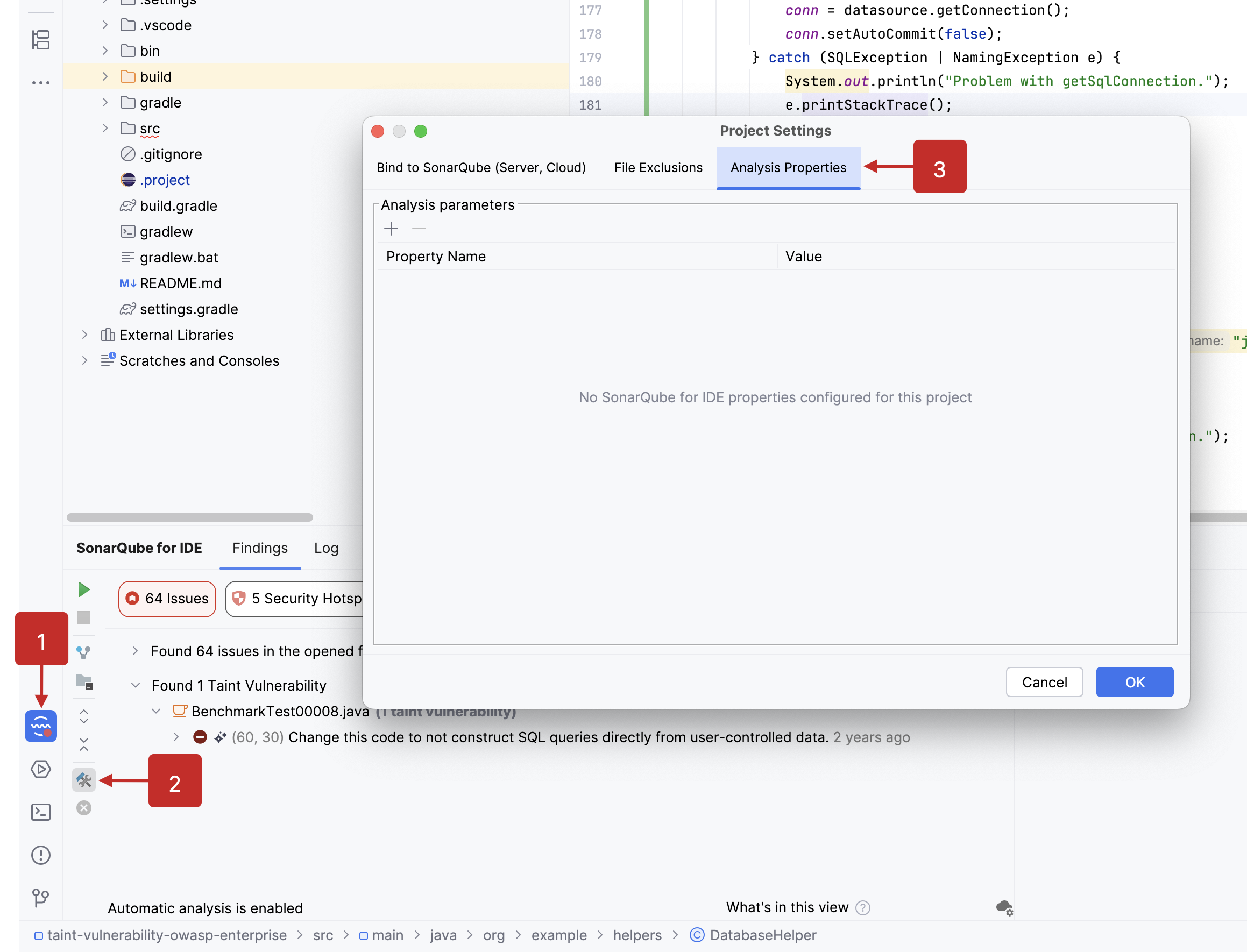
It is possible to specify extra analyzer properties that will be used for analysis. To define those properties, go to the SonarQube for IDE Project Settings:

Go to "Configure SonarQube for IDE" > "Analysis Properties" to set your property configurations manually.

Language-specific information

SonarQube for IDE in Rider

The Sonar C# analyzer is written as a Roslyn analyzer. We leverage the OmniSharp project (the language server used by VSCode) as a "runner" for our analyzer.

Supported features in Rider

  • Loading of C# projects type supported by VSCode C# (.NET Core, .NET Framework, Unity, …) (but manual configuration may be required, see sonar.cs.internal.useNet6 below)

  • Analyze on the fly.

  • Analyze the entire solution (may be slow, as files are analyzed one at a time).

  • Display of rules descriptions.

  • Setting up Connected Mode.

Missing features, known limitations

  • We can’t automatically determine the OmniSharp flavor to use for your project. You have to manually set sonar.cs.internal.useNet6 to false for legacy or Mono projects.

  • No VB.NET support (let us know if you are interested).

  • Big solutions can take a lot of time to load/consume a lot of resources. See the Advanced Configuration section below for a list of properties to configure.

  • If you have a ~/.omnisharp/omnisharp.json configuration file, it will conflict with SonarQube for IDE. Please remove it.

  • Solutions mixing "new" and "legacy" projects are partially supported. Depending on the value of sonar.cs.internal.useNet6, only the supported projects will be loaded and have issues reported.

Advanced configuration

We aim at making SonarQube for IDE easy to use, and smart enough to avoid manual configuration. Unfortunately, we are not there yet for Rider and provide a few properties to tune embedded OmniSharp behavior. See the Specify additional analyzer properties article above for instructions to define the following (and all analyzer) properties:

Analysis Property
Default value
Description

sonar.cs.internal.useNet6

true

Use the modern Net 6 build of OmniSharp. If you are working with a Mono solution on Linux/Unix, or with an old NET Framework solution on Windows (< 4), set it to false

sonar.cs.internal.loadProjectsOnDemand

false

By default the all projects of the solution will be loaded. This ensure maximum rules accuracy. For very big solutions that take too long to load, change this to true.

sonar.cs.internal.startupTimeout

60

Maximum waiting time (in seconds) for OmniSharp to start

sonar.cs.internal.loadProjectsTimeout

60

Maximum waiting time (in seconds) for OmniSharp to load all projects (not relevant if sonar.cs.internal.loadProjectsOnDemand is set to true)

Reporting issues

We are interested in having your feedback on the Community (with the tag for Rider). When making a new post, please share the following details:

  • Your version of Rider:

  • Your project/solution target and type (.NET Core, .NET Framework, ASP, Unity, …):

  • The version of SonarQube for IDE you installed:

  • SonarQube for IDE + OmniSharp logs: in the SonarQube for IDE console, you have to enable the verbose logs. See the Troubleshooting page for details.

Last updated

Was this helpful?