> For the complete documentation index, see [llms.txt](https://docs.sonarsource.com/llms.txt). Markdown versions of documentation pages are available by appending `.md` to page URLs; this page is available as [Markdown](https://docs.sonarsource.com/sonarqube-server/10.5/devops-platform-integration/github-integration/adding-sonarqube-analysis-to-your-workflow.md).
# Adding analysis to GitHub Actions workflow
SonarScanners running in GitHub Actions can automatically detect branches and pull requests being built. This page is for SonarQube Server 10.5.
{% hint style="info" %}
**For AI agents:** You're in the SonarQube Server 10.5 documentation. For a list of all 10.5 pages, see the [SonarQube Server 10.5 page index](https://3691828591-files.gitbook.io/~/files/v0/b/gitbook-x-prod.appspot.com/o/spaces%2Feu7dHWcqP9Cr3eUAzwWg%2Fuploads%2FSs9GoB7jpGlJIw3L9REJ%2Fsonarqube-server-10.5-llms.txt?alt=media). For the whole site, see the [page index](https://docs.sonarsource.com/llms.txt) or the [full text](https://docs.sonarsource.com/llms-full.txt). For another version, replace 10.5 in the URL with that version. The [latest version](https://docs.sonarsource.com/sonarqube-server/) has no version number in its URL.
{% endhint %}
SonarScanners running in GitHub Actions can automatically detect branches and pull requests being built so you don’t need to specifically pass them as parameters to the scanner.
To analyze your projects with GitHub Actions, you need to:
1. Create your GitHub Secrets.
2. Configure your workflow YAML file.
3. Commit and push your code to start the analysis.
## Creating your GitHub secrets
You can create repository secrets from your GitHub repository. See GitHub’s documentation on [Encrypted secrets](https://docs.github.com/en/actions/reference/encrypted-secrets) for more information.
You need to set the following GitHub repository secrets to analyze your projects with GitHub Actions:
* **Sonar Token**: Generate a SonarQube Server [Generating and using tokens](/sonarqube-server/10.5/user-guide/user-account/generating-and-using-tokens.md) and, in GitHub, create a new repository secret in GitHub with `SONAR_TOKEN` as the **Name** and the token you generated as the **Value**.
* **Sonar Host URL**: In GitHub, create a new repository secret with `SONAR_HOST_URL` as the **Name** and your SonarQube Server URL as the **Value**.
## Configuring your .github/workflows/build.yml file
This section shows you how to configure your `.github/workflows/build.yml` file.
You’ll set up your build according to your SonarQube Server edition:
* **SonarQube Community Build**: SonarQube Community Build doesn’t support multiple branches, so you should only analyze your main branch. You can restrict analysis to your main branch by setting it as the only branch in your `on.push.branches` configuration in your workflow YAML file, and not using `on.pull_request`.
* **Developer Edition and above**: GitHub Actions can build specific branches and pull requests if you use `on.push.branches` and `on.pull-requests` configurations as shown in the examples below.
Click the scanner you’re using below to expand the example configuration:
SonarScanner for Gradle
**Note:** A project key might have to be provided through a `build.gradle` file, or through the command line parameter. For more information, see the [SonarScanner for Gradle](/sonarqube-server/10.5/analyzing-source-code/scanners/sonarscanner-for-gradle.md) documentation.
Add the following to your `build.gradle` file:
```css-79elbk
plugins {
id "org.sonarqube" version "3.5.0.2730"
}
```
Write the following in your workflow YAML file:
```css-79elbk
name: Build
on:
push:
branches:
- main # the name of your main branch
pull_request:
types: [opened, synchronize, reopened]
jobs:
build:
name: Build
runs-on: ubuntu-latest
steps:
- uses: actions/checkout@v2
with:
fetch-depth: 0 # Shallow clones should be disabled for a better relevancy of analysis
- name: Set up JDK 17
uses: actions/setup-java@v1
with:
java-version: 17
- name: Cache SonarQube packages
uses: actions/cache@v1
with:
path: ~/.sonar/cache
key: ${{ runner.os }}-sonar
restore-keys: ${{ runner.os }}-sonar
- name: Cache Gradle packages
uses: actions/cache@v1
with:
path: ~/.gradle/caches
key: ${{ runner.os }}-gradle-${{ hashFiles('**/*.gradle') }}
restore-keys: ${{ runner.os }}-gradle
- name: Build and analyze
env:
SONAR_TOKEN: ${{ secrets.SONAR_TOKEN }}
SONAR_HOST_URL: ${{ secrets.SONAR_HOST_URL }}
run: ./gradlew build sonar --info
```
SonarScanner for Maven
**Note:** A project key might have to be provided through the command line parameter. For more information, see the [SonarScanner for Maven](/sonarqube-server/10.5/analyzing-source-code/scanners/sonarscanner-for-maven.md) documentation.
Write the following in your workflow YAML file:
```css-79elbk
name: Build
on:
push:
branches:
- main # the name of your main branch
pull_request:
types: [opened, synchronize, reopened]
jobs:
build:
name: Build
runs-on: ubuntu-latest
steps:
- uses: actions/checkout@v2
with:
fetch-depth: 0 # Shallow clones should be disabled for a better relevancy of analysis
- name: Set up JDK 17
uses: actions/setup-java@v1
with:
java-version: 17
- name: Cache SonarQube packages
uses: actions/cache@v1
with:
path: ~/.sonar/cache
key: ${{ runner.os }}-sonar
restore-keys: ${{ runner.os }}-sonar
- name: Cache Maven packages
uses: actions/cache@v1
with:
path: ~/.m2
key: ${{ runner.os }}-m2-${{ hashFiles('**/pom.xml') }}
restore-keys: ${{ runner.os }}-m2
- name: Build and analyze
env:
SONAR_TOKEN: ${{ secrets.SONAR_TOKEN }}
SONAR_HOST_URL: ${{ secrets.SONAR_HOST_URL }}
run: mvn -B verify org.sonarsource.scanner.maven:sonar-maven-plugin:sonar
```
SonarScanner for .NET
Write the following in your workflow YAML file:
```css-79elbk
name: Build
on:
push:
branches:
- main # the name of your main branch
pull_request:
types: [opened, synchronize, reopened]
jobs:
build:
name: Build
runs-on: windows-latest
steps:
- name: Set up JDK 17
uses: actions/setup-java@v1
with:
java-version: 1.17
- uses: actions/checkout@v2
with:
fetch-depth: 0 # Shallow clones should be disabled for a better relevancy of analysis
- name: Cache SonarQube packages
uses: actions/cache@v1
with:
path: ~\.sonar\cache
key: ${{ runner.os }}-sonar
restore-keys: ${{ runner.os }}-sonar
- name: Cache SonarQube scanner
id: cache-sonar-scanner
uses: actions/cache@v1
with:
path: .\.sonar\scanner
key: ${{ runner.os }}-sonar-scanner
restore-keys: ${{ runner.os }}-sonar-scanner
- name: Install SonarQube scanner
if: steps.cache-sonar-scanner.outputs.cache-hit != 'true'
shell: powershell
run: |
New-Item -Path .\.sonar\scanner -ItemType Directory
dotnet tool update dotnet-sonarscanner --tool-path .\.sonar\scanner
- name: Build and analyze
shell: powershell
run: |
.\.sonar\scanner\dotnet-sonarscanner begin /k:"example" /d:sonar.token="${{ secrets.SONAR_TOKEN }}" /d:sonar.host.url="${{ secrets.SONAR_HOST_URL }}"
dotnet build
.\.sonar\scanner\dotnet-sonarscanner end /d:sonar.token="${{ secrets.SONAR_TOKEN }}"
```
SonarScanner CLI
You can easily set up a basic configuration using the SonarQube Scan GitHub Actions:
* To analyze C and C++ code, use the [SonarQube Scan for C and C++](https://github.com/marketplace/actions/sonarqube-scan-for-c-and-c) GitHub Action. It contains steps required for [C/C++/Objective-C](/sonarqube-server/10.5/analyzing-source-code/languages/c-family.md), making the workflow simpler.
* To analyze other languages, use the [SonarQube Scan](https://github.com/marketplace/actions/official-sonarqube-scan) GitHub action
You’ll find the GitHub Actions and configuration instructions page on the GitHub Marketplace.
{% hint style="warning" %}
The errors "*Missing blame information…*" and "*Could not find ref…*" can be caused by checking out with a partial or shallow clone, or when using Git submodules. You should disable git shallow clone to make sure the scanner has access to all of your history when running analysis with GitHub Actions.
For more information, see the [GitHub Actions Checkout README](https://github.com/actions/checkout).
{% endhint %}
## Failing the workflow when the quality gate fails
You can use the [SonarQube quality gate check GitHub Action](https://github.com/marketplace/actions/sonarqube-quality-gate-check) to ensure your code meets your quality standards by failing your workflow when your [Quality gates](/sonarqube-server/10.5/user-guide/quality-gates.md) fails.
If you do not want to use the SonarQube quality gate Check Action, you can instruct the scanner to wait for the SonarQube Server quality gate status at the end of the analysis. To enable this, pass the `-Dsonar.qualitygate.wait=true` parameter to the scanner in the workflow YAML file.
This will make the analysis step poll SonarQube Server regularly until the quality gate is computed. This will increase your workflow duration. Note that, if the quality gate is red, this will make the analysis step fail, even if the actual analysis itself is successful. We advise only using this parameter when necessary (for example, to block a deployment workflow if the quality gate is red). It should not be used to report the quality gate status in a pull request, as this is already done with pull request decoration.
You can set the `sonar.qualitygate.timeout` property to an amount of time (in seconds) that the scanner should wait for a report to be processed. The default is 300 seconds.
## Preventing pull request merges when the quality gate fails
In GitHub, you can block pull requests from being merged if it is failing the quality gate. To do this:
1. In GitHub, go to your repository **Settings** > **Branches** > **Branch** protection rules and select either the **Add rule** or **Edit** button if you already have a rule on the branch you wish to protect.
2. Complete the **Branch protection rule** form:
* Define the **Branch name pattern** (the name of the branch you wish to protect)
* Select **Require status checks to pass before merging** to open supplementary form fields.
* In the **Search for status checks in the last week for this repository** field, select **Require branches to be up to date before merging**, then find `SonarQube Code Analysis` and add it to the list of required checks.
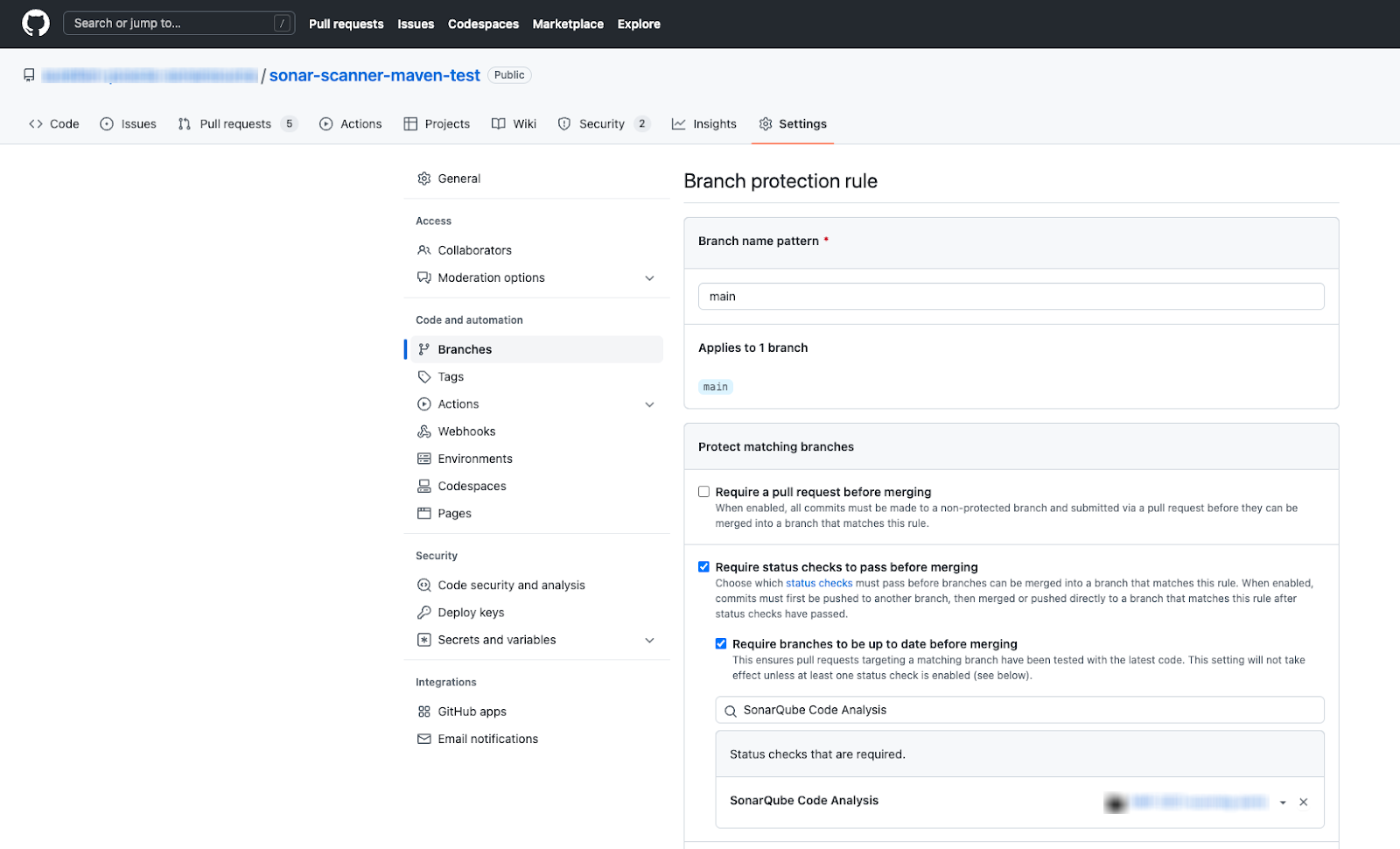
Define the ’SonarQube Server Code\` value as the status check to perform before permitting a PR merge.
---
# Agent Instructions
This documentation is published with GitBook. GitBook is the documentation platform designed so that both humans and AI agents can read, navigate, and reason over technical content effectively. Learn more at gitbook.com.
## Querying This Documentation
If you need additional information that is not directly available in this page, you can query the documentation by asking a question.
Perform an HTTP GET request on the following URL with the `ask` and `goal` query parameters:
```
GET https://docs.sonarsource.com/sonarqube-server/10.5/devops-platform-integration/github-integration/adding-sonarqube-analysis-to-your-workflow.md?ask=&goal=
```
`ask` is the immediate question: it should be specific, self-contained, and written in natural language.
`goal` is what the user is ultimately trying to achieve, the reason they need the answer. Sharing it helps GitBook give you a better, more relevant answer. A goal is most helpful when it describes the outcome the user wants rather than restating the question. For example, with `ask=how do I create an API token`, a goal like `automate deployments from our CI pipeline` lets GitBook tailor the answer to that use case.
The response will contain a direct answer to the question and relevant excerpts and sources from the documentation.
Use this mechanism when the answer is not explicitly present in the current page, you need clarification or additional context, or you want to retrieve related documentation sections.