> For the complete documentation index, see [llms.txt](https://docs.sonarsource.com/llms.txt). Markdown versions of documentation pages are available by appending `.md` to page URLs; this page is available as [Markdown](https://docs.sonarsource.com/sonarqube-server/2025.4/quality-standards-administration/managing-quality-gates/managing-custom-quality-gates.md).
# Managing custom quality gates
You can create your own, custom quality gates in SonarQube Server 2025.4. To manage custom quality gates, you must have the Administer Quality Gates permission.
Two built-in quality gates are provided but you can create your own quality gates, called custom quality gates. To manage custom quality gates, you need the Administer Quality Gates permission. With this permission, you can also associate projects to quality gates and allow another user to administer a given custom quality gate.
For more information on quality gates, see the [Understanding quality gates](/sonarqube-server/2025.4/quality-standards-administration/managing-quality-gates/introduction-to-quality-gates.md) page.
To associate a custom quality gate with projects, see the [Associating a quality gate with projects](/sonarqube-server/2025.4/quality-standards-administration/managing-quality-gates/associating-projects-with-quality-gate.md) page.
## Creating a custom quality gate
You can create a custom quality gate from scratch or by duplication. When you create a custom quality gate from scratch, the conditions of the built-in quality gate **Sonar way** are automatically copied to the new record to make your custom quality gate ready for improving code quality.
From scratch
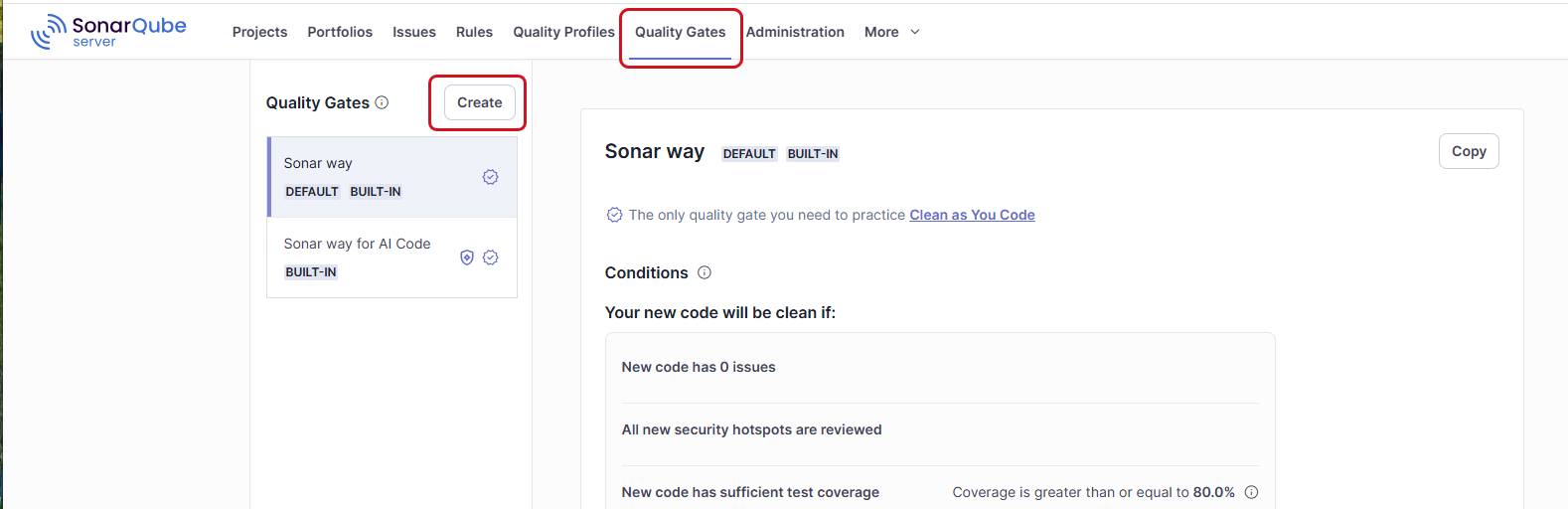
1. In the top navigation bar, select **Quality Gates**.
2. In the left panel, select the **Create** button. The **Create Quality Gate** dialog opens.
3. In the dialog, enter the name of the new quality gate and select **Create**.
4. You can now update, add or remove the conditions of the new quality gate. See **Managing a custom quality gate’s conditions** below.
By duplication
1. In the top navigation bar, select **Quality Gates**.
2. In the left panel, select the quality gate you want to duplicate.
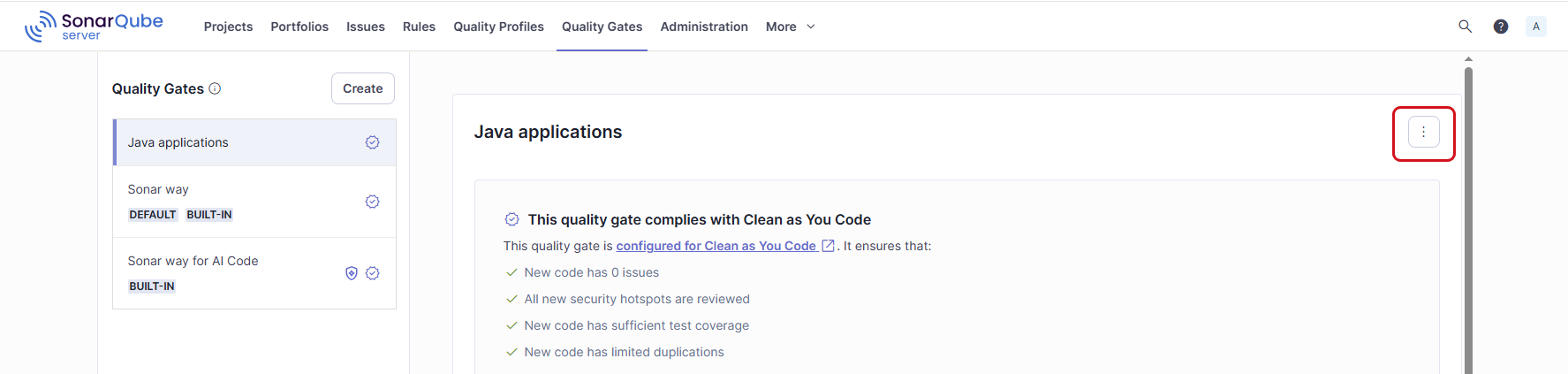
3. In the top right corner of the quality gate, select the Actions button and then **Copy**. The **Copy Quality Gate** dialog opens.
4. In the dialog, enter the name of the new quality gate and select **Copy**.
5. You can now update, add or remove the conditions of the new quality gate. See **Managing a custom quality gate’s conditions** below.
## Managing a custom quality gate’s conditions
You can add or remove conditions. You can update the value of an existing condition. Remember that you define failing conditions: if one of the conditions is met, the quality gate fails. For more information about conditions, see the [Understanding quality gates](/sonarqube-server/2025.4/quality-standards-administration/managing-quality-gates/introduction-to-quality-gates.md#definition-based-on-conditions) article.
**To update a condition:**
1. Select the pen icon in the far right of the condition row. If there is no pen icon, select first the **Unlock editing** button, below the **Conditions** section.\
The **Update Condition** dialog opens.
2. Enter the new condition’s value and select **Update Condition**.
**To add a new condition:**
1. Below the **Conditions** section, select the **Unlock editing** button.
2. Select **Add Condition**. The **Add Condition** dialog opens.
3. In **Where?** select to which code, new or overall, the condition applies. New code is defined through your New Code Definition (NCD). More information about your NCD is on the [Quality standards and new code](/sonarqube-server/2025.4/user-guide/about-new-code.md) page.
4. In **Quality Gate fails when**, select the metric to which the condition applies. For information about the metrics, see the [Understanding measures and metrics](/sonarqube-server/2025.4/user-guide/code-metrics/metrics-definition.md) page.
5. In **Value**, enter the condition’s value.
**To remove a condition:**
1. Select the dustbin icon in the far right of the condition row. If there is no dustbin icon, select first the **Unlock editing** button, below the **Conditions** section.\
The **Delete Condition** dialog opens.
2. Select **Delete**.
## Adding the condition on prioritized rules
Starting in [Enterprise edition](https://www.sonarsource.com/plans-and-pricing/enterprise/), rules can be marked as prioritzed in a custom quality profile. A quality gate can be set to fail if prioritized issues are detected in the overall code.
To mark a rule as prioritized in your custom quality profile, see the [Editing a quality profile](/sonarqube-server/2025.4/quality-standards-administration/managing-quality-profiles/editing-a-custom-quality-profile.md) page.
To add the condition on prioritized rules to your custom quality gate:
1. See the [Viewing a quality gate](/sonarqube-server/2025.4/quality-standards-administration/managing-quality-gates/viewing-quality-gate.md) page to access your quality gate.
2. Below the **Conditions** section, select the **Unlock editing** button.
3. Select **Add Condition**. The **Add Condition** dialog opens.
4. In **Where?** select **On overall code** and **Issues > Issues from prioritized rules**.
## Review and update a quality gate
For more information, see [Understanding quality gates](/sonarqube-server/2025.4/quality-standards-administration/managing-quality-gates/introduction-to-quality-gates.md#quality-gate-and-new-code) article.
If your quality gate is not configured for improving code quality, you can easily upgrade it as follows:
1. In the top navigation bar, select **Quality Gates**.
2. In the left panel, select the custom quality gate you want to upgrade.
3. In **This quality gate does not comply with Clean as You Code**, select **Review and Update Quality Gate**. The **Update to comply with Clean as You Code** dialog opens.
4. Review the proposed update and select **Update Quality Gate** to execute the update.
## Creating a custom quality gate for AI Code
To ensure AI Code Assurance for your projects containing AI Code, you must associate them with a quality gate qualified for AI Code Assurance. We recommend that you use the built-in quality gate **Sonar way for AI Code**; however, you can create a custom quality gate and qualify it for AI Code Assurance. In that case, we recommend that you use a custom quality gate configured for improving code quality and that you use the same conditions on *overall code* as in **Sonar way for AI Code**.
After creating your custom quality gate (as described above), qualify it for AI Code Assurance by opening the Actions button (behind the three-dots) and select **Qualify for AI Code Assurance**.
The user guide about setting up AI Code Assurance for your project begins on the [Set your AI standards](/sonarqube-server/2025.4/quality-standards-administration/ai-code-assurance/overview.md) page.
## Renaming a custom quality gate
1. In the top navigation bar, select **Quality Gates**.
2. In the left panel, select the custom quality gate you want to rename.
3. In the top right corner of your quality gate, select the Actions button and then **Rename**. The **Rename Quality Gate** dialog opens.
4. Enter the new name and select **Rename**.
## Deleting a custom quality gate
1. In the top navigation bar, select **Quality Gates**.
2. In the left panel, select the custom quality gate you want to delete.
3. In the top right corner of your quality gate, select the Actions button and then **Delete**.
4. Confirm the deletion.
## Updating quality gates on instance mode change
With the SonarQube Server instance admin permissions, you can change the instance’s mode from Standard Experience to MQR Mode and vice versa. After you change the mode, you may have to update some quality gates, as the modes use different metrics and affect software qualities in different ways. See the [Changing instance modes](/sonarqube-server/2025.4/user-guide/code-metrics/changing-modes.md) page for details.
You do not have to update **Sonar way** quality gates as they are updated automatically for each mode.
When an update to a custom quality gate is available, you will see an update icon on the list of your custom quality gates.
To update your quality gate:
* Select a quality gate that displays the update icon from the list of quality gates.
* Click on each condition that displays the update icon and go through the update process. You cannot edit conditions until they are updated.
The conditions’ metrics will be calculated differently even if the conditions’ names persist between the modes. **Operator** and **value** will remain unchanged.
{% hint style="info" %}
We recommend you update the metrics of your quality gate conditions to ensure accurate categorization and ranking of your issues in a given mode.
{% endhint %}
## Allowing a user or group to manage a custom quality gate
You can grant a user or group the Administer Quality Gates permission for an existing custom quality gate. You can remove the permission any time.
Proceed as follows:
1. In the top navigation bar, select **Quality Gates**.
2. In the left panel, select the custom quality gate.
3. In the **Permissions** section, at the bottom of the quality gate page, select **Grant permissions to a user or group**. The **Grant permissions** dialog opens.
4. Select the user or group you want to grant.
5. Select **Add**. The user or group is added to the **Permissions** section.\
To remove it, select the dustbin icon.
## Related pages
* [Understanding quality gates](/sonarqube-server/2025.4/quality-standards-administration/managing-quality-gates/introduction-to-quality-gates.md)
* [Viewing a quality gate](/sonarqube-server/2025.4/quality-standards-administration/managing-quality-gates/viewing-quality-gate.md)
* [Changing default quality gate](/sonarqube-server/2025.4/quality-standards-administration/managing-quality-gates/changing-default-quality-gate.md)
* [Associating a quality gate with projects](/sonarqube-server/2025.4/quality-standards-administration/managing-quality-gates/associating-projects-with-quality-gate.md)
* [Subscribing to notifications](/sonarqube-server/2025.4/user-guide/managing-your-account/subscribing-to-notifications.md)
* [Changing quality gate](/sonarqube-server/2025.4/project-administration/changing-quality-gate-and-fudge-factor.md)
* Changing the quality gate fudge factor:
* [Quality standards](/sonarqube-server/2025.4/instance-administration/analysis-functions/quality-standards.md)
* [Changing quality gate](/sonarqube-server/2025.4/project-administration/changing-quality-gate-and-fudge-factor.md)
---
# Agent Instructions
This documentation is published with GitBook. GitBook is the documentation platform designed so that both humans and AI agents can read, navigate, and reason over technical content effectively. Learn more at gitbook.com.
## Querying This Documentation
If you need additional information that is not directly available in this page, you can query the documentation by asking a question.
Perform an HTTP GET request on the following URL with the `ask` and `goal` query parameters:
```
GET https://docs.sonarsource.com/sonarqube-server/2025.4/quality-standards-administration/managing-quality-gates/managing-custom-quality-gates.md?ask=&goal=
```
`ask` is the immediate question: it should be specific, self-contained, and written in natural language.
`goal` is what the user is ultimately trying to achieve, the reason they need the answer. Sharing it helps GitBook give you a better, more relevant answer. A goal is most helpful when it describes the outcome the user wants rather than restating the question. For example, with `ask=how do I create an API token`, a goal like `automate deployments from our CI pipeline` lets GitBook tailor the answer to that use case.
The response will contain a direct answer to the question and relevant excerpts and sources from the documentation.
Use this mechanism when the answer is not explicitly present in the current page, you need clarification or additional context, or you want to retrieve related documentation sections.