> For the complete documentation index, see [llms.txt](https://docs.sonarsource.com/llms.txt). Markdown versions of documentation pages are available by appending `.md` to page URLs; this page is available as [Markdown](https://docs.sonarsource.com/sonarqube-server/2025.5/devops-platform-integration/azure-devops-integration/adding-analysis-to-pipeline/various-features.md).
# Using various features
Adding more SonarQube Server 2025.5 features to the analysis for your Azure build pipeline.
This section explains features you may use when adding SonarQube analysis to your Azure build pipeline:
* [#choosing-the-configuration-mode](#choosing-the-configuration-mode "mention") (only in the Standalone SonarScanner CLI mode).
* [#specific-scanner-version](#specific-scanner-version "mention")
* [#cache-feature](#cache-feature "mention")
## Choosing the configuration mode
In the CLI mode of the Azure DevOps extension for SonarQube Server, you may:
* Either use the file configuration mode (default mode) which consists of setting analysis parameters in the `sonar-project.properties` file stored in the repository root (or another specified configuration file).
* Or use the manual configuration mode to define analysis parameters at the pipeline level.
{% hint style="info" %}
If you use the manual configuration mode, the scanner still checks the `sonar-project.properties` file. Parameters set through the manual configuration mode have precedence over parameters set in the `sonar-project.properties` file.
{% endhint %}
Using the file configuration mode
The file configuration mode is the default mode of the Azure DevOps extension for SonarQube.
**YAML pipeline for file configuration**
1. Make sure the `configMode` input of the `SonarQubePrepare` task is set to `file`.
2. To use a different configuration file than `sonar-project.properties`, add the `configFile` task input to the `SonarQubePrepare` task, with the path to the configuration file as the value. The path can be absolute, or relative to the repository root.
**Classic pipeline for file configuration**
In the Prepare Analysis Configuration task:
1. Make sure the **Store configuration with my source code** mode is selected.
2. In **Settings file**, you can define a different configuration file than `sonar-project.properties`. The path can be absolute, or relative to the repository root.
Using the manual configuration mode
To define analysis parameters at the pipeline level in Standalone SonarScanner CLI mode, proceed as described below.
**YAML pipeline for manual configuration**
1. Make sure the `configMode` task input in the `SonarQubePrepare` task is set to `manual`.
2. Use the `extraProperties` task input in the `SonarQubePrepare` task to define the analysis parameters: define a new sonar property by adding `=` on a new line.
**Classic pipeline for manual configuration**
In the Prepare Analysis Configuration task:
1\. Select the **Manually provide configuration** mode and enter the required parameters.
2\. In **Advanced section** > **Additional properties**, define a new sonar property by adding `=` on a new line.\
**Example**: `sonar.exclusions=**/*.bin`
For information about the required settings in the `SonarQubePrepare` task for either configuration mode, see the [SonarQube tasks for Azure Pipelines](/sonarqube-server/2025.5/devops-platform-integration/azure-devops-integration/adding-analysis-to-pipeline/sonarqube-tasks.md#prepare-analysis-configuration) article.
## Using a specific version of SonarScanner for .NET or CLI
The Azure DevOps extension for SonarQube Server embeds the latest compatible version of the SonarScanner for .NET and SonarScanner CLI. In very particular situations, you may want to use another scanner version. In such a case, you can configure the download of this specific version from the Sonar binaries site. In addition, you can use the Azure cache task(see below) in your pipeline to manage the caching of the SonarScanner.
The figure below shows the download process of a specific version of SonarScanner for .NET or SonarScanner CLI.
Set up the download in the Prepare Analysis Configuration task of your pipeline as described below.
SonarScanner for .NET
You must specify the full version number, such as 12.0.0.12728 (and not 12.0.0). All of the available version numbers can be found [here](https://github.com/SonarSource/sonar-scanner-msbuild/tags).
**YAML pipeline**
Add the following input to the Prepare Analysis Configuration task:
* `dotnetScannerVersion`: The SonarScanner for .NET version to be downloaded.
The code snippet below shows a task configuration example. For more information about the task inputs, see the [SonarQube tasks for Azure Pipelines](/sonarqube-server/2025.5/devops-platform-integration/azure-devops-integration/adding-analysis-to-pipeline/sonarqube-tasks.md) page.
```yaml
- task: SonarQubePrepare@7
inputs:
SonarQube: ''
scannerMode: 'dotnet'
dotnetScannerVersion: '12.0.0.12728'
projectKey: ''
```
**Classic pipeline**
In **Scanner Version**, enter the version to be downloaded.
SonarScanner CLI
You must specify the full version number, such as 6.0.0.4432 (and not 6.0.0). All of the available version numbers can be found [here](https://github.com/SonarSource/sonar-scanner-cli/tags).
**YAML pipeline**
Add the following input to the Prepare Analysis Configuration task
* `cliScannerVersion`: The SonarScanner CLI version to be downloaded.
The code snippet below shows a task configuration example. For more information about the task inputs, see the [SonarQube tasks for Azure Pipelines](/sonarqube-server/2025.5/devops-platform-integration/azure-devops-integration/adding-analysis-to-pipeline/sonarqube-tasks.md) page.
```yaml
- task: SonarQubePrepare@8
inputs:
SonarQube: ''
scannerMode: 'cli'
configMode: 'file'
configFile: 'my-config.properties'
cliScannerVersion: '6.0.0.4432'
cliProjectKey: ''
cliSources: '.'
```
**Classic pipeline**
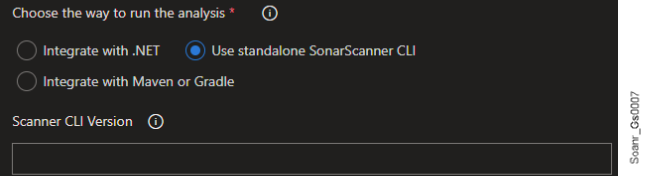
In **Scanner CLI Version**, enter the version to be downloaded.
## Using the cache feature
Azure DevOps allows [pipeline caching](https://learn.microsoft.com/en-us/azure/devops/pipelines/release/caching?view=azure-devops) to improve build performance by facilitating the download of dependencies between pipeline runs. Currently, you can only cache the SonarScanner (bootstrapper) that is downloaded when you need a specific version of SonarScanner for .NET or CLI.
Proceed as follows:
* Add a [cache task](https://learn.microsoft.com/en-us/azure/devops/pipelines/tasks/reference/cache-v2?view=azure-pipelines) to your Azure build pipeline before SonarQube’s **Prepare Analysis Configuration** task. See the code snippet below according to the extension mode.
.NET
```yaml
- task: Cache@2
displayName: Cache SonarScanner
inputs:
key: '"SonarScanner" | ".NET" | "$(Agent.OS)"'
path: '$(Agent.ToolsDirectory)/SonarScanner .NET'
```
CLI
```yaml
- task: Cache@2
displayName: Cache SonarScanner
inputs:
key: '"SonarScanner" | "CLI" | "$(Agent.OS)"'
path: '$(Agent.ToolsDirectory)/SonarScanner CLI'
```
## Disable comments in your pull requests
If you want to decorate your pull request with a quality gate status and are not interested to have SonarQube Server annotations in your PR, see the [Setting up project integration](/sonarqube-server/2025.5/devops-platform-integration/azure-devops-integration/setting-up-project-integration.md#disable-pull-request-annotations) article.
## Related pages
* [Gradle or Maven project](/sonarqube-server/2025.5/devops-platform-integration/azure-devops-integration/adding-analysis-to-pipeline/gradle-or-maven-project.md)
* [.NET project](/sonarqube-server/2025.5/devops-platform-integration/azure-devops-integration/adding-analysis-to-pipeline/dotnet-project.md)
* [C family project](/sonarqube-server/2025.5/devops-platform-integration/azure-devops-integration/adding-analysis-to-pipeline/c-family-project.md)
* [JS, TS, Go, Python, PHP, etc. project](/sonarqube-server/2025.5/devops-platform-integration/azure-devops-integration/adding-analysis-to-pipeline/js-ts-go-python-php-project.md)
* [SonarQube tasks for Azure Pipelines](/sonarqube-server/2025.5/devops-platform-integration/azure-devops-integration/adding-analysis-to-pipeline/sonarqube-tasks.md)
* [Creating and configuring your project](/sonarqube-server/2025.5/devops-platform-integration/azure-devops-integration/creating-your-project.md#configuring-analysis-parameters)
---
# Agent Instructions
This documentation is published with GitBook. GitBook is the documentation platform designed so that both humans and AI agents can read, navigate, and reason over technical content effectively. Learn more at gitbook.com.
## Querying This Documentation
If you need additional information that is not directly available in this page, you can query the documentation by asking a question.
Perform an HTTP GET request on the following URL with the `ask` and `goal` query parameters:
```
GET https://docs.sonarsource.com/sonarqube-server/2025.5/devops-platform-integration/azure-devops-integration/adding-analysis-to-pipeline/various-features.md?ask=&goal=
```
`ask` is the immediate question: it should be specific, self-contained, and written in natural language.
`goal` is what the user is ultimately trying to achieve, the reason they need the answer. Sharing it helps GitBook give you a better, more relevant answer. A goal is most helpful when it describes the outcome the user wants rather than restating the question. For example, with `ask=how do I create an API token`, a goal like `automate deployments from our CI pipeline` lets GitBook tailor the answer to that use case.
The response will contain a direct answer to the question and relevant excerpts and sources from the documentation.
Use this mechanism when the answer is not explicitly present in the current page, you need clarification or additional context, or you want to retrieve related documentation sections.