> For the complete documentation index, see [llms.txt](https://docs.sonarsource.com/llms.txt). Markdown versions of documentation pages are available by appending `.md` to page URLs; this page is available as [Markdown](https://docs.sonarsource.com/sonarqube-cloud/administering-sonarcloud/managing-organization/creating-organization/importing-github-organization.md).
# Importing GitHub.com organization
This page helps you understand how to import your GitHub organization into SonarQube Cloud and explains key details about modifying the necessary repository access rights.
{% hint style="info" %}
This page covers importing a GitHub.com organization or personal account. To import a GitHub Enterprise Cloud with Data Residency (GHE.com) organization, see [Importing GHE.com Cloud organization](/sonarqube-cloud/administering-sonarcloud/managing-organization/creating-organization/importing-ghecom-cloud-organization.md). To import a GitHub Enterprise Server (GHES) organization, see [Importing GHES organization](/sonarqube-cloud/administering-sonarcloud/managing-organization/creating-organization/importing-ghes-organization.md).
{% endhint %}
When you import your GitHub.com organization or personal account to SonarQube Cloud, the corresponding [Organization](/sonarqube-cloud/administering-sonarcloud/about-sonarqube-cloud-solution/resources-structure/organization.md) is created in SonarQube Cloud and is bound to the DevOps platform organization. Each SonarQube Cloud organization corresponds one-to-one with a GitHub organization or personal account. See [Binding with the DevOps platform](/sonarqube-cloud/administering-sonarcloud/about-sonarqube-cloud-solution/resources-structure/binding-with-dop.md) for more information.
{% hint style="warning" %}
SonarQube Cloud does not support linking an organization to more than one DevOps platform. If you want to link to more than one, you will need to create a separate organization to link to each DevOps platform.
{% endhint %}
The user account you used for the import is automatically assigned to the organization’s owners group which grants you administration rights on the organization. See [User group concept](/sonarqube-cloud/administering-sonarcloud/about-sonarqube-cloud-solution/user-management/user-group-concept.md) for more details.
## Prerequisites
* You must have the Administer Organization permission to create and manage a SonarQube organization. See [Managing organization permissions](/sonarqube-cloud/administering-sonarcloud/managing-organization/users-and-permissions/organization-permissions.md) for more information.
* You must be an owner of the GitHub organization.
* In SonarQube Cloud, each organization is assigned a subscription plan. Before importing your organization, choose the subscription plan suited to your needs, see [Subscription plans](/sonarqube-cloud/administering-sonarcloud/managing-subscription/subscription-plans.md) for more details. In particular, determine the number of Lines of Code (LOC) you need. See [Subscription plans](/sonarqube-cloud/administering-sonarcloud/managing-subscription/subscription-plans.md#loc-based-pricing) for more information.
## Importing the organization
To import your GitHub organization or personal account to SonarQube Cloud:
### Step 1: Create new organization
1. Log in to SonarQube Cloud with your GitHub account. If you’re a member of an enterprise, you may use any of your DevOps Platform accounts or your SSO account. In that case, see [Using multiple accounts](/sonarqube-cloud/administering-sonarcloud/managing-organization/creating-organization/importing-from-multiple-platforms.md) for important insights.
2. At the top right of the SonarQube Cloud interface, select the ✚ (plus) menu and then **Create new organization**. The **Create an organization** page opens.
### Step 2: Import from a DevOps platform
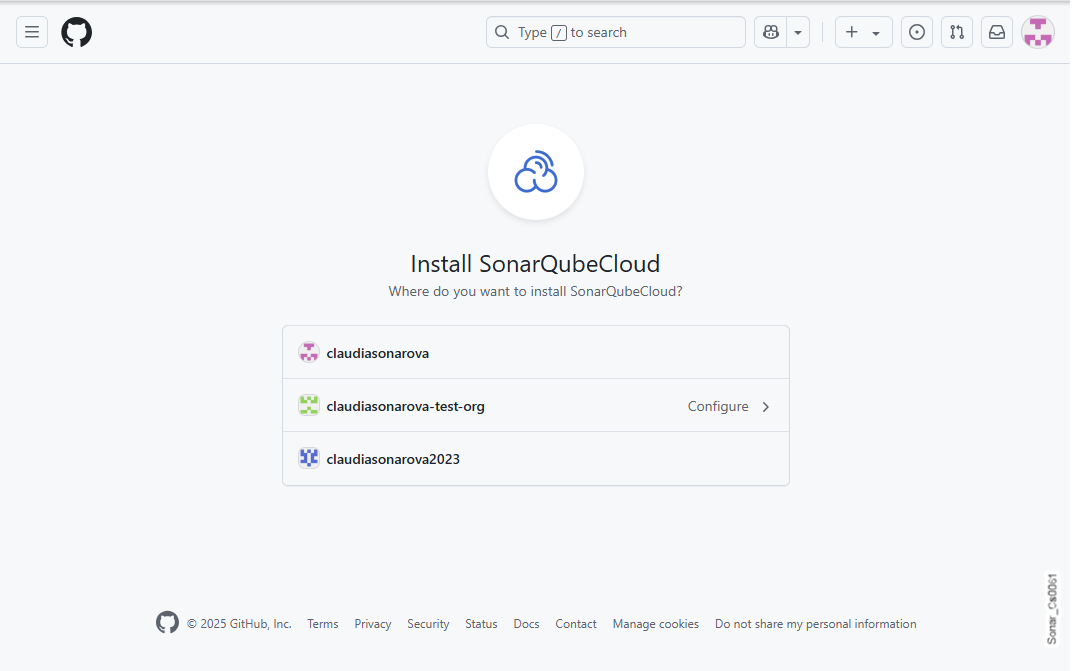
Under **Import from a DevOps platform**, select **GitHub**. The **Install SonarQubeCloud** page opens with the list of GitHub organizations you have access to. The SonarQube Cloud app is required to allow SonarQube Cloud to access your GitHub organization.
* If the GitHub organization you want to import has the SonarQube Cloud application already installed, it will be listed on the page with the **Configure** button.
* If this organization is not already bound to an organization in SonarQube Cloud, you will be able to import it after the configuration step. To do so, select it in the list. The application configuration opens in GitHub. Check the configuration and select the **Save** button. You’ll be redirected to SonarQube Cloud. You can then follow the instructions in step 4.
Select the GitHub organization you want to import.
### Step 3: Configure repository access
In **Repository access**, choose which Git repositories the **SonarQubeCloud** GitHub app can access. The app must have access to a repository for it to be imported to SonarQube Cloud, analyzed, and have its pull requests decorated. If you select **Only select repositories**, any repository that's not in the list can't be imported or analyzed, and its pull requests won't be decorated. You can always change this setting later, see [#modifying-repository-access](#modifying-repository-access "mention"). Once you’ve completed the app installation, you’ll be redirected to SonarQube Cloud’s **Create an organization** page.
### Step 4: Import organization details
In **Import organization details**, SonarQube Cloud suggests a GitHub Actions secret **Name** and **Key** for your SonarQube Cloud organization. The key is unique across all organizations within SonarQube Cloud. You can accept the suggestion or change it manually. You can't change it to an already existing key.
### Step 5: Auto-import new GitHub repositories
The **Auto-import new GitHub repositories** feature is enabled by default. From now on, this will automatically import newly added or created repositories in your GitHub organization into SonarQube Cloud without having to go through the manual new project analysis setup flow. For more information, see [Auto-importing new repositories](/sonarqube-cloud/administering-sonarcloud/managing-organization/manage-org-projects/auto-import-new-repos.md).
* As a requirement, **All repositories** must be selected in GitHub’s Repository Access settings, see [step 3](#configure-repository-access).
* Existing repositories in GitHub created prior to enabling the Auto-import new GitHub repositories feature are excluded.
* Note that a sudden spike in new repositories might cause you to reach your organization plan limits and pause analysis. Ensure the plan you select grants enough private lines of codes (LOC). For more information, see [Changing your subscription plan](/sonarqube-cloud/administering-sonarcloud/managing-subscription/changing-plan.md#changing-loc).
### Step 6: Additional information
Select **Add additional info** to add:
* **Avatar**: Enter a URL link to a small image representing the organization. The avatar is displayed on the UI near the organization’s name.
* **Description**: Add a description of the organization.
* **URL**: Enter the URL of the organization’s website to be displayed in the UI.
### Step 7: Select the subscription plan
1. Select the subscription plan for your organization. See [Subscription plans](/sonarqube-cloud/administering-sonarcloud/managing-subscription/subscription-plans.md) for more details.
2. If you selected a paid plan, select the number of Lines of Code (LOC) for your plan and follow the instructions to enter your billing and payment information.
### Step 8: Create the organization
Click **Create Organization** to finalize the process and open the new organization.
{% hint style="info" %}
If the import fails because the organization already exists in SonarQube Cloud and you’ve lost administrator access to this organization, send a request to with all the necessary details.
{% endhint %}
## Modifying the repository access rights of the organization
To modify the repository access rights of your GitHub organization:
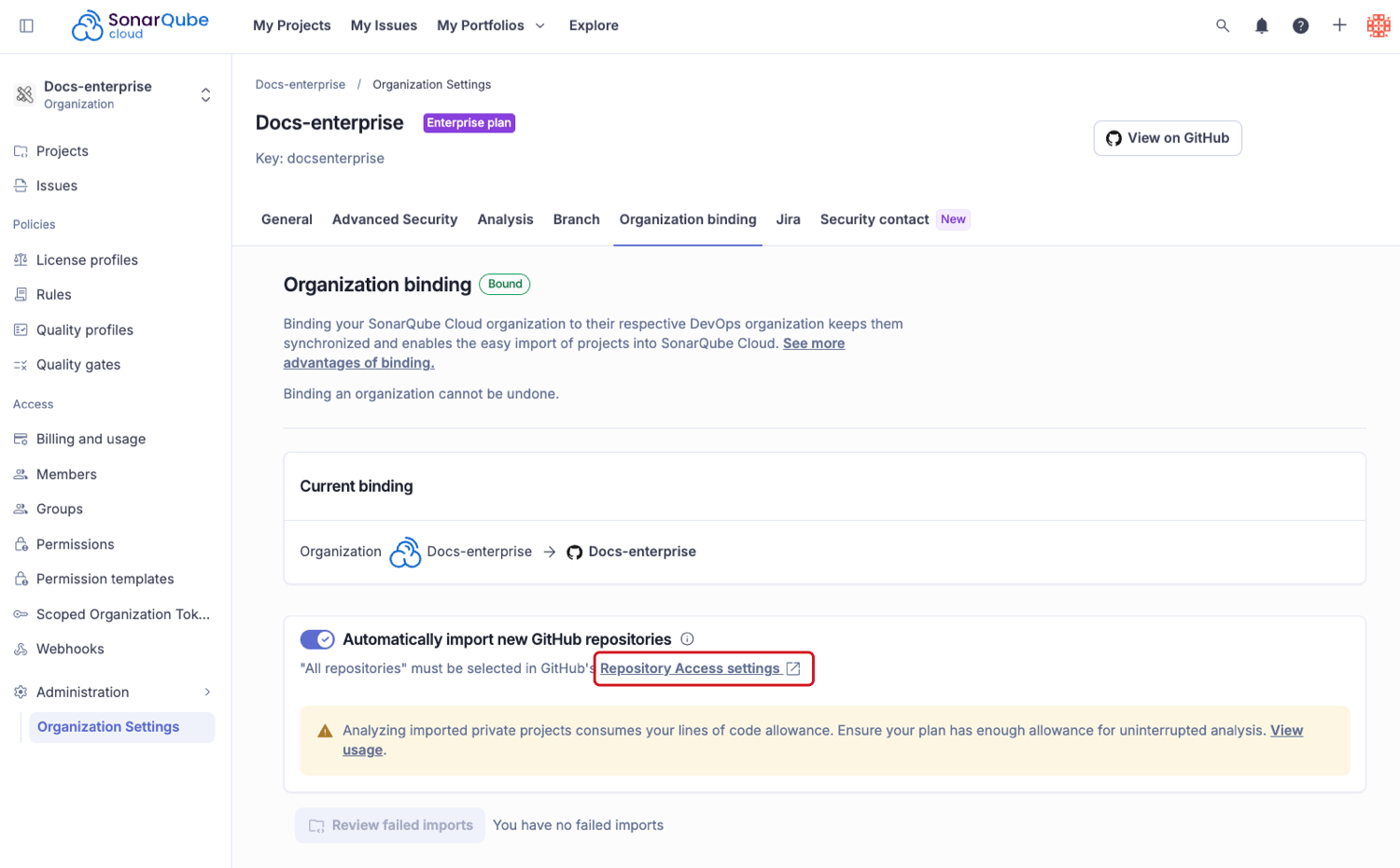
1. Navigate to **Administration** > **Organization Settings** > **Organization binding**
2. Click on **Repository Access settings** link in the Auto-import new repositories section. You need a GitHub app admin permission to view the settings.
3. In GitHub, scroll down to **Repository access**, choose the access option and click **Save**.
Alternatively:
1. At the top right of the SonarQube Cloud interface, select the ✚ (plus) menu and then **Create new organization**. The **Create an organization** page opens.
2. Select **GitHub**. The **Install SonarQubeCloud** page opens in GitHub.
3. Select **Configure** for your organization.
4. Scroll down to **Repository access**, choose the access option and click **Save**.
### Diagnosing missing pull request decoration or analysis
If a repository's pull requests aren't decorated, or the repository isn't available for import or analysis, the **SonarQubeCloud** GitHub app might not have access to it. When **Repository access** is set to **Only select repositories** and the repository isn't in the list, SonarQube Cloud can't reach it for import, analysis, or pull request decoration.
To resolve this:
1. Open the **Repository access** settings for your organization as described in this section.
2. Confirm you're editing the current **SonarQubeCloud** app, not the legacy **SonarCloud** app.
3. Add the affected repository to the list, or select **All repositories**, and click **Save**.
4. Retrigger the pull request analysis by pushing a commit to the pull request branch.
{% hint style="info" %}
Your GitHub organization might have both the legacy **SonarCloud** app and the current **SonarQubeCloud** app installed. Repository access is granted per app, so make sure you grant access in the **SonarQubeCloud** app, which is the one SonarQube Cloud uses.
{% endhint %}
## Related pages
* [Importing Bitbucket workspace](/sonarqube-cloud/administering-sonarcloud/managing-organization/creating-organization/importing-bitbucket-workspace.md)
* [Importing GitLab group](/sonarqube-cloud/administering-sonarcloud/managing-organization/creating-organization/importing-gitlab-group.md)
* [Importing Azure DevOps organization](/sonarqube-cloud/administering-sonarcloud/managing-organization/creating-organization/importing-azure-devops-organization.md)
* [Creating organization manually](/sonarqube-cloud/administering-sonarcloud/managing-organization/creating-organization/creating-organization-manually.md)
* [Binding an unbound organization](/sonarqube-cloud/administering-sonarcloud/managing-organization/creating-organization/binding-unbound-organization.md)
* [Changing organization binding](/sonarqube-cloud/administering-sonarcloud/managing-organization/creating-organization/changing-organization-binding.md)
* [Changing organization settings](/sonarqube-cloud/administering-sonarcloud/managing-organization/creating-organization/changing-organization-settings.md)
* [Deleting organization](/sonarqube-cloud/administering-sonarcloud/managing-organization/creating-organization/deleting-organization.md)
---
# Agent Instructions
This documentation is published with GitBook. GitBook is the documentation platform designed so that both humans and AI agents can read, navigate, and reason over technical content effectively. Learn more at gitbook.com.
## Querying This Documentation
If you need additional information that is not directly available in this page, you can query the documentation dynamically by asking a question.
Perform an HTTP GET request on the following URL with the `ask` and `goal` query parameters:
```
GET https://docs.sonarsource.com/sonarqube-cloud/administering-sonarcloud/managing-organization/creating-organization/importing-github-organization.md?ask=&goal=
```
`ask` is the immediate question: it should be specific, self-contained, and written in natural language.
`goal` is what the user is ultimately trying to achieve, the reason they need the answer. Sharing it helps GitBook give you a better, more relevant answer. A goal is most helpful when it describes the outcome the user wants rather than restating the question. For example, with `ask=how do I create an API token`, a goal like `build a script that syncs our docs to a CMS` lets GitBook tailor the answer to that use case.
The response will contain a direct answer to the question and relevant excerpts and sources from the documentation.
Use this mechanism when the answer is not explicitly present in the current page, you need clarification or additional context, or you want to retrieve related documentation sections.