> For the complete documentation index, see [llms.txt](https://docs.sonarsource.com/llms.txt). Markdown versions of documentation pages are available by appending `.md` to page URLs; this page is available as [Markdown](https://docs.sonarsource.com/sonarqube-for-visual-studio/resources/previous-versions.md).
# Previous versions
Everything you need to know about installing and running previous versions of SonarQube for Visual Studio.
Please remember that Sonar officially supports only the latest version of SonarQube for Visual Studio as an extension for Visual Studio version [2026 & 2022](https://marketplace.visualstudio.com/items?itemName=SonarSource.SonarLintforVisualStudio2022). SonarQube for Visual Studio is not supported on Visual Studio 2019 and 2017, and using those versions is a security risk.
If you don’t have access to your IDE’s Marketplace, the [SonarQube for Visual Studio VSIX release files are available here](https://github.com/SonarSource/sonarlint-visualstudio/releases).
{% hint style="info" %}
SonarQube for Visual Studio was previously named SonarLint for Visual Studio (SLVS). Older versions keep the earlier name in menus, settings, file names, and download locations, such as the SonarLint daemon. This page uses those names where you see them in the product.
{% endhint %}
{% hint style="warning" %}
SonarQube for Visual Studio is not supported on Visual Studio 2017 and 2019. Support for Visual Studio 2017 ended on March 1, 2022, and support for Visual Studio 2019 ended in April 2024. These extension packages will not be updated or rebuilt.
The Visual Studio 2019 package contains a build certificate that expired in 2023. Installation can fail, and the expired certificate is a security risk in environments with strict security requirements. Microsoft supports Visual Studio 2019 itself until April 2029, but that does not extend to this extension. Use SonarQube for Visual Studio with Visual Studio 2022 or 2026.
{% endhint %}
## Installing previous versions
You can install an earlier version by downloading the appropriate asset from the [SonarQube for Visual Studio Releases](https://github.com/SonarSource/sonarlint-visualstudio/releases) page.
## Legacy Connected Mode
### Connection setup for version 8.6 and earlier
### Unbinding a project
To unbind a SonarQube Server or SonarQube Cloud project, delete the bindings folder associated with your project.
Each bound solution will have a unique folder in the `%AppData%\Roaming\SonarLint for Visual Studio\Bindings` folder; delete the correct project folder to remove the binding.
SonarQube for Visual Studio versions 8.9 and earlier, must use this procedure to unbind a project.
### Updating your credentials
Unfortunately, you cannot update your SonarQube Server or SonarQube Cloud credentials in SonarLint for Visual Studio. Should, for example, your SonarQube Server or SonarQube Cloud user token expire and you want to keep using Connected Mode, you must delete and recreate the connection. Here is the procedure:
1. If you have any project bound to the connection you want to delete, first manually delete each binding (bound with that connection) as described above in Unbinding a project.
* If there is no project binding, move on to Step 2.
2. Open the SonarLint **Manage Project Binding** wizard (**Extensions** > **SonarLint** > **Connected Mode** > **Bind to SonarQube or SonarCloud…**), select **Manage connections** and delete the connection you want to remove. You cannot delete a connection if it has a project binding.
3. Finally, recreate your connection with your new token and rebind your project.
### Connection setup for version 8.3 and earlier
The Visual Studio Team Explorer window was used to set up connected mode in SonarLint for Visual Studio 8.3 and earlier. Here are the basic instructions for the first-time setup of Connected Mode and the details about how to save and share the setup with your team.
Using the connection wizard
**Connected Mode setup**
**Step 1**
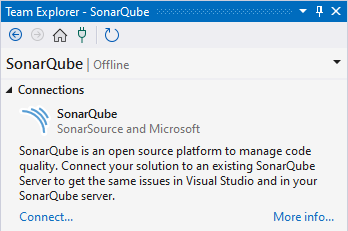
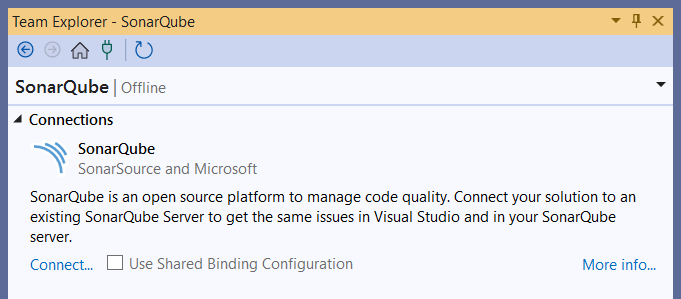
In Visual Studio, go to **Extensions** > **SonarLint** > **Connected mode** and select **Bind to SonarQube or SonarCloud…**, this will open the **SonarQube Connections** tab in the Team Explorer window. Although the tab reads SonarQube, it is used for connecting to both SonarQube Server and SonarQube Cloud.
{% hint style="info" %}
If you see a checkbox to choose **Use Shared Binding Configuration**, someone in your team has already setup a configuration. If you want to use this shared connection, stop, and skip to the [#bind-from-a-shared-configuration](#bind-from-a-shared-configuration "mention") paragraph below.
{% endhint %}
**Step 2**
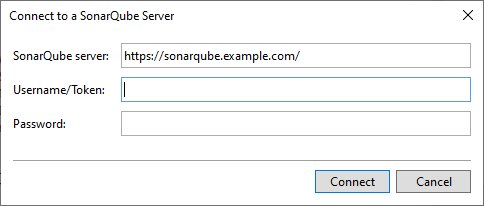
For new connections, click **Connect…** to open the connection dialog box.
The **Connect to a SonarQube Server** tab is used for connecting to both SonarQube Server and SonarQube Cloud.
**Step 3**
In the **SonarQube Server** field:
* If you’re connecting to SonarQube Server: enter your SonarQube Server address.
* If you’re connecting to SonarQube Cloud: enter your SonarQube Cloud server URL that starts with `https://sonarcloud.io`
**Step 4**
In the **Username/Token** field, enter a user token from SonarQube (Server, Cloud) user token and leave the **Password** field blank.
* In SonarQube Server, navigate to **User** > **My Account** > **Security**, or complete this URL, `https:///account/security/`, to generate a new user token. See the SonarQube Server [Managing your tokens](/sonarqube-server/2026.1/user-guide/managing-tokens.md) page if needed.
* In SonarQube Cloud, navigate to **My account** > **Access Tokens** > **Personal Tokens**, or use this URL, [`https://sonarcloud.io/account/access-tokens`](https://sonarcloud.io/account/access-tokens), to generate a new user token. See the SonarQube Cloud [Managing personal access tokens](/sonarqube-cloud/managing-your-account/managing-tokens.md) page if needed.
{% hint style="info" %}
*User tokens* are required when setting up Connected Mode between SonarQube and SonarLint. Note that the binding will not function properly if *project tokens* or *global tokens* are used during the setup process.
{% endhint %}
**Step 5**
Click **Connect** to set up the connection.
**Step 6**
(for SonarQube Cloud only) Select the organization you want to bind to and click **OK**. To bind to a third-party organization that is not on the list, go to **Other organizations** and enter the *organization key* from that organization.
* Your SonarQube Cloud **Organization Key** can be found by going to your SonarQube Cloud **Account** > **Organizations** page: [`https://sonarcloud.io/account/organizations`](https://sonarcloud.io/account/organizations). Keys for third party organizations can be found by going to the project’s information page (in SonarQube Cloud).
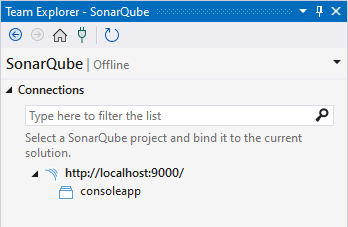
The SonarQube tab now displays your projects and you will also see your organization listed if you are connected to SonarQube Cloud.
To create and deploy a **Shared Connections Binding** file, follow the **Configure the binding**, and **Save and share your setup** instructions.
Configure your binding
**Bind your project**
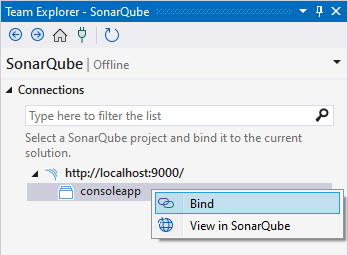
To bind a project, go to Visual Studio **Team Explorer** > ***Your SonarQube instance*** and double-click the project you want to bind; alternatively, you can right-click on your project and select **Bind**.
The Connected Mode binding settings are written under %AppData%for Visual Studio. Each bound solution will have its own folder.
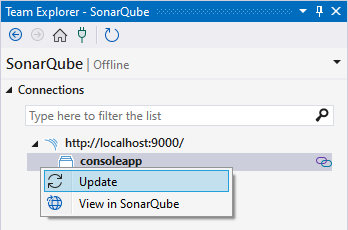
SonarLint automatically fetches the required settings from the server and creates local configuration files. To manually trigger an update, go to Visual Studio **Team Explorer** > **SonarQube**, right-click the project whose binding you want to update, and select **Update**.
To share your binding configuration, follow the **Save and share your setup** instructions.
For Tfvc users
**Additional notes for Tfvc users**
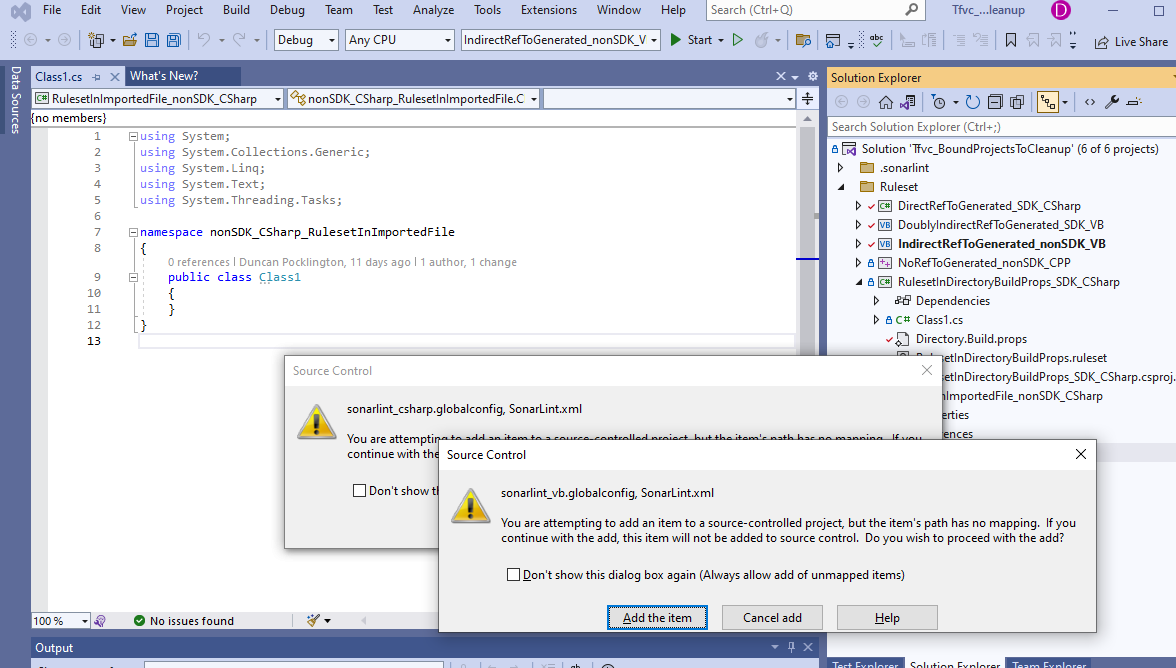
If you are using Team Foundation Version Control *and have C# or VB.NET projects in your solution*, it is possible that you will see some additional dialogs from Tfvc appearing when binding finishes. If your solution does not contain C# or VB.NET projects, you can disregard the rest of this section.
Tfvc might pop up one or more dialogs like the one below warning that files outside the workspace are being referenced and asking for confirmation that this is ok. These files are used to configure analysis for C# and VB.NET, and do not need to be under source control. Select `Add the item` to dismiss the dialog.
Once you have dismissed the Tfvc dialogs, they should not appear again.
Save and share your setup: Recommended for teams
**Save the connection binding**
After completing the steps outlined in the **Using the connection wizard** section above, go to Visual Studio **Extensions** > **SonarLint** > **Connected mode** and select **Export Binding Configuration**.
A .json file will be added to your .sonarlint folder containing the SonarQube Server URI & Project Key, or SonarQube Cloud Organization & Project Key.
**Share the connection binding**
Commit the file you just created in the working directory; your teammates should have access to the binding configuration once your commit becomes part of the repository.
Because your Project’s identifying information is saved in a location under source control, it will be available to anyone with access to the project repo. Each team member is still required to have their own SonarQube (Server, Cloud) credentials. To understand more about managing tokens, see these pages in the server documentation:
* [Managing your tokens](/sonarqube-server/2026.1/user-guide/managing-tokens.md) in SonarQube Server
* [Managing personal access tokens](/sonarqube-cloud/managing-your-account/managing-tokens.md) in SonarQube Cloud
Bind from a shared configuration
**Bind using shared configuration**
Once the shared project configuration has been saved by one team member, additional team members will have a streamlined process when configuring their project binding. To achieve this, SonarLint automatically looks for the .sonarlint folder; if it’s available and the shared configuration file is there, SonarLint will offer you a gold bar to streamline the setup.
Select the **Bind** option from the gold bar to set up your connection to the server using the shared settings. If you wish to opt-out, use of the shared connection settings are available when you start a new connection setup. If you’re not already connected to an instance of SonarQube Server or to an Organization in SonarQube Cloud, you’ll need to add your user token.
Manage your binding in version 8.3 and earlier
Some parts of the Visual Studio Team Explorer window are used to manage your binding in earlier versions of SonarLint for Visual Studio.
**Bind using shared configuration**
If someone in your team has properly created a shared connection, SonarLint for Visual Studio find the connection file in the .sonarlint folder and offer you a gold bar to streamline the setup.
Select the **Bind** option from the gold bar to set up your connection to the server using the shared settings. If you wish to opt-out, use of the shared connection settings are available when you start a new connection setup. If you’re not already connected to an instance of SonarQube Server or to an Organization in SonarQube Cloud, you’ll need to add your user token.
In the **Username/Token** field, enter a user token from SonarQube (Server, Cloud) user token and leave the **Password** field blank.
* In SonarQube Server, navigate to **User** > **My Account** > **Security**, or complete this URL, `https:///account/security/`, to generate a new user token. See the SonarQube Server [Managing your tokens](/sonarqube-server/2026.1/user-guide/managing-tokens.md) page if needed.
* In SonarQube Cloud, navigate to **My account** > **Access Tokens** > **Personal Tokens**, or use this URL, [`https://sonarcloud.io/account/access-tokens`](https://sonarcloud.io/account/access-tokens), to generate a new user token. See the SonarQube Cloud[Managing personal access tokens](/sonarqube-cloud/managing-your-account/managing-tokens.md) page if needed.
If no gold bar is available, in Visual Studio, go to **Extensions** > **SonarLint** > **Connected mode** and select **Bind to SonarQube or SonarCloud…**, this will open the **SonarQube Connections** tab:
* Simply select the **Use Shared Binding Configuration** checkbox and click **Connect…**. If you’re not already connected to the same instance of SonarQube Server or SonarQube Cloud, you will be prompted to enter your token (as it’s described in the bullet points above); with the correct stored credentials, the project will bind immediately with a single click.
### Connection setup for version 6.16 and earlier Before SonarLint for Visual Studio version 7.0
Before SonarLint for Visual Studio version 7.0 (released in June 2023), Connected Mode behaved a bit differently:
* In versions 6.16 and earlier, SonarLint saved all of its configuration files *inside the solution project folder*, and it was up to the user to commit or exclude the Sonar settings. This caused some version control management problems, especially when syncing with the server in Connected Mode.
* From version 7.0 and newer, the settings folder was moved outside of the solution directory to the `%AppData%\Roaming\SonarLint for Visual Studio\Bindings` folder.
Before SonarLint for Visual Studio version 4.0 (released in May 2018), Connected Mode behaved a bit differently:
* The appropriate NuGet package for the `SonarAnalyzer.CSharp/SonarAnalyzer.VisualBasic` analyzers were added to each project.
* The Connected Mode settings were saved in a solution-level folder called SonarQube in a file called `SolutionBinding.sqconfig`.
* If you are upgrading to version 7.0 from Sonarlint version 3.10 or earlier, please check the [Migrate connected mode to v7](/sonarqube-for-visual-studio/connect-your-ide/migrate-connected-mode-to-v7.md) page for instructions.
In SonarLint for Visual Studio version 4.0 and later:
* The analyzer NuGet packages are no longer installed in any project
* The settings are saved in a solution-level folder called `.sonarlint` in a file called `[solution name].slconfig`.
**Updating your credentials**
Unfortunately, in all versions of SonarLint for Visual Studio in 8.4 and earlier, there is no SonarLint mechanism to update your SonarQube Server or SonarQube Cloud credentials if, for example, your token expires; however, the token is stored in the Windows Credential Manager and can be edited or deleted.
Navigate to the Windows **Control Panel** > **User Accounts** > **Credential Manager** > **Windows Credentials** and either update the password with your new token or delete your token. Then restart your IDE.
* The name for your SonarQube Server credentials is: `Sonarlint.VisualStudio.Integration:`
* The name for your SonarQube Cloud credentials is: `Sonarlint.VisualStudio.Integration:https://sonarcloud.io/`
If you choose to delete the token, when you try to connect again, SonarLint will prompt you for a new token during the connection setup.
### Connected Mode for C# and VB projects Legacy binding instructions for C# and VB projects
**Connected Mode for C# and VB projects v6.16 and earlier**
When binding to SonarQube Server/SonarQube Cloud, SLVS generates configuration files that are needed for Sonar C# and Sonar VB.NET analyzers. The following configuration files are generated for each language:
* a `.ruleset` file that contains the rules configuration corresponding to the Quality Profile (See the Microsoft documentation for [Rule sets](https://docs.microsoft.com/en-us/visualstudio/code-quality/using-rule-sets-to-group-code-analysis-rules?view=vs-2019))
* a `SonarLint.xml` file which contains the rules parameters for Sonar C# and Sonar VB.NET analyzers.
The configuration files are located under the `.sonarlint` folder in your solution directory.
Each non-test project under your solution needs to reference all of these files in order to be considered as *correctly bound*. If one of the configuration files is not referenced, the project is considered *as unbound* and SLVS will prompt you to bind it.
**How does SLVS recognize that the configuration files are referenced?**
The generated ruleset is specified in the `CodeAnalysisRuleSet` property e.g.
```xml
path-to-generated-ruleset.ruleset
```
The `SonarLint.xml` file is referenced as an `AdditionalFiles` item e.g.
```xml
```
**What happens when SLVS binds my C# / VB.NET projects?**
If SLVS recognizes that the project does not reference the generated `.ruleset` file, SLVS will reference it using the following logic:
If the project has no `CodeAnalysisRuleSet` properties, SLVS will create one and point to the generated `.ruleset` file. So your project will look like this:
```xml
path-to-generated-ruleset.ruleset
```
If the project has a `CodeAnalysisRuleSet` property that points to a `.ruleset` file that is located under the project’s directory, SLVS will amend that ruleset to reference the generated `.ruleset` file. So your project’s ruleset file will look like this:
```xml
...
```
If the project has a `CodeAnalysisRuleSet` property that points to a `.ruleset` file that is not located under the project’s directory, SLVS will create a new `.ruleset` file and place it under your project’s directory. The new ruleset file references your previous ruleset and Sonar’s generated `.ruleset` file. So the new ruleset file will look like this:
```xml
```
**Can I customize how my projects are configured?**
Yes. The initial binding described above will correctly configure your projects, but you are free to modify this using the standard capabilities of MSBuild e.g. using a `Directory.Build.props` file, or putting the references in a common targets file that is included in the appropriate projects.
FYI the SonarLint for Visual Studio solution in this repo uses a `Directory.Build.props` file ([see here](https://github.com/SonarSource/sonarlint-visualstudio/blob/master/Directory.Build.props#L3)). It does not contain any project-level rulesets or settings.
See *How can I configure the C#/VB.NET rules to use?* in the [#roslyn-analysis-in-8.27-and-earlier](#roslyn-analysis-in-8.27-and-earlier "mention") collapsible below, and also [Microsoft’s documentation](https://docs.microsoft.com/en-us/visualstudio/msbuild/customize-your-build?view=vs-2019) for customizing your build.
## Prior versions 8.27 and earlier: Roslyn analysis Roslyn analysis in 8.27 and earlier
**Define C# or VB.NET rules for local analysis**
In SonarQube for Visual Studio 8.27 and earlier, the Sonar C# and Sonar VB rules are implemented as [Roslyn VSIX analyzers](https://docs.microsoft.com/en-us/visualstudio/code-quality/install-roslyn-analyzers?view=vs-2019), and you can configure which rules are executed using the normal [ruleset](https://docs.microsoft.com/en-us/visualstudio/code-quality/use-roslyn-analyzers?view=vs-2019#rule-sets) mechanism in VS.
For C# and VB.Net, new issues will be reported as you type. *You do not have to select* **Run Code Analysis** *from the* **Analyze** *menu* - the rules are run automatically. Note that by default, Visual Studio is configured to only run Roslyn analyzers on files that are currently open. You can choose to have the analysis run on the entire solution as described in the [Microsoft docs](https://learn.microsoft.com/en-us/visualstudio/code-quality/configure-live-code-analysis-scope-managed-code?view=vs-2022), although this is obviously more processor-intensive.
For C, C++, JavaScript, and TypeScript, new issues will be reported when you open or save a file. Issues are highlighted in your code, and also listed in the ‘Error List’.
**How can I configure the C#/VB.NET rules to use?**
SonarQube for Visual Studio itself does not have any special behavior in relation to configuring the set of Sonar C#/VB.NET rules. The Sonar C# and VB.NET rules are implemented as Roslyn analyzers and use the standard Visual Studio features to enable and disable rules.
For VS2015 and VS2017 this means [ruleset files](https://docs.microsoft.com/en-us/visualstudio/code-quality/using-rule-sets-to-group-code-analysis-rules?view=vs-2019). VS2019+ users can use [.editorconfig files](https://docs.microsoft.com/en-us/visualstudio/code-quality/use-roslyn-analyzers?view=vs-2019#set-rule-severity-in-an-editorconfig-file) instead.
The simplest approach is just to reference the ruleset directly from the project and check the ruleset file in to source control. This won’t have any adverse impact on machines that don’t have SonarQube for Visual Studio installed; Visual Studio will load the ruleset file, but it won’t have any impact on build or in the IDE because the analyzers are not available.
**How can I configure the C#/VB.NET rules to use without changing the project file or checking files in to source control?**
There are a number of ways to achieve this, depending on the version of VS you are using. Some of the possible solutions are listed below. There may be others - see the Microsoft documentation [Customize your build](https://docs.microsoft.com/en-us/visualstudio/msbuild/customize-your-build?view=vs-2019) for more ideas.
**1) Configure the rules in a .editorconfig file that is not under source control**
The Visual Studio will search up the directory tree from the solution folder to locate a .editorconfig file. Create a .editorconfig file containing the required settings and drop it in a folder above the solution that is not under source control. See [Set rule severity in an EditorConfig file](https://docs.microsoft.com/en-us/visualstudio/code-quality/use-roslyn-analyzers?view=vs-2019#set-rule-severity-in-an-editorconfig-file) in the Microsoft documentation for more information (setting a severity to "none" will disable a rule).
**Limitations:**
* this will only work in VS2019 or later
* it won’t work if your solution already references a .editorconfig file
**2) Add a Directory.Build.props file that references the ruleset file**
The [Directory.Build.props file](https://docs.microsoft.com/en-us/visualstudio/msbuild/customize-your-build?view=vs-2017) will automatically be imported by MSBuild (and by extension Visual Studio). The file can be in the project directory or any parent directory so it should be possible to put it in a folder above the project/solution that is not under source code control.
**Example:**
```xml
$(MSBuildThisFileDirectory)Example.ruleset
```
**Limitations**:
* this will only work on VS2017 or later.
* it won’t work if your solution has a Directory.Build.props file checked in.
* it won’t work if your solution already references a ruleset file.
**3) Conditionally reference the ruleset file from the project, but don’t check the ruleset file in to source control. The ruleset can be placed anywhere on your machine.**
**Example:**
```xml
$(LocalAppData)\Example.ruleset
```
**Limitations:**
* this does involve changing the project file(s), but only to add a single property.
**4) Drop a props file that imports the ruleset file into the MSBuild ImportBefore folders**
Project files that use the standard Microsoft build targets will automatically import any targets files that are exist in a well-known location. You can use this feature to conditionally import a ruleset.
This is similar to option (2) above but works with all versions of MSBuild.
**Example:**
```xml
$(LocalAppData)\Example.ruleset
```
**Notes:**
* the location of the `ImportBefore` folder varies depending on the version of MSBuild, based on the following standard pattern: `%LocalAppData%\Microsoft\MSBuild\[VERSION]\Microsoft.Common.targets\ImportBefore`. The `[VERSION]` values for MSBuild 14 and 15 are `14.0` and `15.0` respectively. MSBuild 16 and latter use `Current`.
* the `ImportBefore` folder does not exist by default so you might have to create it.
**Limitations**:
* it won’t work if your project already references a ruleset file.
* the location of the ImportBefore folder varies according to the version of MSBuild, so if you are using multiple versions of Visual Studio you will need to drop the same file in multiple locations.
**Configuring your C# and VB.NET scan**
SonarQube for Visual Studio uses Visual Studio’s background analysis mechanism to scan your C# and VB code while you’re working on source files in the editor.
By default, Visual Studio is configured to only run Roslyn analyzers on files that are currently open. You can [customize the scope of analysis](https://learn.microsoft.com/en-us/visualstudio/code-quality/configure-live-code-analysis-scope-managed-code?view=vs-2022#custom-analysis-scope) to include/exclude the current document, all opened documents, or the entire solution; it’s also possible to configure the Roslyn analysis to run in a separate process in the same options window. Note that running analyses on the entire solution is more processor-intensive.
**Analysis of security hotspots**
Due to to way the Roslyn analyses were managed, hotspot analysis was only possible in SonarQube for Visual Studio for C, C++, and JS/TS languages. Hotspot analysis for C# and VB.NET was not possible. See the [Security hotspots](/sonarqube-for-visual-studio/using/security-hotspots.md) page for details about what's supported by the current release.
## Prior versions v7.2-current Get a reproducer file for C or C++ Analysis
**Troubleshooting C or C++ Analysis**
You can create a reproducer file for C and C++ analysis that contains diagnostic information to help the developers at Sonar investigate problems that occur in your analyses. Beginning in SonarQube for Visual Studio 8.10, the reproducer file may contain sensitive data about your machine’s environment variables. *\*Please take this into account when sharing your files.*
If you encounter a problem with C or C++ analysis, please contact us in the [Sonar Community forum](https://community.sonarsource.com/c/sl/visual-studio/35) and include the reproducer file. Follow the instructions below for complete instructions on how to do this.
**Creating a reproducer file for the Active Document**
To create a reproducer:
* Open the C or C++ file that is not being analyzed correctly
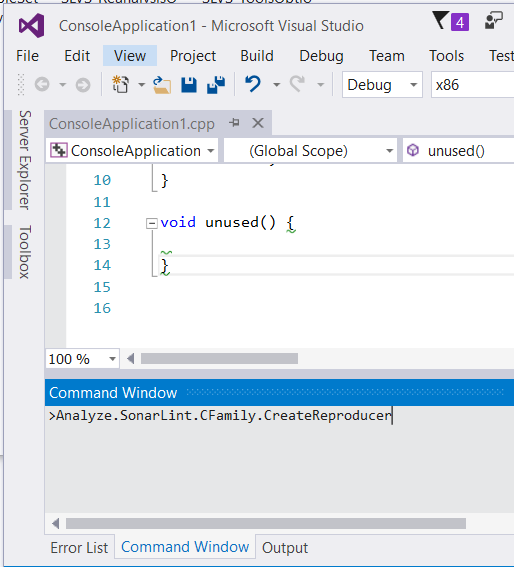
* Open Visual Studio’s [Command Window](https://docs.microsoft.com/en-us/visualstudio/ide/reference/command-window?view=vs-2019), found under **View** > **Other Windows** > **Command Window.**
* Type in the command window: `Analyze.SonarLint.CFamily.CreateReproducer`
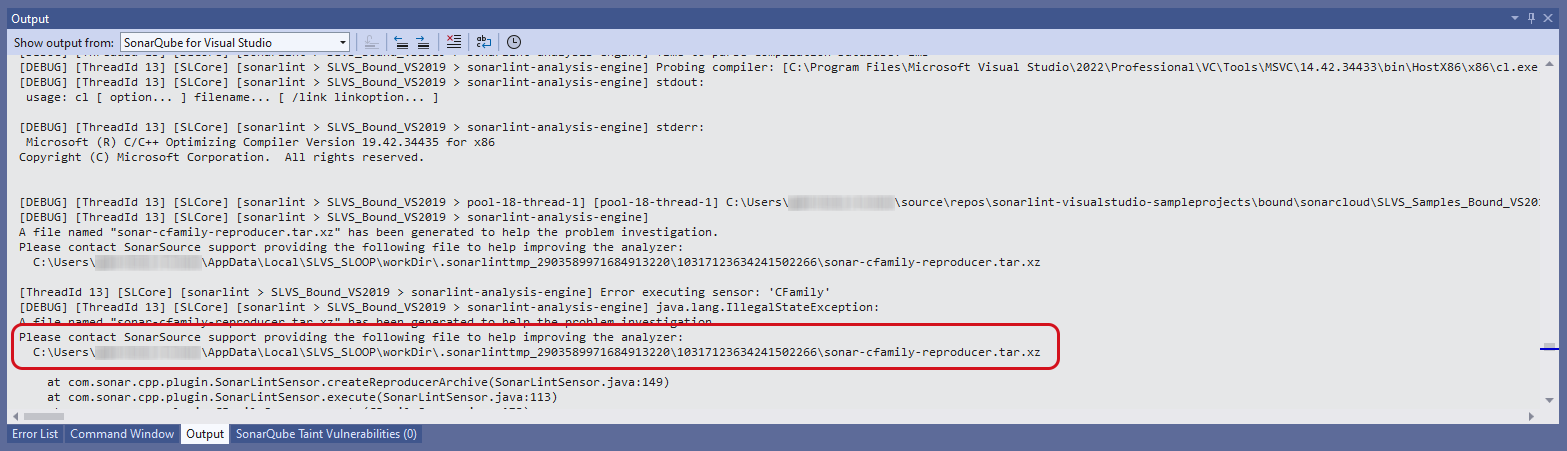
You can then view the location of the created reproducer file(s) in the SonarQube for Visual Studio Output pane. Be certain to [Troubleshooting](/sonarqube-for-visual-studio/resources/troubleshooting.md#how-to-get-sonarqube-for-vs-logs) and *show the output* from **SonarQube for Visual Studio**.
**Notes:**
* The reproducer file(s) are regenerated each time the command is invoked. Invoking the command will overwrite the previous reproducer file(s).
* Running the reproducer will only produce the reproducer file(s). It will not report any issues for the active C or C++ file, which might be helpful for your post to the Community or via your Sonar commercial support subscription.
Analyzing CMake projects in Visual Studio 2017.3 and 2019
SonarQube for Visual Studio does not support Visual Studio 2017 and 2019. These instructions apply to those versions only.
{% hint style="warning" %}
If you are creating a new CMake project in VS2019 there appears to be an intermittent issue with VS not recognizing the project as a CMake project until the folder is closed and re-opened. See ticket [#2656](https://github.com/SonarSource/sonarlint-visualstudio/issues/2656) for more information.
{% endhint %}
**Getting started - VS2017.3**
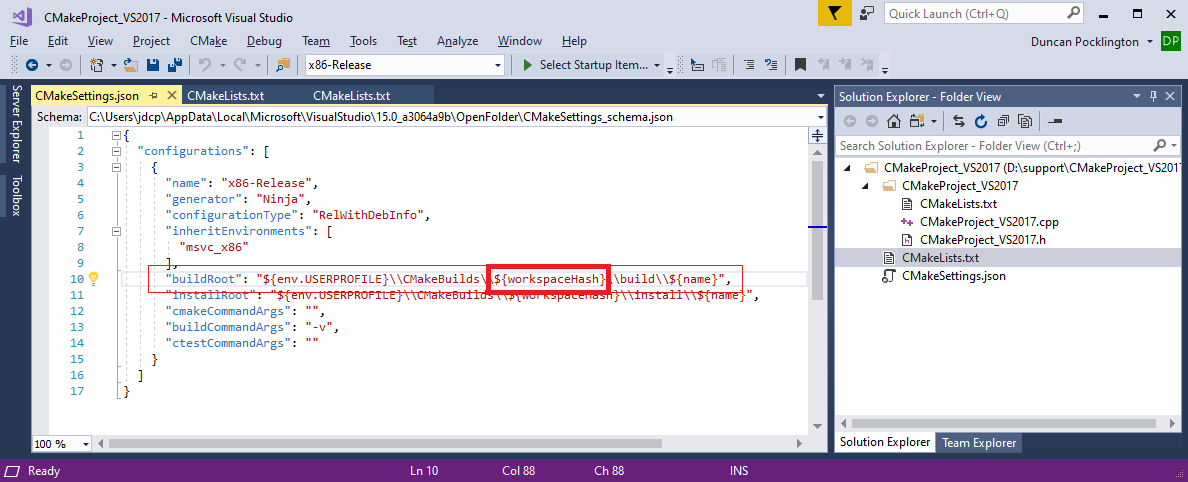
Follow the getting started steps on the [Requirements](/sonarqube-for-visual-studio/getting-started/requirements.md#language-specific-requirements) page. In addition, to successfully analyze C or C++ files in VS2017 your project will need to use a non-default *CMakeSettings.json* file. This is because the default *CMakeSettings.json* file uses the `workspaceHash` or `projectHash` macros, which are not supported by SonarQube for IDE in VS2017.
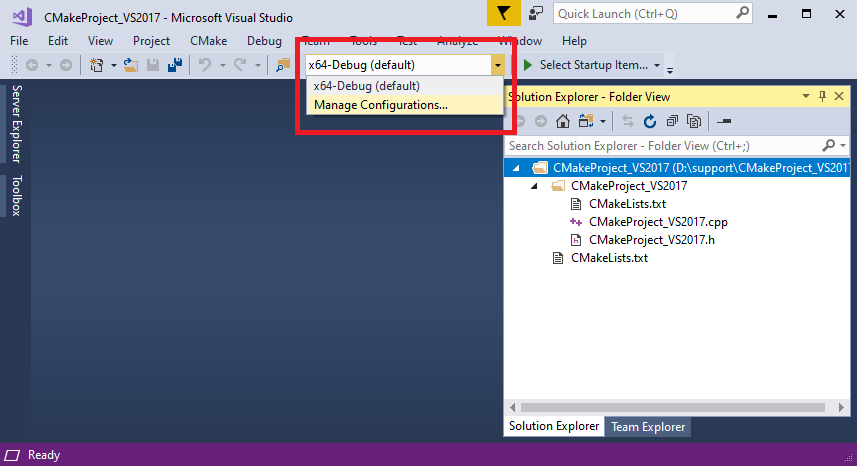
1\) If you do not already have a *CMakeSettings.json* file, Visual Studio will create one when you select the **Manage Configurations…** option and choose a compilation target:
Visual Studio will then create a default *CMakeSettings.json* file:
2\) Edit the *CMakeSettings.json* file to change the `buildRoot` property to one that does not use either `workspaceHash` or `projectHash`.
Note: the defaults used by Visual Studio for `buildRoot` and `installRoot` in VS2019 have changed to:
```json
"buildRoot": "${projectDir}\\out\\build\\${name}",
"installRoot": "${projectDir}\\out\\install\\${name}",
```
Using those values in VS2017 will allow SonarQube for Visual Studio to correctly analyze files in the CMake project.
**VS2017: workspaceHash and projectHash macros are not supported in VS2017**
VS2017 used a different hashing algorithm from VS2019, which is not supported. See issue [#2632](https://github.com/SonarSource/sonarlint-visualstudio/issues/2632).
This means that SonarQube for Visual Studio will not be able to analyze files if the `buildRoot` property uses either of these macros.
## Prior versions v4.13-7.2 Define C, C++, JS, TS or secrets detection rules for local analysis in version 4.13-7.2
{% hint style="info" %}
In SonarLint for Visual Studio 7.3 and newer, changing the Sonar severity of an issue is no longer possible.
{% endhint %}
In standalone mode, it is possible to enable or disable rules, configure rule parameters, and in versions 4.13-7.2, change the reported rule severity. Not all options are supported for all languages. See the table below for more information.
**Rule management support in versions 4.13-7.2**
| **Language** | **From version** | **Enable/disable** | **Change severity** | **Configure rule parameters** |
| ----------------- | ---------------- | ------------------ | ---------------------------------------------------------------------------------------------- | ---------------------------------------------------------------------------------------------- |
| C | 4.13 | Supported | Supported in v4.13-7.2 | Supported |
| C++ | 4.13 | Supported | Supported in v4.13-7.2 | Supported |
| JavaScript | 4.35 | Supported | Not supported. See [#2399](https://github.com/SonarSource/sonarlint-visualstudio/issues/2399). | Not supported. See [#2400](https://github.com/SonarSource/sonarlint-visualstudio/issues/2400). |
| TypeScript | 4.35 | Supported | Not supported. See [#2399](https://github.com/SonarSource/sonarlint-visualstudio/issues/2399). | Not supported. See [#2400](https://github.com/SonarSource/sonarlint-visualstudio/issues/2400). |
| Secrets detection | 6.4 | Supported | Not Supported | Not applicable |
**Disabling a rule**
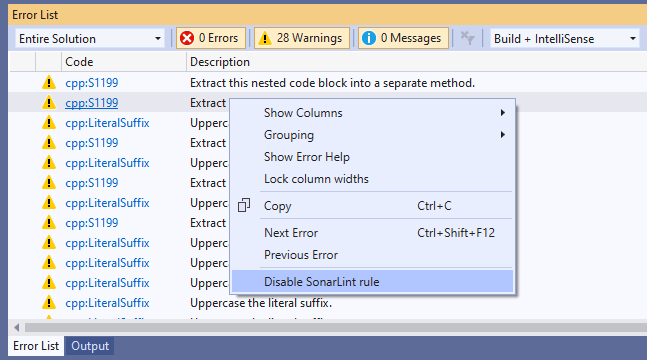
To disable a rule, select an instance of the rule in the Error List and select the **Disable SonarLint rule** command on the context menu:
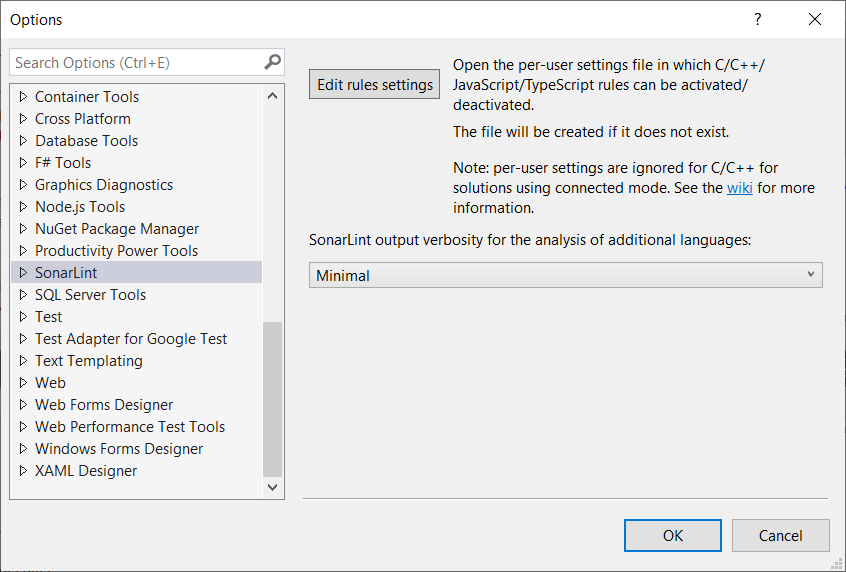
You can view and change the current rule settings by selecting **Edit rules settings** from the SonarLint > **Tools** > **Options** page:
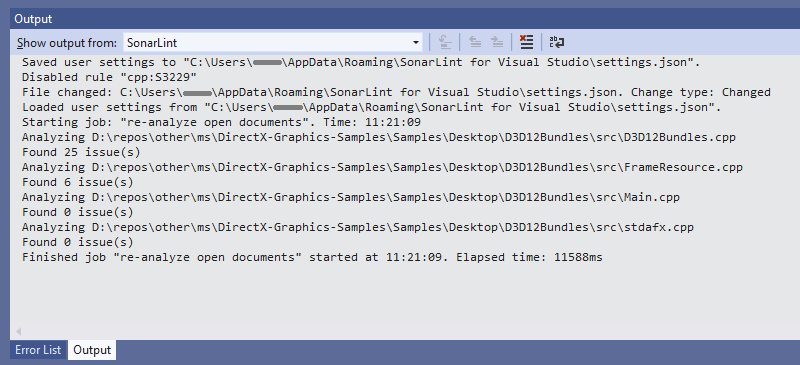
When the rule settings are changed (either by using the `Disable SonarLint rule` command or by directly editing and saving the settings.json file), SonarLint will automatically re-analyze all open documents.
The SonarLint Output window tab contains text output describing the processing that has taken place; see this example:
**settings.json file format and location**
The `settings.json` file is stored in user’s roaming profile `%APPDATA%\SonarLint for Visual Studio`. It applies to all supported versions of Visual Studio. If the machine is domain-joined, then the settings file will be automatically copied to any other machine in the domain that the user logs on to.
The format of the settings file is as follows:
```json
{
"sonarlint.rules": {
"c:S1135": {
"level": "On",
"severity": "Info"
},
"cpp:S1199": {
"level": "Off",
"severity": "Minor"
},
"javascript:S1135": {
"level": "Off"
},
"typescript:S1854": {
"level": "On"
}
}
}
```
The format of the rule key in the file is `[c|cpp|javascript|typescript]:[rule id]`.
Valid severity values are `Blocker`, `Critical`, `Major`, `Minor` and `Info`. Changing the severity of a rule only affects the label in the `Category` column in the Error List.
If the settings file does not contain an entry for a rule then the default setting for the rule in the Sonar way Quality Profile will be used.
**Note:** if the solution is in [Connected mode](/sonarqube-for-visual-studio/connect-your-ide/connected-mode.md), the settings file is ignored. Connected Mode is not currently for JavaScript or TypeScript - see [#770](https://github.com/SonarSource/sonarlint-visualstudio/issues/770). It is also not available for Secrets detection rules, which are only run in the IDE and so cannot be configured on the server.
Troubleshooting C or C++ Analysis
**Troubleshooting C or C++ Analysis from version 4.21**
Starting with version 4.21, it is possible to create a *reproducer* file for C and C++ analysis. A reproducer file contains diagnostic information to help the developers at Sonar investigate problems that occur during C or C++ analysis.
**Note:** Starting with version 4.27, a *second reproducer* file is created with additional debug information.
If you encounter a problem with C or C++ analysis, please contact us in the [Sonar Community forum](https://community.sonarsource.com/c/sl/visual-studio/35) and include the reproducer file(s).
**Creating a reproducer file for the Active Document**
To create a reproducer:
* open the C or C++ file that is not being analysed correctly
* open Visual Studio’s [Command Window](https://docs.microsoft.com/en-us/visualstudio/ide/reference/command-window?view=vs-2019), found under **View** > **Other Windows** > **Command Window.**
* type in the command window `Analyze.SonarLint.CFamily.CreateReproducer`:
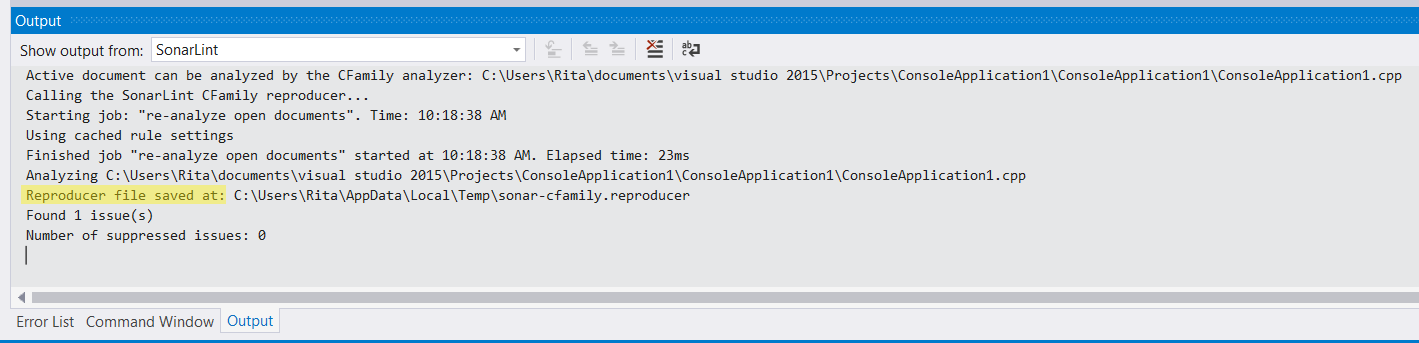
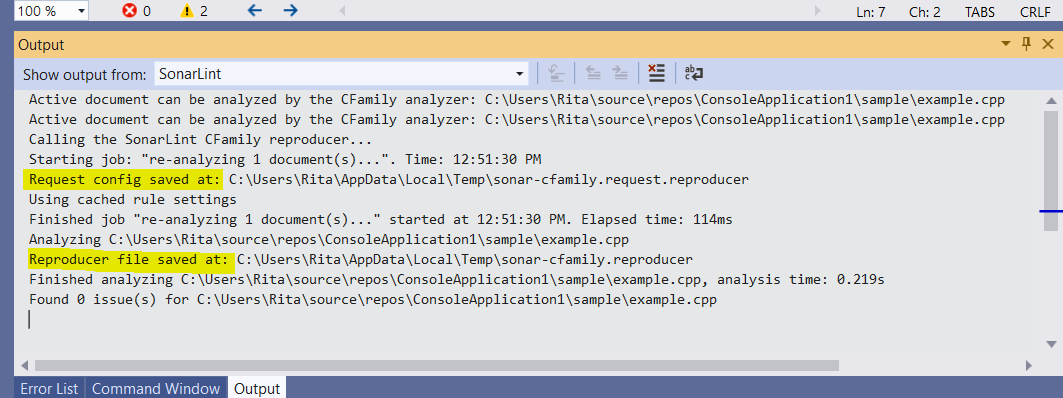
You can then view the location of the created reproducer file(s) in the SonarQube for Visual Studio Output pane:
Reproducer file in SonarLint 4.21-4.26
Where you can find your Reproducer file in SonarLint for Visual Studio v4.21-v4.26.
Reproducer files in SonarLint 4.27
**Notes:**
* The reproducer file(s) are regenerated each time the command is invoked. Invoking the command will overwrite the previous reproducer file(s).
* Running the reproducer will only produce the reproducer file(s). It will not report any issues for the active C or C++ file.
### File exclusions in 6.16 and earlier
In SonarLint for Visual Studio 6.16 and earlier, the sonar.settings.json file which saves the server defined file exclusions lives in the local .sonarlint folder.
You must manually **Update** your binding to refresh the sonar.setting.json file when changes are made in SonarQube Server or SonarQube Cloud; go **Team Explorer** > **SonarQube**, right-click the project whose binding you want to update, and select **Update**:
### Rule severity mapping before v7.2
The Sonar rule [severities](https://docs.sonarsource.com/sonarqube-server/user-guide/issues) defined by SonarQube Server or SonarQube Cloud are different than the [severities](https://docs.microsoft.com/en-us/visualstudio/code-quality/use-roslyn-analyzers?view=vs-2019#rule-severity) defined by Visual Studio. The mapping from Sonar severities to Visual Studio severities is as follows:
| SonarQube Server and SonarQube Cloud | Visual Studio |
| ------------------------------------ | ------------- |
| Info | Info |
| Minor | Info |
| Major | Warning |
| Critical | Warning |
| Blocker | Warning |
By default Sonar `Critical` and `Blocker` issues are not mapped to Visual Studio Error as this would cause IDE builds to fail. You can change that by enabling `Treat warnings as errors` in your project properties in Visual Studio. If you are using Connected Mode, the rule severities defined in the Quality Profile will be used.
{% hint style="info" %}
In SonarLint for Visual Studio 7.3 and newer, changing the Sonar severity of an issue is not possible.
{% endhint %}
## Versions prior to v4.34
{% hint style="warning" %}
This section describes the behavior of SonarLint versions 4.34 or older. Javascript analysis is enabled by default in versions 4.34+.
{% endhint %}
Out of the box, SLVS will analyze C#, VB.NET, and C or C++. Support for additional languages requires the download of another component, the SonarLint daemon. This simply requires clicking a button in the `Tools`, `Options`, `SonarLint` tab as described below.
The only additional language currently supported is JavaScript, although it is likely this set of supported languages will increase in the future.
### Enabling analysis of additional languages
To enable analysis of additional languages, select Tools, Options, SonarLint and click on the "Activate" button then clicking "OK". The SonarLint daemon binaries will be downloaded in the background, with the download progress being shown in the Visual Studio status bar.
Once the download has completed, JavaScript files will be analysed whenever you save them.
### Specifying an alternative download location (SLVS v4.11 or later)
By default the additional binaries will be downloaded from the public site . If you are working in an environment in which developer machines do not have access to the public internet, you can host the required binaries yourself and set the environment variable `SONARLINT_DAEMON_DOWNLOAD_URL` to tell SLVS where to find the binaries.
There are few restrictions:
* the environment variable SONARLINT\_DAEMON\_DOWNLOAD\_URL must be set before VS starts.
* the URL must be absolute.
* the daemon zip file must not be renamed i.e. it must in the format `sonarlint-daemon-{version}-windows.zip`.
### Changes to C/C++ analysis in SLVS v4.12
* Prior to SLVS v4.12 C++ was an additional language so C/C++ analysis would only occur if support for additional languages was enabled. Since v4.12 the C/C++ analysis binaries have been included in the SLVS VSIX so the SonarLint daemon is not required. If you were using SLVS to analyze C/C++ prior to v4.12, you no longer need to have support for additional languages enabled unless you also want JavaScript files to be analyzed.
### The SonarLint daemon
Most of the Sonar analyzers are written in Java and so need to be run in a Java process. The SonarLint daemon is a Java component that runs in the background and hosts the supported Sonar analyzers. There is no need to have Java installed separately on your development machine - the SonarLint daemon download includes the necessary Java runtime files.
SLVS handles communication with the daemon behind the scenes. Informational messages about the daemon will appear in the `SonarLint` pane of the Visual Studio `Output` tool window. Otherwise, the existence of the daemon should be completely transparent to the end user: SonarLint for Visual Studio will take care of starting and stopping the daemon, passing files for analysis, processing the results, and displaying them in the Visual Studio `Error List`.
The daemon will only be started when you open a file that can be analyzed by the daemon, and it will be closed automatically when you close the solution containing the file (note that this was not the case prior to SLVS v4.12; in older versions of SLVS the daemon would start when VS started).
You can use the Task Manager to check whether the daemon is running:
| | |
| ------------------- | --------------------------------------------------------------------------------------- |
| **Field** | **Value** |
| Process name | java.exe |
| Process description | OpenJDK Platform binary |
| File location | `%LOCALAPPDATA%\SonarLint for Visual Studio\sonarlint-daemon-{version}-windows\jre\bin` |
## Troubleshooting previous versions C or C++ Analysis in 8.20 and earlier
**Reproducer files for C and C++**
You can create a reproducer file for C and C++ analysis that contains diagnostic information to help the developers at Sonar investigate problems that occur in your analyses. Beginning in SonarQube for Visual Studio 8.10, the reproducer file may contain sensitive data about your machine’s environment variables. *\*Please take this into account when sharing your files.*
If you encounter a problem with C or C++ analysis, please contact us in the [Sonar Community forum](https://community.sonarsource.com/c/sl/visual-studio/35) and include the reproducer file. Follow the instructions below for complete instructions on how to do this.
**Creating a reproducer file for the Active Document**
To create a reproducer:
* Open the C or C++ file that is not being analyzed correctly
* Open Visual Studio’s [Command Window](https://docs.microsoft.com/en-us/visualstudio/ide/reference/command-window?view=vs-2019), found under **View** > **Other Windows** > **Command Window.**
* Type in the command window: `Analyze.SonarLint.CFamily.CreateReproducer`
You can then view the location of the created reproducer file(s) in the SonarQube for Visual Studio Output pane. Be certain to learn [Troubleshooting](/sonarqube-for-visual-studio/resources/troubleshooting.md#how-to-get-sonarqube-for-vs-logs), and *show the output* from **SonarQube for Visual Studio**.
**Notes:**
* The reproducer file(s) are regenerated each time the command is invoked. Invoking the command will overwrite the previous reproducer file(s).
* Running the reproducer will only produce the reproducer file(s). It will not report any issues for the active C or C++ file, which might be helpful for your post to the Community or via your Sonar commercial support subscription.
---
# Agent Instructions
This documentation is published with GitBook. GitBook is the documentation platform designed so that both humans and AI agents can read, navigate, and reason over technical content effectively. Learn more at gitbook.com.
## Querying This Documentation
If you need additional information that is not directly available in this page, you can query the documentation by asking a question.
Perform an HTTP GET request on the following URL with the `ask` and `goal` query parameters:
```
GET https://docs.sonarsource.com/sonarqube-for-visual-studio/resources/previous-versions.md?ask=&goal=
```
`ask` is the immediate question: it should be specific, self-contained, and written in natural language.
`goal` is what the user is ultimately trying to achieve, the reason they need the answer. Sharing it helps GitBook give you a better, more relevant answer. A goal is most helpful when it describes the outcome the user wants rather than restating the question. For example, with `ask=how do I create an API token`, a goal like `automate deployments from our CI pipeline` lets GitBook tailor the answer to that use case.
The response will contain a direct answer to the question and relevant excerpts and sources from the documentation.
Use this mechanism when the answer is not explicitly present in the current page, you need clarification or additional context, or you want to retrieve related documentation sections.