> For the complete documentation index, see [llms.txt](https://docs.sonarsource.com/llms.txt). Markdown versions of documentation pages are available by appending `.md` to page URLs; this page is available as [Markdown](https://docs.sonarsource.com/sonarqube-for-vs-code/getting-started/installation.md).
# Installation
The steps you need to install SonarQube for VS Code in your IDE.
SonarQube for IDE can be installed directly from your IDE’s Marketplace.
## Instructions
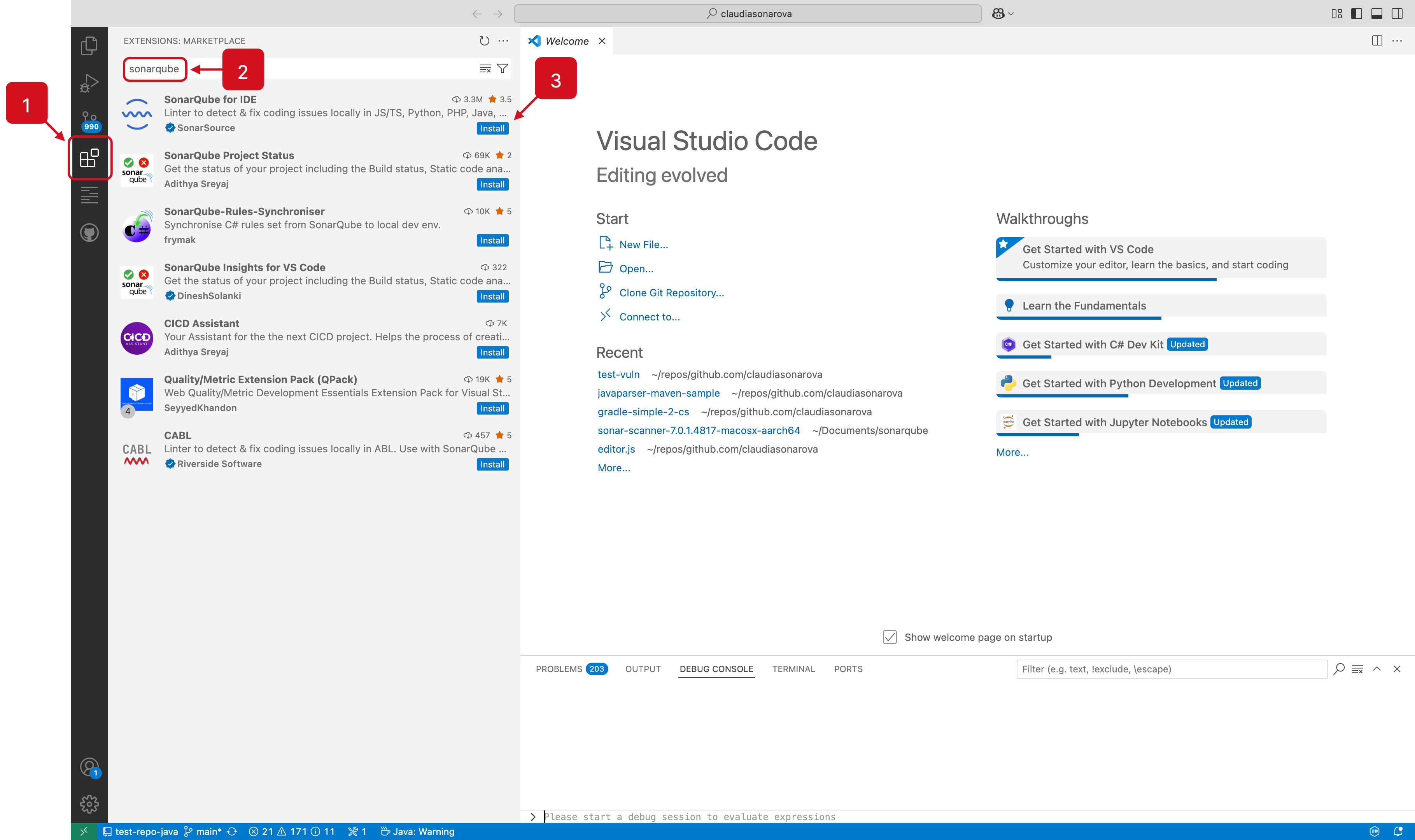
SonarQube for VS Code can be installed like any other VS Code extension as explained in the [VS Code documentation](https://code.visualstudio.com/docs/editor/extension-marketplace). The standard installation workflow described below works for VS Code, including the Cursor and Trae editors, as well as VSCodium, GitHub Codespaces, and GitPod, among others:
1. Select **Extensions** in the left sidebar of your VS Code app.
2. Enter `SonarQube for IDE` in the search bar.
3. Select **Install**.
Once the installation is complete, select the **Reload Required** button to finish the process.
Using the standard method, SonarQube for VS Code will be downloaded from:
* the [Microsoft Visual Studio Marketplace](https://marketplace.visualstudio.com/items?itemName=SonarSource.sonarlint-vscode) for VSCode and GitHub Codespaces.
* the [OpenVSX community marketplace](https://open-vsx.org/extension/SonarSource/sonarlint-vscode), for Cursor, [Trae](https://docs.trae.ai/ide/manage-extensions), and Devin Desktop editors, as well as VSCodium and GitPod.
* Both [Cursor](https://docs.cursor.com/guides/migration/vscode) and [Devin Desktop](https://docs.devin.ai/desktop/getting-started#forgot-to-import-vs-code-configurations) offer profile migration tools, which should include your VS Code extensions.
* In Cursor, you can simply drag and drop the .vsix file into the extensions tab.
As an alternative, the VSIX package for any given version can be downloaded from the [/sonarlint-vscode Release page on GitHub](https://github.com/SonarSource/sonarlint-vscode/releases) and installed using the `Install from VSIX` command in accordance with Microsoft’s [Install from a VSIX instructions](https://code.visualstudio.com/docs/editor/extension-marketplace#_install-from-a-vsix).
## First taste of SonarQube for IDE
Now that you have SonarQube for VS Code installed, open or create a new project containing source files in a programming language SonarQube for VS Code can analyze out of the box. See the [Rules and languages](/sonarqube-for-vs-code/using/rules.md) for languages that work with your IDE.
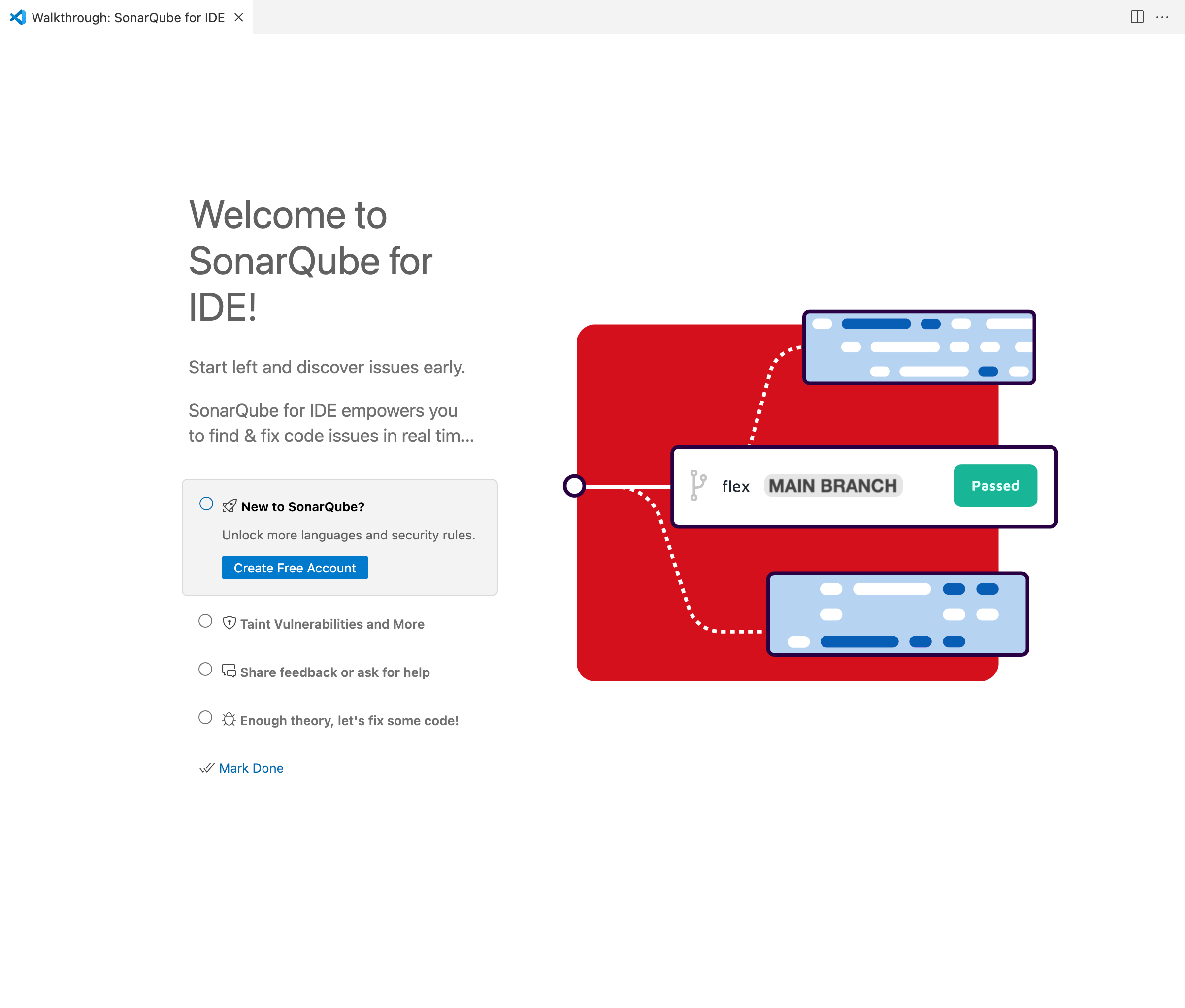
SonarQube for VS Code offers a **walkthrough** to help you make the best out of it SonarQube for IDE; it covers the basic features to help you:
* see issues in your code.
* learn more about those issues and fix them.
* synchronize the analysis configuration with other contributors.
* diagnose problems and share feedback with the SonarQube for IDE team.
The walkthrough will be automatically displayed when you install SonarQube for IDE for the first time, and you can manually open it anytime from the command palette: search **Welcome Open Walkthrough…**, then select **Welcome to SonarQube for IDE!** to have a look!
## Connect to your server
Connect SonarQube for VS Code to your instance of [SonarQube Server](/sonarqube-server/2026.1/user-guide/connected-mode.md), [SonarQube Cloud](/sonarqube-cloud/analyzing-source-code/connected-mode.md), or [SonarQube Community Build](/sonarqube-community-build/user-guide/connected-mode.md) to expand your analysis capabilities and share quality profiles with your team. See the article about connected mode [Connected mode](/sonarqube-for-vs-code/connect-your-ide/connected-mode.md#benefits), and the [Connected mode setup](/sonarqube-for-vs-code/connect-your-ide/setup.md) page for full instructions to get going.
## Updating SonarQube for IDE in VS Code
By default, SonarQube for VS Code will update automatically as soon as a new release is published. However, SonarQube for VS Code will *not update automatically* for users who intentionally pin a previous version of the extension.
## Limitations
SonarQube for VS Code is not supported in [Visual Studio Code Virtual Workspaces](https://code.visualstudio.com/api/extension-guides/virtual-workspaces). When installing SonarQube for VS Code you may receive the following error: `This extension has been disabled because it does not support virtual workspaces`
Support for virtual workspaces is on the Sonar roadmap; please check out the [feature description](https://portal.productboard.com/sonarsource/4-sonarqube-for-ide/c/499-support-remote-github-repositories-in-vs-code) and tell us how important the feature is to you.
---
# Agent Instructions
This documentation is published with GitBook. GitBook is the documentation platform designed so that both humans and AI agents can read, navigate, and reason over technical content effectively. Learn more at gitbook.com.
## Querying This Documentation
If you need additional information that is not directly available in this page, you can query the documentation by asking a question.
Perform an HTTP GET request on the following URL with the `ask` and `goal` query parameters:
```
GET https://docs.sonarsource.com/sonarqube-for-vs-code/getting-started/installation.md?ask=&goal=
```
`ask` is the immediate question: it should be specific, self-contained, and written in natural language.
`goal` is what the user is ultimately trying to achieve, the reason they need the answer. Sharing it helps GitBook give you a better, more relevant answer. A goal is most helpful when it describes the outcome the user wants rather than restating the question. For example, with `ask=how do I create an API token`, a goal like `automate deployments from our CI pipeline` lets GitBook tailor the answer to that use case.
The response will contain a direct answer to the question and relevant excerpts and sources from the documentation.
Use this mechanism when the answer is not explicitly present in the current page, you need clarification or additional context, or you want to retrieve related documentation sections.